---
tags: BMMB554-23
---
[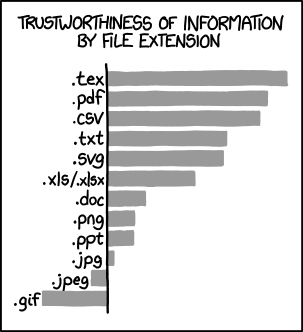](https://xkcd.com/1417)
# Lecture 8: Python 4 - Recap of what we learned so far
-----
:::info
Several sections of this lecture are based on Andrew Kern's [notes](https://github.com/andrewkern/biol610)
:::
## Variables
In Python, a variable is a named storage location for values used in a program. When you create a variable, you can assign a value to it using the assignment operator (=). For example:
```python=
x = 10
y = "Hello, World!"
```
In Python, variables do not have to be declared before use, unlike some other programming languages. Additionally, the type of value stored in a variable can change during the course of a program.
It's important to use meaningful variable names that describe the data stored in the variable. Additionally, variable names in Python must start with a letter or underscore, and can only contain letters, numbers, and underscores.
## Operators
Python has a variety of build in operators that can manipulate so-called opperands. We'll start with what will be more familiar arithmetic operators and go from there
### Arithmetic Operators
Below is the table of built-in arithmetic operators in Python
| Symbol | Task Performed |
|----|---|
| `+` | Addition |
| `-` | Subtraction |
| `/` | division |
| `%` | mod |
| `*` | multiplication |
| `//` | floor division |
| `**` | to the power of |
the modulo operator `%` finds the remainder after dividing the first number by the second
```python=
12%10
```
```
2
```
Floor division is nothing but converting the result so obtained to the nearest integer.
```python=
2.8//2.0
```
```
1.0
```
### Order of operations -- PEMDAS
Python evaluates arithmetic according to the standard order of operations that you learned in middle school-- Parentheses Exponentiation Multiplication Division Addition Subtraction or PEMDAS. Perhaps you remember the mnemonic "Please Excuse My Dear Aunt Sally"
**Exercise:** predict the output from the following two lines of code. Why are they different?
```python=
1+2*5
```
```python=
(1+2)*5
```
### Relational Operators
| Symbol | Task Performed |
|----|---|
| == | True, if it is equal |
| != | True, if not equal to |
| < | less than |
| > | greater than |
| <= | less than or equal to |
| >= | greater than or equal to |
```python=
z = 1
```
```python=
z == 1
```
This is an important one -- note what happened. Using the `==` operator checks for equivalence and returns a boolean
```python=
z >= 1
```
```python=
aBool = True
anotherBool = False
print(aBool == anotherBool)
print(aBool != anotherBool)
```
### Casting
sometimes we wish to change a variable from one type to another. This is what is called "casting". For instance we can cast an integer as a float, or a float into a complex number, etc.
```python=
a = 1.0
print(int(a)) #casts a as an int
print(str(a)) #casts a as a string
```
### Simplifying Arithmetic Operations
`round()` function rounds the input value to a specified number of places or to the nearest integer.
```python=
print(round(5.6231))
print(round(4.55892, 2))
```
## Data types
In Python, there are several built-in data types that can be used to store different types of values:
- `int`: Represents a signed integer value. For example: x = 10.
- `float`: Represents a floating-point number. For example: x = 3.14.
- `complex`: Represents a complex number. For example: x = 3 + 4j.
- `str`: Represents a string of characters. For example: x = "Hello, World!". Strings are surrounded by either single or double quotes.
- `list`: Represents an ordered collection of values, which can be of different data types. For example: x = [1, 2, 3, 4].
- `tuple`: Represents an ordered collection of values, which can be of different data types. Unlike lists, tuples are immutable and cannot be modified once created. For example: x = (1, 2, 3, 4).
- `dict`: Represents a collection of key-value pairs. For example: x = {"a": 1, "b": 2, "c": 3}.
- `set`: Represents a collection of unique values. For example: x = {1, 2, 3, 4}.
- `bool`: Represents a boolean value, either True or False.
It's important to choose the appropriate data type for your values, as this can impact the performance and functionality of your program. You don't need to explicitly declare the data type of a variable in Python. The data type of a variable is determined dynamically based on the value that is assigned to it:
```python=
a = 2
b = 2.45
c = 3+4j
d = 'abcd'
e = [1,2,2,3,4]
f = (1,2,2,3,4)
g = { "key1":"value1", "key2":"value2"}
h = set((1,2,2,3,4))
i = True
```
In this example, the data type of `x` is `int`, the data type of `y` is `str`, and the data type of `z` is `list`. You can use the `type()` function to check the data type of a variable:
```python=
print(type(a))
print(type(b))
print(type(c))
print(type(e))
print(type(f))
print(type(g))
print(type(h))
print(type(i))
```
will result in:
```python=
<class 'int'>
<class 'float'>
<class 'complex'>
<class 'list'>
<class 'tuple'>
<class 'dict'>
<class 'set'>
<class 'bool'>
```
## Data structures
:::info
**What is the difference between a *variable* and a *data structure*?**
A variable in Python is a named reference to a value, while a data structure is a collection of values organized in a specific way.
Variables can be thought of as a single value, such as a number, string, or boolean. For example, `x = 10` declares a variable `x` that references the value `10`. The value of `x` can be changed later in the program by reassigning a new value to it.
Data structures, on the other hand, allow you to store and organize multiple values. Python provides several built-in data structures, such as lists, dictionaries, and sets, that allow you to store and manipulate collections of values in a structured way. For example, `x = [1, 2, 3, 4]` declares a list `x` that references a collection of values. The elements in the list can be modified, added, or removed as needed.
In short, a variable is a single value, while a data structure is a collection of values. You can use variables to store single values and data structures to store and organize collections of values.
:::
In Python, there are several built-in data structures that can be used to store and organize data in a meaningful way:
- `List`: Represents an ordered collection of values, which can be of different data types. Lists are mutable, which means you can change their contents by adding, removing, or modifying elements. For example: `x = [1, 2, 3, 4]`.
- `Tuple`: Represents an ordered collection of values, which can be of different data types. Unlike lists, tuples are immutable and cannot be modified once created. For example: `x = (1, 2, 3, 4)`.
- `Dictionary`: Represents a collection of key-value pairs. Dictionaries are mutable and can be modified by adding, removing, or modifying key-value pairs. For example: `x = {"a": 1, "b": 2, "c": 3}`.
- `Set`: Represents a collection of unique values. Sets are mutable and can be modified by adding or removing elements. For example: `x = {1, 2, 3, 4}`.
- `String`: Represents a string of characters. Strings are immutable and cannot be modified once created. For example: `x = "Hello, World!`".
It's important to choose the appropriate data structure for your data, as this can impact the performance and functionality of your program. Additionally, Python provides several advanced data structures, such as linked lists and trees, that can be used to solve more complex problems.
### [Lists](https://docs.python.org/3/tutorial/datastructures.html#more-on-lists)
A list is a collection of items that can be of different data types, including numbers, strings, and other objects. Lists are ordered and mutable, which means that the items in a list have a defined order, and that the order and values of the items can be changed.
A list is defined using square brackets `[]` and the items are separated by commas. For example:
```python=
fruits = ['apple', 'banana', 'cherry']
```
You can access individual elements of a list using indexing, which starts at 0. For example:
```python=
print(fruits[0]) # Output: 'apple'
```
You can also change the value of an element in a list by using the index:
```python=
fruits[0] = 'pear'
print(fruits) # Output: ['pear', 'banana', 'cherry']
```
:::info
The fact the you can change values of individual elements in a list implies that it is **MUTABLE**!
:::
#### List slicing
List slicing is a way to extract a portion of a list and create a new list with the extracted elements. The slicing syntax uses the square brackets `[] and the colon `:` operator.
Here's the basic syntax for list slicing:
```
list[start:stop:step]
```
- `start`: The index of the first element to include in the sliced list. If start is not specified, it defaults to 0.
- `stop`: The index of the first element that is NOT included in the sliced list. If stop is not specified, it defaults to the end of the list.
- `step`: The number of indices to move forward between elements. If step is not specified, it defaults to 1.
Here are a few examples to illustrate the concept:
```python=
fruits = ['apple', 'banana', 'cherry', 'orange', 'mango']
# Extract the first two elements
print(fruits[:2]) # Output: ['apple', 'banana']
# Extract every other element
print(fruits[::2]) # Output: ['apple', 'cherry', 'mango']
# Extract the last two elements
print(fruits[-2:]) # Output: ['orange', 'mango']
# Extract all elements in reverse order
print(fruits[::-1]) # Output: ['mango', 'orange', 'cherry', 'banana', 'apple']
```
Note that slicing a list creates a new list with the extracted elements. The original list remains unchanged. If you want to modify the original list, you can assign the result of the slice to a new variable, or you can modify the slice directly. For example:
```python=
fruits = ['apple', 'banana', 'cherry', 'orange', 'mango']
# Modify the first two elements
fruits[:2] = ['pear', 'kiwi']
print(fruits) # Output: ['pear', 'kiwi', 'cherry', 'orange', 'mango']
```
#### List methods
Some common list methods. For more methods see [here](https://docs.python.org/3/tutorial/datastructures.html#more-on-lists).
---
> **`append(item)`**
Adds an item to the end of the list.
```python=
fruits = ['apple', 'banana', 'cherry']
fruits.append('orange')
print(fruits) # Output: ['apple', 'banana', 'cherry', 'orange']
```
----
> **`extend(iterable)`**
Adds all the items from an *iterable* (such as a list) to the end of the list.
```python=
fruits = ['apple', 'banana', 'cherry']
new_fruits = ['orange', 'mango']
fruits.extend(new_fruits)
print(fruits) # Output: ['apple', 'banana', 'cherry', 'orange', 'mango']
```
----
> **`insert(index, item)`**
Inserts an item at the specified index.
```python=
fruits = ['apple', 'banana', 'cherry']
fruits.insert(1, 'orange')
print(fruits) # Output: ['apple', 'orange', 'banana', 'cherry']
```
----
> **`remove(item)`**
Removes the first occurrence of the specified item in the list.
```python=
fruits = ['apple', 'banana', 'cherry']
fruits.remove('banana')
print(fruits) # Output: ['apple', 'cherry']
```
----
> **`pop(index)`**
Removes the item at the specified index and returns it. If no index is specified, the last item is removed and returned.
```python=
fruits = ['apple', 'banana', 'cherry']
removed_fruit = fruits.pop(1)
print(fruits) # Output: ['apple', 'cherry']
print(removed_fruit) # Output: 'banana'
```
-----
> **`sort()`**
> Sorts the items in the list in ascending order.
```python=
fruits = ['cherry', 'apple', 'banana']
fruits.sort()
print(fruits) # Output: ['apple', 'banana', 'cherry']
```
----
>**`reverse()`**
Reverses the order of the items in the list.
```python=
fruits = ['apple', 'banana', 'cherry']
fruits.reverse()
print(fruits) # Output: ['cherry', 'banana', 'apple']
```
### [Tuples](https://docs.python.org/3/tutorial/datastructures.html#tuples-and-sequences)
A tuple in Python is an **immutable**, ordered sequence of elements of any type, enclosed in parentheses ( ). Each element in the tuple is called an item and can be of different data types like integers, strings, lists, etc. Tuples are commonly used to store collections of heterogeneous data.
```python=
my_tuple = (1, "Hello", [3, 4])
print(my_tuple) # Output: (1, "Hello", [3, 4])
```
#### Tuple slicing
Tuple slicing works similarly to list slicing explained above
#### Tuple methods
Tuples in Python have several built-in methods that allow you to perform various operations on them. Some of the most commonly used tuple methods are:
- `count()`: Returns the number of times a specified value appears in the tuple.
- `index()`: Returns the index of the first occurrence of a specified value in the tuple.
- `len()`: Returns the number of elements in the tuple.
Here's an example using these methods:
```python=
my_tuple = (1, 2, 3, 2, 4, 5)
print(my_tuple.count(2)) # Output: 2
print(my_tuple.index(3)) # Output: 2
print(len(my_tuple)) # Output: 6
```
### [Dictionaries](https://docs.python.org/3/tutorial/datastructures.html#dictionaries) (hashes)
Dictionaries in python are containers that are based on key/value associations. With a list you address it's elements on the basis of their index in the array. With a dictionary you address elements of the container on the basis of a unique identifier, numeric or string valued. Dictionary keys can also be tuples (one of the benefits of being immutable) as long as the tuple contains only strings, numbers, or tuples.
An empty dictionaries is instantiated with a curly brace like so `{}` and key:value pairs are added and seperated by commas. Mostly we use Dictionaries to store things that we want fast access to, without having to do any kind of iteration.
```python=
#set up a dict with two key:value pairs
aDict = {'dog':'food', 'cat':'box'}
print(aDict['dog'], aDict['cat'])
```
We can add elements to the dictionary by giving them a new key, and we can delete elements using `del()`
```python=
aDict['bird'] = 'chow'
print(aDict)
del(aDict['cat'])
print(aDict)
```
If we ever have to iterate over all the elements in a dictionary the best way to do it is using the `keys()` generator
```python=
for aKey in aDict.keys():
print(aKey)
```
and of course we can turn that generator into a list if we would like it in a different form
```python=
keyList = list(aDict.keys())
print(keyList)
print(len(keyList))
```
### [Sets](https://docs.python.org/3/tutorial/datastructures.html#sets)
:::info
The following section is copied from python.org documentation
:::
Python also includes a data type for sets. A set is an unordered collection with no duplicate elements. Basic uses include membership testing and eliminating duplicate entries. Set objects also support mathematical operations like union, intersection, difference, and symmetric difference.
#### Creating sets
Curly braces or the set() function can be used to create sets. Note: to create an empty set you have to use set(), not {}; the latter creates an empty dictionary, a data structure that we discuss in the next section.
Here is a brief demonstration:
```python=
basket = {'apple', 'orange', 'apple', 'pear', 'orange', 'banana'}
print(basket) # show that duplicates have been removed
{'orange', 'banana', 'pear', 'apple'}
'orange' in basket # fast membership testing
True
'crabgrass' in basket
False
```
### Set operations
Here is another example of set operations on unique letters from two words
```python=
a = set('abracadabra')
b = set('alacazam')
a # unique letters in a
{'a', 'r', 'b', 'c', 'd'}
a - b # letters in a but not in b
{'r', 'd', 'b'}
a | b # letters in a or b or both
{'a', 'c', 'r', 'd', 'b', 'm', 'z', 'l'}
a & b # letters in both a and b
{'a', 'c'}
a ^ b # letters in a or b but not both
{'r', 'd', 'b', 'm', 'z', 'l'}
```
### [Strings](https://docs.python.org/3/library/stdtypes.html#text-sequence-type-str)
It is worth spending a bit of effort on strings as 1) they come up a lot and 2) there are a whole variety of built in functions that python allows you to use on strings. Strings can be declared using single or double quotes. Likewise backslash escapes work within both single and double quoted strings -- e.g. \n \' \". A double quoted string can contain single quotes without any issues (e.g. "I didn't do it") and similarly single quoted string can contain double quotes.
Like tuples, strings are immutable. This means that when we concatenate strings we are producing new objects in memory. Like lists, we can index and slice strings easily.
```python=
aStr = 'omg'
print(aStr[1])
print(aStr[0:2])
print(len(aStr)) #print the length
bStr = aStr + ' what?' #concatenate two strings
print(bStr)
```
some super useful string methods include `lower()`,`upper()`, `split()`, `strip()`, among others. Look at the documentation [here](https://docs.python.org/3/library/stdtypes.html#textseq) for a full list.
We will just illustrate a few things below
```python=
s = bStr.upper()
print(s)
print(s.lower())
word_list = s.split(" ") #split on space
print(word_list)
```
#### Slicing strings
A really convenient thing with python strings is our ability to slice them up to get out substrings. The same ideas are implemented for lists. For instance consider the the string `s = 'Hello'`
<img src="files/hello.png">
* `s[1:4]` is `'ell'` -- chars starting at index 1 and extending up to but not including index 4
* `s[1:]` is `'ello'` -- omitting either index defaults to the start or end of the string
* `s[:]` is `'Hello'` -- omitting both always gives us a copy of the whole thing (this is the pythonic way to copy a sequence like a string or list)
* `s[1:100]` is `'ello'` -- an index that is too big is truncated down to the string length
Alternatively Python allows us to index from the *back* of strings/lists using negative indices. For instance
* `s[-1]` is `'o'` -- last char (1st from the end)
* `s[-4]` is `'e'` -- 4th from the end
* `s[:-3]` is `'He'` -- going up to but not including the last 3 chars.
* `s[-3:]` is `'llo'` -- starting with the 3rd char from the end and extending to the end of the string.
Please try these out below
```python=
s = 'Hello'
s[-3:]
```
## Iteration (loops) and conditionals (if-then)
### Iterating over lists
Iterating over the content of lists is something that will come up again and again as you grow in your programming. The basic idea is that you want to go through an array, addressing each object in that list.
A simple way to see this is to print the contents of arrays
```python=
aList = [1,3,5,19,-8,0]
#for element in aList:
#print(element)
x = 'something important'
for x in aList:
print(x+1)
print(x)
```
```python=
#have code that's outside
x = 1
y = x +2
y+=4
print(y)
for x in [1,2,3]:
y+=x
print("from inside: ",y)
for potato in [1,2,3]:
print("even more inside")
print("now i'm outside")
```
this is our first instance of a `for` loop. in this case we are using `for` to iterate over each of the elements of `aList`, pass them to a temporary variable called `element`, and then print them.
**Important-** notice the indentation after the line with `for`? The Python interpretter (the thing that reads your code and translates it to machine instructions) parses according to specific rules of **whitespace**, or basically indentation. Lines where represent code blocks nested within other blocks are indented using four spaces (preferred) or a tab. Bear in mind that programmers who use four spaces have been shown to [make more money than those that use tabs](https://stackoverflow.blog/2017/06/15/developers-use-spaces-make-money-use-tabs/) to indent their python code. You can read more about whitespace [here](https://docs.python.org/2.0/ref/indentation.html)
Let's try interating over the `cList` from above, and then move on to using the very cool `range()` function.
```python=
for x in cList:
print(x)
```
Python has a built-in function called `range()` that we will use over and over for interating. `range()` is special in that it acts like a *generator*, producing new numbers on the fly one after another. It does *not* return a list of number, although we can make it do just that.
For instance this example just uses the generator like behavior of `range()`
```python=
#iterate using range()
for x in range(10):
print(x)
```
```python=
#range allows to set the start, stop, and step size
for x in range(1,20,2):
print(x)
```
```python=
#turn range into a list
aRange = list(range(10))
print(aRange)
```
:::success
**Exercise:** Print out your first name vertically using use a `for` loop.
:::
```python=
a = ['A','n','d','y']
for x in a:
print(x)
```
## More with lists
A lot can be done with lists including, sorting them, reversing, slicing, appending, etc.. Here are a few examples
```python=
aList = []
aList.append(1)
aList.append(4)
aList.append(2)
print(aList)
aList.sort()
print(aList)
aList.reverse()
print(aList)
aList.remove(4)
print(aList)
```
**Exercise:** using a `for` loop write code that will calculate the sum of the numbers 1 through 100
```python=
```
## While loops
We've just covered so-called `for` loops, one of the most basic ways to iterate across arrays and make things happen in a program. Next let's look at the `while` loop.
`while()` tests whether a condition is true, and while it remains true the inner loop keeps iterating. This is best understood with a simple example
```python=
#set up a variable
i = 0
while(i < 10):
print(i)
i += 2
```
:::success
**Exercise:** use a `while` loop to write code to calculate the factorial of a number. i.e., $4! = 4 \times 3 \times 2 \times 1$
:::
Thus far we have gone over nearly all of the major building blocks, with the major exception of what we call Control Flow statements. This isn't quite true as we had a look at `for` and `while` loops, but we will put those in context a bit today.
The basic idea is that Control Flow statements tell the program which blocks of code to move between depending on the state of the program (or variables within that program more accurately).
## If statements
As you might expect, `if` statements only run a block of nested code if a statement evaluates as true. In Python we work with `if`, `elif`, and `else` statements to control conditional flow through execution. For instance let's illustrate this with a while loop.
```python=
#simple if statement
aBool = True
if aBool:
print(aBool)
#a second example
aBool = False
if aBool:
print("it was true")
else:
print("it was false")
```
Note there is no need for any `elif` or `else` clauses.
Here is a more complex `if` `else` construction, this time nested within a `while` loop.
```python=
x = 0
while x <= 10 :
if x < 2 :
print("x = ",x,"; it is < 2")
elif x < 4:
print("x = ",x,"; 2 <= x < 4")
elif x < 6:
print("x = ",x,"; 4 <= x < 6")
else:
print("x = ",x,"; x >= 6")
x+=1
```
Note: there can be as many `elif` statements as you want in such a block of code.
## List comprehensions
List comprehension give us a compact way to loop through a container, examine each object within, do something to each object, and return a new list of those potentially altered objects. List comprehensions are powerful, but can be difficult to read.
For instance consider the following code
```python=
x_list = list(range(5))
x2_list = []
for x in x_list:
x2_list.append(x+2)
print(x_list)
print(x2_list)
```
We can achieve the same result much more succinctly using a list comprehension. This would look like
```python=
x2_list = [x+2 for x in x_list]
print(x2_list)
```
List comprehensions can also have `if` clauses embedded within them. The `if` statements go after the container in the list comprehension syntax. For instance
```python=
x2_list = [x+2 for x in x_list if x > 2]
print(x2_list)
```
As I said, list comprehensions are hard to read. For the beginning Pythonista I would avoid this construction
## Break statement
`break` kills a loop in place and exits to code to outside of whatever loop it is in. Generally we use `break` to exit loops prematurely if some condition is met, thus you will almost always see `break` within an `if` clause.
For instance consider the following
```python
x = 0
while x < 10:
print(x)
if x > 2:
break
x+=1
```
**Exercise:** what would happen to the while loop above if that break statement were not there? Predict what will happen, change the code above, and make sure that the your prediction matches the reality.
## Else clauses after loops
There is an option in Python to add an `else` clause after a `for` or `while` loop which is meant to execute only if the loop does not exit prematurely due to a break. This is a clever way to check to see if a loop has exited early or not.
For example:
```python
x = 0
while x < 10:
print(x)
if x > 2:
break
x+=1
else:
print("did not hit the break statement")
```
there are a few other, less used control flow statements available in python including `continue`, `pass`, and `try`. If you are interested you can read about them [here](https://docs.python.org/3/tutorial/controlflow.html)
## Writing Functions
One of the key building blocks of programming is writing your own functions. Functions take some input parameters (or none) and produce some output. Functions are defined in the Python world using the `def` keyword. The following function takes no parameters at input (the paratheses are empty) and it will print a bit of text
```python=
def my_function():
print("Hello, from my little function")
```
```python=
my_function()
```
We can define our function to take parameters for it to use during evaluation simply enough
```python=
def my_function(aName):
print("Hello,",aName,"from my little function")
my_function("Potato")
```
this can even include more than one parameter
```python=
def my_function(aName, bName):
print("Hello,",aName, bName,"from my little function")
my_function("Andy", "Kern")
```
Often when we write functions we want them to return some value. That's done using the `return` statement
```python=
def my_adding_function(num1, num2):
result = num1 + num2
return result
my_adding_function(1,1)
```
Of course functions can be quite complex, but they need not be. Indeed good style in coding means reaching some equilibrium between readability of code and succictness.
**Exercise:** write a function that takes as input a list of numbers and returns the sum of that list.
```python=
aList = [1,3,5,7]
def list_sum(tmpList):
s = 0
for x in tmpList:
s += x
return s
print(list_sum(aList))
```
### The Fibonacci sequence
The Fibonacci sequence was famously introduced by a 13th Century Italian mathematician of the same name to describe the growth of rabbit populations. The sequence of Fibonacci numbers goes like this:
$F_0 = 0, F_1 = 1$ and $F_n = F_{n-1} + F_{n-2}$
:::success
**Exercise** in class, write a function to compute all of the Fibonacci series upto some defined ith term. Your function should take i, the last number in the series to calculate as input and return a list of all the numbers up to that point
:::
## Modules
In python we organize our code into things called modules. Concretely modules are individual files that have functions and other code bits in them that we can then import into another piece of code to extend our functionality.
To illustrate this let's write a very simple module. Using the jupyter notebook homepage, create a new text file and name it `myModule.py`. You can do this the same way you create a new notebook. Then copy and paste the function below into `myModule.py` and save that file.
```python=
def my_module_function():
print("hello from myModule.py!")
```
Once that function is in `myModule.py` and saved we are ready to `import` the module to bring that code into the current context. Here's how that will look
```python=
import myModule
myModule.my_module_function()
```
Note here that to call the function that I have stored in my module, I need to prefix it with `myModule`. This is because the *namespace* of that function is different than the current context.
I can get rid of that hassle a few ways. One way is to import each of the functions from the module directly into the current namespace
```python=
from myModule import *
my_module_function()
```
By using `from` here I'm important a particular function(s). In this case I use the `*` symbol to mean "import all the functions". I could also change the name of the myModule namespace to make it easier to type like so
```python=
import myModule as mm
mm.my_module_function()
```
now `mm` represents the namespace of `myModule` and so it is more convenient to type again and again. We will see this convention quite a bit next week as we move on to using `numpy` and `scipy`.
### Bringing in code from standard library modules
Python has a very large standard library that it ships with. Indeed this is one of the most attractive features of Python-- there is a ton of code available for you to use, rather than having to write it all yourself. Details on the complete standard library can be found [here](https://docs.python.org/3/library/).
To illustrate using this code we will start by using the Python `random` module that provides a convenient, but pretty full featured interface to a random number generator. First let's import the `random` module, and then we can use it a bit. We will start by printing out some random numbers.
```python=
import random
for i in range(5):
print(random.random())
```
`random.random()` returns random floating point numbers between 0 and 1. The `random` module has a lot of other types of random number distributions available, for instances normally distributed random numbers or exponential random numbers.
```python=
#print 5 normal random deviates
aList = [random.normalvariate(0,1) for x in range(100)]
tmpmin = -66
for x in aList:
if tmpmin < x:
tmpmin = x
print(tmpmin)
```
:::success
**Exercise:** use `random` to calculate 100 normally distributed random numbers with mean 0 and standard deviation 1. Now calculate the mean of those numbers. Is it indeed close to 0?
:::
Another thing that `random` is very useful for is sampling from lists randomly
```python=
#define a list then select one element from it randomly
aList = ["dog", "cat", "frog", "alpaca", "potato"]
print(random.choice(aList))
```
We can use a very similar function in `random` to sample with replacement more than one element from our list
```python=
#sample 3 elements from aList
random.choices(aList, k=3)
```
Finally a very useful tool in `random` is `shuffle()` which will shuffle the order of elements in a list in-place. i.e., the list will be changed
```python=
#try evaluating this cell more than once
random.shuffle(aList)
print(aList)
```
There is a whole slew of functions provided by `random` that are useful to scientists. Read about them in the [documentation](https://docs.python.org/3/library/random.html)
 Google Drive
Gist
Clipboard
Google Drive
Gist
Clipboard
 Sign in with Wallet






