# CSS 筆記
## CSS 參考網址
- [w3schools](https://www.w3schools.com/css/)
:::success
學習完後可去練習的地方練習我們設計的題目,可以試試看會不會~~
:::
## How to use CSS
有三種插入style的方式:
1. [External CSS](#External-CSS)
2. [Internal CSS](#Internal-CSS)
3. [Inline CSS](#Inline-CSS)
### External CSS
將CSS指令寫在另一個副檔名為.css的檔案中(不能包含任何HTML指令),可以直接改變整個網站風格
指令:
```html
<head>
<link rel="stylesheet" href="檔案名稱/路徑">
</head>
```
### Internal CSS
將CSS指令寫在和HTML指令同一個檔案中,只能修改此網頁的風格
指令:
```html
<head>
<style>
body {
background-color: linen;
}
h1 {
color: maroon;
margin-left: 40px;
}
</style>
</head>
```
### Inline CSS
將CSS指令寫在相關的元素附近,只能修改一個元素的風格
指令:
```html
<!DOCTYPE html>
<html>
<body>
<h1 style="color:blue;text-align:center;">This is a heading</h1>
<p style="color:red;">This is a paragraph.</p>
</body>
</html>
```
#### Priority
:::warning
當同時使用External, Internal, Inline CSS時,將以Inline CSS的內容作為最後表現形態
即CSS優先順序為:
Inline > Internal > External
但在任一CSS後面加入"!important",則無視優先順序
:::
-------------------------------------------------------
## Selectors
CSS 選擇器可用來**尋找**(或選擇)想要裝飾的HTML元素。
**CSS selectors 的五種分類:**
1. [Simple selectors](#Simple-selectors)
- 以name, id, class作為選擇參考
2. [Combinator selectors](#Combinator-selectors)
- 以特殊關聯符連結兩個simple seletors,例:`>`、`+`、`~`
3. [Pseudo-class selectors](#Pseudo-class-selectors)
- 以特定狀態作為選擇參考,例:`:hover`、`:visited`、`first-child`
4. [Pseudo-elements selectors](#Pseudo-class-selectors)
- 選擇並裝飾元素的部分區塊,例:`::first-line`、`::before`
5. [Attribute selectors](#Attribute-selectors)
- 以屬性或其值作為選擇參考,例:`a[target="_blank"]`、`[attribute~="value"]`
### 1. Simple selectors
用name、id、class選擇要修改風格的元素
* name
所有用到**同一個tag名稱**的element都會改變風格。
```html
<!DOCTYPE html>
<html>
<head>
<style>
p {
text-align: center;
color: dodgerblue;
}
</style>
</head>
<body>
<p>Every paragraph will be affected by the style.</p>
<p>Me too!</p>
<p>And me!</p>
</body>
</html>
```
<div style="border:1px solid">
<p style="text-align: center;color: dodgerblue;">Every paragraph will be affected by the style.</p>
<p style="text-align: center;color: dodgerblue;">Me too!</p>
<p style="text-align: center;color: dodgerblue;">And me!</p>
</div>
<!--  -->
* id(#)
用**id**選擇**特定元素**改變其風格,==一個頁面中的id要唯一==。
```html
<!DOCTYPE html>
<html>
<head>
<style>
#para1 {
text-align: center;
color: dodgerblue;
}
</style>
</head>
<body>
<p id="para1">Hello World!</p>
<p>This paragraph is not affected by the style.</p>
</body>
</html>
```
<div style="border:1px solid">
<p style="text-align: center;color: dodgerblue;">Hello World!</p>
<p>This paragraph is not affected by the style.</p>
</div>
<!--  -->
* class(.)
--> 用**class名稱**選擇要改變風格的**所有特定元素**
(一個元素可以屬於多個class,以空格分開)
```html
<!DOCTYPE html>
<html>
<head>
<style>
.center {
text-align: center;
color: dodgerblue;
}
</style>
</head>
<body>
<h1 class="center">Dodgerblue and center-aligned paragraph.</h1>
<p class="center">Dodgerblue and center-aligned paragraph.</p>
</body>
</html>
```
<div style="border:1px solid">
<h1 style="text-align: center;color: dodgerblue;">Dodgerblue and center-aligned paragraph.</h1>
<p style="text-align: center;color: dodgerblue;">Dodgerblue and center-aligned paragraph.</p>
</div>
<!--  -->
* name + class
--> 改變特定tag中特定class名稱的風格
```html
<!DOCTYPE html>
<html>
<head>
<style>
p.center {
text-align: center;
color: dodgerblue;
}
</style>
</head>
<body>
<span class="center">This span will not be affected</h1>
<p class="center">This paragraph will be red and center-aligned.</p>
</body>
</html>
```
<div style="border:1px solid">
<span>This span will not be affected</span>
<p style="text-align: center;color: dodgerblue;">This paragraph will be dodgerblue and center-aligned.</p>
</div>
<!--  -->
* Universal(*)
--> 改變**所有頁面**上元素的風格
```html
<!DOCTYPE html>
<html>
<head>
<style>
* {
text-align: center;
color: dodgerblue;
}
</style>
</head>
<body>
<h1>Hello world!</h1>
<p>Every element on the page will be affected by the style.</p>
<p id="para1">Me too!</p>
<p>And me!</p>
</body>
</html>
```
<div style="border:1px solid">
<h1 style="text-align: center;color: dodgerblue;">Hello world!</h1>
<p style="text-align: center;color: dodgerblue;">Every element on the page will be affected by the style.</p>
<p style="text-align: center;color: dodgerblue;">Me too!</p>
<p style="text-align: center;color: dodgerblue;">And me!</p>
</div>
<!--  -->
* group
--> 將不同的元素改成同一個風格
```html
<!DOCTYPE html>
<html>
<head>
<style>
h1, h2 {
text-align: center;
color: dodgerblue;
}
</style>
</head>
<body>
<h1>Hello World!</h1>
<h2>Smaller heading!</h2>
<p>This is a paragraph.</p>
</body>
</html>
```
<div style="border: 1px solid;">
<h1 style="text-align: center;color: dodgerblue;">Hello World!</h1>
<h2 style="text-align: center;color: dodgerblue;">Smaller heading!</h2>
<p>This is a paragraph.</p>
</div>
<!--  -->
--------------------------------------------------
### 2. Combinator selectors
用來指定和其他元素有關係的特定元素,通常有父子、兄弟、前後,由多個simple selector組成。
* descendant selector (space)
--> 是特定元素的後代元素會被修改
```html
<!DOCTYPE html>
<html>
<head>
<style>
div p { //所有包含在div中的p都會被修改
background-color: DodgerBlue;
}
</style>
</head>
<body>
<div>
<p>Paragraph 1 in the div.</p>
<p>Paragraph 2 in the div.</p>
<section><p>Paragraph 3 in the div.</p></section>
</div>
<p>Paragraph 4. Not in a div.</p>
<p>Paragraph 5. Not in a div.</p>
</body>
</html>
```
<div style="border: 1px solid;">
<div>
<p style="background-color: DodgerBlue;">Paragraph 1 in the div.</p>
<p style="background-color: DodgerBlue;">Paragraph 2 in the div.</p>
<section><p style="background-color: DodgerBlue;">Paragraph 3 in the div.</p></section>
</div>
<p>Paragraph 4. Not in a div.</p>
<p>Paragraph 5. Not in a div.</p>
</div>
<!---->
* child selector (>)
--> 是特定元素的子元素會被修改
```html
<!DOCTYPE html>
<html>
<head>
<style>
div > p { // div的child為p的
background-color: DodgerBlue;
}
</style>
</head>
<body>
<div>
<p>Paragraph 1 in the div.</p>
<p>Paragraph 2 in the div.</p>
<section>
<!-- not Child but Descendant -->
<p>Paragraph 3 in the div (inside a section element).</p>
</section>
<p>Paragraph 4 in the div.</p>
</div>
<p>Paragraph 5. Not in a div.</p>
</body>
</html>
```
<div style="border: 1px solid;">
<div>
<p style="background-color: DodgerBlue;">Paragraph 1 in the div.</p>
<p style="background-color: DodgerBlue;">Paragraph 2 in the div.</p>
<section>
<!-- not Child but Descendant -->
<p>Paragraph 3 in the div (inside a section element).</p>
</section>
<p style="background-color: DodgerBlue;">Paragraph 4 in the div.</p>
</div>
<p>Paragraph 5. Not in a div.</p>
</div>
<!-- -->
:::info
:::spoiler Child和Descendant差異
* Child(子元素)
* 直接位於父類別的元素(只縮排一次)
eg:
```html
<div>
<p>Paragraph 1 in the div.</p>
<div>
```
* Descendant(後代)
* 位於父類別內的所有元素(可以縮排一次或多次)
eg:
```html
<div>
<section>
<p>Paragraph 3 in the div (inside a section element).</p>
</section>
</div>
```
:::
* adjacent sibling selector (+)
--> 是在同一個父元素下且在特定元素==後==的**一個元素**會被修改(有相同父元素的子元素)
```html
<!DOCTYPE html>
<html>
<head>
<style>
div + p {
background-color: DodgerBlue;
}
</style>
</head>
<body>
<div>
<p>Paragraph 1 in the div.</p>
</div>
<p>Paragraph 2. After a div.</p>
<p>Paragraph 3. After a div.</p>
</body>
</html>
```
* paragraph2和`<div>`屬於同一個父元素且paragraph2在`<div>`之後
<div style="border: 1px solid;">
<div>
<p>Paragraph 1 in the div.</p>
</div>
<p style="background-color: DodgerBlue;">Paragraph 2. After a div.</p>
<p>Paragraph 3. After a div.</p>
</div>
<!---->
* general sibling selector (~)
--> 是在同一個父元素下且在特定元素==後==的**所有元素**會被修改(有相同父元素的子元素)
```html
<!DOCTYPE html>
<html>
<head>
<style>
div ~ p {
background-color: DodgerBlue;
}
</style>
</head>
<body>
<p>Paragraph 1.</p>
<div>
<p>Paragraph 2.</p>
</div>
<p>Paragraph 3.</p>
<p>Paragraph 4.</p>
</body>
</html>
```
<div style="border: 1px solid;">
<p>Paragraph 1.</p>
<p>Paragraph 2.</p>
<p style="background-color: DodgerBlue;">Paragraph 3.</p>
<p style="background-color: DodgerBlue;">Paragraph 4.</p>
</div>
### 3. Pseudo-class selectors
* 用來設定元素的狀態(可以搭配HTML class)
* eg:滑鼠游標經過文字時會放大文字
* 使用順序:++a:link、a:visited -> a:hover -> a:active++
```html
<html>
<head>
<style>
/* unvisited link */
a:link {
color: red;
}
/* visited link */
a:visited {
color: green;
}
/* mouse over link */
a:hover {
color: hotpink;
}
/* selected link */
a:active {
color: blue;
}
</style>
</head>
<body>
<h2>Styling a link depending on state</h2>
<p><b><a href="default.asp" target="_blank">This is a link</a></b></p>
<p><b>Note:</b> a:hover MUST come after a:link and a:visited in the CSS definition in order to be effective.</p>
<p><b>Note:</b> a:active MUST come after a:hover in the CSS definition in order to be effective.</p>
</body>
</html>
```
滑鼠游標放到"This is a link"時字的顏色會變粉紅色
link:

hover:

其他指令舉例:
* first-child -> 遇到某父類別中的第一個子元素
* lang -> 特定的語言會被修改
:::info
:::spoiler link, visited, hover, active**區別**及**排列順序**
* **link v.s. visited**
* link:尚未被訪問的連結使用的格式
* visited:已被訪問的連結使用的格式
* **hover v.s. active**
* hover:當鼠標懸浮於目標之上時所顯示的格式
* active:當鼠標按下左鍵(尚未釋放左鍵前)所展現的格式
* 在CSS的定義中,link, visited, hover, focus, active的排列有一定的順序,排列順序如下:
***link -> visited -> hover -> focus -> active***
:::
### 4. Pseudo-elements selectors
用在修改特定部分的元素(可以搭配class使用、針對同一個元素可以多個Pseudo-elements一起使用),例如一段文字中只修改第一行的風格。
* `::first-line`:第一行的的長度會依照網頁大小不同而不同(只能用在block-level的元素)
```html
<style>
p::first-line {
color: #ff0000;
font-variant: small-caps;/*字母改大寫形式,但尺寸與小寫字母相同(第一個字母除外)*/
}
</style>
</head>
<body>
<p>You can use the ::first-line pseudo-element to add a
special effect to the first line of a text. Some more
text. And even more, and more, and more, and more, and
more, and more, and more, and more, and more, and more,
and more, and more.</p>
</body>
```

其他舉例:
* `::first-letter`:第一個字母(只能用在block-level的元素)
* `::before`:在特定元素前插入一些內容
* `::after`:在特定元素後插入一些內容
* `::marker`:針對list編號修改風格
* `::selection`:設定當滑鼠游標選取某段文字時的風格,像是color、background、cursor和outline
### 5. Attribute selectors
--> 依照attribute或attribute值的內容選擇元素
有`target`屬性的才會修改風格,`target`也可以改成 `target="_blank"`代表屬性有特定值時才修改風格
```html
<style>
a[target] {
background-color: yellow;
}
</style>
</head>
<body>
<h2>CSS [attribute] Selector</h2>
<p>The links with a target attribute gets a yellow background:</p>
<a href="https://www.w3schools.com">w3schools.com</a>
<a href="http://www.disney.com" target="_blank">disney.com</a>
<a href="http://www.wikipedia.org" target="_top">wikipedia.org</a>
</body>
</html>
```

其他舉例:
* `[attribute~="value"]`:屬性值為特定的單詞(空白分隔)
* `[title~="flower"]`可調整的類別:`title="flower"`、 `title="klematis flower"`
* `[attribute|="value"]`:屬性值為特定的文字(可以有'-'符號連接)
*`[class~="top"]`可調整的類別:`class="top"`、`class="top-text"`
* **不能**調整的類別:`class="topcontent"`
* `attribute^= "value"`:屬性值由特定的文字開頭
* `[class~="top"]`可調整的類別:`class="top"`、`class="top-text"`、`class="topcontent"`
* `attribute$= "value"`:屬性值由特定的文字結尾
* `[class$="test"]`可調整的類別: `class="first_test"`、 `class="my-test"`、`class="mytest"`
* `attribute*= "value"`:屬性值為特定的文字(可以是某個詞的一部分)
* eg:`[class*= "te"]` title有te文字都會被調整
* 針對特定的styling forms不用class或ID,依據input type去調整
* eg:`input[type="text"]`
# 主要使用 CSS
## Background
- background-color
`
background-color: lightblue;
/*把背景換藍色*/
`
- background-image
`
background-image: url("paper.gif");
/*背景圖片是paper.gif*/
`
- background-repeat
`background-repeat: repeat-x; /*水平重複*/`
`background-repeat: repeat-y; /*垂直重複*/`
`background-repeat: no-repeat;/*不重複*/`
- background-attachment
`background-attachment: fixed;/*固定背景*/`
`background-attachment: scroll;/*滾動背景*/`
- background-position
`background-position: right top;/*右上*/`
`background-position: left bottom;/*左下*/`
## Color
可以更改字的顏色或背景顏色,CSS裡有已命名好的顏色,也可以自己用別的方式去設定顏色,例如
- RGB
- HEX
- HSL
```html
<!DOCTYPE html>
<html>
<body>
<h3 style="color:Tomato;">Hello World</h3>
<h3 style="background-color:Orange;">Hello World</h3>
<h3 style="border:2px solid DodgerBlue;">Hello World</h3>
<h3 style="background-color:rgb(255, 99, 71);">...</h3>
<h3 style="background-color:#ff6347;">...</h3>
<h3 style="background-color:hsl(9, 100%, 64%);">...</h3>
<h3 style="background-color:rgba(255, 99, 71, 0.5);">...</h3>
<h3 style="background-color:hsla(9, 100%, 64%, 0.5);">...</h3>
</body>
</html>
```
- 做出來長這樣

## Box Model
- Content - 內容,包含文字和圖像
- Padding - 框框跟內容的中間
- Border - 框框的樣式、大小以及顏色
- Margin - 框框外面的邊界大小

```html
<!DOCTYPE html>
<html>
<head>
<style>
div {
background-color: yellow;
width: 300px;
border: 15px solid lightblue;
padding: 50px;
margin: 20px;
}
</style>
</head>
<body>
<div>This is a example.</div>
</body>
</html>
```
- 做出來的樣子

## Float
`float: right;`
- left - 靠左
- right - 靠右
- none - 預設
- inherit - 繼承父元素的設定
inline才能用,block不能用,因為block占據整個畫面無法靠左或靠右,可以利用display轉換成inline
## RWD
響應式網頁:可以根據不同的螢幕大小去設計一個有彈性的使用者介面
```html
<style>
body {
background-color: pink; //原本背景是粉色
}
@media screen and (min-width: 480px) { //視窗大於480px時背景會變綠色
body {
background-color: lightgreen;
}
}
</style>
```
- 小於480px的樣子

- 大於480px的樣子

## Flex
可以有效率的調整排版,像是置中區塊、對齊內容,也可以配合響應式網頁進行換行,一個屬性只對單一方向排版
以下是常見的屬性:
- `display:flex;` //宣告此容器要使用flex
- `flex-direction: column;` //控制主軸方向,row:水平方向; column:垂直方向
- `flex-wrap: wrap;` //wrap:換行; nowrap:不換
- `justify-content: center` //center:置中;flex-start:靠左;flex-end:靠右
- `align-items:center` //center:置中;flex-start:靠上;flex-end:靠下
Flexbox 的組成包含:
- container : 父元素(容器) <div>元素
- items : container <div>中的項目
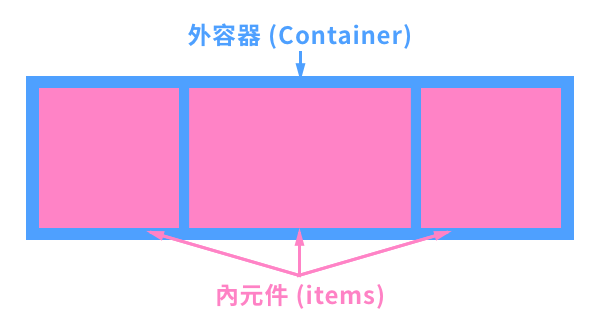
要有flex佈局,父容器就要將`dispaly`屬性設為`flex`,而內部第一層的子元素就會自動成為flex items
:::spoiler Flex vs. Inline-Flex
- Flex:彈性容器會變成block元素
`display: flex;`
- Inline-Flex:彈性容器會變成inline元素
`display: inline-flex;`
:::
---
### Flex Container
* [設定顯示方向及換行](#flex-flow:-設定顯示方向以及是否換行(為`flex-direction`與`flex-warp`的縮寫))
* [指定顯示方向](#flex-direction:-指定顯示方向)
* [控制是否換行](flex-wrap:-控制超出範圍時是否換行)
* [水平方向對齊](#justify-content:-控制主軸方向的對齊(通常為水平對齊))
* [單行垂直方向對齊](#align-items:-控制交錯軸方向的單行對齊(通常為垂直對齊))
* [整體垂直方向對齊](#align-content:-整體以交錯軸方向對齊)
#### flex-direction: 指定顯示方向
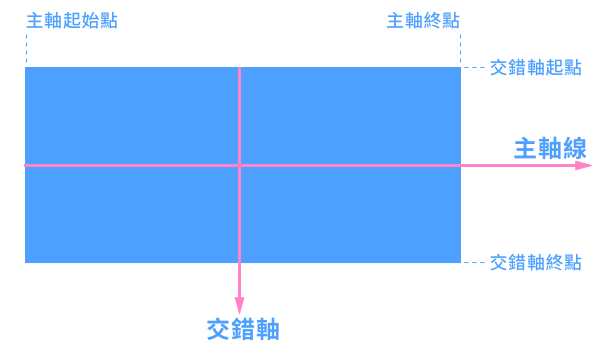
設定flex的軸線(主軸與交錯軸),會影響內元件對齊。
* 下圖是預設軸線方向:
* row - 預設值,讓物件沿左到右水平顯示
* 程式碼
```html=
<html>
<head>
<style>
.flex-container {
display: flex;
flex-direction: row;
background-color: DodgerBlue;
}
.flex-container > div {
background-color: #f1f1f1;
width: 100px;
margin: 10px;
text-align: center;
line-height: 75px;
font-size: 30px;
}
</style>
</head>
<body>
<div class="flex-container">
<div>1</div>
<div>2</div>
<div>3</div>
</div>
</body>
</html>
```
* 結果預覽
<div style="display: flex; flex-direction: row; background-color: DodgerBlue;">
<div style="background-color: #f1f1f1; width: 100px; margin: 10px; text-align: center; line-height: 75px; font-size: 30px;">1</div>
<div style="background-color: #f1f1f1; width: 100px; margin: 10px; text-align: center; line-height: 75px; font-size: 30px;">2</div>
<div style="background-color: #f1f1f1; width: 100px; margin: 10px; text-align: center; line-height: 75px; font-size: 30px;">3</div>
</div>
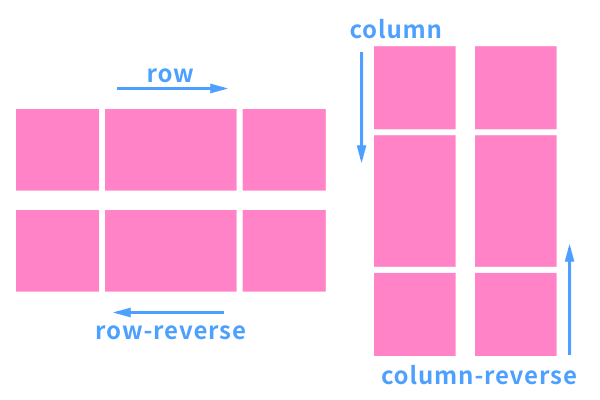
* row-reverse - 讓物件由右到左水平顯示(水平反轉)
* 程式碼
```css=
.flex-container {
display: flex;
flex-direction: row-reverse;
background-color: DodgerBlue;
}
```
* 結果預覽
<div style="display: flex; flex-direction: row-reverse; background-color: DodgerBlue;">
<div style="background-color: #f1f1f1; width: 100px; margin: 10px; text-align: center; line-height: 75px; font-size: 30px;">1</div>
<div style="background-color: #f1f1f1; width: 100px; margin: 10px; text-align: center; line-height: 75px; font-size: 30px;">2</div>
<div style="background-color: #f1f1f1; width: 100px; margin: 10px; text-align: center; line-height: 75px; font-size: 30px;">3</div>
</div>
* column - 讓物件由上到下垂直顯示(主軸轉為垂直向下)
* 程式碼
```css=
.flex-container {
display: flex;
flex-direction: column;
background-color: DodgerBlue;
}
```
* 結果預覽
<div style="display: flex; flex-direction: column; background-color: DodgerBlue;">
<div style="background-color: #f1f1f1; width: 100px; margin: 10px; text-align: center; line-height: 75px; font-size: 30px;">1</div>
<div style="background-color: #f1f1f1; width: 100px; margin: 10px; text-align: center; line-height: 75px; font-size: 30px;">2</div>
<div style="background-color: #f1f1f1; width: 100px; margin: 10px; text-align: center; line-height: 75px; font-size: 30px;">3</div>
</div>
* column-reverse - 讓物件由下到上垂直顯示(主軸轉為垂直向上)
* 程式碼
```css=
.flex-container {
display: flex;
flex-direction: column-reverse;
background-color: DodgerBlue;
}
```
* 結果預覽
<div style="display: flex; flex-direction: column-reverse; background-color: DodgerBlue;">
<div style="background-color: #f1f1f1; width: 100px; margin: 10px; text-align: center; line-height: 75px; font-size: 30px;">1</div>
<div style="background-color: #f1f1f1; width: 100px; margin: 10px; text-align: center; line-height: 75px; font-size: 30px;">2</div>
<div style="background-color: #f1f1f1; width: 100px; margin: 10px; text-align: center; line-height: 75px; font-size: 30px;">3</div>
</div>
以下是所有選項的示意圖:
[go back to Flex-Container!](#Flex-Container)
#### flex-wrap: 控制超出範圍時是否換行
* nowrap - 預設值,不換行
* 程式碼
```css=
.flex-container {
display: flex;
flex-wrap: nowrap;
background-color: DodgerBlue;
}
```
* 結果顯示
<div style="display:flex; flex-wrap:nowrap; background-color: DodgerBlue;">
<div style="background-color:#f1f1f1; width:100px; margin:10px; text-align:center; line-height:75px; font-size:30px;">1</div>
<div style="background-color:#f1f1f1; width:100px; margin:10px; text-align:center; line-height:75px; font-size:30px;">2</div>
<div style="background-color:#f1f1f1; width:100px; margin:10px; text-align:center; line-height:75px; font-size:30px;">3</div>
<div style="background-color:#f1f1f1; width:100px; margin:10px; text-align:center; line-height:75px; font-size:30px;">4</div>
<div style="background-color:#f1f1f1; width:100px; margin:10px; text-align:center; line-height:75px; font-size:30px;">5</div>
<div style="background-color:#f1f1f1; width:100px; margin:10px; text-align:center; line-height:75px; font-size:30px;">6</div>
<div style="background-color:#f1f1f1; width:100px; margin:10px; text-align:center; line-height:75px; font-size:30px;">7</div>
<div style="background-color:#f1f1f1; width:100px; margin:10px; text-align:center; line-height:75px; font-size:30px;">8</div>
<div style="background-color:#f1f1f1; width:100px; margin:10px; text-align:center; line-height:75px; font-size:30px;">9</div>
<div style="background-color:#f1f1f1; width:100px; margin:10px; text-align:center; line-height:75px; font-size:30px;">10</div>
<div style="background-color:#f1f1f1; width:100px; margin:10px; text-align:center; line-height:75px; font-size:30px;">11</div>
<div style="background-color:#f1f1f1; width:100px; margin:10px; text-align:center; line-height:75px; font-size:30px;">12</div>
</div>
* wrap - 超出範圍就換行,正著排(由上往下)
* 程式碼
```css=
.flex-container {
display: flex;
flex-wrap: wrap;
background-color: DodgerBlue;
}
```
* 結果預覽
<div style="display:flex; flex-wrap:wrap; background-color: DodgerBlue;">
<div style="background-color:#f1f1f1; width:100px; margin:10px; text-align:center; line-height:75px; font-size:30px;">1</div>
<div style="background-color:#f1f1f1; width:100px; margin:10px; text-align:center; line-height:75px; font-size:30px;">2</div>
<div style="background-color:#f1f1f1; width:100px; margin:10px; text-align:center; line-height:75px; font-size:30px;">3</div>
<div style="background-color:#f1f1f1; width:100px; margin:10px; text-align:center; line-height:75px; font-size:30px;">4</div>
<div style="background-color:#f1f1f1; width:100px; margin:10px; text-align:center; line-height:75px; font-size:30px;">5</div>
<div style="background-color:#f1f1f1; width:100px; margin:10px; text-align:center; line-height:75px; font-size:30px;">6</div>
<div style="background-color:#f1f1f1; width:100px; margin:10px; text-align:center; line-height:75px; font-size:30px;">7</div>
<div style="background-color:#f1f1f1; width:100px; margin:10px; text-align:center; line-height:75px; font-size:30px;">8</div>
<div style="background-color:#f1f1f1; width:100px; margin:10px; text-align:center; line-height:75px; font-size:30px;">9</div>
<div style="background-color:#f1f1f1; width:100px; margin:10px; text-align:center; line-height:75px; font-size:30px;">10</div>
<div style="background-color:#f1f1f1; width:100px; margin:10px; text-align:center; line-height:75px; font-size:30px;">11</div>
<div style="background-color:#f1f1f1; width:100px; margin:10px; text-align:center; line-height:75px; font-size:30px;">12</div>
</div>
* wrap-reverse - 超出範圍就換行,倒著排(由下往上)
* 程式碼
```css=
.flex-container {
display: flex;
flex-wrap: wrap-reverse;
background-color: DodgerBlue;
}
```
* 結果預覽
<div style="display:flex; flex-wrap:wrap-reverse; background-color: DodgerBlue;">
<div style="background-color:#f1f1f1; width:100px; margin:10px; text-align:center; line-height:75px; font-size:30px;">1</div>
<div style="background-color:#f1f1f1; width:100px; margin:10px; text-align:center; line-height:75px; font-size:30px;">2</div>
<div style="background-color:#f1f1f1; width:100px; margin:10px; text-align:center; line-height:75px; font-size:30px;">3</div>
<div style="background-color:#f1f1f1; width:100px; margin:10px; text-align:center; line-height:75px; font-size:30px;">4</div>
<div style="background-color:#f1f1f1; width:100px; margin:10px; text-align:center; line-height:75px; font-size:30px;">5</div>
<div style="background-color:#f1f1f1; width:100px; margin:10px; text-align:center; line-height:75px; font-size:30px;">6</div>
<div style="background-color:#f1f1f1; width:100px; margin:10px; text-align:center; line-height:75px; font-size:30px;">7</div>
<div style="background-color:#f1f1f1; width:100px; margin:10px; text-align:center; line-height:75px; font-size:30px;">8</div>
<div style="background-color:#f1f1f1; width:100px; margin:10px; text-align:center; line-height:75px; font-size:30px;">9</div>
<div style="background-color:#f1f1f1; width:100px; margin:10px; text-align:center; line-height:75px; font-size:30px;">10</div>
<div style="background-color:#f1f1f1; width:100px; margin:10px; text-align:center; line-height:75px; font-size:30px;">11</div>
<div style="background-color:#f1f1f1; width:100px; margin:10px; text-align:center; line-height:75px; font-size:30px;">12</div>
</div>
[go back to Flex-Container!](#Flex-Container)
#### flex-flow: 設定顯示方向以及是否換行(為`flex-direction`與`flex-warp`的縮寫)
* 程式碼
```css=
.flex-container {
display: flex;
flex-flow: row wrap;
background-color: DodgerBlue;
}
```
* 結果顯示
<div style="display: flex; flex-flow: row wrap; background-color: DodgerBlue;">
<div style="background-color: #f1f1f1; width: 100px; margin: 10px; text-align: center; line-height: 75px; font-size: 30px;">1</div>
<div style="background-color: #f1f1f1; width: 100px; margin: 10px; text-align: center; line-height: 75px; font-size: 30px;">2</div>
<div style="background-color: #f1f1f1; width: 100px; margin: 10px; text-align: center; line-height: 75px; font-size: 30px;">3</div>
<div style="background-color: #f1f1f1; width: 100px; margin: 10px; text-align: center; line-height: 75px; font-size: 30px;">4</div>
<div style="background-color: #f1f1f1; width: 100px; margin: 10px; text-align: center; line-height: 75px; font-size: 30px;">5</div>
<div style="background-color: #f1f1f1; width: 100px; margin: 10px; text-align: center; line-height: 75px; font-size: 30px;">6</div>
<div style="background-color: #f1f1f1; width: 100px; margin: 10px; text-align: center; line-height: 75px; font-size: 30px;">7</div>
<div style="background-color: #f1f1f1; width: 100px; margin: 10px; text-align: center; line-height: 75px; font-size: 30px;">8</div>
<div style="background-color: #f1f1f1; width: 100px; margin: 10px; text-align: center; line-height: 75px; font-size: 30px;">9</div>
<div style="background-color: #f1f1f1; width: 100px; margin: 10px; text-align: center; line-height: 75px; font-size: 30px;">10</div>
<div style="background-color: #f1f1f1; width: 100px; margin: 10px; text-align: center; line-height: 75px; font-size: 30px;">11</div>
<div style="background-color: #f1f1f1; width: 100px; margin: 10px; text-align: center; line-height: 75px; font-size: 30px;">12</div>
</div>
[go back to Flex-Container!](#Flex-Container)
#### justify-content: 控制主軸方向的對齊(通常為水平對齊)
* center - 置中
* 程式碼
```css=
.flex-container {
display: flex;
justify-content: center;
background-color: DodgerBlue;
}
```
* 結果預覽
<div style="display:flex; justify-content:center; background-color:DodgerBlue;">
<div style="background-color:#f1f1f1; width:100px; margin:10px; text-align:center; line-height:75px; font-size:30px;">1</div>
<div style="background-color:#f1f1f1; width:100px; margin:10px; text-align:center; line-height:75px; font-size:30px;">2</div>
<div style="background-color:#f1f1f1; width:100px; margin:10px; text-align:center; line-height:75px; font-size:30px;">3</div>
</div>
* flex-start - 預設值,讓內元件從 container 的主軸起始位置開始(通常是從左向右)
* 程式碼
```css=
.flex-container {
display: flex;
justify-content: flex-start;
background-color: DodgerBlue;
}
```
* 結果預覽
<div style="display:flex; justify-content:flex-start; background-color:DodgerBlue;">
<div style="background-color:#f1f1f1; width:100px; margin:10px; text-align:center; line-height:75px; font-size:30px;">1</div>
<div style="background-color:#f1f1f1; width:100px; margin:10px; text-align:center; line-height:75px; font-size:30px;">2</div>
<div style="background-color:#f1f1f1; width:100px; margin:10px; text-align:center; line-height:75px; font-size:30px;">3</div>
</div>
* flex-end - 讓內元件從 container 的主軸末尾位置開始
* 程式碼
```css=
.flex-container {
display: flex;
justify-content: flex-end;
background-color: DodgerBlue;
}
```
* 結果預覽
<div style="display:flex; justify-content:flex-end; background-color:DodgerBlue;">
<div style="background-color:#f1f1f1; width:100px; margin:10px; text-align:center; line-height:75px; font-size:30px;">1</div>
<div style="background-color:#f1f1f1; width:100px; margin:10px; text-align:center; line-height:75px; font-size:30px;">2</div>
<div style="background-color:#f1f1f1; width:100px; margin:10px; text-align:center; line-height:75px; font-size:30px;">3</div>
</div>
* space-around - 內元件彼此間距相等,且邊緣留有內元件間距的一半
* 程式碼
```css=
.flex-container {
display: flex;
justify-content: space-around;
background-color: DodgerBlue;
}
```
* 結果預覽
<div style="display:flex; justify-content:space-around; background-color:DodgerBlue;">
<div style="background-color:#f1f1f1; width:100px; margin:10px; text-align:center; line-height:75px; font-size:30px;">1</div>
<div style="background-color:#f1f1f1; width:100px; margin:10px; text-align:center; line-height:75px; font-size:30px;">2</div>
<div style="background-color:#f1f1f1; width:100px; margin:10px; text-align:center; line-height:75px; font-size:30px;">3</div>
</div>
* space-between - 內元件彼此間距相等,且兩端內元件貼齊邊緣
* 程式碼
```css=
.flex-container {
display: flex;
justify-content: space-between;
background-color: DodgerBlue;
}
```
* 結果預覽
<div style="display:flex; justify-content:space-between; background-color:DodgerBlue;">
<div style="background-color:#f1f1f1; width:100px; margin:10px; text-align:center; line-height:75px; font-size:30px;">1</div>
<div style="background-color:#f1f1f1; width:100px; margin:10px; text-align:center; line-height:75px; font-size:30px;">2</div>
<div style="background-color:#f1f1f1; width:100px; margin:10px; text-align:center; line-height:75px; font-size:30px;">3</div>
</div>
* space-evenly - 內元件彼此間距相等,且邊緣空間也和間距一樣大
* 程式碼
```css=
.flex-container {
display: flex;
justify-content: space-evenly;
background-color: DodgerBlue;
}
```
* 結果預覽
<div style="display:flex; justify-content:space-evenly; background-color:DodgerBlue;">
<div style="background-color:#f1f1f1; width:100px; margin:10px; text-align:center; line-height:75px; font-size:30px;">1</div>
<div style="background-color:#f1f1f1; width:100px; margin:10px; text-align:center; line-height:75px; font-size:30px;">2</div>
<div style="background-color:#f1f1f1; width:100px; margin:10px; text-align:center; line-height:75px; font-size:30px;">3</div>
</div>
[go back to Flex-Container!](#Flex-Container)
#### align-items: 控制交錯軸方向的單行對齊(通常為垂直對齊)
* center - 單行置中(高度平均分配)
* 程式碼
```css=
.flex-container {
display: flex;
height: 200px;
align-items: center;
background-color: DodgerBlue;
}
```
* 結果預覽
<div style="display:flex; height:200px; align-items:center; background-color:DodgerBlue;">
<div style="background-color:#f1f1f1; width:100px; margin:10px; text-align:center; line-height:75px; font-size:30px;">1</div>
<div style="background-color:#f1f1f1; width:100px; margin:10px; text-align:center; line-height:75px; font-size:30px;">2</div>
<div style="background-color:#f1f1f1; width:100px; margin:10px; text-align:center; line-height:75px; font-size:30px;">3</div>
</div>
* flex-start - 從 container 的交錯軸起始位置開始(通常是從上到下)
* 程式碼
```css=
.flex-container {
display: flex;
height: 200px;
align-items: flex-start;
background-color: DodgerBlue;
}
```
* 結果預覽
<div style="display:flex; height:200px; align-items:flex-start; background-color:DodgerBlue;">
<div style="background-color:#f1f1f1; width:100px; margin:10px; text-align:center; line-height:75px; font-size:30px;">1</div>
<div style="background-color:#f1f1f1; width:100px; margin:10px; text-align:center; line-height:75px; font-size:30px;">2</div>
<div style="background-color:#f1f1f1; width:100px; margin:10px; text-align:center; line-height:75px; font-size:30px;">3</div>
</div>
* flex-end - 從 container 的交錯軸末尾位置開始(通常是從下到上)
* 程式碼
```css=
.flex-container {
display: flex;
height: 200px;
align-items: flex-end;
background-color: DodgerBlue;
}
```
* 結果預覽
<div style="display:flex; height:200px; align-items:flex-end; background-color:DodgerBlue;">
<div style="background-color:#f1f1f1; width:100px; margin:10px; text-align:center; line-height:75px; font-size:30px;">1</div>
<div style="background-color:#f1f1f1; width:100px; margin:10px; text-align:center; line-height:75px; font-size:30px;">2</div>
<div style="background-color:#f1f1f1; width:100px; margin:10px; text-align:center; line-height:75px; font-size:30px;">3</div>
</div>
* stretch - 預設值(等同於normal),若內元件未設置高度或設為auto,內元件會在交錯軸伸縮以符合 container
* 程式碼
```css=
.flex-container {
display: flex;
height: 200px;
align-items: stretch;
background-color: DodgerBlue;
}
```
* 結果預覽
<div style="display:flex; height:200px; align-items:stretch; background-color:DodgerBlue;">
<div style="background-color:#f1f1f1; width:100px; margin:10px; text-align:center; line-height:75px; font-size:30px;">1</div>
<div style="background-color:#f1f1f1; width:100px; margin:10px; text-align:center; line-height:75px; font-size:30px;">2</div>
<div style="background-color:#f1f1f1; width:100px; margin:10px; text-align:center; line-height:75px; font-size:30px;">3</div>
</div>
* baseline - 內元件依字符底部基準線擺放,用在子元素的字體大小不同時。
* 程式碼
```css=
.flex-container {
display: flex;
height: 200px;
align-items: baseline;
background-color: DodgerBlue;
}
```
* 結果預覽
<div style="display:flex; height:200px; align-items:center; background-color:DodgerBlue;">
<div style="background-color:#f1f1f1; width:100px; margin:10px; text-align:center; line-height:75px; font-size:30px;"><h1>1</h1></div>
<div style="background-color:#f1f1f1; width:100px; margin:10px; text-align:center; line-height:75px; font-size:30px;"><h6>2</h6></div>
<div style="background-color:#f1f1f1; width:100px; margin:10px; text-align:center; line-height:75px; font-size:30px;"><h3>3</h3></div>
<div style="background-color:#f1f1f1; width:100px; margin:10px; text-align:center; line-height:75px; font-size:30px;"><small>4</small></div>
</div>
[go back to Flex-Container!](#Flex-Container)
#### align-content: 整體以交錯軸方向對齊
* center - 整體置中於 container
* 程式碼
```css=
.flex-container {
display: flex;
height: 600px;
flex-wrap: wrap;
align-content: center;
overflow: scroll;
background-color: DodgerBlue;
}
```
* 結果預覽
<div style="display: flex; height: 600px; flex-wrap: wrap; align-content: center; overflow: scroll; background-color: DodgerBlue;">
<div style="background-color: #f1f1f1; width: 100px; margin: 10px; text-align: center; line-height: 75px; font-size: 30px;">1</div>
<div style="background-color: #f1f1f1; width: 100px; margin: 10px; text-align: center; line-height: 75px; font-size: 30px;">2</div>
<div style="background-color: #f1f1f1; width: 100px; margin: 10px; text-align: center; line-height: 75px; font-size: 30px;">3</div>
<div style="background-color: #f1f1f1; width: 100px; margin: 10px; text-align: center; line-height: 75px; font-size: 30px;">4</div>
<div style="background-color: #f1f1f1; width: 100px; margin: 10px; text-align: center; line-height: 75px; font-size: 30px;">5</div>
<div style="background-color: #f1f1f1; width: 100px; margin: 10px; text-align: center; line-height: 75px; font-size: 30px;">6</div>
<div style="background-color: #f1f1f1; width: 100px; margin: 10px; text-align: center; line-height: 75px; font-size: 30px;">7</div>
<div style="background-color: #f1f1f1; width: 100px; margin: 10px; text-align: center; line-height: 75px; font-size: 30px;">8</div>
<div style="background-color: #f1f1f1; width: 100px; margin: 10px; text-align: center; line-height: 75px; font-size: 30px;">9</div>
<div style="background-color: #f1f1f1; width: 100px; margin: 10px; text-align: center; line-height: 75px; font-size: 30px;">10</div>
<div style="background-color: #f1f1f1; width: 100px; margin: 10px; text-align: center; line-height: 75px; font-size: 30px;">11</div>
<div style="background-color: #f1f1f1; width: 100px; margin: 10px; text-align: center; line-height: 75px; font-size: 30px;">12</div>
</div>
* stretch - 預設值,整體一起伸縮以填滿整個 container
* 程式碼
```css=
.flex-container {
display: flex;
height: 600px;
flex-wrap: wrap;
align-content: stretch;
overflow: scroll;
background-color: DodgerBlue;
}
```
* 結果預覽
<div style="display: flex; height: 600px; flex-wrap: wrap; align-content: stretch; overflow: scroll; background-color: DodgerBlue;">
<div style="background-color: #f1f1f1; width: 100px; margin: 10px; text-align: center; line-height: 75px; font-size: 30px;">1</div>
<div style="background-color: #f1f1f1; width: 100px; margin: 10px; text-align: center; line-height: 75px; font-size: 30px;">2</div>
<div style="background-color: #f1f1f1; width: 100px; margin: 10px; text-align: center; line-height: 75px; font-size: 30px;">3</div>
<div style="background-color: #f1f1f1; width: 100px; margin: 10px; text-align: center; line-height: 75px; font-size: 30px;">4</div>
<div style="background-color: #f1f1f1; width: 100px; margin: 10px; text-align: center; line-height: 75px; font-size: 30px;">5</div>
<div style="background-color: #f1f1f1; width: 100px; margin: 10px; text-align: center; line-height: 75px; font-size: 30px;">6</div>
<div style="background-color: #f1f1f1; width: 100px; margin: 10px; text-align: center; line-height: 75px; font-size: 30px;">7</div>
<div style="background-color: #f1f1f1; width: 100px; margin: 10px; text-align: center; line-height: 75px; font-size: 30px;">8</div>
<div style="background-color: #f1f1f1; width: 100px; margin: 10px; text-align: center; line-height: 75px; font-size: 30px;">9</div>
<div style="background-color: #f1f1f1; width: 100px; margin: 10px; text-align: center; line-height: 75px; font-size: 30px;">10</div>
<div style="background-color: #f1f1f1; width: 100px; margin: 10px; text-align: center; line-height: 75px; font-size: 30px;">11</div>
<div style="background-color: #f1f1f1; width: 100px; margin: 10px; text-align: center; line-height: 75px; font-size: 30px;">12</div>
</div>
* flex-start - 整體從 container 的交錯軸起始位置開始(通常為上方)
* 程式碼
```css=
.flex-container {
display: flex;
height: 600px;
flex-wrap: wrap;
align-content: flex-start;
overflow: scroll;
background-color: DodgerBlue;
}
```
* 結果預覽
<div style="display: flex; height: 600px; flex-wrap: wrap; align-content: flex-start; overflow: scroll; background-color: DodgerBlue;">
<div style="background-color: #f1f1f1; width: 100px; margin: 10px; text-align: center; line-height: 75px; font-size: 30px;">1</div>
<div style="background-color: #f1f1f1; width: 100px; margin: 10px; text-align: center; line-height: 75px; font-size: 30px;">2</div>
<div style="background-color: #f1f1f1; width: 100px; margin: 10px; text-align: center; line-height: 75px; font-size: 30px;">3</div>
<div style="background-color: #f1f1f1; width: 100px; margin: 10px; text-align: center; line-height: 75px; font-size: 30px;">4</div>
<div style="background-color: #f1f1f1; width: 100px; margin: 10px; text-align: center; line-height: 75px; font-size: 30px;">5</div>
<div style="background-color: #f1f1f1; width: 100px; margin: 10px; text-align: center; line-height: 75px; font-size: 30px;">6</div>
<div style="background-color: #f1f1f1; width: 100px; margin: 10px; text-align: center; line-height: 75px; font-size: 30px;">7</div>
<div style="background-color: #f1f1f1; width: 100px; margin: 10px; text-align: center; line-height: 75px; font-size: 30px;">8</div>
<div style="background-color: #f1f1f1; width: 100px; margin: 10px; text-align: center; line-height: 75px; font-size: 30px;">9</div>
<div style="background-color: #f1f1f1; width: 100px; margin: 10px; text-align: center; line-height: 75px; font-size: 30px;">10</div>
<div style="background-color: #f1f1f1; width: 100px; margin: 10px; text-align: center; line-height: 75px; font-size: 30px;">11</div>
<div style="background-color: #f1f1f1; width: 100px; margin: 10px; text-align: center; line-height: 75px; font-size: 30px;">12</div>
</div>
* flex-end - 整體從 container 的交錯軸末尾位置開始(通常為下方)
* 程式碼
```css=
.flex-container {
display: flex;
height: 600px;
flex-wrap: wrap;
align-content: flex-end;
overflow: scroll;
background-color: DodgerBlue;
}
```
* 結果預覽
<div style="display: flex; height: 600px; flex-wrap: wrap; align-content: flex-end; overflow: scroll; background-color: DodgerBlue;">
<div style="background-color: #f1f1f1; width: 100px; margin: 10px; text-align: center; line-height: 75px; font-size: 30px;">1</div>
<div style="background-color: #f1f1f1; width: 100px; margin: 10px; text-align: center; line-height: 75px; font-size: 30px;">2</div>
<div style="background-color: #f1f1f1; width: 100px; margin: 10px; text-align: center; line-height: 75px; font-size: 30px;">3</div>
<div style="background-color: #f1f1f1; width: 100px; margin: 10px; text-align: center; line-height: 75px; font-size: 30px;">4</div>
<div style="background-color: #f1f1f1; width: 100px; margin: 10px; text-align: center; line-height: 75px; font-size: 30px;">5</div>
<div style="background-color: #f1f1f1; width: 100px; margin: 10px; text-align: center; line-height: 75px; font-size: 30px;">6</div>
<div style="background-color: #f1f1f1; width: 100px; margin: 10px; text-align: center; line-height: 75px; font-size: 30px;">7</div>
<div style="background-color: #f1f1f1; width: 100px; margin: 10px; text-align: center; line-height: 75px; font-size: 30px;">8</div>
<div style="background-color: #f1f1f1; width: 100px; margin: 10px; text-align: center; line-height: 75px; font-size: 30px;">9</div>
<div style="background-color: #f1f1f1; width: 100px; margin: 10px; text-align: center; line-height: 75px; font-size: 30px;">10</div>
<div style="background-color: #f1f1f1; width: 100px; margin: 10px; text-align: center; line-height: 75px; font-size: 30px;">11</div>
<div style="background-color: #f1f1f1; width: 100px; margin: 10px; text-align: center; line-height: 75px; font-size: 30px;">12</div>
</div>
* space-between - 整體的行間距相等,邊緣貼齊交錯軸始末兩端
* 程式碼
```css=
.flex-container {
display: flex;
height: 600px;
flex-wrap: wrap;
align-content: sapce-between;
overflow: scroll;
background-color: DodgerBlue;
}
```
* 結果預覽
<div style="display: flex; height: 600px; flex-wrap: wrap; align-content: space-between; overflow: scroll; background-color: DodgerBlue;">
<div style="background-color: #f1f1f1; width: 100px; margin: 10px; text-align: center; line-height: 75px; font-size: 30px;">1</div>
<div style="background-color: #f1f1f1; width: 100px; margin: 10px; text-align: center; line-height: 75px; font-size: 30px;">2</div>
<div style="background-color: #f1f1f1; width: 100px; margin: 10px; text-align: center; line-height: 75px; font-size: 30px;">3</div>
<div style="background-color: #f1f1f1; width: 100px; margin: 10px; text-align: center; line-height: 75px; font-size: 30px;">4</div>
<div style="background-color: #f1f1f1; width: 100px; margin: 10px; text-align: center; line-height: 75px; font-size: 30px;">5</div>
<div style="background-color: #f1f1f1; width: 100px; margin: 10px; text-align: center; line-height: 75px; font-size: 30px;">6</div>
<div style="background-color: #f1f1f1; width: 100px; margin: 10px; text-align: center; line-height: 75px; font-size: 30px;">7</div>
<div style="background-color: #f1f1f1; width: 100px; margin: 10px; text-align: center; line-height: 75px; font-size: 30px;">8</div>
<div style="background-color: #f1f1f1; width: 100px; margin: 10px; text-align: center; line-height: 75px; font-size: 30px;">9</div>
<div style="background-color: #f1f1f1; width: 100px; margin: 10px; text-align: center; line-height: 75px; font-size: 30px;">10</div>
<div style="background-color: #f1f1f1; width: 100px; margin: 10px; text-align: center; line-height: 75px; font-size: 30px;">11</div>
<div style="background-color: #f1f1f1; width: 100px; margin: 10px; text-align: center; line-height: 75px; font-size: 30px;">12</div>
</div>
* space-around - 整體的行間距相等,且邊緣(通常為上下)留有內部間距的一半
* 程式碼
```css=
.flex-container {
display: flex;
height: 600px;
flex-wrap: wrap;
align-content: sapce-around;
overflow: scroll;
background-color: DodgerBlue;
}
```
* 結果預覽
<div style="display: flex; height: 600px; flex-wrap: wrap; align-content: space-around; overflow: scroll; background-color: DodgerBlue;">
<div style="background-color: #f1f1f1; width: 100px; margin: 10px; text-align: center; line-height: 75px; font-size: 30px;">1</div>
<div style="background-color: #f1f1f1; width: 100px; margin: 10px; text-align: center; line-height: 75px; font-size: 30px;">2</div>
<div style="background-color: #f1f1f1; width: 100px; margin: 10px; text-align: center; line-height: 75px; font-size: 30px;">3</div>
<div style="background-color: #f1f1f1; width: 100px; margin: 10px; text-align: center; line-height: 75px; font-size: 30px;">4</div>
<div style="background-color: #f1f1f1; width: 100px; margin: 10px; text-align: center; line-height: 75px; font-size: 30px;">5</div>
<div style="background-color: #f1f1f1; width: 100px; margin: 10px; text-align: center; line-height: 75px; font-size: 30px;">6</div>
<div style="background-color: #f1f1f1; width: 100px; margin: 10px; text-align: center; line-height: 75px; font-size: 30px;">7</div>
<div style="background-color: #f1f1f1; width: 100px; margin: 10px; text-align: center; line-height: 75px; font-size: 30px;">8</div>
<div style="background-color: #f1f1f1; width: 100px; margin: 10px; text-align: center; line-height: 75px; font-size: 30px;">9</div>
<div style="background-color: #f1f1f1; width: 100px; margin: 10px; text-align: center; line-height: 75px; font-size: 30px;">10</div>
<div style="background-color: #f1f1f1; width: 100px; margin: 10px; text-align: center; line-height: 75px; font-size: 30px;">11</div>
<div style="background-color: #f1f1f1; width: 100px; margin: 10px; text-align: center; line-height: 75px; font-size: 30px;">12</div>
</div>
* space-evenly - 整體間距相等,且邊緣空間(通常為上下)也和間距一樣大
* 程式碼
```css=
.flex-container {
display: flex;
height: 600px;
flex-wrap: wrap;
align-content: space-evenly;
overflow: scroll;
background-color: DodgerBlue;
}
```
* 結果預覽
<div style="display: flex; height: 600px; flex-wrap: wrap; align-content: space-evenly; overflow: scroll; background-color: DodgerBlue;">
<div style="background-color: #f1f1f1; width: 100px; margin: 10px; text-align: center; line-height: 75px; font-size: 30px;">1</div>
<div style="background-color: #f1f1f1; width: 100px; margin: 10px; text-align: center; line-height: 75px; font-size: 30px;">2</div>
<div style="background-color: #f1f1f1; width: 100px; margin: 10px; text-align: center; line-height: 75px; font-size: 30px;">3</div>
<div style="background-color: #f1f1f1; width: 100px; margin: 10px; text-align: center; line-height: 75px; font-size: 30px;">4</div>
<div style="background-color: #f1f1f1; width: 100px; margin: 10px; text-align: center; line-height: 75px; font-size: 30px;">5</div>
<div style="background-color: #f1f1f1; width: 100px; margin: 10px; text-align: center; line-height: 75px; font-size: 30px;">6</div>
<div style="background-color: #f1f1f1; width: 100px; margin: 10px; text-align: center; line-height: 75px; font-size: 30px;">7</div>
<div style="background-color: #f1f1f1; width: 100px; margin: 10px; text-align: center; line-height: 75px; font-size: 30px;">8</div>
<div style="background-color: #f1f1f1; width: 100px; margin: 10px; text-align: center; line-height: 75px; font-size: 30px;">9</div>
<div style="background-color: #f1f1f1; width: 100px; margin: 10px; text-align: center; line-height: 75px; font-size: 30px;">10</div>
<div style="background-color: #f1f1f1; width: 100px; margin: 10px; text-align: center; line-height: 75px; font-size: 30px;">11</div>
<div style="background-color: #f1f1f1; width: 100px; margin: 10px; text-align: center; line-height: 75px; font-size: 30px;">12</div>
</div>
[go back to Flex-Container!](#Flex-Container)
---
### Flex Items
[The order Property](#The-order-Property:)
[The flex-grow Property](#flex-grow)
[The flex-shrink Property](#The-flex-shrink-Property)
[The flex-basis Property](#The-flex-basis-Property)
[The flex Property](#The-flex-Property)
[The align-self Property](#The-align-self-Property)
在 flex container 中的直接子元素(direct child elements)會自動變成 flex items。
:::info
flex items 的CSS的屬性有 :
* order
* flex
* flex-grow
* flex-shrink
* flex-basis
* align-self
:::
#### The order Property :
* order屬性指定了 flex items 在 flex container 中的順序(由小排到大),==order值必須為整數,預設值為0,可為負值==。
* 程式碼
```html=
<!DOCTYPE html>
<html>
<head>
<style>
.flex-container {
display: flex;
align-items: stretch;
background-color: #f1f1f1;
}
.flex-container > div {
background-color: DodgerBlue;
color: white;
width: 100px;
margin: 10px;
text-align: center;
line-height: 75px;
font-size: 30px;
}
</style>
</head>
<body>
<div class="flex-container">
<div style="order: 2">1</div>
<div style="order: 1">2</div>
<div style="order: 3">3</div>
<div style="order: -1">4</div>
</div>
</body>
</html>
```
* 結果預覽
<div style="display: flex; align-items: stretch; background-color: #f1f1f1;">
<div style="background-color: DodgerBlue;
color: white;
width: 100px;
margin: 10px;
text-align: center;
line-height: 75px;
font-size: 30px;
order: 2">1</div>
<div style="background-color: DodgerBlue;
color: white;
width: 100px;
margin: 10px;
text-align: center;
line-height: 75px;
font-size: 30px;
order: 1">2</div>
<div style="background-color: DodgerBlue;
color: white;
width: 100px;
margin: 10px;
text-align: center;
line-height: 75px;
font-size: 30px;
order: 3">3</div>
<div style="background-color: DodgerBlue;
color: white;
width: 100px;
margin: 10px;
text-align: center;
line-height: 75px;
font-size: 30px;
order: -1">4</div>
</div>
#### flex-grow
* flex-grow 屬性指定了有剩餘空間時一個 flex items相對於其他 flex items可以在主軸方向上擴展的比例,預設值為0,可為小數不可為負值。
* 程式碼
```html=
<body>
<div class="flex-container">
<div style="flex-grow: 0.5">1</div>
<div style="flex-grow: 0.5">2</div>
<div style="flex-grow: 4">3</div>
</div>
</body>
```
* 結果預覽
<div style="display: flex; align-items: stretch; width:550px;background-color: #f1f1f1;">
<div style="background-color: DodgerBlue;
color: white;
margin: 10px;
width: 30px;
text-align: center;
line-height: 75px;
font-size: 30px;
flex-grow: 0.5">1</div>
<div style="background-color: DodgerBlue;
color: white;
margin: 10px;
width: 30px;
text-align: center;
line-height: 75px;
font-size: 30px;
flex-grow: 0.5">2</div>
<div style="background-color: DodgerBlue;
color: white;
margin: 10px;
width: 30px;
text-align: center;
line-height: 75px;
font-size: 30px;
flex-grow: 4">3</div>
</div>
:::spoiler 如何計算擴展比例?
1. 設總寬為550px,內元件三個各先消耗30px,還有內元件兩側的margin長度各為10px,剩餘空間為400px(550-30\*3-10\*6)。
1. 計算flex-grow比例總和(0.5 : 0.5 : 4)得5,400/5=80px,前兩個元件增寬40px(80\*0.5=40),最後的元件增寬320px(80\*4=320)
* 以上算式可參考上方「結果預覽」的詳細尺寸
:::
#### flex-shrink
* flex-shrink 屬性指定了當items超出空間時一個 flex items相對於其他 flex items可以被壓縮的比例,==預設值為1,可為小數,不可為負值,不想被壓縮可設為0==。
* 程式碼
```html=
<div class="flex-container">
<div>1</div>
<div>2</div>
<div style="flex-shrink: 3">3</div>
</div>
```
* 結果預覽
<!--  -->
<div style="display: flex; align-items: stretch; width:550px;background-color: #f1f1f1;">
<div style="background-color: DodgerBlue;
color: white;
margin: 10px;
width: 180px;
text-align: center;
line-height: 75px;
font-size: 30px;
flex-shrink: 1">1</div>
<div style="background-color: DodgerBlue;
color: white;
margin: 10px;
width: 180px;
text-align: center;
line-height: 75px;
font-size: 30px;
flex-shrink: 1">2</div>
<div style="background-color: DodgerBlue;
color: white;
margin: 10px;
width: 180px;
text-align: center;
line-height: 75px;
font-size: 30px;
flex-shrink: 3">3</div>
</div>
:::spoiler 如何計算壓縮比例?
1. 設總寬為550px,內元件三個寬度各為180px,margin都為10px,則超出空間為50px(180\*3+10\*6-550=50)。
1. 計算壓縮權重(1\*180+1\*180+3\*180=900)為900px,將50px/900px=1/18為壓縮比率,前兩個元件壓縮10px(180/18=10),最後的元件壓縮30px(180/18\*3=30)
1. 前兩個元件的寬度為170px(180-10=170),最後的元件為150px(180-30=150)
* 以上算式可參考上方「結果預覽」的詳細尺寸
:::
#### flex-basis
* 指定 flex items (子元素)的初始長度,會因為 flex-direction 的不同而改變指定長度的對象(row->width/column->height),預設值為0
```html=
<div class="flex-container">
<div>1</div>
<div>2</div>
<div style="flex-basis: 200px">3</div>
<div>4</div>
</div>
```

#### The flex Property
* flex 屬性是一個簡寫屬性,用於 flex-grow、flex-shrink 和 flex-basis 屬性。
* 如果 flex 只填了一個數值,預設是調整「flex-grow」的效果。
* not growable (0), not shrinkable (0), 初始長度為 200 pixels:
```html=
<div class="flex-container">
<div>1</div>
<div>2</div>
<div style="flex: 0 0 200px">3</div>
<div>4</div>
</div>
```

#### The align-self Property
* align-self 屬性指定 flex items 在flex container 內的對齊方式(只適用於交錯軸)。align-self 屬性會覆蓋容器的 align-items 屬性設置的預設對齊,因此可個別設定items的值。
* 將第三個項目對齊到container中間
```html=
<html>
<head>
<style>
.flex-container {
display: flex;
height: 200px;
background-color: #f1f1f1;
}
.flex-container > div {
background-color: DodgerBlue;
color: white;
width: 100px;
margin: 10px;
text-align: center;
line-height: 75px;
font-size: 30px;
}
</style>
</head>
<body>
<div class="flex-container">
<div>1</div>
<div>2</div>
<div style="align-self: center">3</div>
<div>4</div>
</div>
</body>
```

* 將第二個items對齊到 container 頂端,第三個items對齊到 container 底端
```html=
<div class="flex-container">
<div>1</div>
<div style="align-self: flex-start">2</div>
<div style="align-self: flex-end">3</div>
<div>4</div>
</div>
```

----------------------------------------------
#### Responsive Flexbox
* 當頁面寬度超過800px時,flex-direction 會由row變成column
```html=
.flex-container {
display: flex;
flex-direction: row;
}
/* Responsive layout - makes a one column layout instead of a two-column layout */
@media (max-width: 800px) {
.flex-container {
flex-direction: column;
}
}
```
* 另外一個方法:更改 flex items 中 flex 的百分比,以產生適合各種螢幕尺寸的佈局,==記得在.flex-container中也要放flex-wrap: wrap==
```html=
.flex-container {
display: flex;
flex-wrap: wrap;
}
.flex-item-left {
flex: 50%;
}
.flex-item-right {
flex: 50%;
}
/* Responsive layout - makes a one column layout instead of a two-column layout */
@media (max-width: 800px) {
.flex-item-right, .flex-item-left {
flex: 100%;
}
}
```
## Grid
可以幫忙分配版面,將版面切成網格狀
[直接上w3schools教學](https://www.w3schools.com/css/css_rwd_grid.asp)
- 有兩種寫法(block、inline)
```css
grid-container {
display: grid; //display寫grid
}
grid-container {
display: inline-grid; //display寫inline-grid
}
```
- column示意

- row示意

- column-gap、row-gap示意

### Grid Container
Container 內 Item 行列的排列方式可由
```
.grid-container1 {
display: grid;
grid-template-columns: auto 80px 1fr 30%; /*n個變數代表一行n個Item,這行有4個*/
grid-template-rows: auto auto;/*n個變數代表一列n個Item,這行有2個,假如有第三行(這個例子大於9個item),grid-auto-rows可統一控制*/
}
.grid-container2 {
display: grid;
grid-template: 100px 200px 50px/ 150px 150px ;/*三行兩列*/
}
.grid-container3 {
display: grid;
grid-template:
"header header"
"sidebar main"
"footer footer";
grid-template-columns: 200px 1fr;
grid-template-rows: 100px 1fr 50px;
}
```

:::spoiler
```
<!DOCTYPE html>
<html>
<head>
<style>
.grid-container {
display: grid;
grid-template-columns: auto 80px 1fr 30%;
grid-template-rows: auto auto;
grid-auto-rows: 50px;
gap: 10px;
border: 2px solid black;
padding: 10px;
}
.grid-container div {
background-color: lightblue;
padding: 10px;
text-align: center;
border: 1px solid darkblue;
}
.grid-container2 {
display: grid;
grid-template: 100px 200px 50px / 150px 150px;
gap: 10px;
border: 2px solid black;
padding: 10px;
}
.grid-container2 div {
background-color: lightcoral;
padding: 10px;
text-align: center;
border: 1px solid darkred;
}
.grid-container3 {
display: grid;
grid-template:
"header header"
"sidebar main"
"footer footer" ;
grid-template-columns: 200px 1fr;
grid-template-rows: 100px 1fr 50px;
gap: 10px;
border: 2px solid black;
padding: 10px;
}
.grid-container3 .header {
grid-area: header;
background-color: lightgreen;
}
.grid-container3 .sidebar {
grid-area: sidebar;
background-color: lightpink;
}
.grid-container3 .main {
grid-area: main;
background-color: lightyellow;
}
.grid-container3 .footer {
grid-area: footer;
background-color: lightgray;
}
.grid-container3 div {
padding: 10px;
text-align: center;
border: 1px solid darkgray;
}
</style>
</head>
<body>
<h2>Grid Container 1</h2>
<div class="grid-container">
<div>1</div>
<div>2</div>
<div>3</div>
<div>4</div>
<div>5</div>
<div>6</div>
<div>7</div>
<div>8</div>
<div>9</div>
</div>
<h2>Grid Container 2</h2>
<div class="grid-container2">
<div>1</div>
<div>2</div>
<div>3</div>
<div>4</div>
<div>5</div>
<div>6</div>
</div>
<h2>Grid Container 3</h2>
<div class="grid-container3">
<div class="header">Header</div>
<div class="sidebar">Sidebar</div>
<div class="main">Main Content</div>
<div class="footer">Footer</div>
</div>
</body>
</html>
```
:::
* auto:根據內容自適應寬度。
* px:固定單位px。
* % :Container寬度的幾%。
* fr:剩餘的可用空間的幾等分。
minmax(min, max)可設定縮放的最大與最小。
repeat(3, 1fr) 同等於 1fr 1fr 1fr。
以及展示
```
.grid-container {
display: grid;
place-content:center;/*上下左右*/
justify-content:center;/*左右*/
align-content:center;/*上下*/ }
```
| 參數種類 |意思 |例圖(justify-content)|
| -------- | -------- | -------- |
| start | 貼齊上/左 | |
| end | 貼齊下/右||
| center | 置中(不填滿上下左右) ||
|space-between|平分畫面且間隔相等,邊界沒有間隔||
|space-around|平分畫面且間隔相等,邊界間隔只有一半寬||
|space-evenly|平分畫面且間隔相等,邊界有同等間隔||
需注意剩餘空間是否足以安插間隔。
### Grid properties
* `Grid Lines`
可以決定item的大小
- 第一種寫法 : 從row1到row3,下面圖片的第一格
```css
.item1 {
grid-column-start: 1; //起始row
grid-column-end: 3; //結束row
}
```

- 第二種寫法 : 從row1到row5,下面圖片的第一格
```css
.item1 {
grid-column: 1 / 5;
}
```

- 第三種寫法 : 用格子算,從第一格到第三格,下面圖片的第一格
```css
.item1 {
grid-column: 1 / span 3;
}
```

* 程式碼
```html=
<html>
<head>
<style>
.grid-container {
display: grid;
grid-template-columns: auto auto auto;
gap: 10px;
background-color: DodgerBlue;
padding: 10px;
}
.grid-container > div {
background-color: #f1f1f1;
text-align: center;
padding: 10px;
font-size: 30px;
}
.item1 {
grid-column-start: 2;
grid-column-end: 4;
}
</style>
</head>
<body>
<div class="grid-container">
<div class="item1">1</div>
<div>2</div>
<div>3</div>
<div>4</div>
<div>5</div>
<div>6</div>
<div>7</div>
<div>8</div>
</div>
</body>
</html>
```
* 結果預覽
<div style="display: grid; grid-template-columns: auto auto auto; gap: 10px; background-color: DodgerBlue; padding: 10px;">
<div style="background-color: #f1f1f1; text-align: center; padding: 10px; font-size: 30px; grid-column-start: 2; grid-column-end: 4;">1</div>
<div style="background-color: #f1f1f1; text-align: center; padding: 10px; font-size: 30px;">2</div>
<div style="background-color: #f1f1f1; text-align: center; padding: 10px; font-size: 30px;">3</div>
<div style="background-color: #f1f1f1; text-align: center; padding: 10px; font-size: 30px;">4</div>
<div style="background-color: #f1f1f1; text-align: center; padding: 10px; font-size: 30px;">5</div>
<div style="background-color: #f1f1f1; text-align: center; padding: 10px; font-size: 30px;">6</div>
<div style="background-color: #f1f1f1; text-align: center; padding: 10px; font-size: 30px;">7</div>
<div style="background-color: #f1f1f1; text-align: center; padding: 10px; font-size: 30px;">8</div>
</div>
* 說明
設定 `item1` 元素會從第二列開始,到第四列結束 (佔 2 列),可參照上方 grid line 定義
* grid-column - 為 grid-column-start 和 grid-column-end 的縮寫
* 以上方例子,可改成以下兩種方式
```css=
.item1 {
grid-column: 2 / 4;
}
```
```css=
.item1 {
grid-column: 2 / span 2;
}
```
* span 指的是「空的格數」
* grid-row-start / grid-row-end - 定義元素開始與結束列行的位置
* 程式碼
```css=
.item1 {
grid-row-start: 1;
grid-row-end: 3;
}
```
* 結果預覽
<div style="display: grid; grid-template-columns: auto auto auto; gap: 10px; background-color: DodgerBlue; padding: 10px;">
<div style="background-color: #f1f1f1; text-align: center; padding: 10px; font-size: 30px; grid-row-start: 1; grid-row-end: 3;">1</div>
<div style="background-color: #f1f1f1; text-align: center; padding: 10px; font-size: 30px;">2</div>
<div style="background-color: #f1f1f1; text-align: center; padding: 10px; font-size: 30px;">3</div>
<div style="background-color: #f1f1f1; text-align: center; padding: 10px; font-size: 30px;">4</div>
<div style="background-color: #f1f1f1; text-align: center; padding: 10px; font-size: 30px;">5</div>
<div style="background-color: #f1f1f1; text-align: center; padding: 10px; font-size: 30px;">6</div>
<div style="background-color: #f1f1f1; text-align: center; padding: 10px; font-size: 30px;">7</div>
<div style="background-color: #f1f1f1; text-align: center; padding: 10px; font-size: 30px;">8</div>
</div>
* grid-row - 為 grid-row-start 和 grid-row-end 的縮寫
* grid-auto-columns - 指定隱式網格的列的大小
* 程式碼
```css=
.grid-container {
display: grid;
grid-template-columns: 100px 100px; /*指定義兩個顯式列*/
grid-auto-flow: column; /*讓其他不在顯示列的欄位向右排列*/
grid-auto-columns: 150px; /*未使用顯式定義的其他隱式列皆為150px*/
gap: 10px;
background-color: #f1f1f1;
padding: 10px;
overflow-x: auto; /*超出範圍可滾動*/
}
```
* 結果預覽
<div style="display: grid; grid-template-columns: 100px 100px; grid-auto-flow: column; grid-auto-columns: 150px; gap: 10px; background-color: #f1f1f1; padding: 10px; overflow-x: auto;">
<div style="background-color: DodgerBlue; padding: 20px; text-align: center; font-size: 20px;">1</div>
<div style="background-color: DodgerBlue; padding: 20px; text-align: center; font-size: 20px;">2</div>
<div style="background-color: DodgerBlue; padding: 20px; text-align: center; font-size: 20px;">3</div>
<div style="background-color: DodgerBlue; padding: 20px; text-align: center; font-size: 20px;">4</div>
<div style="background-color: DodgerBlue; padding: 20px; text-align: center; font-size: 20px;">5</div>
<div style="background-color: DodgerBlue; padding: 20px; text-align: center; font-size: 20px;">6</div>
<div style="background-color: DodgerBlue; padding: 20px; text-align: center; font-size: 20px;">7</div>
<div style="background-color: DodgerBlue; padding: 20px; text-align: center; font-size: 20px;">8</div>
</div>
* 說明
若有元素超過顯式定義的列範圍,寬度就設為 150px,顯式定義的 column 只有兩個參數,只定義了 line1 和 line2,所以會是 100px,剩下的 items 就會以 150px 顯示
* grid-auto-rows - 指定隱式網格的行的大小
* 程式碼
```css=
.grid-container {
display: grid;
grid-template-rows: 100px 100px;
grid-template-columns: 100px 100px 100px;
grid-auto-flow: row;
grid-auto-rows: 150px;
gap: 10px;
background-color: #f1f1f1;
padding: 10px;
}
```
* 結果預覽
<div style="display: grid; grid-template-rows: 100px 100px; grid-template-columns: 100px 100px 100px; grid-auto-flow: row; grid-auto-rows: 150px; gap: 10px; background-color: #f1f1f1; padding: 10px;">
<div style="background-color: DodgerBlue; padding: 20px; text-align: center; font-size: 20px;">1</div>
<div style="background-color: DodgerBlue; padding: 20px; text-align: center; font-size: 20px;">2</div>
<div style="background-color: DodgerBlue; padding: 20px; text-align: center; font-size: 20px;">3</div>
<div style="background-color: DodgerBlue; padding: 20px; text-align: center; font-size: 20px;">4</div>
<div style="background-color: DodgerBlue; padding: 20px; text-align: center; font-size: 20px;">5</div>
<div style="background-color: DodgerBlue; padding: 20px; text-align: center; font-size: 20px;">6</div>
<div style="background-color: DodgerBlue; padding: 20px; text-align: center; font-size: 20px;">7</div>
<div style="background-color: DodgerBlue; padding: 20px; text-align: center; font-size: 20px;">8</div>
</div>
* grid-auto-flow - 決定隱式元素擺放位置
* row: 預設值,自動填充
* column: 自動填充
* dense: 允許重新排列元素子填補空隙
:::spoiler 什麼是隱式網格?
* 顯式網格(explicit grid): 由開發者設定出來的 grid
> 可以透過 grid-template-columns 和 grid-template-rows 來設定形成網格的固定數量和軌道(手動設定)
* 隱式網格(implicit grid): 除了顯式網格外,其他不存在的網格,由 grid 自動產生
> 即可透過 grid-auto-columns 和 grid-auto-rows 來定,若有元素超出顯式定義的範圍,就以其值作為極限值
:::
* grid-area - 定義空間名稱或位置,將 grid-row-start、 grid-column-start、 grid-row-end、 grid-column-end 一起表示
* 使用方式
```css=
.item1 {
grid-area: 1 / 2 / 3 / 4;
}
```
* grid-template-areas - 定義網格區域名稱,搭配 grid-area 使用
* 程式碼
```css=
.container {
display: grid;
grid-template-areas:
"header header"
"sidebar main"
"footer footer";
}
.header {
grid-area: header;
}
.sidebar {
grid-area: sidebar;
}
.main {
grid-area: main;
}
.footer {
grid-area: footer;
}
```
* 結果預覽
<div style="display: grid;
grid-template-areas:
'header header'
'sidebar main'
'footer footer';
grid-template-columns: 200px 1fr;
grid-template-rows: 60px 1fr 50px;
gap: 10px;
background-color: #f1f1f1;
padding: 10px;">
<div style="grid-area: header;
background-color: DodgerBlue;
text-align: center;
padding: 20px;
font-size: 20px;">Header</div>
<div style="grid-area: sidebar;
background-color: DodgerBlue;
text-align: center;
padding: 20px;
font-size: 18px;">Sidebar</div>
<div style="grid-area: main;
background-color: DodgerBlue;
text-align: center;
padding: 20px;
font-size: 18px;">Main Content</div>
<div style="grid-area: footer;
background-color: DodgerBlue;
text-align: center;
padding: 20px;
font-size: 18px;">Footer</div>
</div>
* grid-template
* grid-template-areas的縮寫。
* grid-template-rows和grid-template-columns同時控制。
* grid-template-rows - 設置內元素的高度。
* grid-template-columns - 設置內元素的寬度。
* 重複設定
`grid-template-columns: 1fr 1fr 1fr 1fr;`,可寫成 `grid-template-columns: repeat(4, 1fr);`
* (grid-)row-gap - 水平間隔距離(row跟row的距離)。
* (grid-)column-gap - 垂直間隔距離(column跟column的距離)。
* (grid-)gap - row-gap 和 column-gap同時控制。
## CSS Responsive
* RWD(Responsive Web Design)
網頁可以透過桌機、平板電腦和手機查看,且同一個網站有各種不同的版面呈現,顯示的字級大小也不同,響應式網頁可以讓使用者易於瀏覽,同時也減少在行動裝置上閱讀時的縮放和移動等動作。
### RWD Viewport
* 根據裝置的顯示區域來展示文件
* 放大或縮小文件,來符合或設定中給予裝置的可視區域
* 允許設定或初始化縮放的級別,或是其他規則
* viewport是跟著裝置顯示在運作的,但跟Media Query 不太一樣
@viewport 有絕對優先權,所以它會比 @media 還要早執行

* device-width 可以理解為我們所看見的裝置的寬度,而當該顯示文本遇到768px這個條件時,顯示結果會依據@media而決定
* @viewport 有兩種
1. initial viewport
initial viewport 是指裝置本身的實際展示的尺寸或相關設定
2. actual viewport
actual viewport 是指經由 initial viewport 初始化後,內容本文的展示尺寸或相關設定
> 參考資料: https://blog.hinablue.me/viewport-the-css-device-adaptation/
### RWD Grid View
使用grid進行布局,可用在設計不同視窗大小下改變不同布局。
### RWD Media Queries
利用@media讓不同視窗大小的布局改變
* @media (max-width:632px)
視窗不超過632px套用。
* @media screen and (min-width:632px)
設備為screen且視窗不超過632px套用。
* @media only screen and (min-width:632px)
同上,only可以篩去過舊的瀏覽器。
* @media only screen and (orientation: portrait)
縱向,寬度大於高度。
* @media only screen and (orientation: landscape)
橫向,寬度小於高度。
可用在grid排版,和改變style
```
@media (max-width: 600px) {
div.example {
display: none;
}
}
@media only screen and (max-width: 800px) {
.grid-container {
grid-template-columns: repeat(3, 1fr); /* 3列排版 */
}
}
@media only screen and (max-width: 500px) {
.grid-container {
grid-template-columns: 1fr; /* 1列排版 */
}
```
----------------------------------------------------
### Animation
* `animation: mymove 5s infinite;`
也可以這樣寫:
- animation-name: (@keyframes後面的名字);
- animation-iteration-count:(放一個值//3就3次,infinite就無限多次)
- animation-duration: 5s(s前面放多少就幾秒)
```css
@keyframes mymove {
0% {background-color: red;}
25% {background-color: yellow;}
50% {background-color: blue;}
100% {background-color: green;}
}
```
- 前面的幾%代表動畫的時間點
### Transform
* transform可以讓html元素(包含內容)被位移、旋轉、縮放和傾斜,分為2D和3D
* transform 屬性可為none、一個或多個transform-function
```css
div {
transform: rotate(20deg);
}
```
#### 2D
<div style="
background: rgba(30, 144, 255, 0.35);
border-radius: 20px;
width: 100px;
height: 100px;
text-align: center;
display: flex;
align-items: center;
justify-content: center;
transition: transform 1s;
animation: spin 5s infinite linear;
">Rotate</div>
##### Transform-origin
元素的原始位置(參考點)
* elememt(x,y)
* 位移、旋轉、縮放、傾斜的參考點
* x、y可為尺寸值 或 % (百分比) 或方位關鍵字;% 是以元素本身大小作為計算基準
* 預設值為元素中心點(50%,50%)
* 元素左上角座標為原點(0,0)
* 方位關鍵字(center,top,right,bottom,left),如忽略第二個值,則自動定為center
##### transform property
* translate(x, y)
偏移
* x: 水平移動,可用`translateX()`
* y: 垂直移動,可用`translateY()`
* 程式碼
```css
div {
transform: translate(50px, 20px);
}
```
* 結果預覽
<div style="border: 1px solid;">
<div style="background-color: rgba(30, 144, 255, 0.35); text-align: center; height: 100px; transform: translate(50px, 20px);">translate</div>
</div>
* scale(x, y)
縮放
* x: 縮放寬度
* y: 縮放高度
* 程式碼
```css
div {
transform: scale(1.5, 0.8);
}
```
* 結果預覽
<div style="border: 1px solid;">
<div style="background-color: rgba(30, 144, 255, 0.35); text-align: center; height: 100px; transform: scale(1.5, 0.8);">scale</div>
</div>
* rotate(angle)
元素以參考點為中心進行旋轉
* 正值: 順時針旋轉
* 負值: 逆時針旋轉
* 程式碼
```css
div {
transform: rotate(25deg);
}
```
* 結果預覽
<div style="border: 1px solid;">
<div style="background-color: rgba(30, 144, 255, 0.35); text-align: center; height: 100px; transform: rotate(25deg);">rotate</div>
</div>
* skew(x-angle, y-angle)
傾斜,元素以參考點為中心進行拉伸變形
* 單位: deg
* 只寫一個參數就只有X軸的傾斜
* 程式碼
```css
div {
transform: skew(30deg, 10deg);
transform-orgin: top left;
}
```
* 結果預覽
<div style="border: 1px solid;">
<div style="background-color: rgba(30, 144, 255, 0.35); text-align: center; height: 100px; transform: skew(30deg, 10deg); transform-orgin: top left; ">skew</div>
</div>
* matrix(a, b, c, d, e, f)
元素以參考點為中心,依變形矩陣的6個參數值產生2D變形。
* a: scaleX()
* b: skewY()
* c: skewX()
* d: scaleY()
* e: translateX()
* f: translateY()
* 程式碼
```css
div {
transform: matrix(1, 0, 0, 1, 50, 50);
}
```
* 結果預覽
<div style="border: solid;">
<div style="background-color: rgba(30, 144, 255, 0.35); text-align: center; height: 100px; transform: matrix(1, 0, 0, 1, 50, 50);">matrix</div>
</div>
* 同一元素套用多個變形函數
函數間以半形空格間隔
```css
.box{
transform:translate(120px) rotate(80deg) scale(0.5);
}
```
#### 3D
:::info
1. 好用的工具-->可以直接找到result測試結果
https://developer.mozilla.org/en-US/docs/Web/CSS/transform-function
:::
* transform-orgin: 元素原始位置,表示為element(x, y, z)
* transform-style: 定義是3D或是2Dtransform,屬性值分為flat(預設2D)和preserve-3d
* perspective: 透視距離,即觀看位置到元素的距離,預設是0
* perspective-origin: 透視原點,perspective-origin:(x,y),x可為長度值、百分比及方向關鍵字: left、center、right,y可為長度值、百分比及方向關鍵字: top、center、bottom,預設值(x,y)都為50%
* backface-visibility: 定義元素背面是否可見,屬性值為hidden和visible
--------
<div class="rotate3D">3D rotate</div>
<style>
.rotate3D {
background: red;
color: #f1f1f1;
width: 80px;
height: 70px;
font-weight: bold;
border: solid #000000;
text-align: center;
display: flex;
align-items: center;
justify-content: center;
/* 讓 3D 效果可見 */
perspective: 500px;
transform-origin: center;
/* 讓它持續旋轉 */
animation: rotateY 3s infinite linear;
}
@keyframes rotateY {
from {
transform: rotateY(0deg);
}
to {
transform: rotateY(360deg);
}
}
</style>
------
<div style="
background: blue;
color: white;
width: 100px;
height: 100px;
text-align: center;
display: flex;
align-items: center;
justify-content: center;
transition: transform 1s;
animation: spin 2s infinite linear;
@keyframes spin {
from { transform: rotateY(0deg); }
to { transform: rotateY(360deg); }
}
">Rotating
</div>
--------
##### transform property
* translate3d(x, y, z)
* x: 以參考點為中心,向X軸位移x距離
* y: 以參考點為中心,向Y軸位移y距離
* z: 以參考點為中心,向Z軸位移z距離
* 程式碼
```css
div {
transform: translate3d(10px, 50px, 70px);
}
```
* 結果預覽
<div style="border: 1px solid;">
<div style="background-color: rgba(30, 144, 255, 0.35); text-align: center; height: 100px; transform: translate3d(10px, 50px, 70px);">translate3d</div>
</div>
* scale3d(x, y, z)
* x: 以X軸做縮放
* y: 以Y軸做縮放
* z: 以Z軸做縮放
* 程式碼
```css
div {
transform: scale3d(0.8, 0.8, -0.5);
}
```
* 結果預覽
<div style="border: 1px solid;">
<div style="background-color: rgba(30, 144, 255, 0.35); text-align: center; height: 100px; transform: scale3d(0.8, 0.8, -0.5);">scale3d</div>
</div>
* rotate3d(x, y, x, angle)
* x: 以X軸旋轉,正值-->順時針旋轉,負值-->逆時針旋轉
* y: 以Y軸旋轉,正值-->順時針旋轉,負值-->逆時針旋轉
* z: 以Z軸旋轉,正值-->順時針旋轉,負值-->逆時針旋轉
* angle: 以參考點為中心做旋轉
* 程式碼
```css
div{
transform: rotate3d(1, 1, 1, 30deg);
}
```
* 結果預覽
<div style="border: 1px solid">
<div style="background-color: rgba(30, 144, 255, 0.35); text-align: center; height: 100px; transform: rotate3d(1, 1, 1, 30deg);">rotate</div>
</div>
* matrix3d(a1, b1, c1, d1, a2, b2, c2, d2, a3, b3, c3, d3, a4, b4, c4, d4)
* 4x4的矩陣,共16個值
$$
\begin{matrix}
a1 & a2 & a3 & a4 \\
b1 & b2 & b3 & b4 \\
c1 & c2 & c3 & c4 \\
d1 & d2 & d3 & d4
\end{matrix}
$$
* 上方矩陣參數,分別對應的函數,()內的值為預設值
$$
\begin{matrix}
scaleX & scaleY & scaleZ & translateX \\
rotateX & rotateY & rotateZ & translateY \\
skewX & skewY & skewZ & translateZ \\
perspective(0) & perspective(0) & perspective(0) & perspective(1)
\end{matrix}
$$
* 程式碼
```css
div {
transform: matrix3d(
0.7, 0.1, 0.7, 0,
-0.6, 0.7, 0.2, 0,
-0.5, -0.8, 0.7, 0,
10, 10, 0, 1
)
}
```
* 結果預覽
<div style="border: 1px solid;">
<div style="background-color: rgba(30, 144, 255, 0.35); text-align: center; height: 100px; transform: matrix3d(0.7, 0.1, 0.7, 0, -0.6, 0.7, 0.2, 0, -0.5, -0.8, 0.7, 0, 10, 10, 0, 1);">matrix3d</div>
</div>
* perspective(n)
* 定義 3D 變換元素的透視視圖,讓遠離視點的物件縮小
* 程式碼
```css
div {
transform: perspective(5cm);
}
```
* 結果預覽
<div style="border: 1px solid; display: flex; justify-content: center;">
<div style="transform: perspective(5cm) rotateX(-15deg) rotateY(30deg); background-color: rgba(30, 144, 255, 0.35); text-align: center; width: 100%;">perspective</div>
</div>
### Transition
在特定時間段內可以平順的改變設計,例如:滑鼠游標放到字上面可以自動放大字體
#### Transition property:
- transition
- transition-property: 指定要轉換的CSS屬性
- transition-duration: 轉換需要的時間,預設0,單位為s或ms
- transition-delay: 延遲多久轉換,預設0,單位為s或ms
- transition-timing-function: 轉換時的速度曲線,預設為ease
----------------------------------------------
## Text Alignment
用於文字的水平對齊,作用對象是物件內的文字
```css
text-align: left;
```
text-align設定的值已關鍵字為主,可以設定的值有
- left(對齊左側)
- right(對齊右側)
- center(置中)
- justify(左右對齊)
- inherit(和父元素相同)
- initial
 Google Drive
Gist
Clipboard
Google Drive
Gist
Clipboard
 Sign in via Google
 Sign in via Facebook
 Sign in via X(Twitter)
 Sign in via GitHub
 Sign in via Dropbox
 Sign in with Wallet






