msenturk
    • Create new note
    • Create a note from template
      • Sharing URL Link copied
      • /edit
      • View mode
        • Edit mode
        • View mode
        • Book mode
        • Slide mode
        Edit mode View mode Book mode Slide mode
      • Customize slides
      • Note Permission
      • Read
        • Only me
        • Signed-in users
        • Everyone
        Only me Signed-in users Everyone
      • Write
        • Only me
        • Signed-in users
        • Everyone
        Only me Signed-in users Everyone
      • Engagement control Commenting, Suggest edit, Emoji Reply
    • Invite by email
      Invitee

      This note has no invitees

    • Publish Note

      Share your work with the world Congratulations! 🎉 Your note is out in the world Publish Note No publishing access yet

      Your note will be visible on your profile and discoverable by anyone.
      Your note is now live.
      This note is visible on your profile and discoverable online.
      Everyone on the web can find and read all notes of this public team.

      Your account was recently created. Publishing will be available soon, allowing you to share notes on your public page and in search results.

      Your team account was recently created. Publishing will be available soon, allowing you to share notes on your public page and in search results.

      Explore these features while you wait
      Complete general settings
      Bookmark and like published notes
      Write a few more notes
      Complete general settings
      Write a few more notes
      See published notes
      Unpublish note
      Please check the box to agree to the Community Guidelines.
      View profile
    • Commenting
      Permission
      Disabled Forbidden Owners Signed-in users Everyone
    • Enable
    • Permission
      • Forbidden
      • Owners
      • Signed-in users
      • Everyone
    • Suggest edit
      Permission
      Disabled Forbidden Owners Signed-in users Everyone
    • Enable
    • Permission
      • Forbidden
      • Owners
      • Signed-in users
    • Emoji Reply
    • Enable
    • Versions and GitHub Sync
    • Note settings
    • Note Insights New
    • Engagement control
    • Make a copy
    • Transfer ownership
    • Delete this note
    • Save as template
    • Insert from template
    • Import from
      • Dropbox
      • Google Drive
      • Gist
      • Clipboard
    • Export to
      • Dropbox
      • Google Drive
      • Gist
    • Download
      • Markdown
      • HTML
      • Raw HTML
Menu Note settings Note Insights Versions and GitHub Sync Sharing URL Create Help
Create Create new note Create a note from template
Menu
Options
Engagement control Make a copy Transfer ownership Delete this note
Import from
Dropbox Google Drive Gist Clipboard
Export to
Dropbox Google Drive Gist
Download
Markdown HTML Raw HTML
Back
Sharing URL Link copied
/edit
View mode
  • Edit mode
  • View mode
  • Book mode
  • Slide mode
Edit mode View mode Book mode Slide mode
Customize slides
Note Permission
Read
Only me
  • Only me
  • Signed-in users
  • Everyone
Only me Signed-in users Everyone
Write
Only me
  • Only me
  • Signed-in users
  • Everyone
Only me Signed-in users Everyone
Engagement control Commenting, Suggest edit, Emoji Reply
  • Invite by email
    Invitee

    This note has no invitees

  • Publish Note

    Share your work with the world Congratulations! 🎉 Your note is out in the world Publish Note No publishing access yet

    Your note will be visible on your profile and discoverable by anyone.
    Your note is now live.
    This note is visible on your profile and discoverable online.
    Everyone on the web can find and read all notes of this public team.

    Your account was recently created. Publishing will be available soon, allowing you to share notes on your public page and in search results.

    Your team account was recently created. Publishing will be available soon, allowing you to share notes on your public page and in search results.

    Explore these features while you wait
    Complete general settings
    Bookmark and like published notes
    Write a few more notes
    Complete general settings
    Write a few more notes
    See published notes
    Unpublish note
    Please check the box to agree to the Community Guidelines.
    View profile
    Engagement control
    Commenting
    Permission
    Disabled Forbidden Owners Signed-in users Everyone
    Enable
    Permission
    • Forbidden
    • Owners
    • Signed-in users
    • Everyone
    Suggest edit
    Permission
    Disabled Forbidden Owners Signed-in users Everyone
    Enable
    Permission
    • Forbidden
    • Owners
    • Signed-in users
    Emoji Reply
    Enable
    Import from Dropbox Google Drive Gist Clipboard
       Owned this note    Owned this note      
    Published Linked with GitHub
    • Any changes
      Be notified of any changes
    • Mention me
      Be notified of mention me
    • Unsubscribe
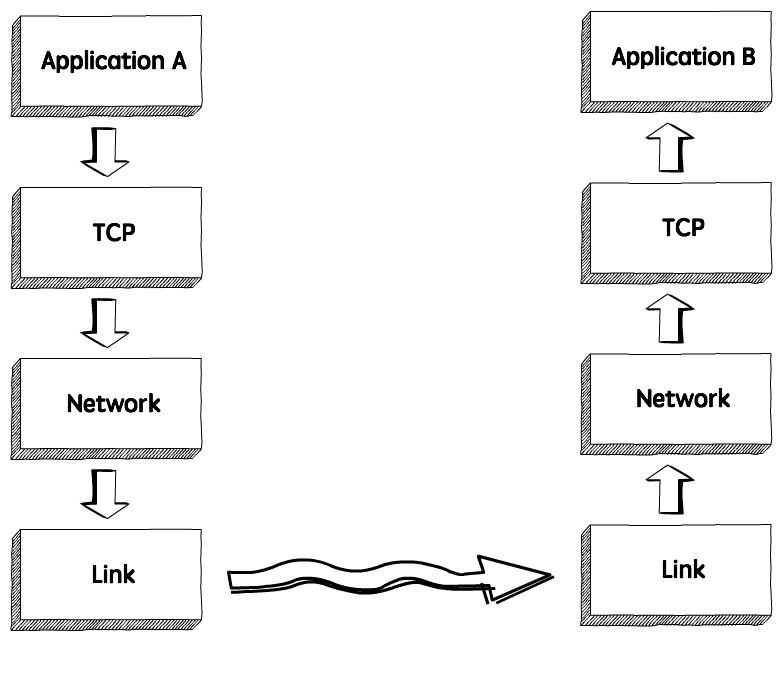
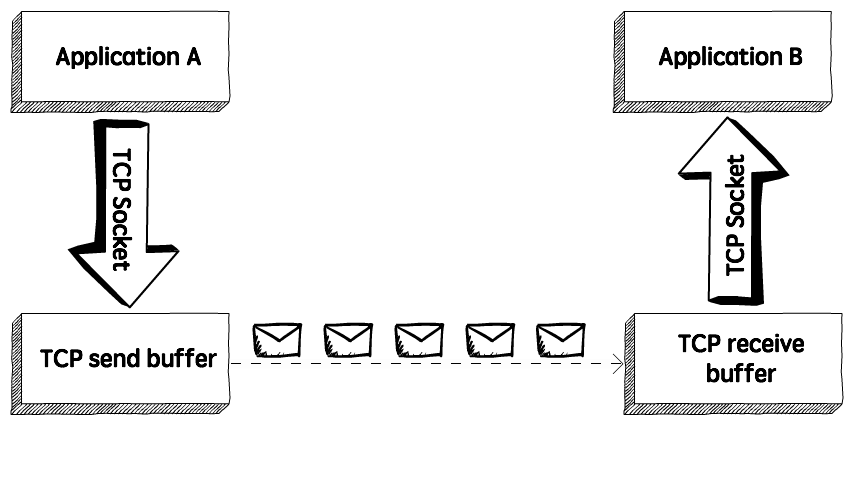
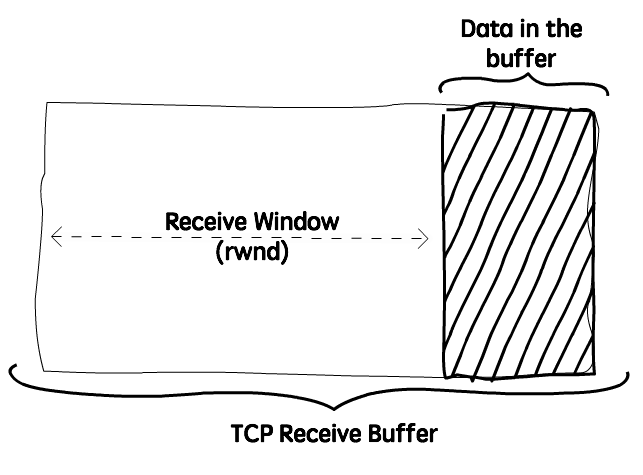
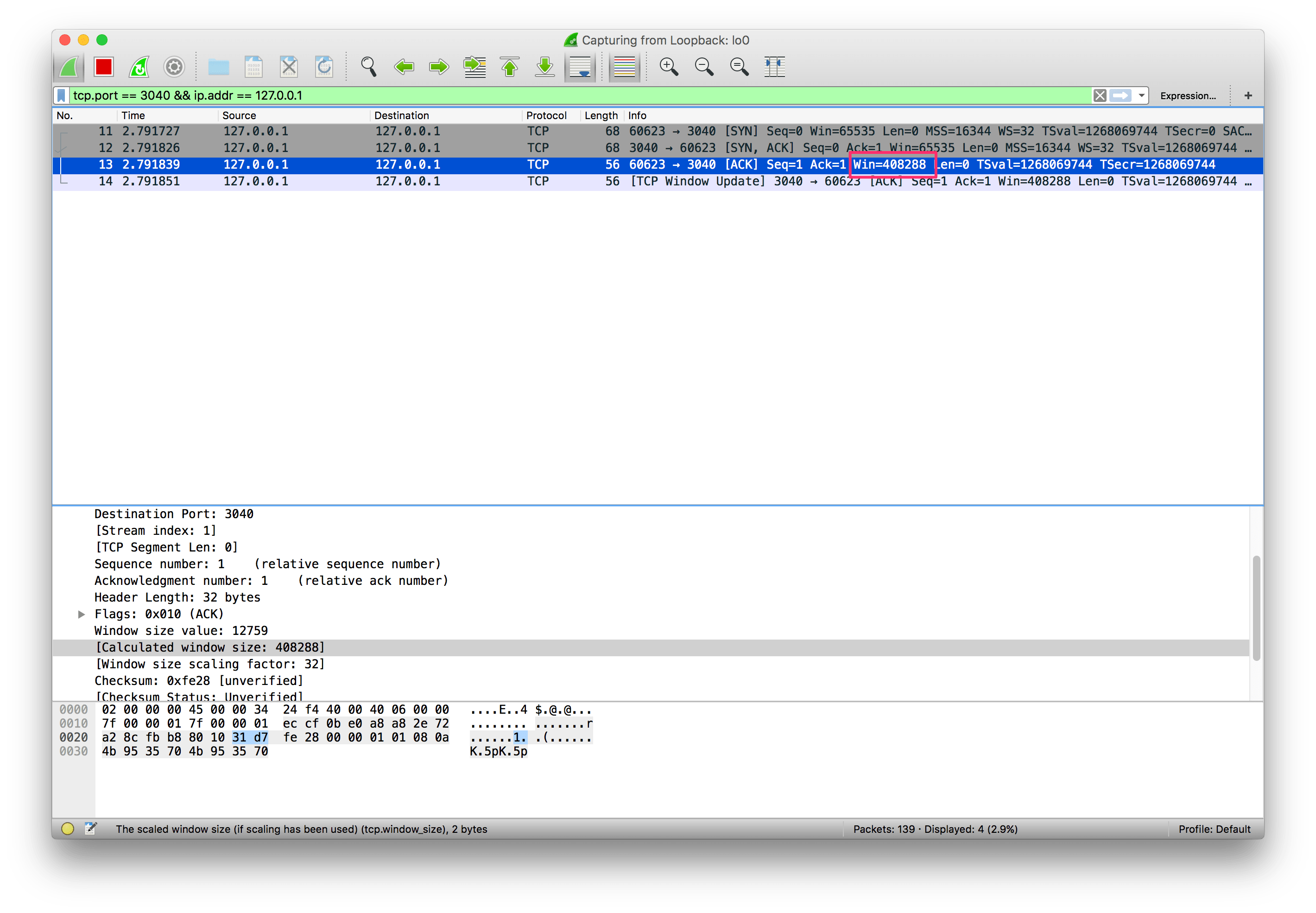
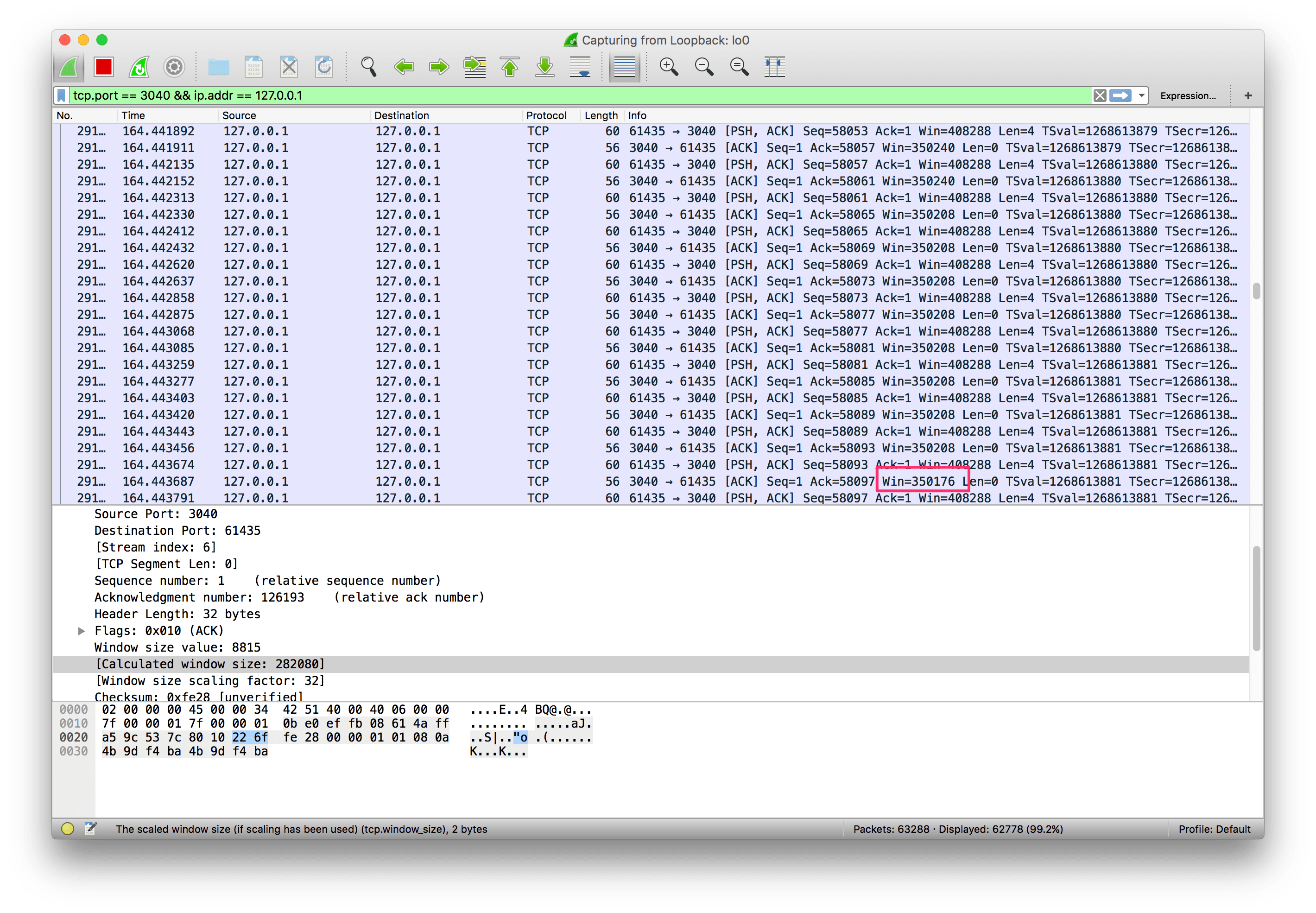
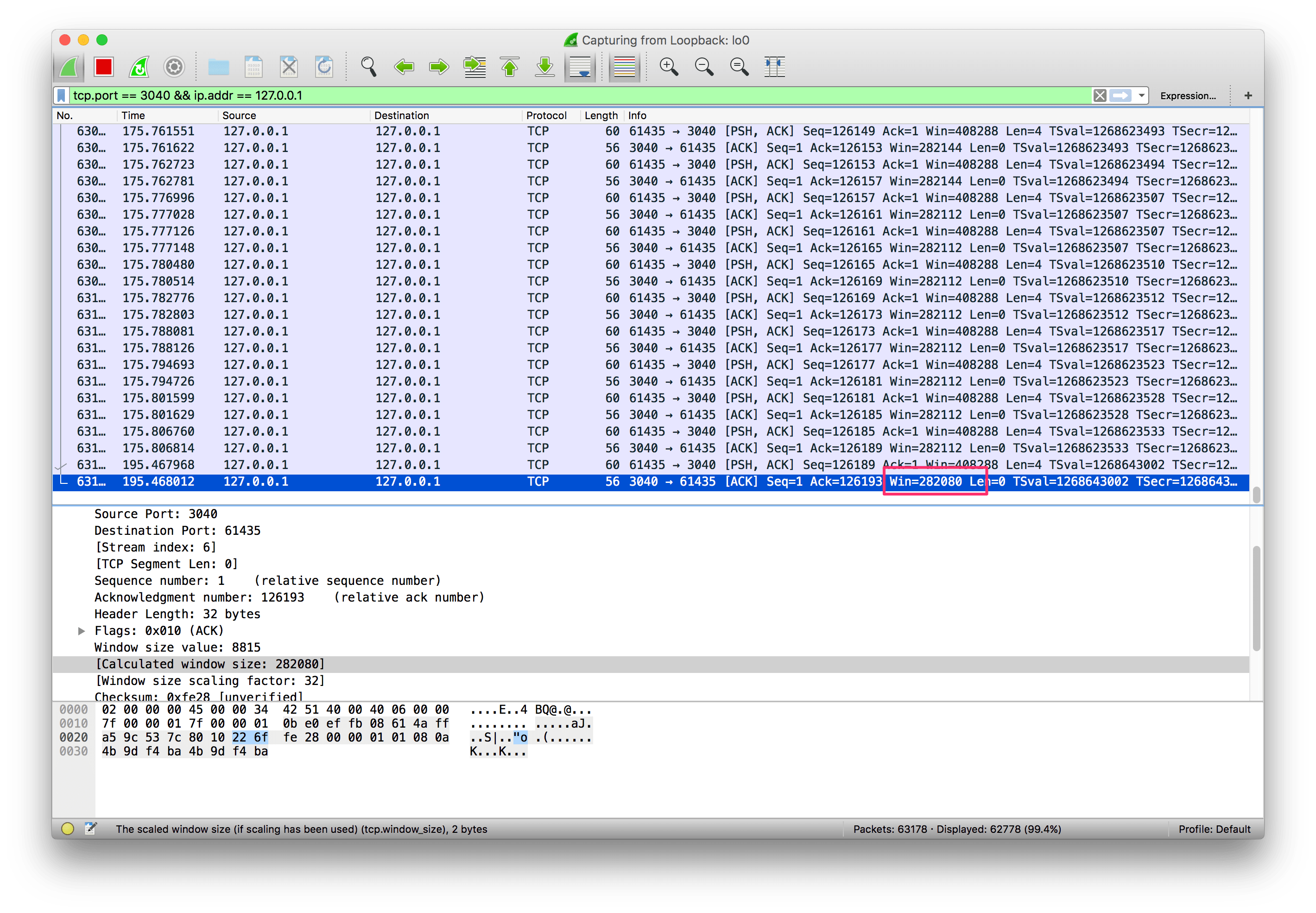
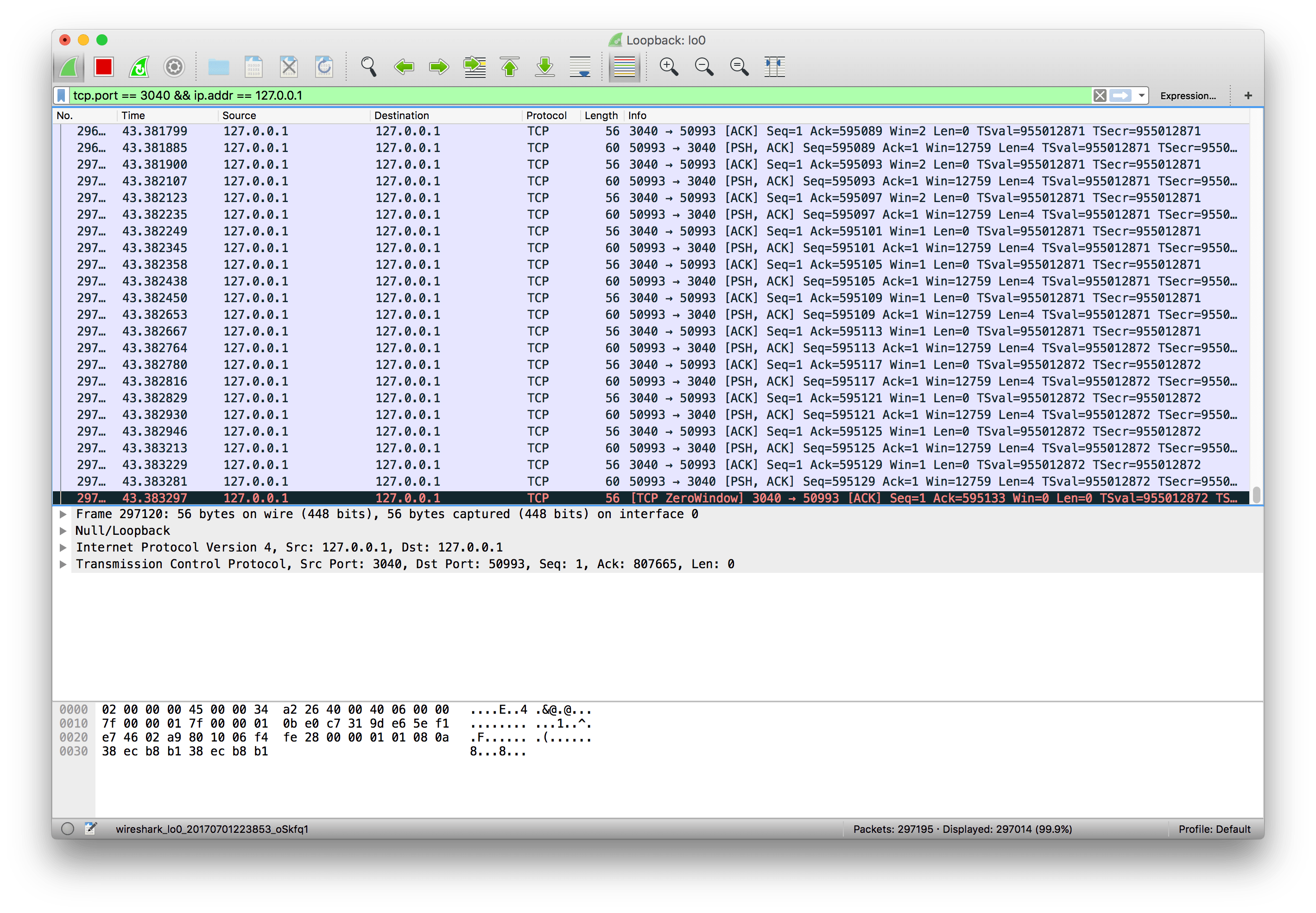
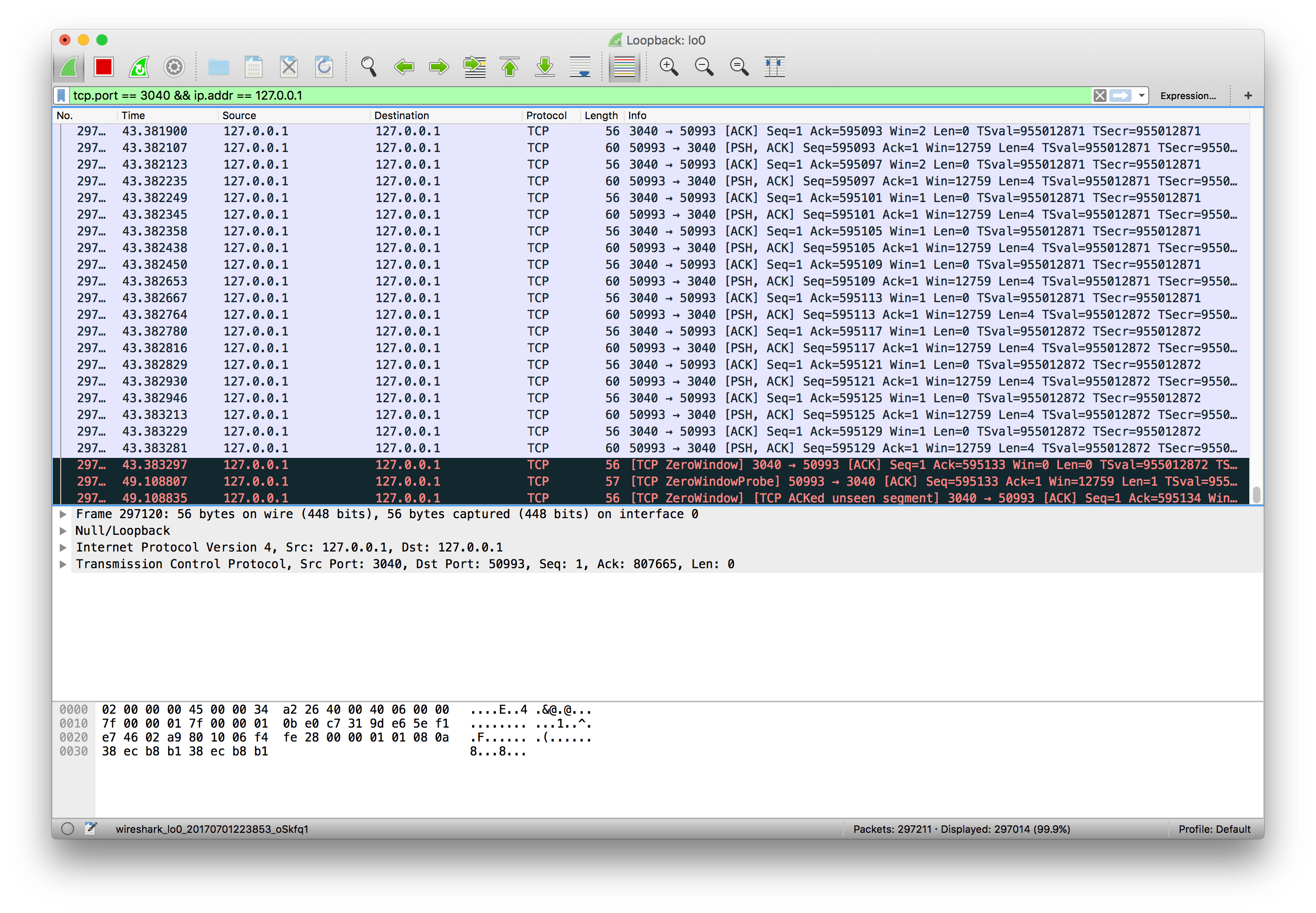
    [](http://github.com/brianstorti) [](http://twitter.com/brianstorti) [](mailto:btstorti@gmail.com) [](http://linkedin.com/in/brianstorti) [](https://www.brianstorti.com/feed/atom.xml) --- # TCP Flow Control `TCP` is the protocol that guarantees we can have a reliable communication channel over an unreliable network. When we send data from a node to another, packets can be lost, they can arrive out of order, the network can be congested or the receiver node can be overloaded. When we are writing an application, though, we usually don't need to deal with this complexity, we just write some data to a socket and `TCP` makes sure the packets are delivered correctly to the receiver node. Another important service that `TCP` provides is what is called *Flow Control*. Let's talk about what that means and how `TCP` does its magic. #### What is Flow Control (and what it's not) Flow Control basically means that `TCP` will ensure that a sender is not overwhelming a receiver by sending packets faster than it can consume. It's pretty similar to what's normally called *Back pressure* in the Distributed Systems literature. The idea is that a node receiving data will send some kind of feedback to the node sending the data to let it know about its current condition. It's important to understand that this is **not** the same as *Congestion Control*. Although there's some overlap between the mechanisms `TCP` uses to provide both services, they are distinct features. Congestion control is about preventing a node from overwhelming the network (i.e. the links between two nodes), while Flow Control is about the end-node. #### How it works When we need to send data over a network, this is normally what happens. ![alt](https://www.brianstorti.com/assets/images/tcp-flow-control/layers.png) The sender application writes data to a socket, the transport layer (in our case, `TCP`) will wrap this data in a segment and hand it to the network layer (e.g. `IP`), that will somehow route this packet to the receiving node. On the other side of this communication, the network layer will deliver this piece of data to `TCP`, that will make it available to the receiver application as an exact copy of the data sent, meaning if will not deliver packets out of order, and will wait for a retransmission in case it notices a gap in the byte stream. If we zoom in, we will see something like this. ![alt](https://www.brianstorti.com/assets/images/tcp-flow-control/buffers.png) `TCP` stores the data it needs to send in the *send buffer*, and the data it receives in the *receive buffer*. When the application is ready, it will then read data from the receive buffer. Flow Control is all about making sure we don't send more packets when the receive buffer is already full, as the receiver wouldn't be able to handle them and would need to drop these packets. To control the amount of data that `TCP` can send, the receiver will advertise its *Receive Window (rwnd)*, that is, the spare room in the receive buffer. ![alt](https://www.brianstorti.com/assets/images/tcp-flow-control/rwnd.png) Every time `TCP` receives a packet, it needs to send an `ack` message to the sender, acknowledging it received that packet correctly, and with this `ack` message it sends the value of the current receive window, so the sender knows if it can keep sending data. #### The sliding window `TCP` uses a sliding window protocol to control the number of bytes in flight it can have. In other words, the number of bytes that were sent but not yet `ack`ed. Let's say we want to send a 150000 bytes file from node A to node B. `TCP` could break this file down into 100 packets, 1500 bytes each. Now let's say that when the connection between node A and B is established, node B advertises a receive window of 45000 bytes, because it really wants to help us with our math here. Seeing that, `TCP` knows it can send the first 30 packets (1500 * 30 = 45000) before it receives an acknowledgment. If it gets an `ack` message for the first 10 packets (meaning we now have only 20 packets in flight), and the receive window present in these `ack` messages is still 45000, it can send the next 10 packets, bringing the number of packets in flight back to 30, that is the limit defined by the receive window. In other words, at any given point in time it can have 30 packets in flight, that were sent but not yet `ack`ed. ![alt](https://www.brianstorti.com/assets/images/tcp-flow-control/sliding-window.png) Example of a sliding window. As soon as packet 3 is acked, we can slide the window to the right and send the packet 8. Now, if for some reason the application reading these packets in node B slows down, `TCP` will still `ack` the packets that were correctly received, but as these packets need to be stored in the receive buffer until the application decides to read them, the receive window will be smaller, so even if `TCP` receives the acknowledgment for the next 10 packets (meaning there are currently 20 packets, or 30000 bytes, in flight), but the receive window value received in this `ack` is now 30000 (instead of 45000), it will not send more packets, as the number of bytes in flight is already equal to the latest receive window advertised. The sender will always keep this invariant: ``` text LastByteSent - LastByteAcked <= ReceiveWindowAdvertised ``` #### Visualizing the Receive Window Just to see this behavior in action, let's write a very simple application that reads data from a socket and watch how the receive window behaves when we make this application slower. We will use `Wireshark` to see these packets, `netcat` to send data to this application, and a `go` program to read data from the socket. Here's the simple `go` program that reads and prints the data received: ``` text package main import ( "bufio" "fmt" "net" ) func main() { listener, _ := net.Listen("tcp", "localhost:3040") conn, _ := listener.Accept() for { message, _ := bufio.NewReader(conn).ReadBytes('\n') fmt.Println(string(message)) } } ``` This program will simply listen to connections on port `3040` and print the string received. We can then use `netcat` to send data to this application: ``` text $ nc localhost 3040 ``` And we can see, using `Wireshark`, that the connection was established and a window size advertised: [ ![alt](https://www.brianstorti.com/assets/images/tcp-flow-control/conn-established.png)](https://www.brianstorti.com/assets/images/tcp-flow-control/conn-established.png) Click on the image to enlarge it. Now let's run this command to create a stream of data. It will simply add the string "foo" to a file, that we will use to send to this application: ``` text $ while true; do echo "foo" > stream.txt; done ``` And now let's send this data to the application: ``` text tail -f stream.txt | nc localhost 3040 ``` Now if we check `Wireshark` we will see a lot of packets being sent, and the receive window being updated: [ ![alt](https://www.brianstorti.com/assets/images/tcp-flow-control/win-decreasing-1.png)](https://www.brianstorti.com/assets/images/tcp-flow-control/win-decreasing-1.png) [ ![alt](https://www.brianstorti.com/assets/images/tcp-flow-control/win-decreasing-2.png)](https://www.brianstorti.com/assets/images/tcp-flow-control/win-decreasing-2.png) The application is still fast enough to keep up with the work, though. So let's make it a bit slower to see what happens: ``` text package main import ( "bufio" "fmt" "net" "time" ) func main() { listener, _ := net.Listen("tcp", "localhost:3040") conn, _ := listener.Accept() for { message, _ := bufio.NewReader(conn).ReadBytes('\n') fmt.Println(string(message)) + time.Sleep(1 * time.Second) } } ``` Now we are sleeping for 1 second before we read data from the receive buffer. If we run `netcat` again and observe `Wireshark`, it doesn't take long until the receive buffer is full and `TCP` starts advertising a 0 window size: [ ![alt](https://www.brianstorti.com/assets/images/tcp-flow-control/zero-window.png)](https://www.brianstorti.com/assets/images/tcp-flow-control/zero-window.png) At this moment `TCP` will stop transmitting data, as the receiver's buffer is full. #### The persist timer There's still one problem, though. After the receiver advertises a zero window, if it doesn't send any other `ack` message to the sender (or if the `ack` is lost), it will never know when it can start sending data again. We will have a deadlock situation, where the receiver is waiting for more data, and the sender is waiting for a message saying it can start sending data again. To solve this problem, when `TCP` receives a zero-window message it starts the *persist timer*, that will periodically send a small packet to the receiver (usually called `WindowProbe`), so it has a chance to advertise a nonzero window size. [ ![alt](https://www.brianstorti.com/assets/images/tcp-flow-control/window-probe.png)](https://www.brianstorti.com/assets/images/tcp-flow-control/window-probe.png) When there's some spare space in the receiver's buffer again it can advertise a non-zero window size and the transmission can continue. #### Recap - `TCP`'s flow control is a mechanism to ensure the sender is not overwhelming the receiver with more data than it can handle; - With every `ack` message the receiver advertises its current receive window; - The receive window is the spare space in the receive buffer, that is, `rwnd = ReceiveBuffer - (LastByteReceived -- LastByteReadByApplication)`; - `TCP` will use a sliding window protocol to make sure it never has more bytes in flight than the window advertised by the receiver; - When the window size is 0, `TCP` will stop transmitting data and will start the persist timer; - It will then periodically send a small `WindowProbe` message to the receiver to check if it can start receiving data again; - When it receives a non-zero window size, it resumes the transmission. [Get PDF](https://gum.co/tcp-flow-control) #### Interested in learning Kubernetes? I just published a new book called [Kubernetes in Practice](https://kubernetesinpractice.com/), you can use the discount code **blog** to get 10% off.


    Import from clipboard

    Paste your markdown or webpage here...

    Advanced permission required

    Your current role can only read. Ask the system administrator to acquire write and comment permission.

    This team is disabled

    Sorry, this team is disabled. You can't edit this note.

    This note is locked

    Sorry, only owner can edit this note.

    Reach the limit

    Sorry, you've reached the max length this note can be.
    Please reduce the content or divide it to more notes, thank you!

    Import from Gist

    Import from Snippet

    or

    Export to Snippet

    Are you sure?

    Do you really want to delete this note?
    All users will lose their connection.

    Create a note from template

    Create a note from template

    Oops...
    This template has been removed or transferred.
    Upgrade
    All
    • All
    • Team
    No template.

    Create a template

    Upgrade

    Delete template

    Do you really want to delete this template?
    Turn this template into a regular note and keep its content, versions, and comments.

    This page need refresh

    You have an incompatible client version.
    Refresh to update.
    New version available!
    See releases notes here
    Refresh to enjoy new features.
    Your user state has changed.
    Refresh to load new user state.

    Sign in

    Forgot password
    or
    Sign in via Facebook Sign in via X(Twitter) Sign in via GitHub Sign in via Dropbox Sign in with Wallet
    Wallet ( )
    Connect another wallet

    New to HackMD? Sign up

    By signing in, you agree to our terms of service.

    Help

    • English
    • 中文
    • Français
    • Deutsch
    • 日本語
    • Español
    • Català
    • Ελληνικά
    • Português
    • italiano
    • Türkçe
    • Русский
    • Nederlands
    • hrvatski jezik
    • język polski
    • Українська
    • हिन्दी
    • svenska
    • Esperanto
    • dansk

    Documents

    Help & Tutorial

    How to use Book mode

    Slide Example

    API Docs

    Edit in VSCode

    Install browser extension

    Contacts

    Feedback

    Discord

    Send us email

    Resources

    Releases

    Pricing

    Blog

    Policy

    Terms

    Privacy

    Cheatsheet

    Syntax Example Reference
    # Header Header 基本排版
    - Unordered List
    • Unordered List
    1. Ordered List
    1. Ordered List
    - [ ] Todo List
    • Todo List
    > Blockquote
    Blockquote
    **Bold font** Bold font
    *Italics font* Italics font
    ~~Strikethrough~~ Strikethrough
    19^th^ 19th
    H~2~O H2O
    ++Inserted text++ Inserted text
    ==Marked text== Marked text
    [link text](https:// "title") Link
    ![image alt](https:// "title") Image
    `Code` Code 在筆記中貼入程式碼
    ```javascript
    var i = 0;
    ```
    var i = 0;
    :smile: :smile: Emoji list
    {%youtube youtube_id %} Externals
    $L^aT_eX$ LaTeX
    :::info
    This is a alert area.
    :::

    This is a alert area.

    Versions and GitHub Sync
    Get Full History Access

    • Edit version name
    • Delete

    revision author avatar     named on  

    More Less

    Note content is identical to the latest version.
    Compare
      Choose a version
      No search result
      Version not found
    Sign in to link this note to GitHub
    Learn more
    This note is not linked with GitHub
     

    Feedback

    Submission failed, please try again

    Thanks for your support.

    On a scale of 0-10, how likely is it that you would recommend HackMD to your friends, family or business associates?

    Please give us some advice and help us improve HackMD.


    Thanks for your feedback

    Remove version name

    Do you want to remove this version name and description?

    Transfer ownership

    Transfer to
      Warning: is a public team. If you transfer note to this team, everyone on the web can find and read this note.

        Link with GitHub

        Please authorize HackMD on GitHub
        • Please sign in to GitHub and install the HackMD app on your GitHub repo.
        • HackMD links with GitHub through a GitHub App. You can choose which repo to install our App.
        Learn more  Sign in to GitHub

        Push the note to GitHub Push to GitHub Pull a file from GitHub

          Authorize again
         

        Choose which file to push to

        Select repo
        Refresh Authorize more repos
        Select branch
        Select file
        Select branch
        Choose version(s) to push
        • Save a new version and push
        • Choose from existing versions
        Include title and tags
        Available push count

        Pull from GitHub

         
        File from GitHub
        File from HackMD

        GitHub Link Settings

        File linked

        Linked by
        File path
        Last synced branch
        Available push count

        Danger Zone

        Unlink
        You will no longer receive notification when GitHub file changes after unlink.

        Syncing

        Push failed

        Push successfully

