Casey Cann
    • Create new note
    • Create a note from template
      • Sharing URL Link copied
      • /edit
      • View mode
        • Edit mode
        • View mode
        • Book mode
        • Slide mode
        Edit mode View mode Book mode Slide mode
      • Customize slides
      • Note Permission
      • Read
        • Only me
        • Signed-in users
        • Everyone
        Only me Signed-in users Everyone
      • Write
        • Only me
        • Signed-in users
        • Everyone
        Only me Signed-in users Everyone
      • Engagement control Commenting, Suggest edit, Emoji Reply
    • Invite by email
      Invitee

      This note has no invitees

    • Publish Note

      Share your work with the world Congratulations! 🎉 Your note is out in the world Publish Note

      Your note will be visible on your profile and discoverable by anyone.
      Your note is now live.
      This note is visible on your profile and discoverable online.
      Everyone on the web can find and read all notes of this public team.
      See published notes
      Unpublish note
      Please check the box to agree to the Community Guidelines.
      View profile
    • Commenting
      Permission
      Disabled Forbidden Owners Signed-in users Everyone
    • Enable
    • Permission
      • Forbidden
      • Owners
      • Signed-in users
      • Everyone
    • Suggest edit
      Permission
      Disabled Forbidden Owners Signed-in users Everyone
    • Enable
    • Permission
      • Forbidden
      • Owners
      • Signed-in users
    • Emoji Reply
    • Enable
    • Versions and GitHub Sync
    • Note settings
    • Note Insights New
    • Engagement control
    • Transfer ownership
    • Delete this note
    • Save as template
    • Insert from template
    • Import from
      • Dropbox
      • Google Drive
      • Gist
      • Clipboard
    • Export to
      • Dropbox
      • Google Drive
      • Gist
    • Download
      • Markdown
      • HTML
      • Raw HTML
Menu Note settings Note Insights Versions and GitHub Sync Sharing URL Create Help
Create Create new note Create a note from template
Menu
Options
Engagement control Transfer ownership Delete this note
Import from
Dropbox Google Drive Gist Clipboard
Export to
Dropbox Google Drive Gist
Download
Markdown HTML Raw HTML
Back
Sharing URL Link copied
/edit
View mode
  • Edit mode
  • View mode
  • Book mode
  • Slide mode
Edit mode View mode Book mode Slide mode
Customize slides
Note Permission
Read
Only me
  • Only me
  • Signed-in users
  • Everyone
Only me Signed-in users Everyone
Write
Only me
  • Only me
  • Signed-in users
  • Everyone
Only me Signed-in users Everyone
Engagement control Commenting, Suggest edit, Emoji Reply
  • Invite by email
    Invitee

    This note has no invitees

  • Publish Note

    Share your work with the world Congratulations! 🎉 Your note is out in the world Publish Note

    Your note will be visible on your profile and discoverable by anyone.
    Your note is now live.
    This note is visible on your profile and discoverable online.
    Everyone on the web can find and read all notes of this public team.
    See published notes
    Unpublish note
    Please check the box to agree to the Community Guidelines.
    View profile
    Engagement control
    Commenting
    Permission
    Disabled Forbidden Owners Signed-in users Everyone
    Enable
    Permission
    • Forbidden
    • Owners
    • Signed-in users
    • Everyone
    Suggest edit
    Permission
    Disabled Forbidden Owners Signed-in users Everyone
    Enable
    Permission
    • Forbidden
    • Owners
    • Signed-in users
    Emoji Reply
    Enable
    Import from Dropbox Google Drive Gist Clipboard
       Owned this note    Owned this note      
    Published Linked with GitHub
    • Any changes
      Be notified of any changes
    • Mention me
      Be notified of mention me
    • Unsubscribe
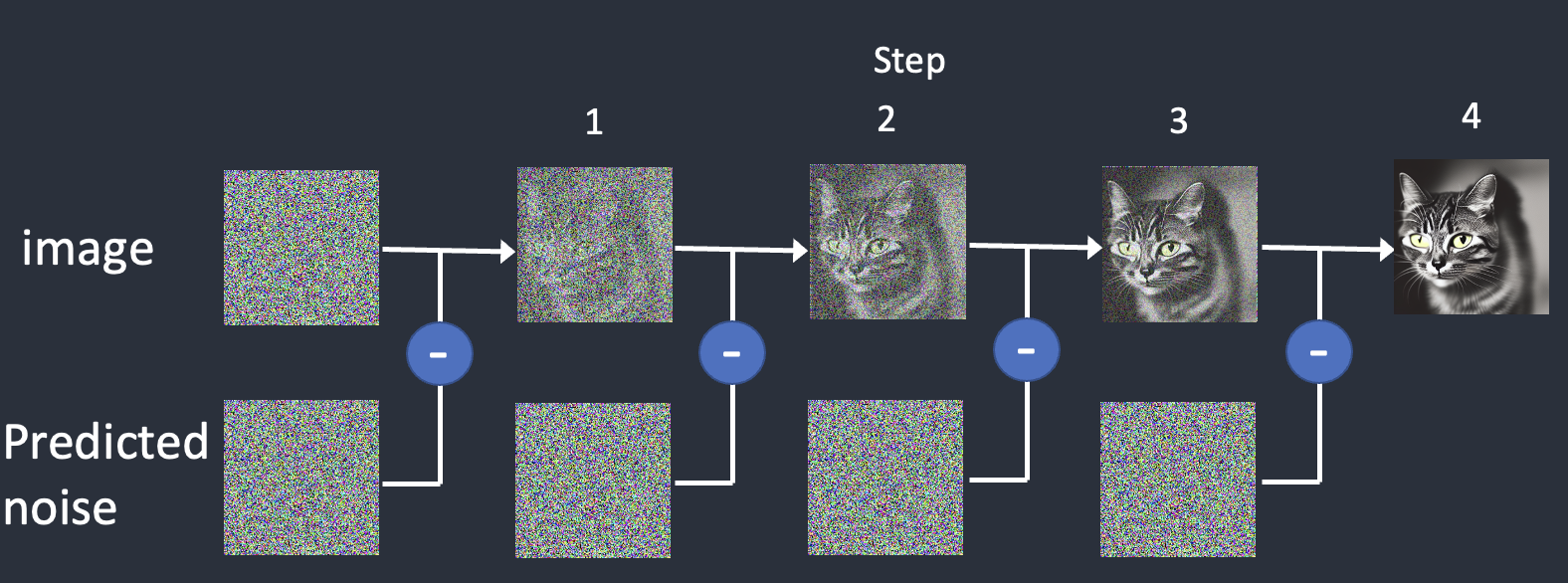
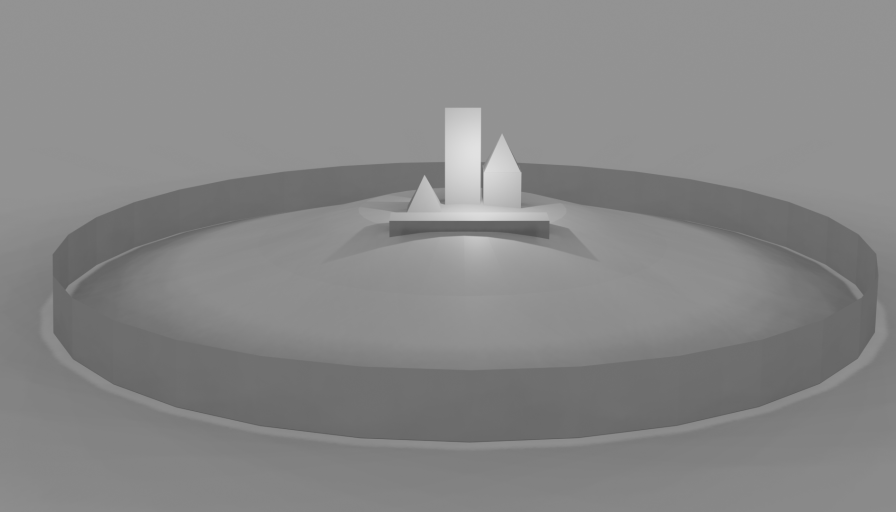
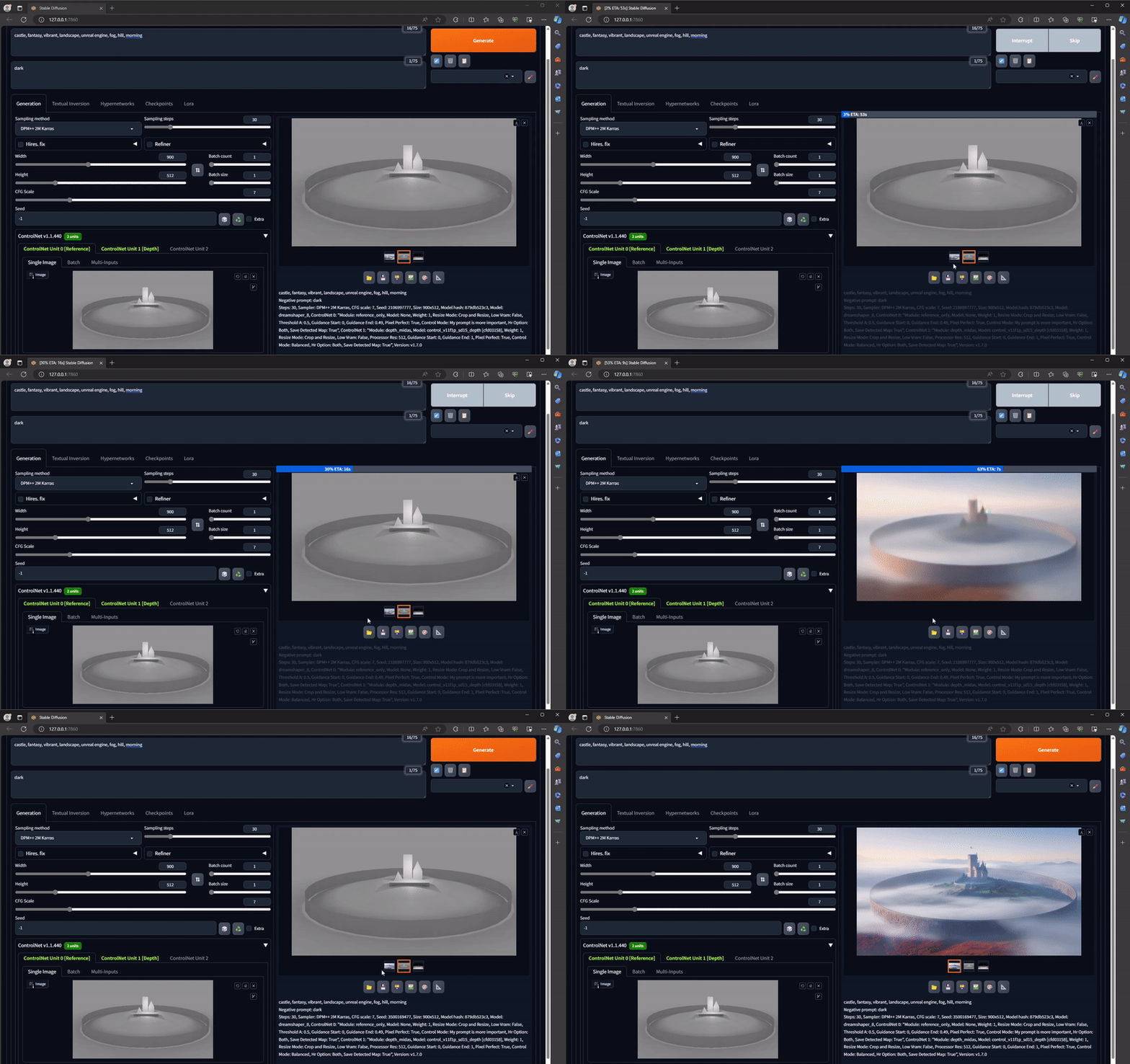
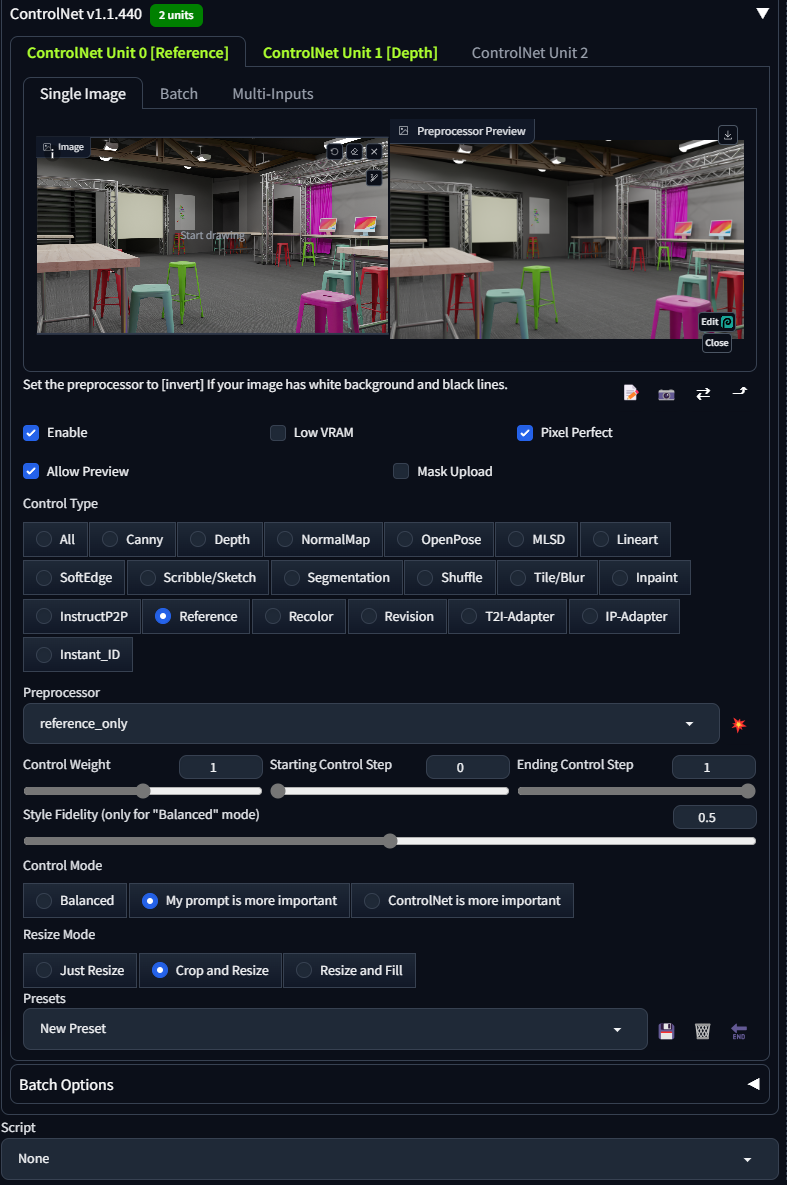
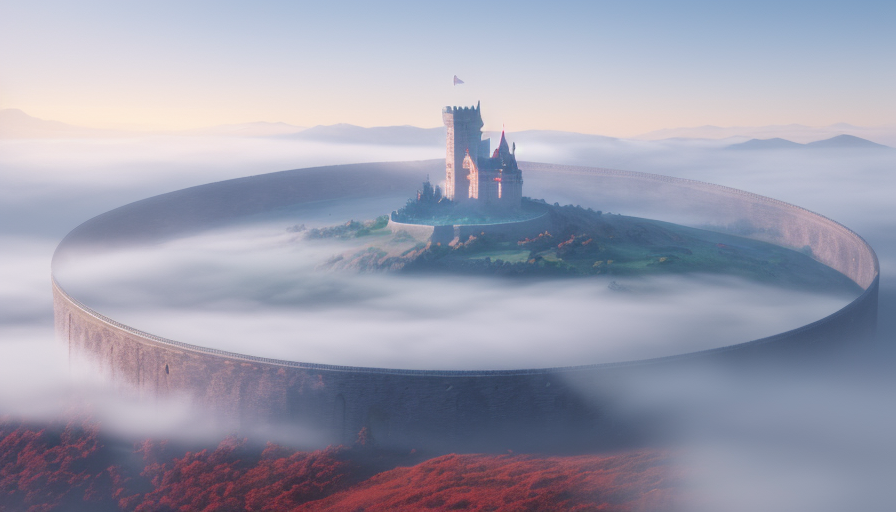
    # Stable Diffusion and Controlnet In this guide, we'll outline how you can use existing, drawn, or modeled images -- like the rendering of our Learning Lab studio below -- and change them into completely new scenes. <img src="https://files.slack.com/files-pri/T0HTW3H0V-F06JK9E8AJU/llangle2.png?pub_secret=9a84127f1a" alt="drawing" width="500"/> <img src="https://files.slack.com/files-pri/T0HTW3H0V-F06JK3P5X40/mlsd___depth.png?pub_secret=f2b5d3b24d" alt="drawing" width="500"/> # [Stable Diffusion](https://jalammar.github.io/illustrated-stable-diffusion/) Stable Diffusion started as a latent diffusion model that generates AI images from text. It has since expanded out to a series of interconnected tools for creating image-to-image, text-to-video, and even video-to-video. At the moment, video outputs are still highly complex and frequently ineffective, so in this guide, we'll focus on image outputs only. Stable diffusion works by taking a field of static noise and pulling an image out of the noise. This is why when you generate a number of images, they'll all be fundamentally similar, but end up quite different -- because no field of static is exactly the same as another. ![](https://stable-diffusion-art.com/wp-content/uploads/2022/12/image-84.png) ## Interfaces A number of interfaces for Stable Diffusion exist out there, some of them will be more like Midjourney or Dall-E, in the sense that you won't maintain this creative control quite as much. [Playground.ai](https://playground.ai/) is one of these, its a mostly free build for stable diffusion that is hosted online and uses off-site servers to handle the processing. [ComfyUI](https://github.com/comfyanonymous/ComfyUI) is another version, but in this case it runs locally and uses your computer's processors for handling the image generation. The interface we'll be using is called [AUTOMATIC1111](https://github.com/AUTOMATIC1111/stable-diffusion-webui). This is arguably one of the harder ones to learn, but has the most adaptability. <img src="https://files.slack.com/files-pri/T0HTW3H0V-F06J8UYFHH7/controlnet_image.png?pub_secret=cb47a5e4cc" alt="drawing" width="600"/> This is completely free and installed through the command line. It runs primarily on Python -- but **requires no coding experience whatsoever**. You can find guides here on how to install it: * [Install guide for Macs](https://stable-diffusion-art.com/install-mac/) * [Install guide for Windows](https://stable-diffusion-art.com/install-windows/) * [Install guide for Google Colab](https://stable-diffusion-art.com/automatic1111-colab/) * This option will work for anyone that has an older computer or finds that it doesn't really function on their own machine. * Unfortunately, this option does require an upgraded Colab account and may cost money. *Running Stable Diffusion on the free level of Colab breaks the Terms of Service.* ## How it works Now, we're actually getting to the core function of the tool. There are two main functions that we want to use, **Image interpretation** and **Image generation**. The interpretation process will use a tool call **Controlnet** and the generation process will be determined by the **Checkpoint Model**. ### [Controlnet](https://stable-diffusion-art.com/controlnet/) Controlnet functions by taking in an image, interpreting specific elements of that image, and then passing that control information on to the checkpoint model. <img src="https://stable-diffusion-art.com/wp-content/uploads/2023/02/openpose_overlay_person.png" alt="drawing" width="300"/> In the case of the OpenPose tool, it interprets human poses and generates new characters in exactly those poses. With the Segmentation tool, it breaks foreground, middle ground and background into unique sections. So below, you'll find the original image, it's interpretation and its output. <img src="https://stable-diffusion-art.com/wp-content/uploads/2023/05/jezael-melgoza-KbR06h9dNQw-unsplash.jpg" alt="drawing" width="300"/> <img src="https://stable-diffusion-art.com/wp-content/uploads/2023/05/image-137.png" alt="drawing" width="300"/> <img src="https://stable-diffusion-art.com/wp-content/uploads/2023/05/image-141.png)" alt="drawing" width="300"/> ### [Checkpoint Models](https://softwarekeep.com/help-center/best-stable-diffusion-models-to-try) Your Checkpoint Model will determine the style and occasionally the content of your output. It is important to note that there is no built-in censor on Stable Diffusion, so be careful when prompting, as you may generate unintended images. Here are two checkpoint models, so you can see the how differently they portray the same set of prompts. ![](https://api.softwarekeep.com/media/nimbus/helpcenter/modelshotmodel.png) ![](https://api.softwarekeep.com/media/nimbus/helpcenter/deliberatemodel.png) ## How to Pull it all together Now, if you've gotten this far, you'll probably get the notion that there's a ton of different ways you can mix and match these two tools. Below, you'll find an approach that it intended to interpret a scene and remix the setting of that scene. To start, we can draw a few simple shapes -- for bonus points, you can use Blender to place 3D objects roughly within a scene. But taking a clean photo of a drawing on white paper would work basically just as well. ![alt text](https://files.slack.com/files-pri/T0HTW3H0V-F06JWM7HBEH/image__28_.png?pub_secret=9f3d02dfeb) Next, we'll put this screenshot into Stable Diffusion, in the Controlnet drop down interface: ![alt text](https://files.slack.com/files-pri/T0HTW3H0V-F06JZFEP9D1/benham_sdgif.gif?pub_secret=e1a16e6e86) Check on: * Enable * MLSD * Pixel Perfect * Allow Preview Then open the next Controlnet Tab and check on: * Enable * Depth * Pixel Perfect * Allow Preview Finally, open the third Controlnet Tab and check on * Enable * Reference * Pixel perfect * Allow Preview ![alt text](https://files.slack.com/files-pri/T0HTW3H0V-F06J8V4NWV7/reference_depth_0-1.png?pub_secret=c889533fb3) Now, we'll need to select a Checkpoint Model. The one I highly recommend is **Dreamshaper**, **Realistic Vision**, or **F222**. All of these will yield good looking results for a scene. Finally, we'll craft a written prompt to tell Stable Diffusion what this scene should look like, and enter this into the **Prompt** field at the top of the interface. Hit **Generate** and what comes out should be a fully crafted new image: ![alt text](https://files.slack.com/files-pri/T0HTW3H0V-F06KNCFJD5W/image__27_.png?pub_secret=8364c73db1). ### Awesome, now what? NEED: HOW TO DO THE SAME FUNCTION WITH PHOTOSHOP/OTHER STYLES OF IMAGES NOTES ON GENERATING CHARACTERS NOTES ON INPAINTING # OpenCV for Video Processing Another method of contending with this Interpretation/Generation relationship is the use of OpenCV -- OpenCV is a library of Computer Vision tools that are made for assessing the content of an image/video/camera input/anything kind of digital image.

    Import from clipboard

    Paste your markdown or webpage here...

    Advanced permission required

    Your current role can only read. Ask the system administrator to acquire write and comment permission.

    This team is disabled

    Sorry, this team is disabled. You can't edit this note.

    This note is locked

    Sorry, only owner can edit this note.

    Reach the limit

    Sorry, you've reached the max length this note can be.
    Please reduce the content or divide it to more notes, thank you!

    Import from Gist

    Import from Snippet

    or

    Export to Snippet

    Are you sure?

    Do you really want to delete this note?
    All users will lose their connection.

    Create a note from template

    Create a note from template

    Oops...
    This template has been removed or transferred.
    Upgrade
    All
    • All
    • Team
    No template.

    Create a template

    Upgrade

    Delete template

    Do you really want to delete this template?
    Turn this template into a regular note and keep its content, versions, and comments.

    This page need refresh

    You have an incompatible client version.
    Refresh to update.
    New version available!
    See releases notes here
    Refresh to enjoy new features.
    Your user state has changed.
    Refresh to load new user state.

    Sign in

    Forgot password

    or

    By clicking below, you agree to our terms of service.

    Sign in via Facebook Sign in via Twitter Sign in via GitHub Sign in via Dropbox Sign in with Wallet
    Wallet ( )
    Connect another wallet

    New to HackMD? Sign up

    Help

    • English
    • 中文
    • Français
    • Deutsch
    • 日本語
    • Español
    • Català
    • Ελληνικά
    • Português
    • italiano
    • Türkçe
    • Русский
    • Nederlands
    • hrvatski jezik
    • język polski
    • Українська
    • हिन्दी
    • svenska
    • Esperanto
    • dansk

    Documents

    Help & Tutorial

    How to use Book mode

    Slide Example

    API Docs

    Edit in VSCode

    Install browser extension

    Contacts

    Feedback

    Discord

    Send us email

    Resources

    Releases

    Pricing

    Blog

    Policy

    Terms

    Privacy

    Cheatsheet

    Syntax Example Reference
    # Header Header 基本排版
    - Unordered List
    • Unordered List
    1. Ordered List
    1. Ordered List
    - [ ] Todo List
    • Todo List
    > Blockquote
    Blockquote
    **Bold font** Bold font
    *Italics font* Italics font
    ~~Strikethrough~~ Strikethrough
    19^th^ 19th
    H~2~O H2O
    ++Inserted text++ Inserted text
    ==Marked text== Marked text
    [link text](https:// "title") Link
    ![image alt](https:// "title") Image
    `Code` Code 在筆記中貼入程式碼
    ```javascript
    var i = 0;
    ```
    var i = 0;
    :smile: :smile: Emoji list
    {%youtube youtube_id %} Externals
    $L^aT_eX$ LaTeX
    :::info
    This is a alert area.
    :::

    This is a alert area.

    Versions and GitHub Sync
    Get Full History Access

    • Edit version name
    • Delete

    revision author avatar     named on  

    More Less

    Note content is identical to the latest version.
    Compare
      Choose a version
      No search result
      Version not found
    Sign in to link this note to GitHub
    Learn more
    This note is not linked with GitHub
     

    Feedback

    Submission failed, please try again

    Thanks for your support.

    On a scale of 0-10, how likely is it that you would recommend HackMD to your friends, family or business associates?

    Please give us some advice and help us improve HackMD.


    Thanks for your feedback

    Remove version name

    Do you want to remove this version name and description?

    Transfer ownership

    Transfer to
      Warning: is a public team. If you transfer note to this team, everyone on the web can find and read this note.

        Link with GitHub

        Please authorize HackMD on GitHub
        • Please sign in to GitHub and install the HackMD app on your GitHub repo.
        • HackMD links with GitHub through a GitHub App. You can choose which repo to install our App.
        Learn more  Sign in to GitHub

        Push the note to GitHub Push to GitHub Pull a file from GitHub

          Authorize again
         

        Choose which file to push to

        Select repo
        Refresh Authorize more repos
        Select branch
        Select file
        Select branch
        Choose version(s) to push
        • Save a new version and push
        • Choose from existing versions
        Include title and tags
        Available push count

        Pull from GitHub

         
        File from GitHub
        File from HackMD

        GitHub Link Settings

        File linked

        Linked by
        File path
        Last synced branch
        Available push count

        Danger Zone

        Unlink
        You will no longer receive notification when GitHub file changes after unlink.

        Syncing

        Push failed

        Push successfully

