# NotebookLM Guide for GENED 1189
## Contents:
* Basic Guide to NotebookLM
* GENED 1189 Activity
## Basic Guide:
### What is NotebookLM?
NotebookLM is an AI-powered tool designed to help users engage with large datasets of text drawn from diverse sources, such as PDFs, Google Docs, YouTube videos, and websites. By leveraging Retrieval-Augmented Generation (RAG), NotebookLM allows users to query their uploaded materials and receive responses grounded in the provided sources, complete with citations for transparency and accuracy. This RAG framework ensures that generated insights are contextually rich and traceable back to the original content, making it an ideal assistant for research, analysis, and synthesis tasks. Users can also transform complex, multi-source information into digestible formats, such as summaries or conversational outputs.
NotebookLM also offers a the ability to to reflect on and engage with one's own writing and ideas. By uploading past writing, users can ask NotebookLM questions, identify patterns, or even generate podcast-style discussions about their content. This allows for a distance, "uncanny" reflection on one's style, as the AI reinterprets and reframes their content. This not only enhances self-awareness as a writer or thinker but also demonstrates how AI can serve as a partner in ideation and refinement.
### How to getting started:
**Getting Started with NotebookLM: A Step-by-Step Guide**
**Accessing NotebookLM**
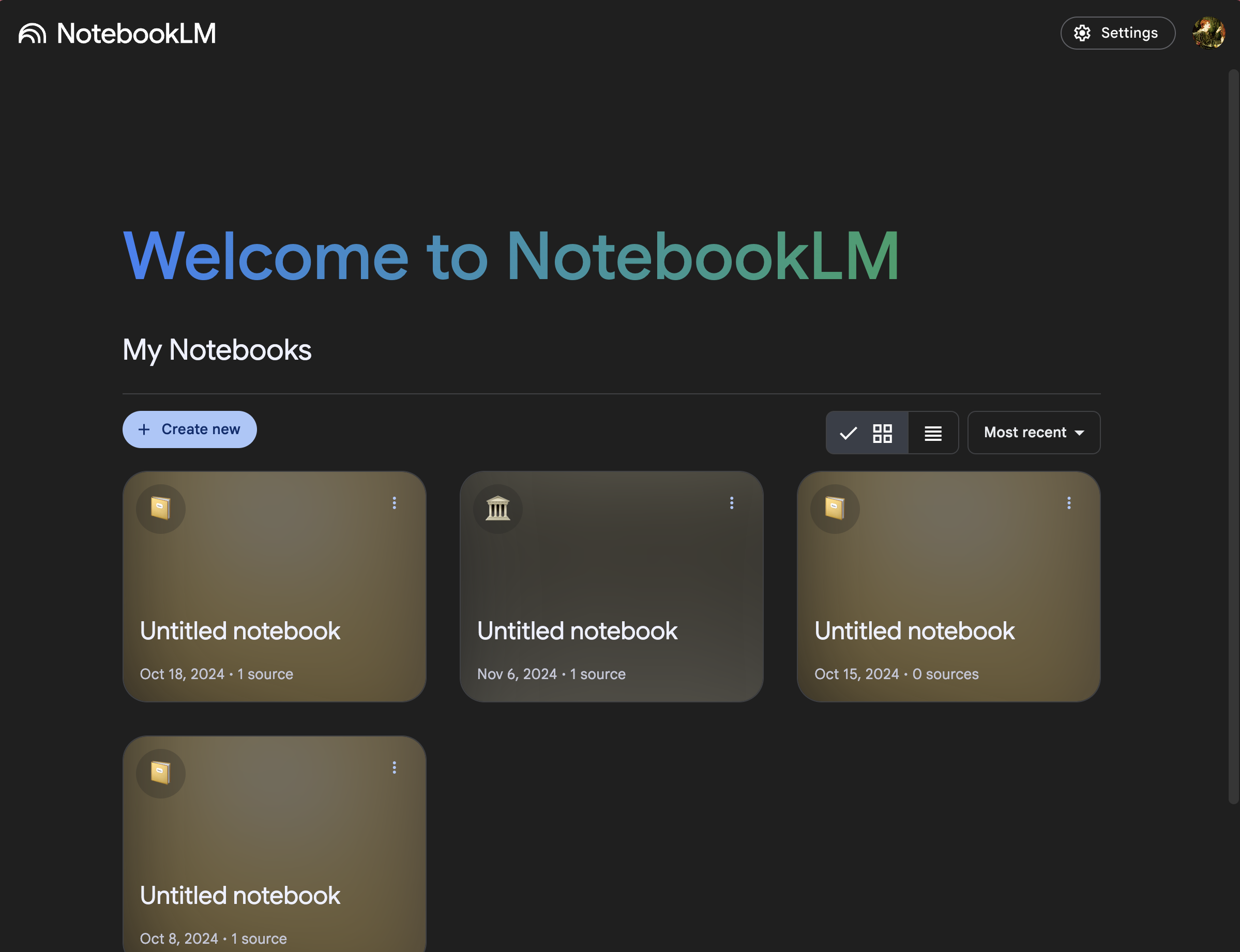
To begin, navigate to the [NotebookLM website](https://notebooklm.google.com/) and log in using your Google account. Once logged in, you’ll be greeted by an interface of previous notebooks (which will be blank if you are creating your first one). Click the “+ Create new” button to get started with a new notebook.
**Uploading Documents**
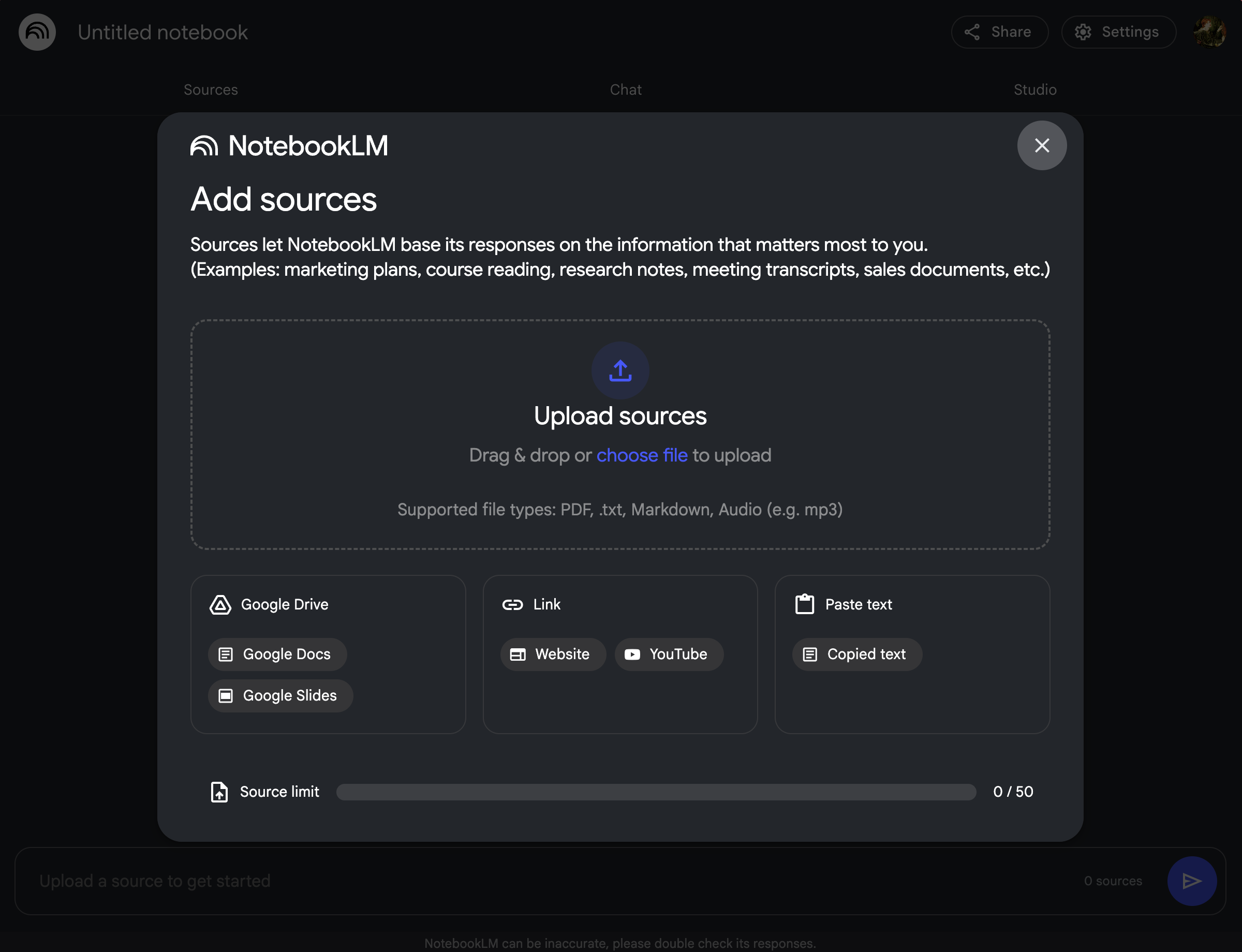
The first step in creating a notebook is uploading the materials you want to work with. NotebookLM offers several ways to do this, catering to various file types and sources:
1. Upload files from your computer in PDF, .txt, or Markdown formats.
2. Link directly to a website by entering its URL.
3. Copy and paste text directly into the notebook.
4. Link to a Google Doc.
5. Link to a Google Slideshow.
**Considerations for Uploads**
- You can upload a maximum of 50 files, with each file containing up to 500,000 words.
- You can always upload new documents to a notebook if you stay below this limit. You do not need to add all the document initially.
- NotebookLM currently focuses on text documents, so file types like Excel are unsupported.
- Larger datasets may require additional processing time, so prioritize key documents when necessary.
---
**Navigating the Notebook Guide**
Once you finish uploading your first batch of sources, you will get to the main interface. This is split into three different main windows: *Sources*, *Chat*, and *Studio*.
**Sources:**
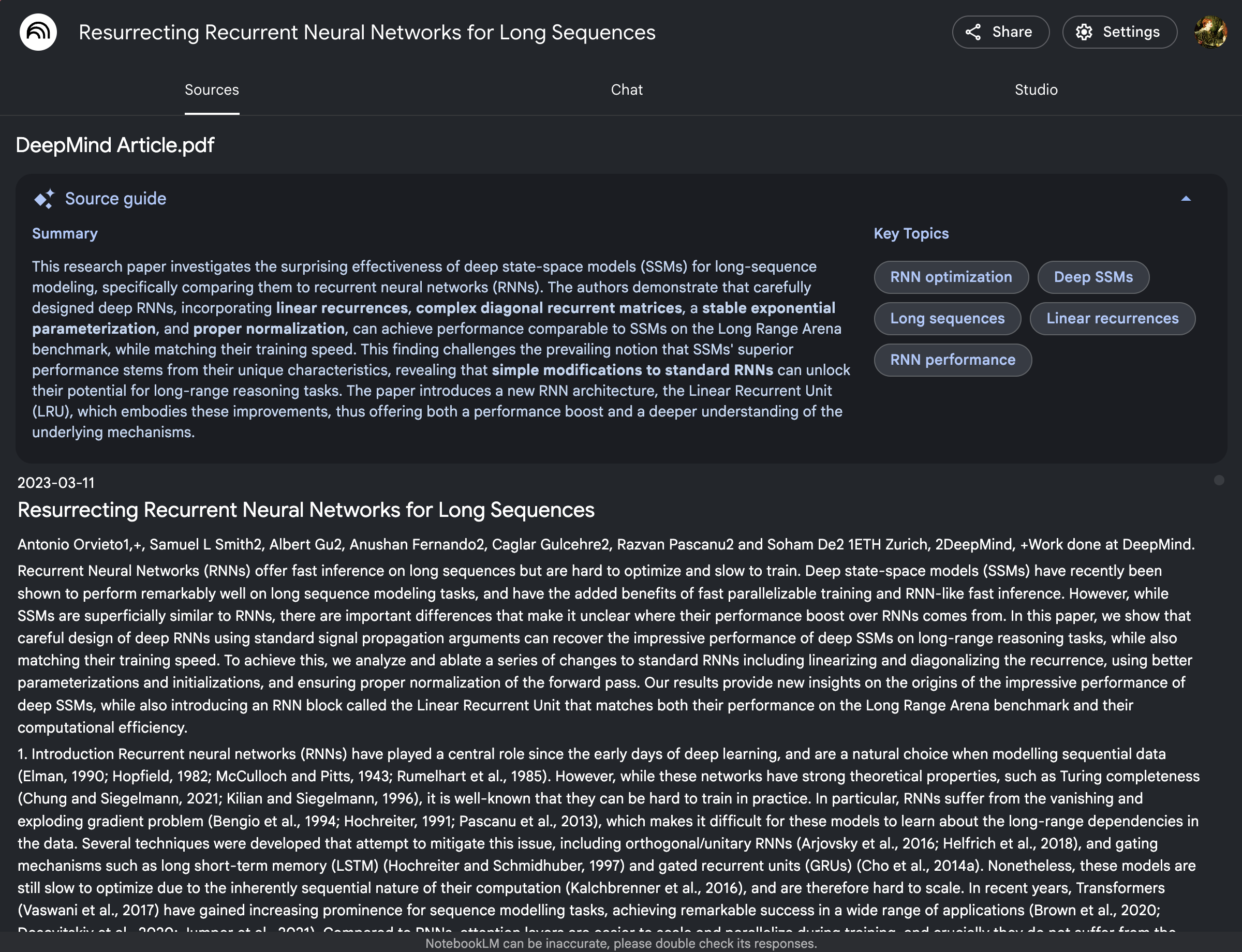
In "*Sources*" you can upload new sources, select which you want active, and rename documents. **NOTE**: Renaming documents is very important for later features, as the AI will reference the entire document title, as enter on the sources page. For example, I will rename this PDF of an article from "11.pdf" to "DeepMind Article.pdf"
Do this by hovering to the left of the source title until three dots appear. If you click on these, and click on "More," you can then delete or rename the source.
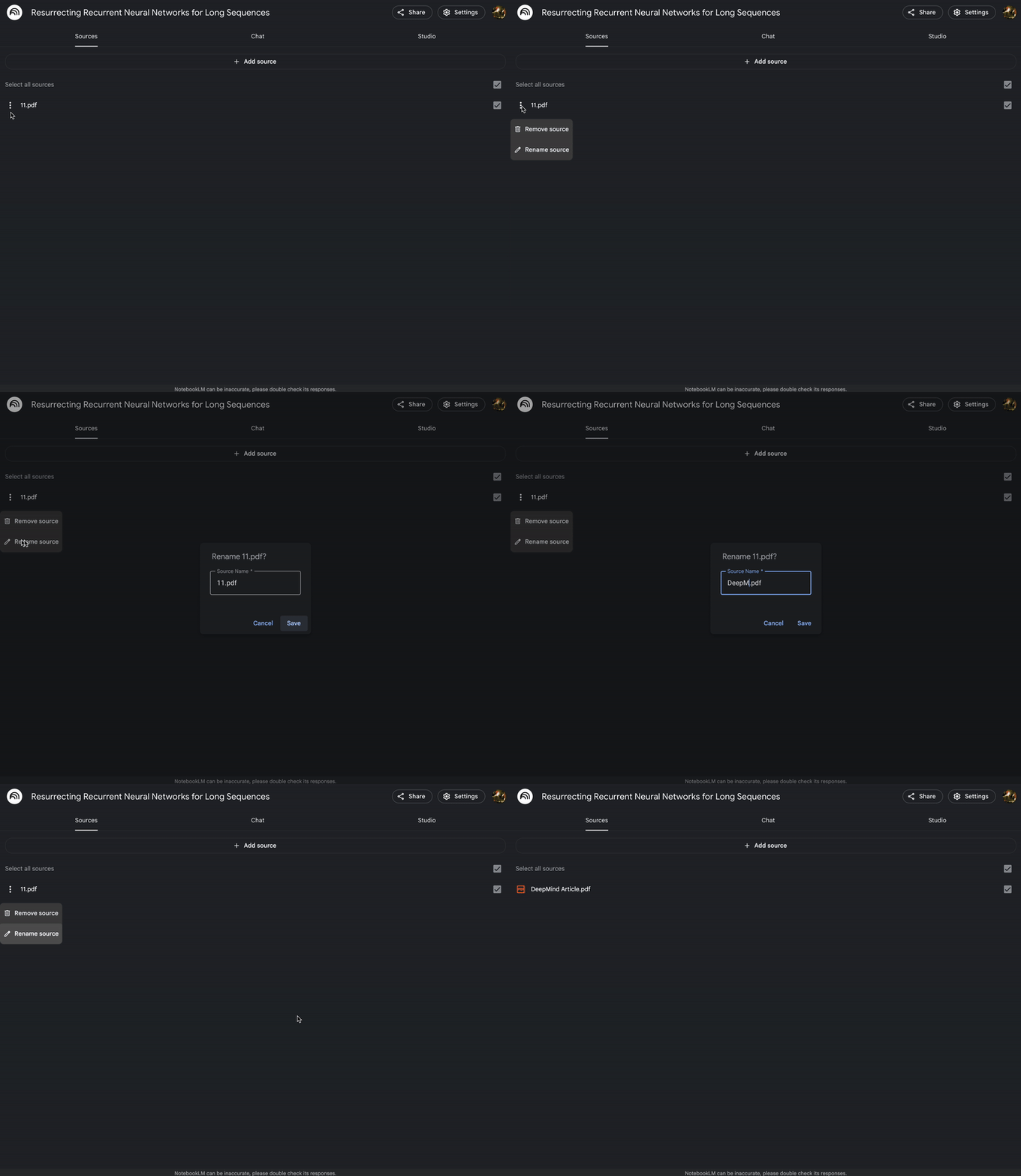
If you click on a given source, you also get an AI summary of the text, a list of key topics, and the entire text of the source.
---
**Chat:**
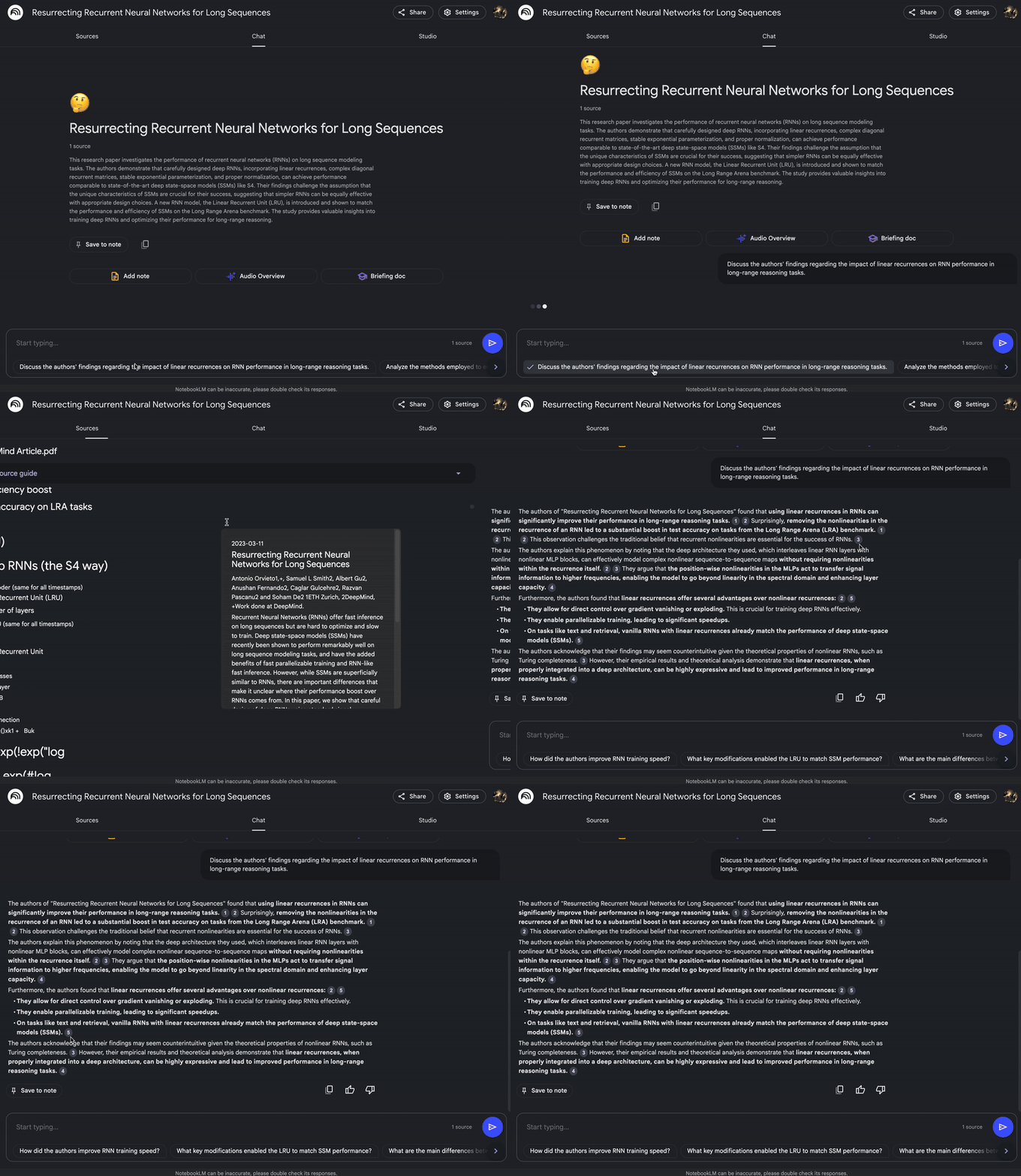
When you click on "*Chat*," you are brought to a window where you have a summary of all your sources. Below that summary, you are given the option to add a new note (NotebookLM supports both **written notes** and **AI-generated notes**), generate an audio podcast of the sources (which you can also do from **Studio**), or create a briefing document. This page is also where you can query your documents in natural language. At the bottom of the page, you can find the chat bar, with some example questions pre-populated.
NotebookLM is known in particular for the strength of its Retrieval-Augmented Generation (RAG). All responses include citations, which appear as reference numbers you can click to locate the exact source in your document.
---
**Studio:**
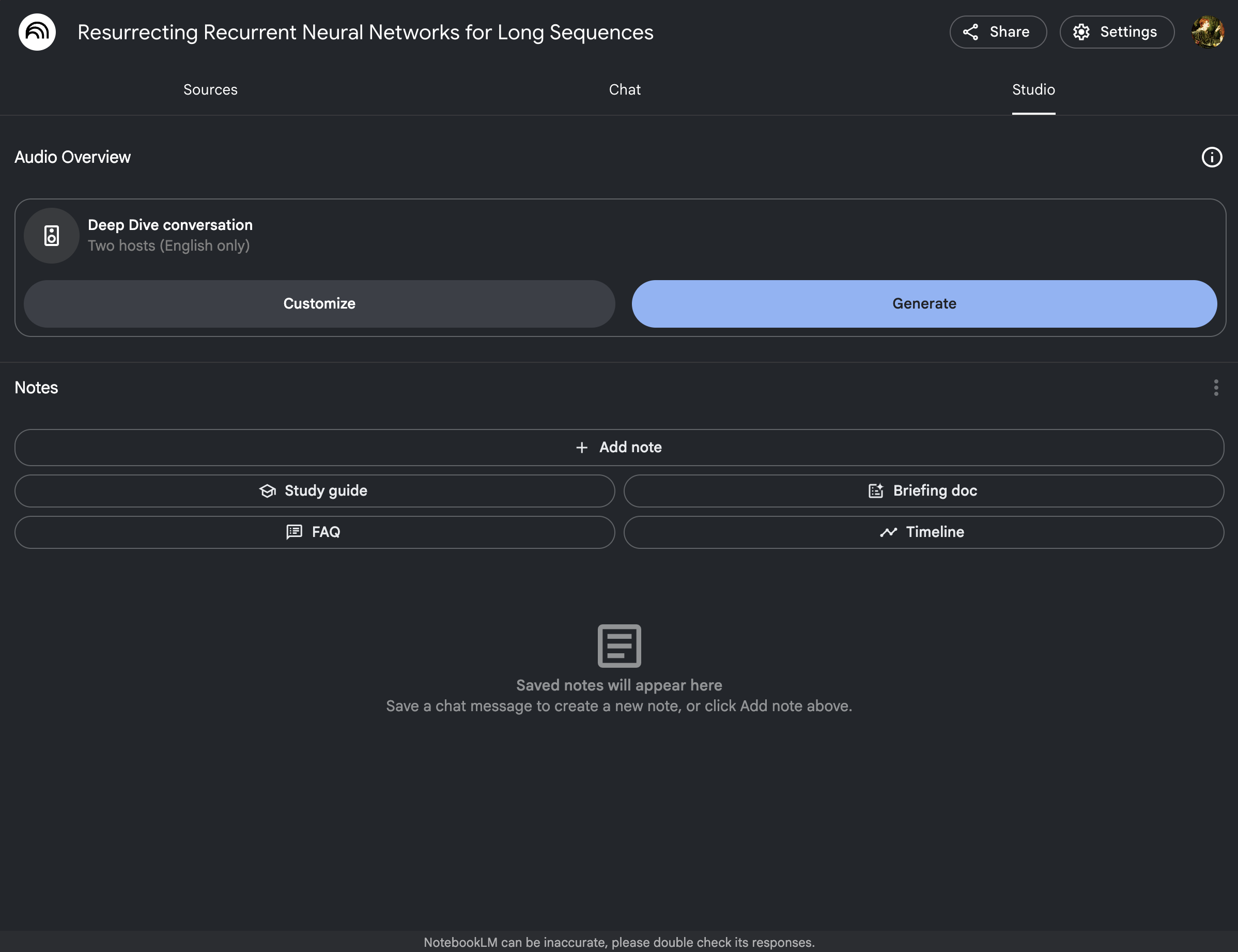
One of NotebookLM’s standout features is its ability to generate **podcasts**. These aren’t simple text-to-speech outputs but dynamic conversations between two AI hosts discussing your documents. You can "Customize" the focus on the podcast, then hit "Generate." You'll have to wait as the tool synthesizes the conversation, which is typically 6–15 minutes long when finished.
Below the podcasts, you can also request that NotebookLM construct "notes." These have various pre-designed formats (Study Guide, FAQ, Timeline, Briefing Doc). You can also save conversations from the chat and source summaries. You can also add notes that you manually write yourself. Saved notes will apear below that.
---
**Troubleshooting and Support**
As an experimental tool, NotebookLM is constantly evolving. The [support page](https://support.google.com/notebooklm#topic=14287611) is full of information on how to use NotebookLM.
---
## GENED 1189 Activity:
### Teacher Portrait Podcast
Here's a draft for the activity section of your document for GENED 1189, focusing on the Teacher Portrait Podcast:
---
## GENED 1189 Activity:
### Teacher Portrait Podcast
In this activity, students will engage with NotebookLM to create a podcast that reflects on their uploaded teacher portraits and other related materials.
#### Activity Steps:
1. **Prepare Materials:**
- Gather your teacher portraits and any supplementary materials you wish to include (e.g., interview transcripts, related articles).
- Ensure that all documents are in PDF, .txt, or Markdown formats.
- **Before uploading, please remove any personal information such as full names, school names, or other sensitive data to protect privacy.** NotebookLM does not offer the same stringent data protection and privacy as ChatGPT EDU.
2. **Create a New Notebook:**
- Navigate to the NotebookLM platform and log in.
- Click the “+ Create new” button and start a new notebook specifically for this project.
3. **Upload and Prepare Your Documents:**
- Upload your cleaned teacher portraits and materials to the notebook.
- Rename your documents appropriately to facilitate easy reference during the podcast creation. For instance, change "transcript1.pdf" to "Teacher Interview on Pedagogy."
4. **Generate Your Podcast:**
- Go to the *Studio* section of NotebookLM.
- Select the 'Podcast' feature and customize the focus of the discussion based on the themes or questions you find most compelling in your materials.
- Initiate the podcast generation and allow some time for the tool to synthesize the conversation.
5. **Review and Reflect:**
- Once the podcast is generated, listen to the AI hosts discuss and analyze the content of your uploads.
- Take notes on any new insights or perspectives that the AI brings out about the teacher portraits.
- Consider how these insights enhance your understanding of the subjects discussed.
6. **Query for Accuracy and Notes:**
- Use the *Chat* function to ask specific questions about your documents or to verify the accuracy of the information discussed in the podcast.
- You can also generate additional notes, like a briefing document or a study guide, to summarize key points.
7. **Final Reflections:**
- Reflect on the process of interacting with AI to analyze and discuss educational materials.
- Consider the implications of AI in educational settings and how it might be used responsibly to enhance learning and understanding.
#### Caution:
- Remember that NotebookLM is a powerful tool but lacks the robust privacy protections of ChatGPT EDU. Always handle sensitive information with care and ensure no personal data is included in your uploads.
---
 Google Drive
Gist
Clipboard
Google Drive
Gist
Clipboard
 Sign in with Wallet






