---
title: "Lecture 2: Basic commands"
tags: Lecture, Pedro, day 1
description: "Basic Git commands"
---
Introduction to Git --- Fall 2024
# Lecture 2: Basic commands
<!-- .slide: data-background="#ffffff" -->
<!-- Lecture material made by Pedro Ojeda-May for the version of the course that was given in fall 2020. Lecture was first given by Pedro Ojeda-May in fall 2020.-->
   
<small>Slides: https://hackmd.io/@git-fall-2024/L2-commands</small>
---
<!-- .slide: data-background="#ffffff" -->
<style type="text/css">
.reveal p {
text-align: left;
}
.reveal ul {
display: block;
}
.reveal ol {
display: block;
}
</style>
## Getting help
```console
$ git help <command>
$ man git-<command>
$ git help commit
GIT-COMMIT(1) Git Manual GIT-COMMIT(1)
NAME
git-commit - Record changes to the repository
SYNOPSIS
git commit [-a | --interactive | --patch] [-s] [-v] [-u<mode>] [--amend]
[--dry-run] [(-c | -C | --fixup | --squash) <commit>]
[-F <file> | -m <msg>] [--reset-author] [--allow-empty]
[--allow-empty-message] [--no-verify] [-e] [--author=<author>]
[--date=<date>] [--cleanup=<mode>] [--[no-]status]
[-i | -o] [-S[<keyid>]] [--] [<file>...]
DESCRIPTION
```
---
<!-- .slide: data-background="#ffffff" -->
## Creating a repository from scratch
In case you want to start a project from scratch called **myproject**:
```bash
$ mkdir myproject
$ cd myproject
$ git init
Initialized empty Git repository in .../myproject/.git/
```
this will create a folder called *.git* in the current folder which contains the Git-related files.
---
<!-- .slide: data-background="#ffffff" -->
We can now ask about the status of the repository:
```bash
$ git status
On branch master
No commits yet
nothing to commit (create/copy files and use "git add" to track)
```
---
<!-- .slide: data-background="#ffffff" -->
## Creating a repository by cloning an existing repository
Use the command:
```console
$ git clone repository_location path_where_it_will_be
```
<span style="color:red">*repository_location* </span> is the path of the Git repository (if it is in your local machine) or a URL if it is on the internet. <span style="color:red">*path_where_it_will_be* </span> is the path for the cloned repository.
---
<!-- .slide: data-background="#ffffff" -->
```console
$ git clone https://github.com/aliceuser2020/my-first-project.git ./my-project
Cloning into 'GitCourse/Alice/my-project'...
remote: Enumerating objects: 3, done.
remote: Counting objects: 100% (3/3), done.
remote: Total 3 (delta 0), reused 0 (delta 0), pack-reused 0
Unpacking objects: 100% (3/3), done.
Checking connectivity... done.
$ cd ./my-project
$ git status
On branch master
Your branch is up-to-date with 'origin/master'.
nothing to commit, working directory clean
```
---
<!-- .slide: data-background="#ffffff" -->
## Stages of files

---
<!-- .slide: data-background="#ffffff" -->
## Monitoring the differences in files
Differences or changes in files can be seen with the command
```console
$ git diff
```
This command supports different options.
---
<!-- .slide: data-background="#ffffff" -->
## Adding files' modifications
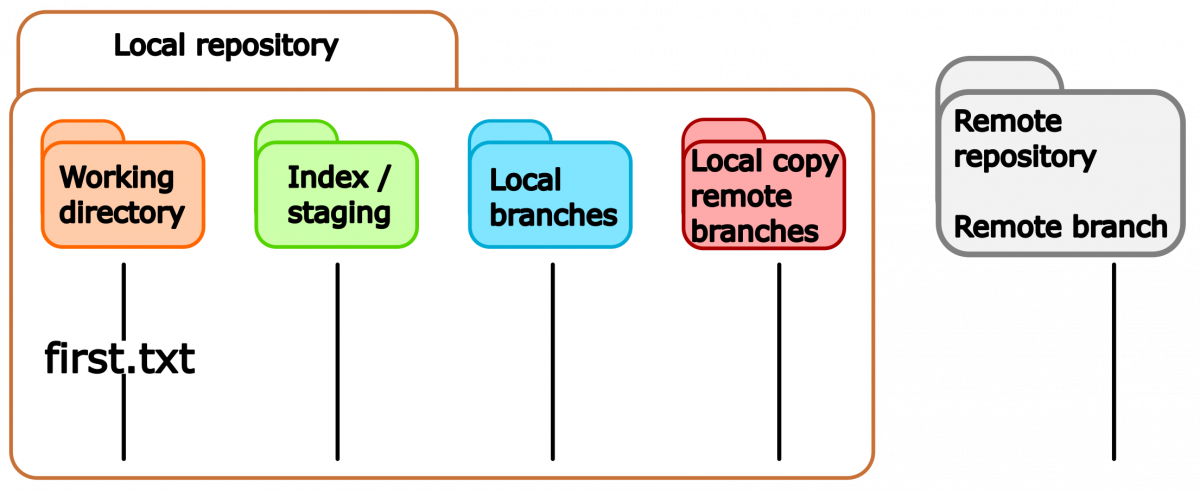
After initializing the repository, we decide to create a file called <span style="color:brown">*first.txt* </span>
```console
$ echo "This is my first file" > first.txt
```
If we ask about the status of the repository we will see the following message,
---
<!-- .slide: data-background="#ffffff" -->
```console
$ git status
On branch master
No commits yet
Untracked files:
(use "git add <file>..." to include in what will be committed)
first.txt
nothing added to commit but untracked files present (use "git add" to track)
```
---
<!-- .slide: data-background="#ffffff" -->
---
<!-- .slide: data-background="#ffffff" -->
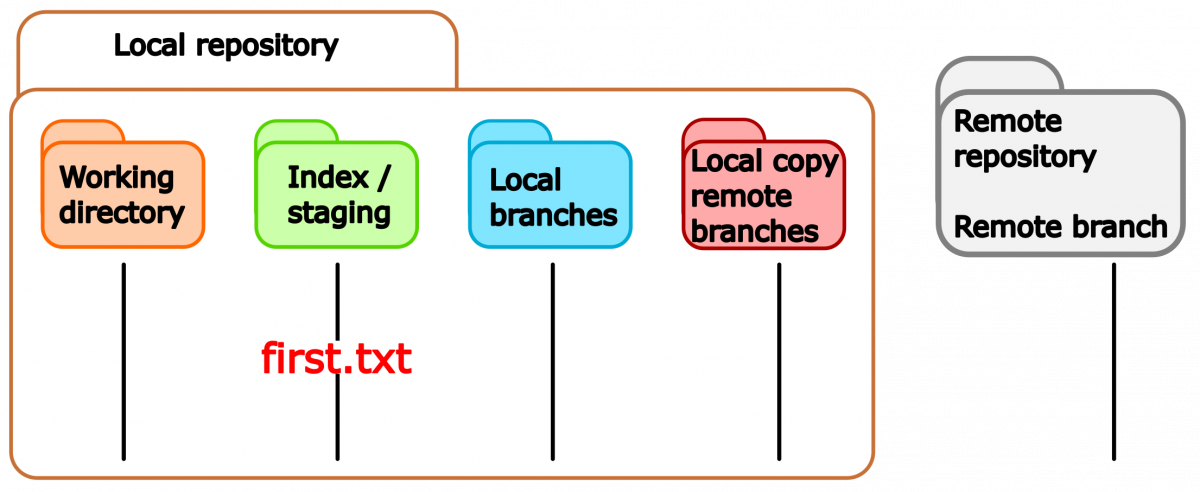
We can now add the <span style="color:brown">*first.txt* </span> file to the staging area:
```console
$ git add first.txt
```
and then check the status of the repository:
```console
$ git status
On branch master
No commits yet
Changes to be committed:
(use "git rm --cached <file>..." to unstage)
new file: first.txt
```
---
<!-- .slide: data-background="#ffffff" -->
---
<!-- .slide: data-background="#ffffff" -->
## Unstaging files' modifications part I
If you want to unstage the changes (maybe you are not convinced of them) type the line suggested by Git:
```console
$ git rm --cached first.txt
```
Notice that Git suggests this command because the repository is brand-new and nothing has been committed yet.
---
<!-- .slide: data-background="#ffffff" -->
## Committing changes
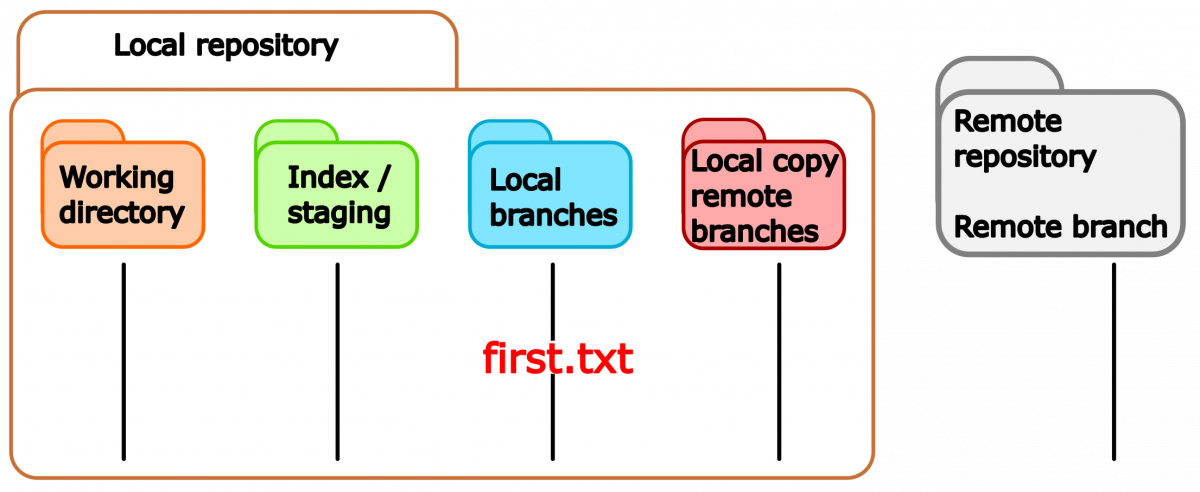
Once the changes are staged, they can be commited with the command
```console
$ git commit
```
this will open a window of the default text editor in your system (in this case **Vim**)
---
<!-- .slide: data-background="#ffffff" -->
```console
First commit in myproject
# Please enter the commit message for your changes. Lines starting
# with '#' will be ignored, and an empty message aborts the commit.
#
# On branch master
#
# Initial commit
#
# Changes to be committed:
# new file: first.txt
#
```
write a commit message and upon saving the file the changes will be committed.
---
<!-- .slide: data-background="#ffffff" -->
```console
$ git commit
[master (root-commit) 3a7625b] First commit in myproject
1 file changed, 1 insertion(+)
create mode 100644 first.txt
```
the status after committing is
```console
$ git status
On branch master
nothing to commit, working tree clean
```
---
<!-- .slide: data-background="#ffffff" -->
Fast (lazy?) commit option:
```console
$ git commit -a -m "Commit message"
```
this command will add all files that were modified (and tracked) and commit them with the quoted message.
---
<!-- .slide: data-background="#ffffff" -->
---
<!-- .slide: data-background="#ffffff" -->
## Unstaging files' modifications part II
Imagine that after doing the first commit for <span style="color:brown">*first.txt* </span> file, you modify this file and stage it (<span style="color:brown">*git add first.txt*</span>). If you check the status the output will be (version 2.25.1):
```console
On branch master
Changes to be committed:
(use "git restore --staged <file>..." to unstage)
modified: first.txt
```
---
<!-- .slide: data-background="#ffffff" -->
For versions before 2.23 the status would look like:
```console
On branch master
Changes to be committed:
(use "git reset HEAD <file>..." to unstage)
modified: first.txt
```
---
<!-- .slide: data-background="#ffffff" -->
Git suggests a different way to unstage the file as we saw before, because now there is a <span style="color:brown">HEAD </span> pointer.
---
<!-- .slide: data-background="#ffffff" -->
```console
$ git restore --staged filename
```
unstages the changes made to *filename*. From the website https://git-scm.com/docs/git-restore: THIS COMMAND IS EXPERIMENTAL. THE BEHAVIOR MAY CHANGE.
---
<!-- .slide: data-background="#ffffff" -->
```console
$ git reset HEAD filename
```
is an old command for unstaging,
```console
$ git rm --cached filename
```
with this command Git will untrack *filename* (staging for removal) leaving the file in the working directory
---
<!-- .slide: data-background="#ffffff" -->
## Content of a commit message
- why is this change needed?
- how is the problem approached?
- are there side effects?
- write structured text (~70 characters)
- one can include the ticket numbers for related issues for instance (#1112)
**Important:** check that the code works before commiting. Here, test cases are very handy. Git kurz & gut, O'Reillys, Nina Siessegger.
---
<!-- .slide: data-background="#ffffff" -->
## Reverting to the previous commit
If you made a commit and you regret it later, you can revert the changes to the previous
commit with the command:
```console
$ git revert HEAD
```
---
<!-- .slide: data-background="#ffffff" -->
## Adding multiple files
In case you want to add multiple files, that follow a pattern, at the same time you can use Linux-type wild cards. As an example, we can add the files <span style="color:brown"> *file1.txt, file2.txt, file3.txt*</span> at once with the commands (equivalent for this test case):
```console
$ git add file?.txt
$ git add file[1-3].txt
$ git add *.txt
```
---
<!-- .slide: data-background="#ffffff" -->
If we want to add all the files for staging we can do:
```console
$ git add -A (all files including those in the parent folder)
$ git add . (all files in the sub-folders)
```
---
<!-- .slide: data-background="#ffffff" -->
## Renaming files/folders
Imagine that you want to change the name of the file <span style="color:brown"> *first.txt*</span> to <span style="color:brown"> *Readme.txt*</span>, in this case you can use the command:
```console
$ git mv oldfilename newfilename
$ git mv first.txt Readme.txt
```
---
<!-- .slide: data-background="#ffffff" -->
Although there is not feedback from the command the status of the file has now changed
```console
$ git status
On branch master
Changes to be committed:
(use "git restore --staged <file>..." to unstage)
renamed: first.txt -> Readme.txt
```
you can now commit the changes. Renaming files, instead of creating new ones, can help you to keep a consistent history of the files.
---
<!-- .slide: data-background="#ffffff" -->
## Moving files
Similar to the **mv** Linux command, the **git mv** command can be also used to move a file to a different location:
```bash
$ git mv filename newlocation
$ git mv first.txt src/
$ git status
On branch master
Changes to be committed:
(use "git restore --staged <file>..." to unstage)
renamed: first.txt -> src/first.txt
```
---
<!-- .slide: data-background="#ffffff" -->
## Removing files
If some file is not useful any longer and we want to delete it from our repository, we can issue the command,
```bash
$ git rm location/filename
$ git rm src/first.txt
$ git status
On branch master
Changes to be committed:
(use "git restore --staged <file>..." to unstage)
deleted: src/first.txt
```
Sometimes it is more convenient to rename files instead of deleting them to keep the history more consistent.
---
<!-- .slide: data-background="#ffffff" -->
## Ignoring files
If you want to ignore some files in your repository, for instance, temporary (.tmp) or binary (.bin) files. One way to accomplish this is by creating a file called **.gitignore** in the repository with some rules with a Linux-type wild cards syntax
---
<!-- .slide: data-background="#ffffff" -->
```shell
$ cat .gitignore
*.tmp
*.bin
```
then, you will have to commit the **.gitignore** file as usual.
---
<!-- .slide: data-background="#ffffff" -->
One caveat of using a **.gitignore** file is that it will be shared with all the collaborators. One can instead use the local exclude file in <span style="color:blue">*.git/info/exclude*</span> to define the rules. This file won't be shared.
```console
# $ git ls-files --others --exclude-from=.git/info/exclude
# Lines that start with '#' are comments.
# For a project mostly in C, the following would be a good set of
# exclude patterns (uncomment them if you want to use them):
# *.[oa]
# *~
*.tmp
*.bin
~
```
---
<!-- .slide: data-background="#ffffff" -->
## Generating aliases
The following command shows a graph of the commits' tree in an organized way:
```java
$ git log --all --decorate --oneline --graph
```
This command is too long to type/remember. Git allows you to create shortcuts/aliases for commands:
```java
$ git config --global alias.shortcut <git command>
$ git config --global alias.graph "log --all --graph --decorate --oneline"
```
---
<!-- .slide: data-background="#ffffff" -->
In this way, you can use a customized **git graph** command:
```java
$ git graph
* 39ecba2 (HEAD -> master) Fourth commit
* 3cd651b Third commit
* 7dce2ff Second commit
* 1f2cdcc First commit
```
A second way to generate an alias is by adding it to your *.bashrc* file:
```java
alias graph="git log --all --decorate --oneline --graph"
```
which will make the command <span style="color:blue"> *graph*</span> available on the command line.
---
<!-- .slide: data-background="#ffffff" -->
# Intermediate/ Advanced commands
---
<!-- .slide: data-background="#ffffff" -->
## Adding files' modifications interactively
Suppose we create an empty file, stage it, and commit the changes as follows:
```shell
touch first.txt
git add first.txt
git commit -m "first file"
```
Now, we add a couple of lines to our file <span style="color:brown"> *first.txt*</span> and now it looks like
```shell
This is my first file
* TODO list
* Summary
```
---
<!-- .slide: data-background="#ffffff" -->
The status command tells us that we did some modifications to the file:
```console
On branch master
Changes not staged for commit:
(use "git add <file>..." to update what will be committed)
(use "git restore <file>..." to discard changes in working directory)
modified: first.txt
no changes added to commit (use "git add" and/or "git commit -a")
```
---
<!-- .slide: data-background="#ffffff" -->
Let's suppose that the new text (5 lines) refer to different topics: *TODO list* and *Summary*. Then, it would be better to have them in different commits. We can add the modifications interactively:
---
<!-- .slide: data-background="#ffffff" -->
```console
$ git add -p first.txt
```
```console
diff --git a/first.txt b/first.txt
index e69de29..96dd9a2 100644
--- a/first.txt
+++ b/first.txt
@@ -0,0 +1,5 @@
+This is my first file
+
+* TODO list
+
+* Summary
(1/1) Stage this hunk [y,n,q,a,d,e,?]?
```
choose the **e** edit option to enter the editing mode.
---
<!-- .slide: data-background="#ffffff" -->
```console
# Manual hunk edit mode -- see bottom for a quick guide.
@@ -0,0 +1,5 @@
+This is my first file
+
+* TODO list
+
+* Summary
# ---
# To remove '-' lines, make them ' ' lines (context).
# To remove '+' lines, delete them.
# Lines starting with # will be removed.
```
Because we don't want *Summary* in the first commit, we delete that line and save the file.
---
<!-- .slide: data-background="#ffffff" -->
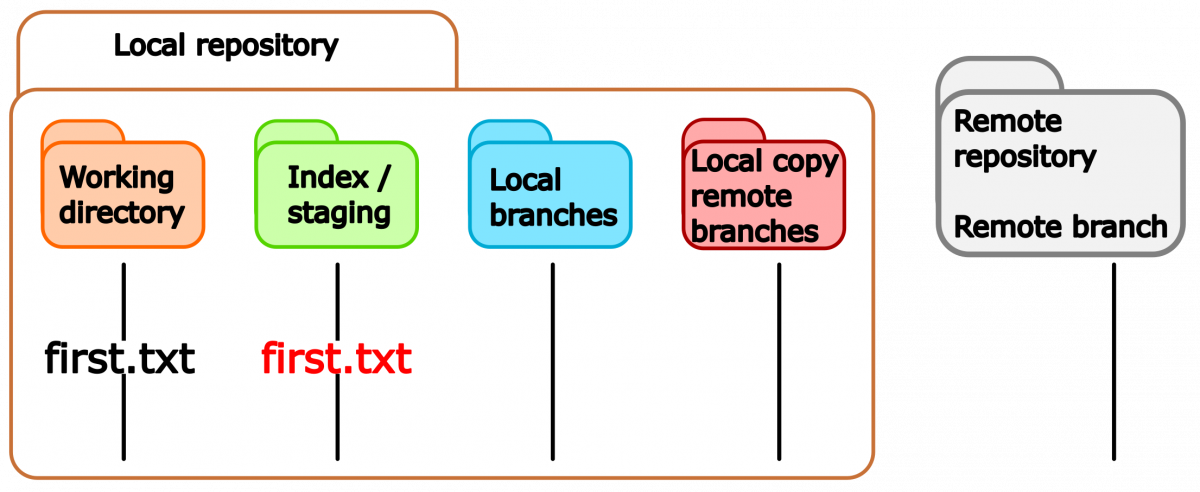
You can now take a look at the status of the file
```console
$ git status
On branch master
Changes to be committed:
(use "git restore --staged <file>..." to unstage)
modified: first.txt
Changes not staged for commit:
(use "git add <file>..." to update what will be committed)
(use "git restore <file>..." to discard changes in working directory)
modified: first.txt
```
---
<!-- .slide: data-background="#ffffff" -->
Notice that the file <span style="color:brown">first.txt </span> has been partially staged.
---
<!-- .slide: data-background="#ffffff" -->
The difference between staged changes and the unstaged ones can be seen with:
```console
$ git diff
```
the difference between staged changes and the previous commit with:
```console
$ git diff --staged
$ git diff --cached
```
---
<!-- .slide: data-background="#ffffff" -->
and the difference between the unstaged changes and the previous commit with:
```console
$ git diff HEAD
```
At this point, you can commit the staged changes and later on stage and commit the remaining changes.
---
<!-- .slide: data-background="#ffffff" -->
## Amending commits
The following command will modify your last commit by adding more content to it:
```shell
$ git commit --amend
```
the flag *-m* will allow you to write a short message and *- -no-edit* will keep the message from the previous commit.
<span style="color:red">Note: use this command in commits that haven't been pushed on public branches. This command modifies the history.</span>
---
<!-- .slide: data-background="#ffffff" -->
## Simplifying commits
Suppose that you have a series of commits which are close-related in your <span style="color:red"> *local repo*</span>:
```java
$ git log --all --decorate --oneline --graph
$ git graph
* 39ecba2 (HEAD -> master) Fourth commit
* 3cd651b Third commit
* 7dce2ff Second commit
* 1f2cdcc First commit
```
in this case, the three last commits are related and can be squashed into a single commit.
---
<!-- .slide: data-background="#ffffff" -->
```java
$ git rebase -i HEAD~3
pick 7dce2ff Second commit
pick 3cd651b Third commit
pick 39ecba2 Fourth commit
# Rebase 1f2cdcc..39ecba2 onto 1f2cdcc (3 commands)
#
# Commands:
# p, pick <commit> = use commit
# r, reword <commit> = use commit, but edit the commit message
# e, edit <commit> = use commit, but stop for amending
# s, squash <commit> = use commit, but meld into previous commit
# f, fixup <commit> = like "squash", but discard this commit's log message
# x, exec <command> = run command (the rest of the line) using shell
# b, break = stop here (continue rebase later with 'git rebase --continue')
# d, drop <commit> = remove commit
# l, label <label> = label current HEAD with a name
# t, reset <label> = reset HEAD to a label
# m, merge [-C <commit> | -c <commit>] <label> [# <oneline>]
# . create a merge commit using the original merge commit's
# . message (or the oneline, if no original merge commit was
# . specified). Use -c <commit> to reword the commit message.
#
# These lines can be re-ordered; they are executed from top to bottom.
#
# If you remove a line here THAT COMMIT WILL BE LOST.
#
# However, if you remove everything, the rebase will be aborted.
#
# Note that empty commits are commented out
```
---
<!-- .slide: data-background="#ffffff" -->
choose the option **s** (squash)
```java
pick 7dce2ff Second commit
s 3cd651b Third commit
s 39ecba2 Fourth commit
# Rebase 1f2cdcc..39ecba2 onto 1f2cdcc (3 commands)
#
# Commands:
# p, pick <commit> = use commit
# r, reword <commit> = use commit, but edit the commit message
# e, edit <commit> = use commit, but stop for amending
# s, squash <commit> = use commit, but meld into previous commit
# f, fixup <commit> = like "squash", but discard this commit's log message
# x, exec <command> = run command (the rest of the line) using shell
# b, break = stop here (continue rebase later with 'git rebase --continue')
# d, drop <commit> = remove commit
# l, label <label> = label current HEAD with a name
# t, reset <label> = reset HEAD to a label
# m, merge [-C <commit> | -c <commit>] <label> [# <oneline>]
# . create a merge commit using the original merge commit's
# . message (or the oneline, if no original merge commit was
# . specified). Use -c <commit> to reword the commit message.
#
# These lines can be re-ordered; they are executed from top to bottom.
#
# If you remove a line here THAT COMMIT WILL BE LOST.
#
# However, if you remove everything, the rebase will be aborted.
#
# Note that empty commits are commented out
```
---
<!-- .slide: data-background="#ffffff" -->
a text editor message will appear where you can type the message for the squashed commit:
```java
# This is a combination of 3 commits.
# This is the 1st commit message:
Summary of three commits
#Second commit
# This is the commit message #2:
#Third commit
# This is the commit message #3:
#Fourth commit
# Please enter the commit message for your changes. Lines starting
# with '#' will be ignored, and an empty message aborts the commit.
#
# Date: Mon Sep 21 16:48:36 2020 +0200
#
# interactive rebase in progress; onto 1f2cdcc
# Last commands done (3 commands done):
# s 3cd651b Third commit
# s 39ecba2 Fourth commit
# No commands remaining.
# You are currently rebasing branch 'master' on '1f2cdcc'.
#
# Changes to be committed:
# modified: Commits.txt
#
```
---
<!-- .slide: data-background="#ffffff" -->
Finally, we check the log file and see that we have now only two commits with the new commit message:
```console
$ git log --all --decorate --oneline --graph
$ git graph
* 62f921f (HEAD -> master) Summary of three commits
* 1f2cdcc First commit
```
<span style="color:red">Note: use this command in commits that haven't been pushed on public branches. This command modifies the history.</span>
---
<!-- .slide: data-background="#ffffff" -->
## Git blame (Advanced)
it displays information about the last modifications of authors line by line
```java
git blame filename
$git blame 1.basic-commands/README.md
^a18abd1 (Birgitte Brydsö 2021-09-28 12:21:06 +0200 9) - stage the file
^a18abd1 (Birgitte Brydsö 2021-09-28 12:21:06 +0200 10) - commit the changes
dd5db248 (Pedro Ojeda-May 2021-11-02 10:53:01 +0100 11) - create a second file "Poem.md" without any text (hint: use touch command), stage and commit it
```
here we can see the commit, author, timestamp, line number and line content.
 Google Drive
Gist
Clipboard
Google Drive
Gist
Clipboard
 Sign in via Facebook
 Sign in via X(Twitter)
 Sign in via GitHub
 Sign in via Dropbox
 Sign in with Wallet






