## Setup WhatsApp
This guide will walk you through the process of creating a WhatsApp Business account and setting up your own chatbot for WhatsApp.
In this article, you will learn:
* [How to create WhatsApp business account](#account)
* [How to add WhatsApp numbers for testing](#testing)
* [How to test WhatsApp chatbot](#chatbot)
## Prerequisites to setup WhatsApp channel
To set up a WhatsApp channel, you need to have an active WhatsApp business account:
* Create a WhatsApp Business account
* Create a Facebook Business Manager account
* Verify your WhatsApp business account with Facebook
## 1. Connect your WhatsApp business account
Follow the these steps to connect your chatbot to WhatsApp business account (WABA):
1. On the switcher, click **Channels**.
<img src="https://i.imgur.com/kv01RDY.png" alt="drawing" width="90%"/>
2. On the Messaging page, click **WhatsApp Messenger > Get Started**.
<img src="https://i.imgur.com/14XbqIg.png" alt="drawing" width="90%"/>
3. Choose your account type from the drop-down and enable the checkbox to ensure that you have read the above information. Click on **Connect WhatsApp**.
<img src="https://i.imgur.com/BQwpnxC.jpg" alt="drawing" width="90%"/>
:::note
Ensure that you have admin access to the Facebook business manager account.
:::
4. Login to your Facebook account that is linked with your WhatsApp business manager account.
<img src="https://i.imgur.com/Lqov4YW.png" alt="drawing" width="50%"/>
5. Click on **Get started** to proceed with the next steps.
<img src="https://i.imgur.com/L8hKZeO.png" alt="drawing" width="50%"/>
6. Read the terms and conditions of WhatsApp Business and Meta and click on **Continue**.
<img src="https://i.imgur.com/Er17Zwe.png" alt="drawing" width="50%"/>
7. Select an existing Business Manager account or create a new account to start with.
<img src="https://i.imgur.com/qyp074p.png" alt="drawing" width="40%"/>
8. Create a new WABA and click on **Continue**. You can also select an existing WABA if you already have one with Yellow.ai.
<img src="https://i.imgur.com/p0nEs2n.png" alt="drawing" width="50%"/>
9. The information you provided will be verified, and while verifying, you will see a message **Verifying your information**.
<img src="https://i.imgur.com/KcCKCf4.png" alt="drawing" width="60%"/>
10. Click on **Continue to step 2** to proceed further.
<img src="https://i.imgur.com/D4ZmNvm.png" alt="drawing" width="90%"/>
11. In **WhatsApp Business Display Name**, enter a valid display name for your WhatsApp account. The name you provide will be displayed on your WhatsApp business account. Refer to the [naming guidelines](https://www.facebook.com/business/help/757569725593362) to provide the appropriate name.
<img src="https://i.imgur.com/CtbvpMf.png" alt="drawing" width="50%"/>
12. Choose your business **Category** and enter the business description to create your WhatsApp business profile > Click on **Continue**.
:::note:
Note that, you can later edit the information on the Yellow.ai platform.
:::
<img src="https://i.imgur.com/z0iSidb.png" alt="drawing" width="60%"/>
13. Enter a phone that you want to register. Ensure that it does not have a WhatsApp account, and is able to receive incoming messages or voice calls for OTP verification
<img src="https://i.imgur.com/hdo6P8e.png" alt="drawing" width="50%"/>
:::note
Make sure that the phone number you provide is not currently connected to any WhatsApp account. If it is already connected, disconnect it from your WhatsApp account before proceeding.
:::
15. Enter the OTP received on the number via your preferred method. Choose the retries wisely as its limited to 3 attempts in 24hrs.
<img src="https://i.imgur.com/DnIuZZD.png" alt="drawing" width="50%"/>
16. Once the verification is successfully completed, click **OK**, and the platform will display the WhatsApp business account details.
<img src="https://i.imgur.com/R9iT4B8.png" alt="drawing" width="50%"/>
17. You will be redirected to the **Messaging** page. On the popup screen choose the name of the business account, phone number associated, and click **Connect**.
<img src="https://i.imgur.com/CNm6g2g.png" alt="drawing" width="90%"/>
* Once the account is created, you can view your account on the **WhatsApp messenger** page.
<img src="https://i.imgur.com/ezgp1Qy.png" alt="drawing" width="90%"/>
18. To add multiple numbers by clicking on **+ Add Number** at the top right corner.
<img src="https://i.imgur.com/0wkbQHP.png" alt="drawing" width="90%"/>
19. To see the business details click on view more. You can also edit the provided details based on your requirements.
<img src="https://i.imgur.com/LfIwYrC.png" alt="drawing" width="90%"/>
### 1.1 Create Facebook Business Manager (FBM) account
If you have already created the account, login to FBM. If not, follow the steps to create an FBM account.
1. Go to [Facebook Business Manager](https://business.facebook.com/overview) and click **Create Account**.
2. Provide your name, business name, and business email ID.
3. Enter your business details to create the FBM account.
4. Now, you have created the FBM.
### 1.2 Verify Business account with Facebook
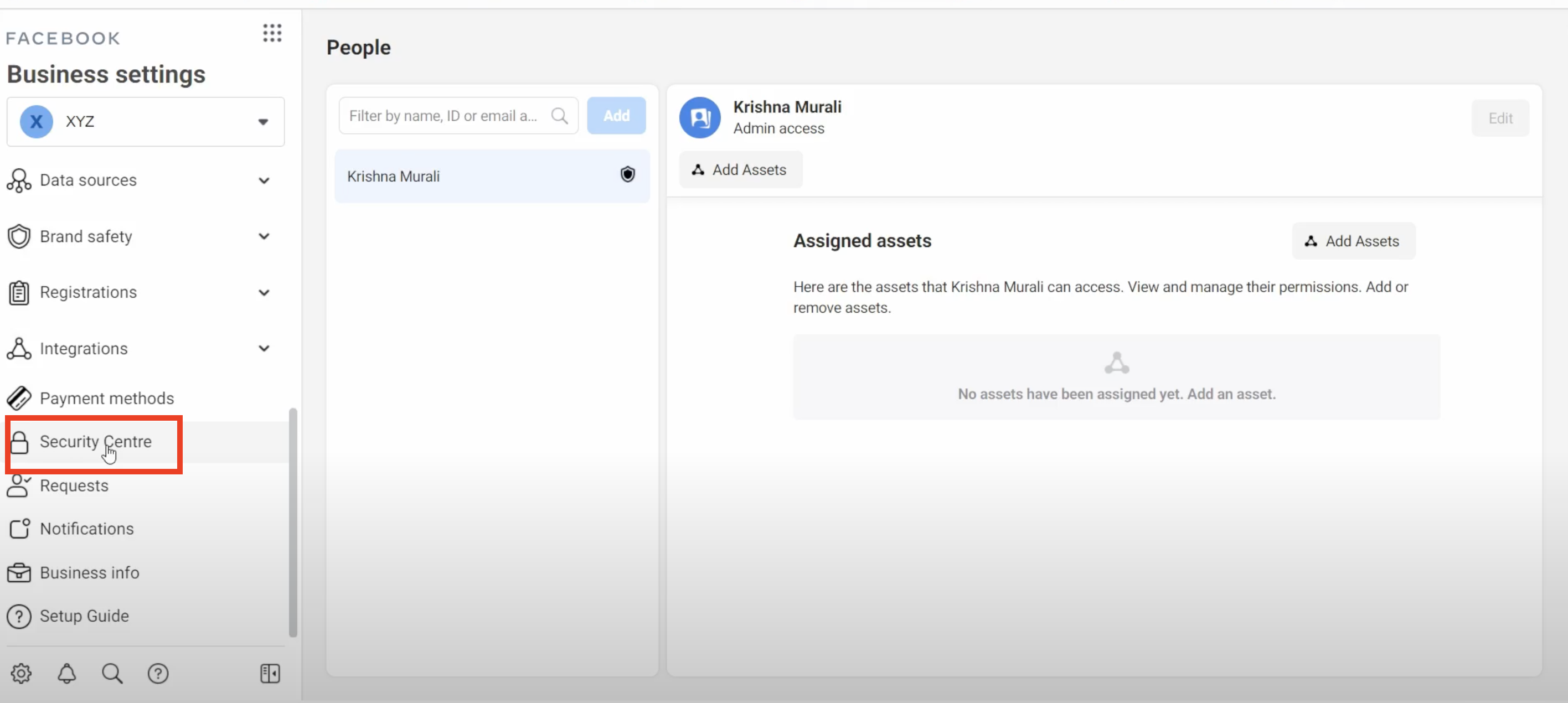
1. In the FBM (Facebook Business Manager), go to **More Tools > Business Settings > Select your Business**.
2. Click on **Security Centre**.
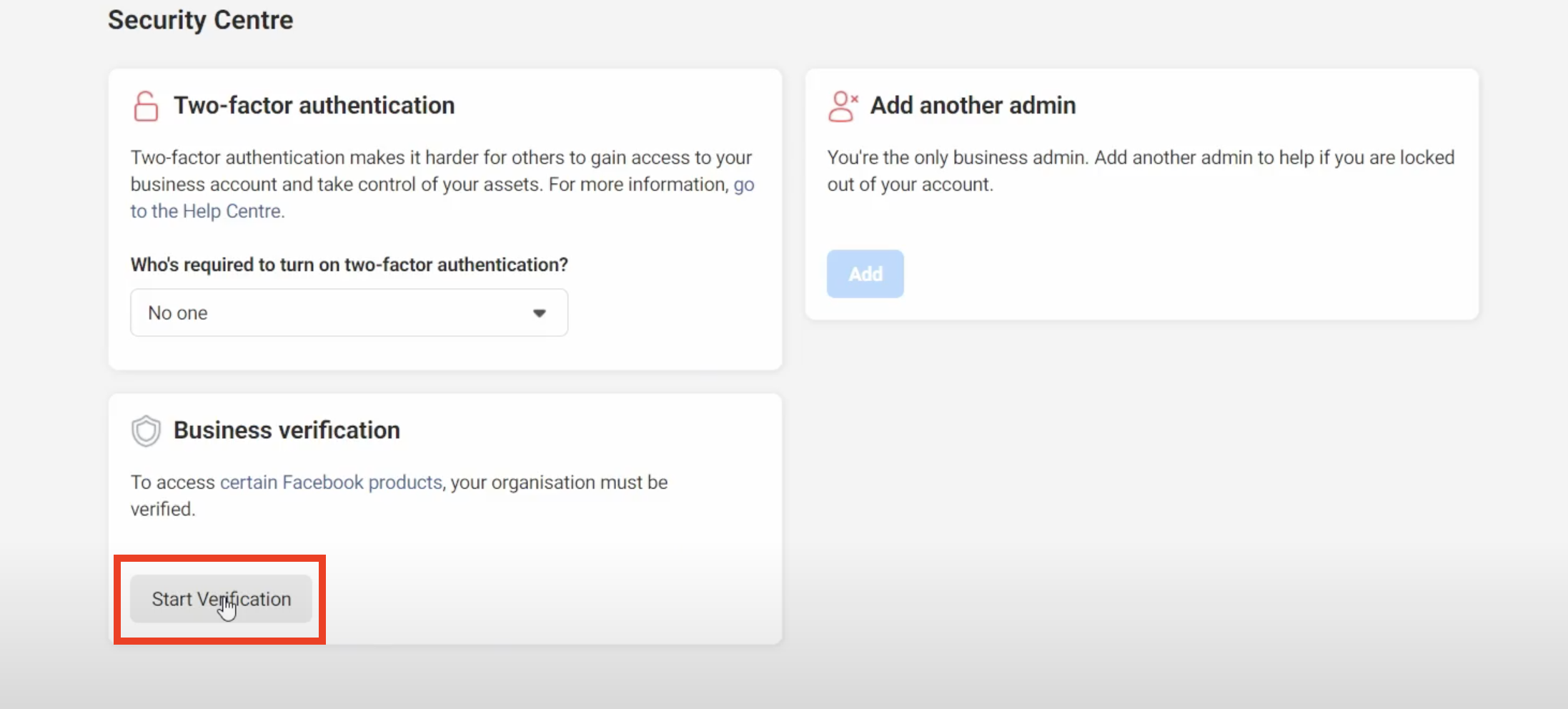
3. Click **Start verification**.
4. Provide the legal business details and click **Next**.

5. Look for your business on the list. This is listed based on the business name you provided. If your business is listed, select it and go to step 6. If not visible, click **None of these** and directly **jump to step 7**.
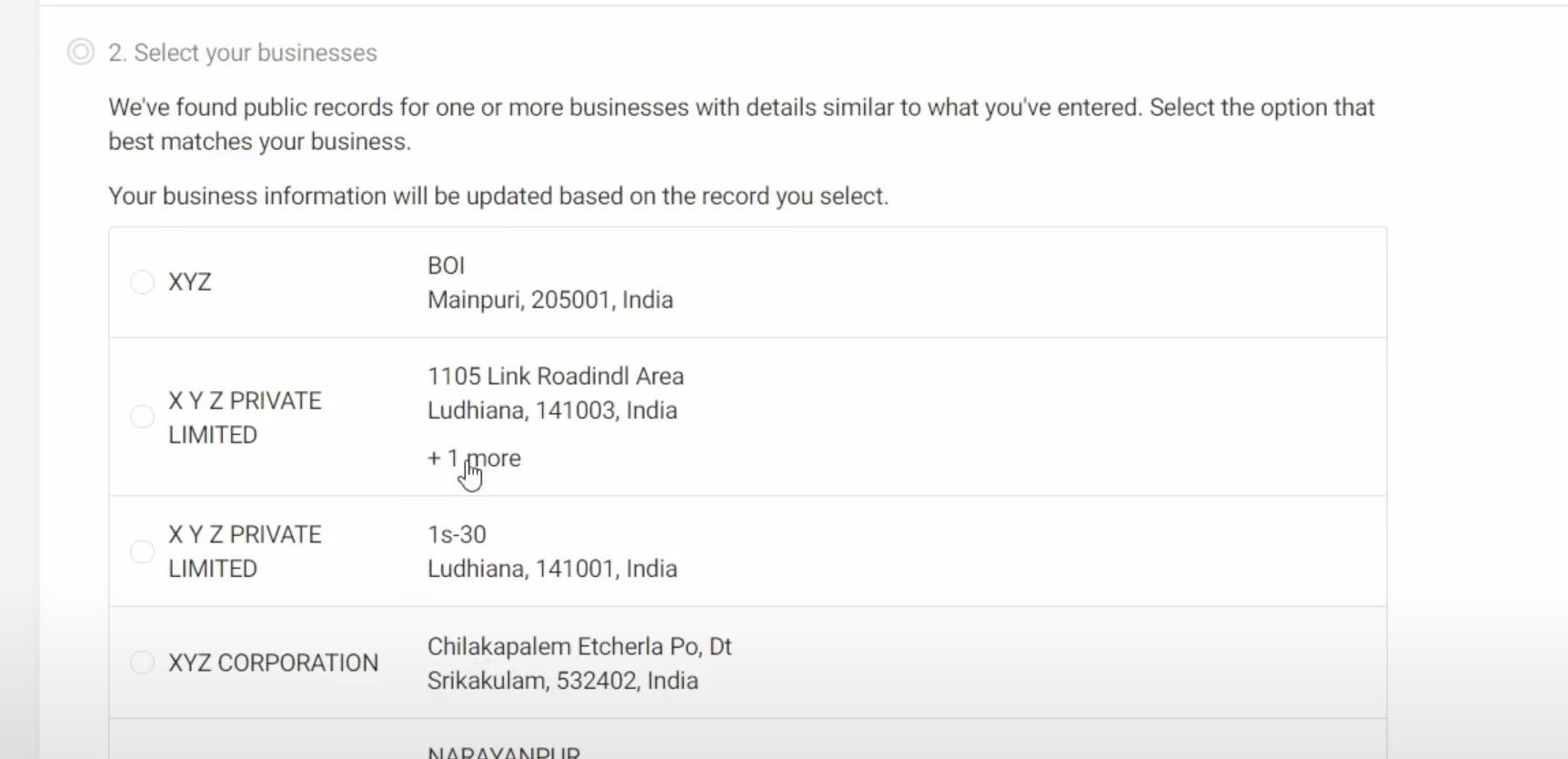
6. Confirm the business details such as business name, address, and phone number. After this, **jump to step 8**.

7. Select the document language, and you can either upload or drag and drop relevant legal business documents from your folder for the Facebook team to review. Click [here](https://www.facebook.com/business/help/159334372093366) for more information on accepted legal documents.

8. Choose how to get the **verification code via email or phone**, and enter the code.

Enter the verification code you have received.

To cancel the verification request, go to **Security Center > Cancel**.

## 2. Add WhatsApp numbers for testing purposes
Yellow.ai allows you to test your WhatsApp bot in Development mode before pushing the changes to the Live environment. You can add upto ten testing numbers.
1. In Channels, select <b>WhatsApp messenger</b> in the *Live* environment.
2. Click on the **more options** icon and select **Edit**.

3. **Enable development mode** using the toggle button.
<center><img src="https://i.imgur.com/aLV9n2I.png" width="80%"/></center>
4. Choose the **Development bot ID** that you want to use for testing purposes.
5. Enter the number in **Developer whatsapp number**.
6. To add more WhatsApp business numbers, click **Add phone numbers**.
7. Click **Save**.
## 3. Test your bot on WhatsApp
After connecting your bot to WhatsApp, you can test your bot to ensure all the flows you configured are working as intended.
#### Prerequisite
* Ensure that you have trained the bot with intents and configured the flows with the same intent.
To test your bot on WhatsApp, follow these steps:
1. On the WhatsApp channel page, ensure that your number is connected.

2. Go to Studio, select the flow that you want to test.

3. Select **WhatsApp** from the website drop-down.

4. Scan the QR code using your mobile phone. The bot opens in your WhatsApp.
<img src="https://i.imgur.com/sym9SMt.png" alt="drawing" width="50%"/>
5. Start the conversation to test your bot. A message shows a double tick once it is sent to the bot, and the bot will respond back with the configured flow.
<img src="https://i.imgur.com/J6vb0lA.jpg" alt="drawing" width="50%"/>
6. If you see a single tick or a double tick, but the bot is still not responding, navigate to the Inbox module in the platform and select **Bot messages** in the **Chats** section. Here, you can view the entire conversation between the bot and user.

 Google Drive
Gist
Clipboard
Google Drive
Gist
Clipboard
 Sign in with Wallet






