# Student Guide
### ITP/IMA Thesis/Capstone Presentations
### Webinar and Livestream
- We will be using this recurring Zoom Webinar link for two days: https://nyu.zoom.us/j/96238919890?pwd=dEZwOGcxL3RNenQ4YWVycHpKdmNvZz09
- You will use this link to report your presentation
- **The Webinar is for ITP Students and Faculty only**<br><br>
- The Public Livestream will happen concurrently at: https://itp.nyu.edu/thesis/livestream/index.html
- Please share the livestream link with family and friends!
- We will enable chat in the Webinar and provide basic chat in the Livestream
### Presenting (All):
Your presentation will be similar to the recent Thesis Crit Session with the following additions:
<span style="color: red;">**Please join the Zoom Webinar 30 minutes before your section begins** - [SCHEDULE HERE](https://docs.google.com/spreadsheets/d/1M6_qtxEnO7Q4HF693u0bJ2NFr4n0QtQ71vaj_TJ3Nnc/edit#gid=0)</span>
#### Preparation
* We have a virtual background for you to use here for [ITP](https://drive.google.com/drive/folders/1TG3_NLKyMUzaESeOrNt7CDpAe-4hDJdl) & [IMA](https://drive.google.com/drive/folders/1PSoVCvbGYE7CKLBNo3uywLz-vu8K9oMk?usp=sharing)
* In Zoom, verify your video and audio are working as expected in the settings. For example, you can test your audio by choosing **Audio Settings** and then **Test Mic** (see pics):<br>
<img src="https://i.ibb.co/DMCRZNC/audio-settings.png" style="display: block;
margin-left: auto;
margin-right: auto;
width: 60%;"/><br>
<img
src="https://i.ibb.co/tc5sXdp/test-mic.png"
style="display: block;
margin-left: auto;
margin-right: auto;
width: 80%;"/><br>
#### Joining the Webinar
- You must log in to Zoom [using SSO](https://nyu.zoom.us/) before joining the Webinar
- Each section's resident(s) will run the Webinar for their section
- When your group arrive at the appointed time, we will promote each of from Attendees to Panelists and do a very brief tech check
- Please remain on the Zoom Webinar until your presentation time
#### Time to present
* Pay attention to the Panelists chat. Your residents will guide you there:
```
<Name> you are up next.
Please click “Share Screen” and if you need to,
check “Share computer audio”
check "Optimize for Video Clip"
message us in the chat to say you are ready
and wait to share until the bell rings.
Once the bell rings, click “Share” and start presenting!
```
* When it is your time and you are ready to present, click Share Screen to open the dialog menu - DO NOT SHARE YET!
* Make sure **Share Sound and Optimize for Video** are selected
* Then let your resident know you are ready in the chat:
```
Ok, I am ready to Share Screen
```
* We will then play a bell and unmute you. You can now "Share Screen" and present
* If you are playing a pre-recorded video (i.e. not presenting live), we recommend turning your camera off during playback.
* After you finish your last slide, leave the slide up while people clap, then stop sharing once the clapping stops. Once you are finished sharing, you are free to leave the Webinar. You're done!!
- If for any reason you have to leave the Webinar, we will have to promote you again to a Panelist. You can raise your hand as an Attendee and we will promote you again.
### Presenting (In Person):
This year we are giving the option to present from the floor, but it will not be like in year's past. There are significant differences.
- Please notify your advisor if you want to present in person by **11:59 PM EST on Sunday, May 9th**
- <span style="color: red;"><b>You must independantly maintain your building access** with NYU</b> - for more info click [here](https://www.nyu.edu/life/safety-health-wellness/coronavirus-information/safety-and-health/coronavirus-testing/ongoing-testing.html#onCampus)</span>
#### Day of...
- You will be assigned one of 5 classrooms which are numbered on the floor from 13 to 9 (see map below)
- In each classroom, we will provide a standing desk, chair, and second monitor with HDMI cable and a USB-C to HDMI adaptor<br>

- Please check a resident in at the Check In Desk
- A resident will guide you to your classroom 30 minutes before your presentation begins to set up and check your audio and video
- Once inside the Zoom Webinar, the process is exactly the same as laid out above
- There will be a viewing area set up in the Square where fellow students can watch the Webinar and receive each other (and celebrate, <i>loudly</i>) once a presentation is finished!

## Rehearsing
- Each resident will be coordinating a **mandatory tech check** for your section. Please watch your email for more info.
- Classroom 12 is currently setup for rehearsing in person. Feel free to check it out.
- For now, remain masked so we don't have to air out the room for an hour after.
- Students are free to use the rooms to practice after the day's presentations are done, so long as:
- A) the room has had one hour to air out since the last maskless person was in there
- B) there isn't a section's official tech check going on in that room.
## FAQ
- Q: I haven't been to the floor yet. How can I get on the wifi?
- A: Check here - [NYU Guest Wifi](https://itp.nyu.edu/wifi/)
- Q: What if I used to be able to connect to the nyu wifi but now it's not working?
- A: Try and "forget" the nyu wifi if you have your id and password saved on your computer. Then connect again, put in your id and password, and it should work.
- Q: What if I want to use a differnet mic or camera? Will you provide those things in the classrooms?
- A: You can check out additional equipment from the ER, but we strongly suggest that you test this equipment thoroughly before the day of your presentation. Students are free to organize by presentation room and share peripherals.
- Q: If I present in person, will you give us a laptop?
- A: No, but you can check out any equipment from the ER that you would like to use and test it ahead of your presentation.
- Q: I will be playing a video and not presenting live. Can I just send it to you to play for me?
- A: No, you will be required to be present and play the video yourself. But please do send a backup copy of the video to your section's resident.
- Q: I plan to play a video, but am having internet problems at my house. Can you play my video for me?
- A: In these cases, we will be able to play your video for you, assuming we have done a tech check and that nothing can be done to improve your wifi.
- Q: I have a mac connected to one of the monitors in-person and my screen is flickering, what do I do??
- A: Try turning off auto-brightness. If that doesn't work, let us know and we'll try some new dongles/cables/monitors until it works!
## Additional Notes
- [Guide To Presenting - Tips and Suggestions](https://docs.google.com/document/d/1I86qKpcYoLsEqkuww2-DwBbXw2qcZDzdFlLnzs3Z8I0/edit)
* We strongly recommend using Keynote as Google Slides can be slow with video and suffer from connectivity issues
* If you are using Google Slides, make sure to share your desktop (not the tab) and make the window fullscreen
* Using Presenter View as below, not by clicking Present, will give you a separate window to work with.

- Here is a video that shows more and how to use the **Share a Portion of the Screen** feature<br>
[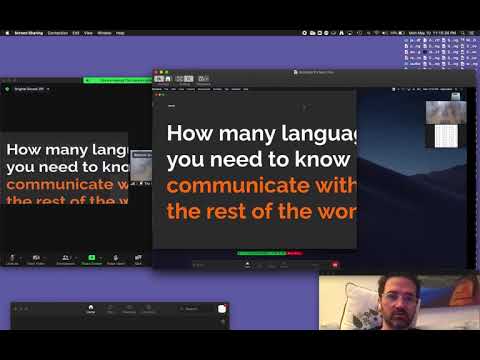](https://www.youtube.com/watch?v=XZI2kd10TOY)
* Chat will be LIVE and possibly distracting while you are presenting. You can hide chat notifications by selecting "Hide Floating Meeting Controls".<br>

* If you don't hide the meeting controls, make sure you **move the zoom screen share overlay/controls** off the screen that is showing your slides, or else the audience will see a grey box like the image below. If you don't have a second monitor, you can hide meeting controls as mentioned above.

)
 Google Drive
Gist
Clipboard
Google Drive
Gist
Clipboard
 Sign in with Wallet






