# Supercharging IBM BOB with Bright Data’s Web Access Infrastructure
In this blog post, you will learn:
- What IBM Bob is and what it offers.
- Why extending it with web access helps overcome its core limitations.
- How Bright Data enables the IBM Bob coding agent to perform web scraping, web search, and browser-based navigation.
- How to connect Bright Data to the IBM Bob coding agent via MCP.
- How to equip IBM Bob with knowledge of Bright Data solutions using Agent Skills files.
- The power of combining IBM Bob with Bright Data, illustrated through a complete example.
Let’s dive in!
## What Is IBM Bob?
[IBM Bob](https://bob.ibm.com/) is an AI-powered SDLC (Software Development Lifecycle) partner that integrates directly into your development environment. It helps you build, understand, and maintain real codebases with the help of [IBM AI models](https://www.ibm.com/solutions/ai-models).
Bob handles question answering over your codebase, automates repetitive tasks, and operates through specialized modes like planning, coding, and orchestration. The key features offered by this tool are:
- **Code generation**: Transforms natural language instructions into working code, helping you quickly build features, prototypes, or full implementations directly inside your project.
- **Code completion**: Provides intelligent single-line and multi-line suggestions, improving productivity.
- **Refactoring and debugging**: Automatically improves existing code by cleaning structure, fixing issues, and helping identify and resolve bugs across your codebase.
- **Documentation generation and updates**: Creates and maintains documentation directly from your code, ensuring your project docs stay accurate and synchronized with implementation changes.
- **Codebase Q&A**: Lets you ask natural language questions about your project and receive contextual explanations.
- **Task automation**: Streamlines repetitive workflows such as boilerplate creation and routine development tasks.
- **Project scaffolding**: Generates files, components, and full project structures, helping you quickly bootstrap new applications or features.
- **File system access**: Allows reading and writing files directly within your project, enabling seamless in-editor modifications and updates.
- **Command execution**: Runs terminal and shell commands directly from within Bob, reducing context switching and accelerating development workflows.
- **MCP integration**: Extends Bob with external tools via the [Model Context Protocol](https://modelcontextprotocol.io/docs/getting-started/intro).
## Why IBM Bob Needs Access to the Web
IBM Bob coding agents eventually hit a hard ceiling known to every LLM: the expiration date of its own knowledge. Because [an LLM is trained on a fixed dataset](https://brightdata.com/blog/web-data/train-an-ai-model) captured at a specific point in time, it reflects a static snapshot of knowledge.
In the world of software development, libraries evolve overnight and "best practices" turn into technical debt in a matter of months. Thus, relying on frozen knowledge is a significant liability. Your agent may confidently suggest deprecated methods, miss critical security issues, or produce outdated guidance. All of that, because of static [AI training data](https://brightdata.com/blog/web-data/llm-training-data).
Bridging this gap requires transforming your AI from a closed system into an active participant in the live web. This is where [Bright Data](https://brightdata.com/) becomes indispensable!
By integrating [Bright Data’s AI-ready infrastructure](https://brightdata.com/ai/web-access), you grant your agent the autonomy to access the internet with the same fluidity as a human developer. This connectivity equips Bob with the ability to:
- **Discover real-time information**: Perform deep searches across Google and other engines to find the latest technical breakthroughs.
- **Continuous learning**: Scour official documentation, Stack Overflow threads, and developer forums to self-correct and stay current.
- **Data retrieval**: Extract structured web data to populate databases or generate accurate mock responses.
- **Documentation support**: Automatically suggest relevant external links and citations to enhance your `README.md` files and technical guides.
- **Real-world scalability**: Execute complex workflows that require fresh, external context beyond the initial training set.
What sets Bright Data apart is its large-scale network infrastructure, powered by a pool of [over 400 million residential proxy IPs across 195 countries](https://brightdata.com/proxy-types/residential-proxies). This enables massive scalability while maintaining 99.99% uptime and a 99.95% success rate.
By grounding your LLM in live, verifiable data, you move beyond the limitations of a static model and into the realm of a truly intelligent coding assistant.
## How to Extend IBM Bob with Web Scraping, Search, and Interaction Capabilities
Bright Data supports IBM Bob through two complementary approaches:
- [**Bright Data Web MCP**](https://brightdata.com/ai/mcp-server): The official MCP server from Bright Data, exposing 60+ tools to interact with its API-based products and services.
- [**Bright Data skills**](https://docs.brightdata.com/ai/for-agents/skills): A collection of skills compliant with the Agent Skills standard, designed to help AI agents use Bright Data products more effectively.
**Important**: These two approaches are not alternatives—they work best together. In fact, the Bright Data skills include a dedicated skill that helps AI agents orchestrate and better leverage the Web MCP tools.
**Note**: The following tutorial sections apply to both [IBM Bob Shell](https://bob.ibm.com/docs/shell) and the [IBM Bob IDE](https://bob.ibm.com/docs/ide). We will showcase how to integrate Bright Data into the IBM Bob IDE for clearer visual guidance, but the same configuration files and procedures also apply to IBM Bob Shell.
### Bright Data Web MCP
The [Bright Data Web MCP provides 60+ tools](https://docs.brightdata.com/ai/mcp-server/tools) for automated web data collection, structured extraction, and browser-based interactions.
Even in [the free tier](https://brightdata.com/blog/ai/web-mcp-free-tier), it exposes useful tools such as:
| **Tool** | **Description** |
| ------------------------------------ | ------------------------------------------------------------------- |
| `search_engine` + batch version | Retrieve Google, Bing, or Yandex results in JSON or Markdown format |
| `scrape_as_markdown` + batch version | Convert any webpage into clean Markdown, with anti-bot handling |
| `discover` | Find and rank web results using AI-based relevance scoring |
Pro mode is where Web MCP becomes truly a game-changer. It unlocks advanced, structured extraction tools for platforms such as Amazon, LinkedIn, Zillow, YouTube, TikTok, Google Maps, Yahoo Finance, and 35+ others. It also exposes tools for browser automation.
### Bright Data Skills
The [Bright Data skills](https://github.com/brightdata/skills/tree/main/skills) include:
| **Skill** | **Description** |
| ---------------------------- | ------------------------------------------------------------------------------- |
| `search` | Search Google and return structured JSON results with pagination support |
| `scrape` | Scrape any webpage as clean Markdown with CAPTCHA handling and JS rendering |
| `data-feeds` | Extract structured datasets from 40+ platforms (Amazon, LinkedIn, TikTok, etc.) |
| `bright-data-mcp` | Orchestrates MCP tools for search, scraping, extraction, and automation |
| `brightdata-cli` | CLI usage for scraping, search, proxies, and monitoring |
| `scraper-builder` | Guides the creation of production-ready scrapers end-to-end |
| `competitive-intel` | Generates real-time competitive insights (pricing, SEO, hiring, reviews) |
| `design-mirror` | Replicates UI design systems, tokens, and component structures |
| `bright-data-best-practices` | Best practices for Web Unlocker, SERP API, Scraper API, and Browser API |
| `python-sdk-best-practices` | Guidance for using the Bright Data Python SDK (sync/async, errors, datasets) |
## Common Steps
Before showing how to integrate Bright Data into IBM Bob via MCP or skills, there are a few common prerequisite steps you need to complete.
### Prerequisites
To follow this tutorial, make sure you have a machine with:
- macOS, Linux, or Windows as the operating system.
- At least 4 GB of RAM (8 GB recommended).
- At least 500 MB of available disk space.
- An active Internet connection.
You will also need:
- Node.js installed locally. This is required for setting up MCP locally and installing skills via the `skills` package. If you plan to connect remotely to the Web MCP and add the skills manually, you can skip this requirement.
- [An IBMid](https://www.ibm.com/account), ideally with [a BOB trial already set up](https://bob.ibm.com/trial).
- A [Bright Data account](https://brightdata.com/?hs_signup=1) with an API key in place.
To generate a Bright Data API key, [follow the official guide](https://docs.brightdata.com/api-reference/authentication#how-do-i-generate-a-new-api-key).
### Step #1: Install IBM Bob
Start by [downloading the IBM BOB installer](https://bob.ibm.com/download) for your operating system and launching it. Once it is available on your machine, [run the installer and follow the instructions](https://community.ibm.com/community/user/blogs/narendra-murthy/2026/03/26/ibm-bob-install-touchpoint). This is what you should see:
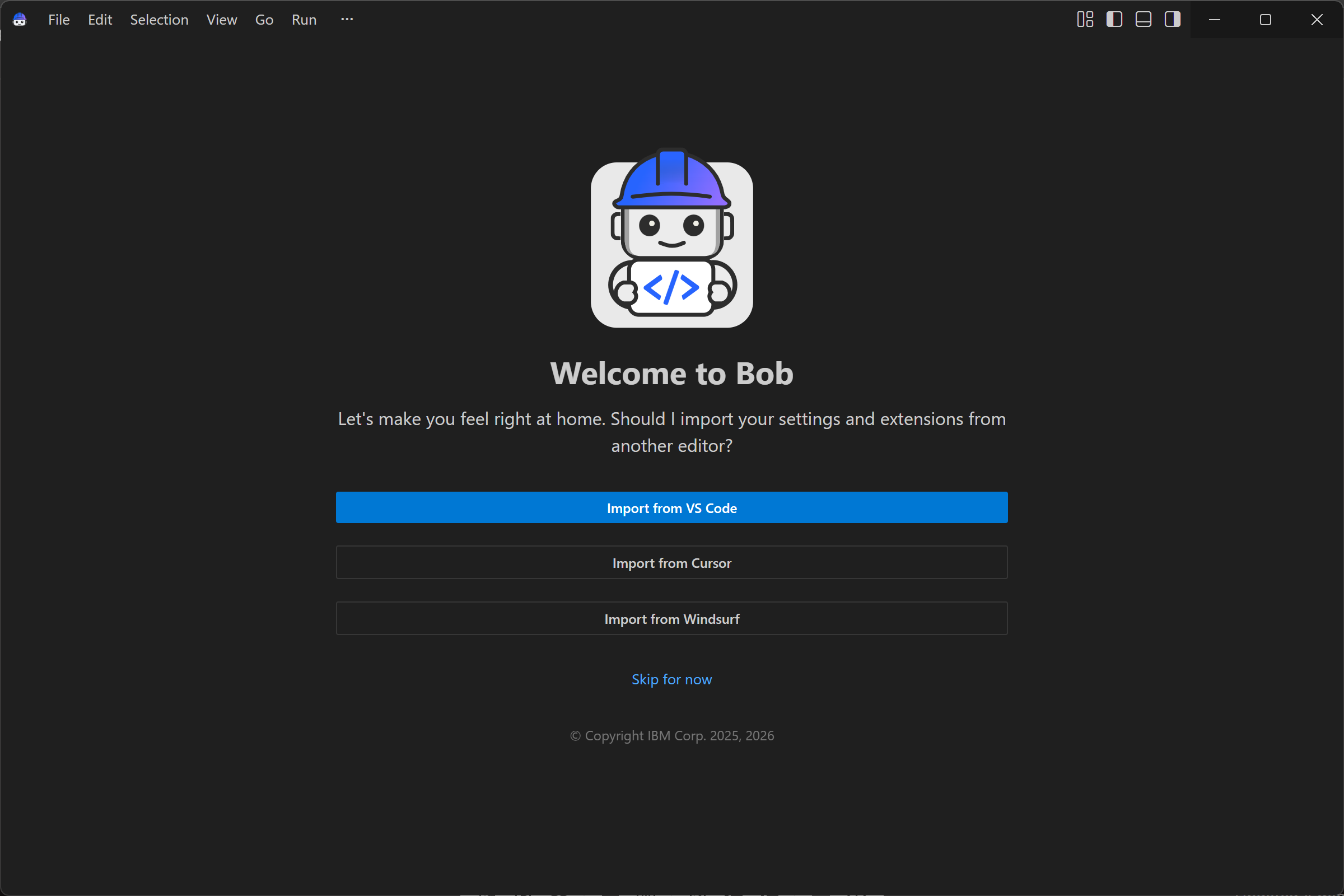
Next, you can import settings and extensions from your existing IDE, or simply skip this step. You will then reach the IBM Bob IDE experience:
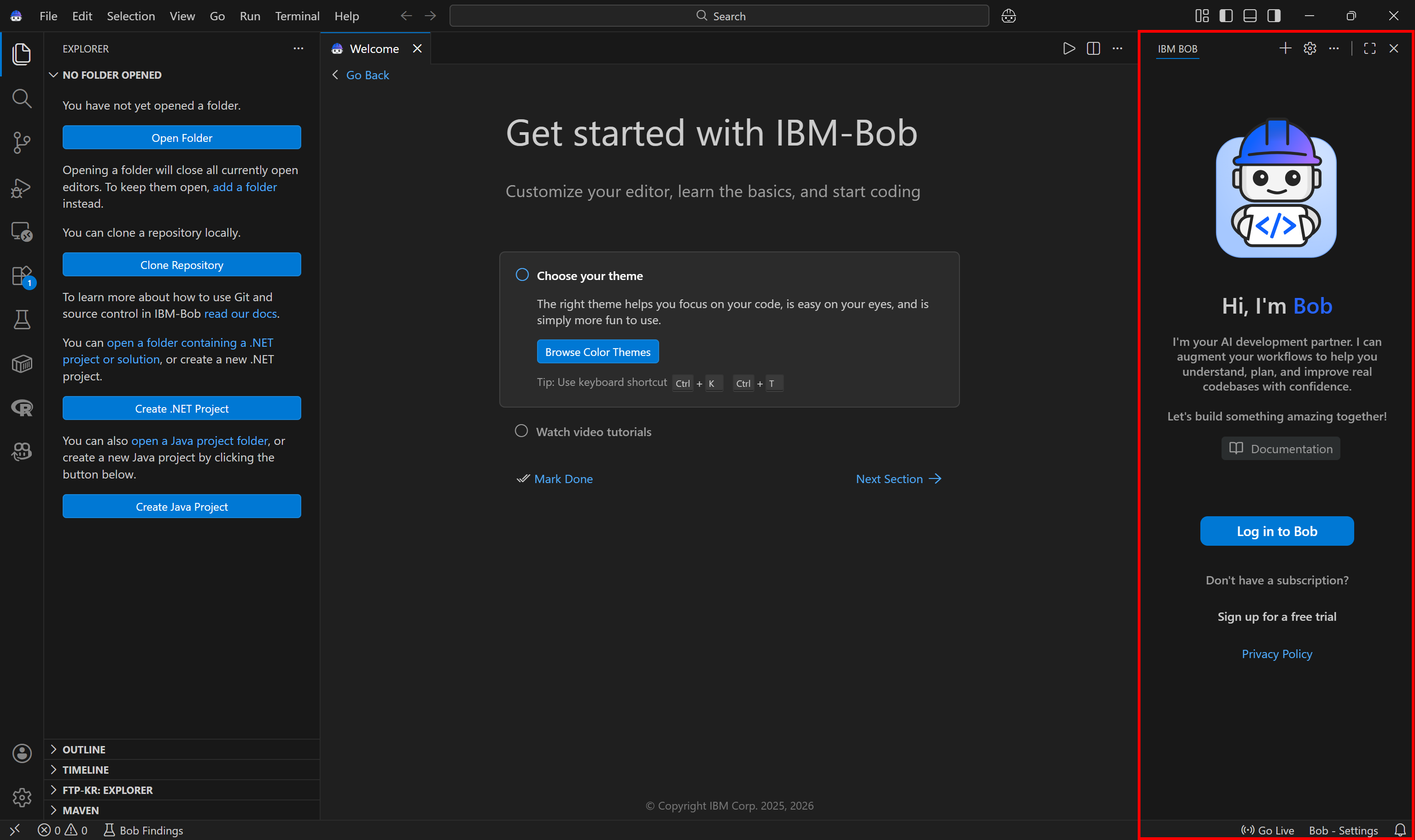
IBM Bob looks very similar to Visual Studio Code, but focus on the column on the right. This is where interactions with IBM BOB happen in an agentic coding experience.
Well done! IBM Bob is now correctly set up locally.
### Step #2: Complete the IBM Bob Setup
Press the “Open Folder” button and load your project folder. In this case, we will assume you are opening an `ibm-bob-bright-data-example` folder.
**Note**: Any other folder will work as well, including one that already contains an existing project.
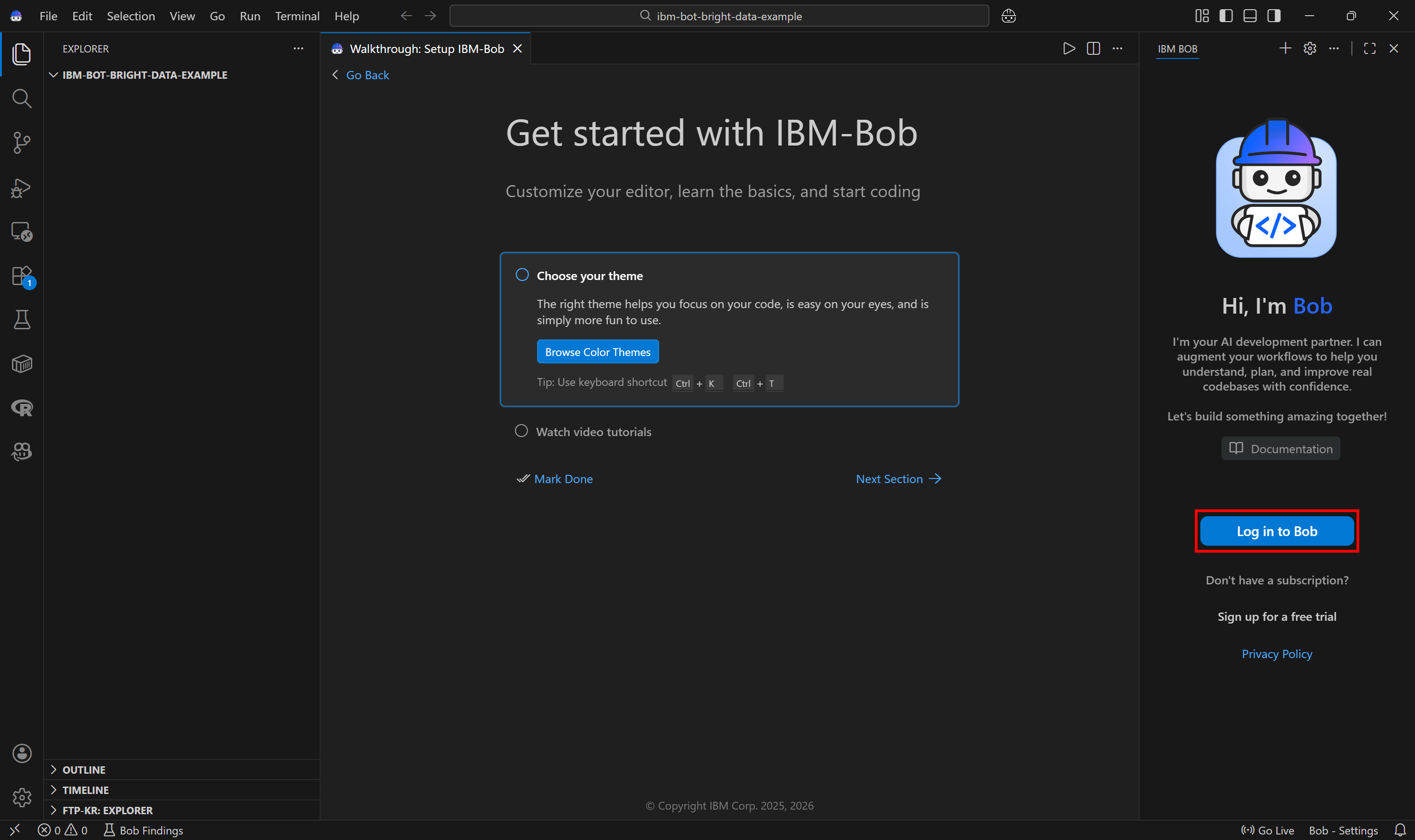
Next, connect the [Bob service in your IBM account](https://bob.ibm.com/trial) to your local IBM Bob instance by logging in. Click the “Log in to Bob” button. Or, if you have not yet configured Bob in your IBM account, select the “Sign up for a free trial” option instead.
Follow the instructions, which will require you to log in to your IBM account in the browser. Once completed, Bob will be fully operational.
Consider pressing the gear icon to view details about your IBM account and subscription. This is what you should see:
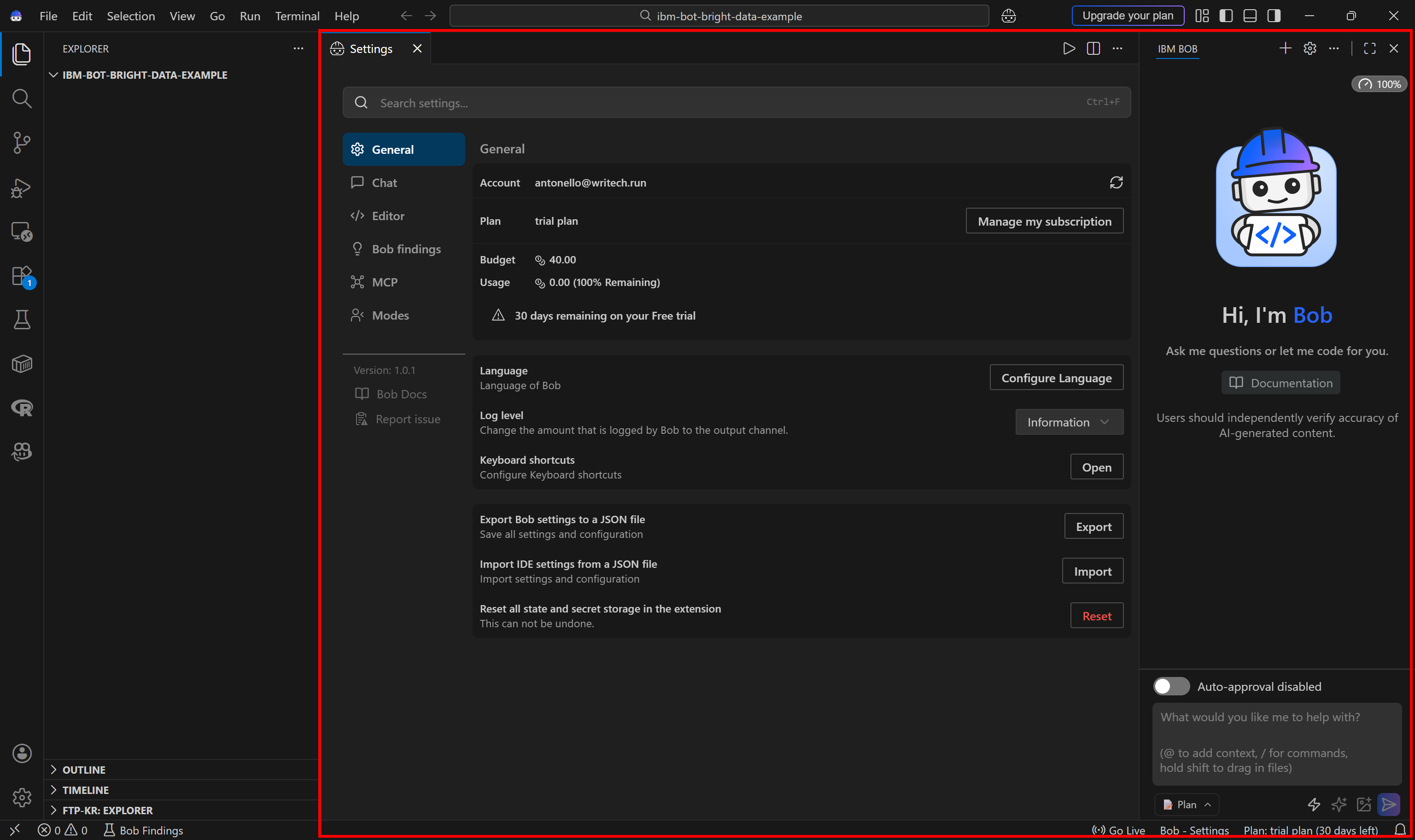
Fantastic! IBM Bob is now ready to support your coding projects.
## Connecting Bright Data Web MCP to IBM Bob
This section will guide you through setting up a local instance of the Bright Data Web MCP in IBM Bob.
### Prerequisites
To follow along more easily, it is recommended that you have:
- A basic understanding of [how MCP works](https://modelcontextprotocol.io/docs/learn/server-concepts).
- Familiarity with the [tools exposed by the Bright Data Web MCP](https://docs.brightdata.com/ai/mcp-server/tools).
Also, keep in mind that the prerequisites outlined in the “Common Steps” section still apply here.
### Step #1: Get Started with Bright Data’s Web MCP
First, verify that the Bright Data MCP server runs on your machine. Alternatively, if you want to configure a remote connection to the MCP, skip this step.
Begin by [logging in to your Bright Data account](https://brightdata.com/cp/start). For a quick setup, follow the wizard in the “[MCP](https://brightdata.com/cp/mcp)” section of the control panel:
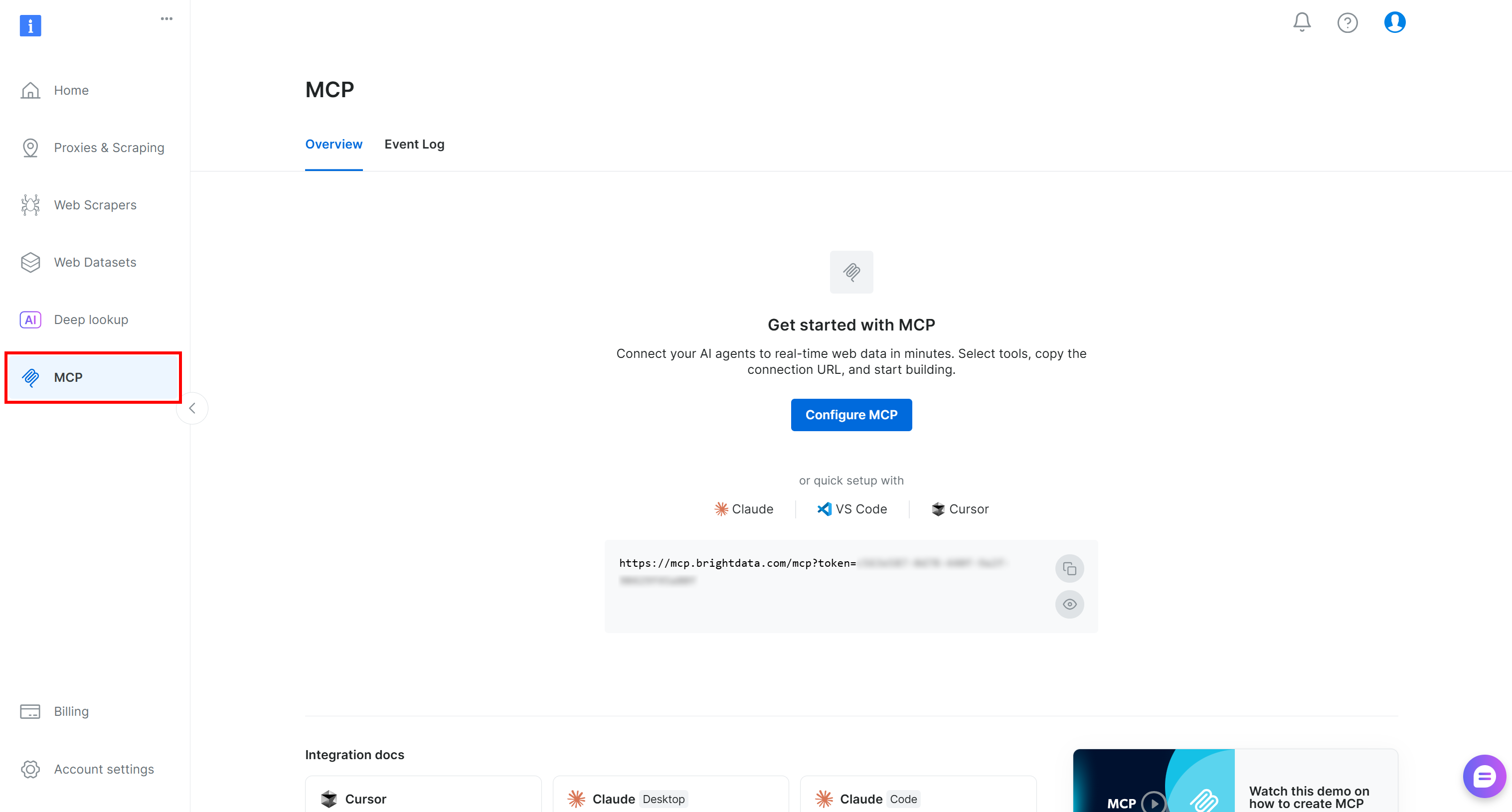
Otherwise, for additional guidance, refer to the instructions below.
Then, install the Web MCP globally via the [`@brightdata/mcp`](https://www.npmjs.com/package/@brightdata/mcp) package:
```bash
npm install -g @brightdata/mcp
```
Check that the MCP server starts locally by testing it with this command:
```bash
API_TOKEN="<YOUR_BRIGHT_DATA_API>" npx -y @brightdata/mcp
```
Replace the `<YOUR_BRIGHT_DATA_API>` placeholder with your actual Bright Data API key. This command sets the required `API_TOKEN` environment variable and starts a local instance of the Web MCP server.
If successful, you should see something similar to:

On the first launch, the `@brightdata/mcp` package automatically creates these zones in your Bright Data account:
- `mcp_unlocker`: A zone for [Web Unlocker](https://brightdata.com/products/web-unlocker).
- `mcp_browser`: A zone for [Browser API](https://brightdata.com/products/scraping-browser).
Those two zones power the 60+ tools exposed by the Web MCP instance. Note that you can also configure your own custom zones, [as explained in the docs](https://github.com/brightdata/brightdata-mcp?tab=readme-ov-file#advanced-configuration).
To verify that the standard zones have been created, reach the “[Proxies & Scraping Infrastructure](https://brightdata.com/cp/zones)” page in the Bright Data control panel. You should see both zones listed in the table:
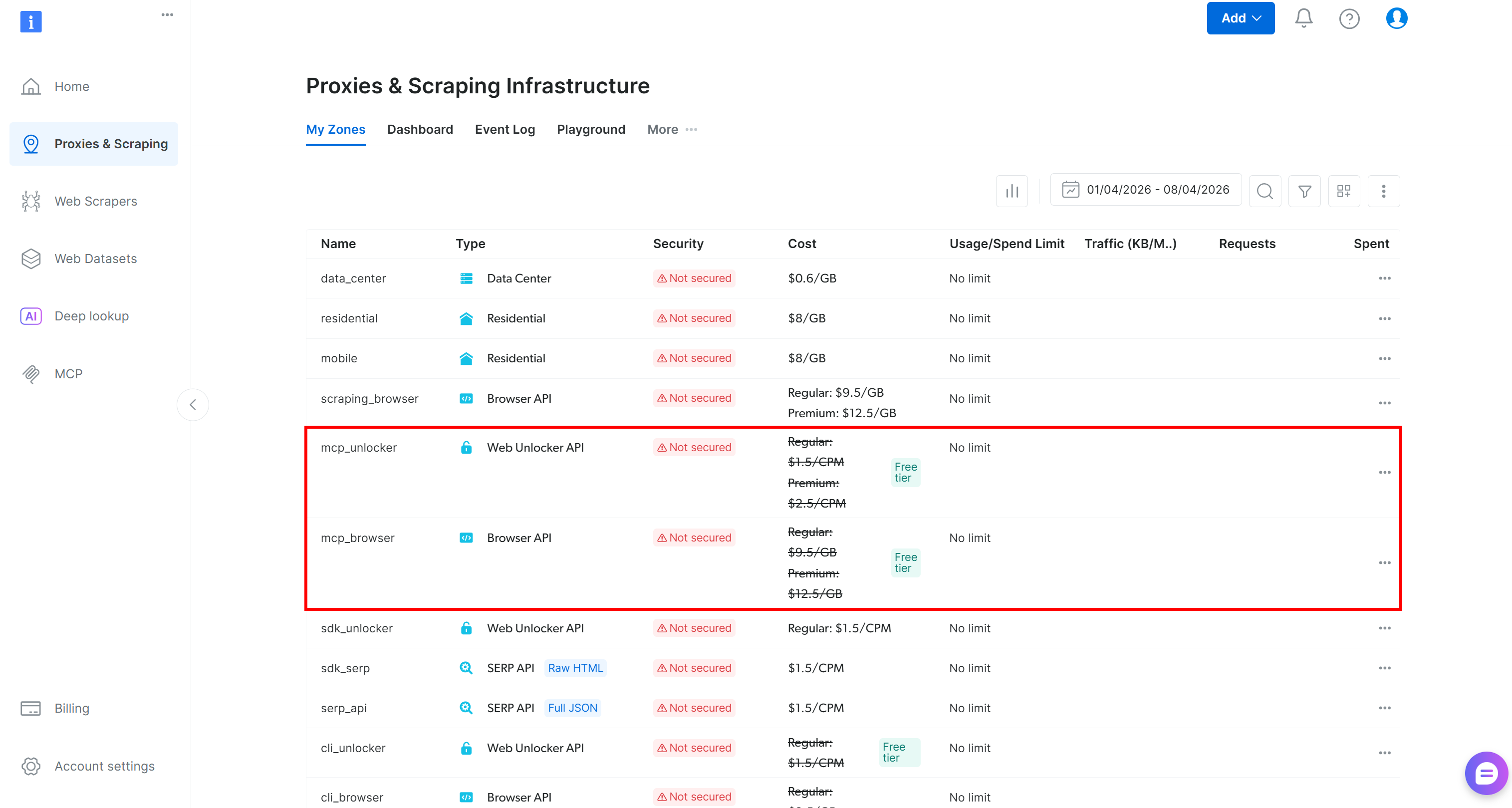
Now, remember that on the [Web MCP free tier](https://brightdata.com/blog/ai/web-mcp-free-tier), you have access only to the following tools:
- `search_engine` (+ its batch version)
- `scrape_as_markdown` (+ its batch version)
- `discover`
To unlock all 60+ tools, [enable Pro mode](https://docs.brightdata.com/ai/mcp-server/local/advanced#mcp-server-modes) by adding the `PRO_MODE="true"` environment variable:
```bash
API_TOKEN="<YOUR_BRIGHT_DATA_API>" PRO_MODE="true" npx -y @brightdata/mcp
```
**Note**: Pro mode is not included in the free tier and [incurs additional charges](https://github.com/brightdata/brightdata-mcp?tab=readme-ov-file#-pricing--modes).
Cool! You just checked that the Web MCP server can run on your machine. Soon, you will configure IBM Bob to launch the server autonomously and connect to it.
### Step #2: Configure the Web MCP in IBM Bob
To configure and manage MCP servers in IBM Bob, start by opening the “Settings” page and clicking the gear icon.
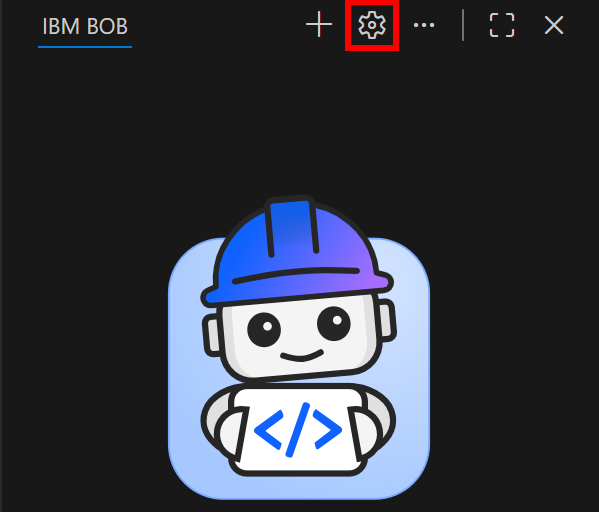
Under the “MCP” section, click the “Open” button in the “Project MCPs” entry:
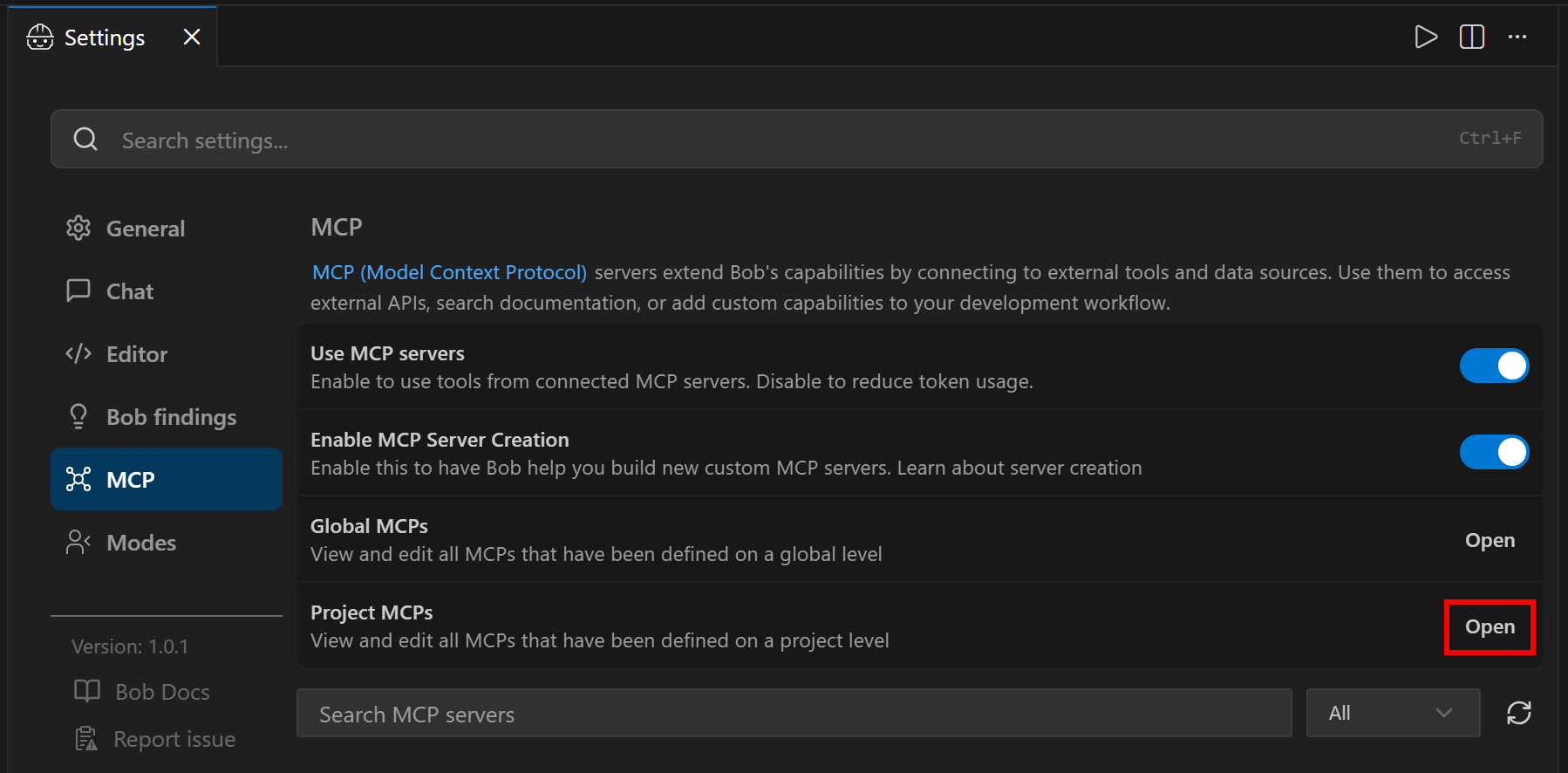
**Note**: If you want to configure the Bright Data Web MCP globally for all IBM Bob projects, click the “Open” button under the “Global MCPs” entry instead.
A `.bob` folder containing an `mcp.json` file will be created in your project’s root directory:
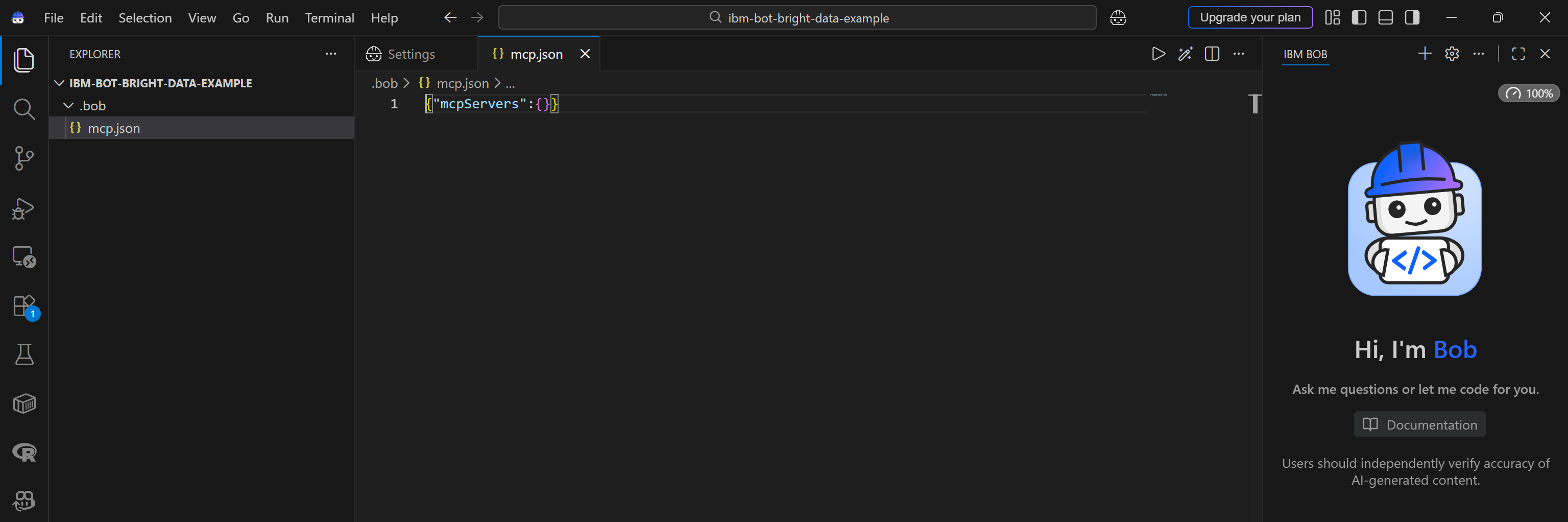
The `.bob/mcp.json` file is the local configuration file used for MCP integration in IBM Bob (both IDE and Shell).
To connect to the Web MCP, make sure [your configuration file includes the following](https://bob.ibm.com/docs/shell/configuration/configuring#mcp-settings):
```json
{
"mcpServers": {
"bright-data": {
"command": "npx",
"args": ["@brightdata/mcp"],
"env": {
"API_TOKEN": "<YOUR_BRIGHT_DATA_API_KEY>",
"PRO_MODE": "true"
}
}
}
}
```
This setup mirrors the `npx` command you tested earlier, using environment variables for authentication and configuration:
- `API_TOKEN`: Required. Set this to your Bright Data API key.
- `PRO_MODE`: Optional. Remove it or set it to `"false"` if you do not want to activate the Pro mode.
**Tip**: Configure the Web MCP globally for all projects by adding the same configuration to your `~/.bob/json.json` file.
**Note**: You can connect to the [remote Bright Data Web MCP](https://docs.brightdata.com/ai/mcp-server/remote/quickstart) via Streamable HTTP using the `httpUrl` field instead. This approach is better suited for enterprise-grade setups.
Excellent! The Web MCP should now be available in IBM Bob.
### Step #3: Check the Connection
Back in the “Settings” window, you should now see a “bright-data” MCP server entry:
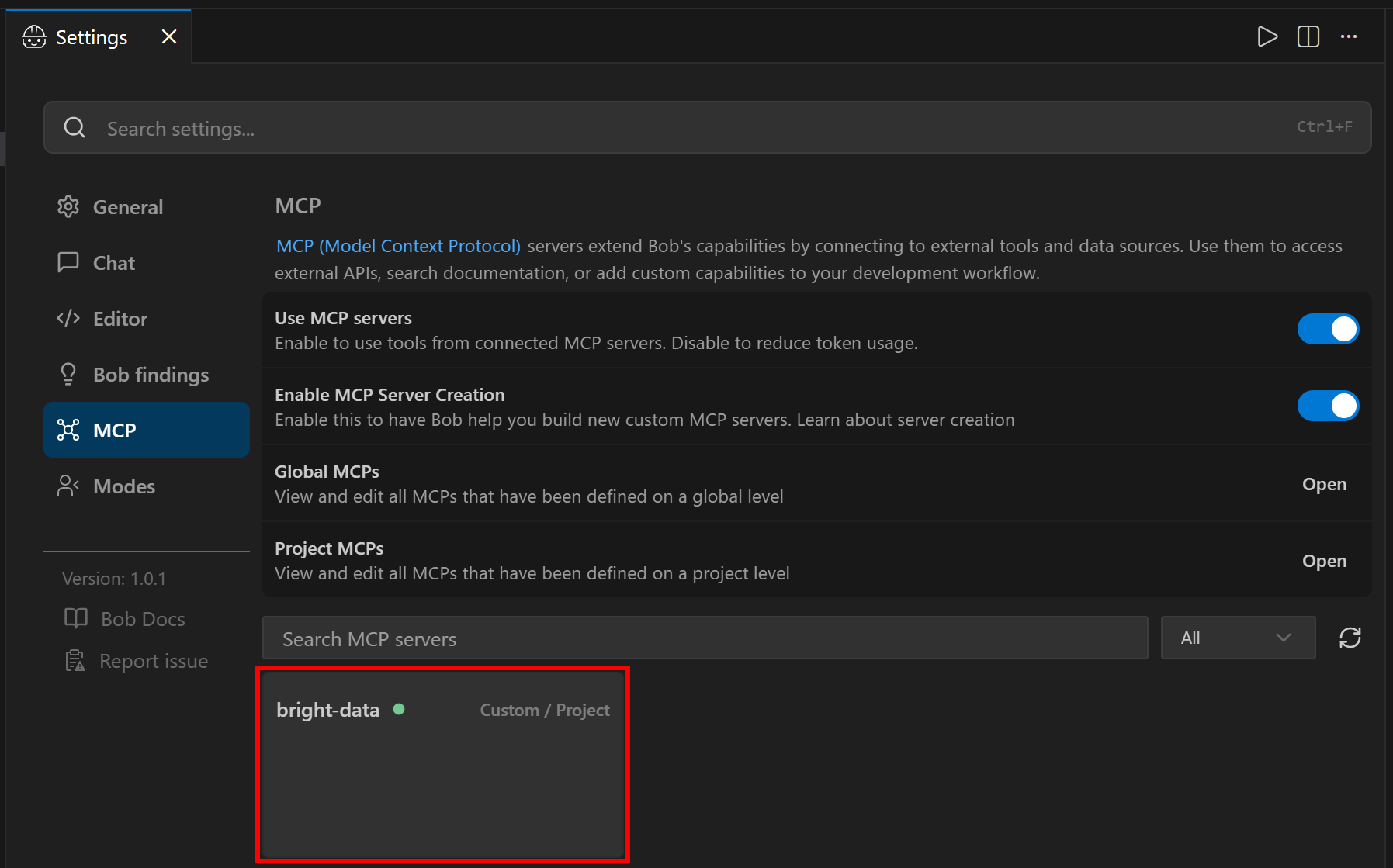
Click on it and scroll down to the “Tools” section:
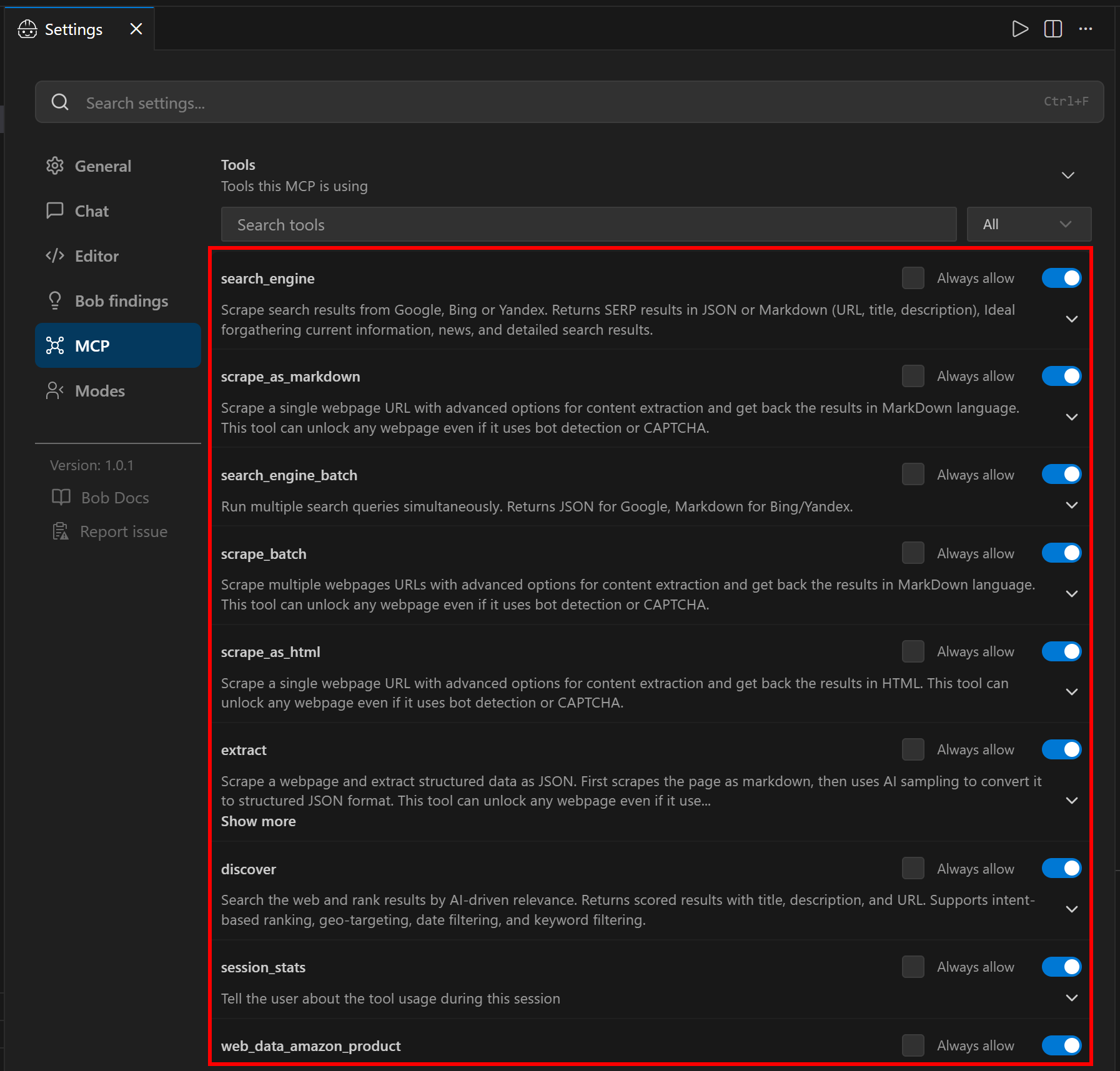
In Rapid mode (free tier, when `PRO_MODE` is omitted or set to false), you will see a limited set of tools. In Pro mode (as configured above), you will have access to the full set of 60+ tools. From here, you can control which tools are enabled and whether they should always be available.
Congratulations! This confirms that the Bright Data Web MCP is correctly exposing tools to IBM Bob. (Later in this article, we will showcase the Web MCP in action together with Bright Data skills.)
## Adding Bright Data Skills to IBM Bob
In this section, you will see how to add the Bright Data skills to IBM Bob using the guided workflow provided by [Vercel’s `skills` CLI](https://vercel.com/changelog/introducing-skills-the-open-agent-skills-ecosystem).
**Note**: If you prefer a manual setup, [clone the Bright Data Skills repository](https://github.com/brightdata/skills) and just copy the required files into your project:
```bash
git clone https://github.com/brightdata/skills
cp -r skills/skills/* <PATH_TO_YOUR_PROJECT>/.bob/skills/
```
That said, the approach presented below is simpler and more guided!
### Prerequisites
To go through this section, make sure you have:
- A basic understanding of [how Agent Skills standards work](https://agentskills.io/home).
- Familiarity with [Vercel’s `skills` CLI](https://github.com/vercel-labs/skills).
- Some knowledge of [Bright Data skills](https://docs.brightdata.com/ai/for-agents/skills).
In addition to the prerequisites listed in the “Common Steps” section, you will also need:
- A [Web Unlocker API zone](https://docs.brightdata.com/scraping-automation/web-unlocker/introduction) configured in your Bright Data account.
- The [`jq`](https://jqlang.org/) package installed locally.
To install `jq` (a Shell tool for processing JSON) on Debian-based operating systems, execute:
```bash
sudo apt-get install curl jq
```
Equivalently, on macOS, run:
```bash
brew install curl jq
```
For a quick setup of the Web Unlocker API zone, refer to the “*[Create Your First Unlocker API](https://docs.brightdata.com/scraping-automation/web-unlocker/quickstart)*” guide. Alternatively, follow the next step.
### Step #1: Create a Web Unlocker API Zone
[Log in to your Bright Data account](https://brightdata.com/cp/start). In the control panel, navigate to the “Proxies & Scraping” page and take a look at the “My Zones” table:
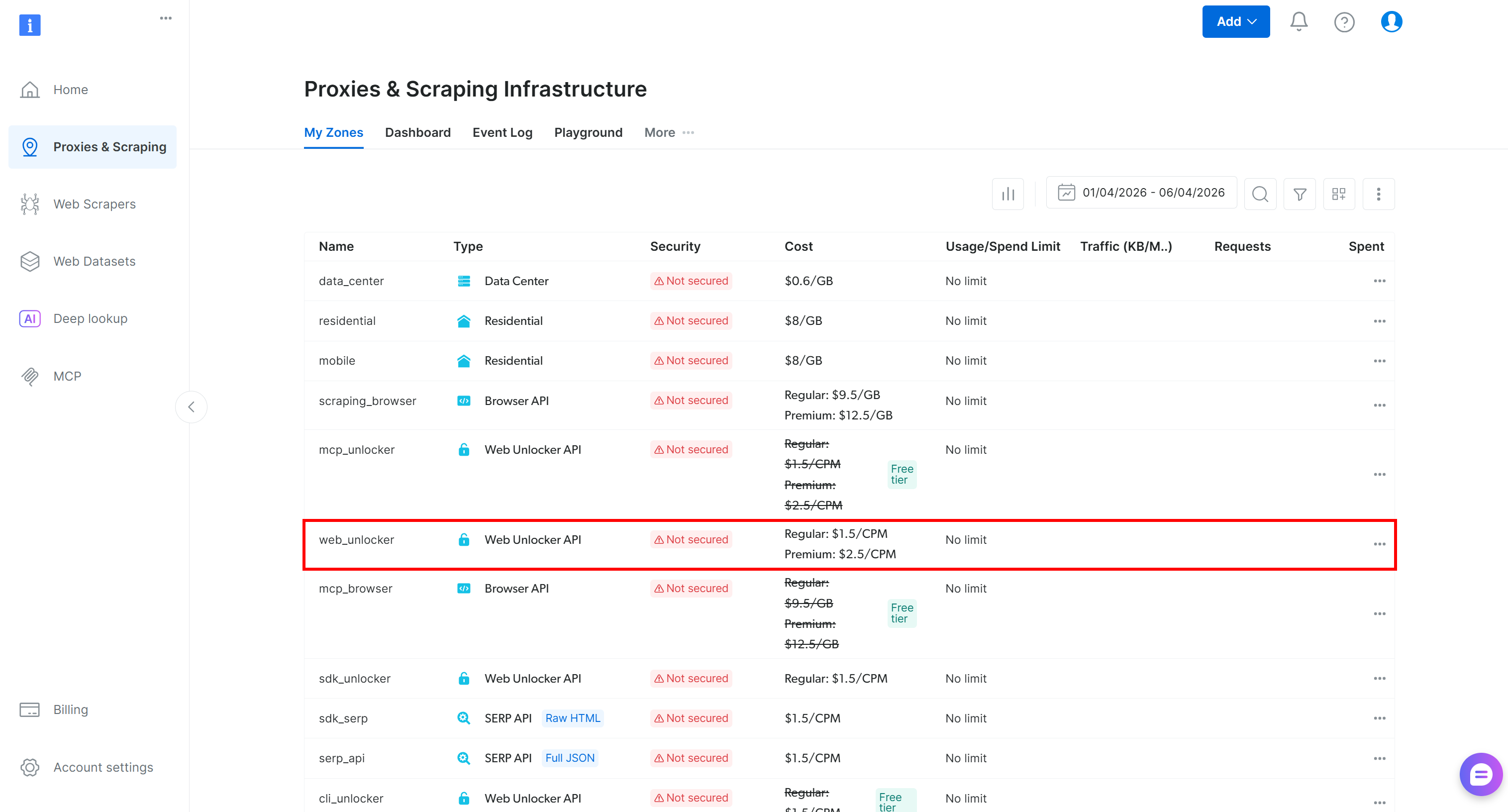
If a Web Unlocker API zone (e.g., `web_unlocker`) already exists, great!
If not, scroll to the “Unblocker API” section and click “Create zone”:
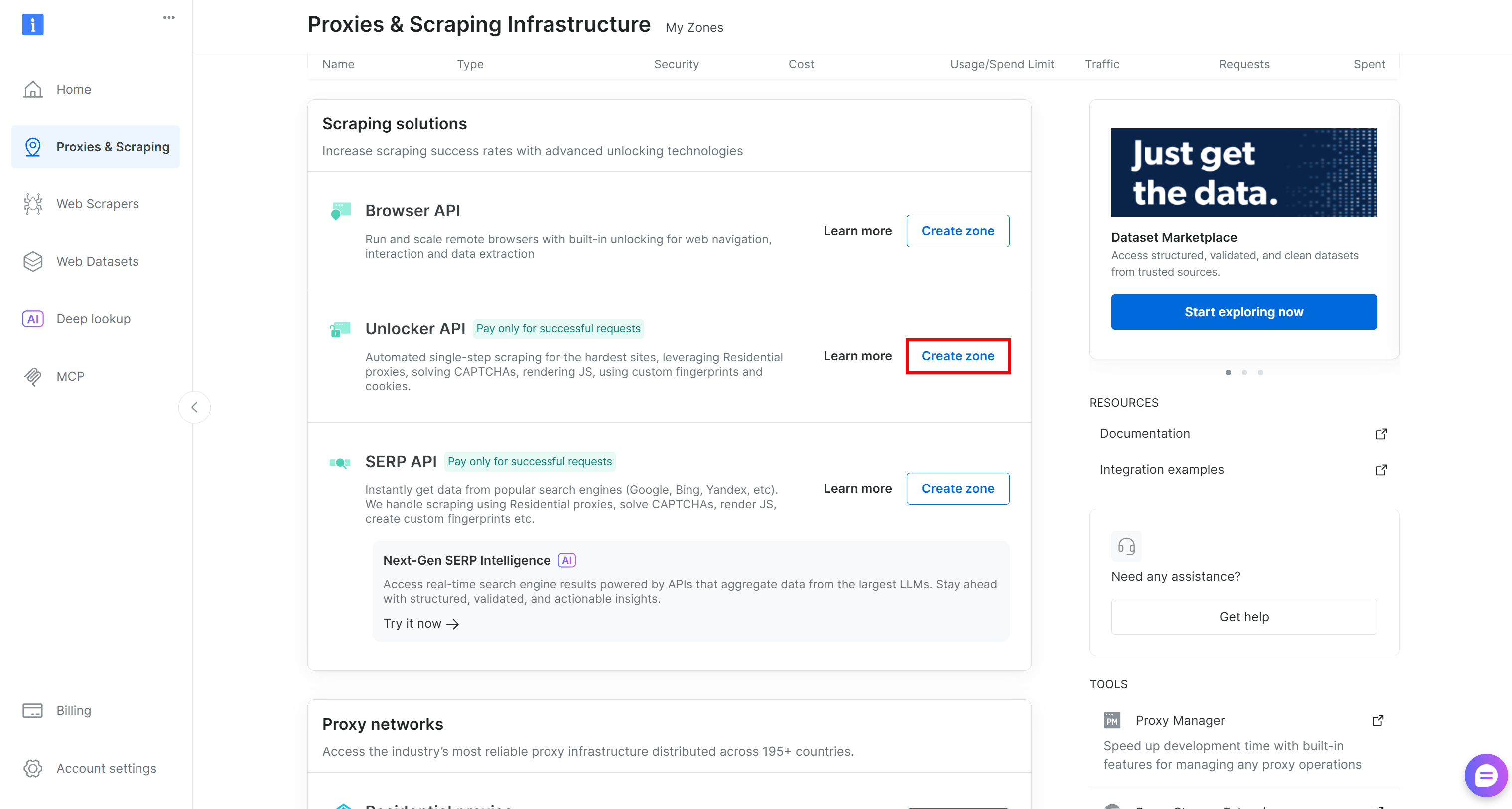
Choose a clear name for your zone and complete the setup wizard until it becomes active. Perfect!
### Step #2: Complete the Bright Data Skills Setup
The Bright Data skills [require these environment variables](https://github.com/brightdata/skills?tab=readme-ov-file#2-set-environment-variables):
- `BRIGHTDATA_API_KEY`: Used to authenticate requests to Bright Data APIs.
- `BRIGHTDATA_UNLOCKER_ZONE`: Utilized to connect to your Web Unlocker API zone (used for both scraping and search capabilities, as it can also operate as a [SERP API zone](https://docs.brightdata.com/scraping-automation/serp-api/introduction)).
Set them in your environment:
```bash
export BRIGHTDATA_API_KEY="<YOUR_BRIGHT_DATA_API_KEY>"
export BRIGHTDATA_UNLOCKER_ZONE="<YOUR_BRIGHT_DATA_WEB_UNLOCKER_API_ZONE_NAME>"
```
Replace the placeholders, and the Bright Data skills are now ready to be added!
### Step #3: Install the Bright Data Skills
In your project folder, run the following command:
```bash
npx skills add brightdata/skills -a bob
```
This command installs the `skills` CLI (if not already available) and starts an interactive setup process that will:
- Download the [Bright Data skills from the official Agent Skills Directory](https://skills.sh/brightdata).
- Configure them in your IBM Bob project.
You will first see a screen where you can choose which skills to install:
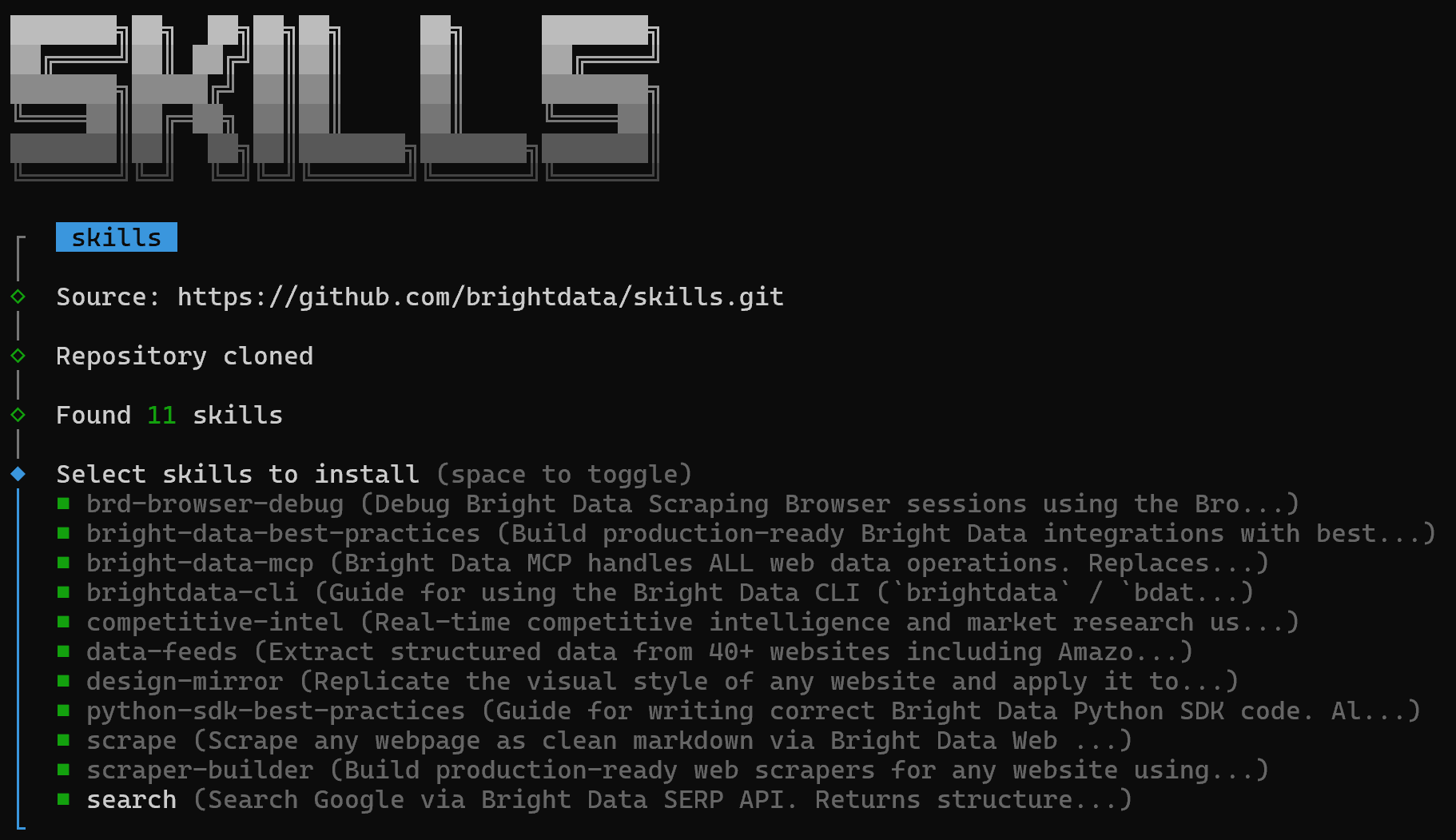
To install all of them, toggle each skill using the spacebar, then press Enter.
Next, select the installation scope (project-level is recommended) and continue:

You will finally be shown the “Installation Summary” and “Security Risk Assessment” sections. Review them and press Enter to confirm.
Once completed, you will get a final confirmation message like this:
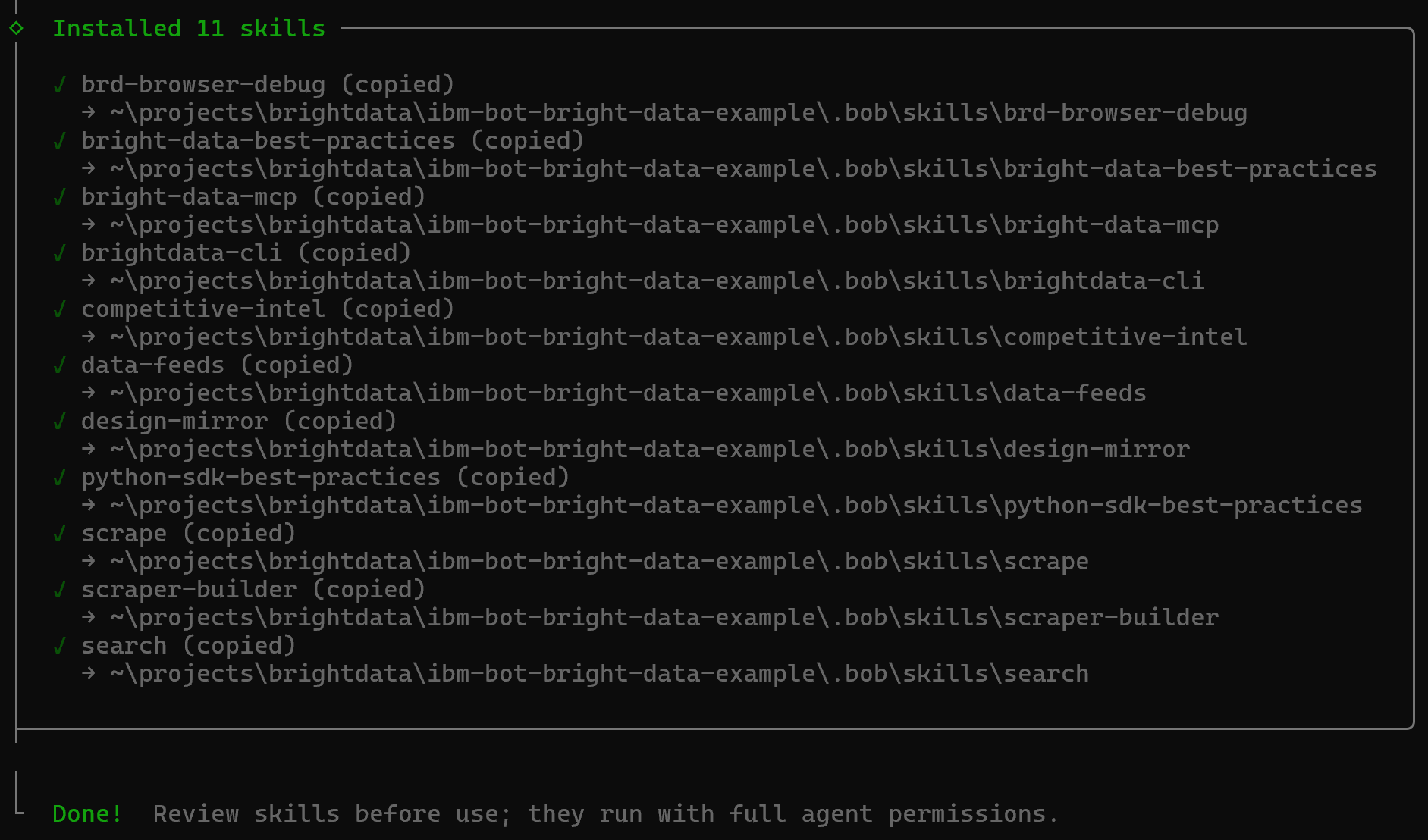
The Bright Data skills will be added to your project under the `.bob/skills` directory:
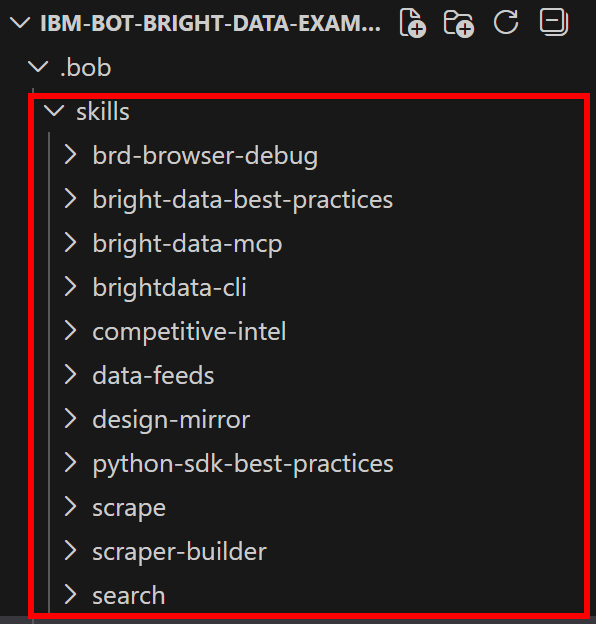
Mission complete! The Bright Data skills are now installed and available in IBM Bob.
As of this writing, there is no dedicated section to view available skills in IBM Bob. So, let’s move straight to putting this setup to use!
## IBM Bob + Bright Data for an Enhanced AI Coding Agent Experience
Now, you have Bright Data integrated into IBM Bob via both MCP and skills. Time to see what this setup enables in practice! We will walk through a concrete, real-world example—though [many other use cases are possible](https://brightdata.com/use-cases).
Imagine you want to populate a `products` table in your database with real-world data. The goal is to discover the best-selling products on Amazon for a given category, scrape their data, and use it to populate your database.
Instead of manually searching for products and collecting the data yourself, delegate the entire task to your coding assistant.
First, set the coding agent to [“Advanced” mode](https://bob.ibm.com/docs/ide/features/modes#advanced-mode):
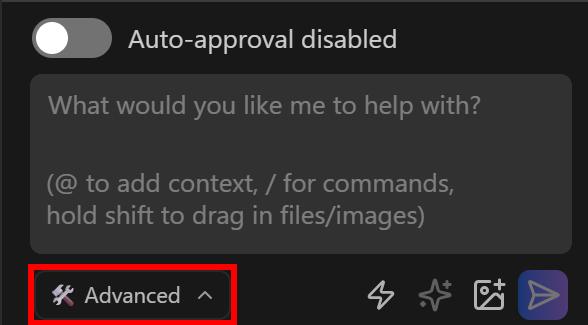
This will give it the ability to create and change files.
Then, run a prompt like this:
```
Discover the Amazon Best Sellers page for electronics products. Then, visit the page and retrieve the top 5 products. For each product, scrape its data in a structured format. Populate a local JSON file with all the scraped data. Then, create a products.sql MySQL script to define a products table and populate it with that data.
```
**Note**: A standalone LLM would not be able to complete this task. That is because it requires web discovery, navigation, and scraping—capabilities that AI models do not have by default. To gain them, you must connect the model to Bright Data’s infrastructure through MCP tools and skills.
Run the prompt, and you should see something like:
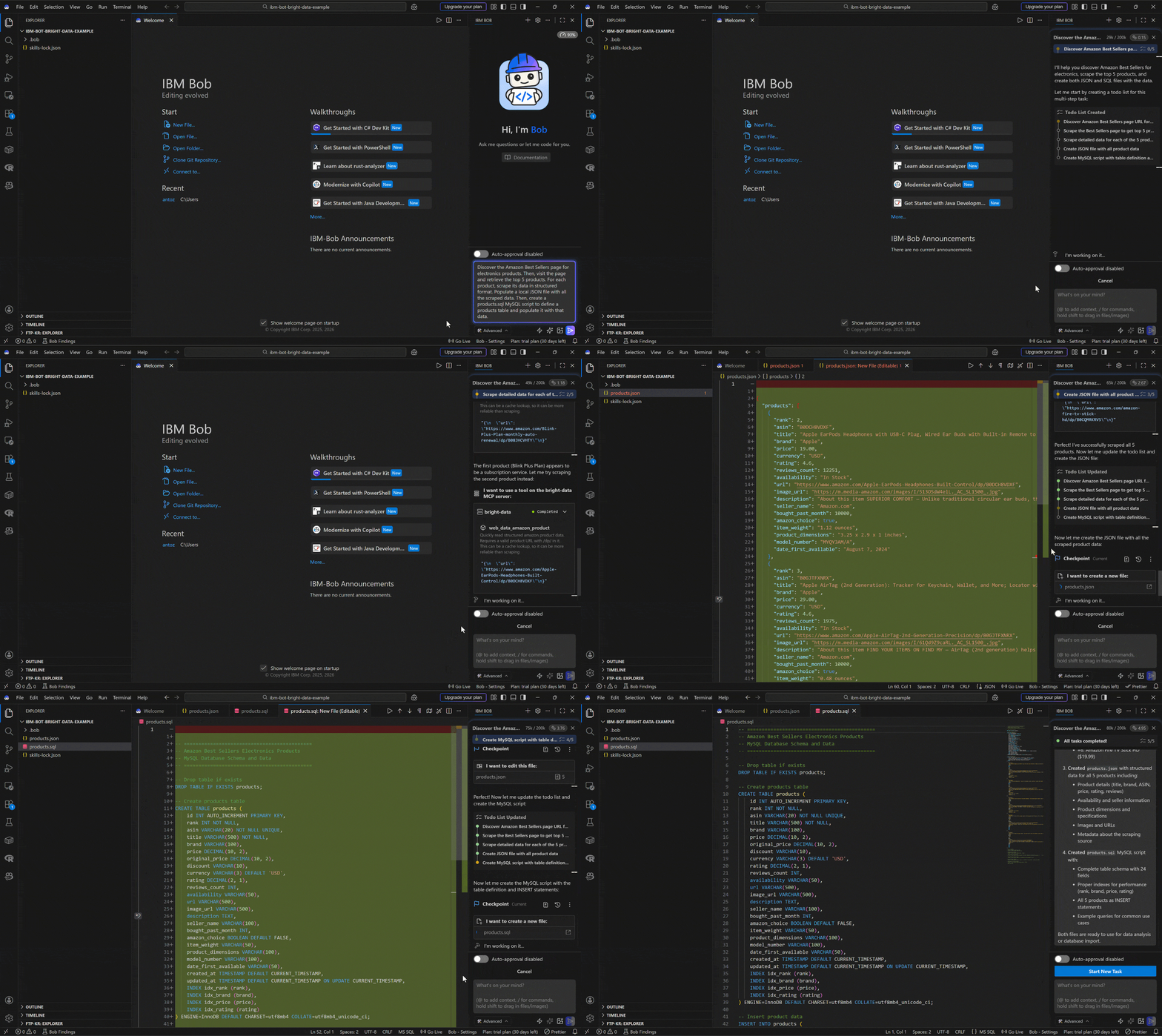
Below is how the IBM Bob coding agent handled the task:
1. Used the [Bright Data Discover API](https://brightdata.com/products/discover-api) (via the `discover` tool) to locate the Amazon Best Sellers Electronics page.
2. Scraped the discovered page (i.e., `https://www.amazon.com/Best-Sellers-Electronics/zgbs/electronics`) as Markdown using the `scrape_as_markdown` tool via the [Web Unlocker API](https://brightdata.com/products/web-unlocker).
3. Identified the top 5 products from the page.
4. Passed each product URL to the Web MCP `web_data_amazon_product` scraping tool (which connects to [Bright Data's Amazon Scraper API](https://brightdata.com/products/web-scraper/amazon)).
5. Generated a `products.json` file with the structured scraped data.
6. Creates a `products.sql` script with the MySQL schema and `INSERT` statements.
Take a look at the generated `products.json` file:
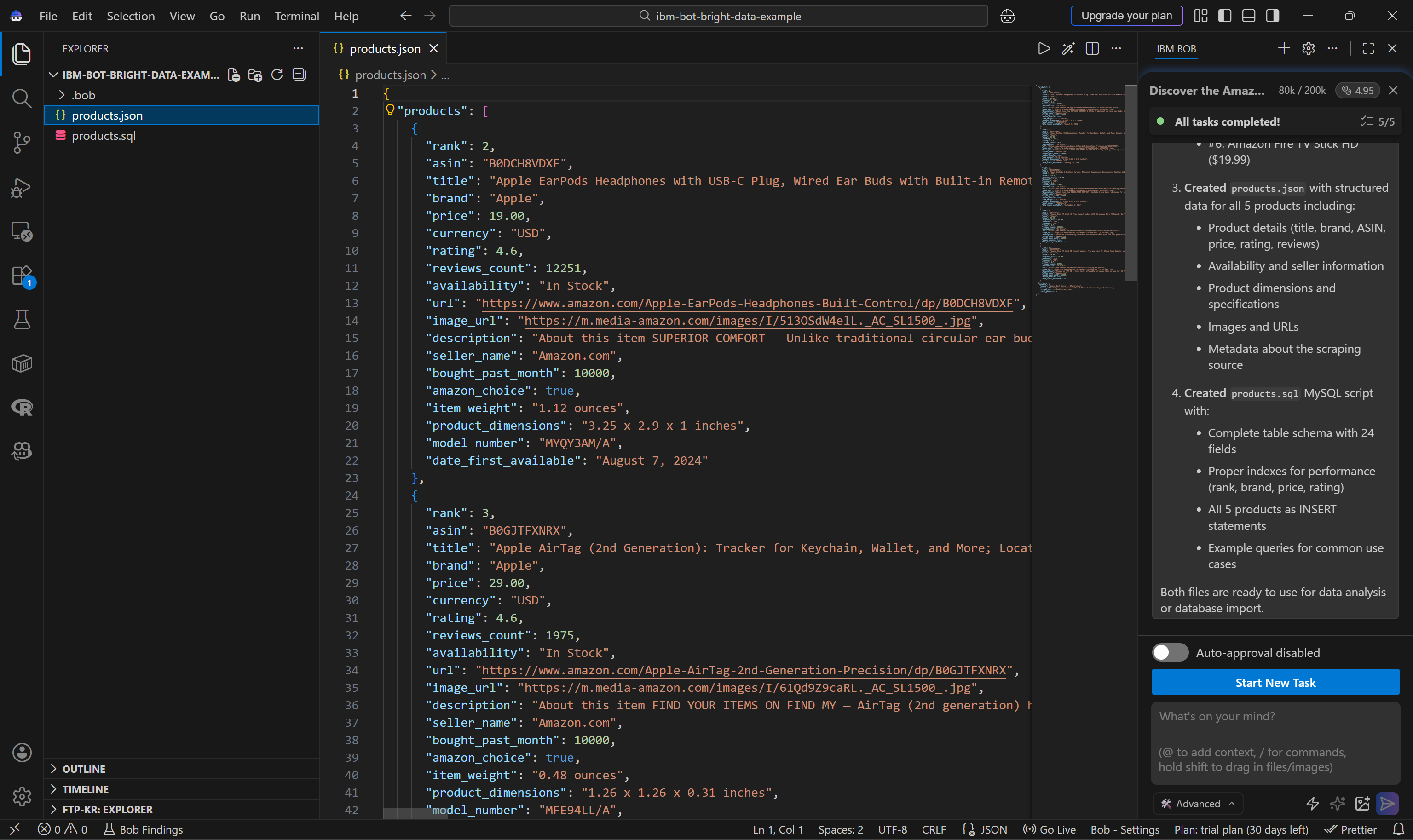
This includes:
- Apple EarPods Headphones with USB-C Plug ($19.00)
- Apple AirTag (2nd Generation) ($29.00)
- Apple AirPods 4 Wireless Earbuds ($119.00)
- Amazon Fire TV Stick 4K Plus ($29.99)
- Amazon Fire TV Stick HD ($19.99)
These correspond exactly to the top products from the Electronics Best Sellers list:
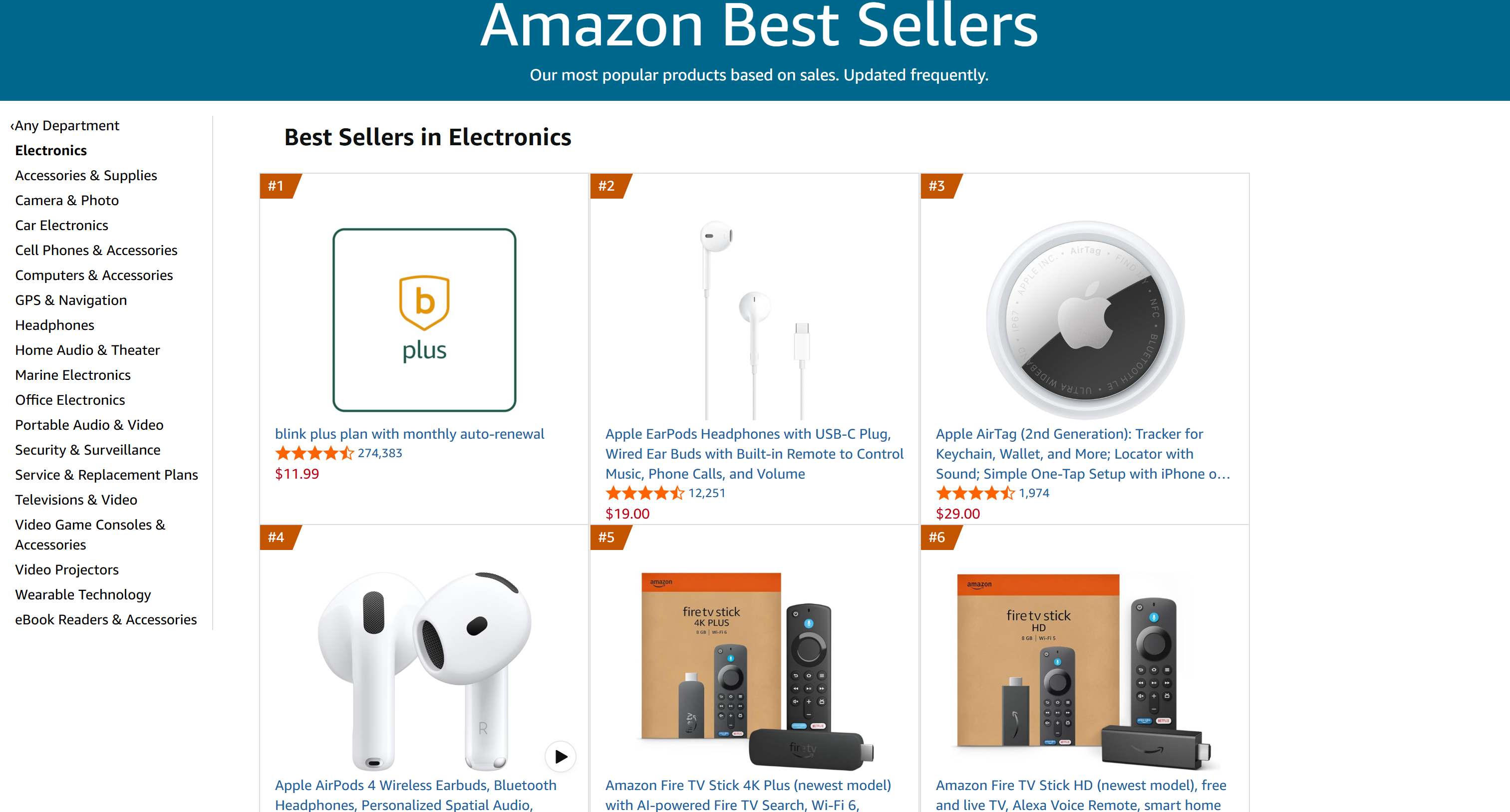
Notice that the #1 item was excluded because it was not a real product, but a promotional placement. The combination of AI + Bright Data handled this edge case correctly.
This also confirms that the data is not hallucinated. IBM Bob relies on Bright Data’s infrastructure to retrieve real, up-to-date information. [Scraping Amazon product data](https://brightdata.com/blog/how-tos/how-to-scrape-amazon) is notoriously challenging due to anti-bot protections (e.g., [Amazon CAPTCHA](https://brightdata.com/blog/web-data/bypass-amazon-captcha)), which is why this integration is so powerful.
The agent also generates a `products.sql` script:
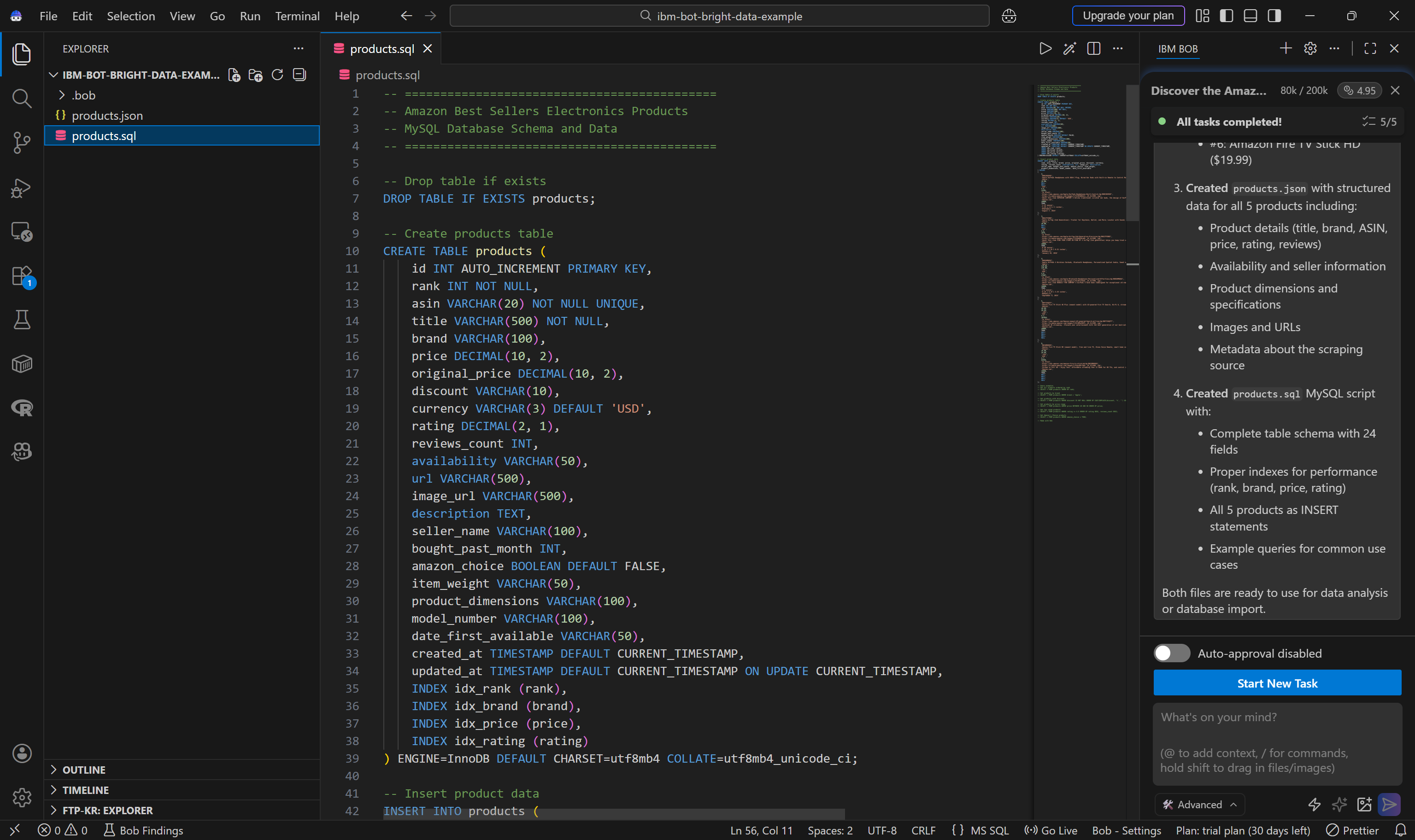
You can easily run this script in your database to create and populate the `products` table.
Et voilà! This simple example clearly shows how resourceful IBM Bob becomes when combined with Bright Data’s capabilities.
## Conclusion
In this article, you understood what IBM Bob brings to the table when it comes to AI-powered software development. In detail, you saw why and how to extend it by connecting it to Bright Data through [Web MCP](https://docs.brightdata.com/ai/mcp-server/overview) and [Agent Skills](https://docs.brightdata.com/ai/for-agents/skills).
This integration equips the IBM Bob coding agent with powerful new capabilities, greatly enhancing its effectiveness. These include web search, discovery, structured data extraction, real-time web data retrieval, and automated web interactions.
For even more advanced workflows, you can explore the full range of [AI-ready services in Bright Data’s ecosystem](https://brightdata.com/ai).
Create a free Bright Data account today and start experimenting with our AI-friendly web data tools!
 Google Drive
Gist
Clipboard
Google Drive
Gist
Clipboard
 Sign in via Google
 Sign in via Facebook
 Sign in via X(Twitter)
 Sign in via GitHub
 Sign in via Dropbox
 Sign in with Wallet






