# Build Custom Carousel Using Flutter PageView Builder.
## Introduction
Carousels, also known as sliders or image sliders are UI elements that allow users to swipe through a list of items like images, text, or cards. If you need to display a set of images on the screen and do not have enough space to accommodate these images, creating a carousel can be a good approach.
Some common use cases for using carousels include:
- Onboarding screens with illustrations are used to pass information to the user during the onboarding process.
- Carousels are commonly used to display galleries or previews of specific items, like booking or movie listings, allowing users to easily navigate back and forth through the items. In this article, we will be using the PageView widget to build carousels.
# What is the PageView Widget
Flutter's `PageView` widget can be used to create a scrolling list of pages. Each page can be any widget and these pages are created on demand using the builder callback.
The PageView widget uses a `PageController` to provide control over the behavior of your scrolling list. This also provides methods for programmatically controlling the current page and for listening to scroll events.
### PageView constructors
A PageView widget allows for implementing scrollable pages in both horizontal and vertical directions, and each page can be any widget.
The pages can be fixed by specifying the `children:[]` property. See the code snippet below:
```javascript
PageView(
children: [
Container(
color: Colors.red,
),
Container(
color: Colors.blue,
),
Container(
color: Colors.green,
),
],
);
```
If you need to dynamically generate pages based on the data source, you can use a different approach like the `PageView.builder` or `PageView.custom` constructors.
We will be discussing these contractors further in the following sections of this article.
```javascript
PageView.custom(
controller: myController,
childrenDelegate: SliverChildBuilderDelegate(
(context, index) {
// return a CustomPage widget that represents the page
return CustomPage(
title: myData[index].title,
color: myData[index].color,
);
},
childCount: myData.length,
),
);
```
### PageView constructors
The PageView widget has three constructors. All three of them create a scrollable list but handle creating the list differently.
- PageView: This constructor is used to create a finite number of pages that cannot be changed dynamically at runtime, by just specifying the `children` property.
```javascript
PageView({Key? key,
required this.children,
this.scrollDirection = Axis.horizontal,
this.controller,
this.physics,
this.pageSnapping = true,
this.reverse = false,
this.allowImplicitScrolling = true})
```
- PageView.builder: This constructor is appropriate for pages with an infinite or large number of children. While it calculates the maximum scroll extent using the `itemCount` property, the PageView.builder creates pages on demand using the builder function by taking in the index of the children and returning a widget. See the code snippet below:
```javascript
///code example
PageView.builder(
itemCount: myData.length, // number of pages
itemBuilder: (context, index) {
// return a widget that represents the page
return Container(
color: myData[index].color,
child: Text(myData[index].title),
);
},
);
//PageView.builder pararmeters
PageView.builder({Key? key,
required this.itemCount,
IndexedWidgetBuilder itemBuilder,
this.scrollDirection = Axis.horizontal,
this.controller, this.physics,
this.pageSnapping = true,
this.reverse = false,
this.allowImplicitScrolling = true})
```
- PageView.custom: This constructor allows you to create custom child layouts and transitions. This means it is more flexible and gives the developer complete control over your item layout and state. When there is a more complex page to display, a PageView.custom is the right approach.
```javascript
PageView.custom(
controller: myController,
childrenDelegate: SliverChildBuilderDelegate(
(context, index) {
// return a CustomPage widget that represents the page
return CustomPage(
title: myData[index].title,
color: myData[index].color,
);
},
childCount: myData.length,
),
)
```
However, in this article, we will be using the `PageView.builder` in our example to show how to use the PageView widget properly.
### PageView important parameters
These are some parameters you can use to configure the PageView widget in Flutter.
- scrollDirection: Determines the scrolling direction of the `PageView`. It can be set to either `Axis.horizontal` or `Axis.vertical` .
- children: A list of widgets that represent the pages in the `PageView`.
- controller: An optional `PageController` object that can be used to control the scrolling and page selection in the `PageView`.
- physics: Determines the physics of the scrolling animation. The default is `PageScrollPhysics`
- pageSnapping: Determines whether the `PageView` should snap to the nearest page when scrolling stops. The default is `true`.
- onPageChanged: A callback function that is called whenever the current page in the `PageView` changes.
- allowImplicitScrolling: Determines whether the `PageView` should allow implicit scrolling. If set to `true`, the user can swipe to scroll between pages even if they are not completely visible. The default is `false`.
- clipBehavior: Determines the clipping behavior of the `PageView`. The default is `Clip.hardEdge`.
## Why should I use a PageView Widget
It is true that one of the downsides of using packages in your Flutter app might increase the bundle size of the app but most times these extra bytes can be considered negligible. Most of which could be as little as 10kb or even lesser.
The following points below are reasons why you should use the PageView widget:
- Control and Customization: The PageView widget allows you to create custom carousels, while you have full control over the appearance and feel of your app.
- Performance: When building carousels using the `PageView` widget, you can ensure optimal performance by carefully controlling the number of widgets that are created and displayed.
- Compatibility: Using a package in your Flutter app can result in a few of the following :
- Versioning issues between packages.
- Discontinued packages.
- Always need to update packages to support a particular feature.
The aforementioned issues can be avoided using the `PageView` widget
## What we will be building
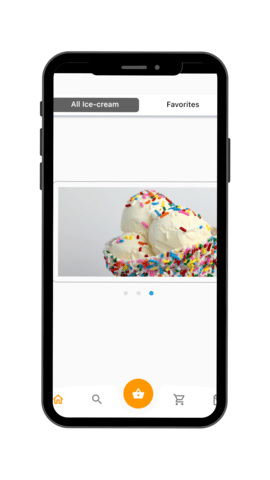
We are going to create a basic Flutter app, the app will have a carousel, which is a scrollable list of images or content, in the center of the screen.
We will also add position indicators, which are small dots or icons that show which item is currently selected in the carousel.
To build the Flutter app, we will be using the `builder` constructor to show how to implement building pages on demand.
## Flutter setup
To set up a flutter project in your preferred coding environment, you can use flutter create.
- Open terminal/command prompt and navigate to the directory where you want to create your project.
- Run the following command to create a new Flutter project:
```
flutter create <project-name>
```
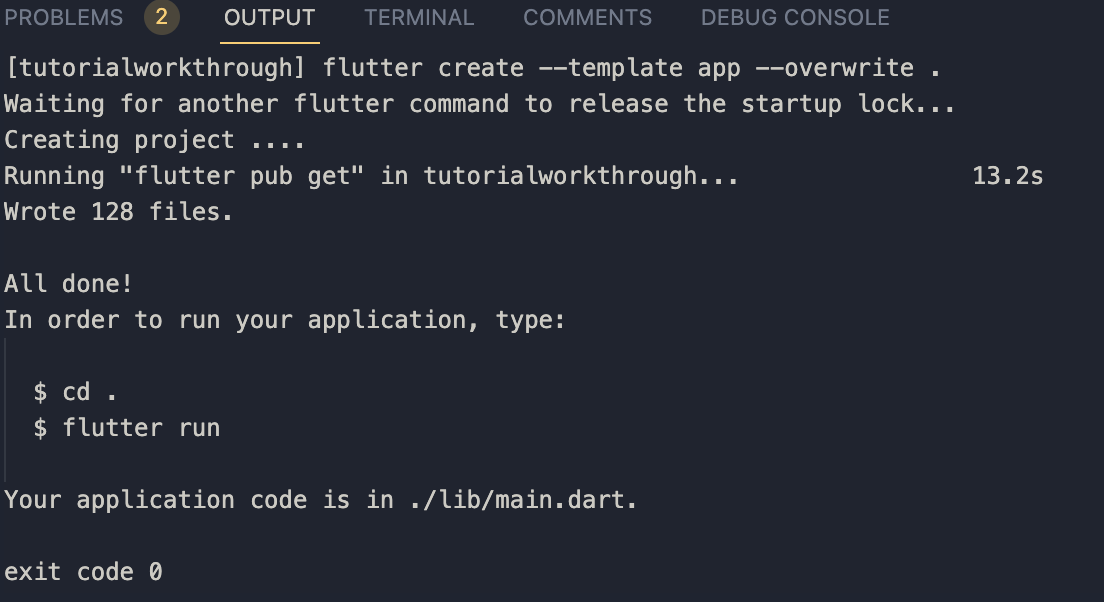
You should see this on your terminal if your project was created successfully:
- Once the project is created, navigate to the project directory by running the following command:
```
cd <project-name>
```
- To run the project, you can use the following command:
flutter run
After running the command, you will see the default Flutter counter app. You can replace the counter app with the following code below:
```javascript
import 'package:flutter/material.dart';
void main() {
runApp(const App());
}
class App extends StatelessWidget {
const App({super.key});
@override
Widget build(BuildContext context) {
return MaterialApp(
debugShowCheckedModeBanner: false,
title: 'Flutter Demo',
theme: ThemeData(
primarySwatch: Colors.blue,
),
home: const ContentScreen(),
);
}
}
class ContentScreen extends StatefulWidget {
const ContentScreen({Key? key}) : super(key: key);
@override
State<ContentScreen> createState() => _ContentScreenState();
}
class _ContentScreenState extends State<ContentScreen>
{
@override
Widget build(BuildContext context) {
return SafeArea(
child: Scaffold(
bottomNavigationBar: const BottomNavBarCurvedFb1(),
extendBody: true,
body: Container(
padding: const EdgeInsets.symmetric(horizontal: 16, vertical: 40),
child: Column(
mainAxisSize: MainAxisSize.min,
children: [ ],
),
),
),
);
}
}
```
## Defining our data
To implement the carousel, we need to add images that will be displayed. To add images, create an `assets` folder and it should live inside the root directory like below:
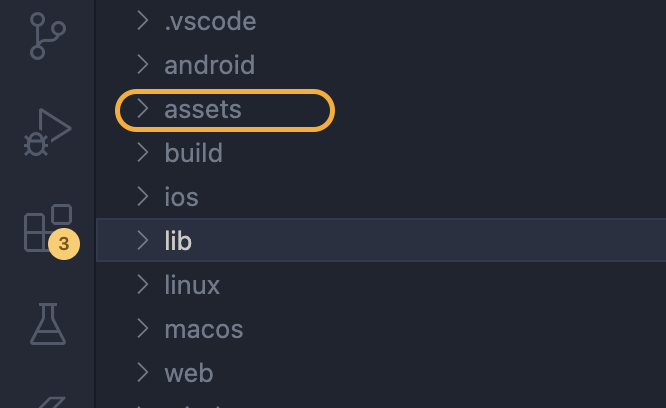
Add all the necessary images you need inside the assets folder. You can find the images we will be using for this tutorial [here](https://github.com/maxiggle/pageviewbuilderTutorial.git)
Add the images to your `pubspec.yaml` file, in the assets section like below:
assets:
- assets/dell1.jpg
- assets/dell2.jpg
- assets/dell3.jpg
- assets/pinky.jpg
- assets/popsicles.jpg
- assets/whitey.jpg
We will create a custom widget called `SlideCard` which will help display our images on a card.
See the code snippet below:
```javascript
class SlideCard extends StatelessWidget {
const SlideCard({super.key, required this.cardImage});
final String cardImage;
@override
Widget build(BuildContext context) {
return Container(
padding: const EdgeInsets.symmetric(horizontal: 10, vertical: 10),
decoration: BoxDecoration(
// color: Colors.blue[50],
border: Border.all(
style: BorderStyle.solid,
color: Colors.grey,
),
borderRadius: BorderRadius.circular(8)),
child: Column(
crossAxisAlignment: CrossAxisAlignment.stretch,
children: [
Expanded(
child: Image(image: AssetImage(cardImage), fit: BoxFit.fitWidth)),
],
),
);
}
}
```
In the previous section, we created a custom widget that will help us display our images. We will now create a list of `SlideCard` of type widgets that will be our data source. Your source can be remote and it can be a map or list.
Note: The reason for creating the SlideCard is that we want to display our list of images on a custom card.
```javascript
List<Widget> items = [
const SlideCard(
cardImage: 'assets/pinky.jpg',
),
const SlideCard(
cardImage: 'assets/popsicles.jpg',
),
const SlideCard(
cardImage: 'assets/whitey.jpg',
),
];
```
## Adding the PageView.builder Widget
The `PageView.builder` widget accepts the item count and the index of the items to be displayed. Below is a code snippet that shows how these parameters are used :
```javascript
PageView.builder(
itemCount: items.length,
physics: const BouncingScrollPhysics(),
itemBuilder: (context, index) {
return Padding(
padding: const EdgeInsets.only(left: 26),
child: items[index],
);
},
),
```
From the above code, we are passing `items.length` to the `itemCount` parameter. This is because, for the `pageview.builder` to build a scrollable list, it also needs to determine the maximum scrollable extent.
The `itemBuilder` builds the widget when the item is greater than zero and less than the `itemCount`.
## Add page controller
The `PageController` in Flutter provides a convenient way to control the display of the widgets in a `PageView`. It allows you to specify how the list of widgets should be displayed, from start to end, and which widget should be displayed first. The `PageController` is instantiated as shown in the following code snippet:
```javascript
PageController controller = PageController(initialPage: 0, viewportFraction: 1.1);
```
## Update State
We need to find a way to update our carousel indicators when a page is selected. We can do this using the `onPageChanged` parameter in our `builder` constructor.
```javascript
PageView.builder(
itemCount: items.length,
controller: controller,
onPageChanged: (value) {
setState(() {
currentIndex = value;
});
},
physics: const BouncingScrollPhysics(),
itemBuilder: (context, index) {
return Padding(
padding: const EdgeInsets.only(left: 26),
child: items[index],
);
},
),
```
The `onPageChanged` parameter in the `PageView` widget is a callback function that is triggered every time the page in the `PageView` changes. The callback function takes a single argument, `value`, which is the index of the new page that has been selected.
In this case, the `onPageChanged` callback function uses the `setState` method to update the value of the `currentIndex` variable with the new page index.
## Add positional indicators
Creating indicators for carousels can improve user experience, as they display the currently viewed item and indicate the remaining items to be seen. We will create custom indicators that change the color to a lighter shade of grey when an item is not in the viewport but turns blue when the item is currently being viewed.
Below is the code snippet that implements indicators:
```javascript
class IndicatorWidget extends StatelessWidget {
const IndicatorWidget(
{Key? key, required this.currentIndex, required this.length})
: super(key: key);
final int currentIndex;
final int length;
@override
Widget build(BuildContext context) {
return Row(
mainAxisAlignment: MainAxisAlignment.center,
children: [
for (int i = 0; i <= length; i++)
Container(
margin: const EdgeInsets.symmetric(horizontal: 8),
height: 8,
width: 8,
decoration: BoxDecoration(
color: currentIndex == i ? Colors.blue : Colors.grey[300],
borderRadius: BorderRadius.circular(50)),
),
],
);
}
}
```
From the code above, we have two fields `currentIndex` and `length`.
To create the indications, we use a for loop to iterate through the length variable, and for each iteration, a new Container should be created, and add a blue color when the current index is equal to the current iteration value and a grey color when it is not.
## Conclusion
In conclusion, we have seen how to create a custom carousel in Flutter without relying on external dependencies. By exploring the different constructors of the `PageView` widget, we were able to understand the importance of this widget in building interactive, scrollable user interfaces. We have also discussed the process of creating a Flutter app from scratch, including building custom widgets to support our design goals. By putting these concepts into practice, we were able to create a dynamic carousel that includes indicators to show which page is currently selected. With this new knowledge, you can confidently incorporate custom carousels and other interactive UI elements into your own Flutter projects.
## Resources
- [Github](https://github.com/maxiggle/pageviewbuilderTutorial)
 Google Drive
Gist
Clipboard
Google Drive
Gist
Clipboard
 Sign in with Wallet






