---
tags: 股票回測
---
# pandas 教學
短網址: md.nchuit.cc/t
本篇內大量別人的圖片,所以僅供社團教學使用
別告我
求求你惹
題外話,看得了英文的請去直接看官網的並參考這篇練習
## 前言
請各位前往以下連結
[pandas官方網站](https://pandas.pydata.org/docs/index.html)
### 簡介
## 安裝

## 建立一個表
### 關於表格
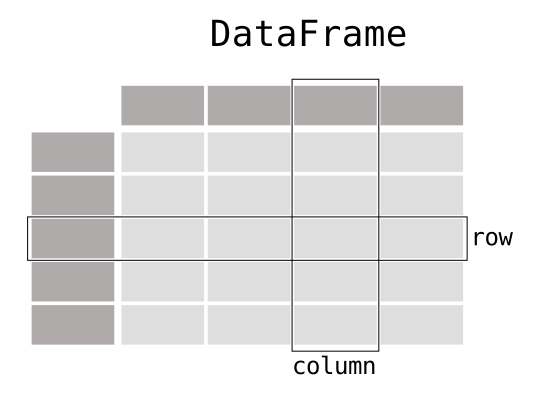
>column 又有柱子的意思,所以理所當然就是直的

>Series 就一個colum
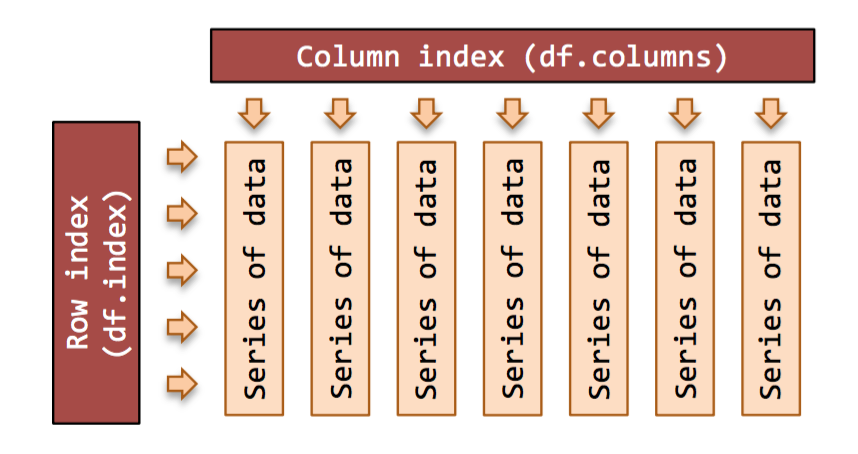
>一個DataFrame的組成
**建立一個表**
```python=
import pandas as pd
df = pd.DataFrame(
{
"Name": [
"Braund, Mr. Owen Harris",
"Allen, Mr. William Henry",
"Bonnell, Miss. Elizabeth",
],
"Age": [22, 35, 58],
"Sex": ["male", "male", "female"],
}
)
print(df)
```
>如果要直接建立的話,需要的引數是一個dict,並且結構是String -> List
**建立一個Series**
```python=
import pandas as pd
ages = pd.Series([22, 35, 58], name="Age")
print(ages)
```
>放入string
新增colums至dataframe(運算也是)
```python=
import pandas as pd
df = pd.DataFrame()
ages = pd.Series([22, 35, 58], name="Age")
df['new ages'] = ages
print(df)
```
### 練習1
請建立一個dataframe 包含下列資料
|student_id|score|name|
|-|-|-|
|4107001|99|Mikey|
|4107002|60|Alice|
|4107003|98|Bob|
|4107004|87|Cindy|
```python=
import pandas as pd
df = pd.DataFrame(
{
"student_id": [4107001,4107002,4107003,4107004],
"score": [99, 60, 98, 87],
"name": ["Mikey", "Alice", "Bob", "Cindy"],
}
)
print(df)
```
### 使用檔案建立表格(讀寫檔)
常見的會使用到這兩個函式來讀檔
[pandas.read_csv()](https://pandas.pydata.org/docs/reference/api/pandas.read_csv.html)
[pandas.read_excel()](https://pandas.pydata.org/docs/reference/api/pandas.read_excel.html)
一樣就是讀取資料
為了方便後續示範,我們先下載一份資料
```
! wget --no-check-certificate 'https://docs.google.com/uc?export=download&id=166-AB6nTdxibIlHpUlwe_smFZLyPm0B4' -O "stock.xlsx"
```
>上面這份指令是linux 的下載檔案,先下載一份台積電這兩年的股價資料
然後我們根據剛剛下載的檔案建立一個DataFrame
```python=
import pandas as pd
stock = pd.read_excel('stock.xlsx',sheet_name='2330')
stock.head() #印出前幾行,預設是5 rows
```
### 小提醒
REMEMBER
+ Import the package, aka import pandas as pd
>```import pandas as pd ```
+ A table of data is stored as a pandas DataFrame
+ Each column in a DataFrame is a Series
+ You can do things by applying a method to a DataFrame or Series
## 選取
[參考](https://pandas.pydata.org/docs/getting_started/intro_tutorials/03_subset_data.html)
### 根據column

>選取column
如果我們要選取某個column我們只需要知道column的名子即可
```python=
import pandas as pd
stock = pd.read_excel('stock.xlsx',sheet_name='2330')
open_price = stock['open']
print(open_price)
type(open_price)
```
由上面程式碼我們可以知道我們選取**一個column就是一個Series**
若是想選取多個cloumn並且一樣用名子的話
```python=
import pandas as pd
stock = pd.read_excel('stock.xlsx',sheet_name='2330')
price = stock[['open','close']]
print(price)
type(price)
```
由上面程式碼我們可以知道我們選取**多個column就是一個DataFrame**
### 練習2
請根據你們下載的資料,選出'open','max','min','close',並儲存於一個新的DataFrame
```python=
stock = pd.read_excel('stock.xlsx',sheet_name='2330')
# .... to do
```
:::spoiler 答案長這樣
```python
price = stock[['open','max','min','close']]
```

:::
### 根據row
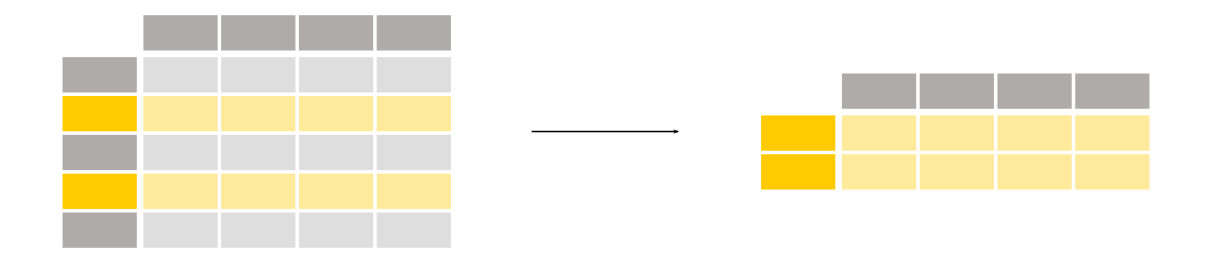
一般來說如果知道index的話,跟list差不了多少
```python=
import pandas as pd
stock = pd.read_excel('stock.xlsx',sheet_name='2330')
open_price = stock['open']
print(open_price[50:100])
```
再來是根據數值
```python=
import pandas as pd
stock = pd.read_excel('stock.xlsx',sheet_name='2330')
raises = stock[stock['spread'] > 0] #選所有的row他的'spread'是正的
print(raises)
```
>各位可以觀察你們print出來的東西,他的index是不連續的
### 練習3
請選出單日上漲的資料(收盤價大於開盤價,也就是close的值大於open)
```python=
stock = pd.read_excel('stock.xlsx',sheet_name='2330')
# ....todo
```
:::spoiler 答案長這樣

>印出來長這樣
:::
### 某一格
也就是指定一個row 和一個 column 如
```python=
stock = pd.read_excel('stock.xlsx',sheet_name='2330')
stock['date'][0] #colimn 是date 然後row是第0個
```
## 表格資訊
```python=
import pandas as pd
stock = pd.read_excel('stock.xlsx',sheet_name='2330')
stock.info()
```

可以看到表格的一些基本資料
### 一般資訊
最大最小平均咧?
```python=
stock = pd.read_excel('stock.xlsx',sheet_name='2330')
stock.describe()
```
可以看到各種你可能會用到的資訊
#### 平均
```python=
stock = pd.read_excel('stock.xlsx',sheet_name='2330')
stock.mean()
```
#### 最大最小值?
於你在decribe中看到的
```python=
pd.DataFrame.describe()
```

這些都可以拿來用
> 用`.quantile(.25)`、`.quantile(.50)`或`.quantile(.75)`
> 來取 25% / 50% / 75%
### 練習4
**4-1**
請選出收盤價(close)大於其平均值的資料
:::spoiler 答案長這樣

>或者長這樣
:::
**4-2**
請選出收盤價(close)大於其平均值一個標準差(std)以上的資料
:::spoiler 答案長這樣

:::
### 移動資訊
這時候需要介紹**rolling()** 這種東西
這東西用起來就像是一個小框框,他會一次框住一些資料,我們就可以很快地利用它

#### 移動最大值
如果要找出台積電5日中的高點,如同上面的圖片一樣
```python=
stock = pd.read_excel('stock.xlsx',sheet_name='2330')
stock.rolling(window=5).max()
```
這邊的**window**是指說你需要幾筆資料,然後**max**是你要的操作
而如果你只需要比如說收盤價的話,前面在指定資料的範圍就好
```python=
stock = pd.read_excel('stock.xlsx',sheet_name='2330')
stock['close'].rolling(window=5).max()
```
### 練習5
請選出所有10日最高點的資料

#### 移動平均
以股票來說,移動平均又稱均線,是很常使用的資料。常見的如5日線、10日線、30日線
```python=
stock = pd.read_excel('stock.xlsx',sheet_name='2330')
stock['5ma'] = stock['close'].rolling(window=5).mean()
stock['10ma'] = stock['close'].rolling(window=10).mean()
stock['30ma'] = stock['close'].rolling(window=30).mean()
```
### 練習6
請選出5日線大於30日線的日期
:::spoiler 答案長這樣
```python
stock[stock['5ma']>stock['30ma']]['date']
```

:::
## 表格操作
pandas 在DataFram的操作上還蠻人性化的,可以一次使用多筆資料
例如我只需要幾個資料,比如我只需要股價OHLC的話
```python=
import pandas as pd
stock = pd.read_excel('stock.xlsx',sheet_name='2330')
stock_price = pd.DataFrame() #建立一個空的資料表
stock_price[['Open','High','Low','Close']] = stock[['open','max','min','close']] #設定cloumn的資料
stock[['open','max','min','close']].head() #印出前五筆
stock_price.head() #印出前五筆
```
>有沒有跟剛剛的選取很像阿
### 移除
反正就是選不要的
```python=
import pandas as pd
stock = pd.read_excel('stock.xlsx',sheet_name='2330')
stock_price = pd.DataFrame() #建立一個空的資料表
new_stock_price = stock.drop(['stock_id','Trading_Volume','Trading_money','spread','Trading_turnover'],axis='columns') #指定要從cloumns移除
new_stock_price.head() #印出前五筆
```
### 改名
pandas如果只是要更改現有column或index的名稱的話可以使用**rename()**
rename()這個function接受使用function或Dict-like來變換名稱
```python=
stock = pd.read_excel('stock.xlsx',sheet_name='2330')
stock.columns
```
上面是原本的,用來給大家比較
```python=
stock = pd.read_excel('stock.xlsx',sheet_name='2330')
stock = stock.rename(lambda x:x.title(),axis = 1) #把第一個字改成大寫
stock.columns
```
又或者
```python=
stock = pd.read_excel('stock.xlsx',sheet_name='2330')
stock = stock.rename({'date':'Date','stock_id':'Stock_id','open':'Open','max':'Max','min':'Min'},axis = 1) #把第一個字改成大寫(我沒弄完全部的)
stock.columns
```
### 練習6
請將stock裡面的column改成全部大寫
hint: str.upper() <-呼叫此字串的method可以將該字串都改成大寫
```python=
stock = pd.read_excel('stock.xlsx',sheet_name='2330')
#.....to do
stock.columns
```
:::spoiler 答案長這樣
```python
stock.rename(lambda x:x.upper(),axis = 1)
```

:::
### 運算
普通的加減乘除
比如說是否上漲(布林值)
```python=
stock = pd.read_excel('stock.xlsx',sheet_name='2330')
stock['rise'] = stock['close']>stock['open']
stock
```
又比如當日震盪幅度
```python=
stock = pd.read_excel('stock.xlsx',sheet_name='2330')
stock['bump'] = stock['max']-stock['min']
stock
```
### 練習7
請計算當日上漲的百分比
>漲跌幅的計算公式:{當前最新成交價(或收盤價)-開盤參考價}÷開盤參考價×100%。
```python=
stock = pd.read_excel('stock.xlsx',sheet_name='2330')
stock['raise'] = #...to do
stock['raise']
```
:::spoiler 答案長這樣
```python
(stock['close']-stock['open'])/stock['open']
```

:::
### 練習8
一般化收盤價
一般化:(x-平均)/標準差
```python=
stock = pd.read_excel('stock.xlsx',sheet_name='2330')
stock['normalized_close'] = #...to do
stock['normalized_close']
```
:::spoiler 答案長這樣
```python
(stock['close']-stock['close'].mean())/stock['close'].std()
```

:::
### 上下移動
如果有不同index間的比較需求,有一個常用的東西叫**shift**,例如說股票上漲了多少之類的
```python=
stock = pd.read_excel('stock.xlsx',sheet_name='2330')
stock['rise2'] = stock['close'] - stock['close'].shift(1) #向下一1格
stock
```
### 練習9
請計算五日的漲跌幅
```python=
stock = pd.read_excel('stock.xlsx',sheet_name='2330')
stock['answer'] = #...to do
stock['answer']
```
:::spoiler 答案長這樣
```python
(stock['close'] - stock['close'].shift(5))/stock['close'].shift(5)*100
```

:::
### 排序
簡單的根據漲跌的數值排序
```python=
stock = pd.read_excel('stock.xlsx',sheet_name='2330')
stock = stock.sort_values(by=['spread']) #使用數值排序
stock
```
排回來
```python=
import pandas as pd
stock = pd.read_excel('stock.xlsx',sheet_name='2330')
stock = stock.sort_values(by=['spread']) #使用數值排序
print(stock.head())
stock = stock.sort_index()
print(stock.head())
```
### 練習10
對成交量,由大到小排序
hint:設定ascending
```python=
stock = pd.read_excel('stock.xlsx',sheet_name='2330')
stock_sorted = #....to do
stock_sorted
```
:::spoiler 答案長這樣
```python
stock.sort_values(by=['Trading_Volume'], ascending=False)
```

:::
### 設定索引
一般情況下,預設的索引都是0,1,2,3...的流水號,不過總有不同需求的時候,例如用學號當索引
|student_id|score|name|
|-|-|-|
|4107001|99|Mikey|
|4107002|60|Alice|
|4107003|98|Bob|
|4107004|87|Cindy|
```python=
student_info = pd.DataFrame({'score':[99,60,98,87],'name':['Mikey','Alice','Bob','Cindy']},index=[4107001,4107002,4107003,4107004])
print(student_info)
```
>在建立時就指定索引
如果想要更改索引呢?
```python=
student_info = pd.DataFrame({'score':[99,60,98,87],'name':['Mikey','Alice','Bob','Cindy'],'student_id':[4107001,4107002,4107003,4107004]})
print(student_info)
```

接著這行
```python=
student_info = student_info.set_index(student_info['student_id']).drop(['student_id'],axis=1)
print(student_info)
```
### 練習11
將日期設定為索引
```python=
import pandas as pd
stock = pd.read_excel('stock.xlsx',sheet_name='2330')
stock_newindex = #....to do
stock_newindex
```
:::spoiler 答案長這樣
```python
stock.set_index(stock['date']).drop(['date'],axis=1)
```

:::
## 參考
[pandas.DataFrame](https://pandas.pydata.org/docs/reference/api/pandas.DataFrame.html)
[pandas.read_csv](https://pandas.pydata.org/docs/reference/api/pandas.read_csv.html)
[pandas.read_excel](https://pandas.pydata.org/docs/reference/api/pandas.read_excel.html)
[pandas.DataFrame.to_csv](https://pandas.pydata.org/docs/reference/api/pandas.DataFrame.to_csv.html)
[pandas.DataFrame.to_excel](https://pandas.pydata.org/docs/reference/api/pandas.DataFrame.to_excel.html)
[pandas.DataFrame.drop](https://pandas.pydata.org/docs/reference/api/pandas.DataFrame.drop.html)
[pandas.DataFrame.info](https://pandas.pydata.org/docs/reference/api/pandas.DataFrame.info.html)
[pandas.DataFrame.rolling](https://pandas.pydata.org/docs/reference/api/pandas.DataFrame.rolling.html)
[pandas.DataFrame.rename](https://pandas.pydata.org/docs/reference/api/pandas.DataFrame.rename.html)
[pandas.DataFrame.sort_index](https://pandas.pydata.org/docs/reference/api/pandas.DataFrame.sort_index.html)
[pandas.DataFrame.sort_values](https://pandas.pydata.org/docs/reference/api/pandas.DataFrame.sort_values.html)
[pandas.DataFrame.set_index](https://pandas.pydata.org/docs/reference/api/pandas.DataFrame.set_index.html)
 Google Drive
Gist
Clipboard
Google Drive
Gist
Clipboard
 Sign in with Wallet






