Keywords: Seveltekit authentication, sveltekit tutorial, sveltekit docs,
# How to Build a Complete Real Estate Listing Application with SvelteKit and Strapi
## Introduction
With the current digital era and technological improvement, it has become easier to purchase, sell, and rent properties. Building a real estate listing application is one potential gold mine for entrepreneurs and developers who hope to capitalize on the real estate market.
In this guide, we will build a real estate listing application using Strapi and SvelteKit.
## Prerequisites
To follow along with this tutorial, ensure you meet the following prerequisites.
- Basic knowledge of Svelte
- [Node.js](https://nodejs.org/en/download/package-manager) and Npm/Yarn installed
## What is SvelteKit?
[SvelteKit](https://kit.svelte.dev/) is a robust framework for creating fast, reliable, and reactive web applications. Its server-side rendering allows you to quickly build SEO-friendly apps, which is essential for online businesses.
In this comprehensive SvelteKit tutorial, we will cover everything from setting up SvelteKit, SvelteKit authentication, persisting data in SvelteKit using a store, to adding Tailwind CSS to SvelteKit, and many more. This thorough coverage will give you the confidence to master SvelteKit.
You can read on the SvelteKit [docs](https://kit.svelte.dev/docs/introduction) to learn more.
## What is Strapi?
[Strapi](https://strapi.io/) is a free and open-source content management system (CMS) built with Node.js.
It's used in web development to create, manage, and expose content-rich experiences to any digital device.
With what we know so far, let's build a Real Estate Listing Platform!
## Set up Strapi
Once you meet the requirement above, create a main folder, `real-estate,` to house the backend and frontend of our application. In the `real-estate` folder run the command below to bootstrap a new Strapi project:
```bash
cd real-estat
npx create-strapi-app@latest real-estate-back --quickstart
```
Start the project by running the command below:
```bash
npm run develop
```
This will start a Strapi instance on port `1337`. If it does not automatically open the page, type [`localhost:1337`](http://localhost:1337) in the browser bar to launch the panel:
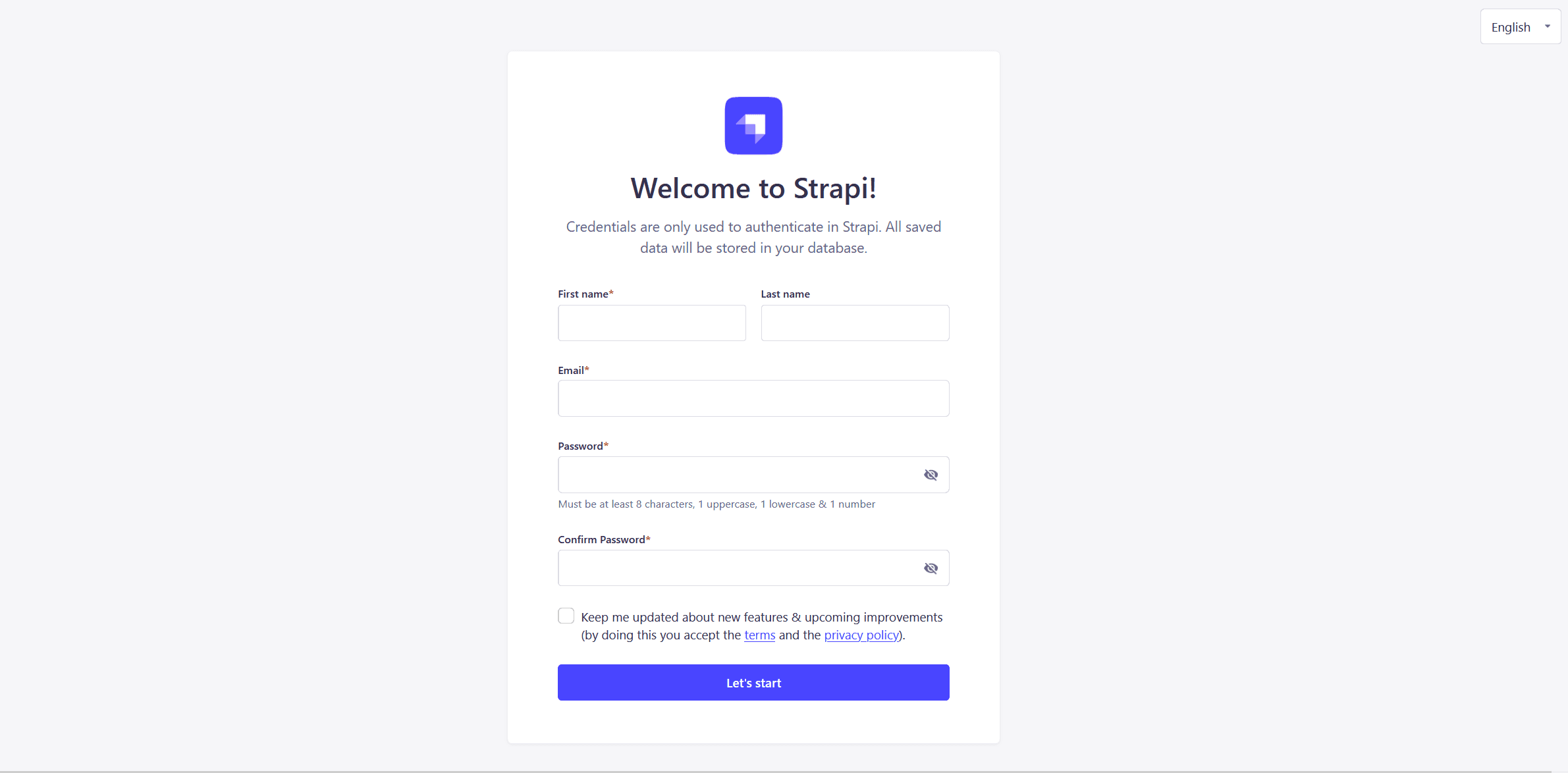
Create a new Strapi admin user and login to start adding content.
### Create Collection and Content Types
Adding content with Strapi is a straight forward process. All you need is to [create a collection type](https://docs.strapi.io/user-docs/content-type-builder/creating-new-content-type) and [seed it with some data](https://docs.strapi.io/user-docs/content-manager#creating-a-new-entry).
In this tutorial, we created one collection type `Estate` having 6 fields:
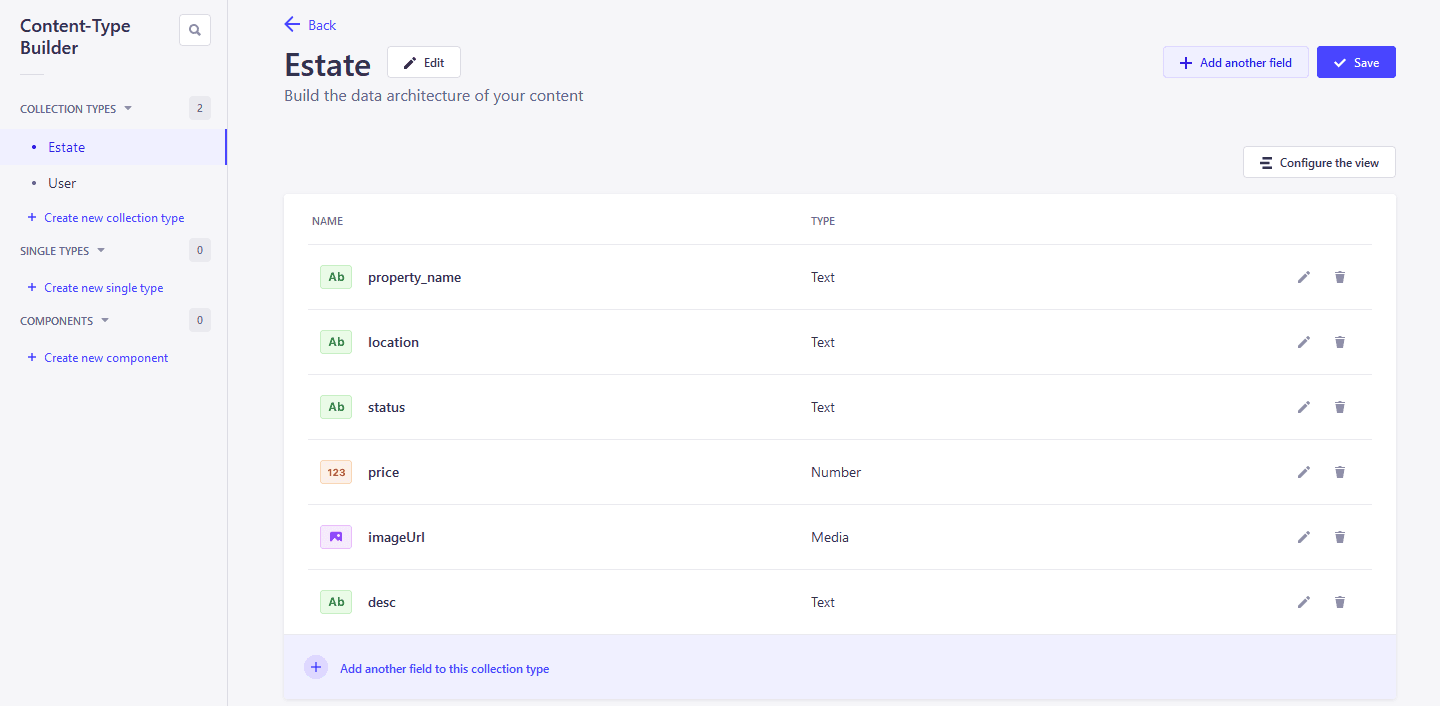
- `imageurl`: Media (single media). This represents the image of the property.
- `property_name`: Text (short text). This is the property name.
- `location`: Text (short text). This is the place where the estate is locate.
- `status`: Text (short text). This field indicates if the estate is for sale or for rent.
- `price`: Number. This attribute is the selling/renting price Of the property
- `desc`: Text (long text). And finally we have the description of the property.
Don’t forget to mark some or all attributes as `required`.
Once you have created your content type and populated it with some data, you will move to the next step which consists of creating a [Sveltekit](https://kit.svelte.dev/) Project.
### Set API Permissions
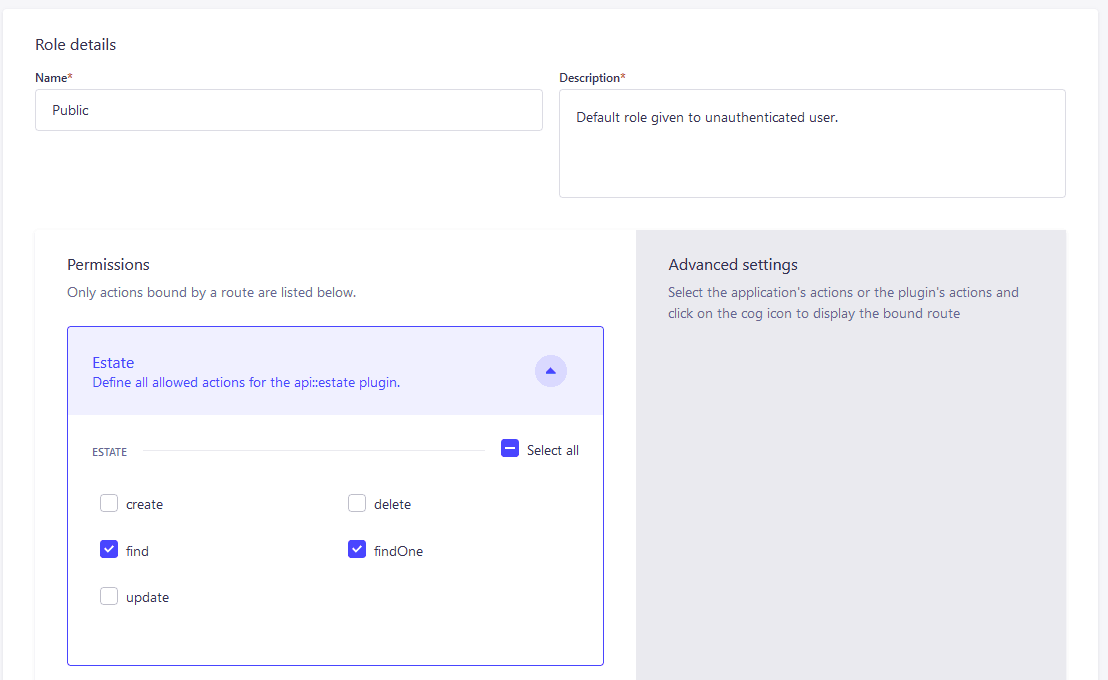
Another last point is to [setup roles and permissions](https://docs.strapi.io/user-docs/users-roles-permissions) for public users so that the can `find` and `findOne` estate:
## Set up the SvelteKit Project
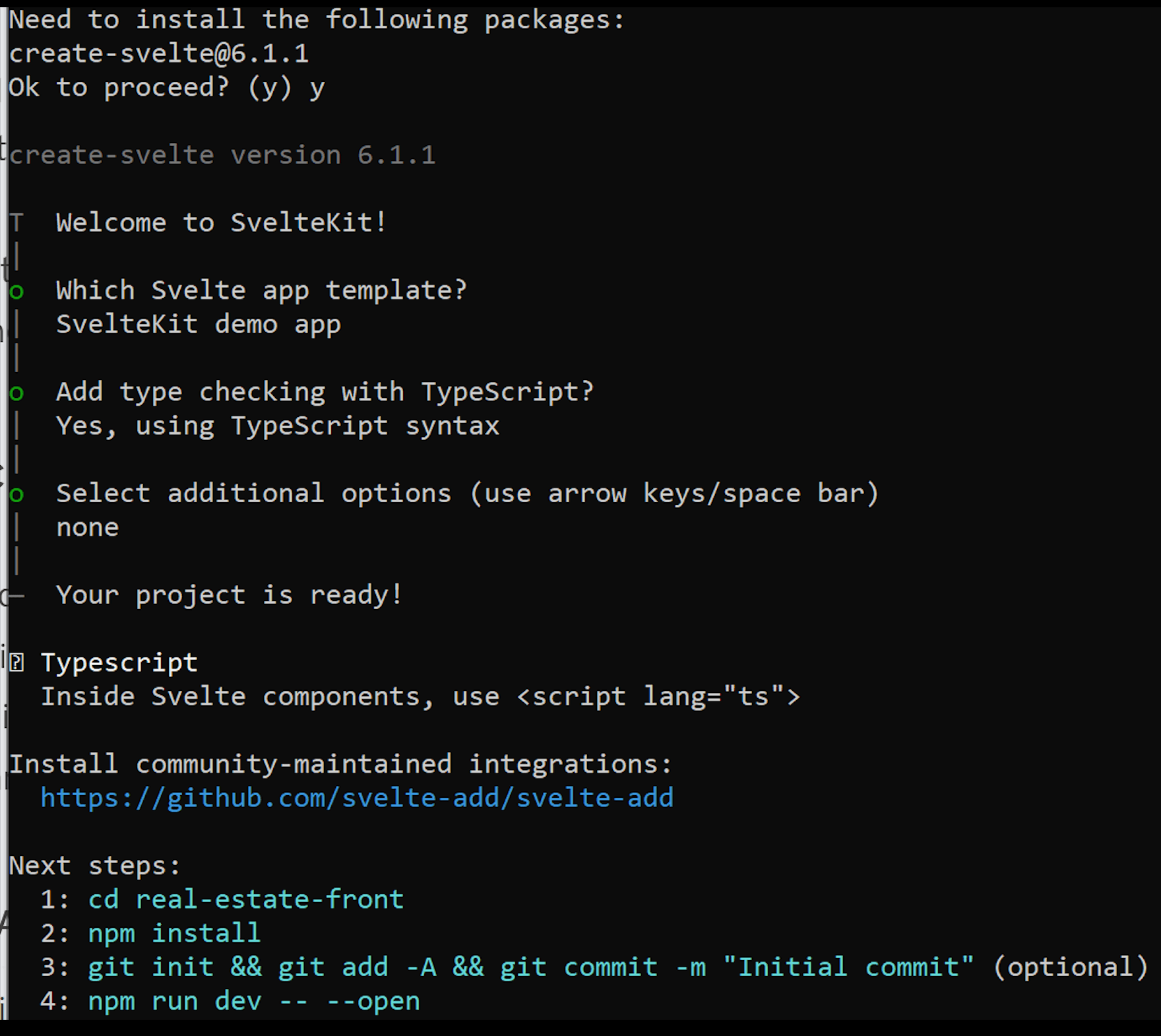
Go back to the`real-estate` directory you created earlier and run the following command to create a new SvelteKit project:
```bash
npm create svelte@latest real-estate-front
```
Be sure to choose the options as shown in the below image.
Install project dependencies:
```bash
cd real-estate-front
npm install
```
Once the dependencies are installed, you can now run the it with the command below:
```bash
npm run dev
```
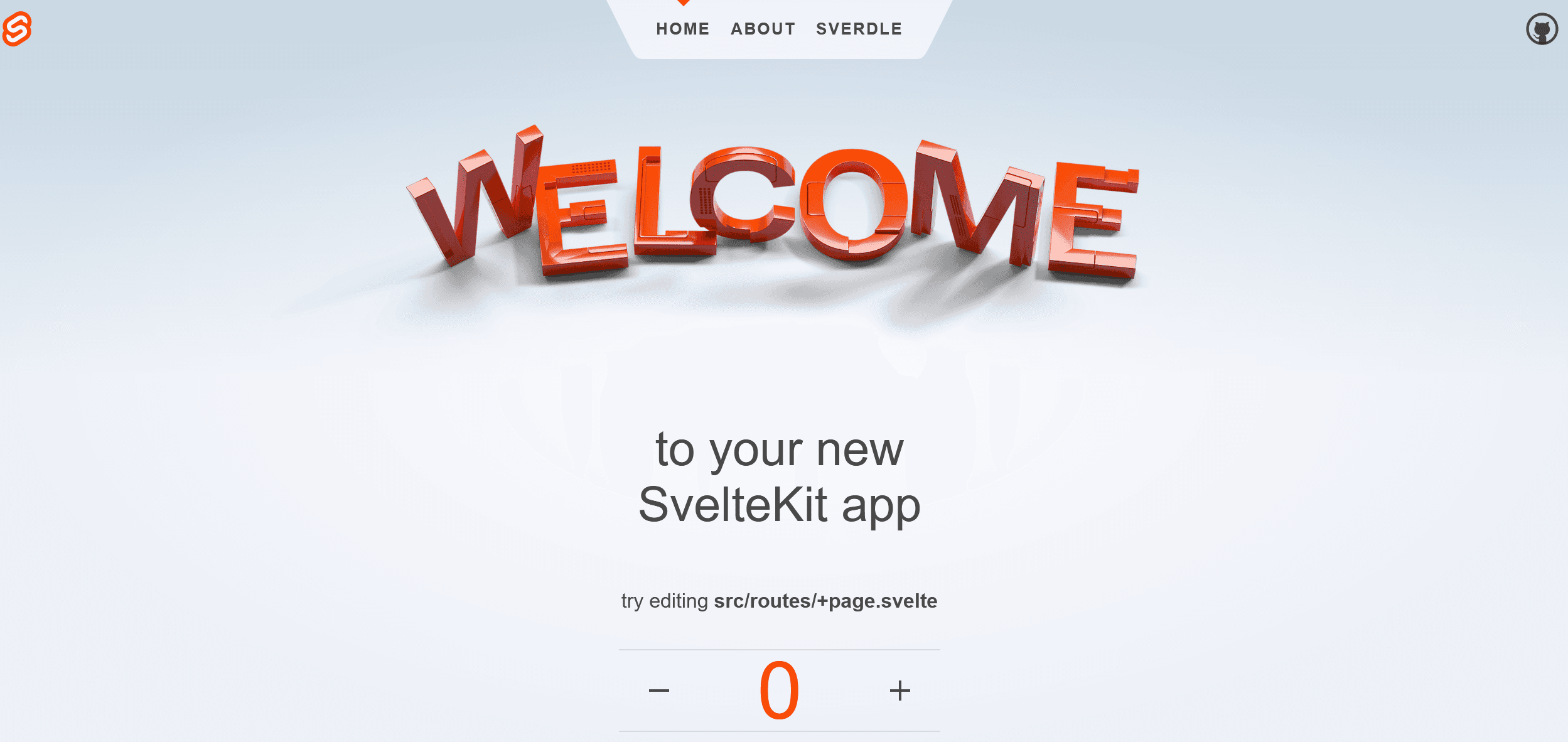
Looking at the structure of the project, we have the `routes` and `lib` folder in the `src` with the `app/html` file at the root.

### Project Folder Structure
Every file in the `src/routes` folder will be mapped to actual routes. For example, `src/routes/+page.svelte` will be accessible at `/`, `src/routes/about/+page.svelte` will be accessible at `/about` and `src/routes/estate/[id]/+page.svelte` will be accessible via `/estate/${id}/` where `id` is a number or ID of an estate listing. This is how filesystem-based routing generally works in SvelteKit.
In the `src/routes` you can also find the `+layout.svelte` which is a special file that adds a layout to every page. You can equally apply a layout to subdirectories. Learn more about Sveltekit layout [here](https://kit.svelte.dev/docs/routing#layout)
We will create 5 main folders in the `src/routes` folder:
- The `about` folder which will hold informtion for the about page `about/+page.svelte`
- The `create` folder which will hold the file for creating an estate `create/+page.svelte`
- The `estate` folder for the details page of an estate. Here you will create an`[id]` inside which will nest the `+page.svelte` so it will be `estate/[id]/+page.svelte`
- Then we have the `login` folder `login/+page.svelte`
- And finally the `update` folder. Create the `update` folder. Inside it, create another folder, `[id]`. Then inside the `[id]` folder, create the page file `+page.svelte`.
### Install Packages
You will use 3 packages in this project:
- [Axios](https://axios-http.com/docs/intro) for HTTP requests:
```bash
npm install axios
```
- [Svelte-persist-store](https://github.com/joshnuss/svelte-persisted-store) to persist data to local storage:
```bash
npm install svelte-persisted-store
```
- [Tailwind CSS](https://tailwindcss.com/docs/guides/sveltekit) for styling:
```bash
npm install -D tailwindcss postcss autoprefixer
npx tailwindcss init -p
```
Add the paths to all your template files:
```js
content: ['./src/**/*.{html,js,svelte,ts}'],
```
Add the `@tailwind` directives in the `src/routes/syle.css` file:
```
@tailwind base;
@tailwind components;
@tailwind utilities;
```
Once both projects are setup, you can get to the interesting part of the tutorial which consists of creating and calling API requests, dealing with pagination, and user authentication.
### Create HTTP Requests
Axios is a popular JavaScript library used to make HTTP requests from Node.js or XMLHttpRequests from the browser. It is often employed in web development to interact with APIs and perform CRUD operations (Create, Read, Update, Delete).
Inside the `src/lib` folder, create a file `app.ts` to start creating the various requests in the code below in the `src/lib/api.ts` file:
```jsx
import axios from "axios";
const api = axios.create({
baseURL: "http://localhost:1337/api",
});
// Get an estate by id
export const getEstateById = async (id: string) => {
try {
const response = await api
.get(`/estates/${id}?populate=*`)
.then((res) => (res?.data ? res.data.data : []));
return response;
} catch (error) {
console.error("Error fetching estate:", error);
throw new Error("Server error");
}
};
// delete an estate
export async function deleteEstateById(id: string) {
try {
const response = await api.delete(`/estates/${id}?populate=*`);
return response.status === 200;
} catch (error) {
console.error("Failed to delete estate:", error);
return false;
}
}
// create an estate
export function createEstate(estateData: FormData) {
return api.post("/estates?populate=*", estateData);
}
// Update an estate
export function updateEstate(id: string, estateData: FormData) {
return api.put(`/estates/${id}?populate=*`, estateData);
}
// get list of estate order by creation date and page limit
export async function getPaginatedEstates(page = 1, limit = 5) {
try {
const response = await api.get("/estates?populate=*", {
params: {
pagination: {
page: page,
pageSize: limit,
},
sort: "createdAt:desc",
},
});
return {
data: response.data,
pagination: response.data.meta.pagination,
};
} catch (error) {
console.error("Error fetching paginated estates:", error);
return {
data: [],
pagination: {page: 1, pageSize: limit, pageCount: 0, total: 0},
};
}
}
export default api;
```
- `api` is the instance of Axios named with a base URL pointing to [`localhost:1337/api`](http://localhost:1337/api).
- `getEstateById` retrieves an estate by its ID and sends a `GET` request to `/estates/${id}` which populates the parameter to get associated data.
- `deleteEstateById` deletes an estate given its ID.
- `createEstate` takes in `estateData` as `FormData` to create a new entry.
- `updateEstate` updates an estate listing by sending a `PUT` request to the given URL with the necessary data.
- You can [sort and paginate](https://docs.strapi.io/dev-docs/api/rest/sort-pagination) entries the Strapi REST API returns. The `getPaginatedEstates` functions retrieves a list of estates, ordered by date of creation. It sends a `GET` request with pagination parameters.
From here you can proceed to creating the home page.
### Listing Estates
You will display the list of properties in the home page which correspond to your `src/routes/+page.svelte`:
```jsx
<script lang="ts">
import {onMount} from "svelte";
import {getPaginatedEstates} from "$lib/api";
let estates: any[] = [];
let currentPage = 1;
let pageSize = 5;
let pageCount = 0;
let totalEstates = 0;
async function loadEstates() {
try {
const result = await getPaginatedEstates(currentPage, pageSize);
if (result.data.data && Array.isArray(result.data.data)) {
estates = result.data.data;
if (result.pagination) {
pageSize = result.pagination.pageSize;
pageCount = result.pagination.pageCount;
totalEstates = result.pagination.total;
} else {
console.error("Pagination data is missing");
}
} else {
throw new Error("Data is not an array or undefined");
}
} catch (error: any) {
console.error("Failed to fetch estates:", error.message);
// Set to empty array on error
estates = [];
}
}
function goToPage(page: number) {
if (page > 0 && page <= pageCount) {
currentPage = page;
loadEstates();
}
}
// Initially load estates
onMount(() => {
loadEstates();
});
</script>
<h1 class="text-center text-3xl font-bold text-blue-500">
Real-Estate Listing
</h1>
<div class="my-4 flex justify-between items-center">
<nav class="flex items-center">
<button
class="mr-10 bg-gray-300 rounded px-3 py-2 text-[12px]"
on:click={() => goToPage(currentPage - 1)}
disabled={currentPage <= 1}>← Previous</button
>
<button
class=" bg-gray-300 rounded px-3 py-2 text-[12px]"
on:click={() => goToPage(currentPage + 1)}
disabled={currentPage >= pageCount}>Next →</button
>
</nav>
<a
href="/create"
class="bg-blue-500 rounded px-5 py-2 hover:bg-blue-700 text-white font-bold"
>Add Properties</a
>
</div>
<main>
{#if estates}
<div class="grid grid-cols-3 mb-4 gap-10">
{#each estates as estate}
<a href={`/estate/${estate.id}`} class="mb-5 mt-10">
<div class="img_content mb-5">
<img
src={`http://localhost:1337${estate.attributes.imageUrl.data?.attributes.url}`}
alt={estate.attributes.imageUrl.data.alternativeText}
/>
</div>
<p class="text-blue-500 font-bold">$ {estate.attributes.price}</p>
<p class="text-blue-500">{estate.attributes.property_name}</p>
<p class="text-blue-500">{estate.attributes.status}</p>
<p class="text-blue-500">At {estate.attributes.location}</p>
</a>
{/each}
</div>
{/if}
</main>
<style>
.img_content {
background-color: blue;
position: relative;
height: 300px;
width: 300px;
}
.img_content img {
object-fit: cover;
height: 300px;
width: 300px;
}
</style>
```
The Svelte script above fetches paginated real estate listings from the API `getPaginatedEstates`, then handles navigation between pages with `goToPage`, and displays properties. It retrieves estates based on the `currentPage` and displays them dynamically. The Navigation buttons `Previous` and `Next` allow you to move between pages. However, if an error occurs during fetching, it handles it gracefully by displaying an empty list.
Svelte's `onMount` function executes a callback when the component is mounted to the DOM. `loadEstates()` function is invoked essentially to trigger the initial loading of estates which fetches data from the API and populates the `estates`.

### Estate Detail Page
Now we would like to have more information about a property before proceeding with buying or renting.
To proceed, add the code below in the `src/routes/estate/[id]/+page.svelte` file:
```jsx
<script lang="ts">
import {getEstateById} from "$lib/api.js";
import {page} from "$app/stores";
import {onMount} from "svelte";
let estateId = $page.params.id;
export let estate: any;
onMount(async function () {
const estates = await getEstateById(estateId);
if (estates) {
estate = estates;
} else {
estate = {};
}
});
</script>
{#if estate?.attributes}
<div class="mt-5 mb-20">
<h1 class="mb-3">{estate.attributes.property_name}</h1>
<div class="img_content mb-5 mx-auto">
<img
src={`http://localhost:1337${estate.attributes.imageUrl.data?.attributes.url}`}
alt={estate.attributes.imageUrl.data.alternativeText}
/>
</div>
<p class="text-red-500">
Price: $<span class="font-bold">{estate.attributes.price}</span>
</p>
<p class="text-red-500">
Status: <span class="font-bold"> {estate.attributes.status}</span>
</p>
<p class="text-red-500">
Location: <span class="font-bold"> {estate.attributes.location}</span>
</p>
<div class="mt-10">{estate.attributes.desc}</div>
</div>
{/if}
<style>
.img_content {
background-color: blue;
position: relative;
height: 500px;
width: 100%;
}
.img_content img {
object-fit: cover;
height: 500px;
width: 100%;
}
</style>
```
Here is what the code above does:
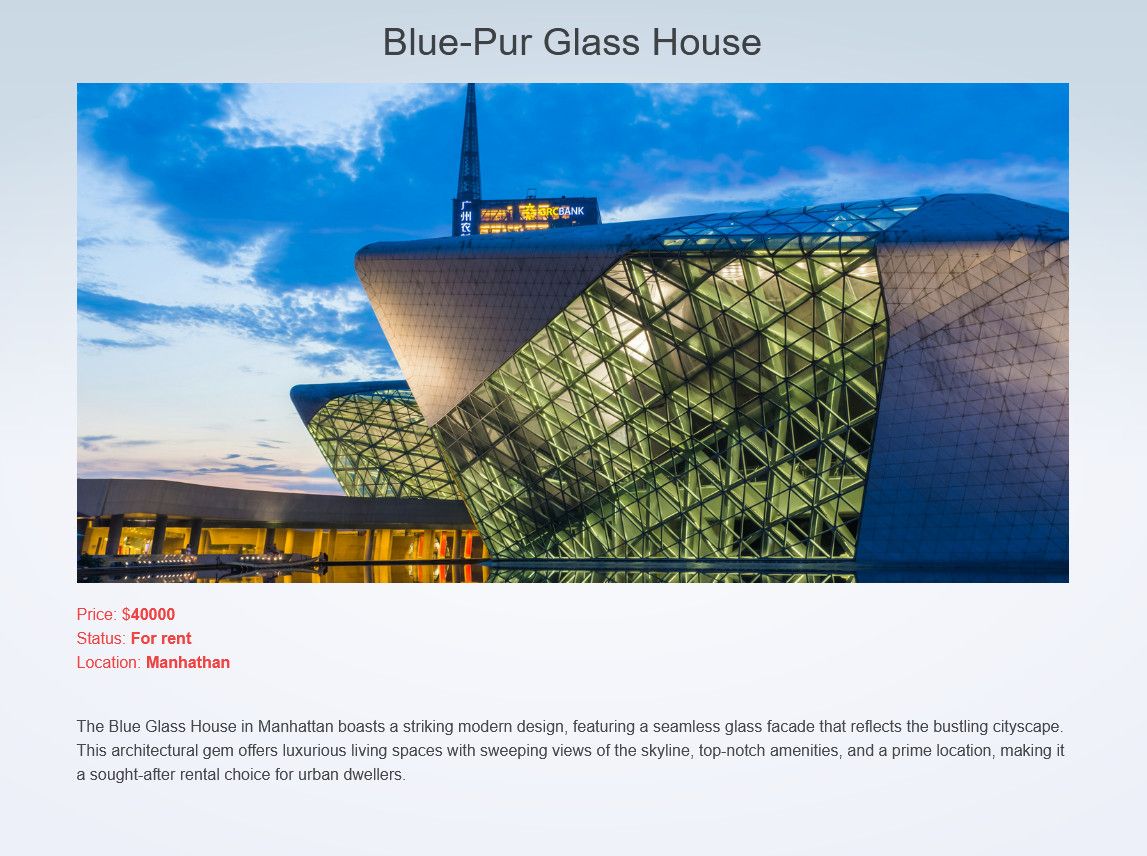
* `getEstateById` fetches estate details and If the estate data exists, it assigns it to the estate variable; otherwise, it initializes estate as an empty object and conditionally renders estate details only if estate.attributes exist.
* Clicking on an estate on the home page will direct you to `localhost:5173/estate/id`. `id` here correspond to the ID of the page property where you will get the property details like the property name, image, price, status, location, and description.
* When you click on an estate on the home page, it will direct you to `localhost:5173/estate/id` corresponding to the ID of the property, where you will display the property details such as the property name, image, price, status, location, and description.
### Delete Estate
This operation consists of removing a property from the database. Edit the `src/routes/+page.svelte` like below
```tsx
<script lang="ts">
import {deleteEstateById} from "$lib/api";
...
...
async function handleDelete(id: string) {
try {
const isSuccess = await deleteEstateById(id);
if (isSuccess) {
estates = estates.filter((estate) => estate.id !== id);
} else {
console.error("Failed to delete estate");
}
} catch (error) {
console.error("Error deleting estate:", error);
}
}
...
</script>
<main>
{#if estates}
<div class="grid grid-cols-3 mb-4 gap-10">
{#each estates as estate}
<a href={`/estate/${estate.id}`} class="mb-5 mt-10">
<div class="img_content mb-5">
<img
src={`http://localhost:1337${estate.attributes.imageUrl.data?.attributes.url}`}
alt={estate.attributes.imageUrl.data.alternativeText}
/>
</div>
<p class="text-blue-500 font-bold">$ {estate.attributes.price}</p>
<p class="text-blue-500">{estate.attributes.property_name}</p>
<p class="text-blue-500">{estate.attributes.status}</p>
<p class="text-blue-500">At {estate.attributes.location}</p>
<!--delete estate-->
<div class="grid grid-cols-2 mt-2 text-center gap-2">
<a
href=""
on:click|preventDefault={() => handleDelete(estate.id)}
class="bg-red-500 rounded px-5 py-2 hover:bg-red-700 text-white font-bold"
>Delete</a>
</div>
</a>
{/each}
</div>
{/if}
</main>
```
From the snippet above, `handleDelete` tries to delete the estate by calling the `deleteEstateById` function from the API. It awaits the result of the deletion operation. If the deletion operation is successful (`isSuccess` is true), it updates the `estates` array by filtering out the deleted estate based on its ID, else it logs an error message to the console to the user.
### Create Estate
If you would like to give the possibility to a user to add a property for listing in the frontend, you will use the `createEstate()` to add new entries. In the `src/routes/create/+page.svelte`, add the following code in your:
```tsx
<script lang="ts">
import {goto} from "$app/navigation";
import { createEstate } from "$lib/api";
let property_name = "";
let status = "";
let price: number;
let desc = "";
let location = "";
let file: FileList;
async function submitEstate() {
const formData = new FormData();
if (file && file.length > 0) {
// Append the first file
formData.append("files.imageUrl", file[0]);
}
formData.append(
"data",
JSON.stringify({property_name, status, price, desc, location})
);
try {
await createEstate(formData);
// Redirect to home after submission
goto("/");
} catch (error: any) {
console.error("Error creating estate", error.response);
}
}
</script>
<div class="w-full mx-auto mt-5">
<div class="mb-5 text-center">
<p>Use the form below to add a new property</p>
</div>
<form
on:submit|preventDefault={submitEstate}
class="bg-white shadow-md rounded px-8 pt-6 pb-8 mb-4"
>
<div class="mb-4">
<label class="block text-gray-700 text-sm font-bold mb-2" for="">
Property Image
</label>
<input
bind:files={file}
class="shadow appearance-none border rounded w-full py-2 px-3 text-gray-700 leading-tight focus:outline-none focus:shadow-outline"
id=""
type="file"
placeholder="Property Image"
/>
</div>
<div class="mb-4">
<label class="block text-gray-700 text-sm font-bold mb-2" for="">
Property Name
</label>
<input
bind:value={property_name}
class="shadow appearance-none border rounded w-full py-2 px-3 text-gray-700 leading-tight focus:outline-none focus:shadow-outline"
id=""
type="text"
placeholder="Property Name"
/>
</div>
<div class="mb-6">
<label class="block text-gray-700 text-sm font-bold mb-2" for="">
Location
</label>
<input
bind:value={location}
class="shadow appearance-none border rounded w-full py-2 px-3 text-gray-700 mb-3 leading-tight focus:outline-none focus:shadow-outline"
id=""
type="text"
placeholder="Status"
/>
</div>
<div class="mb-6">
<label class="block text-gray-700 text-sm font-bold mb-2" for="">
Status
</label>
<input
bind:value={status}
class="shadow appearance-none border rounded w-full py-2 px-3 text-gray-700 mb-3 leading-tight focus:outline-none focus:shadow-outline"
id=""
type="text"
placeholder="Status"
/>
</div>
<div class="mb-6">
<label class="block text-gray-700 text-sm font-bold mb-2" for="">
Price in USD
</label>
<input
bind:value={price}
class="shadow appearance-none border rounded w-full py-2 px-3 text-gray-700 mb-3 leading-tight focus:outline-none focus:shadow-outline"
id=""
type="number"
placeholder="Price"
/>
</div>
<div class="mb-6">
<label class="block text-gray-700 text-sm font-bold mb-2" for="">
Description
</label>
<textarea
bind:value={desc}
rows="5"
class="shadow appearance-none border resize-none rounded w-full py-2 px-3 text-gray-700 mb-3 leading-tight focus:outline-none focus:shadow-outline"
id=""
placeholder="Description"
></textarea>
</div>
<div class="text-center">
<button
class="bg-blue-500 w-full hover:bg-blue-700 text-white font-bold py-2 px-4 rounded focus:outline-none focus:shadow-outline"
type="submit"
>
Add
</button>
</div>
</form>
</div>
```
In the code snippet above, the `property_name`, `status`, `price`, `desc`, `location`, and `file` store the property details. The `file` represents the estate image property. The `submitEstate` function creates an object(`Formdata`) that handles file uploads and appends property details to it on submission.
`createEstate` is used to send a `POST` request to the API endpoint `/estates` to add the new property.
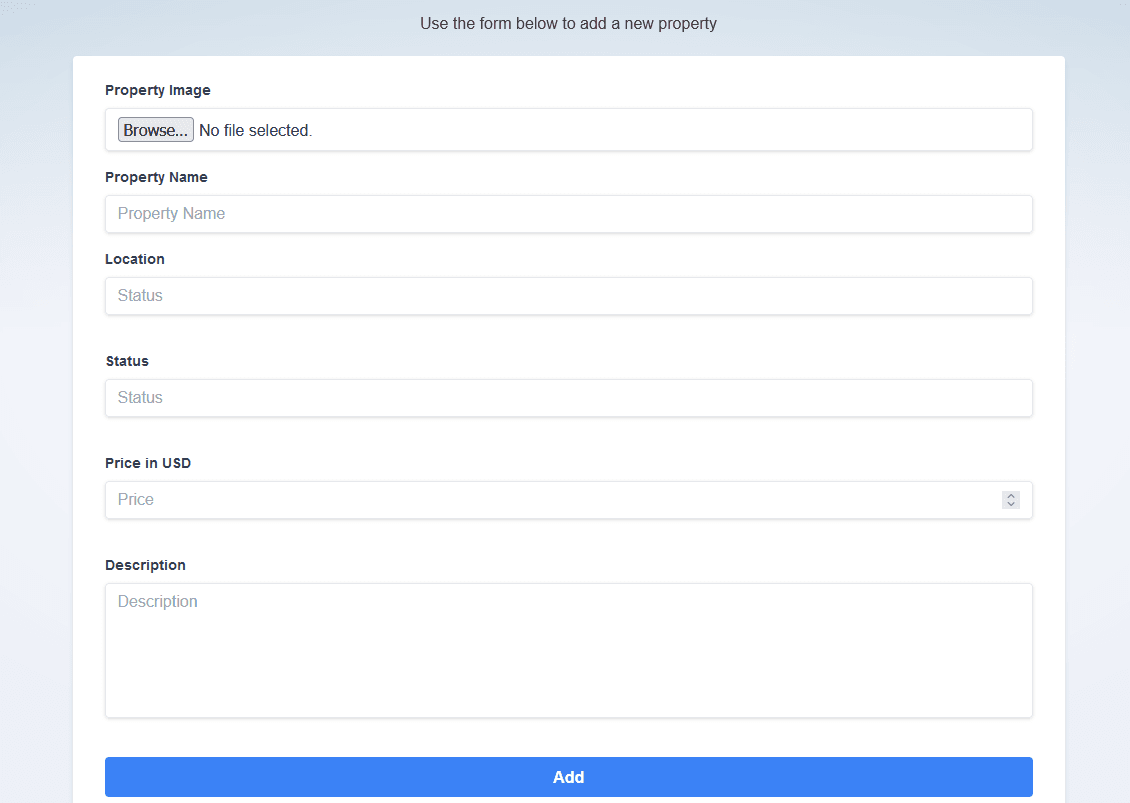
The same is true if you try to create an estate. You will get a `403` error since only authenticated users can create a property. If you will like to test the `createEstate()` right away, you can you can edit the user permissions and roles.
So far, you have seen how to read, delete and create a property with SvelteKit and Strapi, in the next part you will learn how to update an existing property.
### Update Estate
Updating a property is quite similar to creating one except that instead of using a `POST` request, you will use a `PUT` request. In your `src/routes/update/[id]/+page.svelte` file, add the code below:
```tsx
<script lang="ts">
import {onMount} from "svelte";
import {page} from "$app/stores";
import {getEstateById, updateEstate} from "$lib/api";
import {goto} from "$app/navigation";
let selectedFile: File | null = null;
let estateId = $page.params.id;
let estate = {
property_name: "",
status: "",
file: FileList,
price: "",
location: "",
desc: "",
};
// Load the estate data when the component mounts
onMount(async () => {
const response = await getEstateById(estateId);
if (response.attributes) {
estate = {...response.attributes};
}
});
// Handle form submission for update
async function handleSubmit() {
const formData = new FormData();
formData.append(
"data",
JSON.stringify({
property_name: estate.property_name,
status: estate.status,
price: estate.price,
location: estate.location,
desc: estate.desc,
})
);
if (estate.file instanceof File) {
formData.append("files.imageUrl", estate.file, estate.file.name);
}
try {
await updateEstate(estateId, formData);
goto("/");
} catch (error) {
console.error("Error updating estate:", error);
}
}
function handleFileChange(event: Event) {
// Correctly type the event target
const input = event.target as HTMLInputElement;
if (input.files && input.files.length > 0) {
// Access the first file
selectedFile = input.files[0];
} else {
// No file selected
selectedFile = null;
}
}
</script>
<div class="w-full mx-auto mt-5">
<div class="mb-5 text-center">
<p>Use the form below to edit {estate.property_name}</p>
</div>
<form
on:submit|preventDefault={handleSubmit}
class="bg-white shadow-md rounded px-8 pt-6 pb-8 mb-4"
>
<div class="mb-4">
<label
class="block text-gray-700 text-sm font-bold mb-2"
for="propertyImage"
>
Property Image
</label>
<input
on:change={handleFileChange}
class="shadow appearance-none border rounded w-full py-2 px-3 text-gray-700 leading-tight focus:outline-none focus:shadow-outline"
id="propertyImage"
type="file"
placeholder="Property Image"
/>
</div>
<div class="mb-4">
<label
class="block text-gray-700 text-sm font-bold mb-2"
for="propertyName"
>
Property Name
</label>
<input
bind:value={estate.property_name}
class="shadow appearance-none border rounded w-full py-2 px-3 text-gray-700 leading-tight focus:outline-none focus:shadow-outline"
id="propertyName"
type="text"
placeholder="Property Name"
/>
</div>
<div class="mb-6">
<label
class="block text-gray-700 text-sm font-bold mb-2"
for="propertyLocation"
>
Location
</label>
<input
bind:value={estate.location}
class="shadow appearance-none border rounded w-full py-2 px-3 text-gray-700 mb-3 leading-tight focus:outline-none focus:shadow-outline"
id="propertyLocation"
type="text"
placeholder="Status"
/>
</div>
<div class="mb-6">
<label
class="block text-gray-700 text-sm font-bold mb-2"
for="propertyStatus"
>
Status
</label>
<input
bind:value={estate.status}
class="shadow appearance-none border rounded w-full py-2 px-3 text-gray-700 mb-3 leading-tight focus:outline-none focus:shadow-outline"
id="propertyStatus"
type="text"
placeholder="Status"
/>
</div>
<div class="mb-6">
<label
class="block text-gray-700 text-sm font-bold mb-2"
for="propertyPrice"
>
Price in USD
</label>
<input
bind:value={estate.price}
class="shadow appearance-none border rounded w-full py-2 px-3 text-gray-700 mb-3 leading-tight focus:outline-none focus:shadow-outline"
id="propertyPrice"
type="number"
placeholder="Price"
/>
</div>
<div class="mb-6">
<label
class="block text-gray-700 text-sm font-bold mb-2"
for="propertyDesc"
>
Description
</label>
<textarea
bind:value={estate.desc}
rows="5"
class="shadow appearance-none border resize-none rounded w-full py-2 px-3 text-gray-700 mb-3 leading-tight focus:outline-none focus:shadow-outline"
id="propertyDesc"
placeholder="Description"
></textarea>
</div>
<div class="text-center">
<button
class="bg-blue-500 w-full hover:bg-blue-700 text-white font-bold py-2 px-4 rounded focus:outline-none focus:shadow-outline"
type="submit"
>
Update
</button>
</div>
</form>
</div>
```
From the code above, you will find the following
- `estateId` is the ID of the estate.
- `onMount` asynchronously loads the details of a property on component mount and stores them in the estate variable.
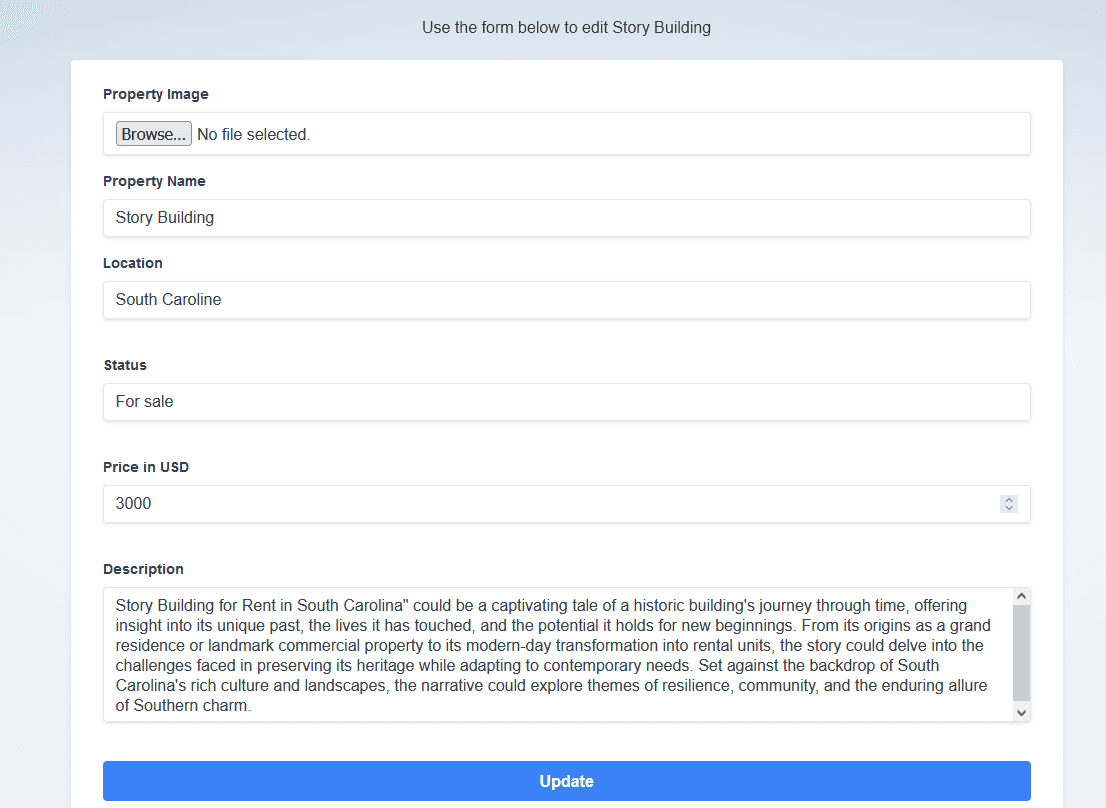
- The `handleSubmit` builds an object(`FormData`) containing the updated estate details and then sends a `PUT` request to the server to update the estate details with the `updateEstate` function from the `api.ts`. A positive response redirects you to the home page otherwise it logs into the console an error message.
- We equally have the **`handleFileChange`** function that updates **`file`** variable with the selected file. And once again, the input fields are bound to the respective properties of the **`estate`** variable. To associate this function with the estate and open the edit page whenever you click on an estate on the the homepage, you need to make some adjustments in the `src/routes/+page.svelte` file like below:
```tsx=
<script>
...
import { goto } from "$app/navigation";
// Function to handle page changes
function editProperty(id: string) {
// Navigate to the edit form with id
goto(`/update/${id}`);
}
...
</script>
...
<div class="grid grid-cols-2 mt-2 text-center gap-2">
<!--update estate-->
<a href={`/update/${estate.id}`}
on:click={() => editProperty(estate.id)}
class="bg-blue-500 rounded px-5 py-2 hover:bg-blue-700 text-white font-bold"
>Update</a>
<!--delete estate-->
<a href=""
on:click|preventDefault={() => handleDelete(estate.id)}
class="bg-red-500 rounded px-5 py-2 hover:bg-red-700 text-white font-bold"
>Delete</a>
</div>
```
When you click on the "Update" button, it calls the `editProperty` function, which redirects you to the edit form we created earlier with the initial values of the estate.
### Set up Authentication
You will not want anyone to just access your application and create an estate or delete one at any moment. You may prefer to give access only to authenticated users. To proceed, set authentication and authorization so that only verified users can have access to functions like, delete, update or create. A simple user can only view the list of estate.
Strapi **Users & Permissions plugin** is enabled by default and handles user registration, login, and permission settings.
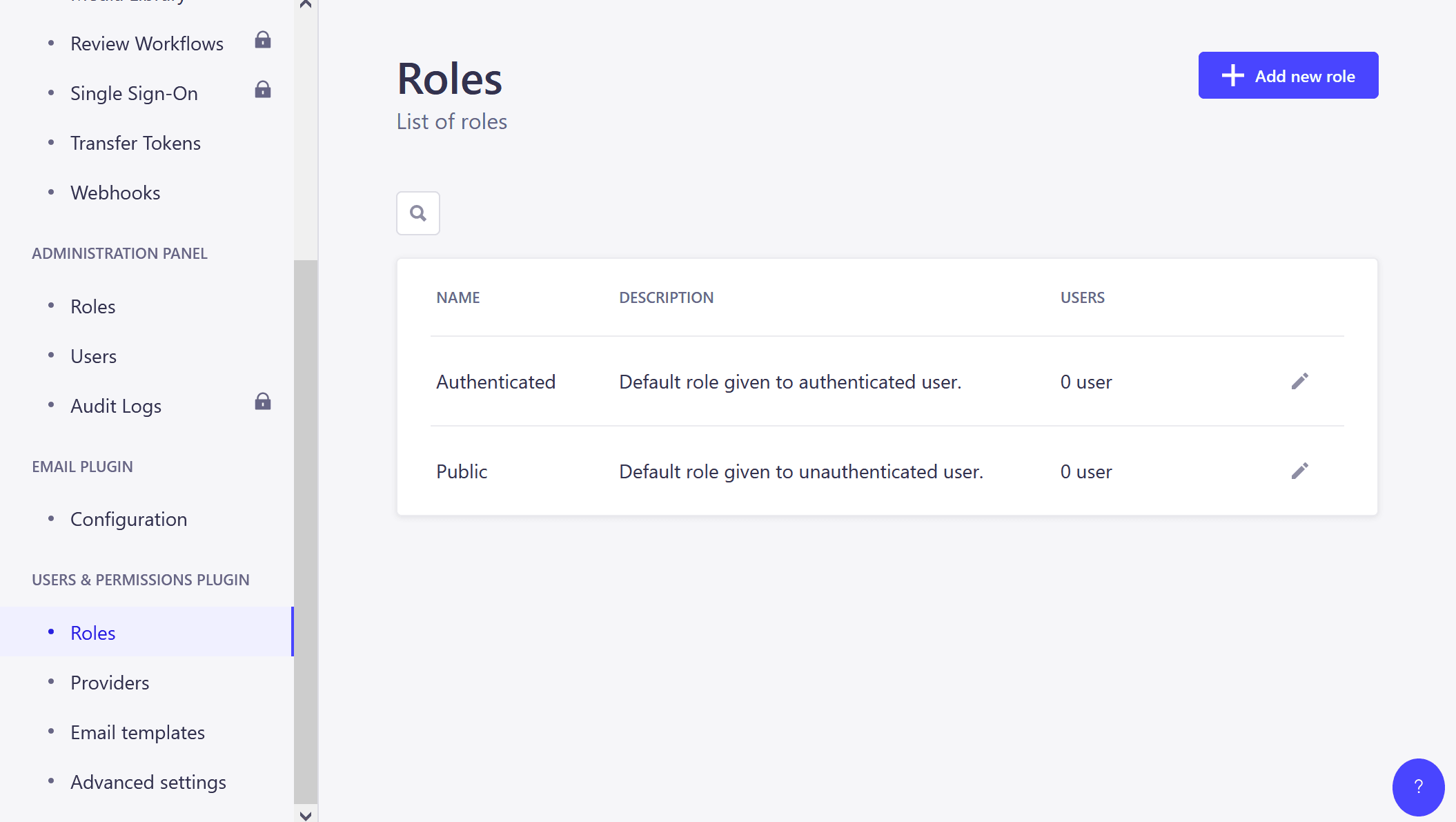
**Configure Roles & Permissions** in the Strapi admin panel to get started. Navigate to Settings > USERS & PERMISSIONS PLUGIN > Roles.
Here, you can define roles (like "Authenticated") and set permissions for each role concerning what API endpoints they can access.
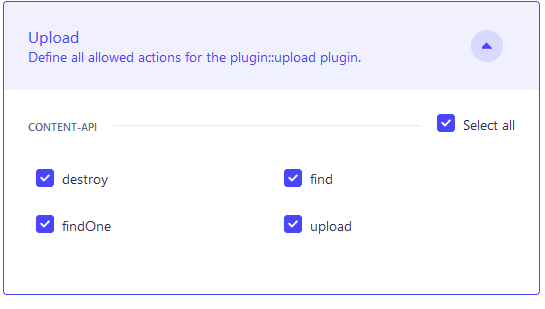
We want an authenticated user to be able to upload files, create, update and delete an estate.
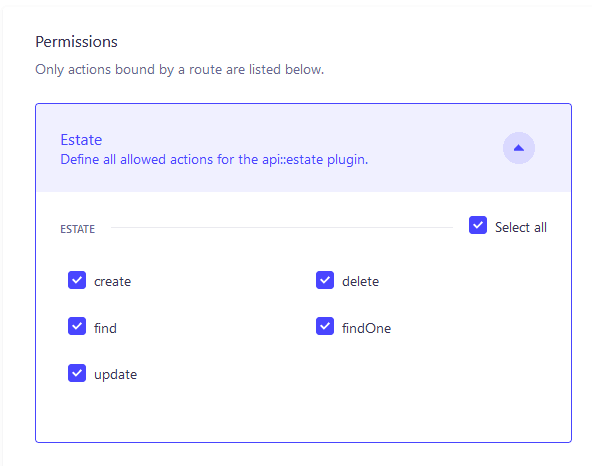
But we don’t want anyone to create an account in the application and start using it. Instead, we only want a specific group of users. So you will need to manually create a user in the Strapi panel and build a login page in the Sveltekit app for authorized users to log in, create, update or delete a property.
> **Note:** Strapi allows you to configure [third-party providers](https://docs.strapi.io/dev-docs/providers) like [Google](https://google.com/), LinkedIn, Instagram, Facebook and more but in this tutorial we will stick with the email/password method.
In the Strapi admin navigate to the ***Content Manager → Content Types → Users → Create New Entry*** to add a new user
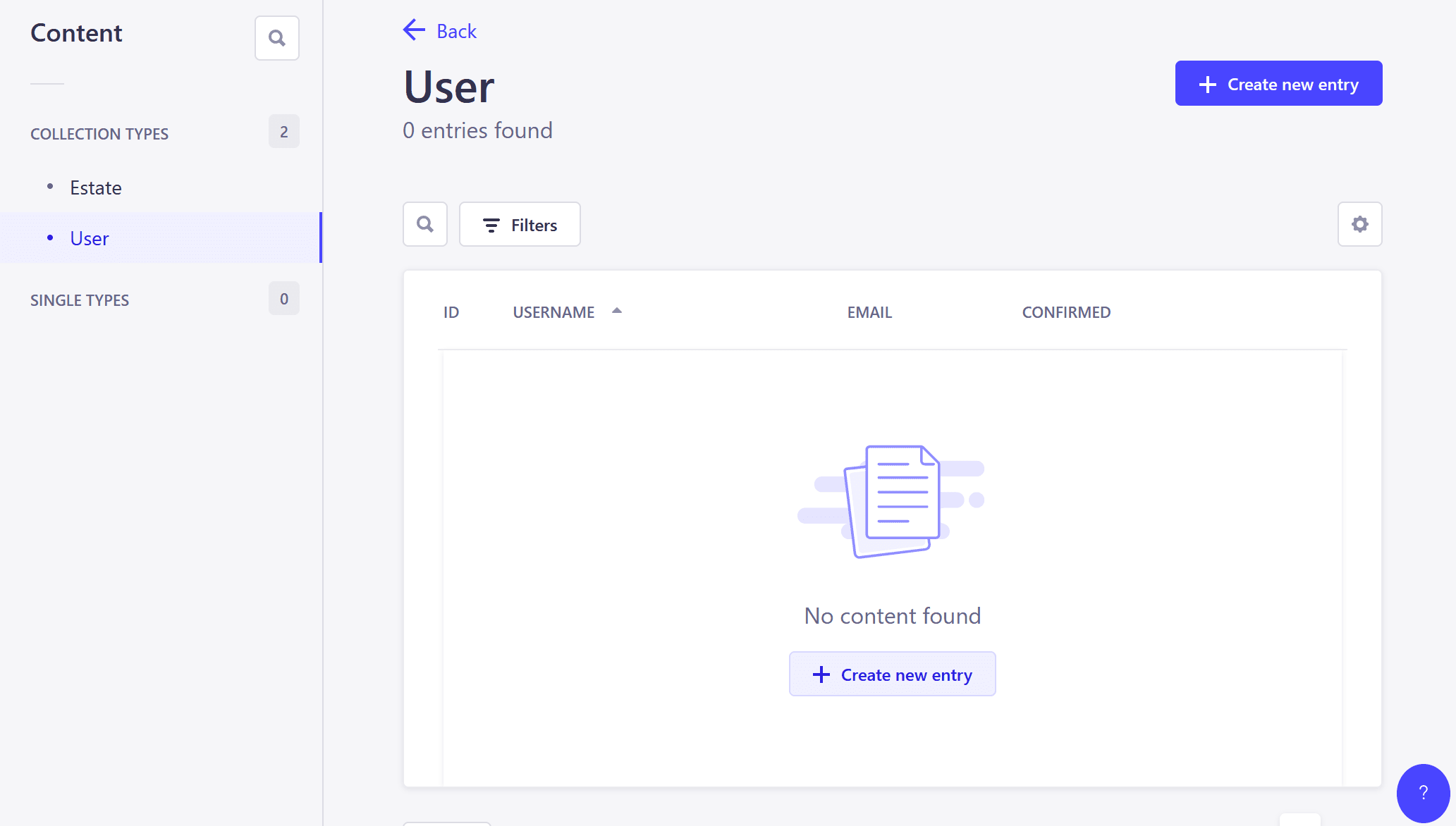
Provide the name, email and password of the user and set his role to authenticate.
Once everything is setup you can start creating the login page. But before that, you should create a store that will help to persist user data to local storage and sync changes across browser tabs.
Create `authStore.ts` file in the `lib` directory and add the code below:
```tsx
import {persisted} from "svelte-persisted-store";
import type {Writable} from "svelte/store";
interface AuthStoreData {
isAuthenticated: boolean;
user: {
id: number;
username: string;
email: string;
} | null;
token: string | null;
}
// manage auth state
export const authStorePersist: Writable<AuthStoreData> = persisted("strapi", {
isAuthenticated: false,
user: null,
token: null,
});
// update an authentication store with new user data
export function setAuth(data: {user: AuthStoreData["user"]; jwt: string}) {
authStorePersist.set({
isAuthenticated: true,
user: data.user,
token: data.jwt,
});
}
// mark user as not authenticated and clear the user details and token
export function clearAuth() {
authStorePersist.set({
isAuthenticated: false,
user: null,
token: null,
});
}
```
In the code snippet above, we defined the structure of the authentication store data and created a writable Svelte store named **`authStorePersist`** using the **`persisted`** function from the `svelte-persisted-store` package which holds the authentication state data and persists it to local storage with the key `strapi`
The `setAuth` function updates the authentication store with new user data and a `JWT` token, then sets **`isAuthenticated`** to true, assigns the **`user`** and **`token`** properties with the provided data, and updates the store using **`authStorePersist.set()`**.
The `clearAuth` function marks the user as unauthenticated and clears the user's token then updates the store again using `authStorePersist.set()`.
In the `api.ts` file, add the code below:
```tsx
import {authStorePersist, clearAuth, setAuth} from "./authStore";
import {get} from "svelte/store";
...
//send and set user credentials
export async function login(email: string, password: string) {
try {
const response = await api.post("/auth/local", {
identifier: email,
password,
});
setAuth(response.data);
return response.data;
} catch (error: any) {
console.error("Login error:", error.response);
throw error;
}
}
// Clear authentication state
export async function logout() {
clearAuth();
}
api.interceptors.request.use((config) => {
const store = get(authStorePersist);
if (store.isAuthenticated) {
config.headers.Authorization = `Bearer ${store.token}`;
}
return config;
});
```
- The `login` function sends a request to the `/auth/local` endpoint and if the response is positive, it sets the user's authentication state using the setAuth function from the store and returns the response data or returns an error.
- The `logout` function calls the `clearAuth` function while the API Interceptor intercepts all outgoing requests made using the Axios API instance.
Before sending a request, it retrieves the authentication state from the store and checks if the user is authenticated. If it’s the case, it adds an Authorization header with a Bearer token derived from the stored token. This ensures that authenticated users can access protected API endpoints.
### Create Login Page
Now create a login page where the user will enters his crendentials and be able to perform CRUD operations. Create the `login/+page.svelte` folder and insert this code:
```tsx
<script lang="ts">
import {goto} from "$app/navigation";
import {login} from "$lib/api";
let email = "";
let password = "";
let errorMessage = "";
async function handleLogin() {
try {
await login(email, password);
goto("/");
} catch (error: any) {
errorMessage = error.message;
}
}
</script>
<div class="w-full max-w-xs mx-auto mt-20">
<form
on:submit|preventDefault={handleLogin}
class="bg-white shadow-md rounded px-8 pt-6 pb-8 mb-4"
>
<div class="mb-4">
<label class="block text-gray-700 text-sm font-bold mb-2" for="username">
Email
</label>
<input
bind:value={email}
class="shadow appearance-none border rounded w-full py-2 px-3 text-gray-700 leading-tight focus:outline-none focus:shadow-outline"
id="email"
type="email"
placeholder="Email"
/>
</div>
<div class="mb-6">
<label class="block text-gray-700 text-sm font-bold mb-2" for="password">
Password
</label>
<input
bind:value={password}
class="shadow appearance-none border rounded w-full py-2 px-3 text-gray-700 mb-3 leading-tight focus:outline-none focus:shadow-outline"
id="password"
type="password"
placeholder="******************"
/>
</div>
<div class="text-center">
<button
class="bg-blue-500 w-full hover:bg-blue-700 text-white font-bold py-2 px-4 rounded focus:outline-none focus:shadow-outline"
type="submit"
>
Sign In
</button>
{#if errorMessage}
<p style="color: red;">{errorMessage}</p>
{/if}
</div>
</form>
</div>
```
Everything is now setup but there is one more last checkup to make to complete the application and prevent unauthorized users from accessing certain resources.
On the home page, we only want authenticated users to create, update and delete a property. So adjust your `src/routes/+page.svelte` with the code below:
```tsx
import { authStorePersist } from "$lib/authStore";
...
import {authStorePersist} from "$lib/authStore";
// initialize with the current value
let storeValue: any;
// subscribe to changes in the store
authStorePersist.subscribe((value) => {
// update the local variable with the new value
storeValue = value;
});
...
<div class="my-4 flex justify-between items-center">
<nav class="flex items-center">
...
</nav>
{#if storeValue.isAuthenticated}
<a
href="/create"
class="bg-blue-500 rounded px-5 py-2 hover:bg-blue-700 text-white font-bold"
>Add Properties</a
>
{/if}
</div>
...
{#if storeValue.isAuthenticated}
<div class="grid grid-cols-2 mt-2 text-center gap-2">
<a
href={`/update/${estate.id}`}
on:click={() => editProperty(estate.id)}
class="bg-blue-500 rounded px-5 py-2 hover:bg-blue-700 text-white font-bold"
>Update</a>
<a
href=""
on:click|preventDefault={() => handleDelete(estate.id)}
class="bg-red-500 rounded px-5 py-2 hover:bg-red-700 text-white font-bold"
>Delete</a>
</div>
{/if}
...
```
Only authenticated users can view the create property form. `src/routes/create/+page.svelte`:
```tsx
import {authStorePersist} from "$lib/authStore";
// initialize with the current value
let storeValue: any;
// subscribe to changes in the store
authStorePersist.subscribe((value) => {
// update the local variable with the new value
storeValue = value;
});
...
{#if storeValue.isAuthenticated}
<div class="w-full mx-auto mt-5">
...
</div>
{:else}
<div class="text-center mt-20">
<p class="mb-5">
You are not Currently logged, To create a property please log in
</p>
<a href="/login"
class="bg-blue-500 rounded mt-3 px-5 py-2 hover:bg-blue-700 text-white font-bold"
>Login</a>
</div>
{/if}
```
Only authenticated users can update a property. `src/routes/update/[id]/+page.svelte`
```tsx
...
import {authStorePersist} from "$lib/authStore";
import {get} from "svelte/store";
let storeValue;
// initialize with the current value
$: storeValue = get(authStorePersist);
...
{#if storeValue.isAuthenticated}
<div class="w-full mx-auto mt-5">
<div class="mb-5 text-center">
<h1 class="text-center">
Welcome <span class="text-blue-500 capitalize"
>{storeValue.user?.username}</span
>
</h1>
<p>Use the form below to edit {estate.property_name}</p>
</div>
<form
on:submit|preventDefault={handleSubmit}
class="bg-white shadow-md rounded px-8 pt-6 pb-8 mb-4"
>
...
</form>
</div>
{/if}
```
In the Header, remove this part in the `nav`:
```
<li aria-current={$page.url.pathname.startsWith('/sverdle') ? 'page' : undefined}>
<a href="/sverdle">Sverdle</a>
</li>
```
If a user is authenticated, display the **"Log Out"** button, else display the **"Login"** button:
```tsx
<script lang="ts">
...
import {onMount} from "svelte";
import {logout} from "$lib/api";
import {authStorePersist} from "$lib/authStore";
onMount(async () => {});
const handleLogout = () => {
logout();
};
let storeValue: any; // initialize with the current value
// subscribe to changes in the store
authStorePersist.subscribe((value) => {
// update the local variable with the new value
storeValue = value;
});
</script>
<header>
<nav>
...
</nav>
<div class="corner">
{#if storeValue.isAuthenticated}
<button
type="submit"
on:click={handleLogout}
class="text-blue-500 rounded focus:outline-none focus:shadow-outline"
>
Logout
</button>
{:else}
<a
href="/login"
class="text-blue-500 px-6 rounded focus:outline-none focus:shadow-outline"
>
Login
</a>
{/if}
</div>
</header>
```
### Run and Test App
Finally, test your application by running the backend:
```tsx
cd real-estate-back
npm run developer
```
and running the frontend:
```tsx
cd real-estate=front
npm run dev
```
Athenticated user preview:
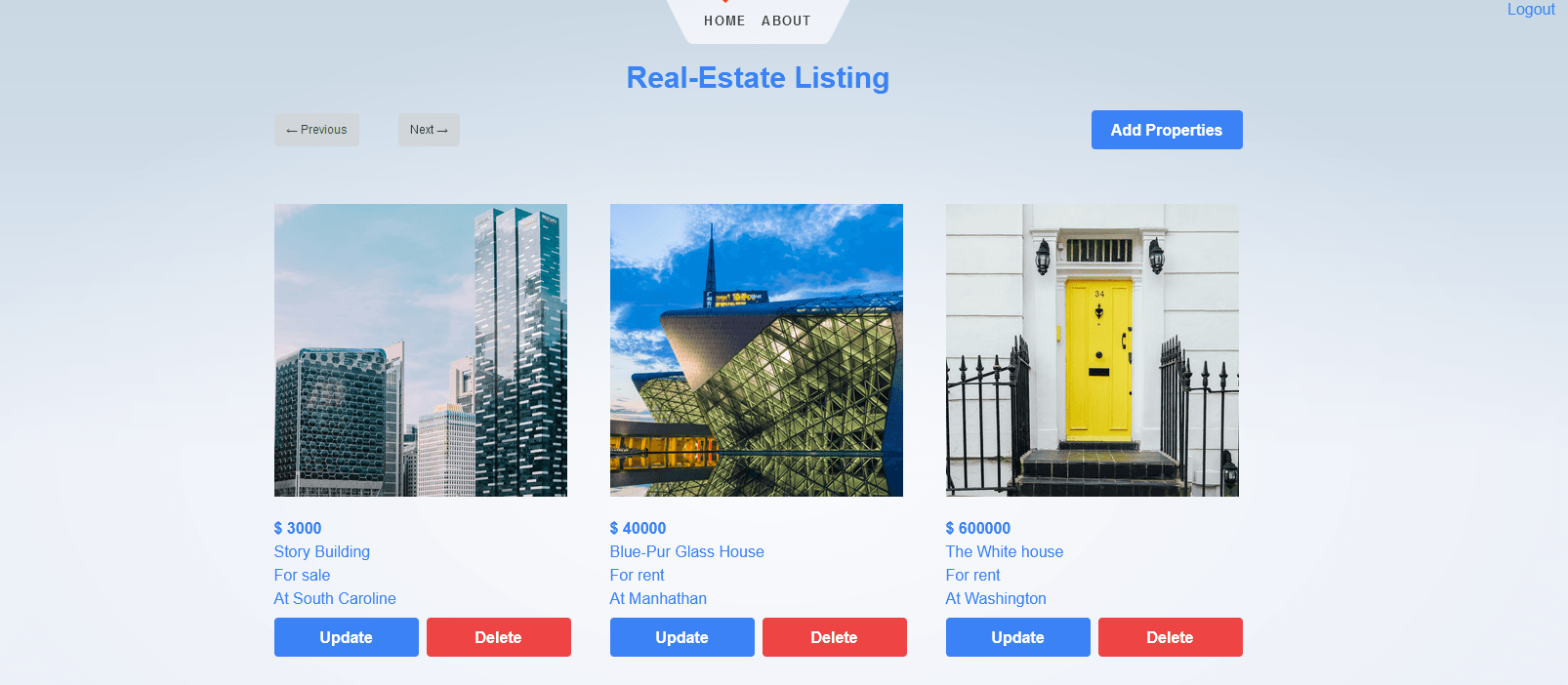
## Demo
We have also prepared a demo so that you can actually visualize what you are about to create.

[strapi-sveltekit-estate.webm](https://drive.google.com/file/d/1JqGxm5kZknmD1WAWlEt9PhsHbLnOlR1I/view?usp=sharing)
## Conclusion
In this tutorial, you looked at how to build a real estate listing application with SvelteKit alongside Strapi as the backend. You set up Strapi for new users, then proceeded to make the front using SvelteKit and integrated functions like user authentication, property listing, creation, edition, and deletion.
You can elevate this application to the next level by incorporating other features, such as search and filters, animation, and loading states.
### Reference and Resources
- You can find the code of this tutorial in this [GitHub repository](https://github.com/Gunkev/strapi-svelte-estate-listing-app)
- https://docs.strapi.io/dev-docs/integrations/svelte#create-a-svelte-app
- https://kit.svelte.dev/docs/creating-a-project
- https://docs.strapi.io/dev-docs/intro
- https://docs.strapi.io/dev-docs/plugins/users-permissions
 Google Drive
Gist
Clipboard
Google Drive
Gist
Clipboard
 Sign in with Wallet






