# Step-by-step guide on how to build and deploy a Serverless React application using AWS Amplify.
## Introduction:
Serverless applications are becoming increasingly popular due to their scalability, cost-effectiveness, and ease of deployment. [`AWS Amplify`](https://aws.amazon.com/what-is-aws/?nc1=f_cc) is a great tool for building serverless apps. With its announcement in November 2017 as an open-source library for developers who want to develop cloud-based applications with `JavaScript` on the web or mobile platforms, `AWS Amplify` provides a comprehensive set of tools and services for building scalable, secure, and highly available cloud-powered applications.
The [`AWS`](https://aws.amazon.com/) platform enables developers to easily create and deploy cloud-based applications in minutes with no server-side code by providing a comprehensive set of tools, including authentication, analytics, data storage, and more, to help developers quickly build and deploy apps.
## Benefits of building a serverless architecture:
There are many benefits to building a serverless architecture. First, it eliminates the need for servers and other infrastructure, which results in a reduction in cost and maintenance.
The architecture allows for faster scaling of services and increased reliability and availability. Additionally, serverless architecture provides developers with faster development cycles and more flexibility.
Finally, serverless architecture helps to promote better collaboration and communication between development teams with its more manageable components.
## Overview of the steps involved in building and deploying a serverless React application using AWS Amplify.
In this article, I will walk you through how to deploy a [`React.js`](https://reactjs.org/docs/getting-started.html) application using `AWS Amplify`.
We will be:
- Setting up the development environment: Here we will be installing and configuring the necessary tools and libraries to build the `React` application.
- Creating and setting up a new `AWS Amplify` project: This step involves using the [`Amplify CLI`](https://docs.amplify.aws/cli/) to create a new project, configure the `backend services`, and set up the `authentication` and `authorization`.
- Building the `React` application: This involves writing the `front-end code` for the application using `React` and integrating it with the backend services provided by `AWS Amplify` and testing the application locally.
- Deploying the application: This involves using the `Amplify CLI` to push the changes to the `cloud`, where the application is automatically built and deployed to a scalable, secure, and highly available infrastructure.
## Prerequisites
- `Node.js`
- `React.js`
- `Git`
- `Amplify CLI`
## Setting up the development environment.
Install [`Node.js`](https://nodejs.org/en/) first if you do not already have it downloaded and installed, as this is important to deploy your `React` app. Second, create your [`AWS` account](https://aws.amazon.com/premiumsupport/knowledge-center/create-and-activate-aws-account/) if you don’t have one yet, as you will need it to run `AWS Amplify`.
### Install and Set up Amplify CLI
To install the `Amplify CLI`, run these commands
```
npm install -g @aws-amplify/cli
amplify configure
```
After successfully installing and configuring the `amplify CLI`, an `AWS console` will open in your tab, ensure that you are logged in under the correct account and as an admin user. If you do not have an account yet, you can sign up.
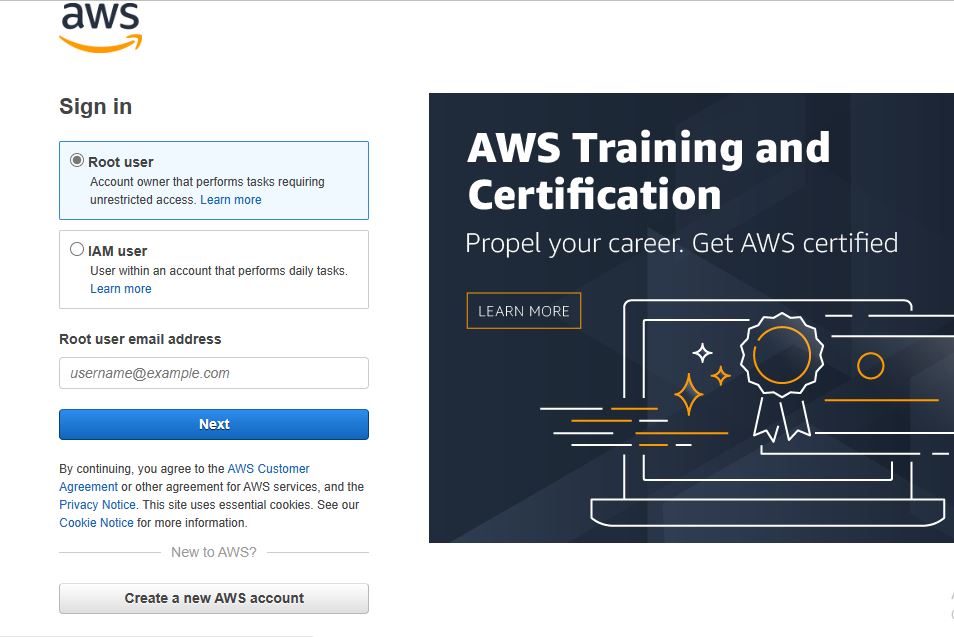
Once you are signed in to AWS Console, `Amplify CLI` will ask you to create an [`AWS IAM`](https://aws.amazon.com/iam/) user:
```
Specify the AWS Region
? region: # Your preferred region
Specify the username of the new IAM user:
? user name: # User name for Amplify IAM user
Complete the user creation using the AWS console
```
You’ll be redirected to an interface where you will complete the wizard and create a user with `AdministratorAccess` in your account to provide AWS resources. Once the user is created, `Amplify CLI` will ask you to provide `accessKeyId` and `secretAccessKey` to connect `Amplify CLI` with our created `IAM` user:
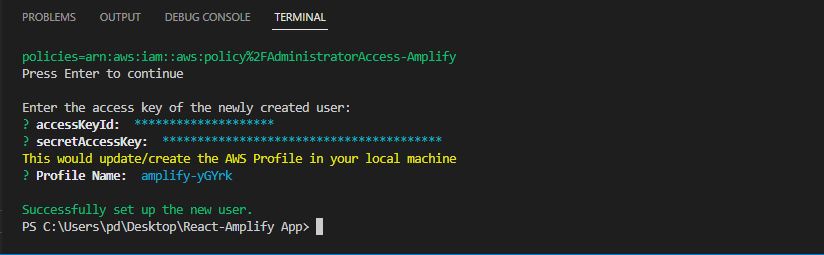
Congratulations! you have fully set up and configured your `AWS amplify`.
## Creating React App
We will be developing a simple “Welcome to OpenReplay” `react` application.
To get started, we will be creating a new `React` app using the `create-react-app` boilerplate. Open your terminal and run the command below. You can run `npm I -g create-react-app` first if you don't already have it installed.
```
npx create-react-app amplify-react-demo-app
cd amplify-react-demo-app
```
Then run the command `npm start` to start our React App.

Now that you have created a `react app`, open the `./src` folder and edit your code.
```javascript
import "./App.css";
import { withAuthenticator, AmplifySignOut } from "@aws-amplify/ui-react";
function App() {
return (
<div>
<Welcome to OpenReplay />
</div>
);
}
export default withAuthenticator(App, true);
```
After successfully setting up the `React app`, it's time to initialize `Amplify` for our project. Run the command below from the root of the project. This command will set up our `AWS configuration` from scratch and generate a configuration file for our application's root directory.
```
$ amplify init
```
This command will prompt some information about the app and make the selections according to your config:

As soon as a new `Amplify project` is launched, the `CLI`:
- created a file called `aws-exports.js` in the src directory that holds all the configuration for the services we create with Amplify
- created a top-level directory called `Amplify` that contains our backend definition
- modified the `.gitignore` file and added some generated files to the ignore list
It will also create a new cloud project in the `AWS Amplify Console` which can be accessed by running `amplify console`.
Now that the initialization is complete, here are some important `amplify` commands and workflows needed for your project:
- `Amplify status`: This will display everything you have added already and show if it’s already configured or deployed locally.
- `Amplify push`: This will update your cloud resources after you have made your category updates. This command will create local `back-end` resources and provision it in the `cloud`.
- `Amplify Console`: This command will launch the browser directing you to your cloud project in the `AWS Amplify Console` and you can view your project status.
- `Amplify Publish`: This command will build and publish both the backend and the frontend of the project.
- `Amplify <category> add`: This command will add resources of a category to the cloud, you can easily add features like user login or a `back-end API`.
### Configuring Our React App
To configure our `React` application, we will need to install `AWS Amplify` packages in our `React` app. To do this, run the command below in your app repository
```
$ sudo npm install aws-amplify @aws-amplify/ui-react
```
### Authentication
To add more control to our `React` application, let’s add an authentication function to our application.
```
$ amplify add auth
```
Run the code above to add `authentication`, this will prompt some questions then select according to your configuration.
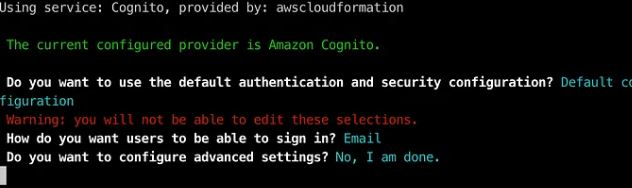
The authentication module is currently set up for our application. The deployment of this configuration to our `AWS account` is still required. Fortunately for us, the `Amplify CLI` also handles this.
Time to push the configuration. To do this, run the command below
```
$ amplify push
```
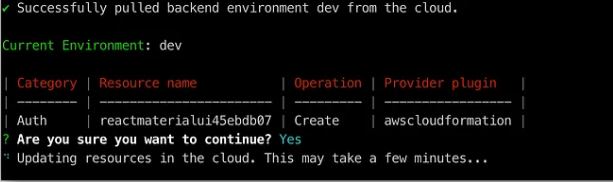
After pushing this configuration, the changes required to support our authentication module will be created in our AWS account and then deployed.
Also, a configuration file called `aws-exports.js` will be created in our configured source (`./src`) directory.
### Configuring Amplify in Our React App
Now we want to add `amplify` authentication service to our `React` app.
In your `IDE`, open your `React` app folder and edit the `index.js` file by adding the code below to the header.
```javascript
import amplify from ‘aws amplify’;
import aws config from './aws-exports`;
Amplify.configure(awsconfig);
```

Next is to add the Amplify Authenticator. Open the App.js file in the `./src`. folder and import `withAuthenticator` and wrap it into the `React` app.
```javascript
import { withAuthenticator, AmplifySignOut } from "@aws-amplify/ui-react";
...
export default withAuthenticator(App);
```
It's great! Now time to test our app. We will Run the application using:
```
npm run start
```
The browser will launch with a secure page to sign in. Your app is now protected by `Amplify`.
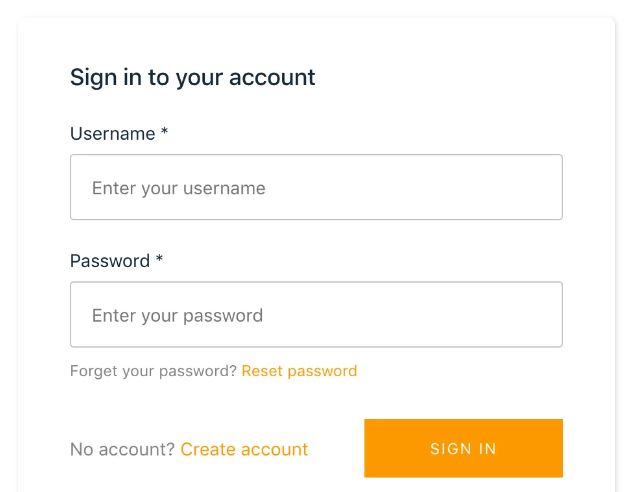
Create a new account
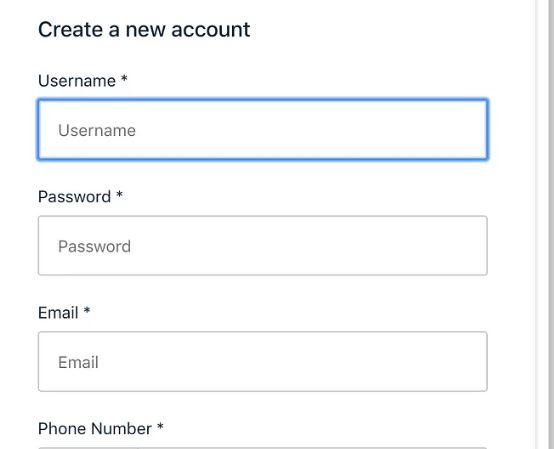
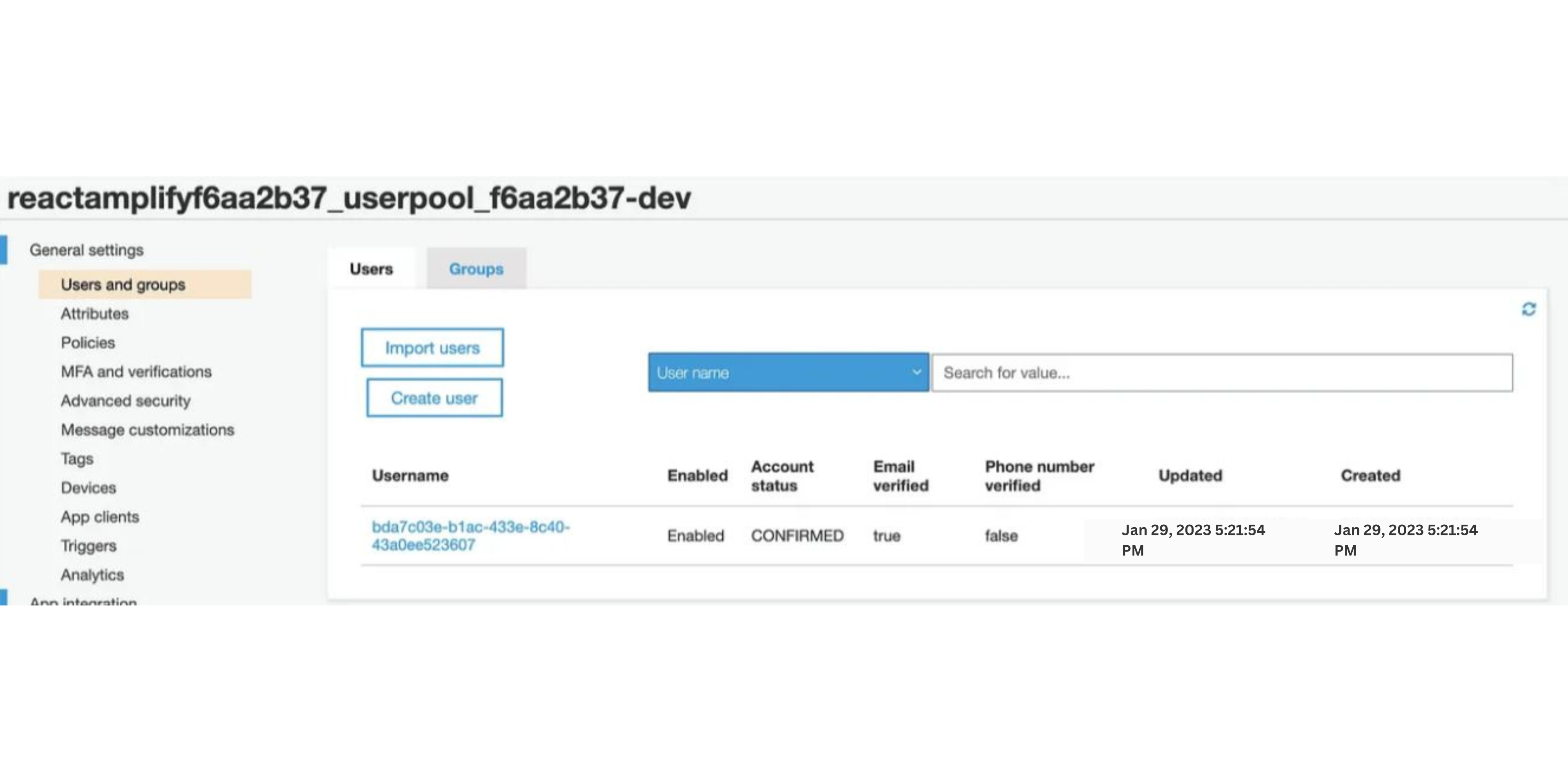
You will receive an email with the confirmation code. Enter your verification code and your account is now created.
Log in now and welcome to our secure React app

## Conclusion:
In conclusion, building and deploying a Serverless `React` application using `AWS Amplify` can be a straightforward process with the right guidance. By following the step-by-step guide outlined in this article, you can leverage the power of `AWS Amplify` to create a robust, scalable, and cost-effective application that meets your business needs. With the knowledge gained from this guide, you can take the first steps toward building and deploying a successful `Serverless React` application.
## Resources:
- [`GitHub`](https://github.com/Christianaojo/Reactamplify-App)
- [`AWS Docs`](https://docs.amplify.aws/)
 Google Drive
Gist
Clipboard
Google Drive
Gist
Clipboard
 Sign in with Wallet






