---
title: Git learning note
tags: git
---
# Git learning note :+1:
---
- [Learning Git in 30 days](https://github.com/doggy8088/Learn-Git-in-30-days/blob/master/zh-tw/README.md)
- [learning git of sandbox & game](https://learngitbranching.js.org/)
---
<b style="font-size:3rem;">Table of Content</b>
[TOC]
---
## What is GIT :question:
**GIT** is a **Version Control System** (VCS), strictly is a **Distributed Version Control System** (DVCS), for tracking changes in computer files.
---
## Why do we need to do version control:question:
- To ensure that our final version could always work by committing additional code only after millions of checking.
- It could also function as a backup of our work.
---
## What exactly is version control:question:
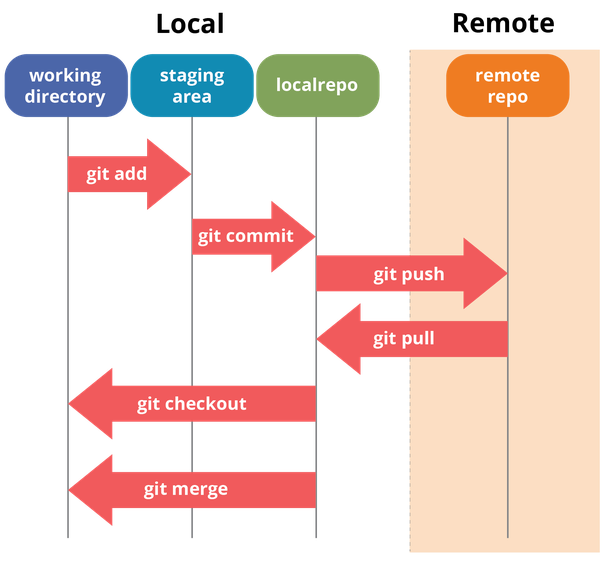
>Git 可以分為 Local(本地)和 Remote(遠端)兩個環境,由於 Git 屬於分散式的版本控制系統,所以開發者可以在離線 local 環境下開發,等到有網路時再將自己的程式推到 Remote 環境或 pull 下其他開發者程式碼進行整合。在 Local 中我們又分為 working directory(工作資料夾)、staging area(暫存區)和 repositories(檔案庫)。
>
>當自己開發時會在工作資料夾工作,當要進入檔案庫之前會先將檔案加入暫存區,確認沒問題則 commit 到檔案庫中,最後 push 上去 remote 環境。在 Git 中若是有和其他開發者一起合作,則會需要處理不同 branch 之間 conflict 和 merge 的問題。
>
---
## Installing Git
### **1. Installing**
- Linux 若是使用 `Debian` 基礎的作業系統可以在終端機輸入以下指令安裝 git:
```shell
$apt-get install git
```
- Linux 若是使用 `Fedora` 基礎的作業系統可以在終端機輸入以下指令安裝 git:
```shell
$sudo yum install git
```
- Or 上 [Git 官網](https://git-scm.com/downloads) 直接點擊下載
### **2. If successfully installed, check version**
1. Keep clicking "**Next**"..until the fourth "**Next**"
2. When reached **Adjusting your PATH environment** check the third option (**Use git and optional Unix tools from the windows command prompt**)
3. Then "**Next**" until "**Install**"
4. Before "**Finish**", check "**Launch Git Bash**", and uncheck "**View Release Note**"
5. Then inside Git Bash, type in:
```shell
$git --version
```
++Installation could be confirmed if shows the version.++
### **3. Set your user name**
```shell
$git config --global user.name 'Your Name'
```
### **4. Set your user email**
- 建議和github 帳號一樣ㄛ
```shell
$git config --global user.email 'your@gmail.com'
```
### **5. Final Check**
```shell
$git config --list
```
- Make sure your name and email are set.
---
## **Implementation**
### **Connect to github**
For now, Joycelyn had created a github repository for everyone. :smile:
[Our very own repository](https://github.com/Joycelyn-Chen/Dinner_Jia_Sa)
Here, follow steps below to connect to the remote repository.
1. Make sure you are under **master** branch.
2. type in
```git
$git remote add origin https://github.com/Joycelyn-Chen/Dinner_Jia_Sa.git
```
3. type in `git remote`, if shown `origin` , then you are all set!!
--
**Pulling**
1. Best if you create a new folder.
2. Type in
```git
$git clone https://github.com/Joycelyn-Chen/Dinner_Jia_Sa.git
```
3. Then later on that day you could just type `git pull` to check if others have uploaded anything.
- To pull from other branches,say branch `develop`, just type in
```git
$git pull origin develop
```
--
**Pushing**
4. Now, **push** whatever you want by typing
```git
$git push -u origin branch_name
```
- `-u` : specify the upstream from github repository.
- Notice that you might need to login to your github account for security reasons.
5. Reload the github page to visualize your work!!
6. Then later on that day, simply type in `git push` would done uploading your work.
- Remember to add and commit everything before pushing to github.
**Pulling example**
```git
$git branch #See all your branches
$git checkout -b branch_name #create and checkout to the branch you want
$git branch -u origin/branch_name branch_name #
$git pull
```
==**Beware where you are!!!**==
- If you ever did something stupid, and needed to undo your last commit, type:
```git
$git push origin +931f69f:branch_name
```
`+` : for force push
`931f69f` : was the target version you wanna to revert to.(you might need to check this from the history of commits)
[Learned it from here](https://stackoverflow.com/questions/448919/how-can-i-remove-a-commit-on-github)
-- **Reference**
- [how to connect to github repository](https://github.com/doggy8088/Learn-Git-in-30-days/blob/master/zh-tw/24.md)
---
### **Example command**
- For the first time ever :
```git
$mkdir git_try #create a new directory "git_try"
$cd git_try #go to this directory
$touch a b c #create three files a, b and c
$git init . #manage current directory under git
$git add a b c #add three files to staging area
$git commit -m 'version_1' #commit everything in staging area as version_1
$git log #show the committing history
```
- Add and reverse, track then untrack
```git
$mkdir git_try_1
$cd git_try_1
$git init
$touch a.txt
$git add a.txt
$git status
$git rm --cached a.txt #untrack a.txt
```
---
## Branch Concept
### Why do we need Branch?
> 一個正在提供服務的程式,是不能被任意修改的,因此要做修改必須在其他分支上進行
### What exactly does the branch means?
> 事實上在git中branch只是指向某個特定commit物件的指標
### New Branch
> 所有跟分支有關的資訊都在 .git/refs/heads 底下
> 看完底下的東西之後你就會明白分支其實是一件很廉價的東西
### Switch Branch
> git在切換分支時,主要做了兩件事
1. 更新暫存區與工作目錄
- 切換到某分支後,會用該分支指向的commit內容做更新
- 切換分支前做的所有修改,都會保留在工作目錄中,不受影響
2. 更新HEAD的指向
### Git Flow
> 為一種版本控制的設計哲學,一般將一個專案分成五個分支
1. master: 用來存放一個穩定且隨時可以上線的版本
- 一般會在commit內容中加上該版本的版本號
- 該分支只會從其他分支合併過來
- ==**任何人都不應該在此分支上面做開發、修改**==
2. develop: 此分支為主要開發的分支
- Feature分支應該從此分支分出去;新增完功能後亦需合併回develop分支
3. hotfix: 處理突發問題、修復Bug的分支
- 當線上產品出問題時,從master開一hotfix分支
- 問題解決後需要合併到master、develop分支
- 使用上可以用
- hotfix/Bug代碼
4. release: 當develope開發到一個段落時,開一個分支到release,在此做發布前的最後測試
- 測試完後合併到master、develop分支
- 使用上可以替該分支加上標籤
5. feature: 新增功能的分支
- 都從develop來,最後也都合併回develop
- 使用上可以用
- feature/功能名稱
- feature/功能代號
6. other: 其餘分支
- 以上5種為主要會用到的分支,當然也沒有禁止其他分支的存在
- 有時候可能會想要美化程式碼的排版、修改註解等,這些行為在上面的幾個分支中做都不太合適,可以另開分支完成後,最後在合併回去

---
## Common Command
### Git bash command
- `ls` : 列出目錄內容
- `cd` : 跑到某一層目錄
- `cd ..` : 回到上一層
- `pwd` : 列出現在路徑在哪裡
- `mkdir` : 新增目錄(資料夾)
- `rm -rf`: 刪除目錄及檔案 (or delete Disk C)
- `touch {filename}` : 新增名為filename的檔案
- `nano {filename}` : 用nano編輯名為filename的檔案
`.` : 當前 current directory
> 打開目前資料夾
> - windows: `start .`
> - mac: `open .`
>
---
### Simple command on git
- `git --help` : a simple guide book to help you while you're out on the field.
- `git <command> --help` or `git --help <command>` : Get the help page for the command.
- EX: `git push --help` 、 `git --help pull`
---
#### **Start a working area**
- `git clone https://github.com/clone_1/clone_1_1` : 這指令將會建立名為「clone_1_1」的資料夾,並在這個資料夾下初始化一個 .git 資料夾,從遠端倉儲拉取所有資料,並且取出(checkout)專案中最新的版本。
1. Usage: 進入新建立的 clone_1_1 資料夾,你將會看到專案的檔案都在裡面了
- `git init` : create an empty local GIT repository
- `--bare`: 只能讓別人做push & pull,不會讓使用者在此repository進行修改
- `git clone`: clone from a remote directory
- `host:/path_to_clone_target`: 從遠端repository clone 資料下來到local repository
---
#### **Work on the current change**
- `git add` : 追加檔案到暫存區(staging area)、索引(index)
- 常用參數
- `.` : 追加當前工作目錄底下(包含子目錄底下)的所有檔案到暫存區(staging area)
- `-u` : 將修改過的檔案加入索引,新增的檔案不會被加入
- `-f or --force` : 強制加入該檔案至索引
- `{filelist}` :追加指定的檔案到~~git~~暫存區(staging area)
- EX: `git add file1 file2 file3`
- `--all` : 將所有新增/修改的檔案,追加到暫存區內
1. **優點**: 若有多個檔案需要被新增至暫存區,可以快速完成
2. **缺點**: 必須要確定所有檔案都要被新增至暫存區
- 經驗: 執行python檔案後,Interpreter為了增加下次執行效率會自己產生cache檔案,若此時要新增檔案至暫存區,這些cache檔案都不是需要被新增的,因此需要特別注意。(可以善用`.gitignore`)
- `git rm <file>` : 刪除檔案(**請小心使用此指令**)
1. **該指令的意義**
- 刪除工作目錄的**索引檔案、快取檔案** (用來標示這個刪除檔案的動作要列入版本控管)
- 刪除工作目錄下的這個**實體檔案** (代表真的把這個實體檔案給刪除)
2. 常用參數:
- `--cached` : 此參數只會將檔案從索引內移除,**會保留實體檔案**
- `git reset file` : 很難以一言以蔽之,請了解各模式的差異
1. 註: 被`rm`的檔案是無法透過該指令回復的(**消失的就回不去了**)
2. 讓你可以**無後顧之憂地亂改程式**:smirk:
3. 常用參數:
- `--mixed <commit_id>` : 預設模式,此模式會把檔案從暫存區移除,但會保留工作目錄底下的檔案
- `--soft <commit_id>` : 在此模式下工作目錄跟暫存區的檔案都不會被移除,從commit拆出來的檔案會直接放在暫存區
- `--hard <commit_id>` : 在此模式下工作目錄跟暫存區的檔案**都會被移除**
- 可以使用`git reflog`救回
- `git restore file` : 就像 `reset`, but 這是新版 git 才有的指令ㄡ :heart:
---
#### **Examine the history and state**
- `git log` : 顯示提交歷史
1. 常用參數:
- `--pretty=oneline` : 只用一行顯示歷史紀錄,比較簡潔、乾淨
- `--oneline --decorate --graph --all` : 它會印出你的提交歷史,顯示你的分支指標在哪裡,以及歷史如何被分離開來。
- `--author="Somebody"` : 可以找出特定人提交的commit紀錄
- `--grep="something"` : 可以找出紀錄中包含特定字串的紀錄
- `git status` : check status of Working Tree, check your staging area
- Untracked files: 這些檔案尚未被加入到儲存庫中
- Unmodified files: 這些檔案已經在儲存庫中,尚未被更動
- Modified files: 這些檔案已經在儲存庫中,同時有被修改過(跟在儲存庫中的相比)
---
#### **Grow, mark and tweak our common history**
- `git commit` : 提交版本
1. 將暫存區內的所有檔案提交為一新的版本
2. 註: 會進入文字編輯區(預設為Vi),編輯此新版本的說明文件
3. 常用參數
- `-m "version_1"` : like saving commiting files, or to take everything in the staging area to the local repository
- 註: 加 `-m` 就不會進Vim,直接加說明或版本註記即可(eg. version_1)
- `-m == --message`
- `-a` : 允許直接略`add`的步驟直接提交版本
- 註: 能夠被直接提交的只有那些已經在儲存庫中的檔案,若是新增的(Untracked?)檔案還是需要先`add`到暫存區之後才能提交
- `--amend` : 此參數可以讓你把索引檔提交到最新的版本中,而不必產生新的版本
- 常用於提交版本後,突然發現有一小部分需要更改,但又沒必要為了這一點更動而產生新的版本
- 亦可用於修改最新版本(HEAD)的commit文字內容
- `--no-edit` : 參數可以不產生文字編輯
- `git stash` : 貯存
1. 當你的工作進行到一半,需要被中斷時,可以將手尚未完成的工作儲存起來(當然可以用commit,但應該盡量避免瑣碎且不重要的commit)
2. 常用參數
- `No Parameter` : 將目前所在分支的所有異動儲存起來
- `-u` : 由於git預設Untracked無法被儲存,需要加上此參數才能儲存Untracked Files
- `save <"message">` : 輸入一些訊息
- `clean` : 清空貯存區
- `list` : 可以查看貯存區有哪些項目
- 你可能會看到 `stash@{0}: WIP on <branch>: <Last commit> <Commit message>`
- stash@{0} : 為該stash的編號
- WIP : Work in Process
- `apply [<stash 編號>]` : 將套用該stash在當前分支,且該stash並不會從貯存區移除;若沒有指定編號,則從最小的開始套用
- `drop <stash 編號>` : 將該stash從貯存區中移除
- `pop [<stash 編號>]` : 等同於 `apply <stash 編號> + drop <stash 編號>`
- `git merge` : 合併
- `<branch>` : Merge the branch "branch" to the current branch.
- `--no-ff` : 不使用Fast-Forward模式合併
- `--abort` : 當合併發生衝突時,可以取消合併,回到合併前的狀態
- `git rebase` : 重新定義該分支的參考基準,等同於修該歷史紀錄,需要小心使用
- `<branch>` : 將當前分支的參考基準改成 <branch>
- `git branch`
- `<branch_name>` : 新增分支 "branch_name"
- `No Parameter` : 新分支預設指向當前分支指向的版本
- `<commit_id>` : 指定該分支指向特定commit
- `-m <old_name> <new_name>` : 幫分支改名字
- `-d <branch_name>` : 刪除分支,若尚未合併會有貼心小提示
- `-D <branch_name>` : 強制刪除分支
- `git tag`
- `<tag_name> <commit>` : 在特定版本建立標籤
- `-a` : 建立有附註的標籤(比較詳細)
- `-d <tag_name>` : 刪除標籤
- `git checkout`
- `<branch_1>` : 切換到分支 "branch_1"
- `-b <branch_2>` : 建立另一個分支 branch_2,並切換工作目錄至branch_2
- `-b new_branch old_branch` : 複製 old_branch 的內容到 new_branch, 並切換到 new_branch
---
#### **For Collaboration**
- `git remote`
- `No parameter` : 顯示連結到的遠端儲存庫
- `show <remote>` : 顯示所有遠端分支的相關資料
- `update` : 一次更新remote底下所有分支
- `-p | --prune` : 刪除過時的分支
- `-v` : 顯示連結到的遠端儲存庫,包含URL
- `add <name> <url>` : 建立新的連結到遠端儲存庫
- `rm <name>` : 移除連結
- `rename <old-name> <new-name>` : 改名
- `git fetch`
- `No parameter` : 抓取所有分支的版本(跟本地端相比有不一樣的才會抓)
- `<branch-name>` : 指定抓取該分支的版本
- `--all` : 抓取所有註冊在線的版本
- `--dry-run` : 可以模擬結果,不會作任何更動
- 跟pull不同的是,fetch抓下來後並不會自動merge到當前的local repo,因此需要自己merge。
- fetch下來的版本若未指定分支,會存在FETCH_HEAD
- `git pull` : To pull the latest changes from the remote repository(say github)
- pull = fetch + merge
- `No parameter` : 抓取並合併所有分支的異動
- `<remote-name> <remote-branch>`: 指定合併哪個分支
- `<remote-name> <remote-branch>:<local-branch>` : 指令合併哪個分支到本地端的哪個分支
- `git push`
- `No parameter` : 將當前分支的版本推回遠端(第一次需要設定upstream)
- `-u <remote-name> <branch-name>` : Set upstream
- `<remote-name> <local-branch>` : 指定分支推回指定遠端
- `<remote-name> <local-branch>:<remote-branch>` : 將指定"local-branch"推上遠端後,在遠端命名為"remote-branch"
- `<remote-name> :<remote-branch>` : 刪除remote-branch
```
如果Push被Reject,需要先Pull下來做整合,解決衝突
```
- `git blame file` : 可以查看程式碼是誰寫的(抓兇手囉:grin:)
1. 不知道常不常用啦,但是感覺是一個很好玩的指令
2. 常用參數:
- `-L 7,11` : 只顯示7~11行的內容
---
#### **Setting**
- `git config`
- `<Variable> <Value>` : Set the value to the variable.
- EX: `git config user.name "YourName"`
- `<Variable>` : Show the value of the variable.
- EX: `git config user.name`
- `--list [--system | --global | --local]` 列出有哪些設定,可以透過層級篩選(選用參數)
- 設定別名(**很好用**)
- `<層級> alias.<別名> <'git 指令'>`
- EX: `git config --global alias.onelog 'log --pretty=oneline'`, 下次使用 `git onelog`
- `<層級> --unset alias.<別名>` : 移除別名,需要注意層級
- EX: `git config --global alias.onelog`
- Config 設定檔層級概念
1. 儲存庫層級 : 只對目前的儲存庫有效
- 使用 `git config [--local]` (Default)
3. 使用者層級 : 對目前的使用者,所有的儲存庫有效
- 使用 `git config --global`
5. 系統層級 : 對所有的使用者,所有的儲存庫有效
- 使用 `git config --system`
- 一些常見的設定(視個人需求設定)
- `git config --global push.default nothing` : 這會在push的時候強制要求指定分支名稱,使用上比較麻煩,但對於不熟悉運作概念的人可以避免出錯
- `git config --global push.default simple` : 只有當**當前分支名稱**與遠端分支名稱相同時,才可成功推送
- `git config --global core.editor <你愛的文字編輯器>` : 設定預設開啟的文字編輯器(Default is Vim)
-
---
- make good use of `.gitignore`, if you don't wanna include something.
- Initialization: `touch .gitignore`
- Then might need to change setting in **View** or something, check **Show the hidden files**
- After testing, you should place the .gitignore config file in your root of the project so that each files are applied the config setting.
```bash=
# This is in .gitignore file
# <- It is a comment sign just like bash
/bad_directory #simply uninclude things you don't like
# Ignore all tmp file
*.tmp
```
---
## Common Symbol
### HEAD
> 指向當前分支最新的commit
### FETCH_HEAD
### ORIG_HEAD
> 紀錄進行危險操作前HEAD指向的位置
- 危險操作:
1. 合併分支
2. Reset
### Two symbols
> 繼續之前先有個概念,每一個版本的來源不一定只有一個(merge後的版本)
1. ~ : 指定往回倒退幾個步驟
- `<參考>~<數字>` : 從<參考>開始往回退<數字>
- <參考>可為 tag、commit、branch、HEAD
- EX: `git checkout HEAD~2`、`git checkout master~2`
2. ^ : 指定回退的根源,merge後的版本會有兩個來源,`^1`退回第一根源,`^2`退回第二根源
EX:
---
## Try and Test
### Reset commit


```bash=
$ touch a.txt b.txt
$ git status
$ git add a.txt & git commit -m "test1"
$ git add b.txt & git commit -m "test2"
$ prettylog
$ git rest --hard <commit>
$ preetylog
$ ls
```
實驗結果:中間版本中不一樣的檔案都會消失,並不會回到Untracked狀態
續:原來是hard模式搞的鬼
---
### .gitignore config file

實驗結果如下
1. .gitignore 不需要被提交成為版本即可以套用忽略設定
2. 忽略的設定是從 .gitignore 所在位置向下套用
---
### Collaborate program
[會議記錄](https://hackmd.io/@ACM-Study-Group/HJWmp8cfU)
---
## References
- [offical book](https://git-scm.com/book/en/v2)
- [多人合作 experience](https://medium.com/前端筆記/謎一般的git-github多人合作-94834d130b2e)
- [合作開發](https://kingofamani.gitbooks.io/git-teach/content/chapter_5/pull.html)
- [連猴子都能懂的git](https://backlog.com/git-tutorial/tw/intro/intro1_1.html)
- [Techbridge tutorial - git and github](https://blog.techbridge.cc/2018/01/17/learning-programming-and-coding-with-python-git-and-github-tutorial/)
- [git command note](https://blog.longwin.com.tw/2009/05/git-learn-initial-command-2009/)
- [git command note_1](http://silverwind1982.pixnet.net/blog/post/286048390)
- [How to reset to previous version](https://gitbook.tw/chapters/using-git/reset-commit.html)
---
[Joy's little memo] :smile:
[1/12 left it here](https://www.git-scm.com/book/zh-tw/v2/Git-基礎-紀錄變更到版本庫中)
 Google Drive
Gist
Clipboard
Google Drive
Gist
Clipboard
 Sign in with Wallet






