# CSS基本知識
{%hackmd BJrTq20hE %}
## 迷你 css 庫
- sakura:
```jsx=
<link rel="stylesheet" href="https://cdn.jsdelivr.net/npm/sakura.css/css/sakura.css" type="text/css" />
```
- pico:
```jsx=
<link rel="stylesheet" href="https://cdn.jsdelivr.net/npm/@picocss/pico@1/css/pico.min.css">
```
## CSS權重分數:先看權重,再看先後:
- html tag:1分
- class:10分
- inline style:100分
- id:1000分
- !important:10000分
```scss=
th {
font-weight: 600 !important;
}
```
#### ==!important > inline > id > 使用 class 的選擇器 > class > element==
### CSS鏈接語法:
1. 外部連接套用
```html
<link rel="stylesheet" href="css/style.css"/>
```
2. 嵌入套用
```jsx
<style type="text/css" media="【媒體類別】">
```
## 選擇器
### 基本選擇器
- [標籤選擇器](https://developer.mozilla.org/zh-TW/docs/Web/CSS/Type_selectors) elementame
- [Class 選擇器](https://developer.mozilla.org/zh-TW/docs/Web/CSS/Class_selectors) .classname
- [ID 選擇器](https://developer.mozilla.org/zh-TW/docs/Web/CSS/ID_selectors) #idname
- 通用選擇器 `*` :將樣式套用於全部元素標籤中,通常在 reset css 時才會用到此方法。
`* { margin: 0px; padding: 0px; }`
- 群組選擇器( `,` ):當有多個class使用相同的css樣式,即可用群組選擇器
利用「逗號」串連多個選擇器一併管理的用法,這樣可以將多處不同樣式一次指定,避免重複撰寫相同的 class 內容。
`h1,h2,h3 { color: #333333; }`
- 屬性選擇器(attribute selector)
- [屬性選擇器](https://developer.mozilla.org/zh-TW/docs/Web/CSS/Attribute_selectors) [attr=value]:
選擇具有某html屬性的元素標籤
例如下列範例的意思就是選擇具有href屬性的a元素
元素名稱[屬性名稱]
`a[href] { color: #ff0000; }`
元素名稱[屬性名稱][屬性名稱] (指定多個屬性,需同時擁有)
`a[href][title] { color: #00ff00; }`
- 準確屬性選擇器(Exact attribute value selector):
只選擇具有特定屬性值的元素標籤
例如下列範例的意思就是選擇target屬性值為_blank的a元素
元素名稱[屬性名稱=“屬性值”]
`a[target="_blank"] { color: #00ffff; }`
元素名稱[屬性名稱=“屬性值”][屬性名稱=“屬性值”]
`a[href="https://www.google.com.tw/"][target="_blank"] { color: #cccccc; }`
- 部份屬性選擇器(Partial value attribute selector):
- 元素名稱[屬性名稱`^=`“特定開頭”]:
選擇具有特定屬性,且屬性值是以“特定開頭”的元素標籤
例如下列範例就是具有class名稱開頭為green的p元素會變成綠色
發現結果第三行是黑色,第四行才是綠色
也就是說不只單字的開頭,還要放在第一個值,這個寫法才會生效
`p[class^="green"] { color: #34bf49; }`
- 元素名稱[屬性名稱`$=`“特定結尾”]:
選擇具有特定屬性,且屬性值是以“特定結尾”的元素標籤
例如下列範例就是具有class名稱結尾為purple的p元素會變成紫色
我們發現第三行仍然是黑色沒有變成紫色
也就是說不只單字的結尾,還要放在最後一個值,這個寫法才會生效
`p[class$="purple"] { color: #7d3f98; }`
- 元素名稱[屬性名稱`*=`“特定字眼”]:
選擇具有特定屬性,且屬性值包含“特定字眼”的元素標籤
例如下列範例就是選擇所有class名稱包含big(不論位置在開頭/中間/結尾)的元素標籤都適用
`[class*="big"] { border: 1px solid #333; }`
- 元素名稱[屬性名稱`~=`“特定單詞”]:
當元素的屬性值可用空白隔開設定多個值時,若其中有一個值為特定單詞(一定要完全符合),則套用樣式
我們可以發現下列範例的最後三行才是藍色文字,其他都不符合套用規則
`[class~="blue"] { color: #037ef3; }`
- [狀態選擇器](https://developer.mozilla.org/zh-TW/docs/Web/CSS/Pseudo-classes) a:active,、a:visited、e:checked
- 深度選擇器:`:deep`
- scoped:限制CSS作用範圍,作用是避免父元件的 CSS 樣式會污染到子元件的 CSS 樣式。
- deep selector:跳脫CSS作用範圍,可以把父元件的 CSS 樣式穿透到子元件的 CSS 樣式,即使父元件的 CSS 設定了 scoped。[link](https://blog.csdn.net/qq_45327886/article/details/120200842)
- 其他應用情況:修改第三方套件的樣式
當我們以元件的方式來載入第三方套件,並且想修改它的樣式,就有機會要用 deep selector。
### 複合選擇器
- [鄰接同層選擇器](https://developer.mozilla.org/zh-TW/docs/Web/CSS/Adjacent_sibling_selectors) ( `+` ):
可選擇有相同的父元素,緊接在一個元素後的「第一個」相鄰兄弟元素(同一層中),例如下列範例中,只有 h1 的下一個 p
是紅色的,其他第二個之後的 p 仍然是黑色的([看測試demo](https://codepen.io/lin-hsienli/pen/XyRZOj))。
(只要是跟h1相鄰的都有作用)
`h1 + p { color: #ff0000; }`
- [通用同層選擇器](https://developer.mozilla.org/zh-TW/docs/Web/CSS/General_sibling_selectors) ( `~` ):( 兄元素「之後所有的」弟元素 )
可選擇有相同的父元素,兄元素「之後所有的」弟元素,例如剛剛那個範例若改成~選擇器,h1 上面再多加一個
p ,結果是除了h1 上面的那個 p ,底下的 p 全部變成紅色的了(**[看測試demo](https://codepen.io/lin-hsienli/pen/WYjzwb)**)。
`h1 ~ p { color: #ff0000; }`
- [直屬選擇器](https://developer.mozilla.org/zh-TW/docs/Web/CSS/Child_selectors) ( `>` ):(所有的子元素都有作用,但不包含孫元素)
與子孫選擇器(任意的後代元素皆選)不同,子選擇器是只選擇子元素,子元素的子元素(孫元素)的樣式並不受影響,但假如改寫成子孫選擇器,所有的
li 元素都會變成紅色的
`.main-menu > li { color: #ff0000; }`
- [後代(子孫)選擇器](https://developer.mozilla.org/zh-TW/docs/Web/CSS/Descendant_selectors) A` `B: ( 空一格 )
利用元素間的親子關係,依序由「父元素→子元素→孫元素 」的形式特定出範圍的選擇器。
注意:必須依序以「半形空格」分隔並列出元素標籤
`#main-list ul li a { color: #ff0000; }`
但假如能明確的辨識出目的元素,不會與其他用途的標籤混淆,省略中間的元素直接寫目的元素也是可以的,例如上列可以改為:
`#main-list a { color: #ff0000; }`
- .a.b:(沒有空格)
代表需要同時存在才滿足
`.example.noSpace { color: green; }`
```jsx=
<p class="example noSpace ">
```
- 父層選擇器(`:has`):[link](https://sentry.io/answers/is-there-a-css-parent-selector/)
```scss=
li:has(> a.active) { /* styles to apply to the li tag */ }
```
或是利用 js 的 parentNode
```jsx=
const icon = document.querySelector('.btn .icon');
const btn = icon.parentNode;
btn.style.padding = "0.25rem 0.5rem";
```
### 虛擬元素
- [虛擬類別](https://developer.mozilla.org/zh-TW/docs/Web/CSS/Pseudo-classes)
- 選取子元素的「child」型虛擬類別:
※ 注意:這邊的E寫的是子元素本身的標籤(子元素可以省略不寫,但虛擬類別與父元素之間要有半形空格),若不指定元素標籤的話,就會不區分元素類型只依順序計算。
E`:first-child` (選取第一個子元素 E )
E`:last-child` (選取最後一個子元素 E )
E`:nth-child(n)` (選取第 n 個子元素 E )
可以將 :nth-child(n) 中的 n 寫成算式(an+b),例如3n、n+1
[如果寫成3n+2](http://csscoke.com/2013/09/21/%E4%BD%BF%E7%94%A8css3-nth-childn-%E9%81%B8%E5%8F%96%E5%99%A8%E8%A9%B3%E8%A7%A3/):結果就是隔3行

如果寫成n+2:結果就是從2開始往後數

E:nth-child(`odd`) (選取第奇數個子元素 E,第 1、3、5、7…個)
E:nth-child(`even`) (選取第偶數個子元素 E,第 2、4、6、8…個)
E:nth-last-child(n) (選取倒數第 n 個子元素 E )
E:only-child (選取唯一的子元素 E )
- 選取兄弟元素的「of-type」型虛擬類別:[查看Demo(範例1)](https://codepen.io/lin-hsienli/pen/wRodeq)
- 這些虛擬類別,可以選擇同一階層且「同一類元素」中符合條件者:
E`:first-of-type`(選取每個類別的第一個元素 E,不包含第二個以後…,各種類別分開計算)
E`:last-of-type` (選取每個類別的最後一個元素 E )
E`:nth-of-type(n)` (選取每個類別的第 n 個元素 E )
E`:nth-last-of-type(n)` (選取每個類別的倒數第 n 個元素 E )
E`:only-of-type` (選取唯一的類別元素 E )
- 嵌套效果選擇器 (類似 scss 嵌套):
- `:is()`、`:where()`
```scss=
// 一般寫法
.container .class1 article,
.container .class2 article,
.container .class3 article,
.container .class4 article {
color: #f00;
}
// 簡化
.container :is(.class1, .class2, .class3, .class4) article {
color: #f00;
}
// 效果同 scss,如下
.container {
.class1, .class2, .class3, .class4 {
article {
color: #f00;
}
}
}
```
:is() 跟 :where() 的不同:
基本上是完全一樣,唯一的差異是 :where() 的權重是0,因此可以被輕易複寫。
- 否定虛擬類別:[查看Demo範例](https://codepen.io/lin-hsienli/pen/maOwoz)
這個類別可以根據要排除的條件,一次選取其餘全部的元素,例如要做元素間的間距時很方便(除了第一個元素,其餘都設定 margin-top )。
- E`:not(s)` (不含條件 s 的元素 E )
>
※ 注意:s條件可以是「虛擬類別」、「id/class選擇器」或「類型選擇器」
```sass=
.my-list :not(:last-child) {
color: #f00;
}
.wrap :not(.text-b) {
color: #00f;
}
.block :not(p) {
text-decoration: underline;
color: #0f3;
}
```
- 目標虛擬類別:[查看Demo範例](https://codepen.io/lin-hsienli/pen/gZLxqa)
- E`:target` ( 選取「點擊時」 href 路徑所指向的目標元素 E )
>
※ 注意:這個虛擬類別,可以選取連結「目的地」的元素,而非連結本身的元素
先設定好 a 元素的連結 # 名稱,再將對應的 id 名稱綁在要顯示的區塊 ul 上,接著將 ul 元素預設隱藏( display: none; ),只有在點擊 a 連結時,對應的目的地 ul 元素(ul:target)才會顯示出來( display: block; ),要注意的就是 :target 並不是綁在 a 元素,而是綁定在 a 元素連結指向的「ul 元素」。
如此,就用純 css 的寫法完成了一個簡易的展開收合 Menu。
```sass=
ul {
list-style: circle;
display: none;
}
ul:target {
display: block;
}
```
- 表單虛擬類別:[查看Demo範例](https://codepen.io/lin-hsienli/pen/pqNpGr)
可以依據「輸入表單的狀態」選擇元素的虛擬類別,可用來設定表單元素相鄰的 label 元素之樣式。
- E`:enabled` (有效的表單元素 E )
- E`:disabled` (禁用的表單元素 E )
- E`:checked` (被選中的表單元素 E,例如單選/複選核取框)
純css動態切換狀態: https://codepen.io/Idered/pen/AeBgF?editors=1100
- E`:invalid`:驗證錯誤時的樣式
- CSS 虛擬 (偽) 元素列表
| 選擇器 | 名稱 | 說明 | |
|-----------------|-------|--------------|---|
| E::first-line | 偽元素 | E 元素的第一行 | |
| E::first-letter | 偽元素 | E 元素的第一個字 | |
| E::before | 偽元素 | E 元素之前新增文字內容 | |
| E::after | 偽元素 | E 元素之後新增文字內容 | |
>
before、after用途為:可以在指定元素的前後插入其他內容,例如:插入內容,或加上特效
注:一定要加入content屬性才會有作用!!!
## CSS Module:
1. 新增一個檔案,命名為 `Hello.module.css`
2. 引入檔案,`import styles from "./Hello.module.css";`
3. 會發現 class 後綴會增加亂數(唯一性)。

### 進階運用:[link](https://molly1024.medium.com/css-modules-%E6%98%AF%E4%BB%80%E9%BA%BC-%E7%82%BA%E4%BB%80%E9%BA%BC%E6%88%91%E8%A6%81%E6%94%B9%E7%94%A8-css-modules-what-is-css-modules-why-should-you-use-it-aeb7d2955c58)
1. composes
1. `:global`:全局選擇器(等同於一般 className 的寫法,不會增加後綴亂碼)
在 `CSS Module` 中加入共用樣式,`:global(.className)`
```sass=
<h2 className="wrap">this is global</h2>
...
// 寫法一:
:global(.wrap) {
color: green;
}
// 寫法二:
:global {
.class1 {
需要添加修改的属性1:属性值1;
}
}
```
3. hover / focus 怎麼加
4. 使用變數
5. composes 繼承其他 css 設定
### CSS區塊,Div & Span:
1. Div:
Div 是一個區塊級容器 (block-level container),這代表在 `</div>` 標籤後會自動換行。
置中:Margin左右設為Auto,即可置中,但需要設寬度
2. Span:
Span 跟 Div 類似,不同的是,Span 可以涵蓋更細層的元素。所以,我們甚至可以用 `<span>` 來調整單一文字的樣式。另外,在 `</span>` 之後並不會換行。
## CSS顯示(Display):[說明](https://medium.com/ui-ux%E7%B7%B4%E5%8A%9F%E5%9D%8A/display-%E5%B1%AC%E6%80%A7%E4%B8%AD%E5%B8%B8%E7%94%A8%E7%9A%84%E9%A1%9E%E5%88%A5-77eb86714d8a)
1. `display:block;` 若沒有定義該元素長寬,則會100%佔滿所在空間,會自動換行
常見元素標籤:div、ul li、p、h1
水平置中方法:mx-auto
3. `display:inline;` 該元素佔有的空間為其內容本身(文字或圖片)之長寬,無法改變寬高,不會自動換行。
常見元素標籤:span、a、imput、img
水平置中方法:text-align : center
inline屬性的DOM( 如span )會產生自己的inline box,該line box浮於畫面之上,不與其他元素疊加

如果改成block或inline-block才會有影響

總結: [https://yachen168.github.io/article/LineBox.html](https://yachen168.github.io/article/LineBox.html)
- inline 元素會自己產生出 inline box 空間,而會因為字體不同產生行距與自己的高度
- 但他產生的字體行距與 inline box 空間,不會影響父層高度
- 若要讓行內標籤能自適應推擠到外層區塊元素,他本身必須變成區塊元素,也就是 display:block
###
4. `display: inline-block`:與 inline 一樣不會自動換行,但卻是以 block 元素盒子的方式顯示 (可以設定寬高)
5. `display: table-cell`:與 table 元素中的 th、td 顯示方式相同,是比較早期 RWD 常見的做法(現在有 flex 可以用)。
6. `display: list-item`: 以 block 元素盒子的方式配置,但以條列式項目方式顯示,和 li 一樣
7. `display: flex`:[link](https://leahlin912.github.io/2019/03/28/CSS-%E5%9C%A8%E5%AE%B9%E5%99%A8%E4%B8%AD%E5%88%86%E9%85%8D%E4%B8%A6%E8%A1%8C%E7%A9%BA%E9%96%93(flex)/) 希望容器之內的物件可以並行接續排列,並且每個物件都有固定比例占據該容器
8. `display: none` 不會讓元素出現在 formatting structure 中,很像不在畫面上,會完全消失
9. `visibility: hidden` 生成的 box 是看不見的,完全透明,不會 draw 任何內容,但會影響佈局,也就是會在畫面上佔用空間,但會看不到元素的樣子。(隱藏時,畫面不會跳動)

## CSS浮動(float):[範例](https://leahlin912.github.io/2019/03/26/CSS-%E6%B5%AE%E5%8B%95%E5%AE%9A%E4%BD%8D(float)%E3%80%81%E6%B8%85%E9%99%A4%E6%B5%AE%E5%8B%95(clear)/)
當Div設定float時,其元件會依據設定的方向並排對齊,而其他Div也會因浮動產生位的影響。
將文字繞著一個圖案顯現。這是用 float (浮動) 這個屬性來達成的。也可調整div的浮動方向。
- float 屬性有三個可能的值:left、right、和 none。
## CSS清除(Clear):
clear (清除) 屬性是用來抵銷 float 屬性的作用。可能的值為:
- left:消除左邊的浮動。
- right:消除右邊的浮動。
- both:消除左邊及右邊的浮動。
- none:不消除任何一邊的浮動。
## 長度單位:
| **類別** | **單位** | **意義** |
|--------|--------|------------------------------|
| 相對單位 | em | 目前大寫 "M" 的高度 |
| | ex | 目前小寫 "x" 的高度 |
| | px | pixel, 相對畫素、解析度 |
| | % | 相對於目前設定的百分比(可超過100%) |
| | vh | 視窗高度,1vh等於視窗高度的1% |
| | vw | 視窗寬度,1vw等於視窗寬度的1% |
| | vmin | vw和vh中較小的那個(也是百分比) |
| | vmax | vw和vh中較大的那個 |
| 絕對單位 | cm | 公分 (centimeters);1cm = 10mm |
| | mm | 公釐 (millimeters) |
| | in | 英吋 (inchs);1in = 2.54cm |
| | pt | 點 (poits);1pt = 1/72in |
| | pc | 大點;picas;1pc = 12pt = 4.23mm |
常用的文字單位:
- 絕對數值:px 像素 ( Pixel ) 。 px 是相對於顯示器屏幕解析度而言的,1 px 並不是一個固定的長度,而是根據載具及其使用方式而定。
- 相對數值:em。em 是基於基數來計算出來的相對字體大小,如未設置,則瀏覽器的默認字體尺寸為 16px。
>
任意瀏覽器的默認字體高都是16px。所有未經調整的瀏覽器都符合:1em=16px。
為了簡化font-size的換算,需要在css中的body選擇器中聲明 Font-size=62.5%,這就使em值變為 16px*62.5%=10px, 這樣12px=1.2em, 10px=1em, 也就是說只需要將你的原來的 px數值除以10,然後換上em作為單位就行了。
- 相對數值:`rem`。CSS3 新增的一個相對單位,這個單位與 em 的區別在於可以只修改根元素就成比例地調整所有字體大小,避免字體大小逐層復合的連鎖反應。
>
設定根元素 html {font-size:10px;},則
body {font-size: 1.4rem;} 的字級大小則會是 1.4*10=14px
>
推薦使用相對數值 rem,對於 RWD網頁字級設定時只要調整 html 根元素的字體大小,便可使所有網頁文字同時等比例縮放,不必逐一修改。
## 容器單位
- [IT邦](https://ithelp.ithome.com.tw/articles/10338897)
| 單位 | 說明 |
| --- | --- |
| cqw | 表示容器查询宽度(Container Query Width)占比。1cqw等于容器宽度的1%。假设容器宽度是1000px,则此时1cqw对应的计算值就是10px。 |
| cqh | 表示容器查询高度(Container Query Height)占比。1cqh等于容器高度的1%。 |
| cqi | 表示容器查询内联方向尺寸(Container Query Inline-Size)占比。默认情况下,Inline-Size指的就是水平方向,对应的是宽度,因此,1cqi通常可以看成是容器宽度的1%。 |
| cqb | 表示容器查询块级方向尺寸(Container Query Block-Size)占比。默认情况下,Block-Size指的就是垂直方向,对应的是高度,因此,1cqb通常可以看成是容器高度的1%。 |
| cqmin | 表示容器查询较小尺寸的(Container Query Min)占比,例如容器尺寸是300px*400px,则100cqmin对应的是尺寸较小的宽度300px,而非高度。 |
| cqmax | 表示容器查询较大尺寸的(Container Query Min)占比。 |
- 使用情境:當需要製作一個會根據容器的大小來做排版變化的元件時,如下:[DEMO](https://codepen.io/im1010ioio/pen/RwEdLXx)
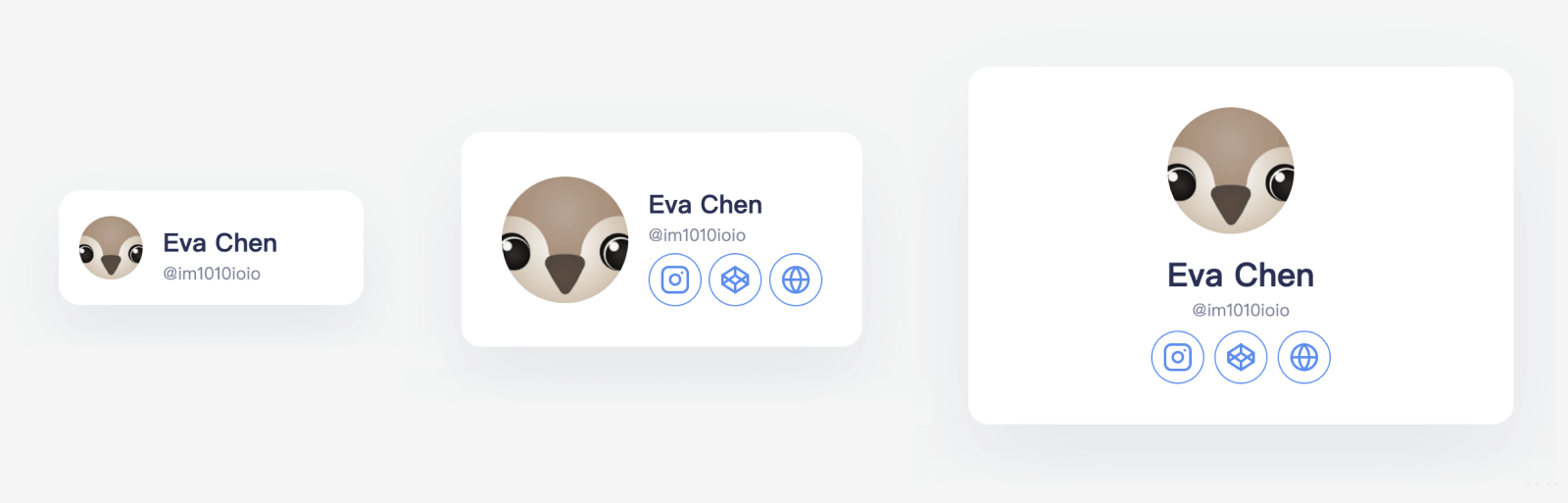
- Container 設定
1. `container-type`:有設定就會變成容器元素
- `inline-size`:左右方向,高度會被內容撐高。
- `size`:上下左右方向,我猜想是因為設定後它已被預期會改變高度,所以不會被內容撐高,會失去其高度,要再設定其高度。
2. `container-name`:如果元件裡面有多個 container 需要設定,可以加上命名來各自設定。
3. `container`可簡寫:`container: <container-name> / <container-type>`
```scss=
.container {
container-type: inline-size;
container-name: toolbar;
// or 簡寫如下
container: toolbar / inline-size
width: 30vw;
.toolbar {
display: flex;
}
}
/* 當名為「toolbar」的容器小於 150px, .toolbar 改為直式排列 */
@container toolbar (width < 150px) {
.toolbar {
flex-direction: column;
width: 200px;
}
}
```
## CSS Outline(外輪廓):

與下面盒子模式不同在於:
outline是純裝飾性質,不會佔用空間,而margin會占有空間 [範例](http://jsfiddle.net/g8FXT/)
- 設定方式同 border:
```scss=
border: 1px solid red;
outline: 1px solid red;
```
## CSS盒子模式,Box model:

- `Margin`:又稱為外距,Padding又稱為內距
1. 外距調整的時候,只會移動位置,不會調整大小,數值可以為負
2. 內距調整的時候,會把內容推開,方框會變大,如果想要維持大小不變,則方框尺寸要修改來扣掉padding尺寸,數值只能大於等於0
要設定 padding, border-width, margin...等值時,我們常用四個方位的簡稱來取代四個值,其意義如下:
| **值** | **範例** | **套用範圍** |
|-------|-------------------------------|-------------------------------------|
| 1 | margin: 50px | 所有邊均為50px |
| 2 | margin: 10px 5em | [上、下邊 10px] [左、右邊 5em] |
| 3 | padding: 3px 5em 10px | [上邊 3px] [左、右邊 5em] [下邊 10px] |
| 4 | border-width: 2px 3px 5px 4px | [上邊 2px] [右邊 3px] [下邊 5px] [左邊 4px] |
| | | 順時鐘方向 |
置中小撇步:對於有設定width的block元素來說,margin可設成auto讓整個元素自動水平置中
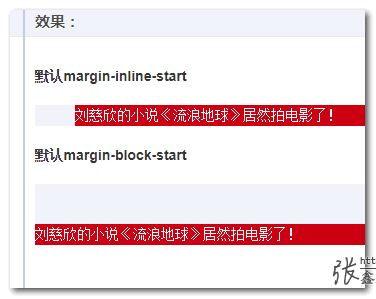
- `margin-inline-start`:[來源](https://www.zhangxinxu.com/wordpress/2018/10/diff-css-margin-inline-margin-block/)
margin-inline 和 margin-block 指的是方向。
```scss=
.inline-start {
margin-inline-start: 40px;
}
.block-start {
margin-block-start: 40px;
}
```
## 邊框(Border):[範例](https://www.1keydata.com/css-tutorial/tw/border.php)
在 CSS 中常見的邊框 (border) 屬性有以下幾種:
- [border-style](https://www.1keydata.com/css-tutorial/tw/border.php#borderstyle) 實線、虛線、雙線、點線、凹線(inset)、凸線(outset)、崁入線、浮出線

example: `border:15px red outset;`
- [border-width](https://www.1keydata.com/css-tutorial/tw/border.php#borderwidth)
- [border-color](https://www.1keydata.com/css-tutorial/tw/border.php#bordercolor)
- [border-top-, border-left-, border-bottom-, border-right-](https://www.1keydata.com/css-tutorial/tw/border.php#borderdirection)
```scss=
// 單一屬性設定
border-width: 1px;
border-style: solid;
border-color: #000;
```
- [border](https://www.1keydata.com/css-tutorial/tw/border.php#border):若四邊的邊框屬性(寬度、樣式、顏色)都一樣,那我們可以用一個 border 屬性來描述
```scss=
border: 1px solid #000;
// 單一屬性簡寫:
border-right: 1px solid #000;
```
- border-collapse: collapse; :表格框呈現線型
- box-sizing: border-box; 把邊框占用的空間往內扣,預設是content-box (box的尺寸是針對內容,邊框占用的空間往上加)
- [用boder畫出三角形圖案](https://www.webdesigns.com.tw/css_triangle.asp):
```scss=
.box {
width: 100px;
height: 100px;
border-right: 20px solid #7700BB;
border-left: 20px solid #E63F00;
border-top: 20px solid #00DDDD;
border-bottom: 20px solid #9999FF;
}
```

- border-image: [https://codepen.io/dipscom/pen/EveJLL](https://codepen.io/dipscom/pen/EveJLL)
### [border-radius](https://developer.mozilla.org/zh-TW/docs/Web/CSS/Shorthand_properties),也會使用連貫的1~4個值來代表四個角落:
| | **單值語法:border-radius: 1em — 這唯一的值代表了所有角落。** |
|------|------------------------------------------------------------------------|
|| 雙值語法:border-radius: 1em 2em — 第一個值代表左上和右下,第二個值則是右上及左下角。 |
|| 三值語法:border-radius: 1em 2em 3em — 第一個值代表左上,第二個值代表右上及左下,第三個值則是右下的角落。 |
|| 四值語法:border-radius: 1em 2em 3em 4em — 這四個值分別代表左上、右上、右下、左下,由左上開始的順時針排序。 |
>
PS:也可以套用在圖片上,達成裁切的效果(可變成圓圖)by border-radius: 50%
- 進階用法:border 也可以畫曲線(畫橢圓)
`border-radius: 125px 10px 20px 185px / 25px 205px 205px 25px;`
也可使用 [Open Props](https://open-props.style/#getting-started) CSS 庫
## inpu樣式:
- 初始化顏色:讓表單預設顏色與主題一致
```scss=
body {
accent-color: #080; /* use your favorite color */
}
```
- 可設定屬性:
```scss=
input {
border~: 沿用上面border的樣式寫法
caret-color: auto; /* 預設 */
caret-color: transparent; /* 透明 */
caret-color: #FF1744; /* 指定色 */
outline: none; /* 外框效果 */
}
```
### button:新屬性 [https://www.w3school.com.cn/html5/html5_button.asp](https://www.w3school.com.cn/html5/html5_button.asp)
**new** : HTML5 中的新属性。
| **属性** | **值** | **描述** |
|----------------|----------------|-----------------------------|
| autofocus | autofocus | 规定当页面加载时按钮应当自动地获得焦点。 |
| disabled | disabled | 规定应该禁用该按钮。 |
| form | form_name | 规定按钮属于一个或多个表单。 |
| formaction | url | 覆盖 form 元素的 enctype 属性。 |
| | | 注释:该属性与 type="submit" 配合使用。 |
| formenctype | 见注释 | 覆盖 form 元素的 action 属性。 |
| | | 注释:该属性与 type="submit" 配合使用。 |
| formmethod | • get | 覆盖 form 元素的 method 属性。 |
| | • post | 注释:该属性与 type="submit" 配合使用。 |
| formnovalidate | formnovalidate | 覆盖 form 元素的 novalidate 属性。 |
| | | 注释:该属性与 type="submit" 配合使用。 |
| formtarget | • _blank | 覆盖 form 元素的 target 属性。 |
| | • _self | 注释:该属性与 type="submit" 配合使用。 |
| | • _parent | |
| | • _top | |
| | • framename | |
| name | button_name | 规定按钮的名称。 |
| type | • button | 规定按钮的类型。 |
| | • reset | |
| | • submit | |
| value | text | 规定按钮的初始值。可由脚本进行修改。 |
## CSS背景(background): [http://www.eion.com.tw/Blogger/?Pid=1116](http://www.eion.com.tw/Blogger/?Pid=1116)
在 CSS 中常見的背景 (background) 屬性有以下幾種:
簡寫:
- [background](https://ithelp.ithome.com.tw/articles/10250499): { color image attachment repeat poition / size }
//如果要寫size,前面一定要加position
- [background-attachment](https://wcc723.github.io/css/2013/09/25/background-att/):這個 CSS 屬性能夠設定,背景圖片的位置是否要固定在 viewport(視圖)上,還是背景圖片會隨著它的 containing block(外層容器)一起滾動。
是背景固定模式的屬性,有scroll、fixed、local。 [sample link](https://codepen.io/BernLeech/pen/mMNKJV)
- fixed (視差滾動)
背景相對於內、外視窗皆是固定位置的。所以滾動外視窗時,內視窗背景會有往下掉的錯覺。
- local (new)
內視窗滾動時,背景圖片、內容會跟著滾動,外視窗滾動頁面整個挪動
- scroll (預設)
讓背景固定,內視窗滾動是圖片上層內容在滾動,外視窗滾動頁面整個挪動

>
給背景加上透明度:
```css=
background: linear-gradient(rgba(0, 0, 0, 0.5), rgba(0, 0, 0, 0.5)), url('http://placehold.it/350x150') no-repeat 0% 20%/ cover;
```
漸變色:background: [linear-gradient](https://developer.mozilla.org/en-US/docs/Web/CSS/gradient) (角度、色標、色標);
- `linear-gradient`:線性漸層
1. 第一个参数是渐变的角度,他可以接受一个表示角度的值(可用的单位deg、rad、grad或turn)或者是表示方向的关键词(top、right、bottom、left、left top、top right、bottom right或者left bottom)
2. 第二个参数是接受一系列颜色节点(终止点的颜色),以[一種顏色]開始,以[另一種顏色]結尾
ex:
```css=
/* ([<angle> | to <side-or-corner>]? , <color-stop-list>) */
background-color: linear-gradient(20deg,#3d5493,#1aa2a0) fixed center center / 100% 100%;
```
(20度,第一色,第二色,位置,尺寸)
ex:彩虹色 [https://developer.mozilla.org/en-US/docs/Web/CSS/gradient/linear-gradient()](https://developer.mozilla.org/en-US/docs/Web/CSS/gradient/linear-gradient())
```css=
linear-gradient(to right, red 20%, orange 20% 40%, yellow 40% 60%, green 60% 80%, blue 80%);
```

- `radial-gradient`( //放射漸層
example:
```css=
radial-gradient(farthest-side at left bottom, red, yellow 50px, green);
```

>
多重背景: [https://developer.mozilla.org/zh-TW/docs/Web/CSS/CSS_Backgrounds_and_Borders/Using_multiple_backgrounds](https://developer.mozilla.org/zh-TW/docs/Web/CSS/CSS_Backgrounds_and_Borders/Using_multiple_backgrounds)
每個設定的背景被一個個分層,第一個背景在最上面,最後一個背景是在最下面一層。 記得只有最後一個背景可以設定 background color。
>
- [background-color](https://www.1keydata.com/css-tutorial/tw/background.php#color)
- [background-image](https://www.1keydata.com/css-tutorial/tw/background.php#image): url(路徑名稱 或 網址);
- [background-size](https://developer.mozilla.org/zh-CN/docs/Web/CSS/background-size) (背景圖片尺寸):auto | length | percentage | cover | contain
- `auto` 為預設值,即背景圖片原始長寬。
- `length` 指定圖片具體大小的數值,不允許負值。
- `percentage` 以背景圖所在元素的百分比指定背景圖大小(不允許負值)。
- `cover` 主要用於背景圖小於所在的容器,而背景圖又不適合使用 repeat,此時就可以採用 cover 的方式,使背景圖放大至容器的大小,但此方法容易使背景圖因放大而失真。
- `contain` 與 cover 正好相反,主要用於背景圖大於所在容器,但卻需要將背景圖完整呈現,此時就可採用 contain 的方式,使背景圖縮小至容器的大小。
```css=
background:url(penguin.png) no-repeat center;
background-size: auto;
background-size: 300px 100px;
background-size: cover; /*以寬度縮放*/
background-size: contain; /*以高度縮放*/
```
- [background-repeat](https://www.1keydata.com/css-tutorial/tw/background.php#repeat)
- [background-attachment](https://www.1keydata.com/css-tutorial/tw/background.php#attachment) fixed、scroll
- [background-position](https://www.1keydata.com/css-tutorial/tw/background.php#position):center center (center center可以接在圖片連結後面)
- percentage 百分比表示
可用兩個百分比表示水平與垂直的起點。
只用一個百分比表示水平位置,垂直位置由系統預設值是 50% (亦可用負值)。
- length 長度值表示
可用兩個長度值表示水平與垂直的起點。單位是圖元 0px 0px 或任何其他的 CSS 單位。
可以混合使用 % 和 length 值。
- top, center, bottom 位置方向表示
使用此方法背景圖只顯示於元素的矩框之內,其參數有 left, center, right … 及下列方式。
- `background-clip`:背景剪裁,设置元素的背景(背景图片或颜色)是否延伸到边框、内边距盒子、内容盒子下面。
- `border-box`:背景延伸至边框外沿(但是在边框下层)此為預設值。

- `padding-box`:背景延伸至内边距(padding)外沿。不会绘制到边框处。

- `content-box`:背景被裁剪至内容区(content box)外沿。

- `text` :背景被裁剪成文字的前景色。[聚光燈範例](https://www.youtube.com/watch?v=tf9Ueehm03s&ab_channel=CodingStartup)
## CSS濾鏡特效(backdrop-filter):
它适用于元素背后的所有元素,为了看到效果,必须使元素或其背景至少部分透明。(非主流,主流直上filter) [效果圖](https://kumo.tw/article.php?id=75)
```scss=
/* 关键词值 */
backdrop-filter: none;
/* 指向 SVG 滤镜的 URL */
backdrop-filter: url(commonfilters.svg#filter);
/* <filter-function> 滤镜函数值 */
backdrop-filter: blur(2px);
backdrop-filter: brightness(60%);
backdrop-filter: contrast(40%); //對比
backdrop-filter: drop-shadow(4px 4px 10px blue);
backdrop-filter: grayscale(30%); //灰階
backdrop-filter: hue-rotate(120deg); //色彩旋轉
backdrop-filter: invert(70%); //反相
backdrop-filter: opacity(20%);
backdrop-filter: sepia(90%); //褐色
backdrop-filter: saturate(80%); //飽和度
/* 多重滤镜 */
backdrop-filter: url(filters.svg#filter) blur(4px) saturate(150%);
/* 全局值 */
backdrop-filter: inherit;
backdrop-filter: initial;
backdrop-filter: unset;
```
## CSS圖片(image):(inline)
- [object-fit](https://www.w3schools.com/css/tryit.asp?filename=trycss3_object-fit_all):用於指定如何調整`<img>`或`<video>`的大小以適合其容器 [https://codepen.io/nate12/pen/mdmMQKJ?editors=1100](https://codepen.io/nate12/pen/mdmMQKJ?editors=1100)
- fill`-這是默認設置。替換內容的大小可填充元素的內容框。如有必要,將拉伸或擠壓物體以適合物體
- `contain` -縮放內容以保持其縱橫比,同時適合元素的內容框
- `cover`-替換內容的大小可在填充元素的整個內容框時保持其縱橫比。該對象將被裁剪以適合
- `none` -替換的內容未調整大小
- `scale-down` -內容的大小就像未指定或包含的大小一樣(將導致較小的具體對像大小)
- [object-position](https://developer.mozilla.org/zh-CN/docs/Web/CSS/object-position):調整圖片的重心位置
- left|top|right|bottom|百分比%
- vertical-align:bottom;:圖片下面不留白 [https://tzuhui.github.io/2020/01/08/HTML/html-img-blank/](https://tzuhui.github.io/2020/01/08/HTML/html-img-blank/)
原因說明:
因為圖片預設是 inline 元素,而 inline 元素的 vertical-align 設定預設是和父元素的 baseline 對齊的,而 baseline 本身又和父元素底邊有一定的間距。這個間距是來自於英文文字中像是 j, y 這些超過基準線的字符。

解法一:
```css=
img {
vertical-align: top/bottom/text-top/text-bottom;
}
```
解法二:
```css=
img {
display: block;
}
```
解法三:.box 是指 img 的父元素,解法三的方式是讓文字大小為 0px,進而讓因為文字而有的間距不見。
```css=
.box {
font-size: 0px;
}
```
- opacity:0.5; 透明度
- svg尺寸設定: [https://segmentfault.com/a/1190000007143300](https://segmentfault.com/a/1190000007143300)
`<svg width="115" height="190" viewBox="0 0 115 190">……</svg>`
viewPort:寬高是viewport,增加會填滿可視區域
viewBox:可視範圍,減小是拉近,放大是拉遠
## CSS字體(font):
載入字體的三種方式:
1. 使用 `<link>` 元素載入字體
```jsx=
<link rel="preconnect" href="https://fonts.googleapis.com">
<link rel="preconnect" href="https://fonts.gstatic.com" crossorigin>
<link href="https://fonts.googleapis.com/css2?family=Noto+Sans+TC&display=swap" rel="stylesheet">
```
2. 使用 `@import` 載入字體
```scss=
@import url("https://fonts.googleapis.com/css2?family=Noto+Sans+TC&display=swap");
```
1. [font-family](https://www.1keydata.com/css-tutorial/tw/font.php#family) 設定字體的類別
在 CSS 中常見的字體 (font) 屬性有以下幾種:
```scss=
body {
font-family: -apple-system, BlinkMacSystemFont, "Segoe UI", "Microsoft JhengHei", Roboto, "Helvetica Neue", Arial, sans-serif;
/* mac, IOS 系統字體 Windows 英文系統字 微軟正黑體 Android 系統字 IOS 系統字 通用字體 */
}
```
如果文字在這個字體中沒有對應的字的話,就會套用下一個字體。一般來說,最後一個設定的字體會是 sans-serif(無襯線體/黑體) 或 serif(襯線體/明體) 這類的通用字型名稱(generic-family)
### 其他屬性:
- [font-size](https://www.1keydata.com/css-tutorial/tw/font.php#size) font-size: calc(12px + 1.6vw); /* 最小12px,卻又可以變大 */
- [font-weight](https://www.1keydata.com/css-tutorial/tw/font.php#weight) 屬性是用來設定字體的厚度。厚度的設定值可以從 100 到 900 (900 是最厚的)。另外,我們也可以將厚度設定為 bold (厚)、bolder (更厚)、及 normal (正常)。
此屬性==需字體有提供對應的粗細才有作用==
| font-weight | 對應字型的命名 |
| -------------------------- | -------------- |
| 100 | Thin |
| 200 | |
| 300 | Light |
| 400(等同 normal,預設值) | Regular |
| 500 | Medium |
| 600 | |
| 700(等同 bold) | Bold |
| 800 | |
| 900 | Black |
| 1000 | |
- [font-style](https://www.1keydata.com/css-tutorial/tw/font.php#style) 設定字體是否為斜體字 (italic 或 oblique)
- [font-variant](https://www.1keydata.com/css-tutorial/tw/font.php#variant) small-caps、normal,設定文字是不是要以小型大寫 (small caps) 字體顯現。
- overflow-wrap或word-wrap:break-word:文字如果溢出block區塊,可以自動換行
overflow-wrap: normal | break-word | anywhere
按照單字換行可以使用css的word-wrap:break-word;
超過長度強制換行則可以使用word-break: break-all;
- letter-spacing:字元間的空白,如果區塊為inline or inline-block會被視為一塊文字,如:兩個input之間會有一個空白
- 解法1:在母層CSS新增letter-spacing:-0.34;,然後在本層(自己層)設為letter-spacing:0;
- 解法2:在父層CSS設定font-size為0(讓空白消失),然後本層再把font-size設定回來
- webkit-text-`stroke`:5px black;:文字外框
- webkit-text-`fill-color`: transparent;:文字簍空

## CSS文字樣式:
以下是幾個最常被用到與文字樣式有關的 CSS 屬性。
- [direction](https://www.1keydata.com/css-tutorial/tw/text.php#direction) 設定文字的方向。可能的值為 'ltr' 及 'rtl'。
- [letter-spacing](https://www.1keydata.com/css-tutorial/tw/text.php#letterspacing) 字元間距控制 (每個字之間的距離控制)
- [word-spacing](https://www.1keydata.com/css-tutorial/tw/text.php#wordspacing) 設定每個單字與每個單字之間的距離。( 每個單字間的距離 )
word-spacing:5px;
- white-space 空白區域處理:
| **normal** | **默认。空白会被浏览器忽略。** |
|------------|-------------------------------------|
| pre | 空白会被浏览器保留。其行为方式类似 HTML 中的 `<pre>` 标签。 |
| nowrap | 文本不会换行,文本会在在同一行上继续,直到遇到 `<br>` 标签为止。 |
| pre-wrap | 保留空白符序列,但是正常地进行换行。 |
| pre-line | 合并空白符序列(多個空格,視為一個),但是保留换行符。 |
| inherit | 规定应该从父元素继承 white-space 属性的值。 |
- [line-height](https://www.1keydata.com/css-tutorial/tw/text.php#lineheight) 設定每一行之間的空間。(純數字,無單位)
- [text-align](https://www.1keydata.com/css-tutorial/tw/text.php#textalign) left、right、center、justify(左右對齊)
`text-align:justify`不会处理被打断的行和最后一行,因此只有多行適用。[參考](https://segmentfault.com/q/1010000007136263)
`text-align-last:justify`:單行適用
- [vertical-align](https://developer.mozilla.org/zh-CN/docs/Web/CSS/vertical-align) 垂直對齊,top、middle、bottom
- [text-decoration](https://www.1keydata.com/css-tutorial/tw/text.php#textdecoration):屬性是用來設定文字上有什麼裝飾。可能的值包括:
- **underline**: 文字下加上一條線。
- **overline**: 文字上加上一條線。
- **line-through**: 文字中間加上一條線劃過去。
- **blink**: 讓文字閃爍。
- [text-indent](https://www.1keydata.com/css-tutorial/tw/text.php#textindent) 字首縮排,設定每一段的第一行前面要留多少空間。可設定的值包括百分比以及長度。
- text-indent: 32px;
- [text-justify](https://developer.mozilla.org/en-US/docs/Web/CSS/text-justify?fbclid=IwAR2pu-F6kFVaI13Lemvcd5AxvESDDNiBrApHCYKY2PenUq2hfZ-alsbdtCw):文字分散對齊。
根據現有的寬度對句子進行「截斷」與「間距配給」
- inter-word:使用`單詞`截斷,再動態調整間距空間。(中文需用此設定)
- inter-character:使用`字元`來做截斷,再動態調整間距空間。
- [text-transform](https://www.1keydata.com/css-tutorial/tw/text.php#texttransform):屬性是用來控制大小寫是如何展現的。可能的值包括:
- **capitalize**: 每一個字的第一個字母都以大寫顯現,其他的字母則不改變。
- **uppercase**: 所有的字母都以大寫顯現。
- **lowercase**: 所有的字母都以小寫顯現。
- **none**: 大小寫不做任何改變。
- text-overflow:文字溢出設定
- `clip`:直接截斷文字
- `ellipsis`:在截斷位置後方加上`...` (PS: 限單行)
```css=
.single-ellipsis {
overflow: hidden;
text-overflow: ellipsis;
white-space: nowrap;
}
```
- [多行文字截斷](https://netivism.com.tw/blog/492)
```css=
.multiline-ellipsis {
display: -webkit-box;
-webkit-box-orient: vertical;
-webkit-line-clamp: 5; /*限制行數*/
overflow: hidden;
}
```
## CSS文字排版:
columns
- `column-count`:這屬性只要直接填入數值即可,用來定義欄位數量。
- `column-width`:column-count及column-width只能二擇一,前者是直接定義欄位數量,後者則是定義欄位寬度。
- `column-gap`:欄位空隙寬度。
- `column-rule-style`:欄與欄之間的border樣式。
- `column-rule-width`:欄與欄之間的border寬度。
- `column-rule-color`:欄與欄之間的border色彩。
- `column-span`:設定指定元素不受column影響。(可以使用在標題或是重要的文字上)
column-break-inside:文字換欄設定
- `auto`: 自動
- `avoid`: 文字段落結束後才換欄
- `column-break-before`, `column-break-after`
指定元素的前後是否強制換欄。可以放在整個段落的前後
## SCROLLBAR 自訂卷軸樣式:
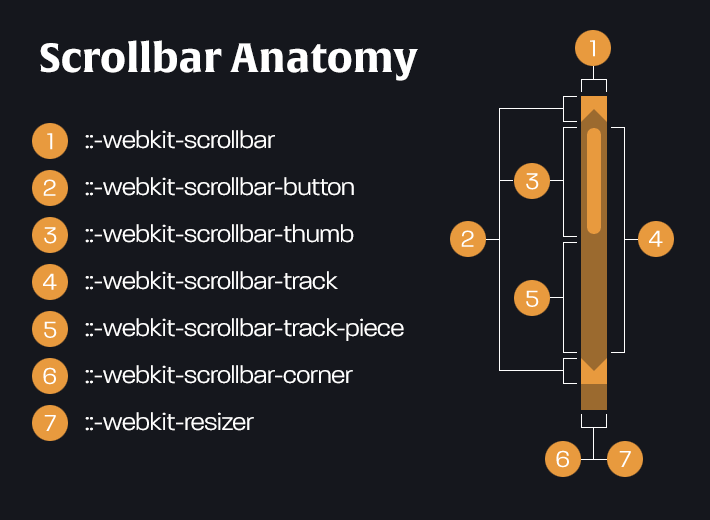
https://tools.wingzero.tw/article/sn/232
詳細解說:https://www.tpisoftware.com/tpu/articleDetails/2630
- 經典滾動條 (Classic Scrollbars):
範例:
```sass=
.container::-webkit-scrollbar {
width: 1em;
}
.container::-webkit-scrollbar-button{
background: #fff;
}
.container::-webkit-scrollbar-track-piece{
background: #aaa;
}
```
- 製作macos滾動條 (Overlay Scrollbars)
https://www.instagram.com/p/CpNY2nOPa-o/
```sass=
/* 主體 & 背景 */
::-webkit-scrollbar {
width: 18px;
background-color: transprent;
}
/* Handle Bar */
::-webkit-scrollbar-thumb {
// 黑色背景小透明
background-color: rgba(0,0,0,0.3);
border-radius: 999px
// 使用邊框讓拇指能夠與邊緣有些間隙
border: 5px solid transprent;
background-clip: content-box;
}
/* Handle on hover */
::-webkit-scrollbar-thumb:hover {
background: #ccc;
}
body {
// 讓bar浮於元素之上
overflow: overlay;
}
```
- `Scrollbar Gutter`:
是指內邊框邊緣和外填充邊緣之間的空間。
使用 `scrollbar-gutter: stable;` 即可不占用實體空間而排擠到內容。[如圖](https://ithelp.ithome.com.tw/articles/10300710):

```sass=
.card {
overflow-y: auto;
scrollbar-gutter: stable;
}
```
## CSS鏈接:
連接的預設樣式是藍色,且有下劃線。可是,有的時候,我們會想要改變一下這個預設的樣式。這可以透過以下幾個選擇器來達成:
- a`:link`: 設定當連接過去的網頁尚未被看過時,該連接的樣式。
- a`:visited`: 設定當連接過去的網頁已經看過時,該連接的樣式。
- a`:hover`: 設定當滑鼠蓋在連接上面時,該連接的樣式。
- a`:active`: 設定當連接被點擊時,該連接的樣式。
## CSS清單(List):
在 CSS 中常見的清單 (list) 屬性有以下幾種:
- [list-style-type](https://www.1keydata.com/css-tutorial/tw/list.php#styletype):[樣式DEMO](https://www.w3schools.com/cssref/pr_list-style-type.php)
- [list-style-position](https://www.1keydata.com/css-tutorial/tw/list.php#styleposition):修改列表的顯示位置
```scss=
/* 項目符號在 li 範圍內 */
ul.p1 {
list-style-position: inside;
}
/* 項目符號在 li 範圍外(預設值) */
ul.p2 {
list-style-position: outside;
}
/* 可用來確認 li 項目位置 */
li {
border: 1px #cccccc solid;
}
```
- [list-style-image](https://www.1keydata.com/css-tutorial/tw/list.php#styleimage):修改列表開頭為小圖示
- [list-style](https://www.1keydata.com/css-tutorial/tw/list.php#liststyle):list-style-style、list-style-position、list-style-image 多屬性簡寫
- 段落首行縮排:
```scss=
text-indent: -1em; // 負往左,正往右
```
### Counter(CSS計數器):[教學](https://tools.wingzero.tw/article/sn/252)
- 要使用的話首先必須要像 ul, ol 和 li 的關係一樣要有子母的元素
```scss=
ol{
counter-reset:num; // 設定變數,初始值為0
list-style-type: none;
}
li:before{
content:counters(num, ".") ":"; // 印出數字
counter-increment: num; // 每多一個子元件就+1
}
```
效果如下:
<iframe height="300" style="width: 100%;" scrolling="no" title="counter level" src="https://codepen.io/deathhell/embed/yLgEGga?default-tab=html%2Cresult&editable=true" frameborder="no" loading="lazy" allowtransparency="true" allowfullscreen="true">
See the Pen <a href="https://codepen.io/deathhell/pen/yLgEGga">
counter level</a> by deathhell (<a href="https://codepen.io/deathhell">@deathhell</a>)
on <a href="https://codepen.io">CodePen</a>.
</iframe>
- 另一個效果範例:[link](https://hackmd.io/@Heidi-Liu/css-list-style)
```scss=
ol {
list-style: none;
/* 命名自訂標號變數 */
counter-reset: my-counter;
}
ol li {
/* 使用自訂標號 */
counter-increment: my-counter;
/* 段落首行縮排 */
text-indent: -1em;
}
/* 以偽元素自訂標號樣式 */
ol li::before {
content: "("counter(my-counter) ")";
color: blue;
font-weight: bold;
}
```
<iframe height="300" style="width: 100%;" scrolling="no" title="Custom List Style - 自訂標號樣式" src="https://codepen.io/heidiliu2020/embed/PoWXJLv?default-tab=html%2Cresult&editable=true" frameborder="no" loading="lazy" allowtransparency="true" allowfullscreen="true">
See the Pen <a href="https://codepen.io/heidiliu2020/pen/PoWXJLv">
Custom List Style - 自訂標號樣式</a> by Heidi-Liu (<a href="https://codepen.io/heidiliu2020">@heidiliu2020</a>)
on <a href="https://codepen.io">CodePen</a>.
</iframe>
更改預設項目的樣式:
<iframe height="300" style="width: 100%;" scrolling="no" title="Custom List Style - 自訂標號樣式" src="https://codepen.io/twoz/embed/azvLBRj?default-tab=css%2Cresult" frameborder="no" loading="lazy" allowtransparency="true" allowfullscreen="true">
See the Pen <a href="https://codepen.io/twoz/pen/azvLBRj">
Custom List Style - 自訂標號樣式</a> by onedog (<a href="https://codepen.io/twoz">@twoz</a>)
on <a href="https://codepen.io">CodePen</a>.
</iframe>
## CSS表格(Table):
caption:表格標題的標籤,放在table裡面
```sass=
<style>
caption
{
caption-side:bottom;
}
</style>
```
| 值 | 描述|
|---------|---------|
| top | 默认值。把表格标题定位在表格之上。|
| bottom | 把表格标题定位在表格之下。|
| inherit | 规定应该从父元素继承 caption-side 属性的值。 |
在 HTML 中,常看到 `<table>` 之內加了 border、cellpadding、及 cellspacing 的屬性。如果我們有透過 CSS 來制定表格的樣式,那就不需要在 HTML 之內用到這些屬性了。
table的display可選值:
- table:指定對像作為塊元素級的表格,相當於html標籤`<table>`
- inline-table:指定對像作為內聯元素級的表格,相當於html標籤`<table>`
- table-caption:指定對像作為表格標題,相當於html標籤`<caption>`
- table-cell:指定對像作為表格單元格,相當於html標籤`<td>`
- table-row:指定對像作為表格行,相當於html標籤`<tr>`
- table-row-group:指定對像作為表格行組,相當於html標籤`<tbody>`
- table-column:指定對像作為表格列,相當於html標籤`<col>`
- table-column-group:指定對像作為表格列組顯示,相當於html標籤`<colgroup>`
- table-header-group:指定對像作為表格標題組,相當於html標籤`<thead>`
- table-footer-group:指定對像作為表格腳註組,相當於html標籤`<tfoot>`
還有一些協助屬性:
- border-collpase:用來決定表格的邊框是分開的還是合併的。在分隔模式下,相鄰的單元格都擁有獨立的邊框。在合併模式下,相鄰單元格共享邊框。
- border-spacing: 規定相鄰單元格邊框之間的距離(只適用於邊框分離模式)。相當於HTML 中的cellspacing 屬性,但是第二個可選的值可以用來設置不同於水平間距的垂直間距。
- table-layout:定義了用於佈局表格單元格,行和列的算法。
- auto:表格及單元格的寬度取決於其包含的內容。
- fixed:表格和列的寬度通過表格的寬度來設置,某一列的寬度僅由該列首行的單元格決定。
>
默认情况下,表格会根据内容撑开。如果你想强制固定宽度,建议加上 `table-layout: fixed`:
```jsx=
<table border="1" style="width: 600px; table-layout: fixed;">
<tr>
<td style="width: 200px;">即使文字很长很长很长很长,也不会超出 200px</td>
<td style="width: 400px;">400px</td>
</tr>
</table>
```
- vertical-align:用來指定行內元素(inline)或表格單元格(table-cell)元素的垂直對齊方式。
純CSS表格結構樣式&範例:
```sass=
/* DivTable.com */
.divTable {
display: table;
width: 100%;
}
.divTableRow {
display: table-row;
}
.divTableCell,
.divTableHead {
border: 1px solid #999999;
display: table-cell;
padding: 3px 10px;
text-align: center;
}
.divTableHeading {
background-color: #EEE;
display: table-header-group; //group表示為同一組表格
font-weight: bold;
}
.divTableFoot {
background-color: #EEE;
display: table-footer-group;
font-weight: bold;
}
.divTableBody {
display: table-row-group;
}
<div class="divTable">
<div class="divTableHeading">
<div class="divTableRow">
<div class="divTableHead">學號</div>
<div class="divTableHead">姓名</div>
</div>
</div>
<div class="divTableBody">
<div class="divTableRow">
<div class="divTableCell"> </div>
<div class="divTableCell"> </div>
</div>
</div>
</div>
```
## CSS位置 (position) :
在 CSS 中常見的位置 (position) 屬性有以下幾種:
- [position](https://www.1keydata.com/css-tutorial/tw/position.php#position)
**position** 屬性制定出要用哪一類的位置。可能的值有:
- **`static` (預設值)**: 沒有任何的定位效果,元素都會逐行排列。如果 **position** 的值是被設定為 statics 的話,那 top、bottom、left、和 right 的值就都沒有意義了。
- **`absolute`**: 這代表元素會被放在瀏覽器內的某個位置 (依 top、bottom、left、和 right 的值而定)。當使用者將網頁往下拉時,元素也會跟著改變位置。(該元素會浮出來,後面的元素會往上移動)
會寫 position: absolute; 的通常都是在 子元素 的地方撰寫,而 父元素 會寫上 position: relative; 幫助 子元素 進行絕對定位。
- **`relative`**: 這代表元素被放的地方將會與預設的地方有所不同。不同的程度是依照 top、bottom、left、和 right 的值而定。(看起來位置移動,但實際上沒有(保留原位空間)
- **`fixed`**: 相對於瀏覽器視窗 (viewport) 定位,讓元素固定在螢幕上的特定位置,不隨頁面滾動而移動,且脫離文檔流,不佔用原有空間。
此元素會被放在瀏覽器內的某個位置 (依 top、bottom、left、和 right 的值而定)。
- **`sticky`**:滾動黏滯定位。可以跟著滾動,而滾到一定程度時,則會被固定住,搭配top來使用
sticky黏住的範圍等於父層的高度,無法超過父層 [https://codepen.io/twoz/pen/rNyrXQQ?editors=1100](https://codepen.io/twoz/pen/rNyrXQQ?editors=1100)
相互關係:
1. 父為absolute,子為absolute
子元素寬度為內容決定,不會把父元素撐開
2. 父為absolute,子為relative
子元素寬度與父元素同寬,會把父元素撐開
3. 父為relative,子為absolute(常用)
父元素與子元素不會互相影響
###
- [top](https://www.1keydata.com/css-tutorial/tw/position.php#top)
- [right](https://www.1keydata.com/css-tutorial/tw/position.php#top)
- [left](https://www.1keydata.com/css-tutorial/tw/position.php#top)
- [bottom](https://www.1keydata.com/css-tutorial/tw/position.php#top)
- [overflow:](https://www.1keydata.com/css-tutorial/tw/position.php#overflow)
**overflow** 屬性是用來設定當內容放不下時的處理方式。可能的值包括:
- **visible**: 內容完全呈現,不管放得下放不下。
- **hidden**: 放不下的內容就不顯示出來。
- clip: 效果同上
- **scroll**: 無論內容放得下放不下,都加入上下捲軸及左右捲軸的功能。
overflow-y: scroll;
- **auto**: 當內容放不下時,加上捲軸的功能。
或是可以拿來避開float
- [z-index](https://www.1keydata.com/css-tutorial/tw/position.php#z-index)
index 屬性是用來決定元素重疊的順序。換言之,當兩個元素有重疊的情況時,z-index 值將會決定哪一個元素在上面。z-index 值比較大個元素會被放在上面。
絕對定位的確可以達到堆疊的效果,但僅限於 父元素 與 子元素 之間,假如我今天有多個 子元素 要進行堆疊,而且這些 子元素 同時面對一個 父元素 ,這種時候用絕對定位就比較不好做,就必須要利用 z-index 了。
## CSS滑鼠游標圖案(Cursor):[w3c](https://www.w3schools.com/cssref/pr_class_cursor.php)
- cursor: url(圖案網址);
- cursor: pointer;(指標滑鼠-常用)
## CSS製作圖案(遮罩應用):
- [Mask](https://blog.twjoin.com/css-%E9%81%AE%E7%BD%A9%E5%8A%9F%E8%83%BD%E8%88%87%E7%B0%A1%E6%98%93%E4%BA%92%E5%8B%95%E8%A3%BD%E4%BD%9C-9830d2e22b4b):是使用既有圖片(JPG、PNG、SVG) 當作遮罩以達成剪裁效果
* mask-image: 定義圖片 url,初始值為 none
* mask-mode: 定義圖片使用 alpha 或亮度遮罩,初始值為 match-source
* mask-repeat: 定義圖片是否水平/垂直/雙向重複或不重複,初始值為 repeat
* mask-position: 定義圖片的初始位置,初始值為 center
* mask-size: 定義遮罩的尺寸,並設定完全或部分顯示圖像,初始值為 auto
- [clip-path](https://bennettfeely.com/clippy/) (多邊形裁切):透過類似 SVG 連接座標來畫出多邊形
```scss=
clip-path: circle(50%); //圓形
clip-path: ellipse(130px 140px at 10% 20%); //橢圓形
clip-path: polygon(50% 0, 100% 50%, 50% 100%, 0 50%); //多邊形
```
## CSS動畫:
Transition、Animation、Transform的分析比較:[link](https://ithelp.ithome.com.tw/articles/10200712)
| 名稱 | 介紹 | 作用於 | 效能問題 |
| --- | --- | --- | --- |
| `Transition` | 基礎的動畫效果,強調CSS屬性的過渡動畫 | CSS屬性變化 | 另一獨立執行緒處理,較不影響效能 |
| `Animation` | 細節複雜的動畫效果,強調CSS屬性的流程與控制,可加keyframes | CSS屬性變化 | 另一獨立執行緒處理,較不影響效能 |
| `Transform` | 控制html元素的旋轉、縮放、移動等等 | HTML元素(包含內容)變化 | 因會操作HTML元素運算,因此必須考慮效能 |
### Transition:屬性變化:
常用於滑鼠事件(:hover、:active、:focus、click)或鍵盤輸入時觸發
- transition: [[property 屬性名稱](http://litianyi.cc/technology/2014/08/27/css-transition/)] [duration 時間] [timing-function 速度曲線] [delay 延遲]
- transition-property:指定要轉換的CSS屬性:width、height、all
( 只能设置可以连续变化(如:widht, height, color, opacity, font-size等)属性!如果设置(display, position等)这种指定的,不能连续变化的属性时,在transition中没有过渡效果 )
- transition-duration:轉換需要的時間,預設0,單位為s或ms
transition-delay:延遲多久轉換,預設0,單位為s或ms
- transition-timing-function:轉換時的速度曲線,預設ease
>
EXAMPLE: https://thoughtbot.com/blog/transitions-and-transforms
```scss=
div {
transition: transform 1s; //變形的屬性(多屬性加逗號)
}
div:hover {
transform: rotate(1080deg); //變形的樣式
}
```
單向、雙向hover效果:[link](https://ithelp.ithome.com.tw/articles/10200365)
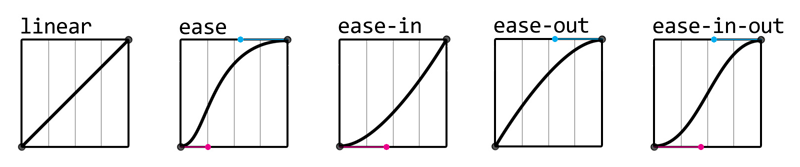
- transition-timing-function:轉換時的速度曲線,**預設ease**
以下表格是transition-timing-function較常用的幾個屬性值:
| 名稱 | 說明 | =cubic-bezier(X,X,X,X) |
|-----------------------|-------------------------|----------------------------|
| linear | 均速 | cubic-bezier(0,0,1,1) |
| ease | 緩入中間快緩出,預設值 | cubic-bezier(.25,.1,.25,1) |
| ease-in | 緩入 | cubic-bezier(.42,0,1,1) |
| ease-out | 緩出 | cubic-bezier(0,0,.58,1) |
| ease-in-out | 緩入緩出(對比於ease較平緩) | cubic-bezier(.42,0,.58,1) |
| cubic-bezier(n,n,n,n) | 利用貝茲曲線自定義速度模式,n=0~1中的數值 | cubic-bezier(n,n,n,n) |
>
### [Animation](https://www.oxxostudio.tw/articles/201803/css-animation.html):真動畫,寫在要動的元件上
- animation:動畫名稱 | 播放時間 | 延遲執行的時間 | 速度 | 次數 | 方向 | 填充模式 | 撥放狀態
(animation:name | duration | timing-function | delay | iteration-count | direction | fill-mode | play-state;)
| 屬性 | 說明 |
|-----------------------------------------------------------------|--------------------------|
| animation-name | 動畫名稱 |
| animation-duration | 動畫持續時間,預設 0,單位 s 或 ms。 |
| animation-delay | 動畫延遲播放時間,預設 0,單位 s 或 ms。 |
| animation-iteration-count | 動畫播放次數,預設 1。 <br/> 其他還有 infinite。無限 |
| animation-timing-function | 動畫加速度函式,預設 ease。 <br/> 其他還有: linear、ease-in、ease-out、ease-in-out <br/> step-start、step-end、steps(int,start/end)、cubic-bezier(n,n,n,n)。 |
| animation-direction | 動畫播放方向,預設 normal。 <br> 其他還有 reverse、alternate來回交替的、alternate-reverse。 |
| animation-fill-mode | 動畫播放前後模式,預設 none。 <br>其他還有 <br> forwards( 動畫結束停在第一格 )、 <br> backwards( 動畫結束停在最後一格 )、 <br> both( 有上面兩種功能 )。 | |
| animation-play-state | 動畫播放或暫停狀態,預設 running。 <br> 其他還有 paused。 | |
```sass=
animation-name: example;
animation-duration: 4s;
animation-delay: 2s;
animation-iteration-count: infinite;
animation-fill-mode: both;
```
- 相當於腳本
```sass=
@keyframs 名稱{
from{狀態一}
to{狀態二}
}
//or %數
@keyframs 名稱{
0% {
top: 0;
left: 0;
}
25% {
top: 200px;
left: 0;
}
50% {
top: 200px;
left: 200px;
}
75% {
top: 0;
left: 200px;
}
100% {
top: 0;
left: 0;
}
}
```
[曲線動畫路徑](https://tobiasahlin.com/blog/curved-path-animations-in-css/)
動畫關鍵字:
CSS Animation, SVG Animation, HTML5 Canvas, Sprite Image
動畫套件總匯: [tools](https://simular.co/resources/type/effects-tools.html),包含:AOS,GSAP、[animate](https://animate.style/)
### Transform(移動、變形):
- 可以用來搭配裁切圖案,如:[裁切圖片定位](https://youtu.be/2Qs0EuqJIYA?t=830)。
**註:translate在inline屬性無法作用**:[link](https://www.w3school.com.cn/cssref/pr_transform.asp)
| 值 | 描述 | 测试 |
|-------------------------------------------|----------------------------|----|
| none | 定义不进行转换。 | 测试 |
| matrix(n,n,n,n,n,n) | 定义 2D 转换,使用六个值的矩阵。 | 测试 |
| matrix3d(n,n,n,n,n,n,n,n,n,n,n,n,n,n,n,n) | 定义 3D 转换,使用 16 个值的 4x4 矩阵。 | |
| translate(x,y) | 定义 2D 转换。從原來的位置移動 | 测试 |
| translate3d(x,y,z) | 定义 3D 转换。 | |
| translateX(x) | 定义转换,只是用 X 轴的值。 | 测试 |
| translateY(y) | 定义转换,只是用 Y 轴的值。 | 测试 |
| translateZ(z) | 定义 3D 转换,只是用 Z 轴的值。 | |
| scale(x,y) | 定义 2D 缩放转换。 | 测试 |
| scale3d(x,y,z) | 定义 3D 缩放转换。 | |
| scaleX(x) | 通过设置 X 轴的值来定义缩放转换。 | 测试 |
| scaleY(y) | 通过设置 Y 轴的值来定义缩放转换。 | 测试 |
| scaleZ(z) | 通过设置 Z 轴的值来定义 3D 缩放转换。 | |
| rotate(angle) | 定义 2D 旋转,在参数中规定角度。 | 测试 |
| rotate3d(x,y,z,angle) | 定义 3D 旋转。 | |
| rotateX(angle) | 定义沿着 X 轴的 3D 旋转。 | 测试 |
| rotateY(angle) | 定义沿着 Y 轴的 3D 旋转。 | 测试 |
| rotateZ(angle) | 定义沿着 Z 轴的 3D 旋转。 | 测试 |
| skew(x-angle,y-angle) | 定义沿着 X 和 Y 轴的 2D 倾斜转换。 | 测试 |
| skewX(angle) | 定义沿着 X 轴的 2D 倾斜转换。 | 测试 |
| skewY(angle) | 定义沿着 Y 轴的 2D 倾斜转换。 | 测试 |
| perspective(n) | 为 3D 转换元素定义透视视图。 | 测试 |
>
- transform-origin(0,0):軸心 [https://wcc723.github.io/css/2013/10/10/css-transform-origin/](https://wcc723.github.io/css/2013/10/10/css-transform-origin/)
可以是:
```scss=
transform-origin(0,100%); //右上
transform-origin:left top; //左上
```
## CSS陰影:
- box-shadow:區塊陰影
`box-shadow: 10px 10px 5px #888888;`
box-shadow: h-shadow | v-shadow | blur | spread | color | inset;
- h-shadow:水平位移距離
- v-shadow:垂直位移距離
- blur:模糊半徑
- spread:擴散距離
- color:顏色
- inset:內陰影
inset | offset-x | offset-y | color
e.g. `box-shadow: inset -7px -7px 7px 1px lightgray;`
進階應用:擬真立體影子 [https://ithelp.ithome.com.tw/articles/10193561](https://ithelp.ithome.com.tw/articles/10193561)

```sass=
.shadow:before{
content: "";
position: absolute;
z-index: -2;
bottom: 15px;
left: 10px;
width: 120px;
height: 48px;
box-shadow: 0 15px 10px rgba(0, 0, 0, 0.5);
transform: rotate(-5deg);
}
.shadow:after{
content: "";
position: absolute;
z-index: -2;
bottom: 15px;
right: 10px;
left: auto;
width: 120px;
height: 48px;
box-shadow: 0 15px 10px rgba(0, 0, 0, 0.5);
transform: rotate(5deg);
}
```

```sass=
.shadow:before{
content: "";
position: absolute;
z-index: -2;
left:80px;
bottom:5px;
width: 120px;
height: 40px;
box-shadow:-80px 0 8px rgba(0, 0, 0, 0.4);
transform:skew(50deg);
transform-origin:0 100%;
}
```
這和上面有點不一樣的是要用 transform:skew() 轉角度
和 transform-origin 移動位置去達到想要的效果
因為只有一個影子就作 :before 一個就可以了
- drop-shadow:擬真陰影
drop-shadow(offset-x offset-y blur-radius color)
- offset-x offset-y (需要)
兩個`<length>`值確定陰影偏移量。offset-x指定水平距離,其中負值將陰影放置在元素的左側。offset-y指定垂直距離,其中負值將陰影放置在元素上方。如果兩個值均為0,則陰影將直接放置在元素後面。
- blur-radius (可選的)
陰影的模糊半徑,指定為`<length>`。值越大,陰影變得越大且越模糊。如果未指定,則默認為0,導致邊緣清晰,不模糊。不允許使用負值。
- color (可選的)
陰影的顏色,指定為`<color>`。如果未指定,color則使用屬性的值。
## CSS變數(variable):
1. 宣告變數:變數都放在 :root 選取器(最高層級)內,並且使用 --自訂名稱作為屬性的方式來宣告變數。
```sass=
:root {
--primary: Aquamarine;
--background-color: Teal;
}
```
> ⭐如果變數不是定義在 `:root` 全域中,而是定義在某個選擇器內,就是區域變數。區域變數只有那個選擇器內(包含子層)可以使用
2. 取用變數方式1:使用 var (--變數名稱) 來套用。
```sass=
body {
background: var(--background-color);
}
```
1. 取用變數方式2:`var(--名稱, 預設值);` ( 預設值不一定要填 )
預設值可以在「無法讀取變數名稱時自動套用預設的值」
```sass=
h2{
color: var(--h2, #0cc);
}
```
JavaScript 操作 CSS 變數:
```javascript=
const root = document.documentElement;
root.style.setProperty('--size', `${this.value}px`)
// 改用 jquery
$('html').get(0).style.setProperty('--size', `${$(this).val()}px`);
// 取值
const style = getComputedStyle(root); // 读取最终样式
const value = style.getPropertyValue('--main-color');
// or 簡化
getComputedStyle(root)['--main-color']
```
- element.style:读取的只是元素的内联样式,即写在元素的 style 属性上的样式,支持讀跟寫。
- getComputedStyle(element):读取的样式是最终样式,包括了内联样式、嵌入样式和外部样式。
### css變數進階用法:
[影片](https://www.youtube.com/watch?v=_2LwjfYc1x8&ab_channel=KevinPowell)、[文章](https://im1010ioio.hashnode.dev/css-variables#heading-kirpgllpmo7nlkjms5uqkg)
- 替變數設定預設值:
```scss=
.plan {
// 變數名稱加底線為模擬私有變數
--_shadow: var(--shadow, pink);
--_icon: var(--icon, red)
}
```
- 如果需要客製化時:
直接修改變數的值 (覆蓋),如果沒給值就會讀取上面之預設值
```scss=
.plan--pram {
--shadow: var(--clr-yellow-300);
--icon: var(--clr-yellow-400);
}
```
## CSS功能符號( Functional Notations )
https://www.oxxostudio.tw/articles/202011/css-max-min-clamp-calc.html
- `max()`:定義了一個數學運算最大值,用來定義最大寬度。
```scss=
div{
width:max(80vw, 200px); //寬度不小於 80vw,寬度最小是 200px
}
/* 原始寫法:
div{
width:80vw;
min-width:200px;
}
*/
```
進階使用:
因為是數學函數,可以在括號內進行數學式的運算 ( 注意 CSS 的算式之間必須有空白 ),下方的例子可以讓 h1 自動變換文字大小。
```scss=
h1{
font-size:max(10 * (1vw + 1vh) / 2, 12px);
}
```

- `min()`:定義了一個數學運算的最小值。與上面相反
```scss=
div{
width:min(80vw, 200px); //寬度不大於 80vw,寬度最大 200px
}
```

- `clamp()`:包含三個數值,定義「最大值、最小值以及中間的數值」,效果等同於:
`max(最小值, min(val, 最大值));`
```scss=
div{
clamp(200px, 100%, 300px); // 最小200px,最大300px。
}
/*
div{
width: 100%;
min-width:200px;
max-width:300px;
}
*/
```

- `calc()`:主要作為計算使用,可以和max()、min()、clamp或是 CSS 的變數互相搭配
```scss=
:root{
--w:min(200px, 80vw);
}
div {
height: 50px;
width:calc(var(--w) - 50px);
}
```
## RWD
- CSS media query:規則
- `not`:
用來排除某些設備的樣式,假如有AB兩個設備,其中有一個樣式是想要A有卻不想要B有,這時候就可以用 `@media A not B` 的方式來讓A設備有指定樣式。
- `only`:
用於一些老舊不支援 Media Queries 的瀏覽器,不過現今的瀏覽器都支援 Media Queries 了,所以這個語法了解就好了XD
- `and`:
and 是最常使用的語法,翻成中文可以想成 而且 ,用邏輯的方式去想就代表左右兩邊均成立這個條件才成立,而 and 最常被擺在等等要介紹的 Media Feature 進行串接。
>
ex:
```css=
/* 當裝置是螢幕,而且寬度小於 767px (包含) 時 */
@media screen and (max-width: 767px) { ... }
/* 當寬度小於 767px (包含) 或者裝置為直向時 */
@media (max-width: 767px), (orientation: portrait) { ... }
/* 當裝置不是螢幕,而且是列印時 */
@media not screen and print { ... }
```
- Media Type:裝置類型
Media Type 有非常多種,筆者在這邊僅列出最常用的三種:
* `all`:用於全部的裝置。
* `print`:用於印表機,此樣式套用於預覽列印中。
* `screen`:用於所有的螢幕,舉凡電腦、手機、平板裝置等螢幕皆適用於此。
* `speech`:朗讀裝置,針對可以「讀出」頁面的設備。
- Media Feature (特徵):
Media Feature 也有非常多種,這邊筆者僅介紹用於 RWD 上的幾種 Features :
* `width`
寬度可分為 最大寬度(max-width) 以及 最小寬度(min-width) 兩種,用於裝置寬度範圍內的特定樣式。
```scss=
@media (min-width: 600px){ } //當螢幕寬度不小於600px的時候(大於600px)
/* 平板:螢幕寬度介於 768px 和 991px (包含) 之間時 */
@media screen and (min-width: 768px) and (max-width: 991px) { ... }
```
新式寫法:可用 >、<、>= 或 <=
```scss=
/* 手機:螢幕寬度小於 768px 時 */
@media screen and (width < 768px) { ... }
/* 平板:螢幕寬度介於 768px 和 992px 之間時 */
@media screen and (768px <= width <= 992px) { ... }
/* 桌機:螢幕寬度大於 992px 時 */
@media screen and (width > 992px) { ... }
```
* `height`
高度可分為 最大高度(max-height) 以及 最小寬度(min-height) 兩種,用於裝置高度範圍內的特定樣式。
* `orientation`
當裝置處於 直立(portrait) 以及 橫向(landscope) 時會有特定樣式。
```css=
@media screen and (orientation: portrait) {}:螢幕方向為直式
@media (orientation: landscape) {}:螢幕方向為橫式
```
* `hover`
當 hover 時,按鈕顏色會變暗,但是在觸控螢幕上會變成類似 focus 的效果,有可能不是我們需要的,這時候就可以透過這個屬性來設定樣式。
```scss=
/* 當螢幕支援 hover 行為時 (例如:非觸控螢幕) */
@media screen and (hover: hover) { ... }
/* 當螢幕不支援 hover 行為時 (例如:觸控螢幕) */
@media screen and (hover: none) { ... }
```
>
PS:在切換的時候,切換前的CSS碼與切換後的CSS碼須放在同一頁才有作用
### 進階
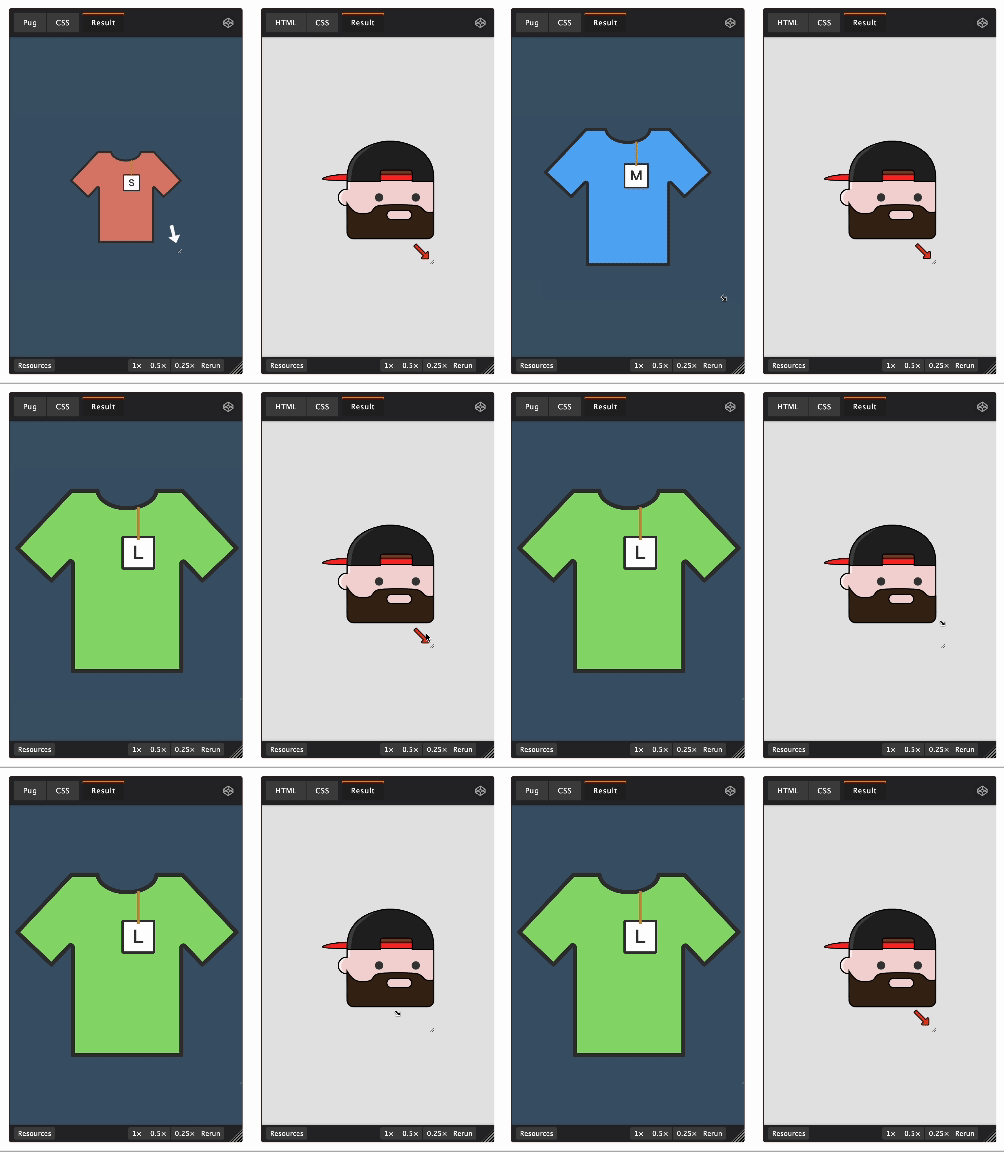
- 可利用可變元素,如:textarea,來控制變數。[sample](https://codepen.io/jh3y/pen/zYZKEyM?editors=1100),[origin web](https://css-tricks.com/can-we-create-a-resize-hack-with-container-queries/)
## CSS 列印
[link](https://ithelp.ithome.com.tw/articles/10337976)
 Google Drive
Gist
Clipboard
Google Drive
Gist
Clipboard
 Sign in via Google
 Sign in via Facebook
 Sign in via X(Twitter)
 Sign in via GitHub
 Sign in via Dropbox
 Sign in with Wallet






