Ubuntu Windows 10/11 dual boot
===
* [name=Ander Liu]
###### tags: `Linux` `Ubuntu`
[TOC]
## OS version
* Ubuntu 22.04.3 LTS
* Windows 11
<!-- * Windows 10 home 1903 (18362.356) -->
## Google it yourself !!!
* [Useful Reference](http://lmgtfy2.com/?q=Ubuntu+Windows+dual+boot)
## Dual boot
1. **IMPORTANT !!!** Back up your computer
2. Download [Ubuntu 22.04 LTS](https://ubuntu.com/download/desktop)
3. Create Ubuntu live USB
* Download [Etcher](https://www.balena.io/etcher/)
* Click Select image, and point it to the Ubuntu ISO you downloaded in step 2. Next, click Select drive to choose your flash drive, and click Flash! to start the process of turning a flash drive into an Ubuntu installer.

4. Disable Fast Startup in Windows (recommend)
* `設定` > `系統` > `電源與睡眠` > `其他電源設定` > `選擇按下電源按鈕時的行為`
* 取消勾選 `開啟快速啟動`
5. Disable Secure Boot and Rapid Start in BIOS
* [how to enter BIOS](https://www.tomshardware.com/reviews/bios-keys-to-access-your-firmware,5732.html)
6. Plug in Ubuntu live USB and reboot !!!
7. Try Ubuntu
* You can select between Try Ubuntu or Install Ubuntu. Don't install just yet; Instead, choose Try Ubuntu. After it finishes loading, you should see the Ubuntu desktop.
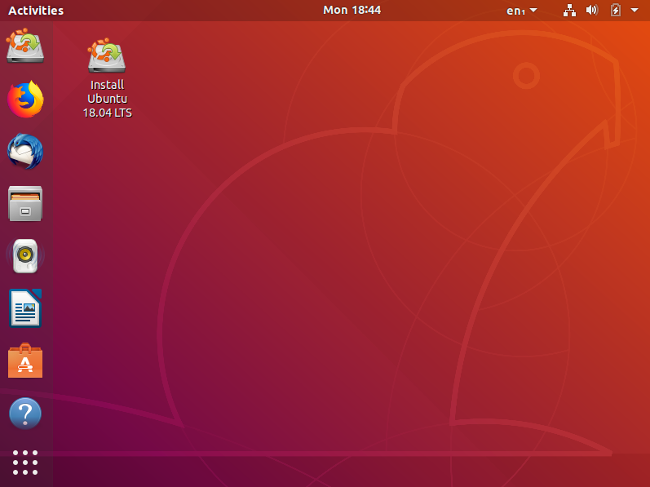
* Here, in Live mode, you can play around with Ubuntu and make sure everything works before you commit to the installation.
8. Install Ubuntu !!!
* Once you're ready to go, double-click on the `Install Ubuntu 18.04 LTS` icon on the desktop to launch the installer.
* Choose the language you want to use for the installation process, then click `Continue`.
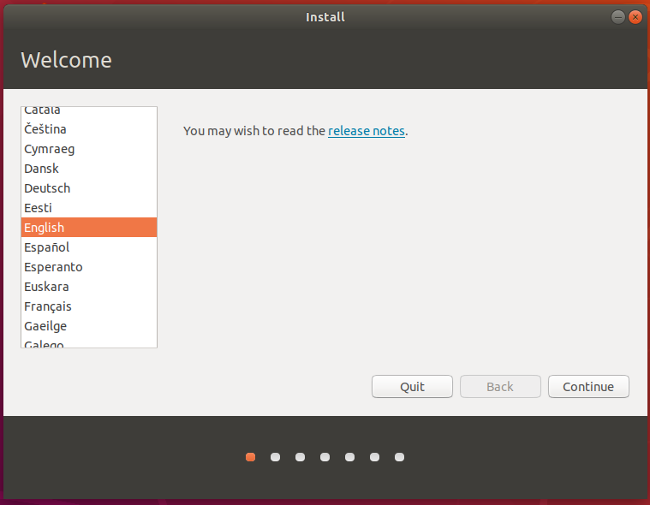
* Next, choose the keyboard layout. Once you've made your selection, click `Continue`.
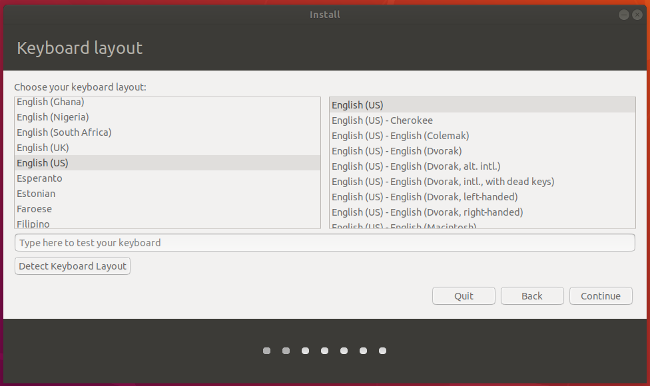
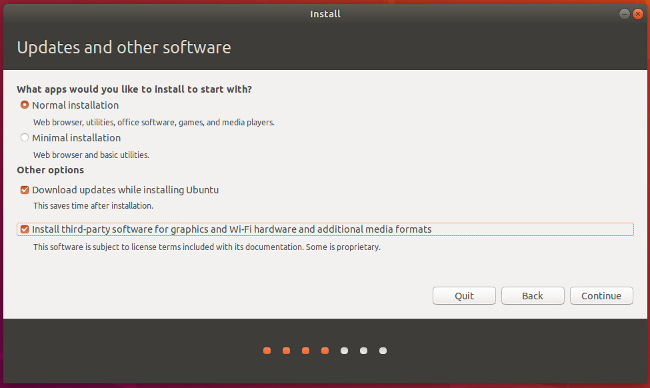
* You have a few options on the screen below. One, you can choose a Normal or a Minimal installation. For most people, the Normal installation is ideal.
* In addition, you can choose to download updates and whether or not to include third-party software and drivers. I recommend checking both of those boxes. When done, click `Continue`.
* The next screen asks whether you want to erase the disk or set up a dual-boot. Since you're dual-booting, choose `Install Ubuntu alongside Windows 10`. Click `Install Now`.
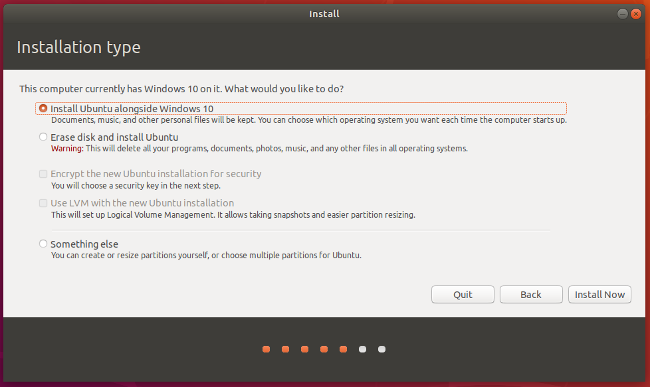
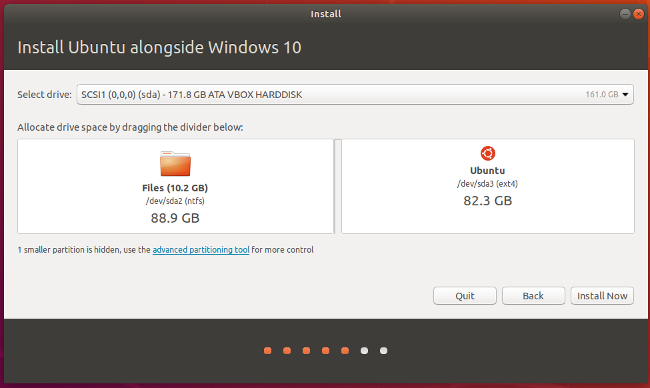
* Select a disk at the top. If you have just one disk, you can choose how much space to steal from Windows and apply to Ubuntu. You can drag the vertical line in the middle left and right with your mouse to take space away from one and gives it to the other. Adjust this exactly the way you want it, then click `Install Now`.
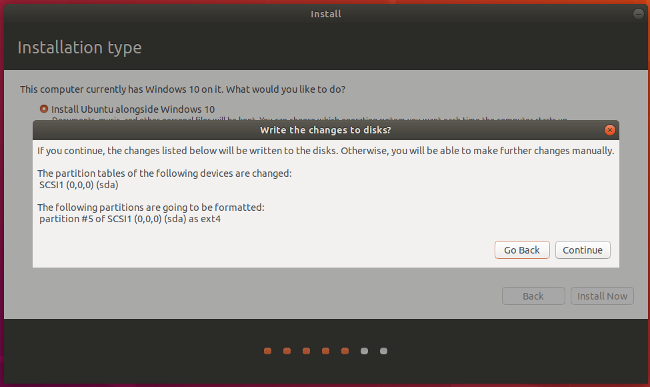
* You should see a confirmation screen indicating what Ubuntu plans on doing. If everything looks right, click `Continue`.
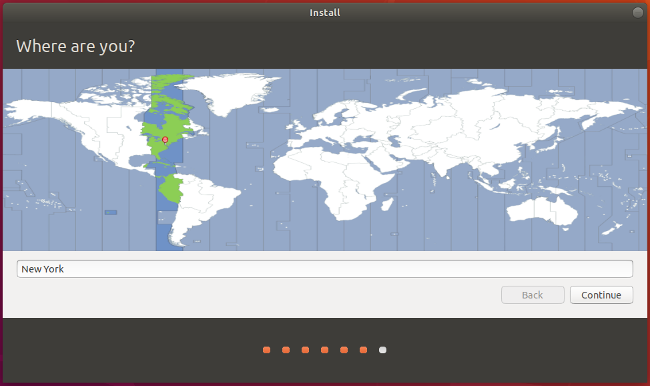
* While Ubuntu tries its best to figure out your location, you can click on the map to narrow it down to ensure your time zone and other things are set correctly.
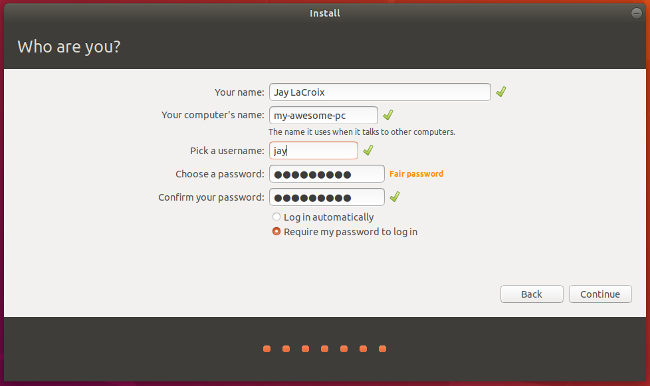
* Next, fill in the user account information: your name, computer name, username, and password. Click `Continue` when you're done.
* There you have it! The installation is complete. Go ahead and reboot the PC.

9. Booting into Ubuntu !!!
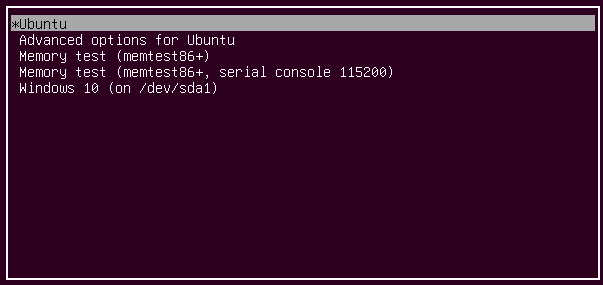
* If all went according to plan, you should see a screen similar to this when your computer restarts.
:::info
If Ubuntu cannot be successfully booted, here is one possible reason. 如果你 GPU 是 NVIDIA 的話,按 e 進入編輯開機指令的模式,找到`quite splash`並在 splash 這個字之後空一格,再加上`nomodeset`。
:::
* Choose Ubuntu
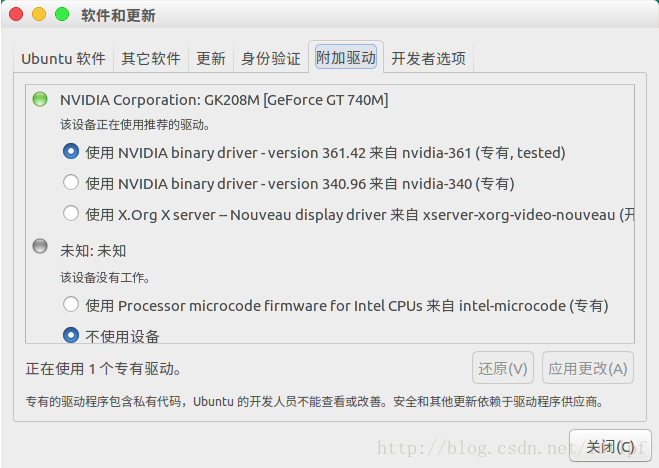
* 開機後立刻去軟體與更新,更新NVIDIA驅動
* Try booting into both Ubuntu and Windows to test them out and make sure everything works as expected.
:::success
Complete !!!
:::
:::info
(Optional) Installing a decent GRUB theme to make it looks better
:::
:::danger
If your failed to install Ubuntu, please google it for solutions.
:::
## Some Useful Skill
* 如何連結 PEAP 網路

:::info
Alt 按下去,關機鍵會變成睡眠鍵
:::
:::warning
If Ubuntu consumes too much power, here is one possible reason. 有關省電,建議關掉 NVIDIA 獨顯,因為官方沒有幫 linux 寫一個可降頻的驅動
:::
### 中文輸入法
1. Language Support > Install / Remove Languages...

2. choose Chinese (traditional)

3. Settings > Keyboard > Input Sources > Add Input Source...

4. Add Input source > Chinese (Taiwan) > Chinese (Chewing)

## Some Useful Website
* [Fix Time Differences in Ubuntu Windows Dual Boot](http://ubuntuhandbook.org/index.php/2016/05/time-differences-ubuntu-1604-windows-10/) <!-- TODO: maybe need update -->
* [Make Ubuntu Look Like MacOS](https://itsfoss.com/make-ubuntu-look-like-macos/)
* [Make Ubuntu Look Like MacOS (Outdated)](https://www.omgubuntu.co.uk/2017/03/make-ubuntu-look-like-mac-5-steps)
* [Fusuma - Multitouch Gesture](https://github.com/iberianpig/fusuma)
> my Fusuma config
```YAML
swipe:
2:
left:
command: "xdotool key alt+Right" # History forward
right:
command: "xdotool key alt+Left" # History back
3:
left:
command: "xdotool key alt+Shift+Tab"
right:
command: "xdotool key alt+Tab"
up:
command: "xdotool key super" # Activity
down:
command: "xdotool key super+d" # Activity
4:
left:
command: "xdotool key ctrl+alt+Right" # Switch to next workspace
right:
command: "xdotool key ctrl+alt+Left" # Switch to previous workspace
up:
command: "xdotool key ctrl+alt+Down" # Switch to next workspace
down:
command: "xdotool key ctrl+alt+Up" # Switch to previous workspace
pinch:
in:
command: "xdotool keydown ctrl click 4 keyup ctrl" # Zoom in
out:
command: "xdotool keydown ctrl click 5 keyup ctrl" # Zoom out
hold:
4:
command: "xdotool key super" # Activity
```
* [TLP - Power Management](https://github.com/linrunner/TLP)
## Recommend GNOME Extension for 22.04 LTS Jammy Jellyfish
* [AlternateTab (only required before GBOME 3.32)](https://extensions.gnome.org/extension/15/alternatetab/?c=76627)
> For GNOME 3.32 or later, see https://blogs.gnome.org/fmuellner/2018/10/11/the-future-of-alternatetab-and-why-you-need-not-worry/
* [Applications Menu](https://extensions.gnome.org/extension/6/applications-menu/)
* [Apt Update Indicator (no longer supported)](https://extensions.gnome.org/extension/1139/apt-update-indicator/)
* [CPU Power Manager](https://extensions.gnome.org/extension/945/cpu-power-manager/)
* [Dash to Dock](https://extensions.gnome.org/extension/307/dash-to-dock/)
* [No Title Bar](https://extensions.gnome.org/extension/2015/no-title-bar-forked/)
* [Workspace Matrix](https://extensions.gnome.org/extension/1485/workspace-matrix/)
* [CHC-E - Custom Hot Corners - Extended](https://extensions.gnome.org/extension/4167/custom-hot-corners-extended/)
## Reference
* https://opensource.com/article/18/5/dual-boot-linux
* https://itsfoss.com/install-ubuntu-1404-dual-boot-mode-windows-8-81-uefi/
* https://medium.com/caesars-study-review-on-web-development/win10-and-ubuntu-%E9%9B%99%E7%B3%BB%E7%B5%B1%E5%AE%89%E8%A3%9D%E7%AD%86%E8%A8%98-bc824bef7fb4
* https://medium.com/caesars-study-review-on-web-development/ubuntu-18-04%E5%AF%A6%E9%9A%9B%E5%AE%89%E8%A3%9D-%E7%B0%A1%E7%95%A5%E6%AD%A5%E9%A9%9F-b023f61436bf
* https://wiki.ubuntu-tw.org/index.php?title=FAQinstall
* https://blog.csdn.net/tjuyanming/article/details/79267984
* [`Uninstall Ubuntu Windows Dual Boot`](https://itsfoss.com/uninstall-ubuntu-linux-windows-dual-boot)
* https://medium.com/caesars-study-review-on-web-development/acpi-osi-linux-nomodeset%E6%98%AF%E4%BB%80%E9%BA%BC%E6%84%8F%E6%80%9D-%E5%8A%9F%E8%83%BD-42d8e2c444c3
## See also
* [Linux command](/I4-elt5QT_O34kwp_AvFag)
* [Bash / shell](/RMLrGdhFQ1muCOYBGeVoSQ)
## Homepage
* [Homepage](/@NDR/Homepage)
 Sign in with Wallet
Connect another wallet
Sign in with Wallet
Connect another wallet