# 22th March Report
This is my fourth report of weekly plan before going to Taiwan, this week I've planned to study about service worker in Ionic 4.
## Summary of this week
- Service worker is a service which can make PWA to load more faster, more independent, and support the user to experience web-app more like native app.
- Advantage if PWA has service worker:
- Connectivity independent, when web-app already loaded but the connection was lost, it can still be reloaded using the last time data.
- Support low quality connection, when user access from low quality place it can be still loaded by load the cache of the web.
- Manifest support, user can experience using web-app like native app with adding shortcut/bookmark-like to their smartphone homescreen.
- Work offline, service worker allows the user to stay and using all function when go offline (related to connectivity independent), also reload it to refresh the data even in bad connectivity (related to support low quality connection).
- We can check if the web-app has PWA components or not by using Lighthouse API (install using NPM).
- Install from npm command
`npm install -g lighthouse --save`
- Using command to check web-app
`lighthouse https://example.com --view`
- A report will be showed after Lighthouse finish analyze it.
- With this API, it can help us to check whether the service worker of an PWA:
- is already installed or not,
- is installed properly,
- fast to load the PWA in bad connectivity,
- *caching* system inside it,
- has register that control the page so it can work offline, and
- has web manifest so it can added to smartphone homescreen.
- After this, I will add the documentation related to differences web-app using PWA components with the one not using them.
---
## Documentation
### 1. Installing Lighthouse
From https://www.npmjs.com/package/lighthouse we can know that lighthouse is a NPM's API to check whether a web-app is containing PWA components. It can also give the summary report to show what components should be included inside a PWA, from general (like manifest) to specific (time load).
To begin with, we will using Command Prompt/CLI to install Lighthouse. Before this, make sure you have install Node JS and NPM. Open your command line:
`npm install -g lighthouse --save`
With this command, we will install it globally and save the configuration. To use it:
`lighthouse <website-domain> --view`
Lighthouse will shortly open the web-app and check the PWA components. It will work automatically, and we stated **`--view`** so after checking process it will prompt to open the summary report. The report will be opened automatically using your default web browser.
For example:
`lighthouse https://timer-2.firebaseapp.com --view`
`lighthouse https://app.starbucks.com/ --view`
and etc.
### 2. Check my timer using Lighthouse
After checking using Lighthouse:
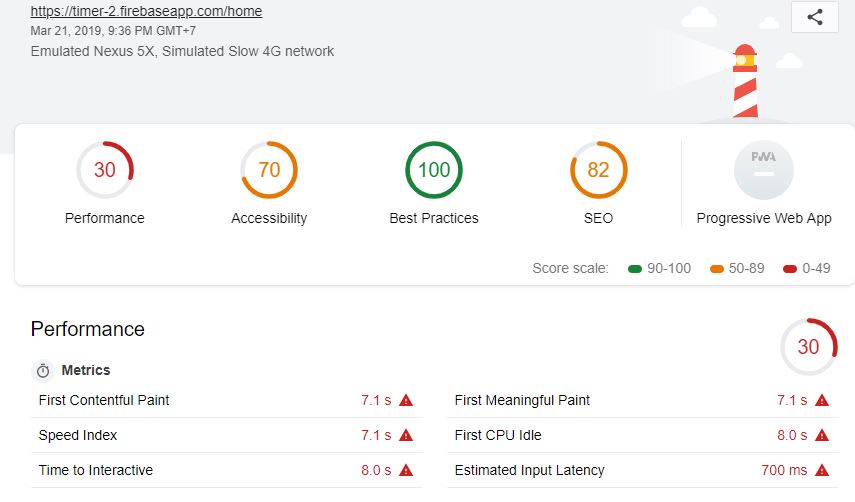
There are lot of stuff, but we concern in Progressive Web App report. It said that my timer-2 still no has PWA components.
We check why the PWA components still no there:
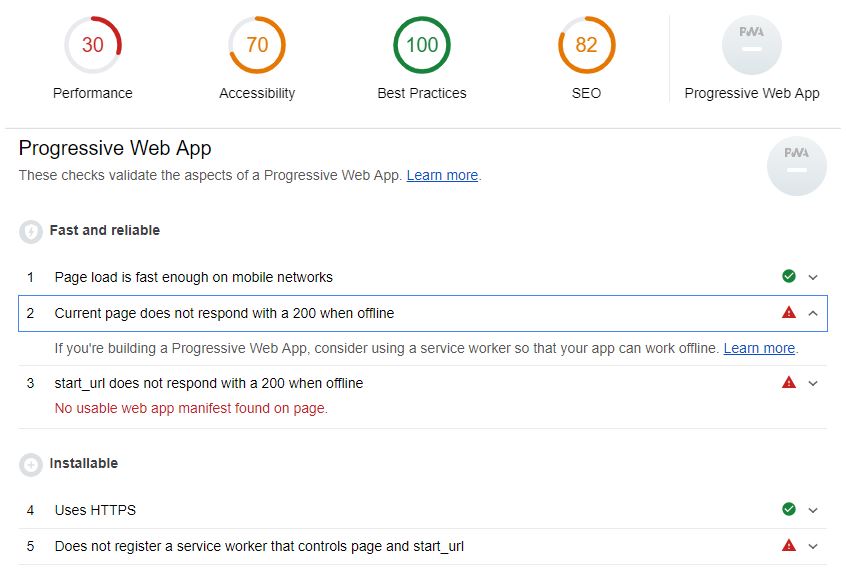
There it is:
- The page can be load fast enough, but it cannot loaded back when offline, a service worker thing
- It also not respond when offline which mean when internet is down/low connection the timer-2 probably cannot be loaded
- It may be using HTTPS but there is no service worker that control the page so it can work offline
Here is the detail:
:::info
**Progressive Web App**
These checks validate the aspects of a Progressive Web App. [Learn More](https://developers.google.com/web/progressive-web-apps/checklist)
**Fast and reliable**
1. Page load is fast enough on mobile networks
- A fast page load over a cellular network ensures a good mobile user experience.
2. Current page does not respond with a 200 when offline
- If you're building a Progressive Web App, consider using a service worker so that your app can work offline.
3. start_url does not respond with a 200 when offline
- No usable web app manifest found on page.
- A service worker enables your web app to be reliable in unpredictable network conditions.
**Installable**
4. Uses HTTPS
- All sites should be protected with HTTPS, even ones that don't handle sensitive data.
- HTTPS prevents intruders from tampering with or passively listening in on the communications between your app and your users, and is a prerequisite for HTTP/2 and many new web platform APIs. Learn more.
5. Does not register a service worker that controls page and start_url
- The service worker is the technology that enables your app to use many Progressive Web App features.
- Such as offline, add to homescreen, and push notifications.
6. Web app manifest does not meet the installability requirements
- Failures: No manifest was fetched.
- Browsers can proactively prompt users to add your app to their homescreen, which can lead to higher engagement.
**PWA Optimized**
7. Redirects HTTP traffic to HTTPS
- If you've already set up HTTPS, make sure that you redirect all HTTP traffic to HTTPS.
8. Is not configured for a custom splash screen
- Failures: No manifest was fetched.
- A themed splash screen ensures a high-quality experience when users launch your app from their homescreens.
9. Does not set an address-bar theme color
- Failures: No manifest was fetched, No `<meta name="theme-color">` tag found.
- The browser address bar can be themed to match your site.
10. Content is sized correctly for the viewport
- If the width of your app's content doesn't match the width of the viewport, your app might not be optimized for mobile screens.
11. Has a <meta name="viewport"> tag with width or initial-scale
- Add a viewport meta tag to optimize your app for mobile screens. Learn more.
12. Does not provide fallback content when JavaScript is not available
- The page body should render some content if its scripts are not available.
- Your app should display some content when JavaScript is disabled, even if it's just a warning to the user that JavaScript is required to use the app.
:::
### 3. Comparing with PWA in Internet
To get know what components should we have in our web-app to become PWA, we can check some PWA project from big company, like Uber, Tinder, and Starbucks. The purpose they build a PWA is as same as we build one, to get more attractive web interface to customer in order they can experience better than normal web app.
Below here, I give examples of documentation of Lighthouse report of three PWA:
#### a. Uber
Website: https://m.uber.com/

#### b. Tinder
Website: https://tinder.com/

#### c. Starbucks
Website: https://app.starbucks.com/

If you like to know, you can check it by yourself. It's easy!
---
## References
- Lighthouse API (https://www.npmjs.com/package/lighthouse)
- PWA Checklist by Google (https://developers.google.com/web/progressive-web-apps/checklist)
###### tags: `pre-intern report`
 Sign in with Wallet
Connect another wallet
Sign in with Wallet
Connect another wallet