# 29th March Report
This is my fifth report of study for internship before go to Taiwan. In this report, I will explain how to install PWA components, which we have in previous report, in Ionic 4 Project and see with Lighthouse
## Summary of this week
- Angular CLI is one of the API we can install from NPM to use Angular for build PWA components.
- Angular support the web apps with install PWA components into the project so it can run progressively with service worker.
- Its automatic feature makes easy to use but hard to analyze because what user can know is the Angular is already installed.
- If we want to analyze which file has been added, we should look at the CLI when installing Angular into Ionic 4 web apps project before close it.
- This report will explain the step of installing Angular into Ionic 4 project, beyond that I still learning and hopefully can implement PWA components in non Ionic 4 project.
---
## Documentation
I got the tutorial from [this](https://ionicthemes.com/tutorials/about/the-complete-guide-to-progressive-web-apps-with-ionic4) website. First, in order to install PWA components using Angular CLI, we must first install Angular CLI. Just for your information, Angular CLI doesn't limited only for PWA components but also lot of resource we can use. You can refer later from https://angular.io/cli.
The next step is install the Angular PWA components, which we already install to system, into Ionic project. The command line will process automatically so we can analyze the code, or the process, to take a look which components that the system may added. After installation, we now have the Ionic project with PWA, the next is build the project and you can deploy to hosting or run locally.
Below here, I will explain the steps but before we go to far I would like to show you my Timer web app, which I made two weeks ago, when scanned with Lighthouse. The purpose is to know the different between before and after install Angular PWA into Ionic Project.
This is the before condition:
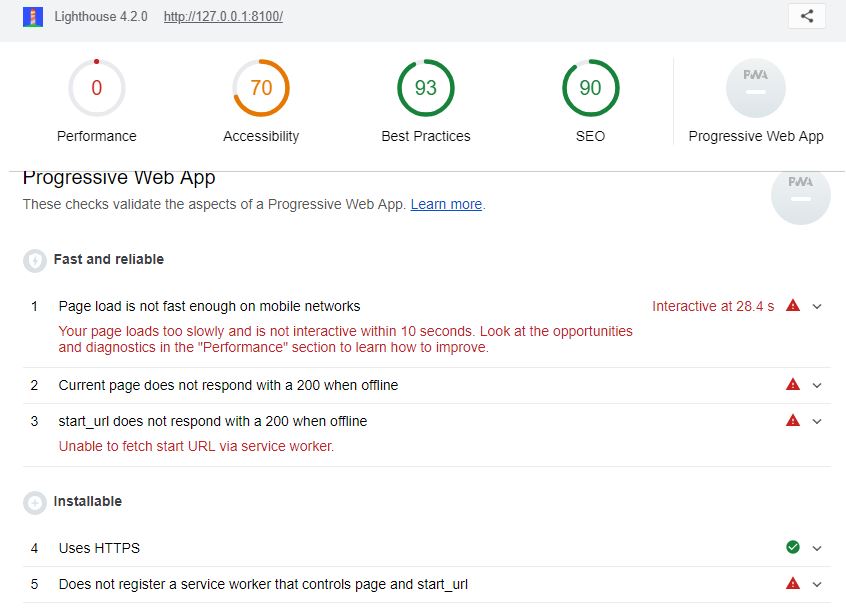
Now we move to the installation steps:
### 1. Install Angular CLI from NPM
Here we use NPM service again so make sure you have install NPM, you can check how to install [here](https://hackmd.io/s/Hy4PWB5PV), in the first section.
Next, based on https://cli.angular.io/, we enter this command:
`npm install -g @angular/cli`
It will take some time to download and install it into your Node JS. After finish, let's try the Angular CLI to make sure the installation not get wrong. Enter this command to use Angular CLI:
`ng`
If you see something like open the Angular interface, or not like "the command is not recognize", congratulation, we have installed it correctly.
### 2. Install Angular PWA into Ionic Project
Next is go directly to your Ionic project directory with you terminal, or command prompt.
`cd <your-directory-here>`
Inside this, we will install the Angular PWA into Ionic project. Simply, add this command:
`ng add @angular/pwa`
Shortly, it will install PWA components from Angular CLI into our Ionic project, it will take a while. After complete, build your Ionic project by using Ionic command:
`ionic build --prod`
Now, we can check it once again using Lighthouse. If we're not deploy it into hosting, make sure to run the Ionic project locally first by using `ionic serve` and then let the Lighthouse check with local server.
`lighthouse http://127.0.0.1:8100 --view`
But wait, what we have here?

**It still get the same output!**
### 3. Project run problem
We maybe run the Ionic project but not run the build one. When we use the **`ionic serve`**, the machine will run the project but missing the PWA component installed. In short, using ionic serve doesn't compile the Angular PWA component which we have built into Ionic web app using **`ionic build --prod`**
We can use [http-server](https://www.npmjs.com/package/http-server) to run local server of Ionic project by running the Ionic web app. Also, as for we know, the built Ionic project is contain in **www** folder, inside of project folder.
To install http-server, use this command with NPM:
`npm install http-server -g`
After that, back to our Ionic project, we can run the **www** folder with http-server. Use this command:
`http-server ./www`
**"./www"** means that we run a web app project in www folder, so the http-server not mistake to take the project to run with local server. Http-server also using default localhost port, which is 8080, and we can change it by add the **`-p <port-number>`** in our command.
For example: `http-server ./www -p 8888`
### 4. Re-run and check with Lighthouse
So after we run the Ionic web app using http-server now we can check with Lighthouse for good. Using the IP address stated in the http-server, you can use another terminal/command prompt window to perform this. I use at least two to experimence:
- For running the http-server, because it cannot be closed
- For check with Lighthouse
If you using 127.0.0.1 with port 8080, enter the command like this:
`lighthouse http://127.0.0.1:8080 --view`
Just wait for a while and here we go, we got the result:
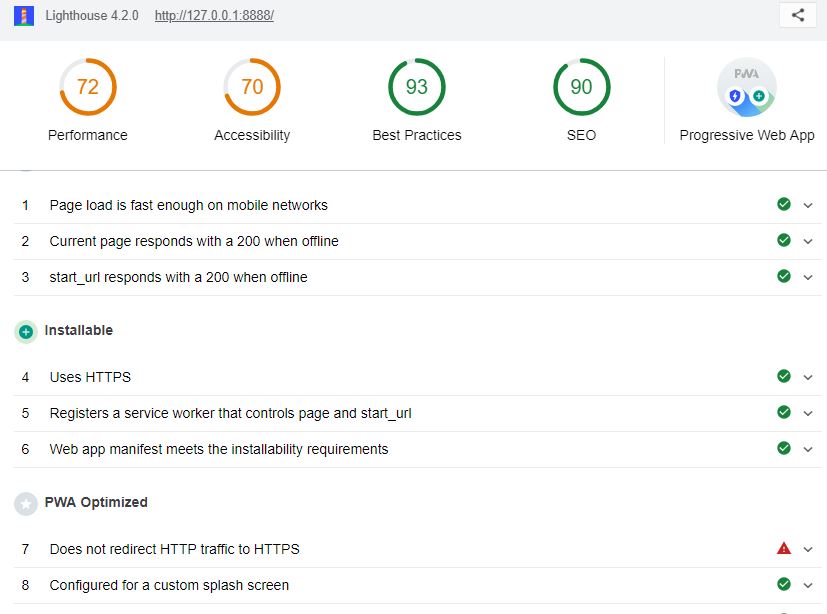
Once again, congratulation for our success here! Now our project has been run with PWA component. We can check the details and take a look some points:
- The web app should has installed with PWA components now.
- Component for redirect HTTP to HTTPS is absent.
If we deploy to HTTPS based hosting, like Firebase, the second problem is clear. It's because our http-server doesn't has system to redirect the server from HTTP to HTTPS, which that is the server side system.
---
## Reference
- The Complete Guide To Progressive Web Apps with Ionic 4 by Agustin Haller (https://ionicthemes.com/tutorials/about/the-complete-guide-to-progressive-web-apps-with-ionic4)
- Angular CLI (https://angular.io/cli)
- Http-Server (https://www.npmjs.com/package/http-server)
###### tags: `pre-intern report`
 Sign in with Wallet
Connect another wallet
Sign in with Wallet
Connect another wallet