---
# System prepended metadata
title: 日本將棋AI分析、檢討
tags: [将棋, ShogiGUI, AI, '將棋 ']
---
# 日本將棋AI分析、檢討

最新將棋教學已轉移至社長の將棋駒湯,HackMD 的將棋筆記不會再更新
歡迎大家來到第十四篇。
本篇旨在:學習使用將棋AI引擎,幫助自己分析棋局、研究棋譜
## ShogiGUI
我們使用ShogiGUI來做為AI解析的應用程式
:::info
:information_source: 小注意
ShogiGUI本身不是AI引擎,而是一個圖形化使用者介面GUI(Graphical User Interface),實現擺譜、動畫程式等,裡面再搭配AI引擎實現AI解析
:::
### 下載ShogiGUI
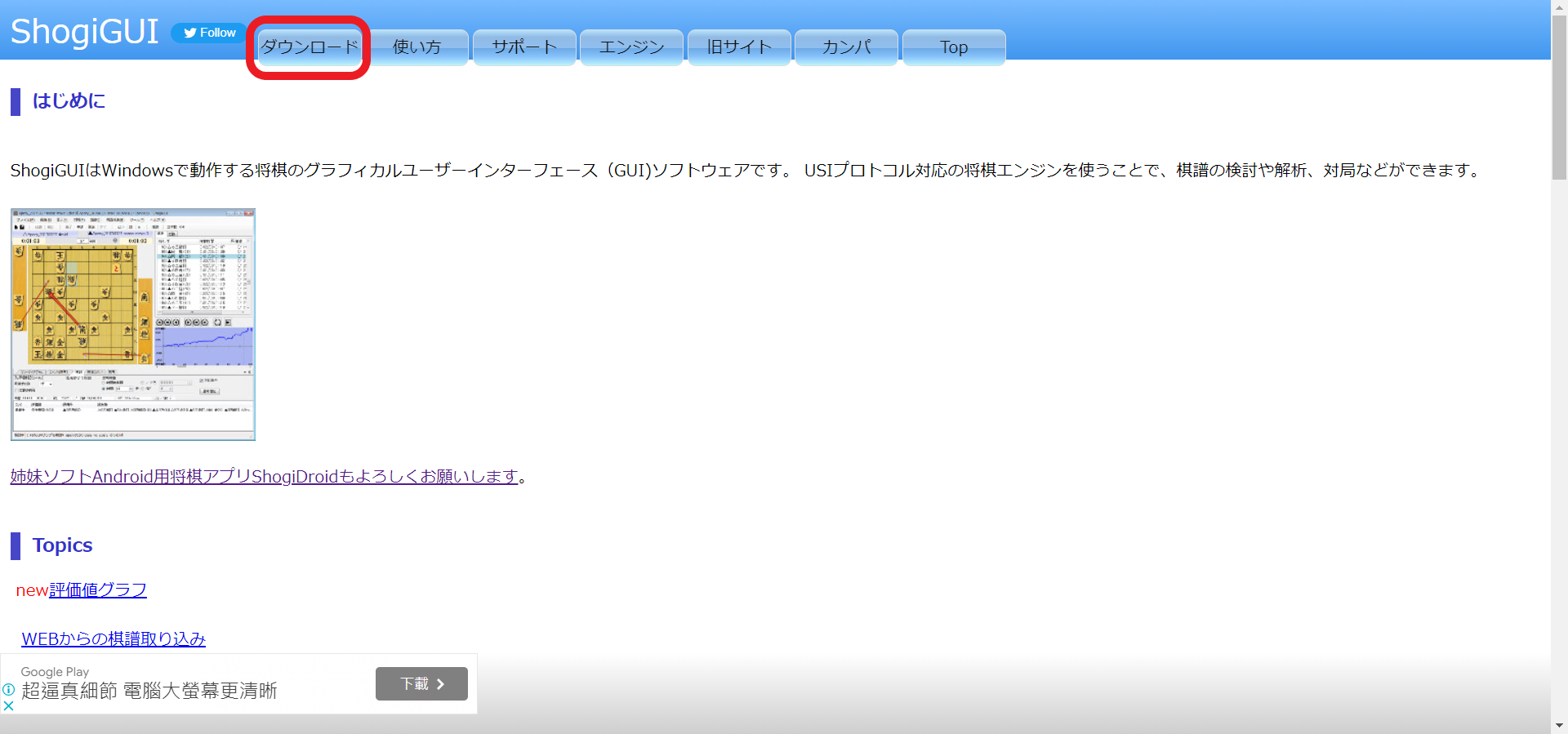
請使用電腦打開[ShogiGUI主頁](http://shogigui.siganus.com/),按下**ダウンロード**按鈕(圖中紅色框框)
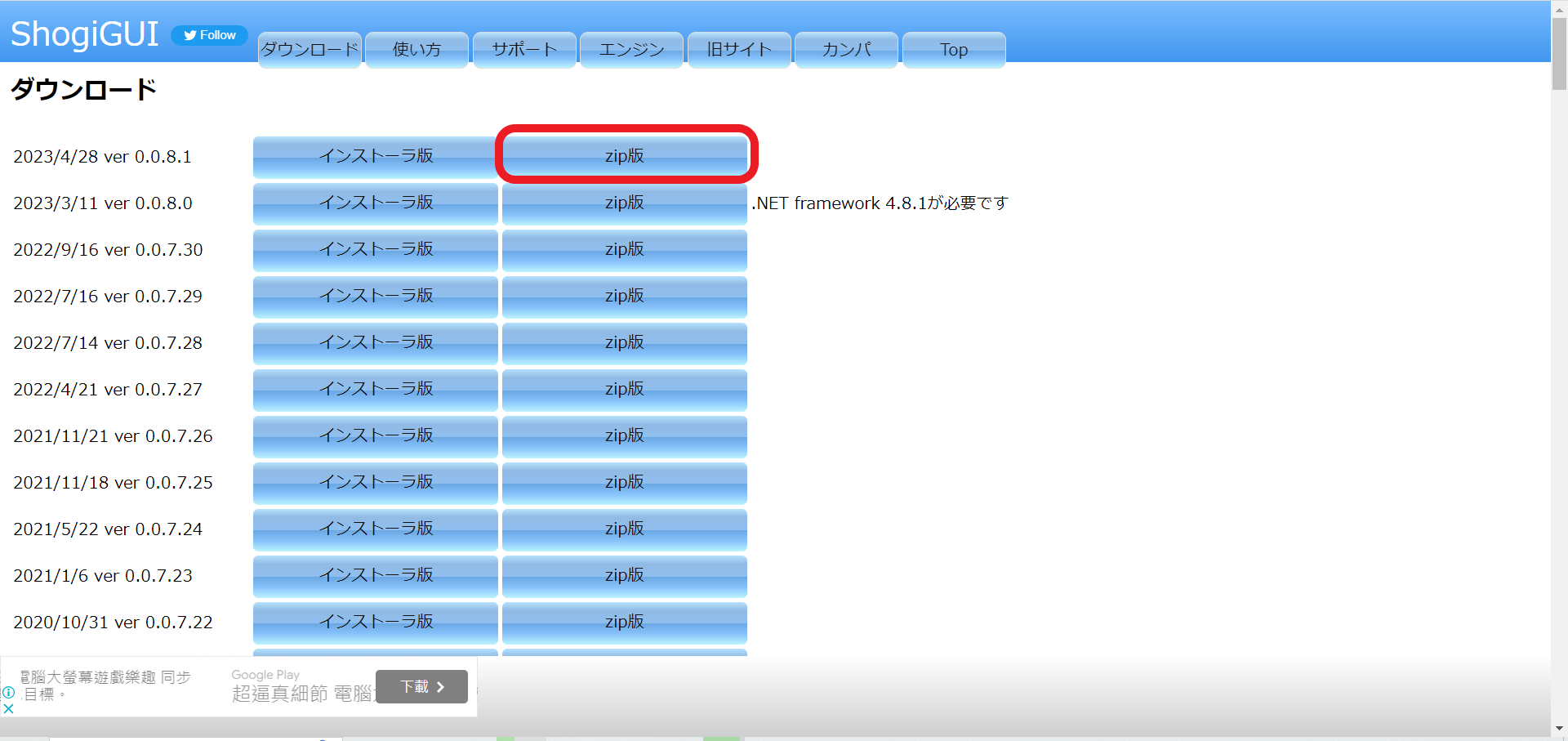
 進到下載頁面,選擇最新版本的**zip**版本(圖中紅色框框)(選擇下載安裝版**インストーラ**其實也可以,最後結果都會一樣,這邊用zip版本展示)
 ### 解壓縮資料夾
解壓縮下載完的zip檔案,像我使用7-zip來解壓縮,您當然可以使用自己的解壓縮工具
### 解壓縮資料夾
解壓縮下載完的zip檔案,像我使用7-zip來解壓縮,您當然可以使用自己的解壓縮工具
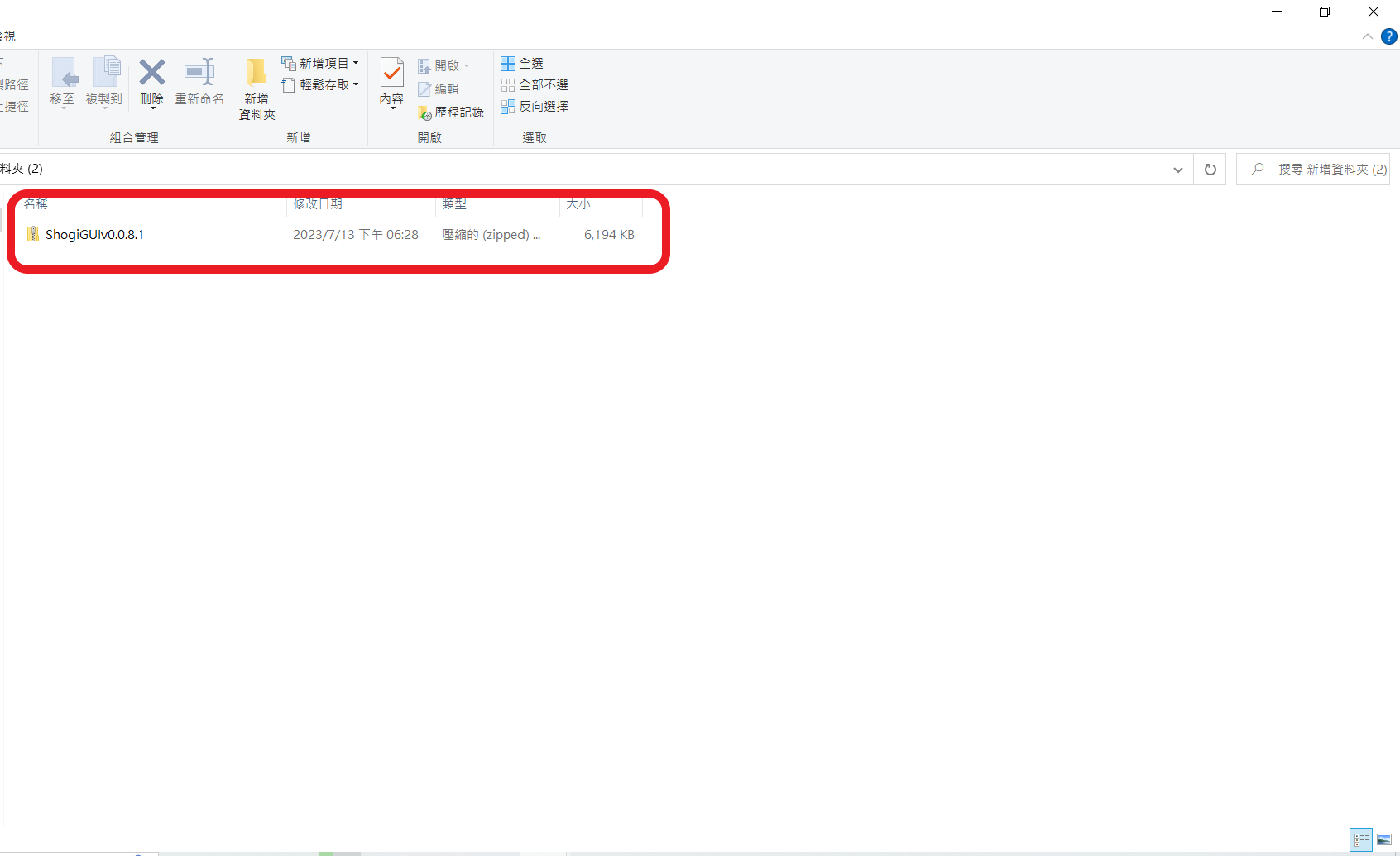
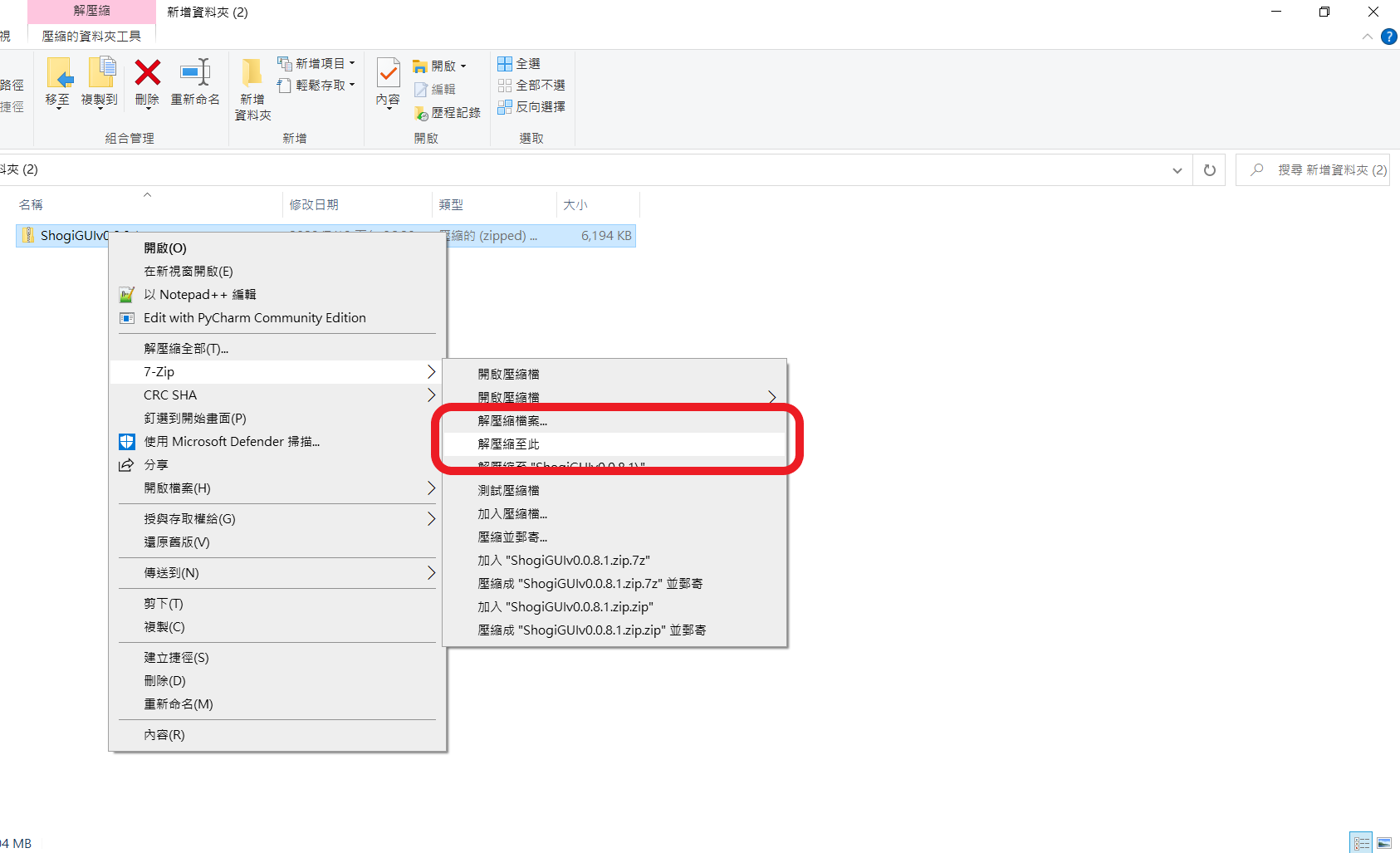 解壓縮完後會出現一個**ShogiGUI**資料夾,只要解壓縮完,本來的zip就可以刪掉了
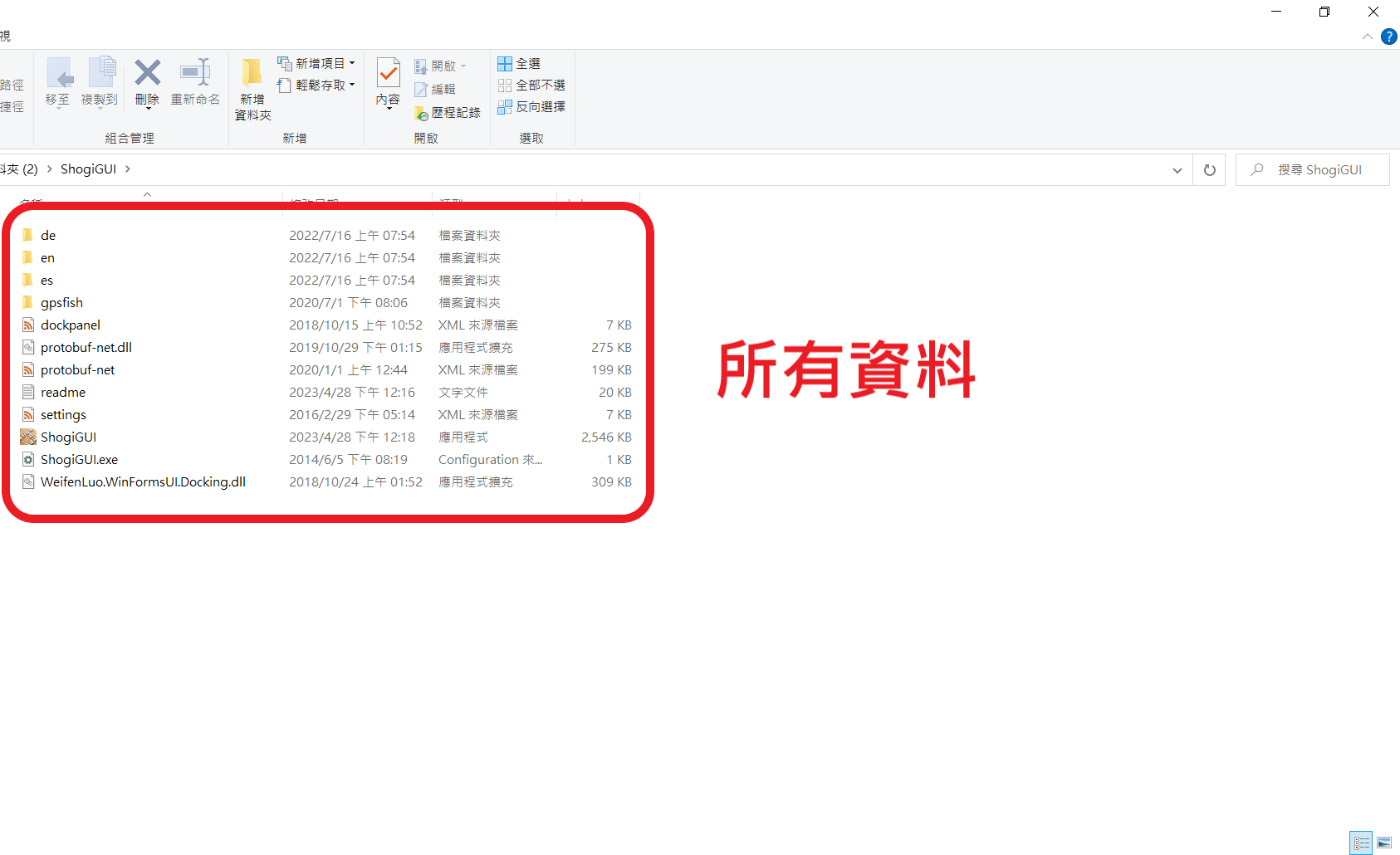
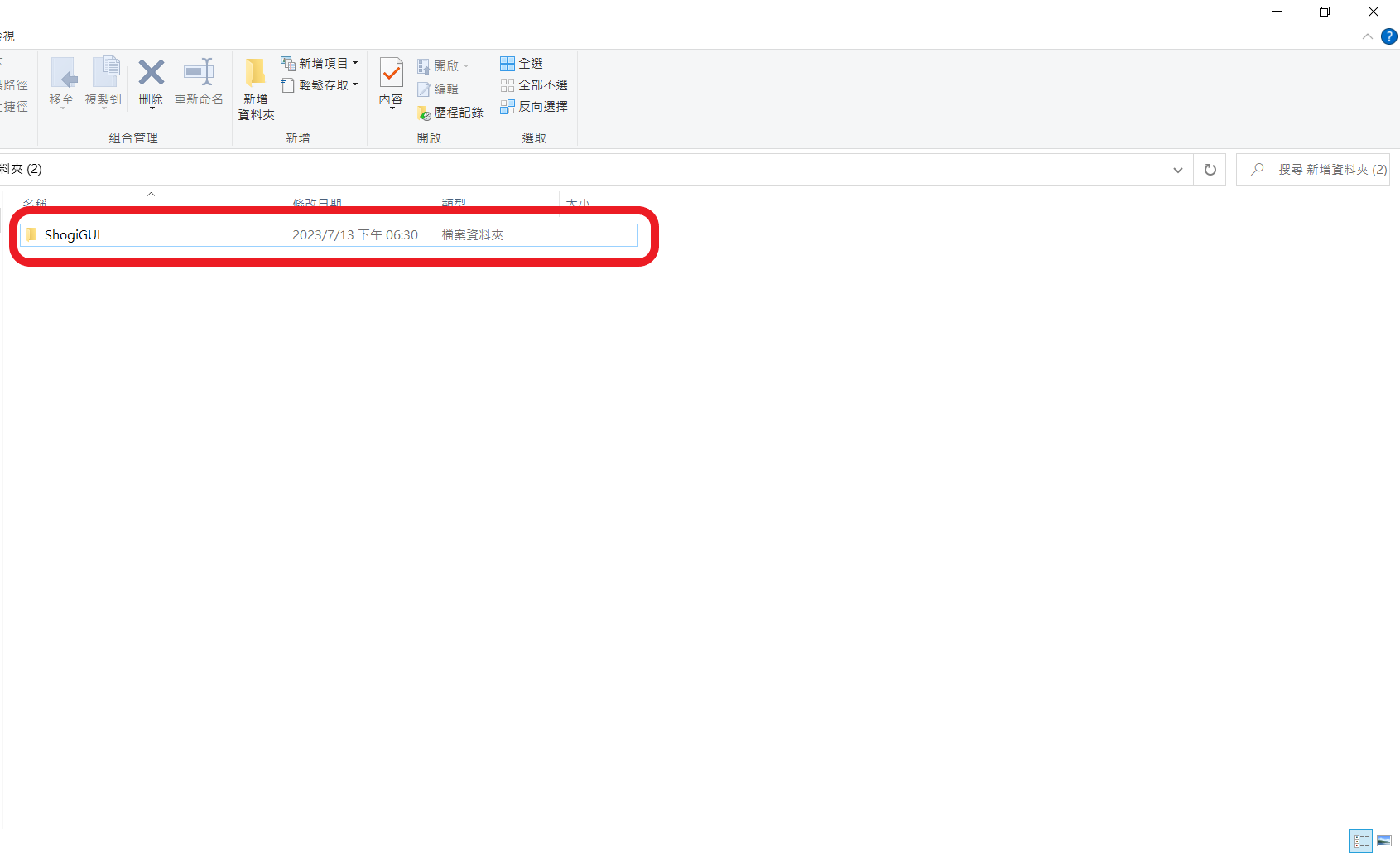 所有ShogiGUI所需要的資料都在這個資料夾內
 ### 內含資料說明
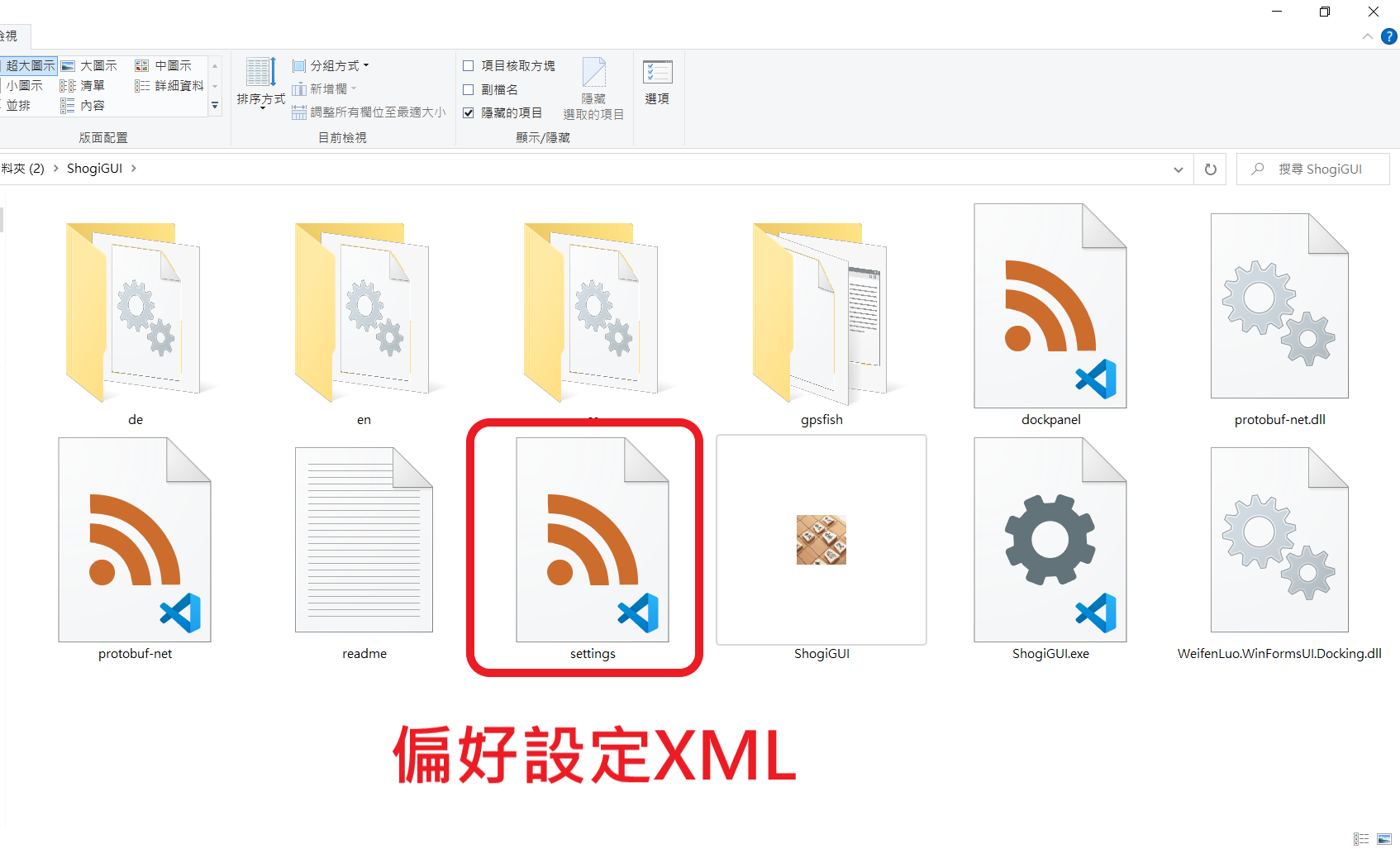
資料夾裡面有很多資料,主要會用到的有3個
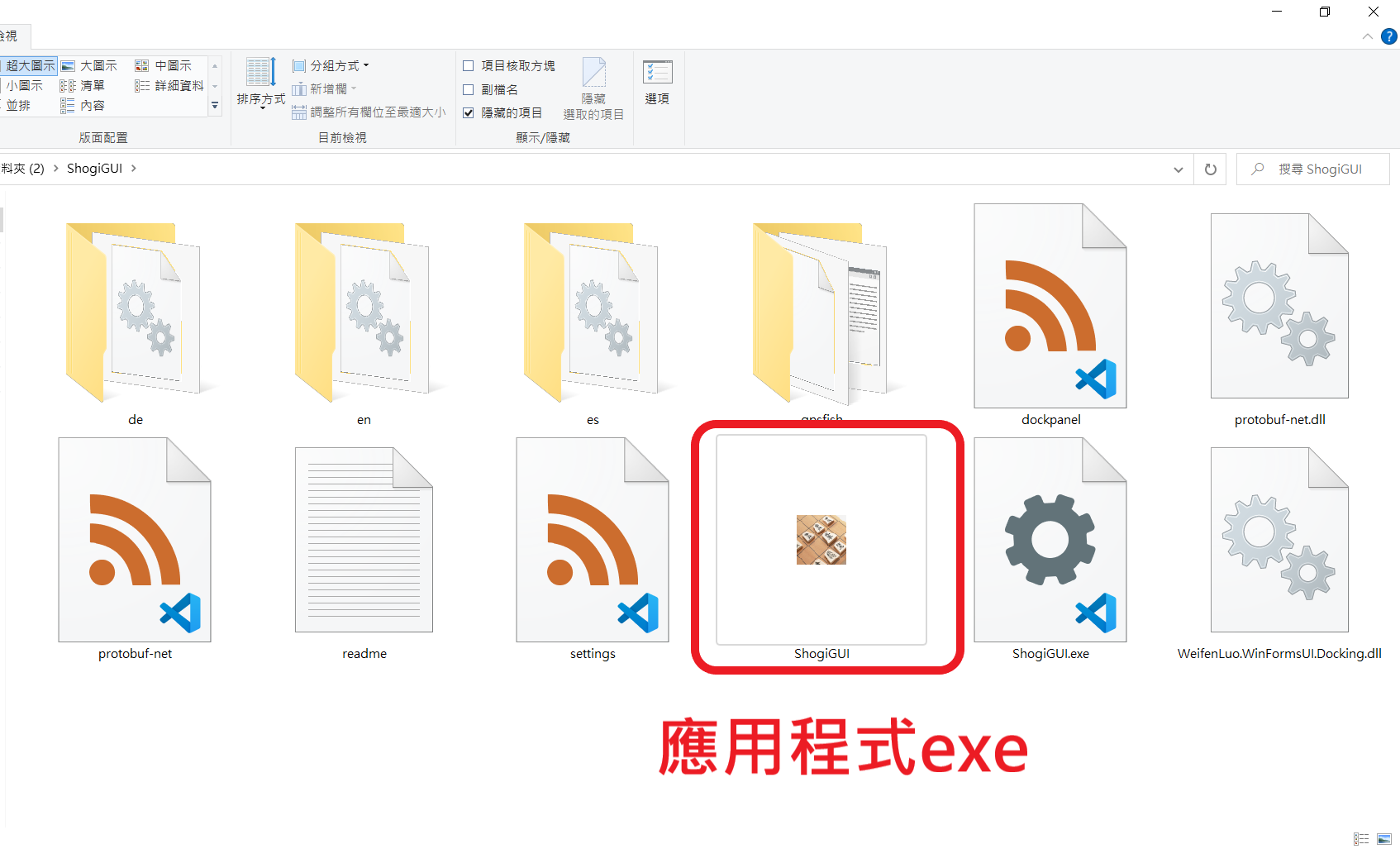
- ShogiGUI 應用程式(有棋具icon的那個):就是應用程式,打開即可進入使用介面
### 內含資料說明
資料夾裡面有很多資料,主要會用到的有3個
- ShogiGUI 應用程式(有棋具icon的那個):就是應用程式,打開即可進入使用介面
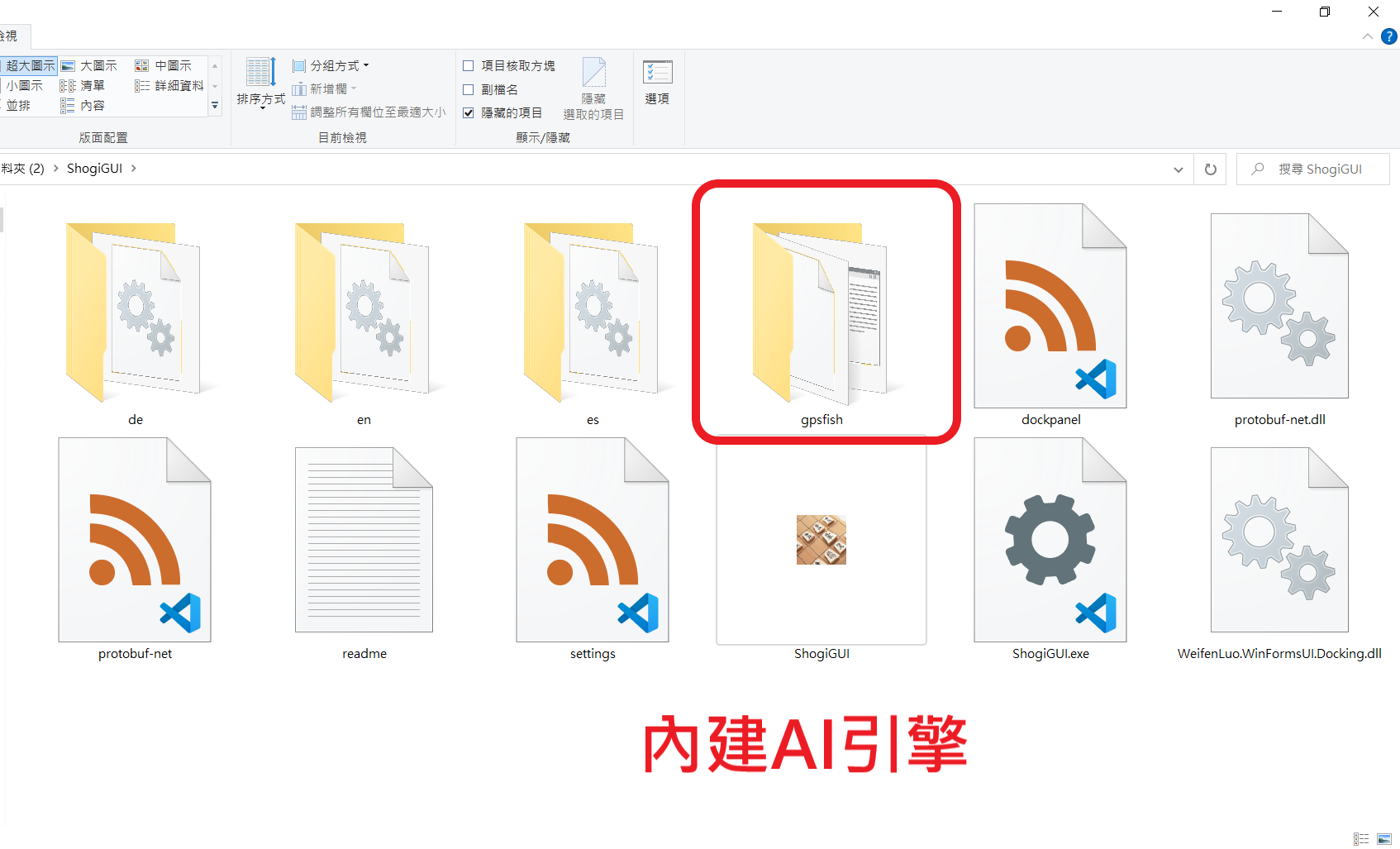
 - gpsfifh 資料夾:裡面函有內建的AI引擎—gpsfish,不會去調整
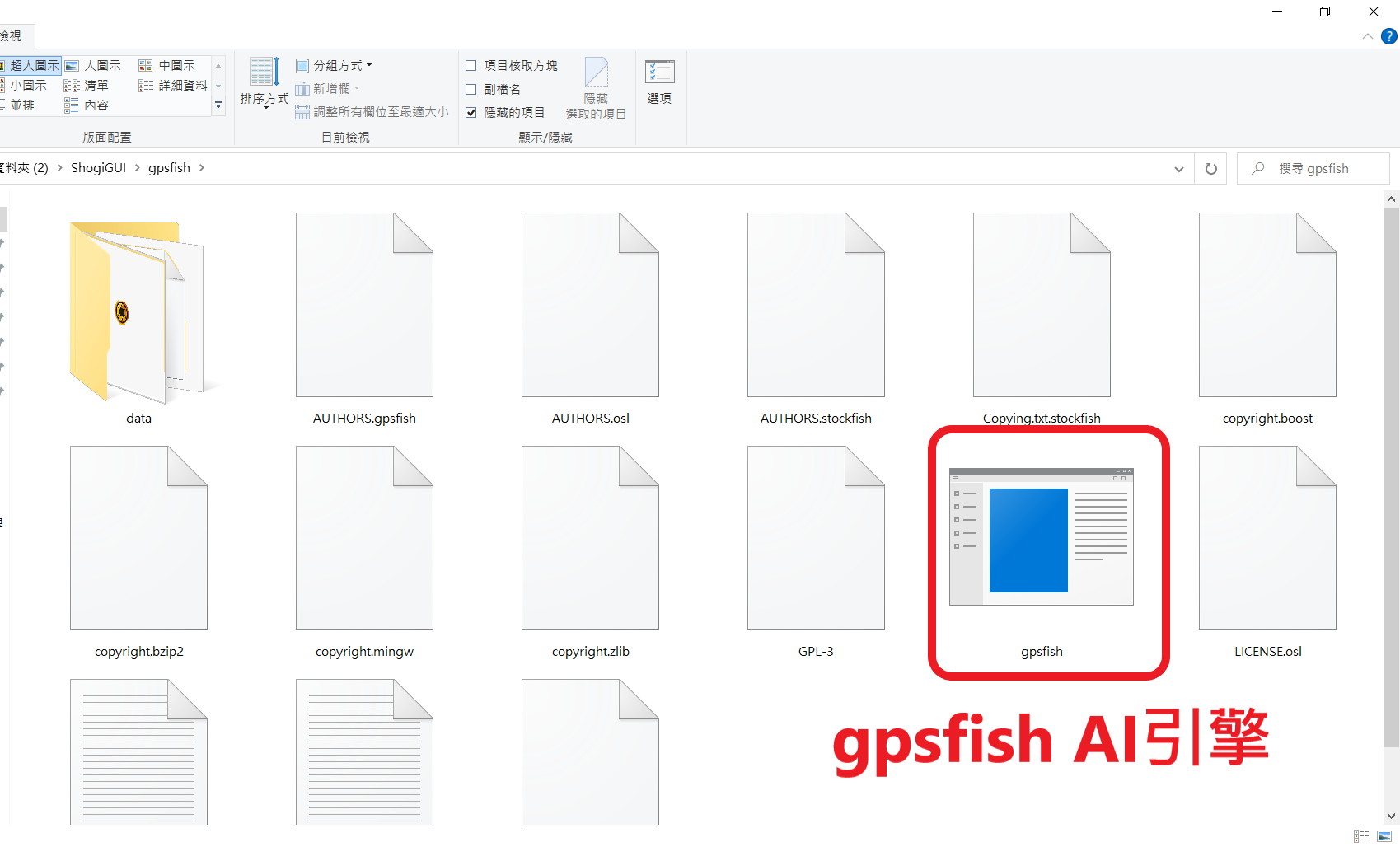 - settings XML檔案:ShogiGUI裡面的偏好設定記錄檔,對於設定備份很有用,可以自行調整(下面會說明)
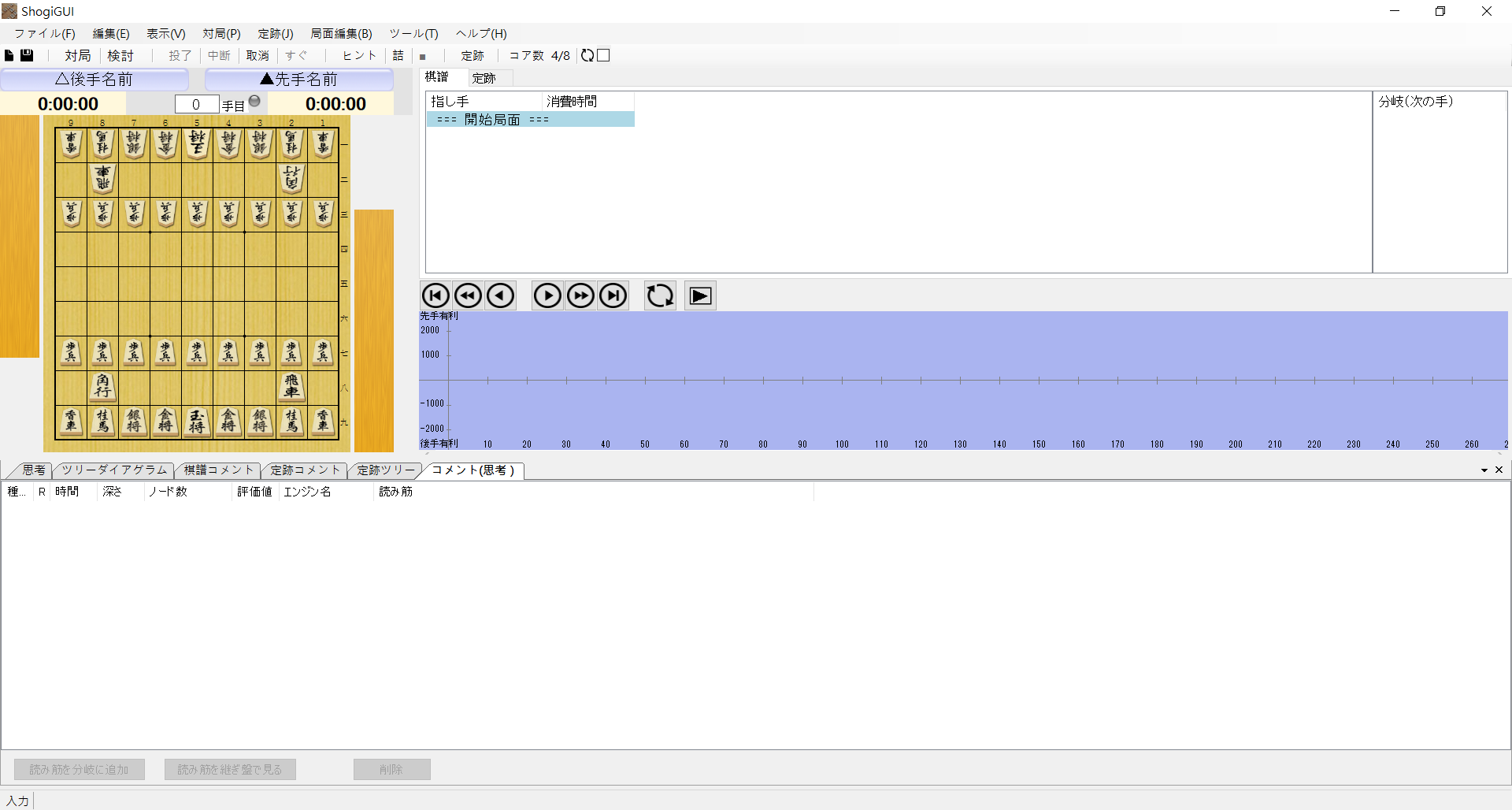
 ## ShogiGUI介面
打開剛剛說明的ShogiGUI應用程式,沒有問題的話,應該會看到這個畫面,如果不是的話,歡迎留言讓我們知道,會盡快幫您解決!
## ShogiGUI介面
打開剛剛說明的ShogiGUI應用程式,沒有問題的話,應該會看到這個畫面,如果不是的話,歡迎留言讓我們知道,會盡快幫您解決!
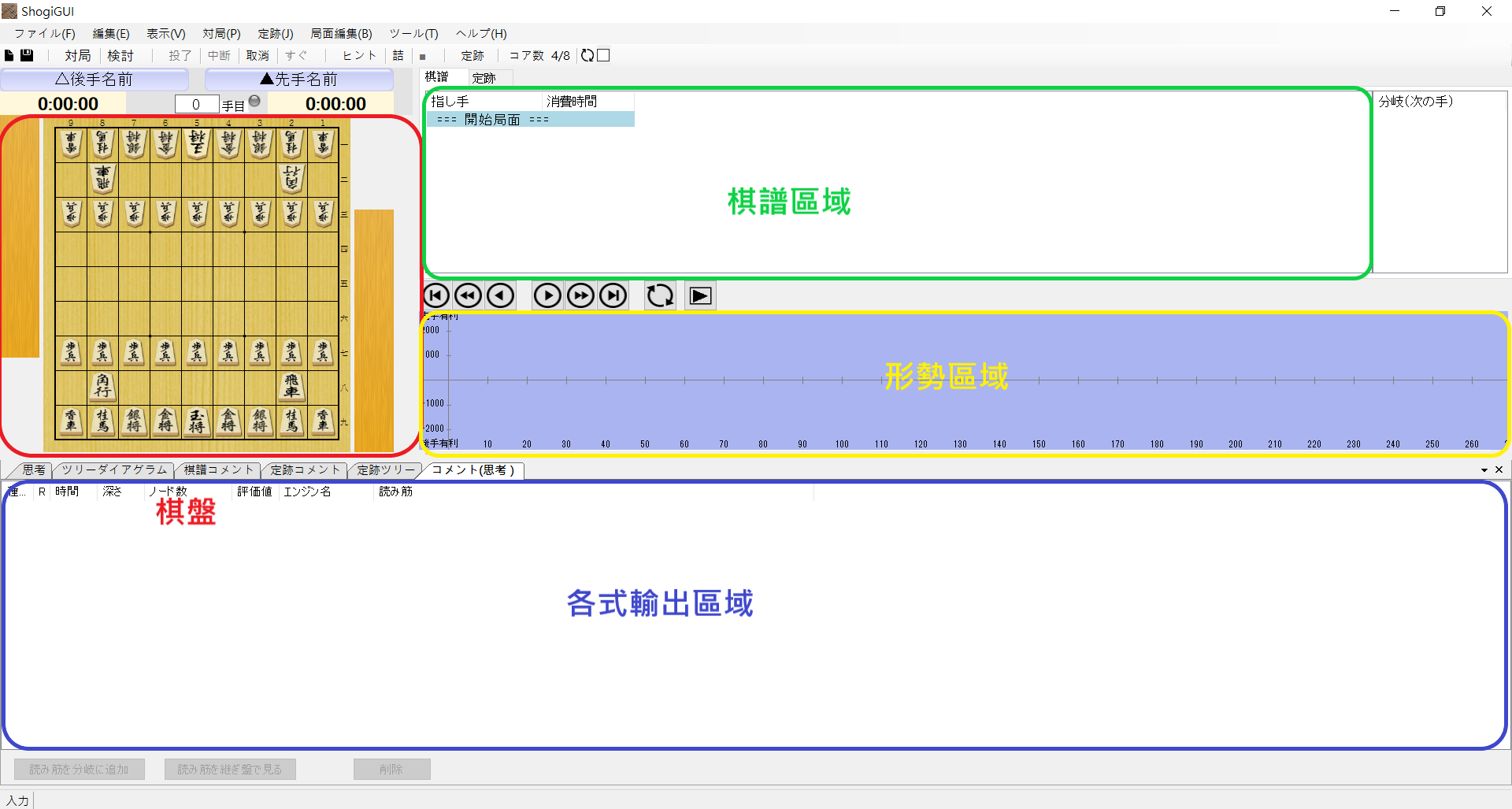
 ### 區域介紹
主要會用到的區域有下面幾種
1. 棋盤區域:展示盤面之區域
2. 棋盤區域:顯示棋譜資訊
3. 形勢區域:解析時,畫出AI運算的評價值
4. 輸出區域:可以調整要輸出的資訊,例如下一手、評價值、後續手順等
### 區域介紹
主要會用到的區域有下面幾種
1. 棋盤區域:展示盤面之區域
2. 棋盤區域:顯示棋譜資訊
3. 形勢區域:解析時,畫出AI運算的評價值
4. 輸出區域:可以調整要輸出的資訊,例如下一手、評價值、後續手順等
 ### 匯入、儲存棋譜
如何獲得棋譜,請看[日本將棋資源篇](https://hackmd.io/@CrossingVoid/rkKy9q0t3)
如果只想照著下面步驟,學習基本操作,這邊提供棋譜當作練習,[棋譜](https://github.com/Crossing-Void/Shogi-notes/blob/main/14.shogigui/asset/example.kif)
### 匯入、儲存棋譜
如何獲得棋譜,請看[日本將棋資源篇](https://hackmd.io/@CrossingVoid/rkKy9q0t3)
如果只想照著下面步驟,學習基本操作,這邊提供棋譜當作練習,[棋譜](https://github.com/Crossing-Void/Shogi-notes/blob/main/14.shogigui/asset/example.kif)
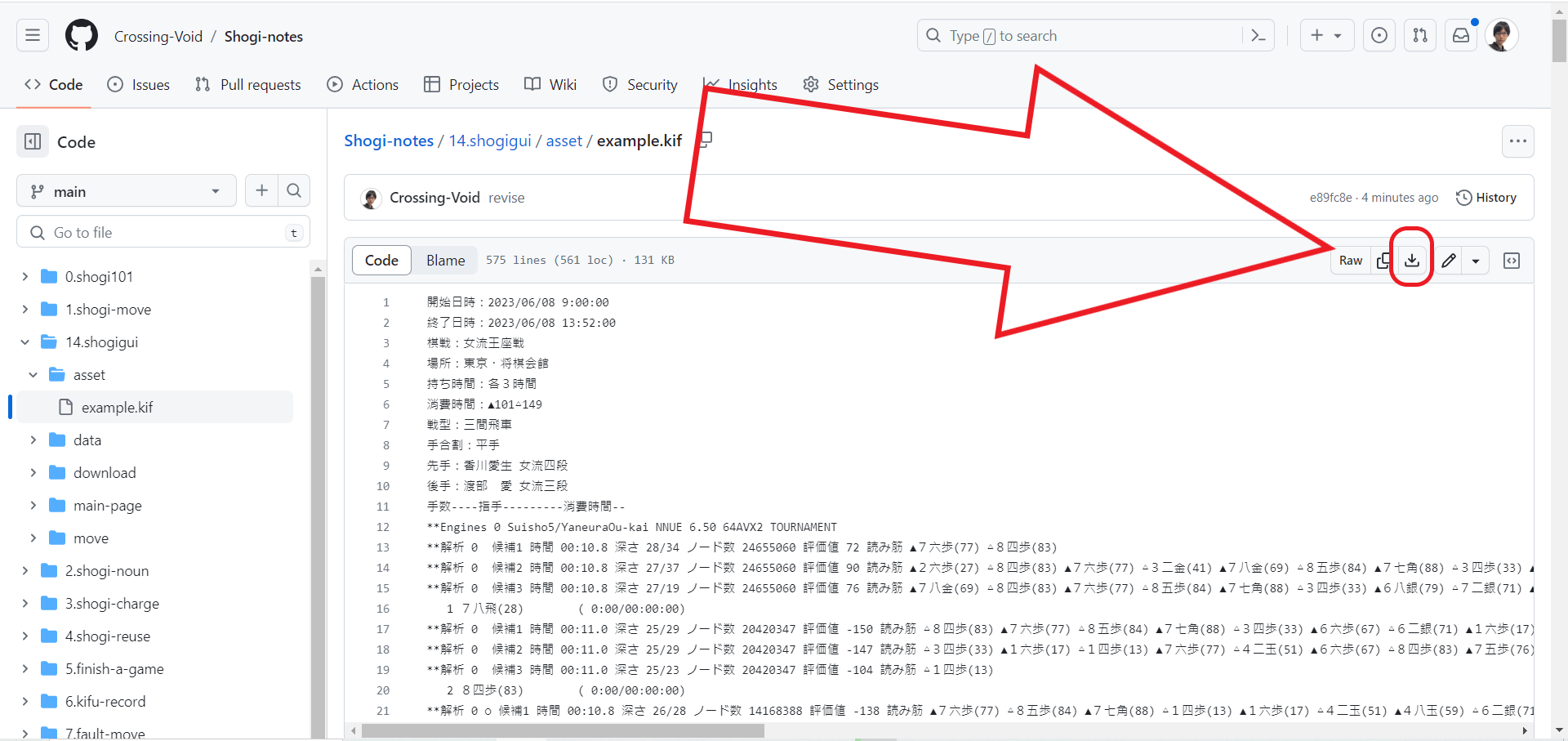 *按下**下載鍵**就會開始下載*
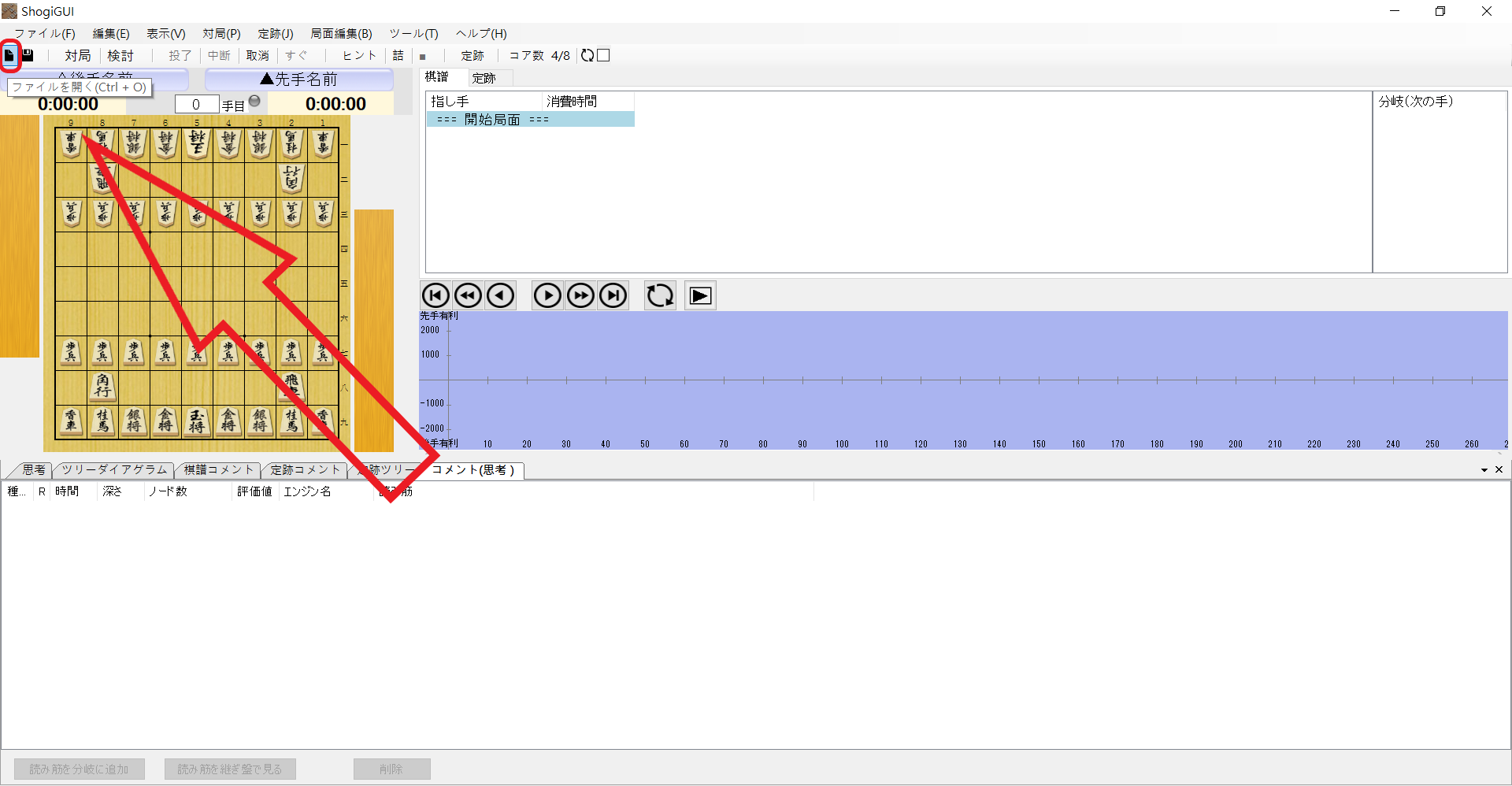
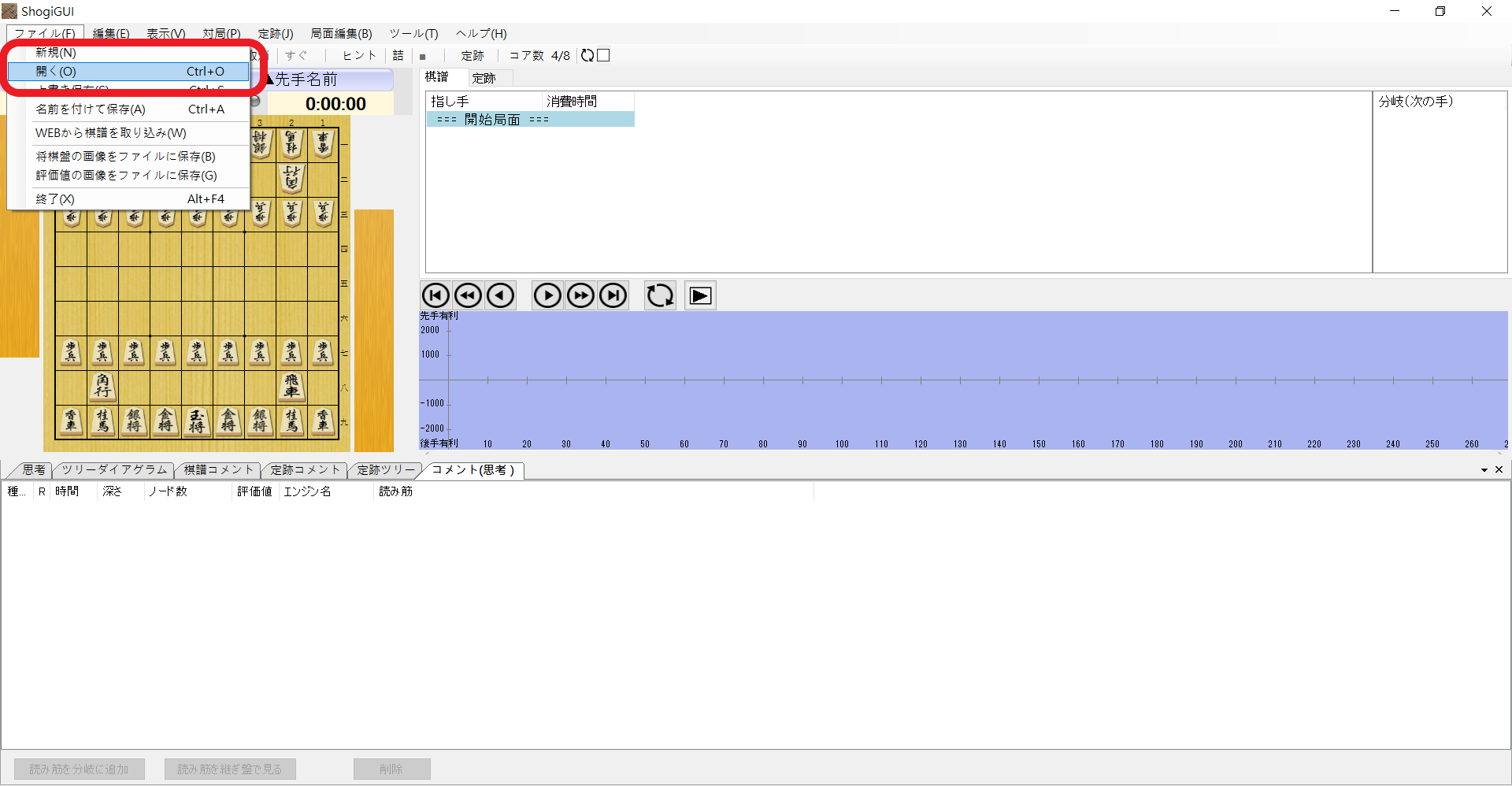
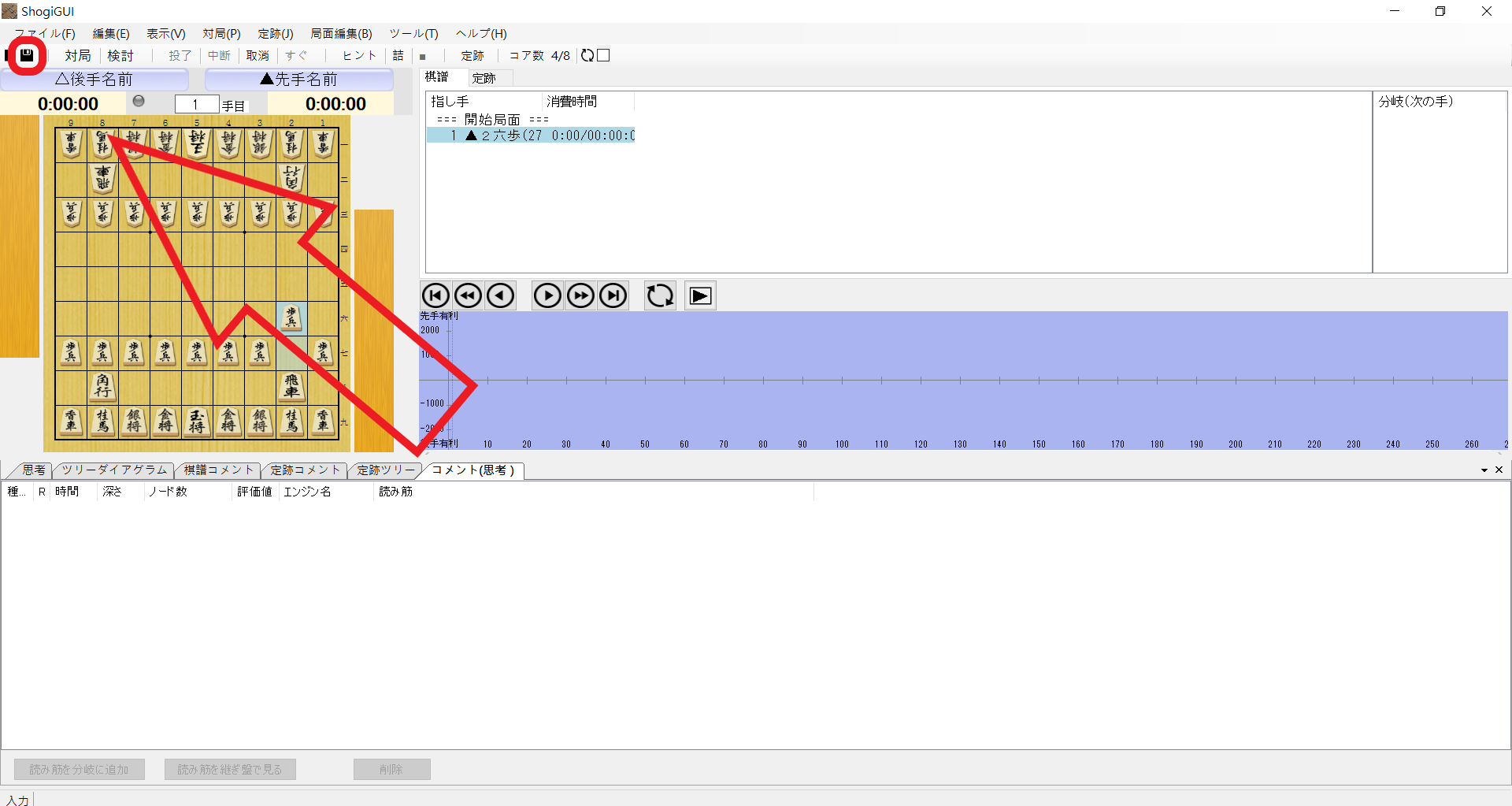
匯入棋譜,**點擊按鈕**或選擇**ファイル**裡面的**開く**
(如果使用複製棋譜的功能,直接在ShogiGUI 按下鍵盤`ctrl + v`貼上即可)
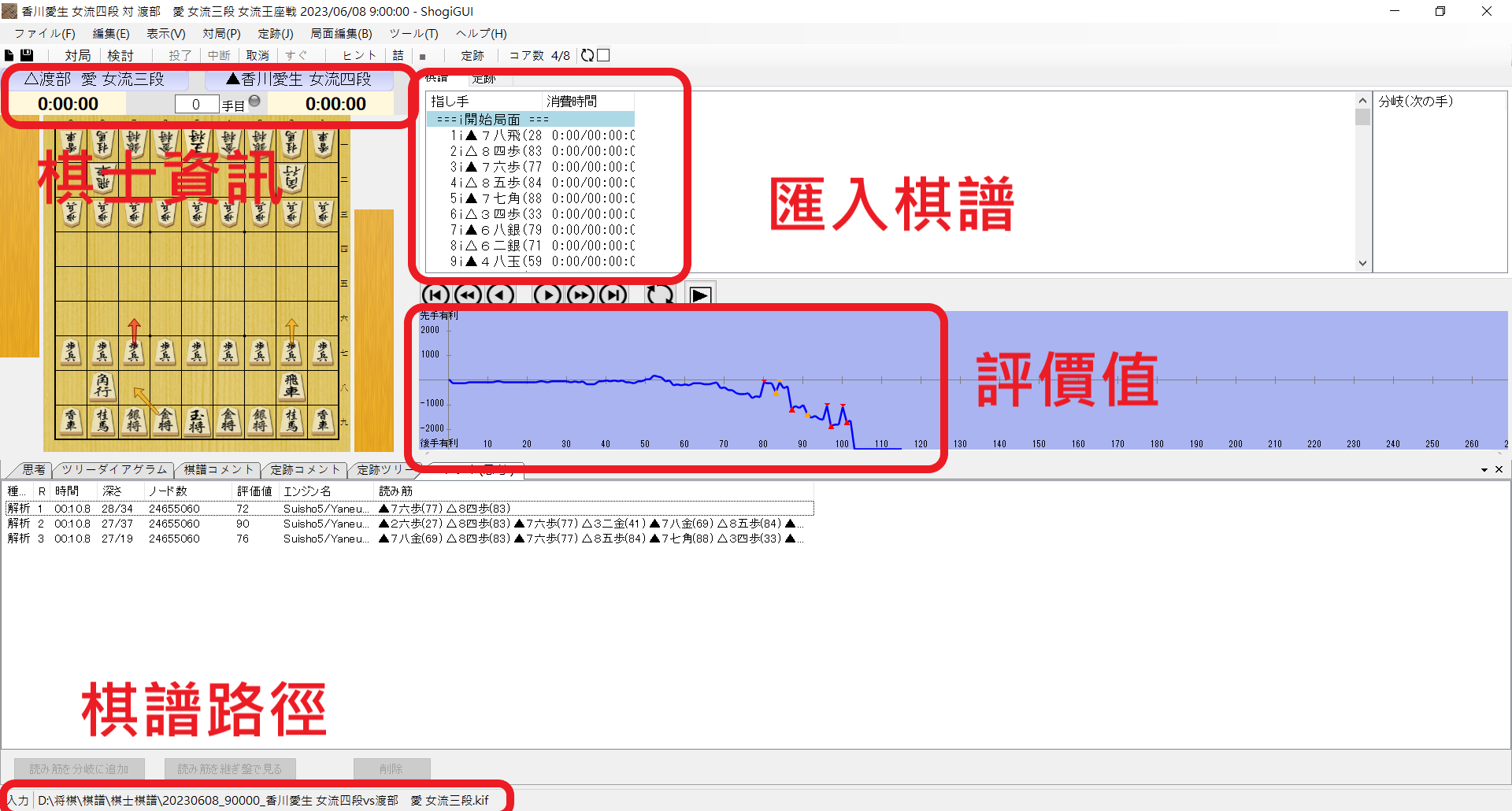
 匯入後,棋譜會被寫入到棋譜區域,棋譜有紀錄棋士名稱的話,會被寫入;如果已經有用AI分析過,形勢區域也會被寫入。最下面會顯示棋譜的路徑
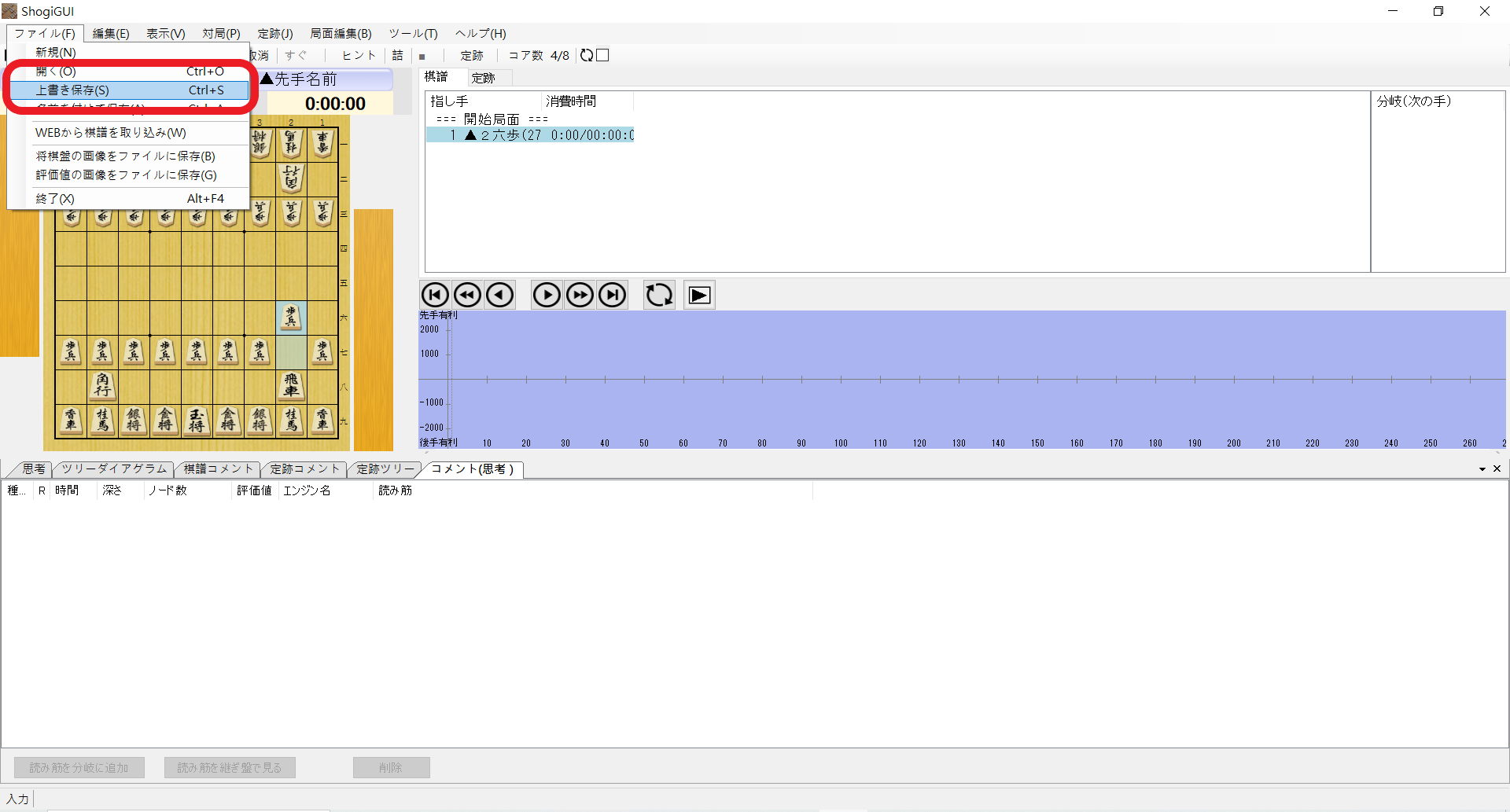
儲存棋譜,**點擊按鈕**或選擇**ファイル**裡面的**上書き保存**
如果是新檔案,會跳出視窗另存新檔,舊檔案只能儲存在現在的檔案上,不支援另存新檔
 如果是沒有存檔過的棋譜,會跳出另存新檔視窗
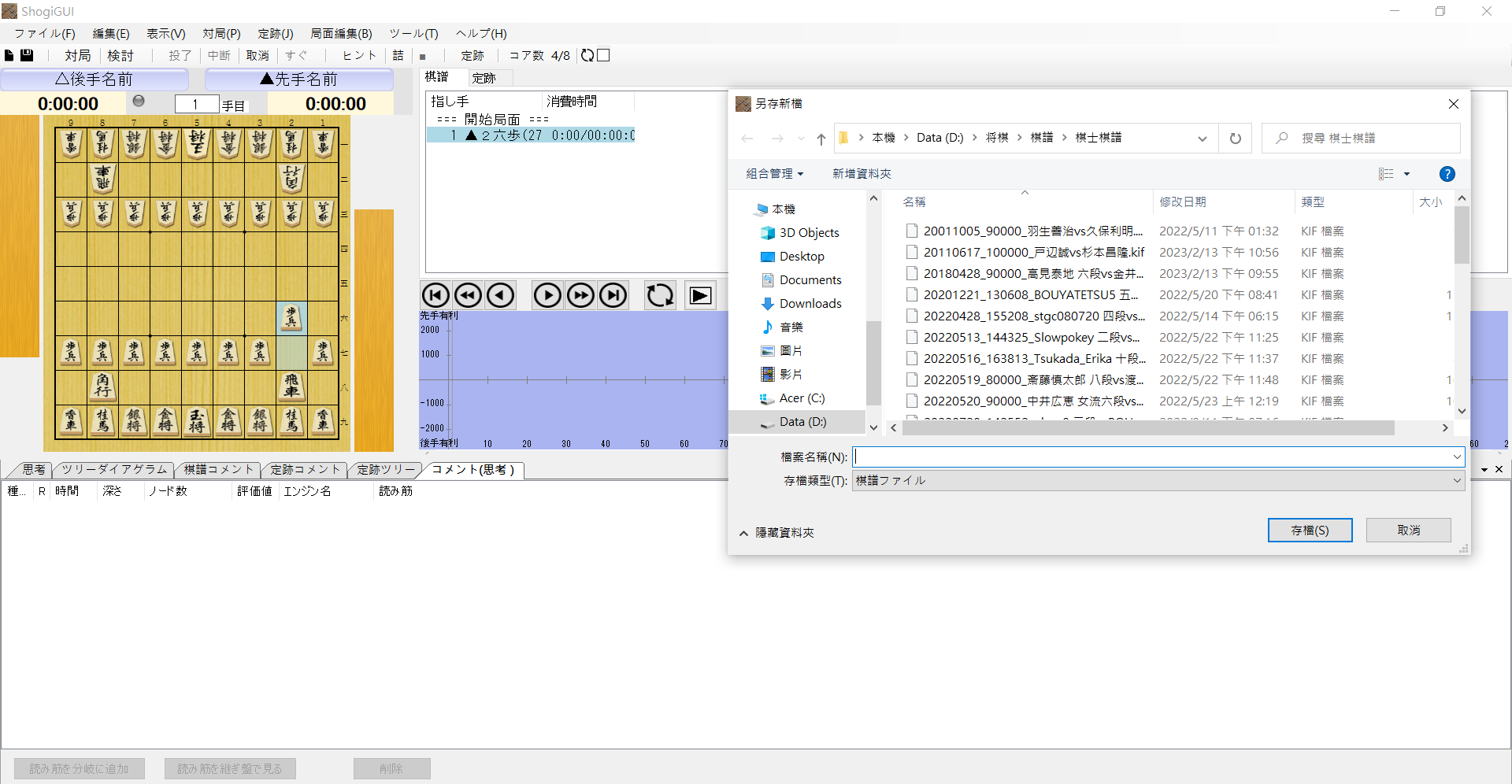 *另存新檔*
:::warning
:warning: 小注意
開啟一個舊檔案後,任何與該棋譜紀錄的變化,按下儲存鍵後,後直接反應、修改到該檔案裡。所以在分析重要的棋譜,避免怕改到棋譜可以使用以下方式
1. 不要亂按儲存鍵,按下儲存鍵之前請好好思考
2. 分析前複製一份棋譜,開啟複本,就可以恣意的使用、修改
而以下是可以在ShogiGUI改動棋譜的事件
1. 在棋譜上做變化、分支
2. 紀錄形勢(會覆蓋舊的AI分析)
3. 在棋譜上備註
等資料
:::
### 棋譜操作
先來看如何移動盤面
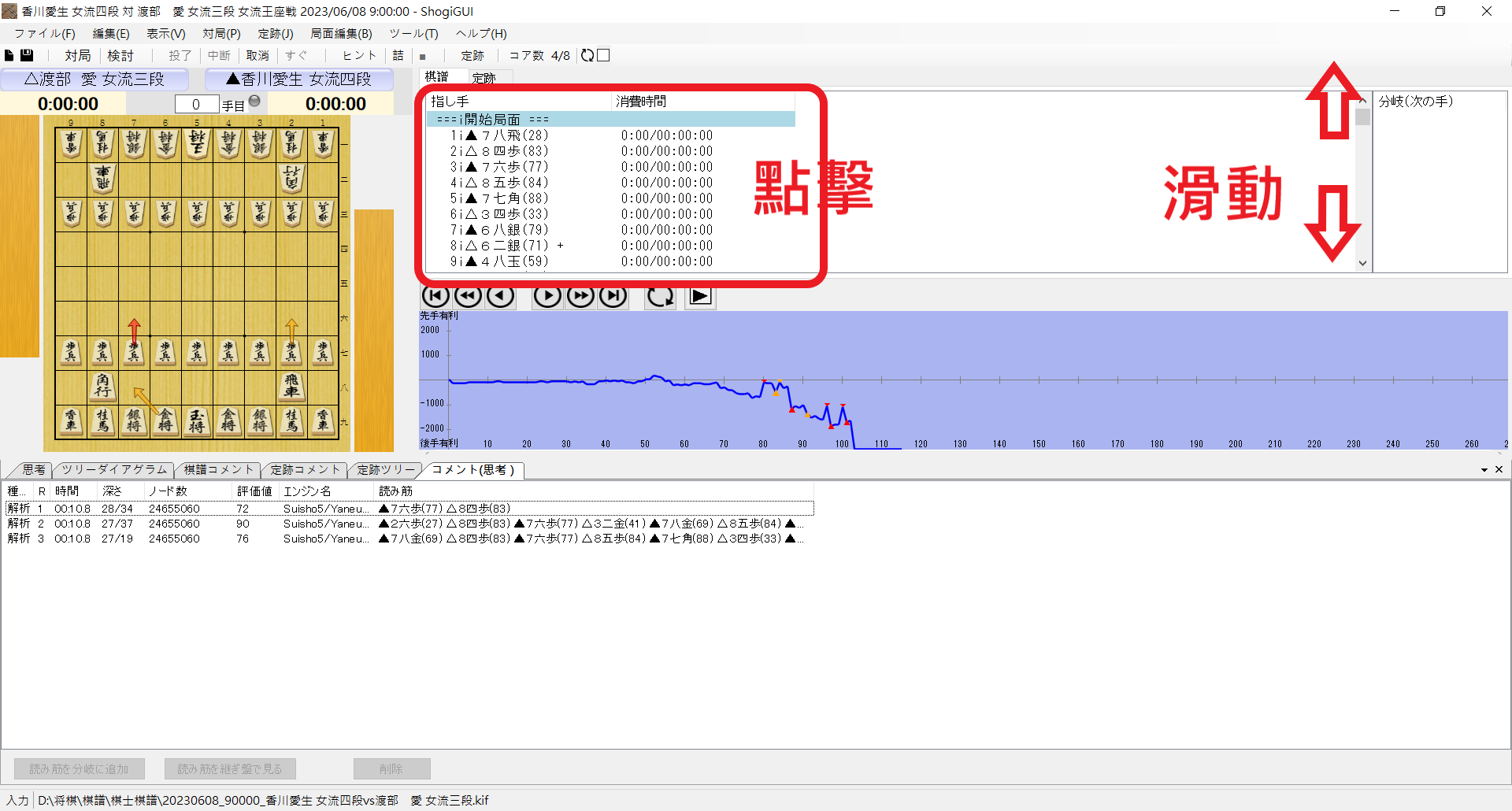
可以點擊棋譜區域,跳到任意局面
*另存新檔*
:::warning
:warning: 小注意
開啟一個舊檔案後,任何與該棋譜紀錄的變化,按下儲存鍵後,後直接反應、修改到該檔案裡。所以在分析重要的棋譜,避免怕改到棋譜可以使用以下方式
1. 不要亂按儲存鍵,按下儲存鍵之前請好好思考
2. 分析前複製一份棋譜,開啟複本,就可以恣意的使用、修改
而以下是可以在ShogiGUI改動棋譜的事件
1. 在棋譜上做變化、分支
2. 紀錄形勢(會覆蓋舊的AI分析)
3. 在棋譜上備註
等資料
:::
### 棋譜操作
先來看如何移動盤面
可以點擊棋譜區域,跳到任意局面
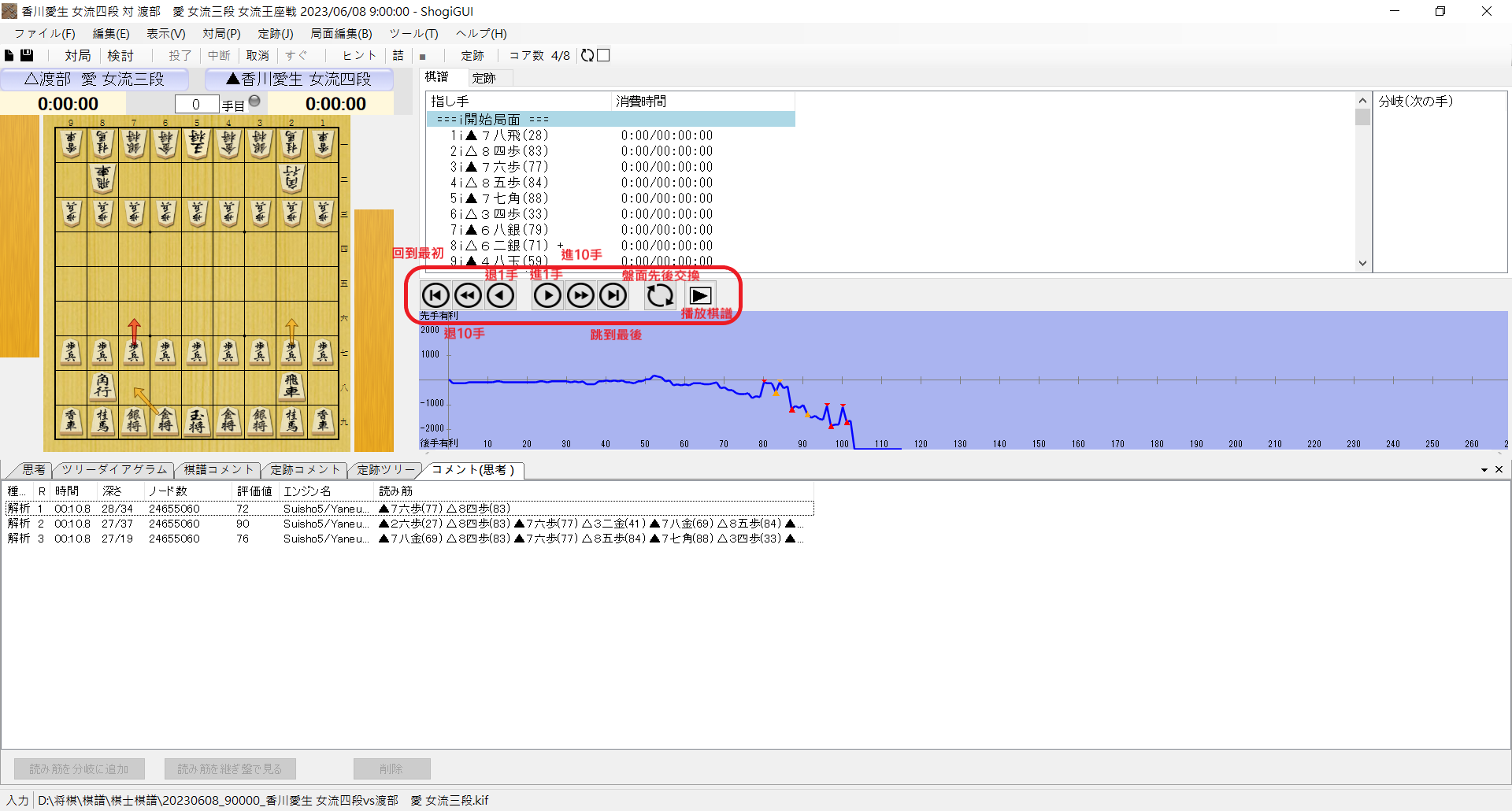
 也可以使用棋譜區域下面的按鈕
左邊開始是**回到最初、後退10手、後退1手、前進1手、前進10手、跳到最後與播放棋譜動畫**(圖片可以放大來看)
也可以使用棋譜區域下面的按鈕
左邊開始是**回到最初、後退10手、後退1手、前進1手、前進10手、跳到最後與播放棋譜動畫**(圖片可以放大來看)
 :::success
:video_camera: 播放動畫
顧名思義,就是從當前局面,開始往後播放棋譜的動畫,在設定裡可以調整播放的每一手間格,預設是一手500ms
:::success
:video_camera: 播放動畫
顧名思義,就是從當前局面,開始往後播放棋譜的動畫,在設定裡可以調整播放的每一手間格,預設是一手500ms
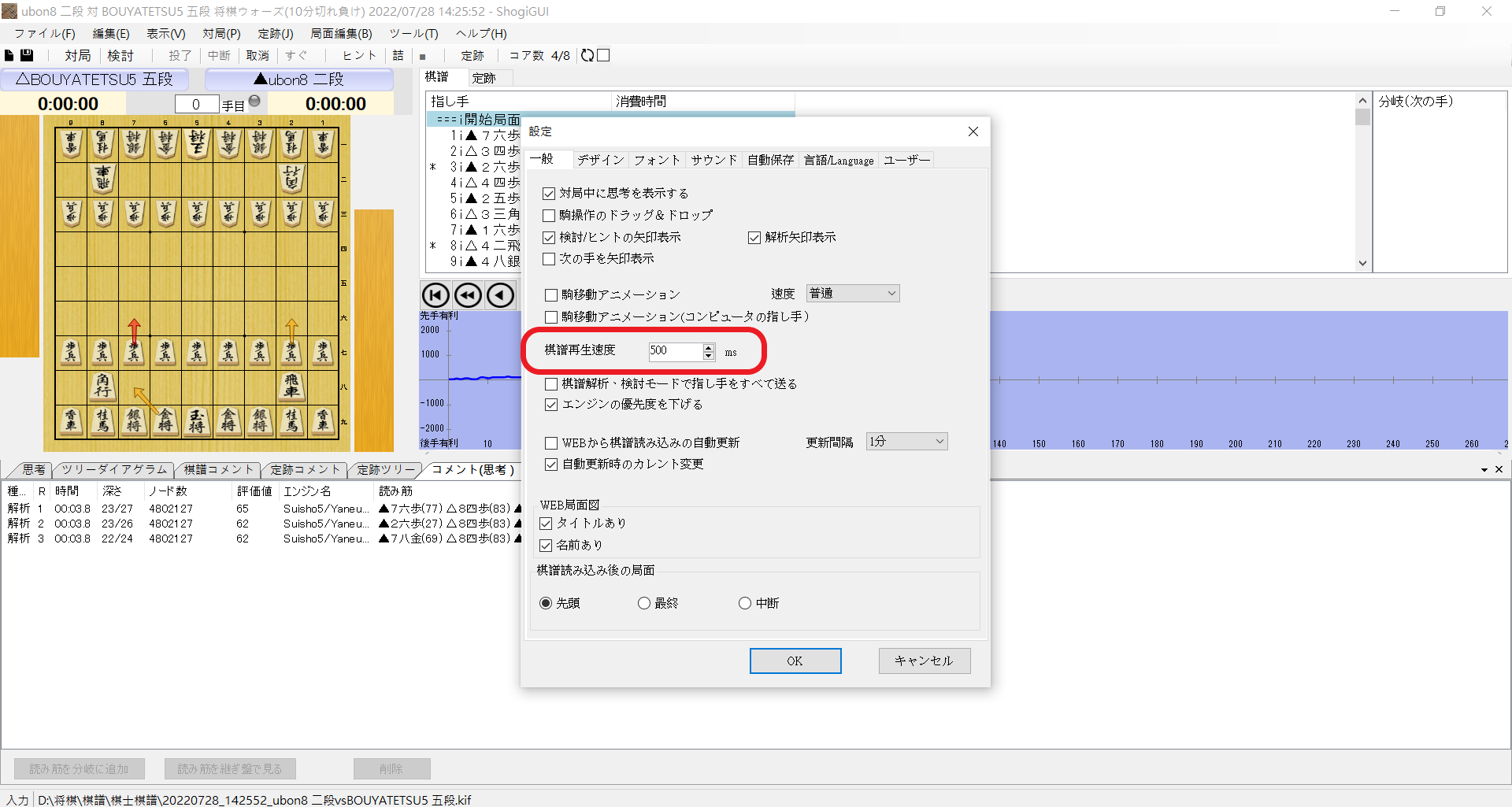 設定在哪裡與更多調整項目請看下面的**設定**
:::
### 棋譜說明
以圖片中的選取的局面說明
設定在哪裡與更多調整項目請看下面的**設定**
:::
### 棋譜說明
以圖片中的選取的局面說明
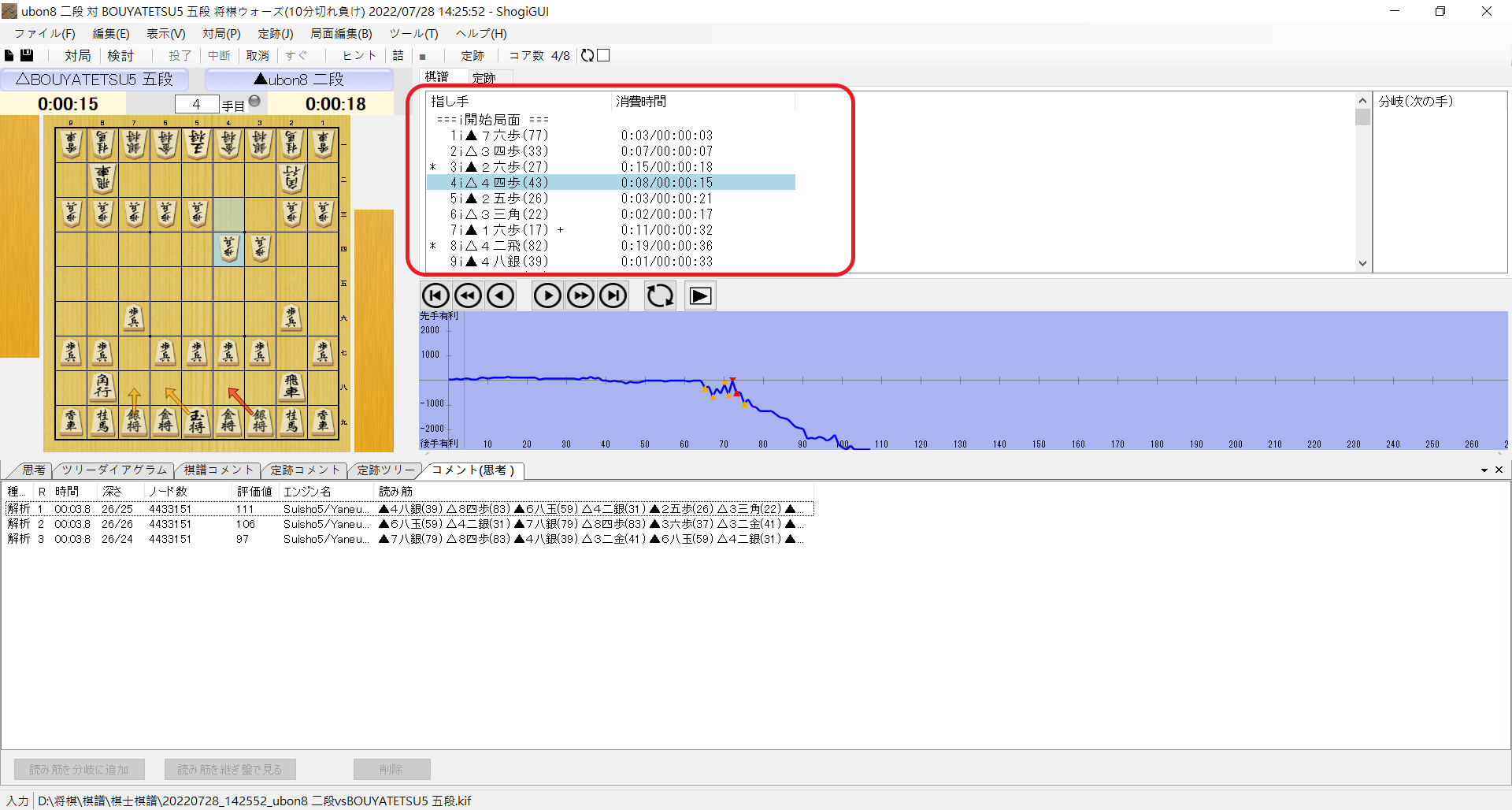 `4 △4四步(43) 0:08/00:00:15`
| 4 | △4四步 | (43) | 0:08 | 00:00:15 |
| ------ | -------- | --- | --- | -------- |
| 第4手 | 後手下出4四步| 從43的位置移動 | 花費8秒 | 總共花費15秒 |
(後手步兵從4三開始移動到4四,ShogiGUI記為:△4四步(43))
如果在棋譜後面出現+號,代表這手有出現變化(日文:分岐),可以在**前一手**看到變化
`4 △4四步(43) 0:08/00:00:15`
| 4 | △4四步 | (43) | 0:08 | 00:00:15 |
| ------ | -------- | --- | --- | -------- |
| 第4手 | 後手下出4四步| 從43的位置移動 | 花費8秒 | 總共花費15秒 |
(後手步兵從4三開始移動到4四,ShogiGUI記為:△4四步(43))
如果在棋譜後面出現+號,代表這手有出現變化(日文:分岐),可以在**前一手**看到變化
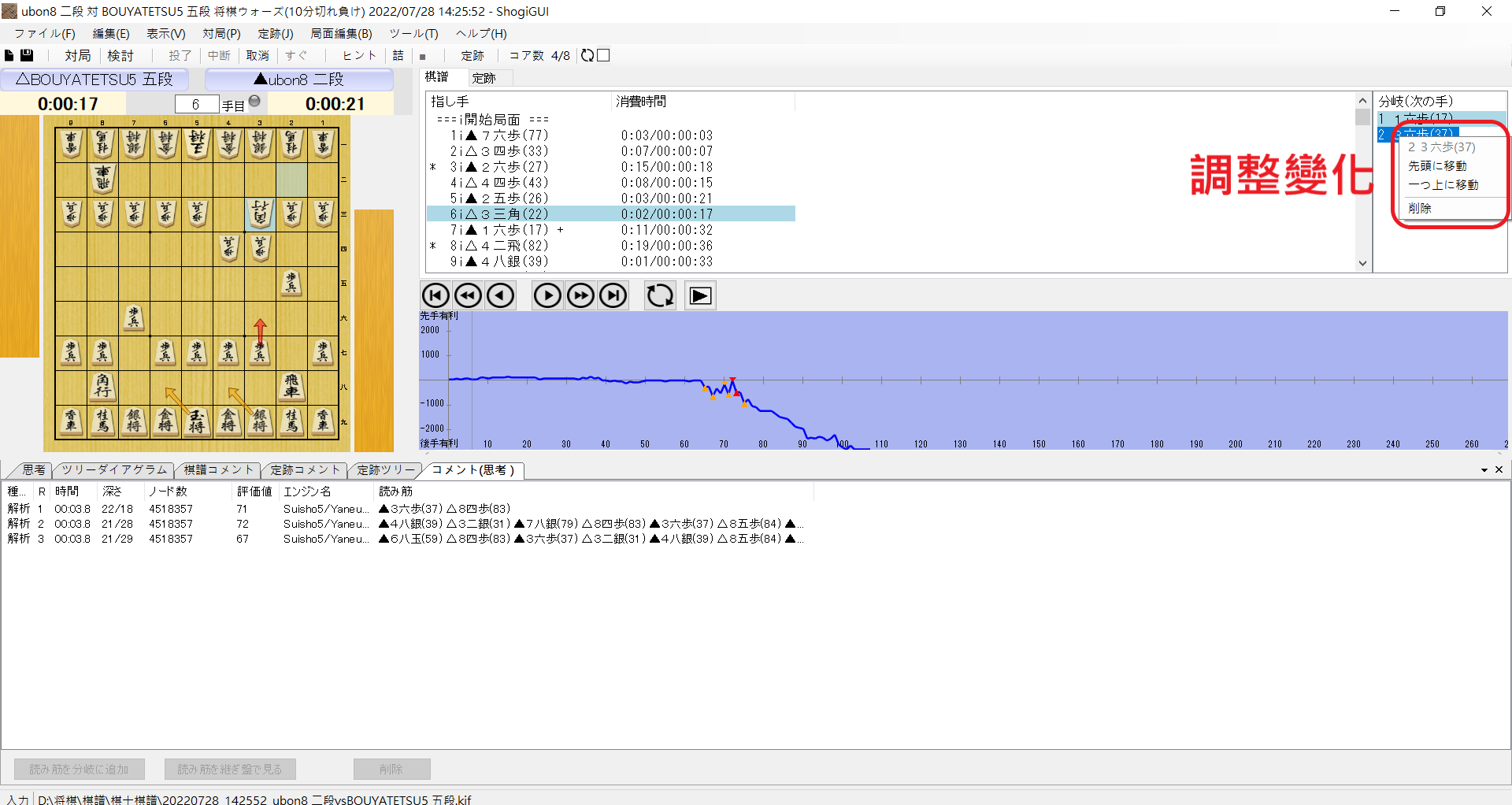
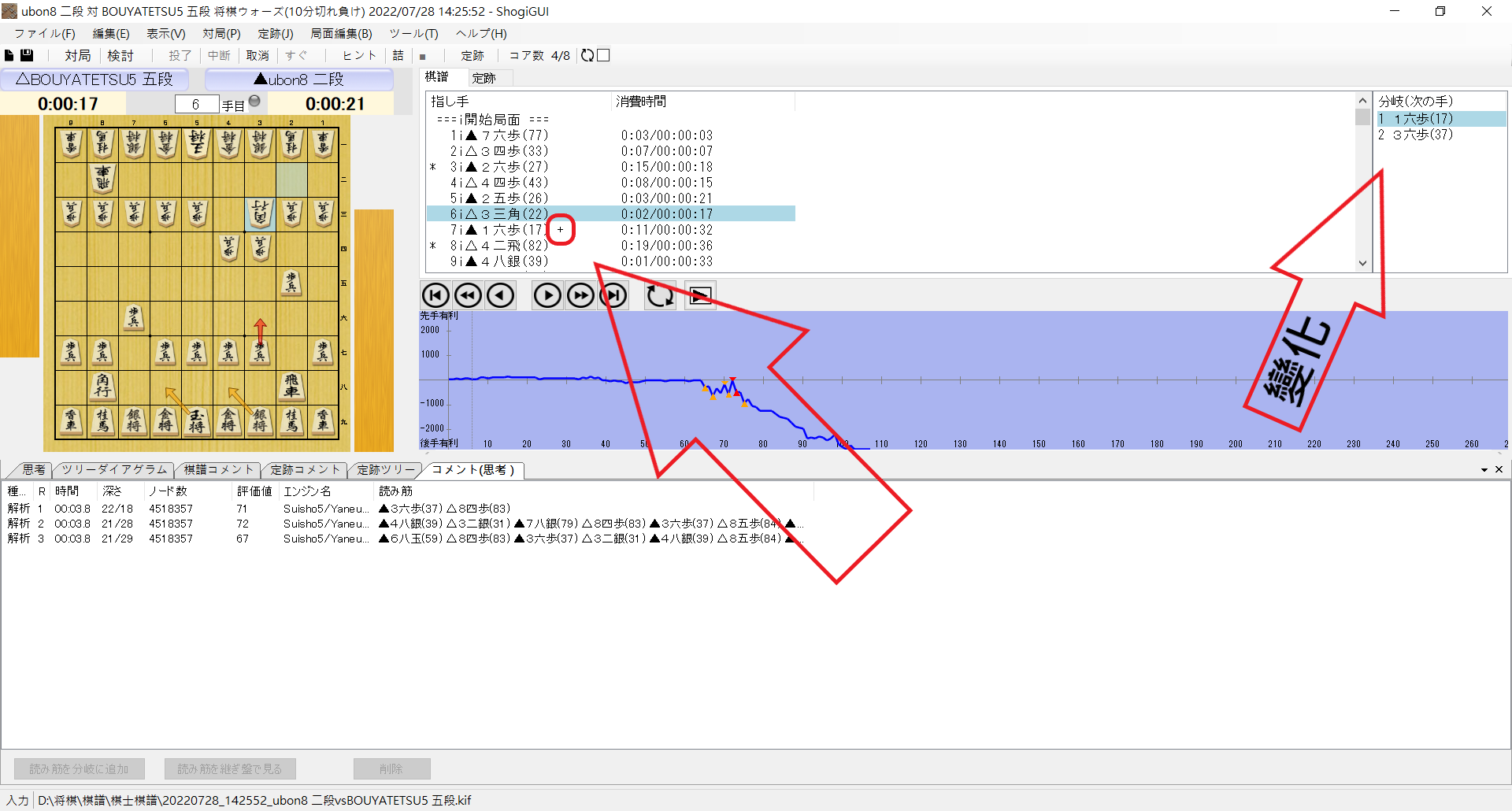 *圖中第7手出現變化,所以在點擊前一手—第6手時,可以在最右邊看到棋譜紀錄的變化*
而我們可以點擊變化進行切換,也可以用**滑鼠右鍵**方式進行調整
- 先頭に移動:在變化裡,移動到最上面
- 一つ上に移動:在變化裡,往上移動一格
- 削除:將變化削除
(在推進棋譜時,只有最上面的變化會顯示,即最重要的變化、分支)
(當變化被削除到只剩一個時,+號就會消失)
*圖中第7手出現變化,所以在點擊前一手—第6手時,可以在最右邊看到棋譜紀錄的變化*
而我們可以點擊變化進行切換,也可以用**滑鼠右鍵**方式進行調整
- 先頭に移動:在變化裡,移動到最上面
- 一つ上に移動:在變化裡,往上移動一格
- 削除:將變化削除
(在推進棋譜時,只有最上面的變化會顯示,即最重要的變化、分支)
(當變化被削除到只剩一個時,+號就會消失)
 ### 下載更好的引擎
在使用AI前,先來提供更好的AI給大家,前面說過ShogiGUI內建**gpsfish**引擎,雖然已經有相當的程度,不過一般我們會選擇安裝**水匠**作為基本配備
在現在,有很多人開發出自己的AI,也有AI的將棋比賽—電竜戦,上面說的水匠就是其中一個AI引擎,其他有名的還有dlshogi、やねうら王等
進入[下載頁面](https://drive.google.com/file/d/1T-Go2KImMfKD_4m_j4fQFXrEfaGgAcS_/view)
### 下載更好的引擎
在使用AI前,先來提供更好的AI給大家,前面說過ShogiGUI內建**gpsfish**引擎,雖然已經有相當的程度,不過一般我們會選擇安裝**水匠**作為基本配備
在現在,有很多人開發出自己的AI,也有AI的將棋比賽—電竜戦,上面說的水匠就是其中一個AI引擎,其他有名的還有dlshogi、やねうら王等
進入[下載頁面](https://drive.google.com/file/d/1T-Go2KImMfKD_4m_j4fQFXrEfaGgAcS_/view)
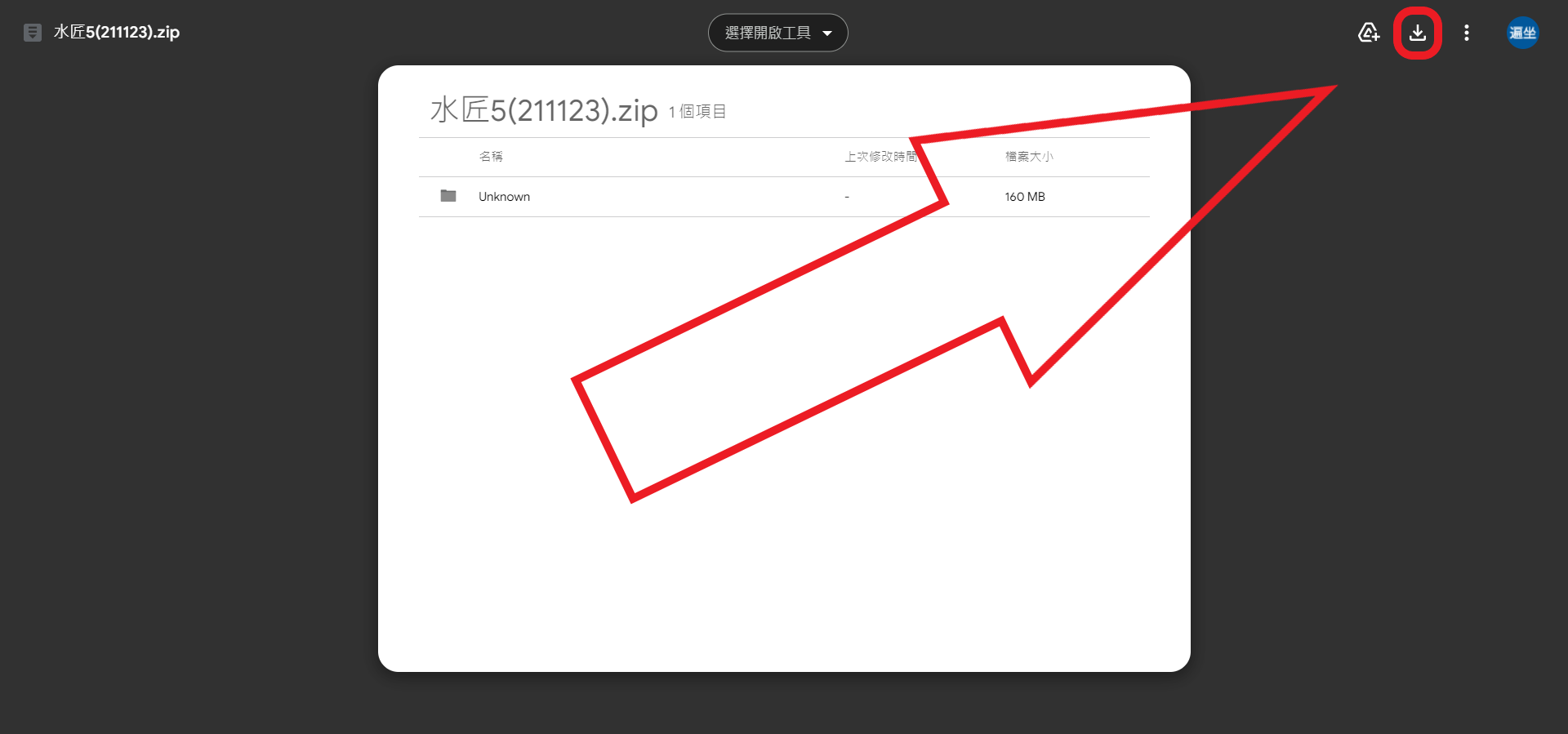 點擊下載,google drive會提醒說沒辦法掃毒,一樣下載
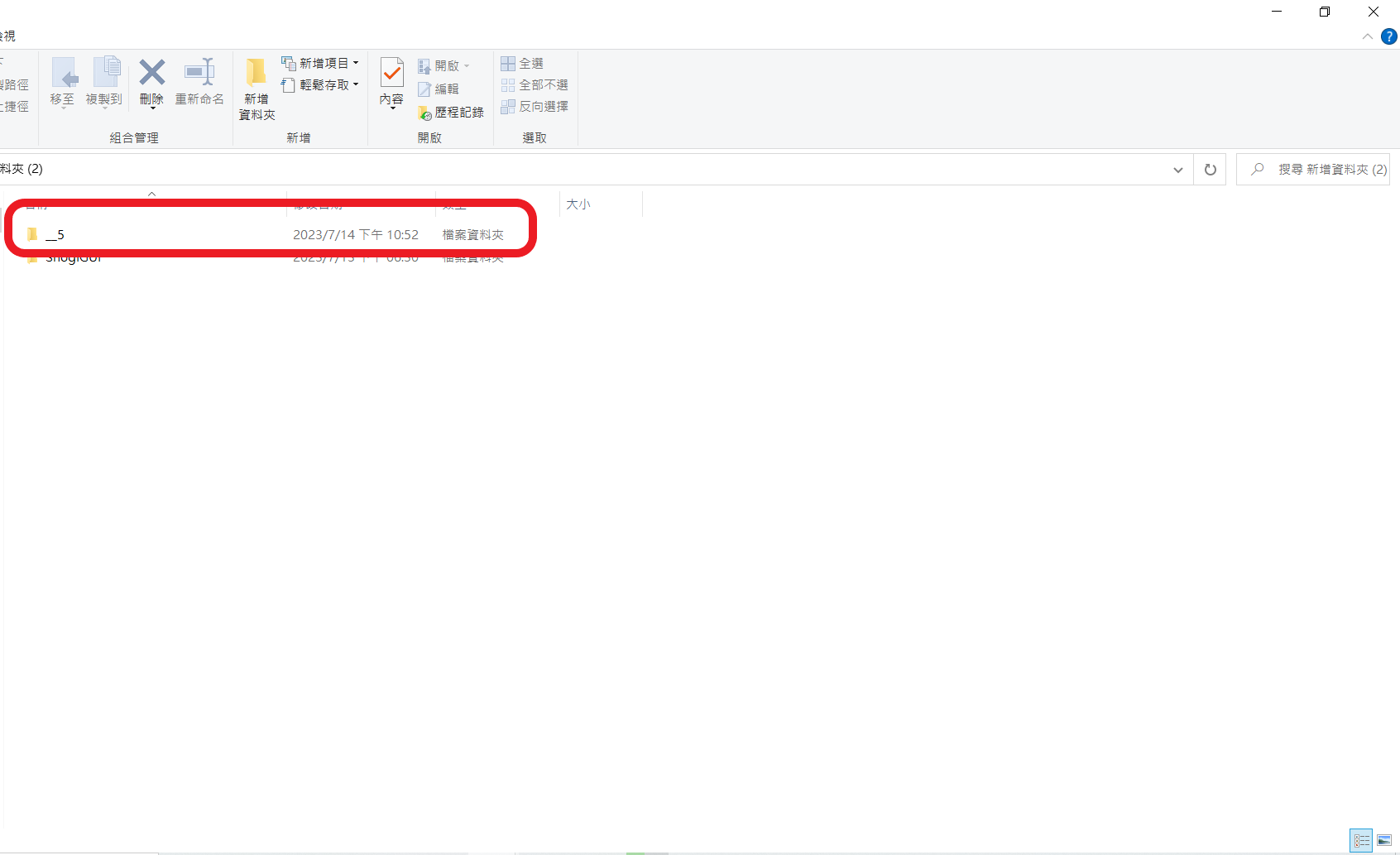
一樣解壓縮後,得到資料夾
點擊下載,google drive會提醒說沒辦法掃毒,一樣下載
一樣解壓縮後,得到資料夾
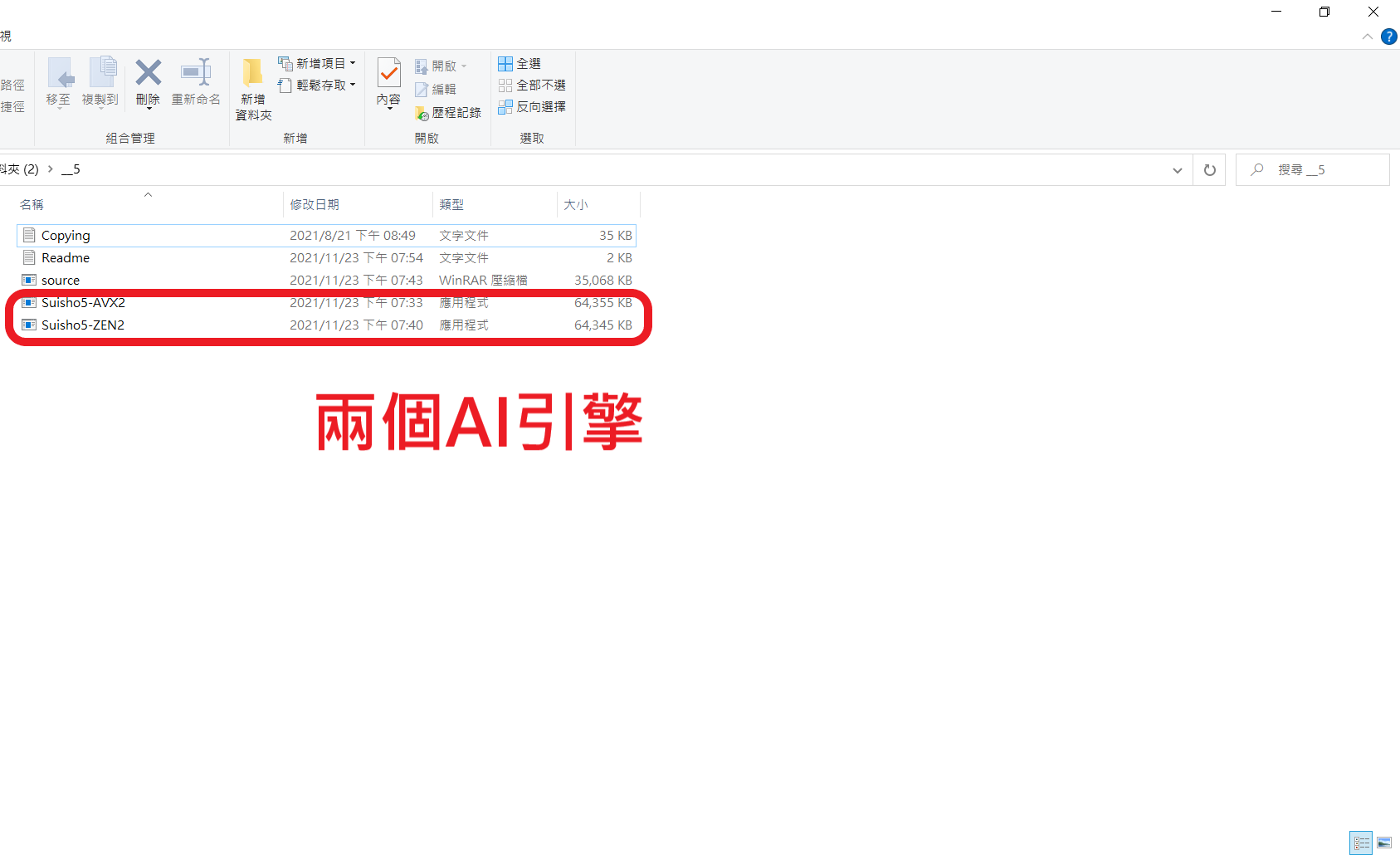
 打開後內含兩個AI引擎與copyright等
 下載完後我們要去ShogiGUI裡面,把引擎給匯入進來,點擊**ツール**裡的**エンジン設定**
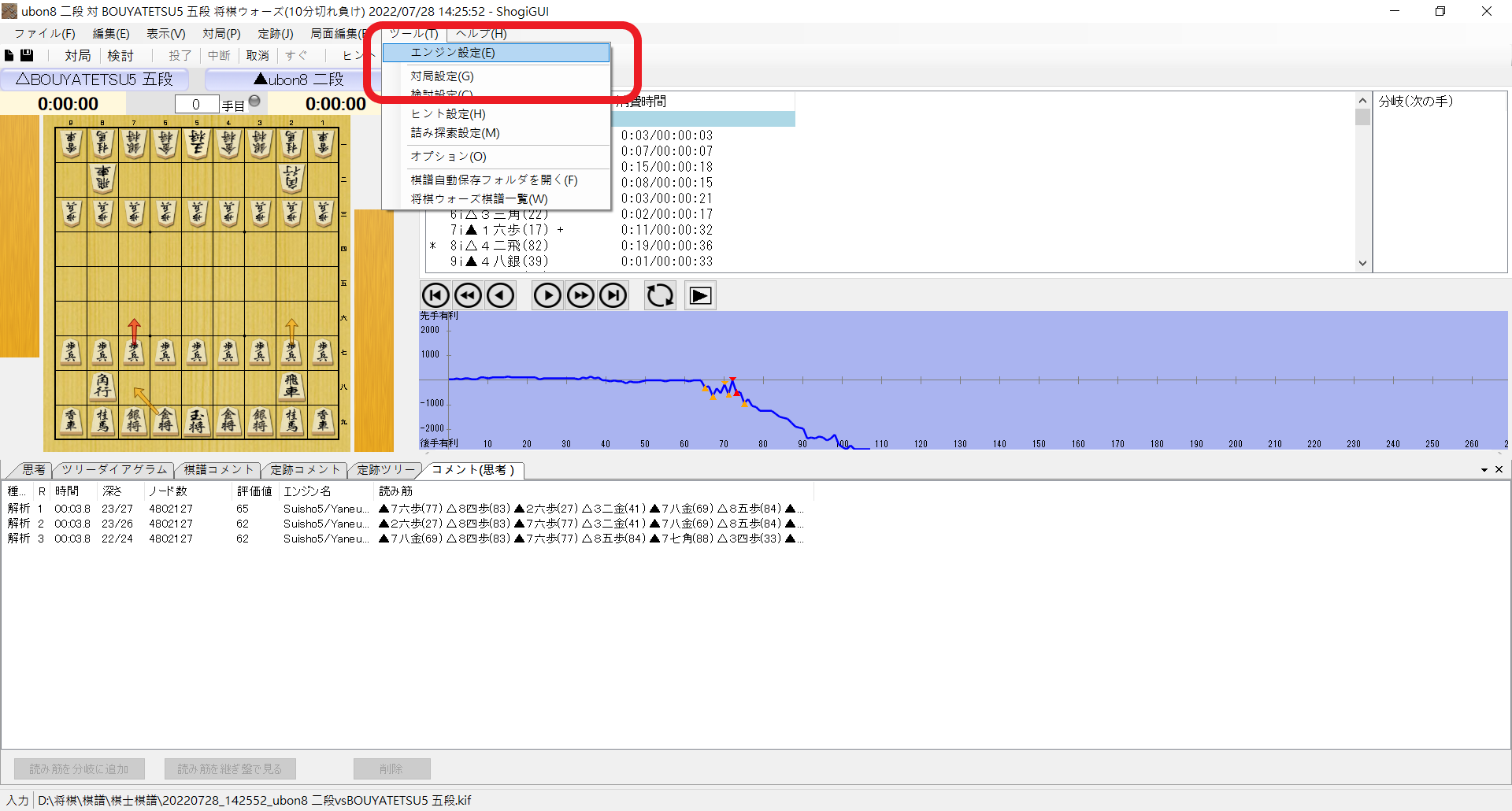 按下追加~~叉燒~~
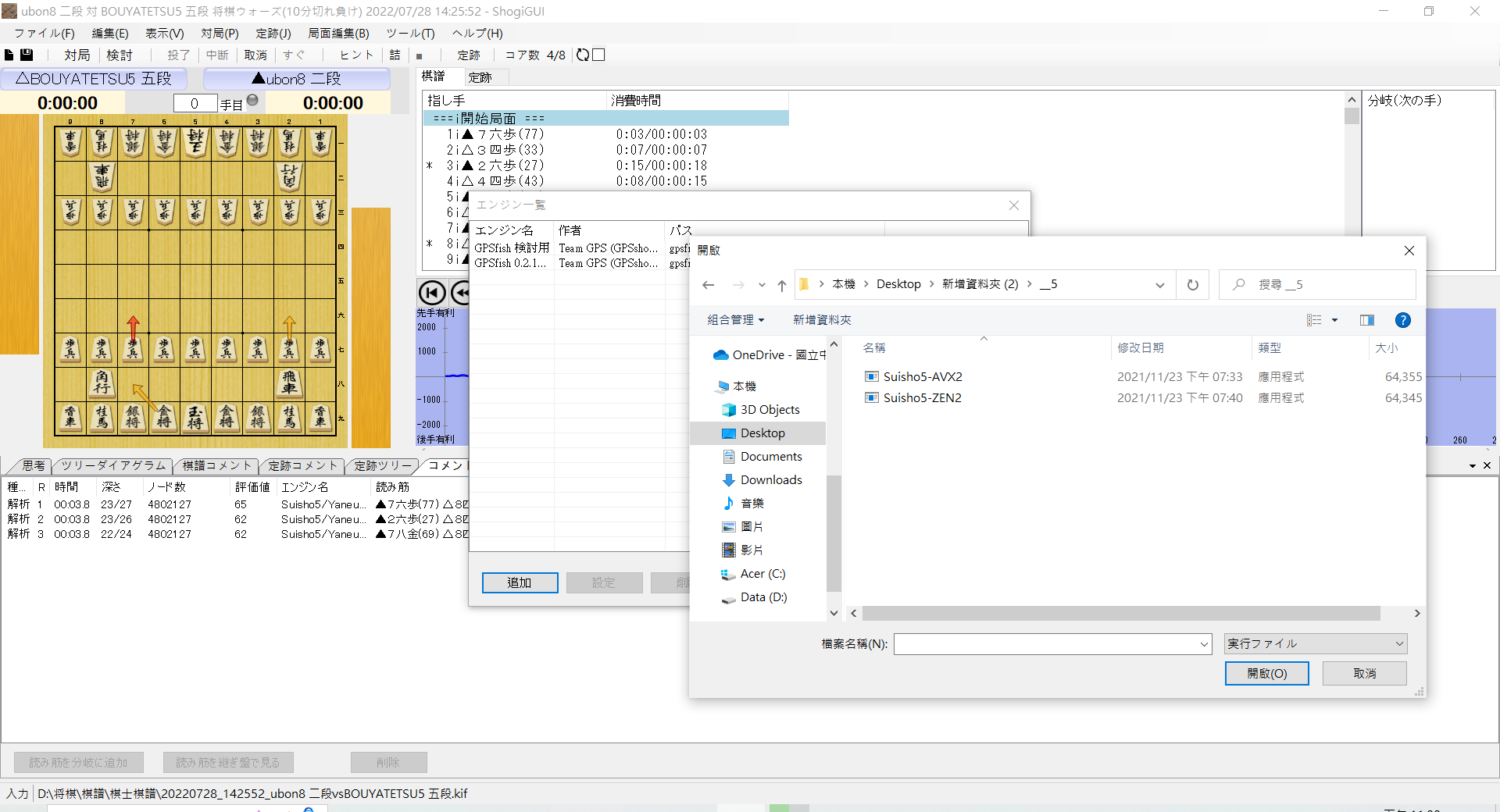
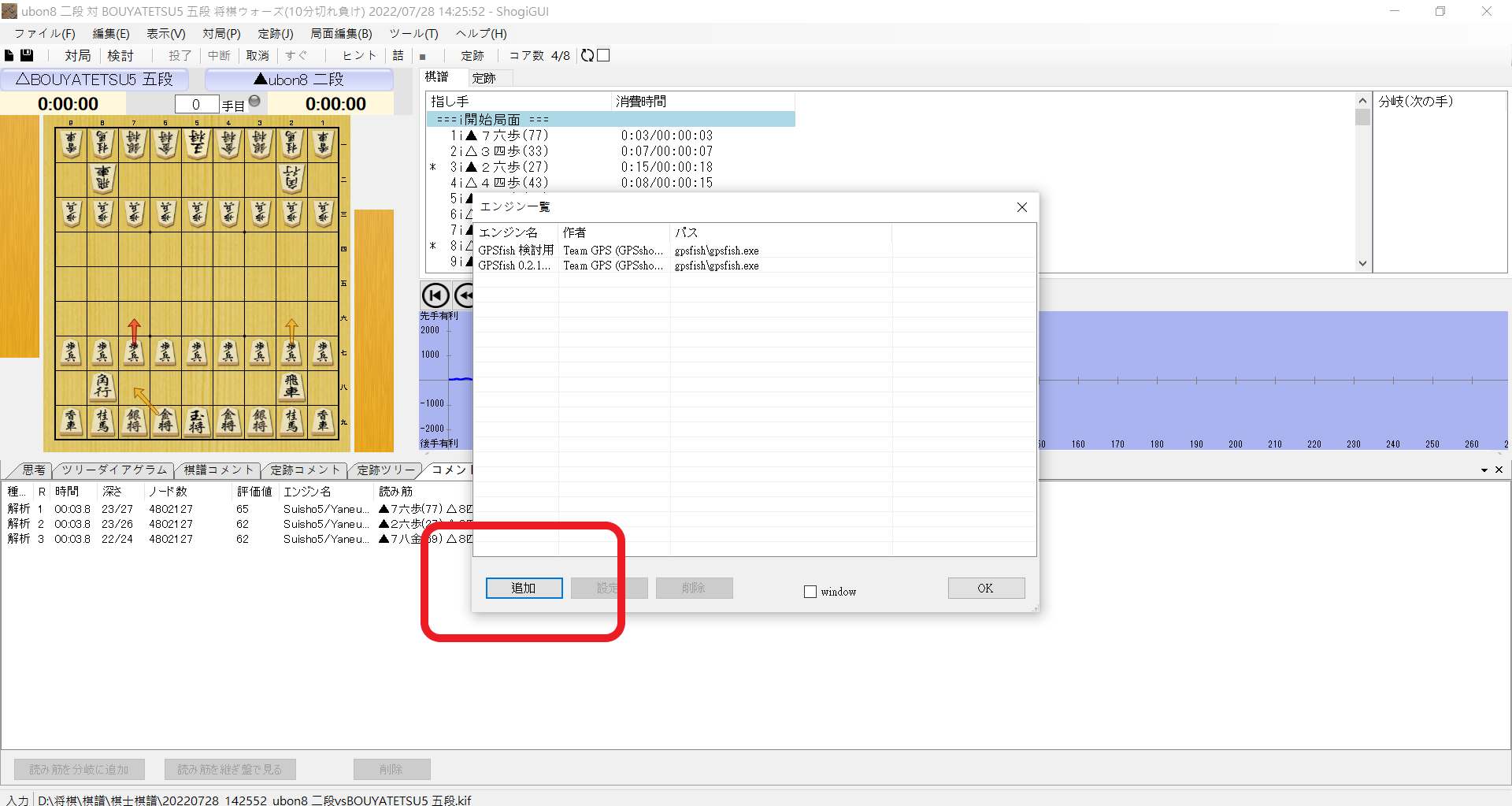 找到剛剛下載玩的資料夾,找到AI引擎
這邊推薦AVX2,因為比起ZEN2,是更新的版本
直接按OK即可
找到剛剛下載玩的資料夾,找到AI引擎
這邊推薦AVX2,因為比起ZEN2,是更新的版本
直接按OK即可
 沒問題的話,水匠就被加入進去了
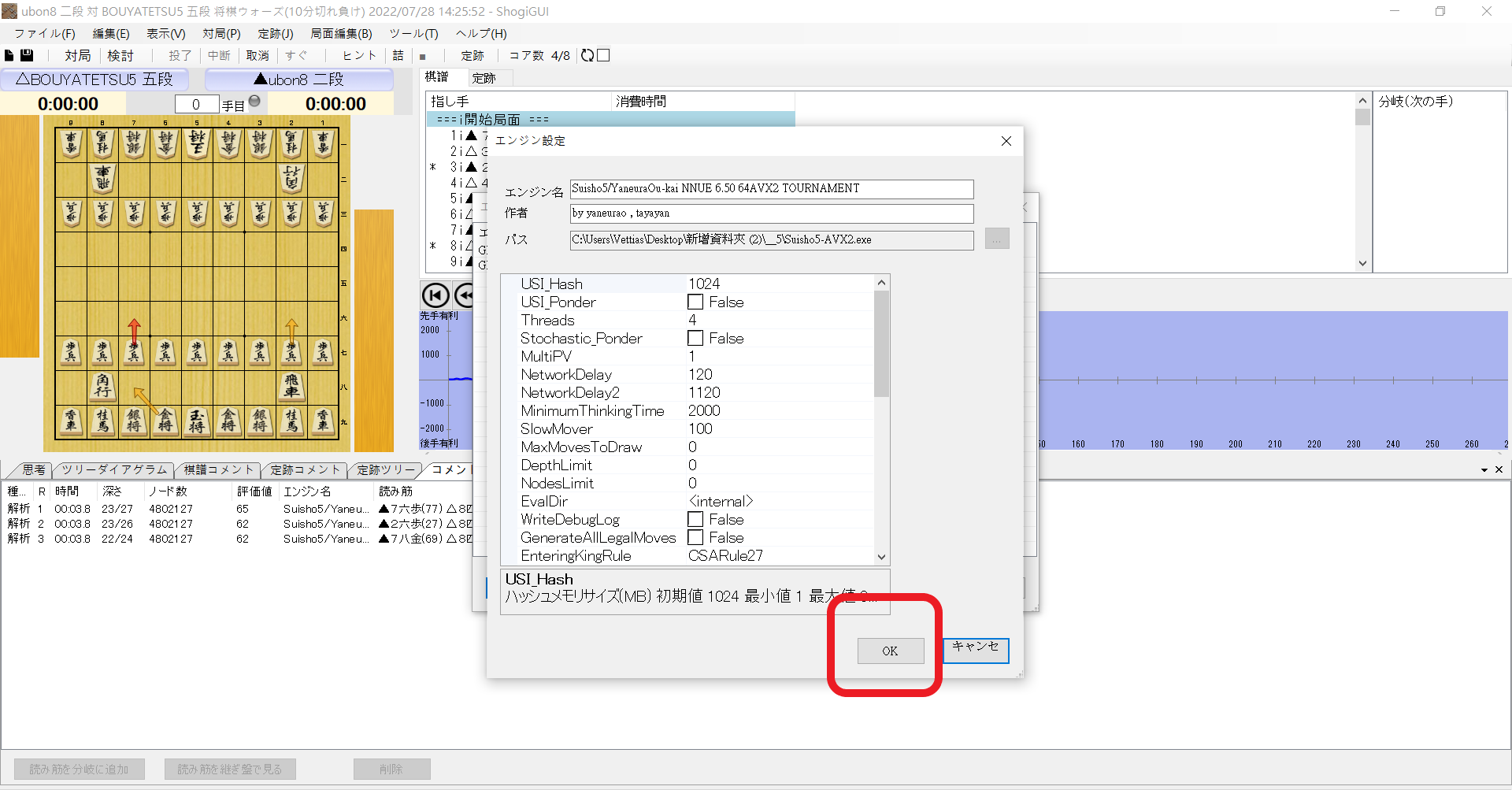 到這裡只是加入水匠,還沒有把後面的引擎調為水匠,這部分在下面的解析區再一同說明
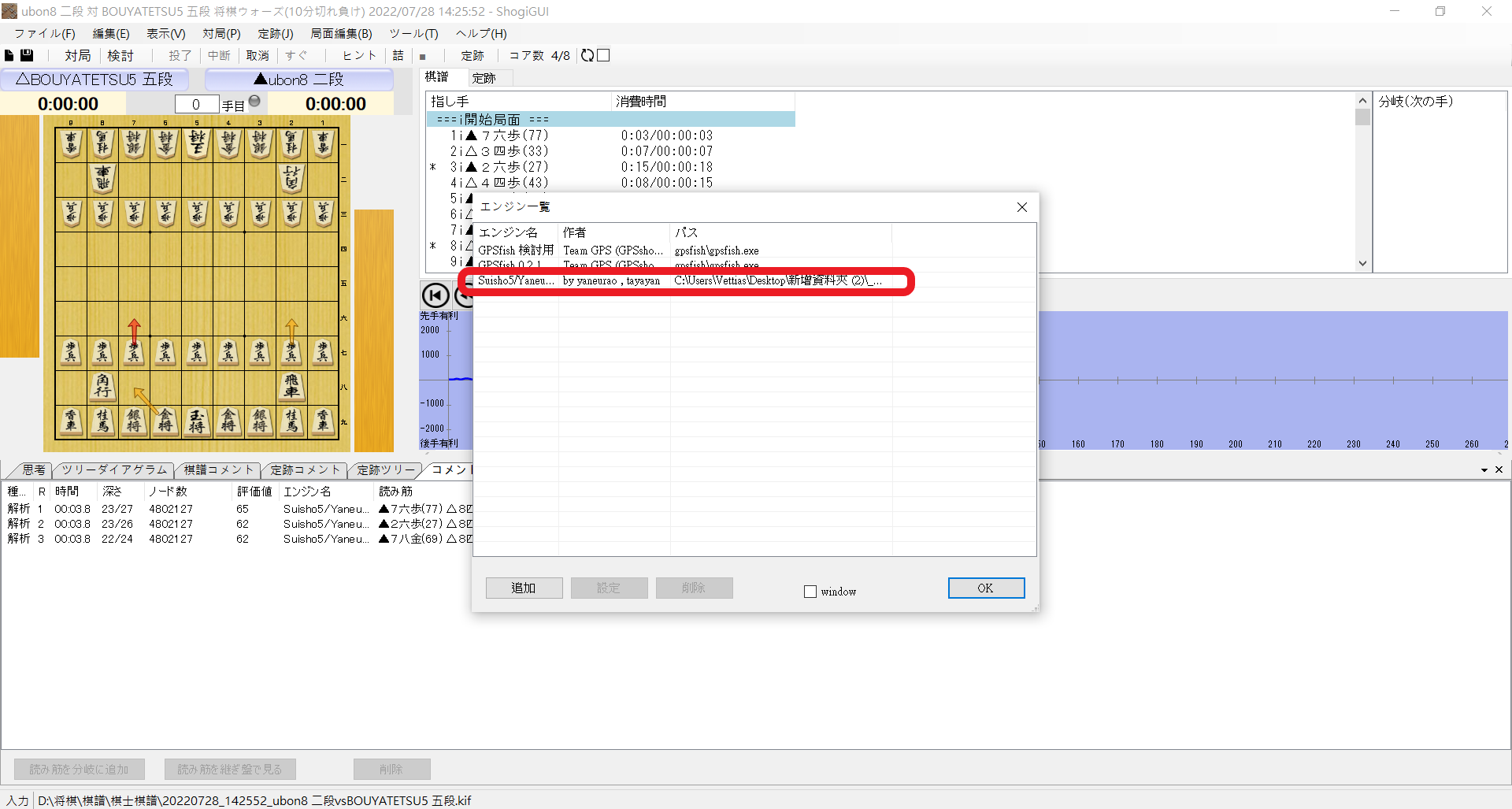 *如果成功的話,會出現這個畫面*
### 檢討
這邊就要開始解紹AI解析第一步—檢討
按下**検討**或是從**対局**裡的**検討**進入
*如果成功的話,會出現這個畫面*
### 檢討
這邊就要開始解紹AI解析第一步—檢討
按下**検討**或是從**対局**裡的**検討**進入
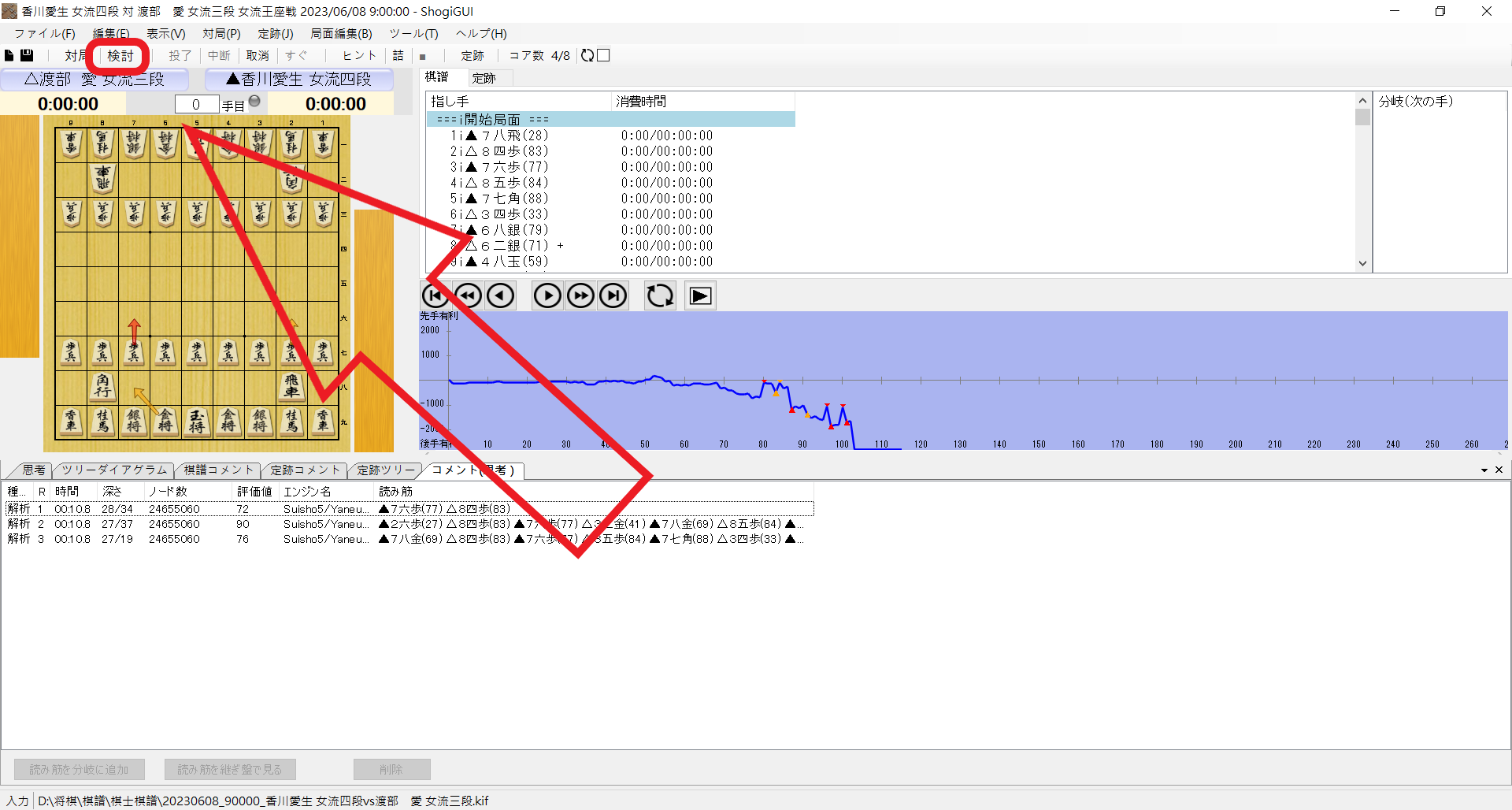
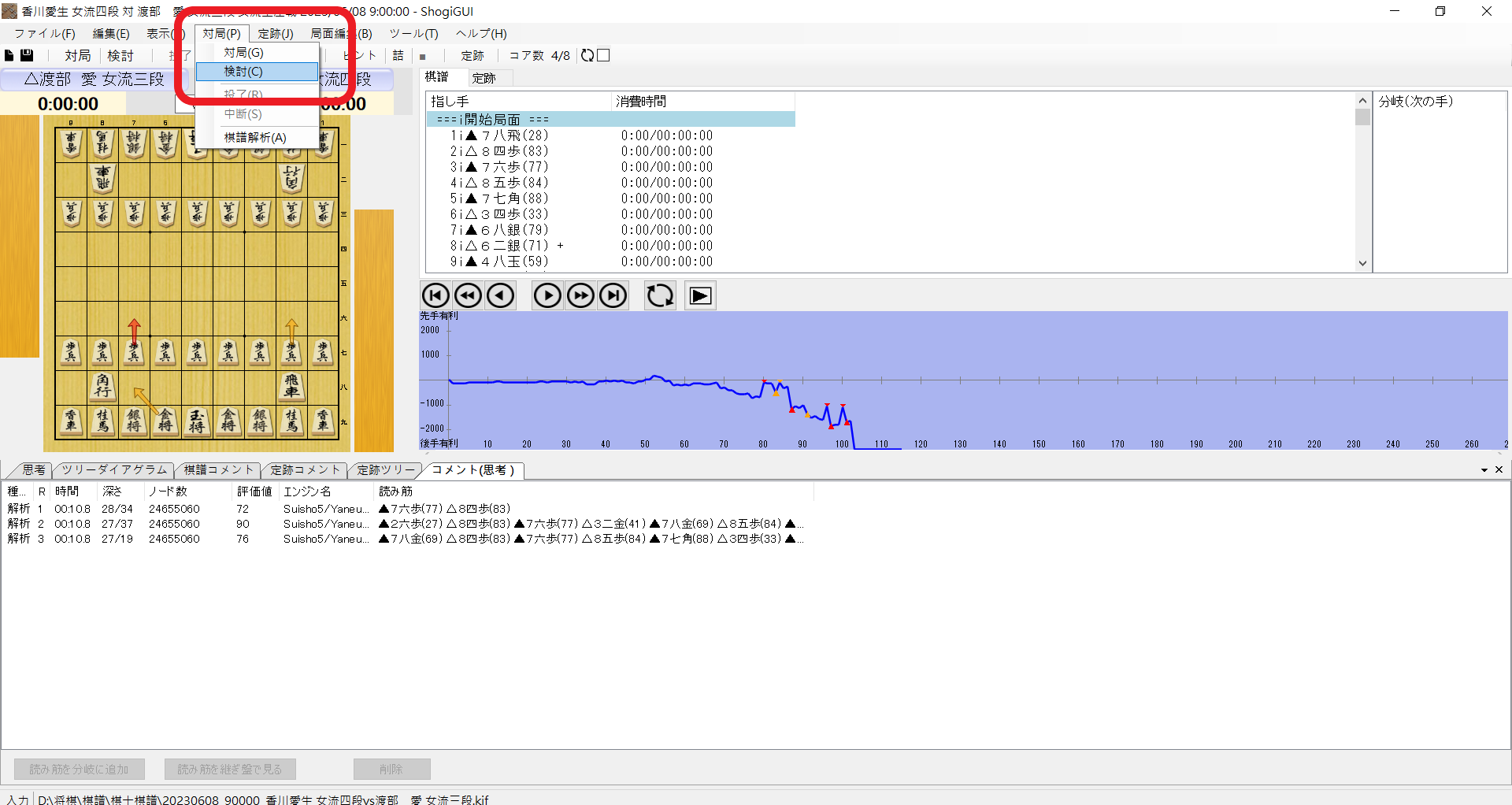 調整選項,這邊有一些選項可以調整
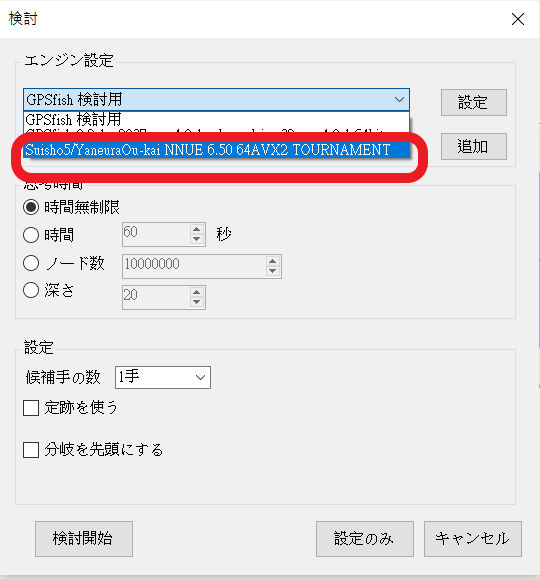
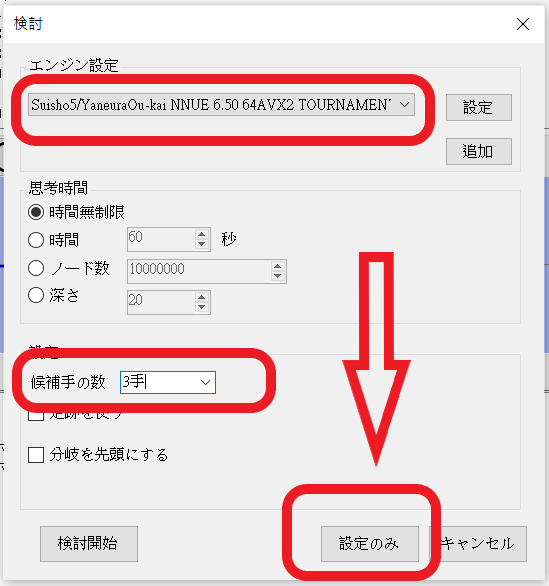
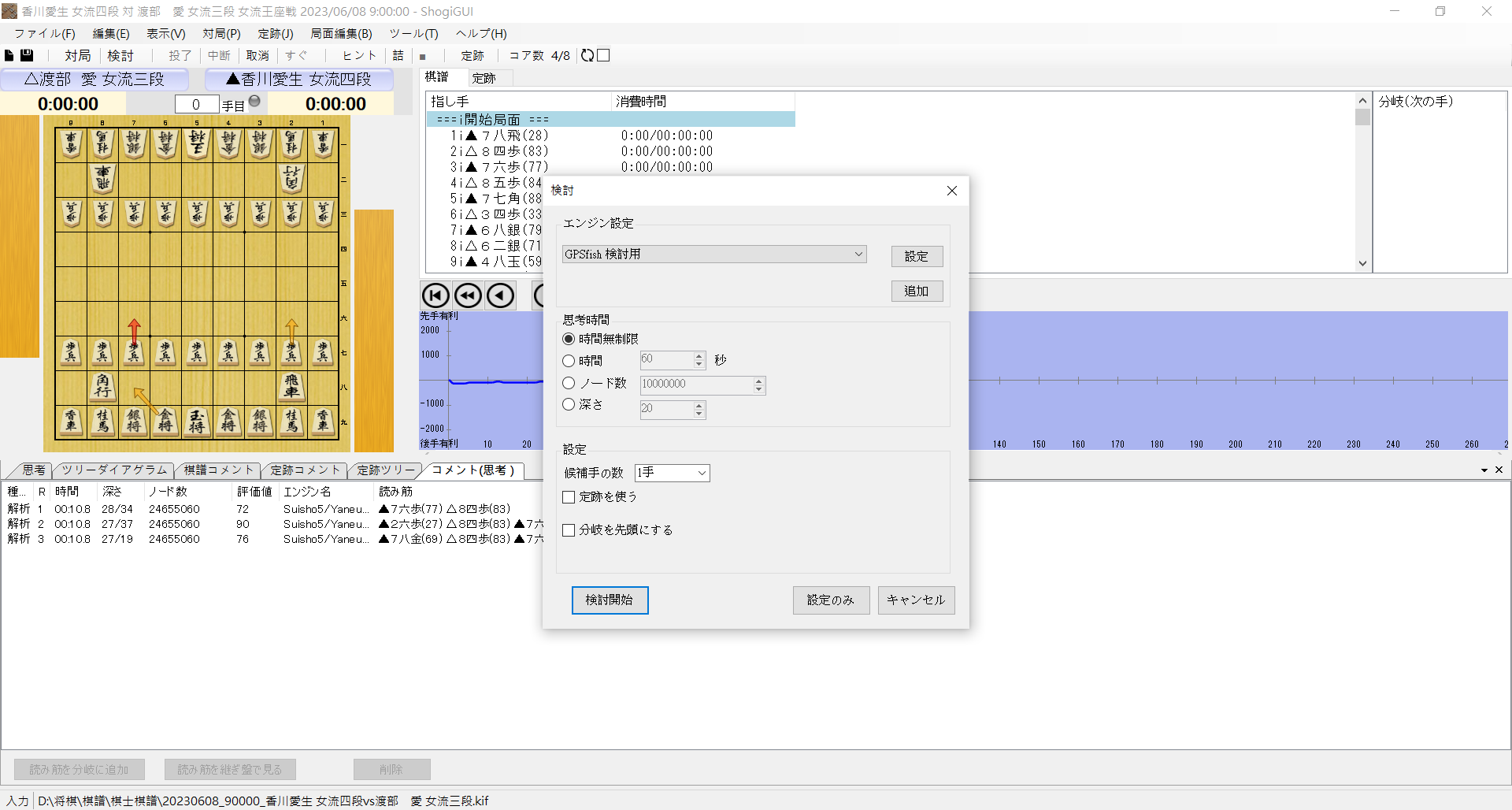 - 引擎選擇:選擇要用甚麼引擎進行分析,(選擇水匠)
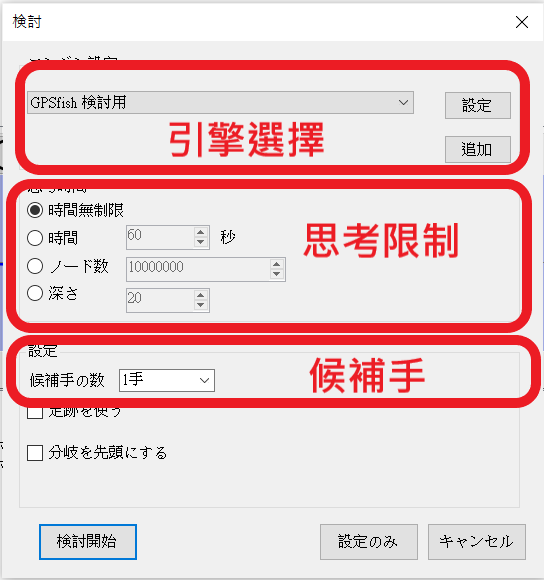 - 思考限制:AI達成甚麼條件後,就不會再進行運算
1. 思考無制限:沒有條件,電腦開著就會一直往深處運算
2. 時間:設定運算時間,到了就會停
3. ノード数:運算到多少ノード(節點,可以理解分支)就會停
4. 深さ:運算到未來多少手後就會停
一般我們會設置無制限,因為不是棋譜解析,讓他一直跑,反正我們可以自己按停止
- 候補手:要顯示出當前局面幾個推薦手
我自己時調成3個
:::info
:information_source: 候補手
候補手即是從當前的局面,從最好的手順(AI覺得評價值最好的)開始遞減
因為有時我們解析棋譜時,很多AI提供的最好的手不見得是人類下得出來的棋
所以我們會將候補手數字調大,看一下後面提供的手順
名詞補充:
最善手:最好的一手
次善手:第二好的一手
後面就是3 4 5...
:::
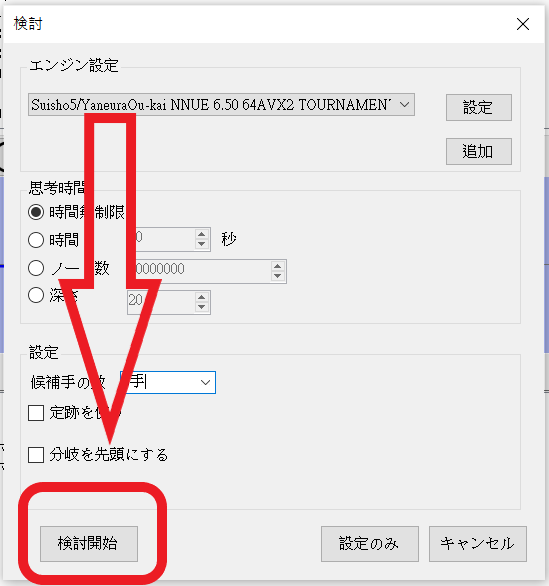
調整完後,可以先按**設定のみ**,就是只設定,這樣就不用每次都調整參數了
再按一次就可以進行檢討
- 思考限制:AI達成甚麼條件後,就不會再進行運算
1. 思考無制限:沒有條件,電腦開著就會一直往深處運算
2. 時間:設定運算時間,到了就會停
3. ノード数:運算到多少ノード(節點,可以理解分支)就會停
4. 深さ:運算到未來多少手後就會停
一般我們會設置無制限,因為不是棋譜解析,讓他一直跑,反正我們可以自己按停止
- 候補手:要顯示出當前局面幾個推薦手
我自己時調成3個
:::info
:information_source: 候補手
候補手即是從當前的局面,從最好的手順(AI覺得評價值最好的)開始遞減
因為有時我們解析棋譜時,很多AI提供的最好的手不見得是人類下得出來的棋
所以我們會將候補手數字調大,看一下後面提供的手順
名詞補充:
最善手:最好的一手
次善手:第二好的一手
後面就是3 4 5...
:::
調整完後,可以先按**設定のみ**,就是只設定,這樣就不用每次都調整參數了
再按一次就可以進行檢討
 檢討說明
我們以初始盤面進行說明
可以看到在輸出區域,出現AI的思考
檢討說明
我們以初始盤面進行說明
可以看到在輸出區域,出現AI的思考
 下面來解說各項資訊
 1. 評價值與評價:依照**下一手的最善手之評價值**當成這裡的評價值
:::info
:information_source:評價值
評價值是一個數字,有正有負
當數字大於0時,代表是先手比較有利,數字越大越有利
當數字小於0時,代表是先手比較有利,數字越大越有利
所以評價值500與評價值-500,分別是先手有500分的評價值與後手有500分的評價值
在不同的數字區間會有不同的文字來說明,每個平台會有自己的區間,在ShogiGUI中
大於300:有利、不利
大於800:優勢、劣勢
大於1500:勝勢、敗勢
31111或-31111:必至局面
勝ち(詰み X手):有詰,剩餘X手
不過在shogiGUI不會出現不利、劣勢等用詞,會用換成另外一方,例如
356 :arrow_right: 先手有利
-356 :arrow_right: 後手有利
815 :arrow_right: 先手優勢
-4590 :arrow_right: 後手勝勢
1. 評價值與評價:依照**下一手的最善手之評價值**當成這裡的評價值
:::info
:information_source:評價值
評價值是一個數字,有正有負
當數字大於0時,代表是先手比較有利,數字越大越有利
當數字小於0時,代表是先手比較有利,數字越大越有利
所以評價值500與評價值-500,分別是先手有500分的評價值與後手有500分的評價值
在不同的數字區間會有不同的文字來說明,每個平台會有自己的區間,在ShogiGUI中
大於300:有利、不利
大於800:優勢、劣勢
大於1500:勝勢、敗勢
31111或-31111:必至局面
勝ち(詰み X手):有詰,剩餘X手
不過在shogiGUI不會出現不利、劣勢等用詞,會用換成另外一方,例如
356 :arrow_right: 先手有利
-356 :arrow_right: 後手有利
815 :arrow_right: 先手優勢
-4590 :arrow_right: 後手勝勢
不過評價值只是一個數字,要清楚知道現在獲勝的比率,看勝率才有意義,下面是對照表
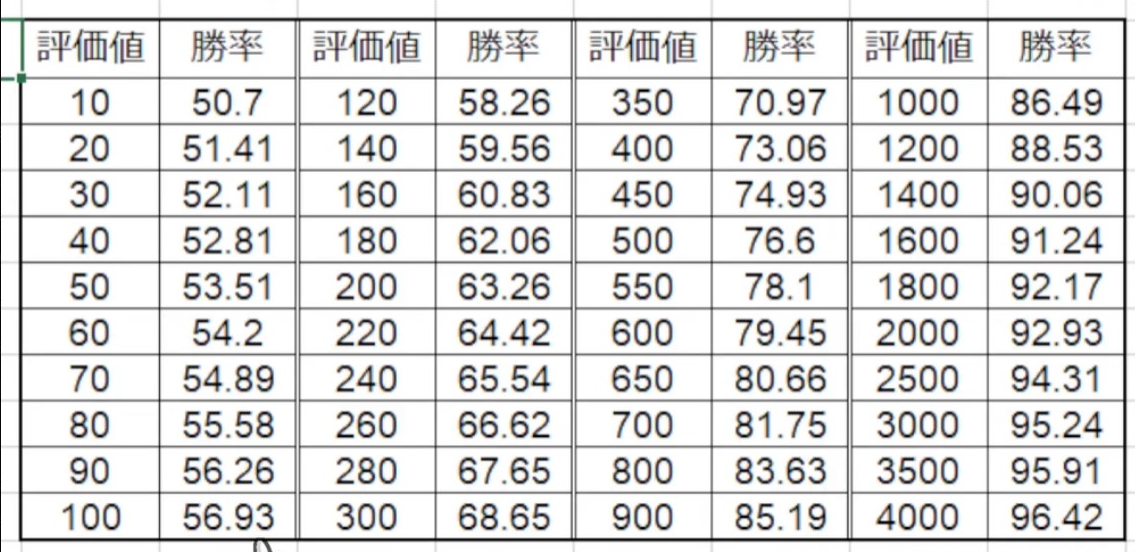 :::
2. 候補手數:可以在檢討時自行調整
3. 思考的程度換算:依照現在AI算的深度、節點數,對應出一個段級位。對於AI沒有差別,只是給人類一個清楚的對照
:::info
:information_source: 小撇步
在ShogiGUI中,思考的段級位從**普通段位**、**プロ(職業)段位**、**羽生**(**羽生善治十九世名人**)到**神**
:::
4. 檢討設定:剛剛調整的設定,在檢討時也能調整
5. 現在計算的量值:分別是時間(時間)、深さ(深度)、ノード数(已計算節點數)、NPS(nodes per second,每秒計算節點數,單位kN/sec,每秒讀多少千節點)、スレッド(threads數)最後是引擎名字
6. 推薦的棋步與後續手順:從最好的一手開始往下排(輪到先手時,最好的一手是讓評價值越高;後手方時,則是讓評價值數字越小
範例
:::
2. 候補手數:可以在檢討時自行調整
3. 思考的程度換算:依照現在AI算的深度、節點數,對應出一個段級位。對於AI沒有差別,只是給人類一個清楚的對照
:::info
:information_source: 小撇步
在ShogiGUI中,思考的段級位從**普通段位**、**プロ(職業)段位**、**羽生**(**羽生善治十九世名人**)到**神**
:::
4. 檢討設定:剛剛調整的設定,在檢討時也能調整
5. 現在計算的量值:分別是時間(時間)、深さ(深度)、ノード数(已計算節點數)、NPS(nodes per second,每秒計算節點數,單位kN/sec,每秒讀多少千節點)、スレッド(threads數)最後是引擎名字
6. 推薦的棋步與後續手順:從最好的一手開始往下排(輪到先手時,最好的一手是讓評價值越高;後手方時,則是讓評價值數字越小
範例
![]() :::info
:information_source: 後續手順
在推薦棋步中,可以用滑鼠左鍵點擊兩下,會跳出後續手順盤面圖
:::info
:information_source: 後續手順
在推薦棋步中,可以用滑鼠左鍵點擊兩下,會跳出後續手順盤面圖
![]() 可以自行觀看AI給出的後續手順
:::
暫停切換
停止
### 棋譜解析
與上面檢討不同的是棋譜解析,檢討是依據現在的局面進行分析,棋譜解析則是從棋譜的開始到結束都分析一遍的結果報告
可以把棋譜解析想成每一手都檢討一遍,一路到最後
| 檢討 | 棋譜解析 |
| -------- | -------- |
| 依據現在盤面,分析次一手 | 將整個棋譜從頭到尾分析一遍,給出結果
還沒寫完
可以自行觀看AI給出的後續手順
:::
暫停切換
停止
### 棋譜解析
與上面檢討不同的是棋譜解析,檢討是依據現在的局面進行分析,棋譜解析則是從棋譜的開始到結束都分析一遍的結果報告
可以把棋譜解析想成每一手都檢討一遍,一路到最後
| 檢討 | 棋譜解析 |
| -------- | -------- |
| 依據現在盤面,分析次一手 | 將整個棋譜從頭到尾分析一遍,給出結果
還沒寫完