Node.js Step by Step
===
---
## Preparing
---
### Prerequisties
1. Install Node.js (prefer 10.16.0 LTS)
2. Get your favorite editor
3. (Optional) Have a command line tool
4. Install Express Generator
---
### Install Node.js
到[Node.js官方網站]("https://nodejs.org/")下載10.16.0 Long Time Support版,其他和一般軟體安裝過程一樣。
---
### Get your favorite editor
目前有幾種主流編輯器
1. 超潮的[Sublime 3](https://www.sublimetext.com/),搭配Macbook手拿星巴克就可以正式加入各個開源社群跟年會了。商業軟體,會一直跳訊息要你付錢,一份授權$80,不過不理他也沒差。
2. GitHub Inc.開發的[Atom](https://atom.io/),開源軟體,介面舒適度跟Sublime起鼓相當,除此之外和GitHub的連動性也很好,不用指令也能輕鬆上傳至GitHub。
---
3. [Visual Studio Code](https://code.visualstudio.com/),微軟開發的IDE,沒用過,有獨家的霓虹夜生活mix未來龐克風的[SynthWav '84](https://marketplace.visualstudio.com/items?itemName=RobbOwen.synthwave-vscode)主題可以套用,超炫砲。
---
4. [Notepad++](https://notepad-plus-plus.org/zh/),畫面老派的文字編輯器,是自由軟體,致力於減少世界二氧化碳的排放。當使用較少的 CPU 功率,降低電腦系統能源消耗,Notepad++ 間接造就了綠化的環境。
5. [Vim](https://www.vim.org/)...
從上面選一個喜歡的安裝就好。
---
### (Optional) Have a command line tool
1. 微軟內建cmd.exe
2. [ConEmu](https://conemu.github.io/),可以分割畫面的command line tool,介面比cmd.exe舒服很多。
3. [cmder](https://cmder.net/)整合msysgit、ConEmu、Clink,讓你的command line tool在windows上也能使用tar、ls、grep等指令,以及增強的指令自動完成功能(按Tab)。
---
### Install Express
```bash=
npm install express-generator -g
```
npm是Node Pacakge Manager的縮寫,用來管理Node的套件。 -g 代表global全域安裝,而非為特定專案安裝的意思。
---
## Getting Started
---
### Create a Project
在command line內輸入
```bash=
express --view=pug [project name]
```
例如
```bash=
# Expample
express --view=pug my_first_nodejs
```
---
Express就會幫我們在當前資料夾下生成my_first_nodejs專案資料夾,內含了Express專案的基本架構。
其中 --view=pug 表示使用[PUG](https://pugjs.org/api/getting-started.html)作為View Engine,如果不輸入 --view=pug 則會自動生成以[jade](http://jade-lang.com/)作為View Engine的專案。
---
註:jade及pug皆為html的模板引擎,可以省略html中許多麻煩容易標錯的標籤。jade的作者在商標權搶輸其他公司之後把該專案改名為pug,並持續進行更新,兩者的用法基本上是一樣的。
若不想使用jade或pug也沒關係,只要小修改就可以使用html編輯。
---
### Turn the Server On
先安裝必要的module(package)
```bash=
npm install
```
用command line tool在專案資料夾下輸入以下指令來啟動server
```bash=
npm start
```
---
接著到 https://localhost:3000 查看server是否正確啟動
註:Express自動生成的專案資料夾,預設port為3000,若想要更改server的port可在 \bin\www 內修改。
---
### File Tree
接下來介紹Express幫我們建立的專案資料夾到底放了哪寫東西
```
┌── app.js // MVC架構的Controller部分,用來串起整個專案
├── bin
│ └── www // 程式進入點
├── package-lock.json // npm產生的檔案,不會直接編輯這部分
├── package.json // 描述專案的文件,包含相依的套件
├── public // 放一些Content
│ ├── images
│ ├── javascripts
│ └── stylesheets
│ └── style.css
├── routes // 路由(用來導向資源位置)
│ ├── index.js
│ └── users.js
└── views // 放網頁視圖的地方,屬於MVC架構的View
├── error.jade
├── index.jade
└── layout.jade
```
詳細請參考[這篇](https://ithelp.ithome.com.tw/articles/10191816)
---
### Install New Package
如果為專案新增任何套件可透過下列指令安裝
```bash=
npm install body-parser --save
```
上列示範為安裝名為body-parser的套件, --save 表示安裝後會在package.json內的denpendencies欄位填上 body-parser套件名稱,讓之後使用該專案的人使用
```bash=
npm install
```
的時候,會一併把 body-parser 安裝進來,如果確定會使用該套件,一定都要記得填上 --save。
---
### Reference
Node.js https://nodejs.org/
Express https://expressjs.com/
PUG https://pugjs.org/api/getting-started.html
---
## Modified Some Codes by Yourself !!
---
### Add a Resource
1. 在routes資料夾下建立一個books.js
{%gist yypccu/0fbb2fc6bfc24c0bef98594c461aa0cf%}
---
2. 在app.js新增以下程式碼
{%gist yypccu/0a94bc266b39908398887b72dfac4961%}
---
3. 到 https://localhost:3000/books 會看到Error Code 404,因為 /books 雖然被創建,但沒實作任何頁面,也沒時做任何api,因此瀏覽器存取不到任何東西。
---
### Build a HTML Website
隨意做一個簡易的html網頁
{%gist yypccu/c3a7b00fbae8abefd20299b068056e2b%}
---
### Build a Website by PUG
如果想用用看PUG也可以
{%gist yypccu/8c0afb7c4efc5b785486e5fa8876ca13%}
---
### Add a GET METHOD for Resource
把books.js改成這樣
{%gist yypccu/8bc7a74da9758b54722d46db6d371d10%}
根據上一步驟中建立網頁的方式不同,取消相對應的註解。
---
router.get('/', function(...) {...}) 表示資源 /books 收到 GET METHOD 時會執行 function 內的動作,在這邊就是把網頁送出去。
再到 https://localhost:3000/books 看一下,剛剛做的網頁就會正常顯示出來了。
**注意:如果使用PUG時 app.js 內沒有下列程式碼,啟動Server的時後會發生錯誤。**
{%gist yypccu/c685a16ecd7c344864cb2a6e8904ea0c%}
---
### Add a POST METHOD for Resource
1. 先重作一下books.html,讓網頁有兩個能輸入的欄位及按鈕。
{%gist yypccu/974db0a59d7110b8dd23f964c3bdb0de%}
---
2. 在books.js中新增收到post時的處理方式。
{%gist yypccu/71b18cf497050d123fc1e17378a87a27%}
---
3. 接著到 https://localhost:3000/books 填填看表單並送出,如果送出後可以瀏覽器上看到 OK,且 command line tool 看到 json 格式的東西就成功了!!
---
### Finally
試著自己新增一些資源及RESTful api,或者把雲端服務商提供的api填入function內,讓web有更多功能。
---
### Reference
[從無到有,打造一個漂亮乾淨俐落的 RESTful API 系列](https://ithelp.ithome.com.tw/users/20107247/ironman/1312) / 作者:10程式中 (andy6804tw)
---
## 加密傳輸
---
### 基礎概念
- 單靠 HTTP 傳送 GET、POST 等要求並不安全,此時就必須依靠 HTTPS 建立安全連線。HTTPS 為 TLS/SSL + HTTP,藉由 TLS/SSL 的加密機制,可保護資料不輕易外洩。
- TLS/SSL: 傳輸層安全性協定(Transport Layer Security,縮寫:TLS)及其前身安全通訊協定(Secure Sockets Layer,縮寫:SSL)。SSL 最初由網景公司(Netscape)發布,後來 IETF 將其標準化,並發布第一版 TLS。TLS 可說是 SSL 的後繼版本。
---
- 大致循序圖,詳細 Handshake 請參考[網站SSL加密原理簡介](https://www.netadmin.com.tw/netadmin/zh-tw/technology/6F6D669EB83E4DC9BEA42F1C94636D46)
```sequence
Client->Server: 要求建立安全連線\n列出可用的演算法&雜湊函式
Server->Client: 告知欲使用的演算法&雜湊函式
Server->Client: 數位憑證(包含CA、公鑰)
note left of Client: 用CA的公鑰驗證\n憑證的數位簽章
note left of Client: 用Server的公鑰\n加密一組臨時的\n對稱金鑰
Client->Server: 加密過的對稱金鑰
note left of Server: 接下來雙方傳輸都用對稱金鑰加密/解密
```
---
- 由於非對稱金鑰計算複雜、效能差,因此僅用來交換對稱金鑰,實際傳輸仍透過對稱金鑰
- 數位簽章的簽署是透過私鑰,驗證是透過公鑰,和加密的習慣相反。
---
- 誰是CA(Certificate Authority, 數位憑證認證機構)?
CA是負責管理、發放憑證的機構,通常是軟體公司或政府機關,例如
Namecheap https://www.namecheap.com/
COMODO https://www.comodo.com/
Let's Encrypt(Free) https://letsencrypt.org/
---
- 誰是CA(Certificate Authority, 數位憑證認證機構)?
AWS Certificate Manager https://aws.amazon.com/tw/certificate-manager/
TWCA台灣網路認證 https://www.twca.com.tw/
GRCA政府憑證總管理中心 https://grca.nat.gov.tw/
而憑證的定價根據用途,一年期從免費到數萬元不等
---
- 數位簽章簽署與驗證流程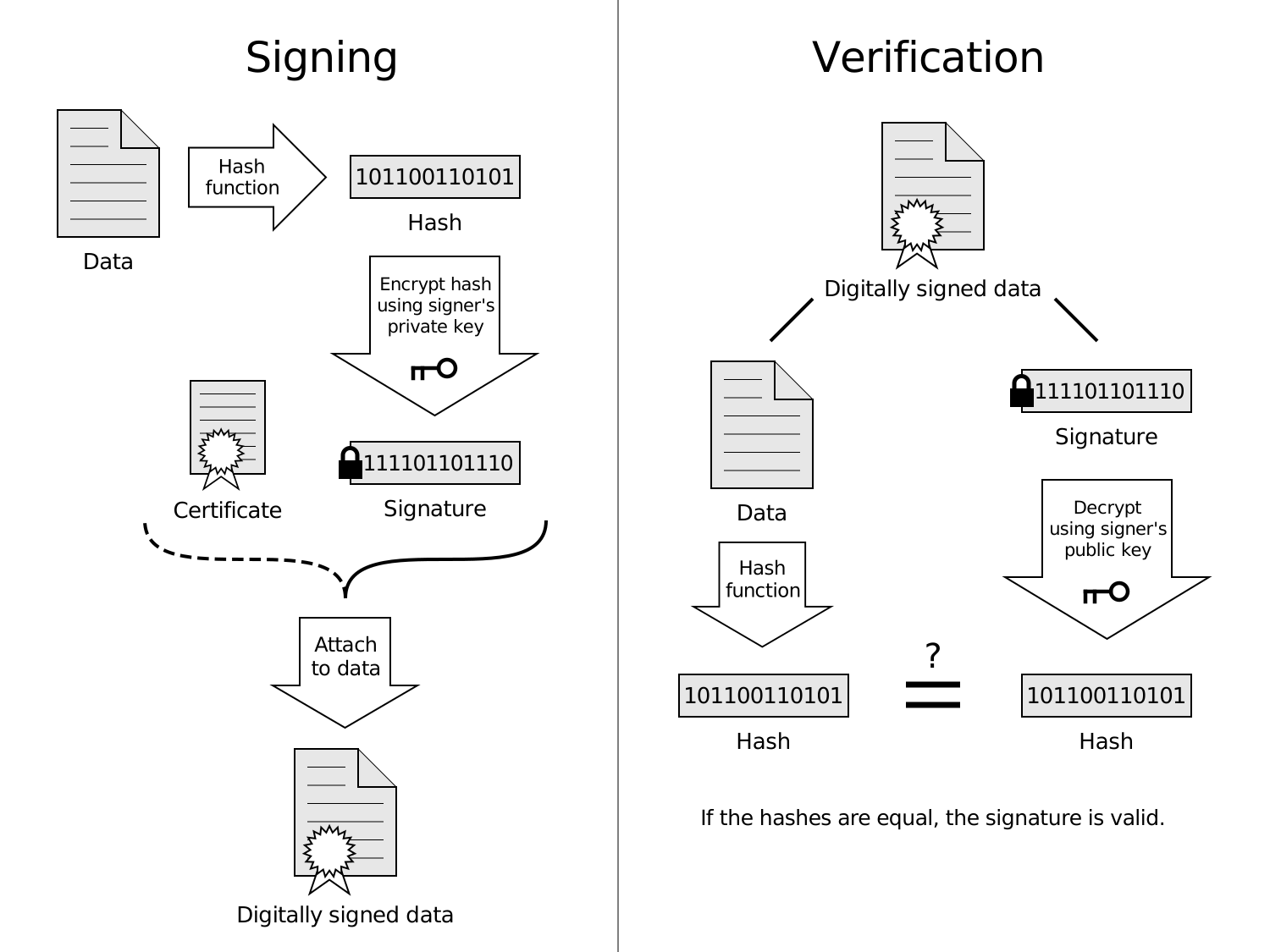
---
### 常用演算法及格式
- 常見非對稱演算法: RSA, Diffie-Hellman, DSA, ECC
- 常見對稱演算法: RC2, RC4, IDEA, DES, Triple DES, AES, Carmellia
- 常見雜湊函式: MD5, SHA1, SHA256
- 儲存憑證的格式:
- 二進制: .cer, .crt, .der
- Base64: .pem
- 憑證+私鑰: p12(PKCS#12)
---
### Make Your Browser Trust Your Website
Web app 部建在 GCP App Engine 上時,Google會幫你的網站附上憑證,但是在localhost開發測試、或者自己架站時,必須替自己的網站申請憑證,不過申請憑證必須花費金錢,而且在localhost測試時也沒辦法使用,這時候可以透過自簽憑證偽造成一個支援安全連線的網站暫時騙過瀏覽器。
---
#### Install OpenSSL
1. 到 OpenSSL 官方網站[下載](https://www.openssl.org/source/)
2. 如果有安裝過 Git for Windows,OpenSSL 已經包含在工具裡面,將 ..\Git\usr\bin 加入到環境變數即可使用。
---
#### Generate Private Key And Certificate
1. 建立檔案 ssl.conf
```
[req]
prompt = no
default_md = sha256
default_bits = 2048
distinguished_name = dn
x509_extensions = v3_req
[dn]
C = TW // Country
ST = Taiwan // State
L = Taipei // Locality
O = Coogle // Organization
OU = Cookie BU // Organizational Unit
emailAddress = me@coogle.com // E-mail
CN = localhost // Common Name 憑證名稱
[v3_req]
subjectAltName = @alt_names
[alt_names] // 憑證核可的域名
DNS.1 = *.localhost
DNS.2 = localhost
DNS.3 = 192.168.2.100
```
---
2. 利用剛剛建立的檔案生成私鑰和憑證
```bash=
openssl req -x509 -new -nodes -sha256 -utf8 -days 3650 -newkey rsa:2048 -keyout server.key -out server.crt -config ssl.conf
```
- openssl req -x509 -new: 建立 X.509 標準的憑證
- -nodes: 不要對產生的金鑰加密
- -sha256: 使用 SHA256 (sha256WithRSAEncryption) 製作數位簽章
---
- -utf8: 金鑰、憑證文件以UTF-8編碼生成 (預設為ASCII)
- -days 3650: 憑證有效期間,自建立起3650天
- -newkey rsa:2048: 使用長度為2048 bits的 RSA 演算法生成金鑰
- -keyout server.key: 輸出名稱為 server.key 的私鑰
- -out server.crt: 輸出名稱為 server.crt 的憑證
- -config ssl.conf: 以 ssl.conf 的內容生成憑證(若不用 -config,也可透過其他指令設定憑證的詳細資訊)
---
3. 在 www.js 為伺服器加上自簽憑證
{%gist yypccu/c1998bb977632a895ffdd12be7f69f63%}
---
4. 幫瀏覽器加上信任的憑證來源 (以Chrome為例)
1. 設定 > 進階 > 管理憑證(管理HTTPS/SSL憑證和設定)
2. 匯入 > 下一步 > 選擇 server.crt > 憑證存放區選受信任的跟憑證授權單位
5. 用command line tool在web專案下輸入
```bash=
npm start
```
---
6. 用瀏覽器開啟 https:localhost:3000
操作正確的話,可以直接進去,而且網址列左邊有鎖頭符號,那就表示成功了!!
* 番外篇 透過OpenSSL查看金鑰及憑證
```bash=
openssl rsa -in server.key -text -noout
openssl x509 -in server.crt -text -noout
```
---
### Reference
[如何使用 OpenSSL 建立開發測試用途的自簽憑證 (Self-Signed Certificate)](https://blog.miniasp.com/post/2019/02/25/Creating-Self-signed-Certificate-using-OpenSSL) / 作者:Will 保哥
[用指令來玩轉數位簽章](https://tsai-cookie.blogspot.com/2019/04/digital-signature.html) / 作者:CookieTsai
Wikipedia:
[HTTPS](https://zh.wikipedia.org/wiki/%E8%B6%85%E6%96%87%E6%9C%AC%E4%BC%A0%E8%BE%93%E5%AE%89%E5%85%A8%E5%8D%8F%E8%AE%AE)
[TLS/SSL](https://zh.wikipedia.org/wiki/%E5%82%B3%E8%BC%B8%E5%B1%A4%E5%AE%89%E5%85%A8%E6%80%A7%E5%8D%94%E5%AE%9A)
[公開金鑰密碼學(非對稱密碼學)](https://zh.wikipedia.org/wiki/%E5%85%AC%E5%BC%80%E5%AF%86%E9%92%A5%E5%8A%A0%E5%AF%86)
---
Wikipedia:
[對稱加密](https://zh.wikipedia.org/wiki/%E5%B0%8D%E7%A8%B1%E5%AF%86%E9%91%B0%E5%8A%A0%E5%AF%86)
[數位憑證認證機構(CA)](https://zh.wikipedia.org/wiki/%E8%AF%81%E4%B9%A6%E9%A2%81%E5%8F%91%E6%9C%BA%E6%9E%84)
[公開金鑰基礎設施(PKI)](https://zh.wikipedia.org/wiki/%E5%85%AC%E9%96%8B%E9%87%91%E9%91%B0%E5%9F%BA%E7%A4%8E%E5%BB%BA%E8%A8%AD)
[數位憑證(公開金鑰認證)](https://zh.wikipedia.org/wiki/%E5%85%AC%E9%96%8B%E9%87%91%E9%91%B0%E8%AA%8D%E8%AD%89)
[數位簽章](https://zh.wikipedia.org/wiki/%E6%95%B8%E4%BD%8D%E7%B0%BD%E7%AB%A0)
---
## Learn Azure SQL and Storage
這邊開始要透過製作PTT表特圖牆來學習 Azure SQL / Storage,以及套件 cheerio 和 request 的使用。
---
### Step by Step
- 從 PTT web 抓取資料
- 文章處理
1. 抓取文章資訊
2. 將文章資訊放入 SQL
- 圖片處理
1. 抓取文章內的圖片資訊
2. 將圖片資訊存入 SQL
3. 將圖片存至 Storage
---
### Step by Step
- 把 SQL 內的圖片呈現在網頁上
- 製作網頁架構
- 將隨機圖片放上網頁
---
### Request
套件 request 提供了簡易的方式來送出 HTTP 訊息,我們可以透過這個套件來向 PTT Web 要求頁面,或者對 imgur 要求圖片。
```bash=
# 安裝
npm install request --save
```
```javascript=
const request = require('request');
```
---
#### Request - 簡單 GET
對 https://www.google.com/ 送出 GET
```javascript=
request('https://www.google.com/', function(err, response, body) {
console.log(response); // 回傳的 response ,包含封包 header 及 body
console.log(body); // 回傳的 body
});
```
---
#### Request - stream
從 https://i.imgur.com/ 下載一張圖片
```javascript=
request('https://i.imgur.com/cv2peHM.jpg')
.pipe(fs.createWriteStream('cv2peHM.jpg'));
```
---
### cheerio
cheerio 是用來**選取/修改 DOM**的套件,我們需要透過 cheerio 來選取文章標題、作者、圖片網址等資訊。
```bash=
# 安裝
npm install cheerio --save
```
```javascript=
const cheerio = require('cheerio');
```
---
#### cheerio - 向 Server GET 網頁
```javascript=
request('https://www.ptt.cc/bbs/Beauty/',
function(err, response, body) {
let $ = cheerio.load(body);
});
```
---
#### cheerio - 元素 element 簡介
```htmlmixed=
<a id="beauty-link" class="link girl"
href="https://www.ptt.cc/bbs/Beauty/M.1563782324.A.9FF.html">
[正妹] 橋本ありな (圖多)
</a>
```
- a: anchor 元素
- id:id 屬性(attribute),需用 **'#beauty-link'** 來選取這個元素,整個 DOM 裡面應只有一個唯一的 id
- class:class 屬性,這邊有兩個 class name ( link 和 girl ), **'.link'**、**'.girl'**、**'.link.girl'** 都可以選取到這個元素
---
#### cheerio - 元素 element 簡介
```htmlmixed=
<a id="beauty-link" class="link girl"
href="https://www.ptt.cc/bbs/Beauty/M.1563782324.A.9FF.html">
[正妹] 橋本ありな (圖多)
</a>
```
- href:a 元素的一種屬性,可用 **attr('href')** 去存取
- [正妹] 橋本...:可用 text() 去存取
---
#### cheerio - 目標文件
```htmlmixed=
<div id="main-container">
<!-- something not important -->
<div class="r-list-container action-bar-margin bbs-screen">
<!-- many articles -->
<div class="r-ent"><!-- article --></div>
<div class="r-ent">
<div class="nrec">
<span class="hl f3">60</span>
</div>
<div class="title">
<a href="/bbs/Beauty/M.1563782324.A.9FF.html">
[正妹] 橋本ありな (圖多)
</a>
</div>
<div class="meta">
<div class="author">TheDraggers</div>
<div class="article-menu"><!-- foo --></div>
<div class="date"> 7/22</div>
<div class="mark"></div>
</div>
</div>
<div class="r-ent"><!-- article --></div>
<div class="r-ent"><!-- article --></div>
<div class="r-ent"><!-- article --></div>
</div>
</div>
```
---
#### cheerio - element 選取
```javascript=
// 選取 class 為 r-ent 的元素並回傳一個陣列
let articles = $('.r-ent');
// 先選取 class 為 title 的元素組成的陣列
// 再選取其中的 a 元素,並把這些元素的 text 回傳
// 也就是所有文章的標題組成的陣列
let titles = $('.title').children('a').text();
// 複數條件
// 可指定同時符合元素類別、id、class的元素
let pubDates = $('div.date').text();
let container = $('div#main-container');
let listContainer = $('div.r-list-container.action-bar-margin.bbs-screen');
```
---
#### cheerio - filter 過濾元素
```javascript=
$('.hl').filter('.h3').text();
// 60
$('.title').filter(function(index, element) {
// $(this) == element
return $(this).children('a').attr('href') ==
'/bbs/Beauty/M.1563782324.A.9FF.html' ? true : false;
}).get().text();
// [正妹] 橋本ありな (圖多)
```
---
#### cheerio - map 逐一處理元素並回傳
Ex:先篩掉被刪除的文章,然後取得該頁所有文章分類
```javascript=
$('.title').filter(function(index, element) {
// 被刪除的文章不會有連結到該文章的超連結
// 因此選用這個條件來篩選
return util.isUndefined($(this).children('a')) ? false : true;
}).
map(function(index, element) {
let title = $(this).attr('a').text();
let regexExecResult = /\[.{2}\]/.exec(title);
return util.isUndefined(regexExecResult) ?
'' : regexExecResult[0]
}).get();
// 文章分類的陣列
```
---
### 文章處理
---
#### 文章 - 抓取文章資訊
```javascript=
module.exports.getPicturesByRangedArticles = (pageStart, pageEnd,
callback) => {
Promise.resolve(pageRangeChecker(pageStart, pageEnd))
.then(async function() {
let articles = [];
for (let page = pageEnd; page >= pageStart; page -= 1) {
let articlesOfSinglePage =
await getArticlesByPage(page);
articles = articles.concat(articlesOfSinglePage);
if (SQL_INSERT)
taskQueue.push(insertArticlesIntoSQL(
articlesOfSinglePage));
}
console.log(`We've got ${articles.length} articles.`);
return articles;
}).then(
// ...deal with pictures
);
};
```
---
#### 文章 - getArticlesByPage(page)
```javascript=
resolve($('.r-ent').filter(function(index, el) {
// 篩掉被刪除的文章
return util.isNullOrUndefined($(this).children('div.title')
.children('a').attr('href')) ? false : true;
}).map(function(index, el) {
let article = new Article();
// 取得文章Id
let href = $(this).children('div.title').children('a').attr('href');
let articleStr = href.split('/');
article.articleId = articleStr[articleStr.length - 1].replace('.html', '');
// 取得人氣
let mScore = $(this).children('div.nrec').children('span').text();
article.score = mScore == "" ? '0' : mScore;
// 取得作者
article.author = $(this).children('div.meta').children('div.author').text();
// 取得發布日期
article.pubDate = $(this).children('div.meta').children('div.date').text();
// 取得文章標題
let title = $(this).children('div.title').children('a').text();
article.title = title;
// 取得文章分類
let regexExecResult = /\[.{2}\]/.exec(title);
article.category =
util.isNullOrUndefined(regexExecResult) ? '' : regexExecResult[0];
return article;
}).get());
```
---
#### 文章 - 將文章資訊放入 SQL
```javascript=
const insertArticlesIntoSQL = (articlesInfosArray) => {
return function(callback) {
if (articlesInfosArray.length > 0) {
// Build SQL string
let sqlString = 'INSERT INTO PttBeautyArticles VALUES ';
for (let i = 0; i < articlesInfosArray.length; i += 1) {
sqlString += `('${articlesInfosArray[i].articleId}',`
+ `'${articlesInfosArray[i].score}',`
+ `'${articlesInfosArray[i].author}',`
+ `'${articlesInfosArray[i].pubDate}',`
+ `'${articlesInfosArray[i].category}',`
+ `'${articlesInfosArray[i].title}')`;
if (i < articlesInfosArray.length - 1) {
sqlString += ',';
}
}
// Insert data into SQL
if (SQL_INSERT) {
sqlAzure.query(sqlString, function(err, rowCount, resultArray) {
if (err) {
console.log(err);
}
// 告知 task queue 這個工作已經結束的 callback
// 以下皆同
callback();
});
} else {
callback();
}
}
callback();
};
};
```
---
### 圖片處理
---
#### 圖片 - 抓取圖片資訊
```javascript=
module.exports.getPicturesByRangedArticles = (pageStart, pageEnd,
callback) => {
Promise.resolve(pageRangeChecker(pageStart, pageEnd))
.then(async function() {
// ...get articles
return articles;
})
.then(async function(articles) {
let pictures = [];
for (let article of articles) {
let picturesOfSingleArticle =
await getPicturesFromArticle(article.articleId);
pictures = pictures.concat(picturesOfSingleArticle);
if (SQL_INSERT)
taskQueue.push(insertPictureInfoInfoSQL(
picturesOfSingleArticle));
}
console.log(`We've got ${pictures.length} pictures.`);
})
.then(callback(200))
.catch(function(err) {
console.log(err);
});
};
```
---
#### 圖片 - getPicturesFromArticle(articleId)
```javascript=
resolve($('a', '#main-content').filter(function(index, el) {
let url = $(this).attr('href');
if (/^https:\/\/i\.imgur\.com\/\w{7}(\.jpg|\.gif|\.png|)$/.test(url)) {
return true;
} else if (/^https:\/\/imgur\.com\/\w{7}(\.jpg|\.gif|\.png|)$/.test(url)) {
return true;
} else {
return false;
}
}).map(
// ...to be continued
);
```
---
#### 圖片 - getPicturesFromArticle(articleId) (續)
```javascript=
resolve($('a', '#main-content').filter(function(index, el) {
// check url
return urlMatch;
}).map(function(index, el) {
let pictureInfo = new Picture();
// 取得圖片Id
let href = $(this).attr('href');
let stringArray = href.split('/');
let shortenUrl = href.replace(/(https:)?(http:)?(\/\/)?(i\.)?imgur.com\//, '');
pictureInfo.pictureId = shortenUrl.split('.')[0]; // PictureId
let fileType = shortenUrl.split('.')[1]; // FileType
if (util.isNullOrUndefined(fileType)) {
fileType = '.jpg';
href += fileType;
}
pictureInfo.fileType = fileType; // 取得圖片檔案類型
pictureInfo.pictureUrl = href; // 取得圖片連結
pictureInfo.articleId = articleId; // 取得圖片所屬文章Id
if (ENABLE_BLOB_UPLOAD)
taskQueue.push(azureStorage.uploadTask(shortenUrl, href));
return pictureInfo;
}).get());
```
---
#### 圖片 - 將圖片資訊放入 SQL
```javascript=
const insertPictureInfoInfoSQL = (picturesInfosArray) => {
return function(callback) {
if (picturesInfosArray.length > 0) {
// Build SQL string
let sqlString = 'INSERT INTO PttBeautyPictures VALUES ';
for (let i = 0; i < picturesInfosArray.length; i += 1) {
sqlString += `('${picturesInfosArray[i].pictureId}',`
+ `'${picturesInfosArray[i].articleId}',`
+ `'${picturesInfosArray[i].fileType}',`
+ `'${picturesInfosArray[i].pictureUrl}')`;
if (i < picturesInfosArray.length - 1) {
sqlString += ',';
}
}
// Insert date into SQL
if (SQL_INSERT) {
sqlAzure.query(sqlString, function(err, rowCount, resultArray) {
if (err)
console.log(err);
// 告知 task queue 這個工作已經結束的 callback
// 以下皆同
callback();
});
} else {
callback();
}
}
callback();
};
};
```
---
#### 圖片 - 將圖片存至 Storage
```javascript=
const azure = require('azure-storage');
const accountName = /* accountName */;
const accessKey = /* accessKey */;
const host = /* blob host */;
const containerName = /* constainerName */;
const blobService = azure.createBlobService(accountName, accessKey, host);
module.exports.uploadTask = (fileName, fileUrl) => {
return function(callback) {
request(fileUrl).pipe(blobService.createWriteStreamToBlockBlob(
containerName + 'path/to/save/blob', fileName,
function(err, result, response) {
if (err) {
console.log(err);
} else {
numOfSuccessUpload += 1;
console.log(`${numOfSuccessUpload} files uploaded.`);
}
// 告知 task queue 這個工作已經結束的 callback
callback();
}));
}
}
```
---
#### 網頁呈現
為了要將動態抓取的圖片放到網頁上,我們需要製作一個網頁骨架,並透過 script 將圖片放上去。
---
#### 網頁呈現 - 製作網頁架構
由於網頁使用者不一定對每一張圖都有興趣,因此在單一頁面過度強調一個重點的單欄式網頁並不適合,而三欄式網頁能夠呈現的內容量較恰當,因此採用三欄式網頁。
---
#### 網頁呈現 - 製作網頁架構
簡單拉一個三欄式網頁,並呼叫 lineupPictures()
```pug=
<!-- layout.pug -->
head
script(src='/javascripts/image-adjuster.js')
<!-- picture_wall.pug -->
extends layout.pug
block content
.picture-wall
#column1.column
#column2.column
#column3.column
script.
let pictures = !{pictures};
lineupPictures(pictures)
```
---
#### 網頁呈現 - 將隨機圖片放上網頁
```javascript=
function lineupPictures(pictures) {
// 選取元素
let firstCol = document.getElementById('column1');
let secondCol = document.getElementById('column2');
let thirdCol = document.getElementById('column3');
for (let i = 0; i < pictures.length; i += 1) {
let canvas = document.createElement('canvas');
let ctx = canvas.getContext("2d");
let img = new Image();
img.src = pictures[i];
img.onload = function() {
// 重新繪製圖片大小
canvas.width = getWidth() / 3 - 40; // padding: 40
canvas.height = canvas.width * (img.height / img.width);
ctx.drawImage(img, 0, 0, canvas.width, canvas.height);
// 把重繪好的圖片放入元素中
switch (i % 3) {
case 0:
firstCol.appendChild(canvas);
break;
case 1:
secondCol.appendChild(canvas);
break;
case 2:
thirdCol.appendChild(canvas);
break;
}
};
}
}
```
---
#### 網頁呈現 - 將隨機圖片放上網頁
```javascript=
router.get('/picture_wall', function(req, res) {
// 判斷傳入值是否正確
let pictureNum = req.query.pictureNum;
if (util.isUndefined(pictureNum) || isNaN(pictureNum)) {
pictureNum = 30;
}
// 渲染 picutre_wall 並回傳
pictureWall.buildAndShowPicutreWall(pictureNum, function(mPictures) {
res.render('picture_wall', { pictures: mPictures });
});
});
```
---
#### 網頁呈現 - 將隨機圖片放上網頁
```javascript=
module.exports.buildAndShowPicutreWall = (pictureNum, callback) => {
// 建立並傳送 SQL 查詢字串
let sqlString = `select top ${pictureNum} PICTUREURL from V_PttBeauties order by NEWID()`;
sql.query(sqlString, function(err, rowCount, resultArray) {
if (err)
console.log(err); }
let pictures = [];
for (let item of resultArray) {
pictures.push(item.PICTUREURL);
}
// 將查詢結果做為變數傳入要渲染網頁的callback中
callback(JSON.stringify(pictures));
});
};
```
---
### 番外篇
---
#### 番外篇 - 列出所有 Blob
BlobService 提供了兩個列出 Blob 的 api
```javascript=
listBlobsSegmented(string, ContinuationToken, ErrorOrResult<ListBlobsResult>)
listBlobsSegmentedWithPrefix(string, string, ContinuationToken, ErrorOrResult<ListBlobsResult>)
```
這兩個 api 一次只能回傳 5000 個 blob,如果還有其他 blob 沒傳完,回傳結果會附帶一個 ContinuationToken,必須用這個 token 再 call 這個 api。
---
#### 番外篇 - 列出所有 Blob
寫點使用範例
```javascript=
const listBlobsByToken = (continuationToken) => {
return new Promise((resolve, reject) => {
blobService.listBlobsSegmented(containerName,
continuationToken, (err, data) => {
if (err) {
reject(err);
} else {
resolve(data);
}
});
});
};
module.exports.listAll = async () => {
// 第一次call這個api,token要帶null
first = await listBlobsByToken(null);
all = [].concat(first.entries);
var continuationToken = first.continuationToken;
while (continuationToken != null) {
next = await listBlobsByToken(continuationToken);
all = all.concat(next.entries);
continuationToken = next.continuationToken;
}
return Promise.resolve(all);
};
```
---
#### 番外篇 - 刪除 Blob
BlobService 提供兩個刪除 Blob 的 api
```javascript=
deleteBlob(container, blobName, ErrorOrResponse)
deleteBlobIfExists(container, blobName, ErrorOrResult<boolean>)
```
---
#### 番外篇 - 刪除 Blob
```javascript=
// storage-model.js
module.exports.delete = async (blobName) => {
return new Promise(function(resolve, reject) {
blobService.deleteBlobIfExists(containerName, blobName,
function(err, result) {
if (err) {
reject(err);
} else {
resolve({ message: `Block blob '${blobName}' deleted` });
}
});
});
}
```
---
#### 番外篇 - 刪除 Blob
```javascript=
// ptt.js
// This is part of router of Express
const azureStorage = require('storage-model');
function deleteAll(req, res) {
azureStorage.listAll()
.then((listBlobsResult) => {
for (let blob of listBlobsResult) {
azureStorage.delete(blob.name)
.then((result) => {
console.log(result);
}).catch((err) => {
console.log(err);
});
}
}).catch((err) => {
console.log(err);
});
```
---
### Reference
[MDN Web doc](https://developer.mozilla.org/zh-TW/)
[文件物件模型 (DOM)](https://developer.mozilla.org/zh-TW/docs/Web/API/Document_Object_Model)
[Request - Simplified HTTP client](https://github.com/request/request)
[cheerio](https://cheerio.js.org/)
---
## MVC Model on Node.js
// TODO
https://ithelp.ithome.com.tw/articles/10194773
---
## CI/CD Jenkins
// TODO
https://ithelp.ithome.com.tw/articles/10200863
{"metaMigratedAt":"2023-06-14T22:31:53.393Z","metaMigratedFrom":"YAML","title":"Node.js Step by Step","breaks":true,"contributors":"[{\"id\":\"c5d74d12-f6bc-4789-9b64-39ec098139f8\",\"add\":244578,\"del\":217777}]"}