# GitLab Geo
>**官方原文:**
>
> - [Geo](https://docs.gitlab.com/ee/administration/geo/#geo)
> - [Geo Setting up](https://docs.gitlab.com/ee/administration/geo/setup/)
> - [Geo database replication](https://docs.gitlab.com/ee/administration/geo/setup/database.html)
> - [Geo configuration](https://docs.gitlab.com/ee/administration/geo/replication/configuration.html)
> - [Using a Geo Site](https://docs.gitlab.com/ee/administration/geo/replication/usage.html)
> - [Introduction to GitLab Geo - GitLab Features](https://www.youtube.com/watch?v=-HDLxSjEh6w)
> - [Geo for multiple servers](https://docs.gitlab.com/ee/administration/geo/replication/multiple_servers.html)
>
>**修订记录:**
>
> - 2021/05/12 [Alex Ju](mailto:alexju@gitlab.cn) 创建文档
>
>**Note:** _本操作笔记仅供参考,请务必阅读官方文档链接_
---
## 1. GitLab Geo概述
有时候从一个距离很远的GitLab实例,拉取一个非常大的仓库,会比较费时费力。
GitLab Geo 提供了一个`近距离的、只读`的GitLab实例克隆,可以大大减少用户拉取代码的时间,帮助加快开发进度。
Geo视频介绍:
[Introduction to GitLab Geo - GitLab Features](https://www.youtube.com/watch?v=-HDLxSjEh6w)
**Geo使用场景:**
Geo能够提供:
- 一个只读的`从节点`(Secondary node)
- 完全继承`主节点`(Primary node)的用户权限
- 与主节点相同的UI,不过在用户访问的时候会提示用户正在使用从节点
Geo带来哪些好处:
- 拉取大的仓库,耗时从`分钟级`降到`秒级`
- 让开发者之间更便捷的同步工作,分享想法
- 在两个节点之间分摊只读流量
- [灾难恢复](https://docs.gitlab.com/ee/administration/geo/disaster_recovery/index.html)时,可以快速的切换到从节点
- 能够[有计划的](https://docs.gitlab.com/ee/administration/geo/disaster_recovery/planned_failover.html)切换到从节点
与Gitaly集群的区别:
- 两者不能混淆,具体比较:[Gitaly集群和Geo比较](https://docs.gitlab.com/ee/administration/gitaly/index.html#gitaly-cluster-compared-to-geo)
**Geo工作原理:**
场景示意图:
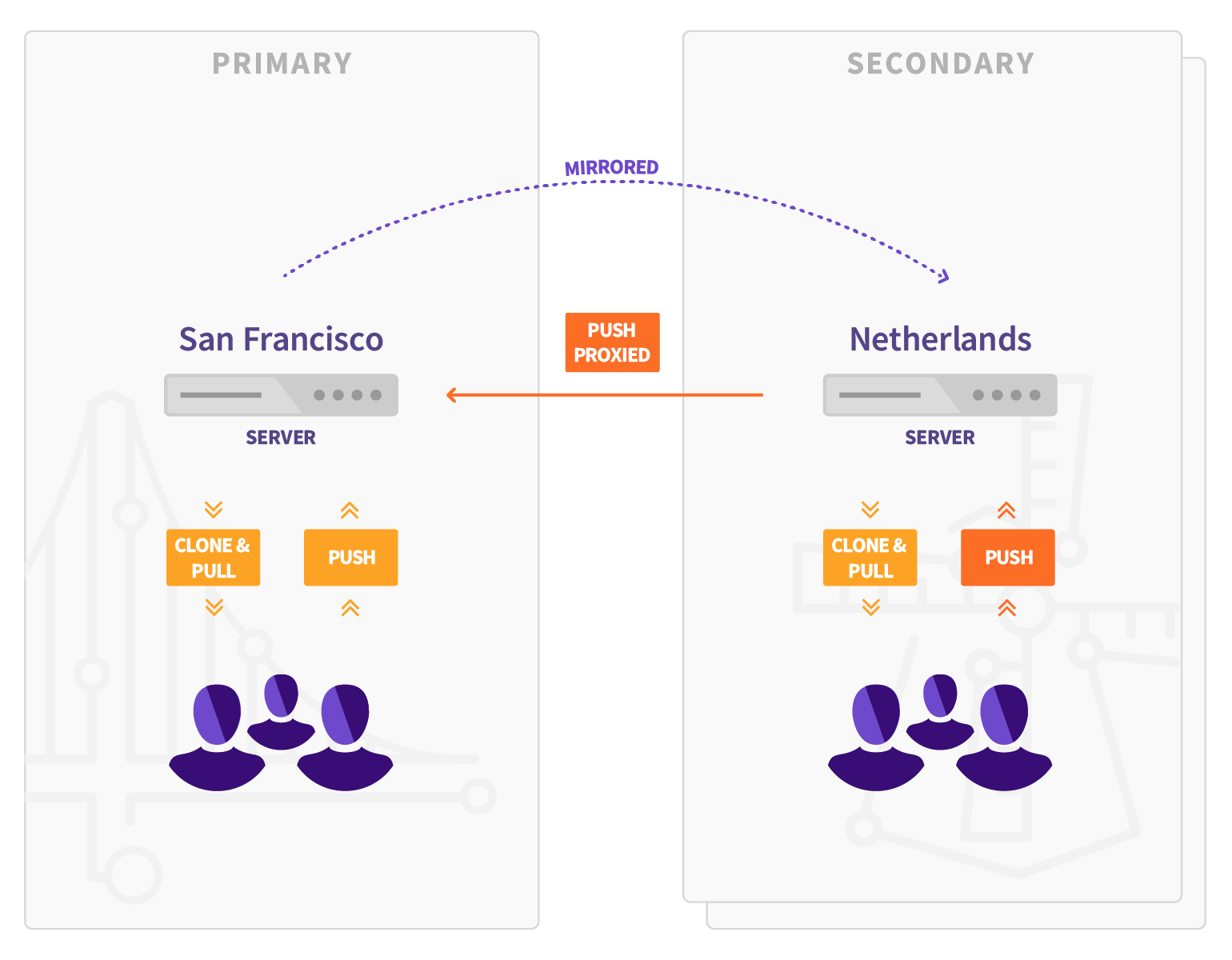
- 原始节点,也称主节点(Primary node)
- 镜像的只读节点,也称从节点(Secondary node),从节点可以有多个
- 从节点通过API获取主节点的用户数据,通过HTTPS+JWT同步仓库,LFS对象和附件
- GitLab Premium 10.0之后,主节点不再主动将变化通知从节点
- GitLab Premium 11.3之后,可以直接推送代码到从节点
- 使用Geo有部分限制,详细参考:[Geo限制](https://docs.gitlab.com/ee/administration/geo/#limitations)
架构图:

- 对数据库的写入,只发生在主节点。从节点通过Postgresql流复制,收到数据库的更新
- 从节点会有两个PostgreSQL数据库:一个只读数据库,用来同步主节点。另外一个数据库,用来记录哪些数据被同步
- 建议LDAP也配置主备模式,来应对灾难恢复的场景
- 从节点虽然是只读的,但可以接收Push请求,然后转发到主节点,这使得从节点看上去可以接收Push请求
**运行要求:**
- OpenSSH 6.9+ (CentOS 7.4+, Ubuntu 16.04+ 默认支持)
- PostgreSQL 11+
- Git 2.9+
- Git-lfs 2.4.2+(用户端)
- 所有节点必须使用相同版本的GitLab, 要求GitLab EE 10.0+
## 2. Geo安装配置
**测试环境:**
- 主节点:192.168.123.116
- 从节点:192.168.123.118
### 2.1 安装Geo从节点
在从节点上,[安装极狐GitLab EE版](https://about.gitlab.com/install/),建议使用极狐官方最新版。
安装完成后,`不要`在从节点上`创建用户`或者`登录`。
### 2.2 主节点添加许可证
在主节点上,[安装license](https://docs.gitlab.com/ee/user/admin_area/license.html),要求Premium版本以上,解锁Geo功能。
### 2.3 配置数据库复制
如果你的Omnibus实例用的是默认的内置PostgreSQL数据库,请继续下面操作。
如果你的Omnibus使用的是外部PostgreSQL数据库,请参照[Geo with external PostgreSQL instances](https://docs.gitlab.com/ee/administration/geo/setup/external_database.html)进行配置。
#### 2.3.1 配置主节点
- 修改`/etc/gitlab/gitlab.rb`,为主节点定义一个独特的名称:
```bash
gitlab_rails['geo_node_name'] = 'cn'
```
- 运行`gitlab-ctl reconfigure`,使上述配置生效。
- 指定当前节点为主节点:
```bash
gitlab-ctl set-geo-primary-node
```
输出:
```bash
Saving primary Geo node with name cn.alexju.cn and URL https://cn.alexju.cn/ ...
https://cn.alexju.cn/ is now the primary Geo node
```
- 设置PostgreSQL数据库用户的密码:
```bash
gitlab-ctl pg-password-md5 gitlab
# Enter password:
# Confirm password:
# a21bac212b079462ce5a27472e46e2e2
```
编辑`/etc/gitlab/gitlab.rb`:
```bash
postgresql['sql_user_password'] = 'a21bac212b079462ce5a27472e46e2e2'
gitlab_rails['db_password'] = 'Gitlab,123'
```
Omnibus GitLab默认内置的复制用户gitlab_replicator,需要设置密码:
```bash
gitlab-ctl set-replication-password
```
如果你使用的`外置PostgreSQL数据库`,你需要创建复制用户并设置密码:
```bash
--- 创建用户 'replicator'
CREATE USER gitlab_replicator;
--- 配置密码和权限
ALTER USER gitlab_replicator WITH REPLICATION ENCRYPTED PASSWORD '<replication_password>';
```
- 配置PostgreSQL监听地址
编辑`/etc/gitlab/gitlab.rb`:
```bash
#启用Geo标志
roles ['geo_primary_role']
#配置PG监听的公网地址或者VPC内部地址
postgresql['listen_address'] = '192.168.123.116'
postgresql['md5_auth_cidr_addresses'] = ['192.168.123.116/32', '192.168.123.118/32']
#配置从节点的数量
postgresql['max_replication_slots'] = 1
#临时禁止数据库自动迁移,直到PG完成重启并监听内部地址
gitlab_rails['auto_migrate'] = false
```
- 运行`gitlab-ctl reconfigure`,使GitLab配置生效
- 运行`gitlab-ctl restart postgresql`,使PostgreSQL配置生效
- 编辑`/etc/gitlab/gitlab.rb`,将false改为true:
```bash
gitlab_rails['auto_migrate'] = true
```
- 运行`gitlab-ctl reconfigure`,使GitLab配置生效
#### 2.3.2 配置从节点
- 停止 `puma`和`sidekiq`
目的是在从节点配置完成之前,防止执行任何东西
```bash
gitlab-ctl stop puma
gitlab-ctl stop sidekiq
```
- 检查与主节点PostgreSQL数据库连通性
```bash
gitlab-rake gitlab:tcp_check[192.168.123.116,5432]
```
输出:
```bash
TCP connection from 192.168.123.118:45696 to 192.168.123.116:5432 succeeded
```
如果这步失败,请检查IP地址(注意区分内、外网地址)以及防火墙规则。
- 安装`server.crt`
将主节点的证书 `~gitlab-psql/data/server.crt`拷贝到从节点,在从节点执行安装
```bash
scp root@192.168.123.116:~gitlab-psql/data/server.crt /etc/gitlab/ssl
install \
-D \
-o gitlab-psql \
-g gitlab-psql \
-m 0400 \
-T /etc/gitlab/ssl/server.crt ~gitlab-psql/.postgresql/root.crt
```
- 测试数据库TLS加密通信
使用`gitlab-psql`用户测试与主节点的数据库连通性,主节点的默认数据库为gitlabhq_production
```bash
sudo \
-u gitlab-psql /opt/gitlab/embedded/bin/psql \
--list \
-U gitlab_replicator \
-d "dbname=gitlabhq_production sslmode=verify-ca" \
-W \
-h 192.168.123.116
```
输出:
```bash
List of databases
Name | Owner | Encoding | Collate | Ctype | Access privileges
---------------------+-------------+----------+---------+-------+---------------------------------
gitlabhq_production | gitlab | UTF8 | C | C |
postgres | gitlab-psql | UTF8 | C | C |
template0 | gitlab-psql | UTF8 | C | C | =c/"gitlab-psql" +
| | | | | "gitlab-psql"=CTc/"gitlab-psql"
template1 | gitlab-psql | UTF8 | C | C | "gitlab-psql"=CTc/"gitlab-psql"+
| | | | | =c/"gitlab-psql"
(4 rows)
```
- 配置gitlab.rb文件
```bash
roles ['geo_secondary_role']
postgresql['listen_address'] = '192.168.123.118'
postgresql['md5_auth_cidr_addresses'] = ['192.168.123.118/32']
#sql_user_password是之前主节点的hash密码
postgresql['sql_user_password'] = 'a21bac212b079462ce5a27472e46e2e2'
gitlab_rails['db_password'] = 'Gitlab,123'
```
- 运行`gitlab-ctl reconfigure`,使GitLab配置生效
- 运行`gitlab-ctl restart postgresql`,使PostgreSQL配置生效
#### 2.3.3 数据库复制
  **请确保下列操作在`从节点`上执行,该操作将删除所有`从节点`的数据。**
- 复制数据库
给从节点指定一个独特的名称slot-name, 该名称只允许包含`小写字母、数字和下划线`。
```bash
gitlab-ctl replicate-geo-database --slot-name=us --host=192.168.123.116
```
输出:
```bash
No user created projects. Database not active
---------------------------------------------------------------
WARNING: Make sure this script is run from the secondary server
---------------------------------------------------------------
*** You are about to delete your local PostgreSQL database, and replicate the primary database. ***
*** The primary geo node is `192.168.123.116` ***
*** Are you sure you want to continue (replicate/no)? ***
Confirmation: replicate
Enter the password for gitlab_replicator@192.168.123.116:
* Executing GitLab backup task to prevent accidental data loss
* Stopping PostgreSQL and all GitLab services
* Checking for replication slot us
* Creating replication slot us
* Backing up postgresql.conf
* Moving old data directory to '/var/opt/gitlab/postgresql/data.1620826017'
* Starting base backup as the replicator user (gitlab_replicator)
pg_basebackup: initiating base backup, waiting for checkpoint to complete
pg_basebackup: checkpoint completed
pg_basebackup: write-ahead log start point: 0/C000028 on timeline 1
pg_basebackup: starting background WAL receiver
0/79784 kB (0%), 0/1 tablespace (...lab/postgresql/data/backup_label)
65879/79784 kB (82%), 0/1 tablespace (...postgresql/data/base/16401/28114)
79794/79794 kB (100%), 0/1 tablespace (...ostgresql/data/global/pg_control)
79794/79794 kB (100%), 1/1 tablespace
pg_basebackup: write-ahead log end point: 0/C000138
pg_basebackup: waiting for background process to finish streaming ...
pg_basebackup: syncing data to disk ...
pg_basebackup: base backup completed
* Restoring postgresql.conf
* PostgreSQL 12 or newer. Writing settings to postgresql.conf and creating standby.signal
* Setting ownership permissions in PostgreSQL data directory
* Starting PostgreSQL and all GitLab services
```
至此,数据库复制完成。
### 2.4 配置SSH密钥快速查找
- 默认情况下,GitLab通过查找遍历`~git/.ssh/authorized_keys`文件来判断用户是否可以访问GitLab, 该文件包含了用户访问Gitlab的公钥。如果用户需要频繁的更改自己的公钥,导致`authorized_keys`文件越来越大,GitLab来不及缓存,那么GitLab将不得不频繁的访问硬盘,导致整个SSH鉴权比较缓慢。
因此,更快速的方法是,**配置GitLab通过数据库查找SSH公钥指纹。**
- 配置sshd_config
在主节点和从节点上,都配置`/etc/ssh/sshd_config`文件:
```bash
cat << EOF >> /etc/ssh/sshd_config
Match User git # 开始匹配,让AuthorizedKeysCommand仅适用于git用户
AuthorizedKeysCommand /opt/gitlab/embedded/service/gitlab-shell/bin/gitlab-shell-authorized-keys-check git %u %k
AuthorizedKeysCommandUser git
Match all # 结束匹配, 配置再次适用于所有用户
EOF
```
- 重新加载OpenSSH
```bash
# Debian 或 Ubuntu
service ssh reload
# CentOS
service sshd reload
```
- 注销公钥并拉取代码
在`~git/.ssh/authorized_keys`(注意不是`/root/.ssh/authorized_keys`)中找到并注销你自己用户的公钥,然后测试pull拉取代码是否依然成功。
如果成功,表明GitLab已经可以顺利从数据库找到公钥指纹,因为`authorized_keys`文件里已经没有这个公钥了。
如果失败,请检查上述步骤。
- 新添加的SSH公钥依然会写入`authorized_keys`, 想要禁止写入`authorized_keys`,请在UI界面上打开`Admin Area > Settings > Network > Performance optimization`,取消勾选`Write to "authorized_keys" file`。
- 在UI界面上删除你的个人SSH Key,添加一个新SSH Key,测试是否能用新SSH Key对应的客户端成功拉取代码,新的SSH Key并不会出现在`~git/.ssh/authorized_keys`中。
- 如果以上均顺利通过,你可以备份并删除你的`~git/.ssh/authorized_keys`了。
### 2.5 Geo配置
以下步骤将完成:
- 在主节点和从节点之间,复制配置
- 在从节点上,配置一个额外的跟踪数据库
- 在从节点上,启用GitLab
#### 2.5.1 拷贝secrets
主节点和从节点的`/etc/gitlab/gitlab-secrets.json`文件必须保持一致。
- 备份从节点secrets文件
```bash
mv /etc/gitlab/gitlab-secrets.json /etc/gitlab/gitlab-secrets.json.`date +%F`
```
- 复制主节点secrets文件到从节点
```bash
scp root@192.168.123.116:/etc/gitlab/gitlab-secrets.json /etc/gitlab
```
- 修改权限
```bash
chown root:root /etc/gitlab/gitlab-secrets.json
chmod 0600 /etc/gitlab/gitlab-secrets.json
```
- 重启从节点
```bash
gitlab-ctl reconfigure
gitlab-ctl restart
```
#### 2.5.2 拷贝SSH主机密钥
在灾难恢复的场景下,管理员通常会指定从节点成为新的主节点,同时会变更DNS指向从节点,这样客户端就不需要更改仓库地址也能拉取代码。
但由于从节点(新主节点)的SSH主机密钥与旧的主节点不一样,所以会导致客户端SSH请求失败。
下列操作可以确保从节点和主节点的SSH主机密钥一致。
- 备份从节点主机密钥
```bash
find /etc/ssh -iname ssh_host_* -exec cp {} {}.backup.`date +%F` \;
```
- 拷贝主节点主机密钥
```bash
scp root@192.168.123.116:/etc/ssh/ssh_host_*_key* /etc/ssh
```
- 修改主机密钥权限
```bash
chown root:root /etc/ssh/ssh_host_*_key*
chmod 0600 /etc/ssh/ssh_host_*_key*
```
- 检查两边主机密钥一致性
在两边都运行,比对输出结果是否一致:
```bash
for file in /etc/ssh/ssh_host_*_key; do ssh-keygen -lf $file; done
```
输出:
```bash
256 SHA256:+zS8Eu3XaV/MS3LDNGXtnj4u8xBdIqdhmQjPkO2xg60 /etc/ssh/ssh_host_ecdsa_key.pub (ECDSA)
256 SHA256:r8hi50aXfS7yl8CuExLYr4DuW7JX20swoDlqPWKwKdo /etc/ssh/ssh_host_ed25519_key.pub (ED25519)
2048 SHA256:T+QzA8AJqD5UHoVsRIljDTdVy2ooimNWHJjJoue+O+U /etc/ssh/ssh_host_rsa_key.pub (RSA)
```
- 检查公钥和私钥的匹配性
在从节点上,拷贝过来的公钥和私钥的指纹应该是一致的。
```bash
#打印私钥的指纹
for file in /etc/ssh/ssh_host_*_key; do ssh-keygen -lf $file; done
#打印公钥的指纹
for file in /etc/ssh/ssh_host_*_key.pub; do ssh-keygen -lf $file; done
```
- 重新加载OpenSSH
```bash
# Debian 或 Ubuntu
service ssh reload
# CentOS
service sshd reload
```
- 重新登陆从节点
打开一个新的Terminal, 尝试是否可以成功登陆从节点。如果不能,请检查上述步骤。
#### 2.5.3 添加从节点
- 配置gitlab.rb
编辑`/etc/gitlab/gitlab.rb`文件,加入一行:
```bash
gitlab_rails['geo_node_name'] = 'us'
```
运行`gitlab-ctl reconfigure`,使上述配置生效.
- 在界面上添加从节点
打开主节点GitLab界面:Admin Area > Geo (/admin/geo/nodes)
点击`New node`按钮:

填写Name和URL,Name是/etc/gitlab/gitlab.rb文件中的`gitlab_rails['geo_node_name']`,URL是`external_url`,必须和配置文件保持一致。
- 在从节点上运行`gitlab-ctl restart`
- 在从节点上检查geo配置
```bash
gitlab-rake gitlab:geo:check
```
输出:
```bash
Checking Geo ...
GitLab Geo secondary database is correctly configured ... yes
Database replication enabled? ... yes
Database replication working? ... yes
GitLab Geo HTTP(S) connectivity ...
* Can connect to the primary node ... yes
GitLab Geo is available ...
GitLab Geo is enabled ... yes
This machine's Geo node name matches a database record ... yes, found a secondary node named "us"
HTTP/HTTPS repository cloning is enabled ... yes
Machine clock is synchronized ... yes
Git user has default SSH configuration? ... yes
OpenSSH configured to use AuthorizedKeysCommand ... skipped
Reason:
Cannot access OpenSSH configuration file
Try fixing it:
This is expected if you are using SELinux. You may want to check configuration manually
For more information see:
doc/administration/operations/fast_ssh_key_lookup.md
GitLab configured to disable writing to authorized_keys file ... yes
GitLab configured to store new projects in hashed storage? ... yes
All projects are in hashed storage? ... yes
Checking Geo ... Finished
```
在主节点上检查geo配置,确认与从节点的geo连接:
```bash
gitlab-rake gitlab:geo:check
```
输出:
```bash
Checking Geo ...
GitLab Geo is available ...
GitLab Geo is enabled ... yes
This machine's Geo node name matches a database record ... yes, found a primary node named "cn"
HTTP/HTTPS repository cloning is enabled ... yes
Machine clock is synchronized ... yes
Git user has default SSH configuration? ... yes
OpenSSH configured to use AuthorizedKeysCommand ... skipped
Reason:
Cannot access OpenSSH configuration file
Try fixing it:
This is expected if you are using SELinux. You may want to check configuration manually
For more information see:
doc/administration/operations/fast_ssh_key_lookup.md
GitLab configured to disable writing to authorized_keys file ... yes
GitLab configured to store new projects in hashed storage? ... yes
All projects are in hashed storage? ... yes
Checking Geo ... Finished
```
- 主节点界面
你的主节点Geo界面样例如下:

#### 2.5.4 (可选)从节点信任主节点
如果你的主节点SSL证书由`权威CA`颁发,那么你可以跳过这项配置。
如果你的主节点证书是自签的,那么你需要将主节点证书加入到从节点证书的`信任仓库`中,具体步骤参考[SSL Configuration](https://docs.gitlab.com/omnibus/settings/ssl.html).
#### 2.5.4 为Geo启用HTTP/HTTPS
Geo默认通过`HTTP/HTTPS`同步仓库,所以需要确保可以通过`HTTP/HTTPS`进行克隆。
- 在主节点界面打开`Admin Area > Settings (/admin/application_settings/general)`
- 展开`Visibility and access controls`
- 确认`Enabled Git access protocols`被设置为`Both SSH and HTTP(S)`或者`Only HTTP(S)”`
#### 2.5.6 检查从节点
你的从节点配置至此已经完成.
现在你可以使用主节点的用户,登陆从节点,访问`/admin/geo/nodes`,界面如下:

#### 2.5.7 故障检查
如果你的配置有故障,请参考[Troubleshooting Geo](https://docs.gitlab.com/ee/administration/geo/replication/troubleshooting.html)
通过UI界面能观察到的最明显的2个故障:
- 节点与节点之间的数据库复制不正常
- 节点与节点之间的通知不正常,原因通常是:1.非权威CA颁发的证书;2.防火墙拦截。
## 3. 用户指南
用户现在可以:
- 从`从节点`上`pull`代码
- 直接`push`代码到`从节点`, `从节点`会将`push`请求转发到`主节点`:
```bash
remote:
remote: This request to a Geo secondary node will be forwarded to the
remote: Geo primary node:
remote:
remote: git@cn.alexju.cn:root/p1.git
remote:
Counting objects: 4, done.
Delta compression using up to 4 threads.
Compressing objects: 100% (2/2), done.
Writing objects: 100% (3/3), 272 bytes | 0 bytes/s, done.
Total 3 (delta 1), reused 0 (delta 0)
To git@us.alexju.cn:root/p1.git
eaa4833..a678624 master -> master
```
## 4. 其他工作
### 4.1 暂停和恢复Geo
在GitLab Premium 13.2版本之后,Geo支持暂停和恢复。
- 暂停Geo(在从节点上)
```bash
gitlab-ctl geo-replication-pause
```
- 恢复Geo(在从节点上)
```bash
gitlab-ctl geo-replication-resume
```
### 4.2 多节点配置
Geo的从节点可以是多个,详细步骤:[Geo for multiple servers](https://docs.gitlab.com/ee/administration/geo/replication/multiple_servers.html)
### 4.3 Geo配合对象存储
Geo配合对象存储使用,详细步骤:[Geo with Object storage](https://docs.gitlab.com/ee/administration/geo/replication/object_storage.html)
### 4.4 Geo灾难恢复
在灾难恢复场景下,可以对Geo主节点和从节点进行切换,详细步骤:[Disaster Recovery (Geo)](https://docs.gitlab.com/ee/administration/geo/disaster_recovery/index.html)
 Sign in via Google
 Sign in via Facebook
 Sign in via X(Twitter)
 Sign in via GitHub
 Sign in via Dropbox
 Sign in with Wallet
Connect another wallet
Sign in with Wallet
Connect another wallet