---
canonical_url: https://www.scaler.com/topics/read-excel-file-in-python/
title: Read Excel File in Python - Scaler Topics
description: Learn about reading Excel File in Python by Scaler Topics. Python files can be read in Python by using the xlrd module. Read this article to know more.
author: Mehul Pandey
category: Python
amphtml: https://www.scaler.com/topics/read-excel-file-in-python/amp/
publish_date: 2022-01-13
---
:::section{.main}
##
You can efficiently transfer large datasets from Excel to Python using the xlrd module, allowing for seamless reading and processing of spreadsheet data. This facilitates tasks like training machine learning models on extensive datasets, such as records of 10,000 students, with ease and accuracy.
:::
:::section{.main}
## Required Module
Ensure efficient installation of the 'xlrd' module by running the below command. This module facilitates to read excel file in python, enabling seamless data extraction and manipulation streamlining your workflow with minimal setup
hassle.
```
pip install xlrd
```
:::
:::section{.main}
## Input File
Before diving into Python code to read an Excel file, ensure you have an Excel file available. This file serves as the data source for your Python script. The handy Excel file ensures a seamless integration between your data and the Python environment, facilitating efficient data manipulation and analysis.
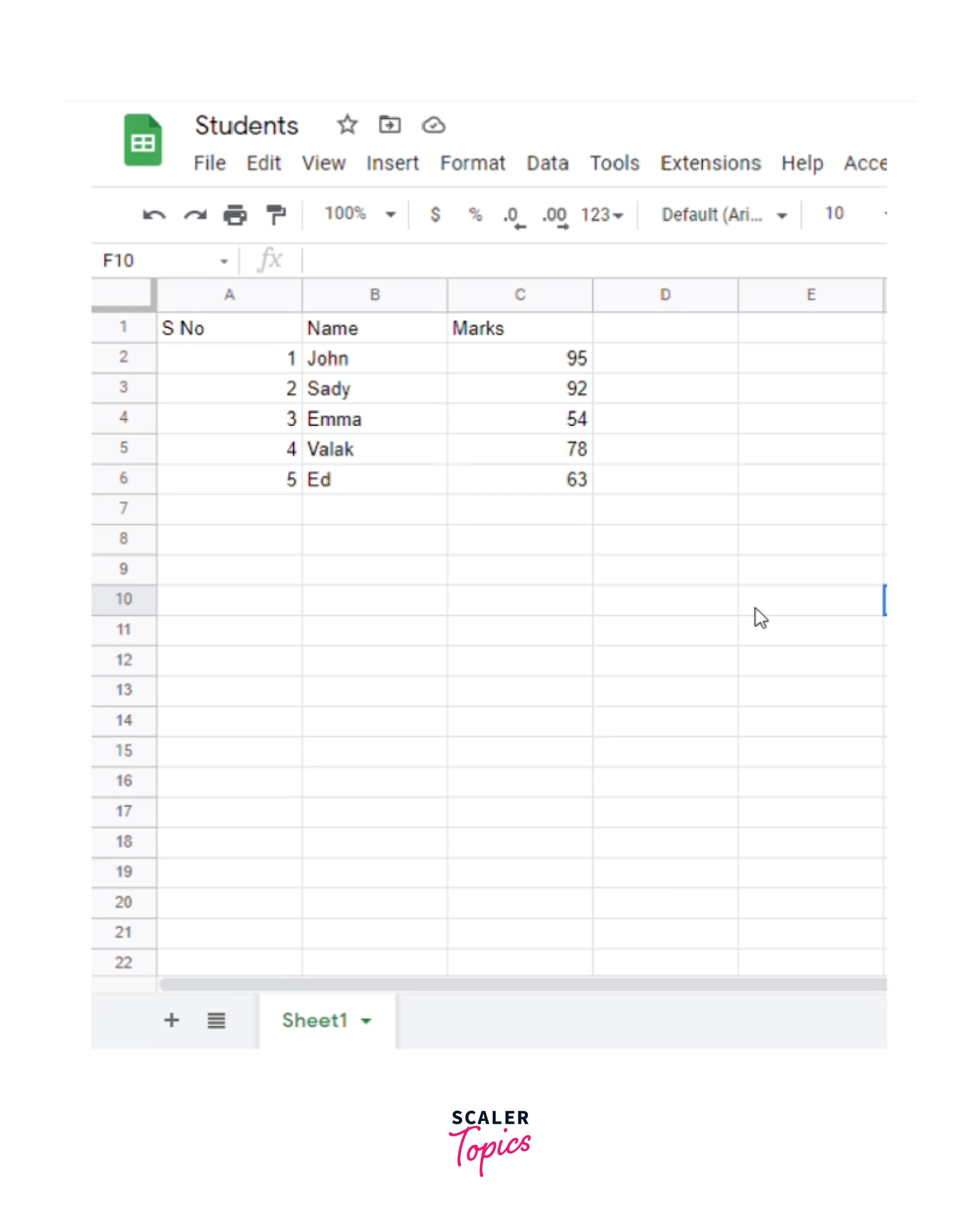
Excel documents are spreadsheets. Excel documents are stored with the **`.xlsx`** or **`.xls`** extension. Excel files have data stored in tables with rows and columns. Excel is a versatile tool. It has provisions for mathematical formulae, graphs and many other things. Excel is used in almost every industry and is thus a critical software.
Below is a sample excel file.
:::
:::section{.main}
## Read excel file in Python using Pandas
In this tutorial, we'll learn how to read excel file in python using pandas. we'll leverage the powerful combination of pandas and XLRD libraries to work efficiently with Excel files in Python. Utilizing pandas DataFrames, which resemble spreadsheets with rows and columns stored in Series objects, facilitates seamless data manipulation and analysis.
Suppose you have `employee_data.xlsx` sheet as the source from where you want to read the content in Python.
Importing Excel data is straightforward; begin by importing the pandas package and employ the read_excel() method:
```Python
import pandas as pd
df = pd.read_excel('employee_data.xlsx')
display(df)
```
To enhance efficiency, consider loading a limited number of rows by specifying the nrows argument:
```Python
df = pd.read_excel('employee_data.xlsx', nrows=2)
display(df)
```
For more refined data extraction, skip specific rows using the skiprows argument:
```Python
df = pd.read_excel('employee_data.xlsx', skiprows=[1, 4, 7, 10])
display(df)
```
Additionally, cherry-pick columns by providing a list of column numbers to the usecols argument:
```Python
df = pd.read_excel('employee_data.xlsx', usecols=[0, 1, 2, 6])
display(df)
```
By optimizing these approaches, you can efficiently handle Excel files in Python, streamlining data analysis workflows with ease.
### Working with Multiple Spreadsheets
Excel workbooks often comprise multiple sheets, and pandas empower us to harness their data efficiently. Let's delve into leveraging this capability.
By default, read_excel() reads the first sheet (index 0). However, we can access other sheets by specifying a sheet name, index, or a list of names/indices using the sheet_name argument. Here's how:
```Python
df = pd.read_excel('employee_data.xlsx', sheet_name='2024')
display(df)
```
With this flexibility, pandas enable seamless data extraction from specific sheets, facilitating streamlined analysis and manipulation of multi-sheet Excel workbooks.
Expanding our Excel file handling capabilities with Python and Pandas, we can seamlessly navigate between sheets by specifying their position index with the sheet_name argument:
```Python
df = pd.read_excel('employee_data.xlsx', sheet_name=3)
display(df)
```
This concise approach allows for effortless access to specific sheets within the workbook, streamlining data extraction and analysis processes.
To effortlessly import all spreadsheets stored within an Excel file into pandas DataFrames simultaneously, utilize the read_excel() method with the sheet_name argument set to None:
```Python
all_sheets = pd.read_excel('employee_data.xlsx', sheet_name=None)
```
This concise approach automatically reads all sheets, eliminating the need to specify individual sheet names or indices.
### Combining Multiple Excel Spreadsheets into a Single Pandas DataFrame
Instead of having separate DataFrames for each sheet in a workbook, consolidating all spreadsheets into one DataFrame enables comprehensive analysis. Utilizing pandas' concat() method, you can seamlessly merge these DataFrames:
```Python
combined_df = pd.concat(all_sheets.values(), ignore_index=True)
display(combined_df)
```
:::
:::setion{.main}
## Read excel file in Python using openpyxl
The load_workbook() function is utilized to open the 'Books.xlsx' file for reading, with the file specified as an argument. Within the script, an object named dataframe.active is instantiated to access the max_row and max_column properties, enabling efficient iteration through the content of the 'Books2.xlsx' file. This iterative process extracts the data from the file, facilitating its utilization within the program.
```Python
import openpyxl
# Define variable to load the dataframe
dataframe = openpyxl.load_workbook("employee_data.xlsx")
# Define variable to read sheet
dataframe1 = dataframe.active
# Iterate the loop to read the cell values
for row in range(0, dataframe1.max_row):
for col in dataframe1.iter_cols(1, dataframe1.max_column):
print(col[row].value)
```
:::
:::section{.main}
## Read excel file in Python using Xlwings
Seamlessly integrating data insertion into Excel files, xlwings offers a robust solution akin to its reading capabilities. Whether inputting a list or a single value, xlwings allows precise placement within designated cells or cell ranges.
```Python
# Python3 code to select
# data from excel
import xlwings as xw
# Specifying a sheet
ws = xw.Book("employee_data.xlsx").sheets['Sheet1']
# Selecting data from
# a single cell
v1 = ws.range("A11:A77").value
v2 = ws.range("F15").value
print("Result:", v1, v2)
```
```
```
:::
:::section{.summary}
## Conclusion
* Reading Excel file in Python is crucial for data analysis and manipulation.
* The xlrd module facilitates seamless data extraction from Excel files.
* Pandas, combined with xlrd, provides powerful capabilities for reading multiple sheets Excel files.
* The openpyxl library offers an alternative approach for reading Excel files, providing flexibility in accessing and iterating through workbook content.
* xlwings provides seamless integration of data insertion into Excel files.
:::
 Sign in with Wallet
Connect another wallet
Sign in with Wallet
Connect another wallet