---
title: "Excercises for GIT"
tags: git
---
## Create a Repository
1. Login to GitHub: https://github.com/
1. On https://github.com/ click on the + button, top right corner
2. Name the repository "hello-world"
3. GitHub will ask if you want to add a README.md, license or a .gitignore file. Do not do any of that for now.
---
## Undoing Commits & Changes
* What questions are there from the first part?
* Ok, let's look at the state of our repo
```
git status
```
```
git log
```
* Who can tell me what these long numbers are?
* We can also control the behavior of git log with a flag
* I like this one:
```
git log --oneline
```
* Especially useful when you have lots of commits
* You can get real fancy & granular with your git log <https://www.atlassian.com/git/tutorials/git-log>
* Let's add a guacamole recipe to our `index.md`
* Now I'm going to use a built-in command line editor called `Nano` to edit this file
* You should have it as well if you installed the workshop tools
* If you are having issues, you can also use your default text editor, **Notepad** on win, and TextMate on mac
```
nano index.md
```
```
Lets add:
## ingredients
* 2 avocados
* 1 lime
* 2 tsp salt
## instructions
* chop avocados
* chop onion
* squeeze lime
* add salt
* and mix well
```
```
git status
```
```
git diff
```
* How do we commit our changes locally?
* Right `git add, git commit` cycle
```
git add guac.md
```
* What's a good commit message here?
```
git commit -m 'adding guacamole recipe'
```
```
git status
```
* One metaphor that works for me for this `edit`, `add`, `commit` process is taking a photo, let's look at this diagram:

```
git log --oneline
```
* Let's introduce something we don't like in guac.
* You can pick your own ingredient that you don't like in guacamole.
* I'm using tomato.
```
nano index.md
```
* I'll add tomato
* `ctr+x` and save and exit
```
git add index.md
git commit -m "adding tomato to guac"
```
```
cat index.md
```
* We can also look at our log
```
git log --oneline
```
* **But turns out**, I **hate tomato** in my guac and don't know why I add it! Yuck.
* I want to undo this change
* To undo this in Git like with most things there are a number (prob too many) ways to go about it
* We'll use the `git revert` command today, which has some benefits when working with public repos in github
* Other ways to do include`git checkout``git reset` (I'll share a table shortly)
* When we run the git-revert command it will pop you into your default text editor (nano for me) where you can add a message - I will accept the default message, but you can add more.
```
git revert HEAD
```
* We didn't talk about HEAD yet
* Do you have any intuition about what it means?
* You can think of it as a tag or keyword for the current state of your repository (the branch it is in and commit it is on)
* You can read this as 'undo this last change I made'
* `git revert` also creates a commit which undoes changes made in a given commit, creating a commit which is reverse of a given commit
* This is important b/c it creates a record of what you did for your collaborators rather than just undoing something without that history.
* `git revert` is recommended when you are working with public repositories in github or gitlab
* We can look at the file now
```
cat index.md
```
* There are other ways to go back in your timeline of commits, think of this is a timeline slider
* For insatnce, `git reset fc83262` will undo all the changes back to that commit (we get the hash from oneline log)
* If you want to rewind back to a specified commit, and you can use this because this part of history was not yet published, you need to use git-reset, not git-revert:
* `git checkout sha-hash` will take you back to the state of the commit
* Here's a table of some ways to undo:
**More ways to undo thing**
| Git command | Description | Example |
| -------- | -------- | -------- |
| `git checkout` | Switch branches or restore working tree files | `git checkout <sha hash>` |
| `git reset` | Reset current `HEAD` to the specified state | `git reset fc83262` |
| `git clean` | Remove untracked files (ones not added yet) from the working tree | `git clean` *deletes files permanently!* - add `-n` or -dry-run to preview |
| `git revert` | Revert some existing commits | `git revert HEAD~2` |
Anybody know what the `~2` means above?
See this for more: <https://www.atlassian.com/git/tutorials/undoing-changes>
>The **HEAD** in Git is the pointer to the current branch reference, which is in turn a pointer to the last commit you made or the last commit that was checked out into your working directory. That also means it will be the parent of the next commit you do. It's generally simplest to think of it as HEAD is the snapshot of your last commit. The tilde operator acts as a minus on HEAD, so HEAD~1 goes back one commit from head, HEAD~2 two, and so forth.
* That was a lot! There are even more ways to undo and move around the timeline of your changes.
* The great thing about Git is it gives you a lot of ways to go back in time (downside is, it is overwhelming)
* I personally don't try to create situations where I need to roll back changes :smile:, but when it happens (and it will), if my stuff is under version control, there are many ways I can recover my previous state.
* Since I'm not actively involved in a code project in git, I don't keep these commands in my head. I search for how to do this stuff typically everytime I use.
* Further, if I commit early and often in distinct bundles of work (changes that hang together), I have a lot of granular power on what I can roll back too.
* What questions are there? add a space in etherpad and wait 2 min
## GitHub Pages
An intro:
<https://docs.google.com/presentation/d/1NN41MIPEwZ6ZnfU14EHuGcHxwo05JCtExtaRw2eVAKU/edit#slide=id.gb94cd5090f_2_0>
* we learned alot in the last section.
**The gh-pages branch**
GitHub Pages uses a special branch in your GitHub repository to look for website content, and by default this is the branch with the name ‘gh-pages’. You can actually change this, under repository settings, to use for instance the master branch instead, but let’s stick with the default for now.
It’s possible to create a new branch directly on GitHub, but we will use the command line now. So we will move back to the command line and type
```
git checkout -b gh-pages
git push
fatal: The current branch gh-pages has no upstream branch.
To push the current branch and set the remote as upstream, use
git push --set-upstream origin gh-pages
```
* let's follow what the message tells us to do
```
git push --set-upstream origin gh-pages
Total 0 (delta 0), reused 0 (delta 0)
To https://github.com/danmichaelo/hello-world.git
* [new branch] gh-pages -> gh-pages
Branch gh-pages set up to track remote branch gh-pages from origin.
* Ok, let's push up our chages
```
* Let's look at a diagram of what we just did <https://photos.google.com/u/2/search/diagram/photo/AF1QipMw45TxeOp8hDN6MN-FimHznItUikclT3HHrDCN>
* This is from the first git workshop I took in the Carpentries!
* Let's go take a look at github now <https://github.com/>
---
## Tour of GitHub - Repo view
1. Code - where your files and folders live
2. Click on commits and notice you previous commits (versions),
3. To the right you can click on the copy symbol and this copies the hash that represents that version
4. You can click on the alphanumeric digits (28f2aaa) to see the changes incorporated at that commit
5. You can browse (go back to the previous state) by clicking < >
---
## Now, let’s explore our new repo
2. Issues - important way we communicate in GH (a feature in GitHub, not in Git), let's fire an issue
Click 'New Issue' and add a note about something that needs to get done or a problem
3. Pull Requests - these are suggestions for change from forked repositories waiting to be merged or commented on (we will come back to this)
4. Projects - you can use GitHub as PM tool
5. Wiki - some projects use to document their work
6. Insights - metrics on your repository
7. Settings - this is where you can add collaborators -- great if you work with defined teams.
---
## A brief tour of our profile
1. Top right drop down - see you can be parts of organizations, look at your profile
2. Show profile
3. Show Organizations
4. Stars
5. What gist is
---
---
## Challenge: Contributing to a page owned by someone else (slightly easier way)
To practice using Git, GitHub pages and Markdown we can contribute to a GitHub pages site.
Pair up in groups of two (or more if needed) and do the exercises below together.
1. Introduce yourself in your group! Name, affiliation, area of study.
2. Trade the url to your `hello-world` repository on GitHub with your partners.
3. Go to your partner's repository. It should be something like https://github.com/some-librarian/hello-world, where "some-librarian" is the username of your exercise partner.
4. Click on "Fork" in the upper right part of the screen to create a copy of the repository on your account. Once you have a fork of your partner's repository, you can edit the files in your own fork directly.
5. Edit `index.md` and **add your favorite ingredient** not mentioned in guacamole & update the instructions
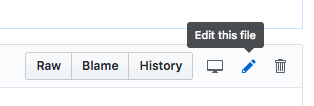
6. Click the "index.md" file, then click the edit pencil icon:
4. Now is good chance to try some Markdown syntax. We've been using some already!
Try some of the examples at [Mastering Markdown](https://guides.github.com/features/mastering-markdown/).
You can preview how it will look before you commit changes. Try adding an image or linking to an outside site.
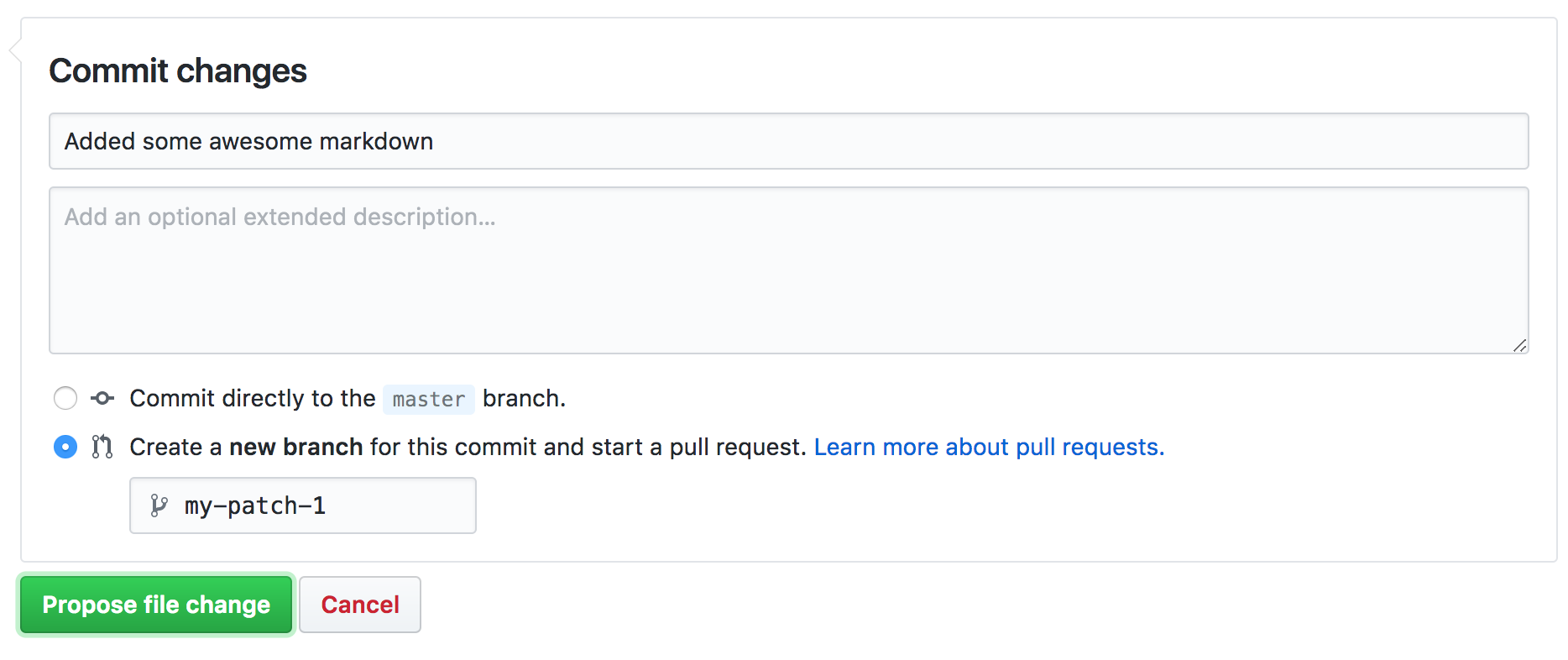
5. Once you are ready to commit, enter a short commit message,
select "Create a new branch for this commit and start a pull request"
and press "Propose file change" to avoid commiting directly to the gh-pages branch.
8. You can now go to the repository on your account and click "New Pull Request" button, where you can select base branches repositories, review the changes and add an additional explanation before sending the pull request (this is especially useful if you make a single pull request for multiple commits).
9. Your partner should now see a pull request under the "Pull requests" tab and can accept ("Merge pull request") the changes there. Try this.
This whole process of making a fork and a pull request might seem a bit cumbersome.
Try to think of why it was needed? And why it's called "pull request"?
> ## Solution
> We made a fork and a pull request because we did not have permission to edit
> (or commit) the repository directly. A fork is a copy of the repository that
> we *can* edit. By making a pull request we ask the owner of the repository if
> they would like to accept (pull in) the changes from our fork (our copy) into
> their version. The owner can then review the changes and choose to accept or
> reject them.
>
> You can open pull requests on any repository you find on GitHub. If you are a
> group of people who plan to collaborate closely, on the other hand,
> it's more practical to grant everyone access to commit directly instead.
>
## Optional challenge: Contributing to a page owned by someone else (slightly more complicated way)
Instead of making edits on the GitHub website you can 'clone' the fork to your local machine and work there.
Try following the rest of the steps under "Time to Submit Your First PR" at this guide: <https://www.thinkful.com/learn/github-pull-request-tutorial/Writing-a-Good-Commit-Message#Time-to-Submit-Your-First-PR>
(If you followed step 1 and 2 in the previous challenge, you already have a fork and you can
skip the creation of a new fork if you like. You can submit multiple pull requests using the same fork.)
---
## Fork and Create a PULL REQUEST practice (larger scale)
1. Go to this repository I made: https://github.com/ucla-data-archive/git-collaboration
2. Click on the 'fork' - this will make a copy of my repo into your account - notice how they are linked
3. Inside the countries folder, edit one country and provide the information needed
4. Add a commit message and save.
5. Navigate to the repository home page, you should see a note above the files "This branch is 1 commit ahead of jt14den:master." with a "Pull Request" link towards the right.
6. Click on the "Pull Request" and then 'Create pull request button" - leave a short message and add to it if you need to say more, then "Create pull request"
7. This will send a message to me (the owner of the repository you forked from), that you have changes you want me to incorporate in my repository.
8. I'll merge your changes, initiate a discussion about your changes, or resolve conflicts if needed.
9. This is how changes and improvements are incorporated in the Carpentries and most big coding projects
---
## Uses of Git - Helpers Can Join in here
* Make a place on the etherpad for different uses of github or other hosted git tools or git itself
* you talk about a few favorites:
* Awesome Lists - Curated list of resources on topics (mostly technical)
* I look for datasets on <https://github.com/awesomedata/awesome-public-datasets>
* Gitenberg - the books from Progject Gutenberg
* a collaborative, trackable, scriptable digital library using Git
* All the Carpentries lessons (you can click on the Repository icon to get to the github repo)
* Data Carpentry https://datacarpentry.org/lessons/
* Software Carpentry https://software-carpentry.org/lessons/
* Library Carpentry https://librarycarpentry.org/lessons/
* OpenGeoMetadata - a project share geo metadata & discovery
* https://github.com/OpenGeoMetadata
 Sign in with Wallet
Connect another wallet
Sign in with Wallet
Connect another wallet