# Audio Collaboration in 3 Tools
We're collected some tips for how to work together on podcasts across distance and creating a workflow that works best for YOUR team! Read on for some super simple technical tips focused around importing and exporting audio files in 3 main tools that can help you as you design that workflow.
Below, you will find guidance on how to bring in files from others and share your audio projects using Audacity, Soundtrap, and Garageband.
## SHARING FILES
Be mindful of which tool (or tools) you and your collaborators are using, and choose the best way to share files accordingly. For example, if everyone is using Audacity, it will be better to save and share as Audacity projects. But if you are using Audacity, and your collaborator is using Garageband, you will need to EXPORT your audio file in the format you decide on together (mp3, wav, etc.). And remember that if you are exporting your file for a collaborator to use, your file is "flattened" so it is basically the same as if you are importing any external audio file in terms of how you can edit it!
## AUDACITY
Check out this resource on Audacity for more ideas and tips on using this tool for recording and editing audio.
### importing audio files into Audacity:
1. Click `File > Import > Audio` (or Shift+Cmd+I)

This will add the file as a new track.
2. When you’re done recording, you can edit your audio, for example `Effect > Normalize` makes your track loud and clear. `View > Mixer Board` lets you mix the levels of your different tracks. And there are many other things you can experiment with, too.
### saving and sharing audio files:
#### From AUDACITY to AUDACITY:
1. Create a new folder and save the Audacity project into it. There will be two things in that folder: an `.aup` file (the Audacity project) and a folder with audio data. Be careful not to rename either of these, or Audacity won’t know how to open the project!
2. Zip the project folder and upload it to Slack or your collab communciation tool of choice! Your friends can download it and add additional tracks!
#### From AUDACITY to other tool:
1. To export your project, click `File > Export`. From here, you can choose which format you would like to export as.

2. Once you have exported your file, it will be saved on your device.
## SOUNDTRAP
### importing audio files into Soundtrap:
1. Select `Add New Track` in the lefthand column.
2. Select `Import file` in the bottom left corner.
3. Browse your files and select the clip you would like to upload.
**Note:** Soundtrap accepts the following formats: mp3, mp4, m4a, ogg, wav, flac, aac, aif, and mid.
Check out this resource on Soundtrap for more ideas and tips on using this tool for reocording and editing audio.
### saving and sharing audio files:
#### Within Soundtrap.
Since soundtrap is a web-based DAW, it's *almost* like Google Docs for audio projects.
1. Simply click the purple `Save` button at the top of the screen.
**Note:** Your collaborators will not be able to see your changes until you save them! So if you're working synchronously, save OFTEN and consider editing in different tracks.
#### From SOUNDTRAP to other tool:
1. Follow steps above to save your project.
2. Select `File > Export`, then your desired export format (mp3 or wav).
3. File should download to computer under the name that you gave your project.
4. Share via your collab communication tool of choice!
## GARAGEBAND
### importing audio files into GarageBand:
To add audio files, simply drag them from **Finder** into GarageBand. You can add audio clips to an existing track, or drag them below your current tracks to add a new track. You can keep each audio file in a separate track, or you can name your tracks based on the type of content they’ll contain, for example: Voice Over, Interviews, Cutaways, and Music. This keeps the workspace clean and organized, but you can also easily imagine situations in which you’ll want to keep individual interviews completely separate, or layer them on top of each other, etc
### saving and sharing audio files in GarageBand:
#### From GARAGEBAND to GARAGEBAND:
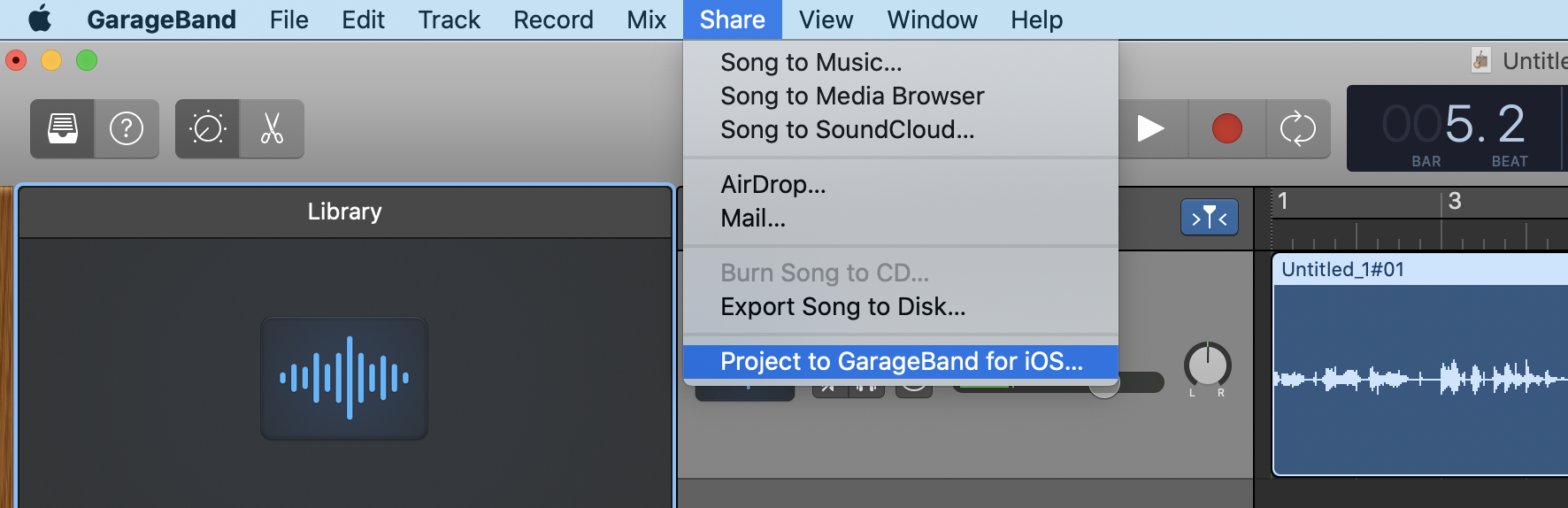
1. Go to the `Share` menu and choose `Project to GarageBand`.
2. Save your file to our folder of choice.
4. Share via your collab communication tool of choice!
#### From GARAGEBAND to other tool:
1. Go to the `Share` menu and choose `Export Song to Disc`.
2. Name your podcast and choose an audio format: AAC or AIFF for full quality, and MP3 for slightly lower quality but more manageable file size.
4. Share via your collab communication tool of choice!
 Sign in with Wallet
Connect another wallet
Sign in with Wallet
Connect another wallet