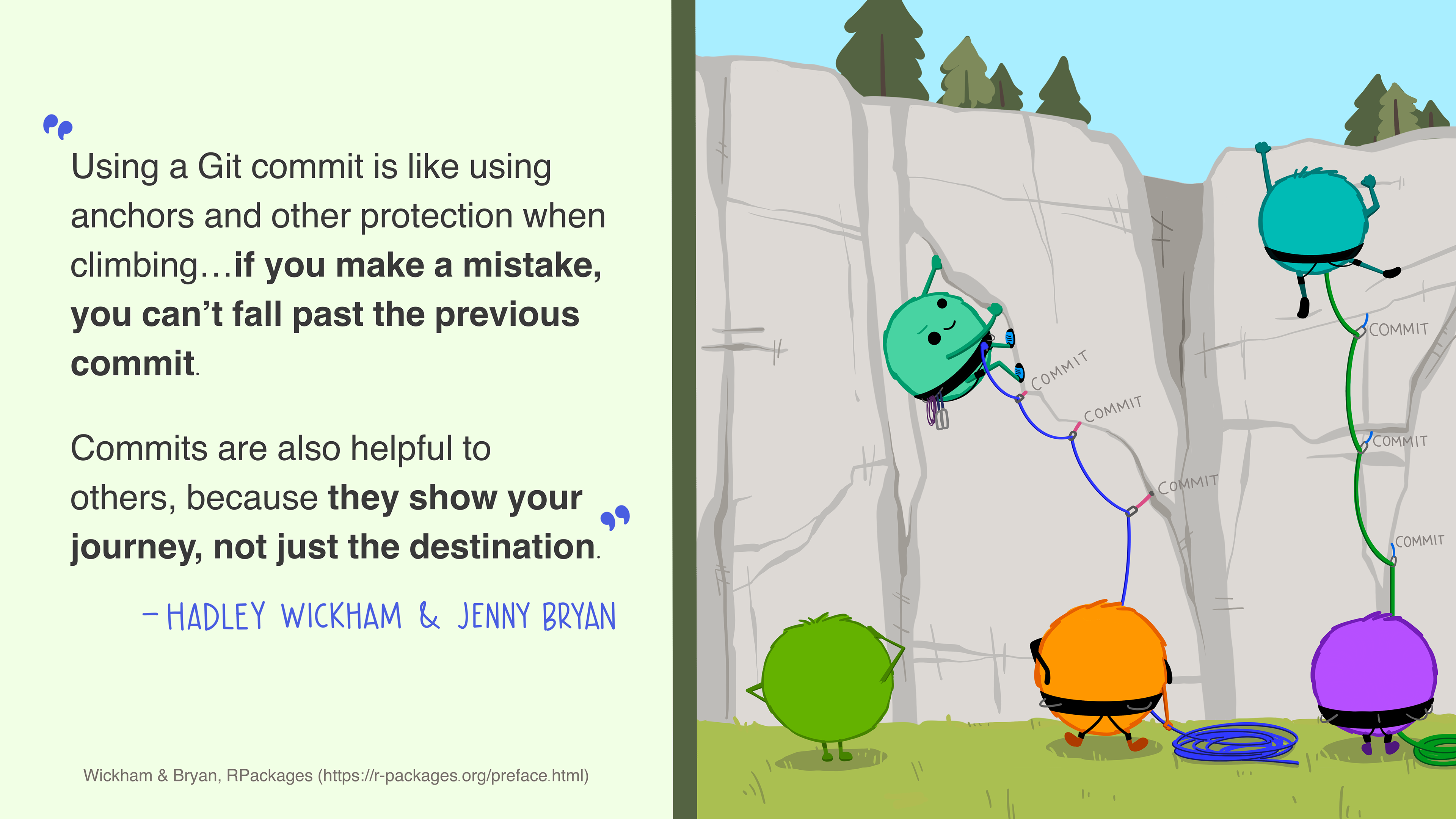
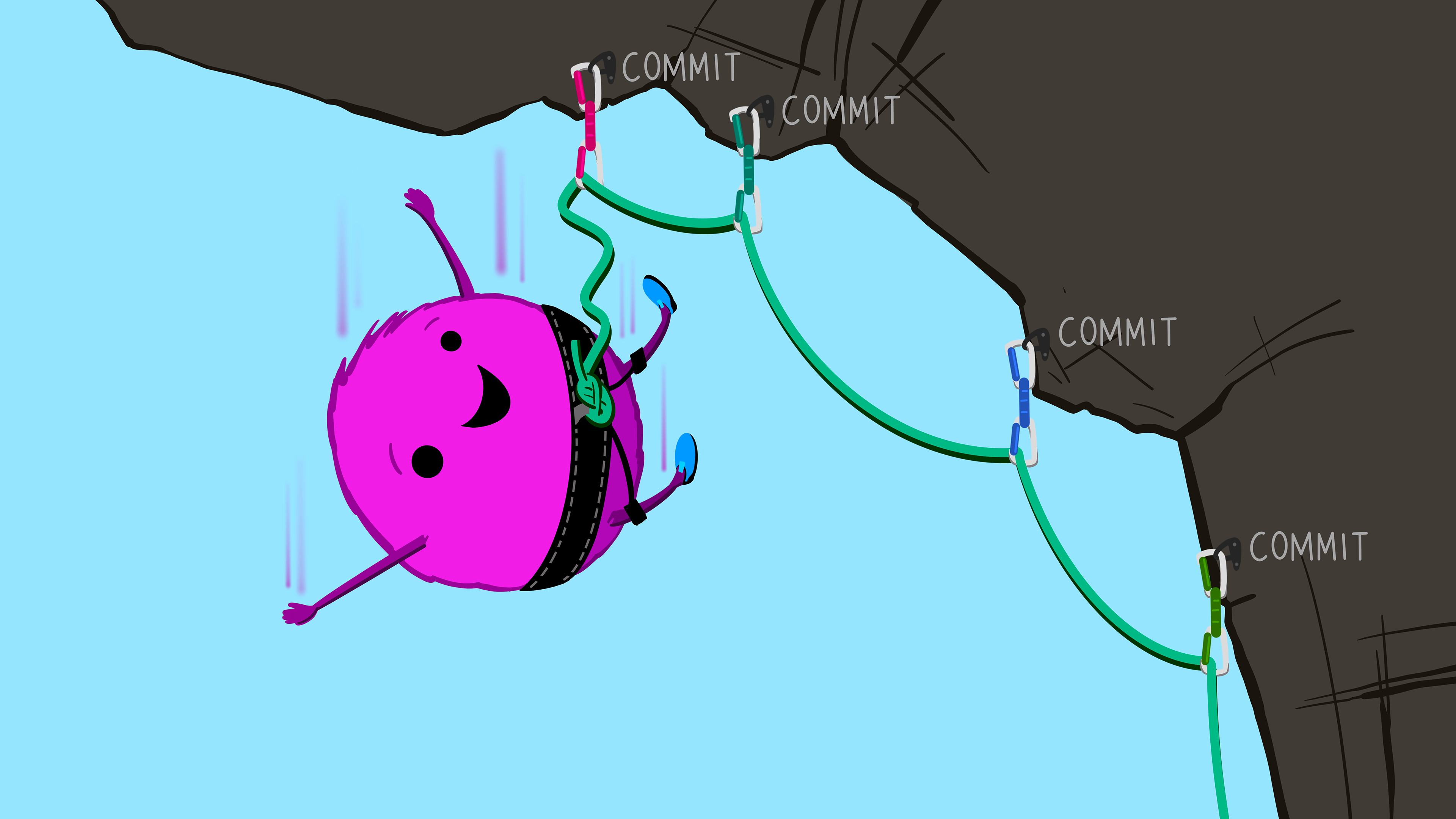
_Illustrations from the Openscapes blog GitHub for supporting, contributing, and failing safely by Allison Horst and Julia Lowndes._
**You've been using git to commit and push to GitHub. Now what?**
But first, our editors might look/be different, but the concepts are the same. I use a mixture of command line and [magit](https://magit.vc/) in [emacs](https://www.gnu.org/software/emacs/).
Other helpful editors/GUIs:
- [GitHub Desktop](https://desktop.github.com/)
- [Git in RStudio](https://datacarpentry.org/rr-version-control/03-git-in-rstudio/)
- [Git Graph in VS Code](https://marketplace.visualstudio.com/items?itemName=mhutchie.git-graph)
- [Sourcetree](https://www.sourcetreeapp.com/)
- [GitKraken](https://www.gitkraken.com/)
General additional set up:
- git gutter fringe: shows which lines were edited/added/deleted
- https://github.com/gitgutter
- shell prompt: shows folder and git branch
## git log: See your commits
- displays committed snapshots
- helpful for looking over the history of a repository and locating a specific version/commit of a project
```sh
git log
git log -3 # first 3 commits
git log -10 # first 10 commits
```
## git diff: What changes did you make in your files/commits?
```sh
git diff # return changes for all files against previous commit
git diff commit-1-hash commit-2-hash # changes between 2 commits
git diff commit-hash filename # changes to specific file against specific commit
```
https://ucdavisdatalab.github.io/workshop_introduction_to_version_control/creating-your-first-repo.html#view-a-history-of-your-commits
## git branch: You've got something working you want to enhance/develop further without messing the stable/original code:
```sh
git branch # shows all branches + the branch you're on (*)
git branch dev # creates new branch dev
git checkout dev # switches to new branch
git git checkout -b dev # create new branch dev and switch to it
git checkout main # head to main branch
git merge dev # merges changes from dev into main branch
```
https://ucdavisdatalab.github.io/workshop_introduction_to_version_control/git-branching.html
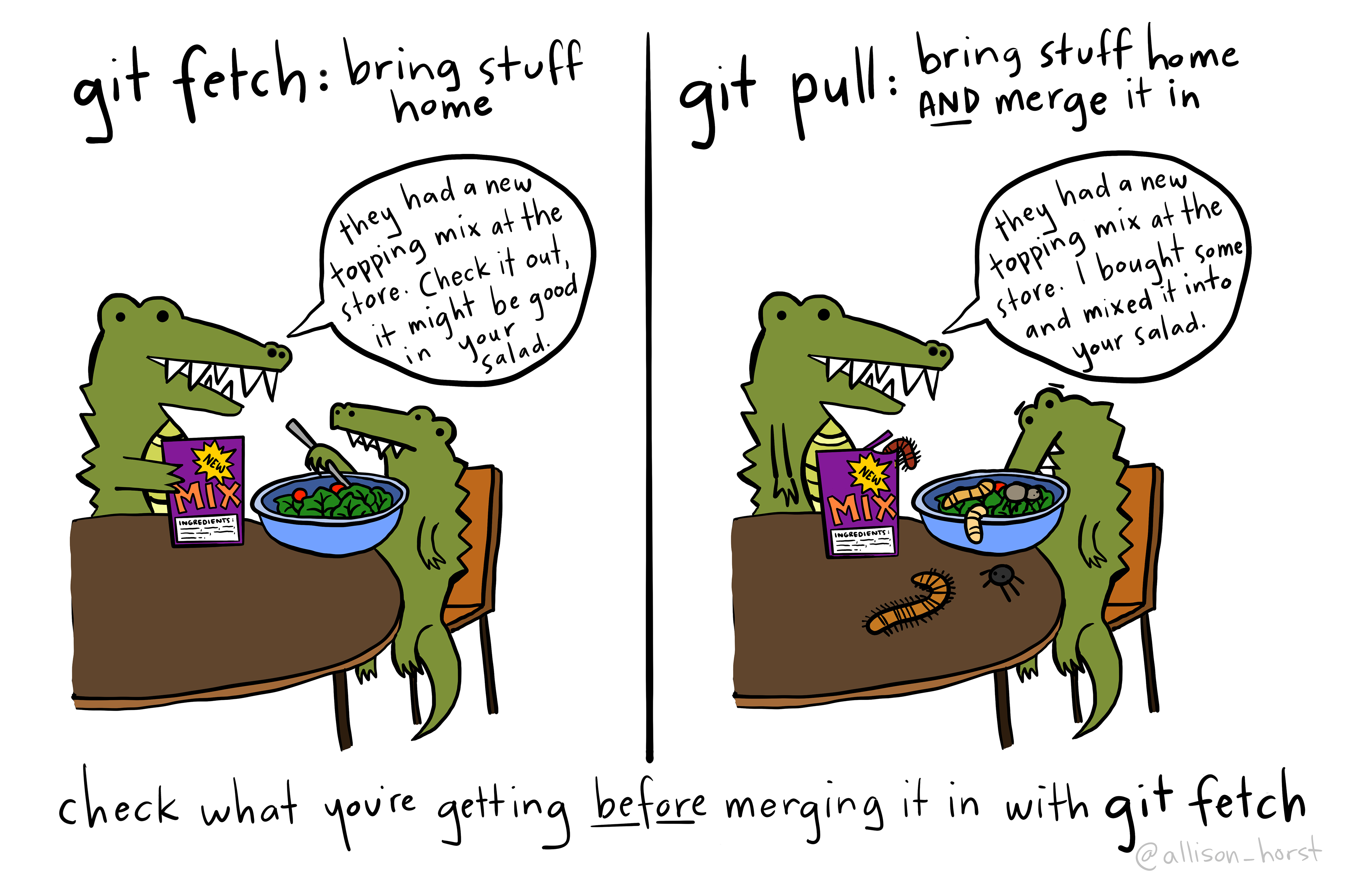
## git pull/git fetch: Incorporating commits from your remote repository
```sh
git pull origin main # pull changes from remote repo's main branch
git fetch
git diff origin/main
git merge origin/main
```
>When comparing Git pull vs fetch, Git fetch is a safer alternative because it pulls in all the commits from your remote but doesn’t make any changes to your local files.
>
>On the other hand, Git pull is faster as you’re performing multiple actions in one
https://www.gitkraken.com/learn/git/problems/git-pull-vs-fetch
https://stackoverflow.com/a/7104747/5443003
https://stackoverflow.com/questions/3419658/understanding-git-fetch-then-merge
## Pull requests
Try practicing with your own repos and submitting minor patches to other open source software
https://ucdavisdatalab.github.io/workshop_git_for_teams/open-and-merge-a-pull-request.html
## Merge conflicts
>Git is unable to merge when there is different commit data in the same area of the file
To fix it, open the file in question and manually resolve the differences:
```
Some file with merge conflict
<<<<<<< HEAD
Some sentence
=======
Same sentence with different text
>>>>>>> first_commit
```
>Fixing the merge conflict involves deleting the entire section marked off by <<<<<<< and >>>>>>> and replacing it with the information you’d like the final, merged file to retain.
https://ucdavisdatalab.github.io/workshop_introduction_to_version_control/git-branching.html#fixing-merge-conflicts
---
# Oh S*#t, Git!?!
https://ohshitgit.com/#magic-time-machine
- `git commit --amend`
- `git reset`
- `git revert`
- `git reflog`
# Other helpful resources
## gitignore templates
Helpful place to start with gitignore files specific to your set up. Mix and match and customize with your own edits:
[Repo with gitignore templates](https://github.com/github/gitignore)
Examples:
- [mac](https://github.com/github/gitignore/blob/main/Global/macOS.gitignore)
- [windows](https://github.com/github/gitignore/blob/main/Global/Windows.gitignore)
- [linux](https://github.com/github/gitignore/blob/main/Global/Linux.gitignore)
- [R](https://github.com/github/gitignore/blob/main/R.gitignore)
- [python](https://github.com/github/gitignore/blob/main/Python.gitignore)
## git + bash = more power to you
### Moving files with spaces in their names
```shell
# print/echoe file names with spaces in them
# spaces don't help
for i in $(find . -iname "*.R");
do
echo $i;
done
# echo filenames (with spaces in them)
find . -type f -name '*.R' -print0 |
while IFS= read -r -d '' file; do
echo "$file"
# git mv "$file" "R/";
done
# move files with git mv to dedicated R folder
find . -type f -name '*.R' -print0 |
while IFS= read -r -d '' file; do
# printf '%s\n' "$file"
git mv "$file" "R/";
done
```
### Rename files with a specific pattern
```sh
# Remove "Rscript_" from file name
rename 's/Rscript_//' *.R
```
## Careful now: Cleaning local untracked files
https://stackoverflow.com/a/64966/5443003
```sh
git clean -n -d # lists files/dirs that will be deleted
# ************************************************************
# BEWARE: the following code will delete files/directories
# ************************************************************
# Delete the files from the repository
git clean -f
# Delete directories
git clean -f -d
```
## BFG Repo-Cleaner
>The BFG is a simpler, faster alternative to git-filter-branch for cleansing bad data out of your Git repository history:
>>- Removing Crazy Big Files
>>- Removing Passwords, Credentials & other Private data
https://rtyley.github.io/bfg-repo-cleaner/
https://github.com/rtyley/bfg-repo-cleaner
https://stackoverflow.com/questions/2116778/reduce-git-repository-size
## Removing files
- `git rm`
- for already deleted files: `git add -u`
---
# DataLab material
- https://ucdavisdatalab.github.io/workshop_introduction_to_version_control/
- https://ucdavisdatalab.github.io/workshop_git_for_teams/
# References & further reading
- Bryan J. 2017. Excuse me, do you have a moment to talk about version control? PeerJ Preprints 5:e3159v2
- https://stackoverflow.com/questions/10345182/log-first-10-in-git
- https://gitprotect.io/blog/how-to-use-git-reflog-reflog-vs-log/
- https://medium.com/front-end-weekly/engineerchirag-chirag-goel-its-difficult-to-live-with-and-without-git-oh-shit-910fa4492667
- http://longair.net/blog/2009/04/16/git-fetch-and-merge/
- https://www.gitkraken.com/learn/git/problems/git-pull-vs-fetch
https://doi.org/10.7287/peerj.preprints.3159v2
- https://stackoverflow.com/questions/6313126/how-do-i-remove-a-directory-from-a-git-repository
- https://www.atlassian.com/git/tutorials/merging-vs-rebasing
- https://stackoverflow.com/questions/348170/how-do-i-undo-git-add-before-commit
- https://stackoverflow.com/questions/57265785/whats-the-difference-between-git-switch-and-git-checkout-branch
- https://learnxinyminutes.com/docs/git/
# Session Notes
Upon inheriting a project, first step was to initialize a git repository and visualize the directory tree structure. [Conda can install a tree application](https://anaconda.org/conda-forge/tree).
`git checkout` vs `git switch`
`git checkout` performs `git switch` and `git restore`
Q: Is it possible to create a clone of a specific branch?
You can created nested branches from the main branch of a repo.
Otherwise, you can also simple clone a repo, move the directory and files to a new directory, and remove the .git directory. However, you will loose the history of the repo.
OR
you could create a new empty repo and push a new branch to main on the new repo. Remotes can be viewed with `git remote -v` or looking at your `.git/config` file.
https://stackoverflow.com/questions/42084116/pushing-to-a-different-git-repo
If you would like to continue working on a private repo privately, but would like to publish a public version of that repo. You could do the above.
For long-running branch, `git fetch` and `git merge` (i.e. `git pull`) can create [conflicts and to resolve the conflicts see the link here.](https://docs.github.com/en/pull-requests/collaborating-with-pull-requests/addressing-merge-conflicts/resolving-a-merge-conflict-using-the-command-line)
To test the merge conflicts, you may create a new branch to test the merge conflicts in.
How to set up a repo to protect it from merging to the main?
https://docs.github.com/en/repositories/configuring-branches-and-merges-in-your-repository/managing-protected-branches/managing-a-branch-protection-rule
Q: what is the different between `git clone` and github fork?
Fork is a github concept. This is a github thing! If you fork a repo, it will create a new repo in you user profile. These are really helpful to create a bookmark of the repo and also actively develop the repo for your own purposes.
`git clone` is how you take any repo into your local environemnt to make changes.
While you can not create numerous forks of a repo, you can create a template repo of the repo for numerous copies of a repo.
Q: Best practices for forking or `clone`?
Forks are generally best for editing README.md, for example.
`clone` is best for having a local repo that you want to work with/on.
`git clone --mirror` will copy the entire repo. This is useful for repo theft as well as cloning from bitbucket.
 Sign in with Wallet
Connect another wallet
Sign in with Wallet
Connect another wallet