```
_________________________
< dati da riga di comando >
-------------------------
\ ^__^
\ (oo)\_______
(__)\ )\/\
||----w |
|| ||
```
### Roba vecchia, molto innovativa
<hr>
by [@aborruso](https://twitter.com/aborruso)
----
<!-- .slide: style="text-align: left;"> -->
# chiSono
Esperto in **Sistemi Informativi Geografici** e **Open Data**.
Presidente di **onData** un'associazione non-profit che promuove l'apertura dei dati pubblici per renderli accessibili a tutti.
---
# Non parliamo di dati aperti
---
# Andiamo a "commandare"

----
## Fare cose nuove con strumenti del 1960?
----

----
<!-- .slide: data-background="https://i.imgur.com/allp023.jpg" -->
----
<!-- .slide: data-background="https://i.imgur.com/4Tlib5m.jpg" -->
---
# Evidenze indiscutibili 🙃
- lo strumento più smart che utilizziamo è evidentemente la **tastiera**;
- la forma più diffusa per "scambiare" dati è il **testo**.
---
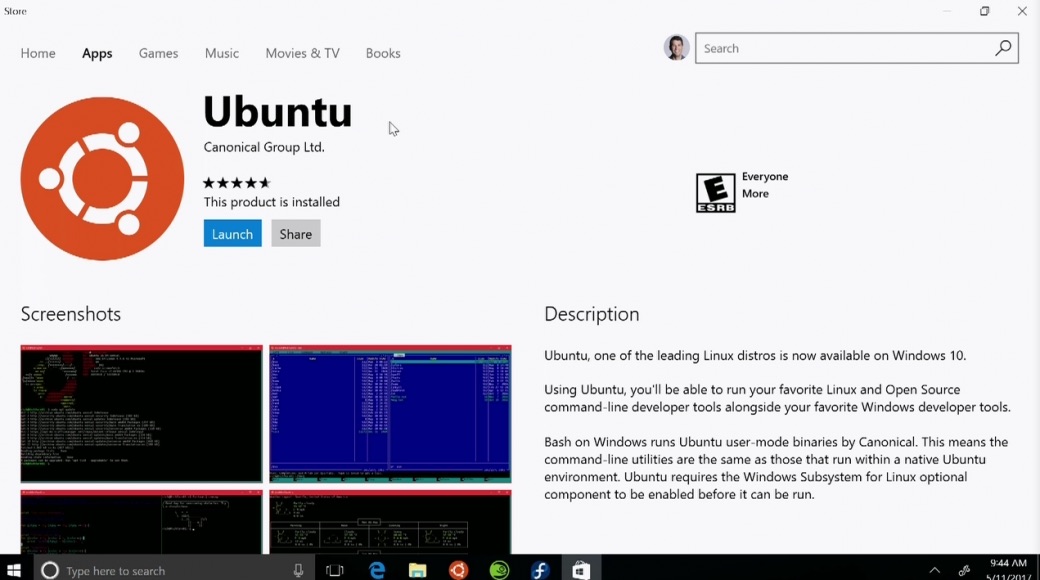
# La shell
Uno dei programmi disponibili sulla propria "macchina", per eseguire altri programmi per conto dell'utente.
----
## La shell
- è Agile
- è Scalabile
- è Estendibile
- è Ubiquitaria
----
----
## bash è una shell
----
## bash è linguaggio di *scripting*
----
## 5 tipi di tool
- eseguibili
- shell builtin
- script interpretati
- funzioni di shell
- alias
---
# Usiamo la shell
----
## dove sono?
`pwd` (print working directory)
----
## cosa è pwd?
`man pwd`
----
## Info sui file
- `ls` -l (`-l` è un argomento)
- `stat`
- `file`
----
## Variabili ed espansioni variabili
- `echo "il mio utente è $USER"`
- `echo 'la variabile $USER contiene il nome utente'`
- `echo 'la variabile $USER contiene il nome utente.'"Io sono $USER"''`
---
# Input e Output
`faiQualcosa inputFile >outputFile`
----
## Output a schermo
----
## Output in un file (>)
`echo ciao > output`
----
## Output in un file in append (>>)
`echo ciao >> output`
----
## Impostare input (<)
`<file wc -l`
---
# on the job
----
## Download di un dato
```bash
# visualizzo
curl "https://media.githubusercontent.com/media/MuseumofModernArt/collection/master/Artworks.csv"
# scarico il file
curl "https://media.githubusercontent.com/media/MuseumofModernArt/collection/master/Artworks.csv" > artworks.csv
# scarico il file in modalità silent
curl -s "https://media.githubusercontent.com/media/MuseumofModernArt/collection/master/Artworks.csv" > artworks.csv
```
----
## Visualizzare solo alcune righe
```bash
# le prime 5
head -n 5 artworks.csv
# le ultime 5
tail -n 5 artworks.csv
```
----
## Ordinare, tagliare, modificare, filtrare
- `sort`
- `cut`
- `sed`
- `grep`
----
# Maledette intestazioni
Uno dei formati di scambio [più diffuso](https://data.europa.eu/data/datasets?locale=en&minScoring=0) è il "terribile" `CSV`
----
## Visualizzare solo alcune colonne
```
csvcut -c 1,3 artworks.csv
csvcut -c Artist,ArtistBio,Date artworks.csv
head -n 3 artworks.csv | csvcut -c 1,3
head -n 3 artworks.csv | csvcut -c 1,3 | csvlook
```
----
## da quante righe è fatto
wc -l artworks.csv
----
## creiamo un file con le prime 2500
head -n 2500 artworks.csv > artworks2500.csv
----
## Analisi
csvstat artworks2500.csv
----
## Query
csvsql --query "select count(*) AS 'numero', Artist from artworks2500 group by Artist order by numero desc limit 10" artworks2500.csv
---
# scraping con scrape
[scrape](https://github.com/jeroenjanssens/data-science-at-the-command-line/blob/master/tools/scrape) estrae elementi da una pagina HTML usando query XPath or CSS selector. È basato su Python e sul grandioso lxml.
----
## I comuni italiani che iniziano per "Z"
Pagina sorgente: [wikipedia](https://goo.gl/VzmQBx)
----
```bash
curl "https://it.wikipedia.org/wiki/Comuni_d%27Italia_(Z)?oldformat=true" | \
scrape -be "//table[1]//tr/td[1]/a" | \
xmlstarlet sel --html -t -m "//a" -v "." -n
```
----
## Quanti sono?
----
## Tutti i file vettoriali del progetto Copernicus 1
Pagina di partenza: [copernicus](http://emergency.copernicus.eu/mapping/list-of-components/EMSR213)
----
```bash
curl "http://emergency.copernicus.eu/mapping/list-of-components/EMSR213" | \
scrape -be "//a[contains(@href,'vector')]"
```
----
## Tutti i file vettoriali del progetto Copernicus 2
Pagina di partenza: [copernicus](http://emergency.copernicus.eu/mapping/list-of-components/EMSR213)
```bash
curl "http://emergency.copernicus.eu/mapping/list-of-components/EMSR213" | \
scrape -be "//a[contains(@href,'vector')]" |
xmlstarlet sel -t -m "//a" -o "http://emergency.copernicus.eu" -v "@href" -n
```
---
# JSON con jq
jq homepage: [https://stedolan.github.io/jq/](https://stedolan.github.io/jq/)
----
## JSON
```json
{
"name": "Andrea",
"ruolo": "cuoco"
}
```
Un esempio di JSON da [dati.gov.it](https://gist.github.com/aborruso/f089f4e5c60106be973e13948aec55bb)
----
## Recuperiamo l'id
Nella struttua del JSON l'id corrisponde a `.result.id`.
Con jq per estrarlo:
```bash
curl "https://gist.githubusercontent.com/aborruso/f089f4e5c60106be973e13948aec55bb/raw/23b75d0d72e26fb39ad4e0ea6307c7b521006da6/cli.json" | \
jq '.result.id'
```
----
## Recuperiamo le info sulle risorse
----
```bash
curl "https://gist.githubusercontent.com/aborruso/f089f4e5c60106be973e13948aec55bb/raw/23b75d0d72e26fb39ad4e0ea6307c7b521006da6/cli.json" | \
jq '.result.resources' | \
in2csv -f json | \
csvcut -c 1,2,3 | \
csvlook
```
----
## Cambiamo la struttura
`[.result.resources[] | {nome:.name,formato:.format}]`
---
# Un esempio di dati aperti, riuso e shell
[La biblioteca comunale di Palermo, le API di Flickr, la "riga di comando"](http://opendatasicilia.it/2019/03/11/palermo-un-meraviglioso-viaggio-nel-tempo-grazie-alla-biblioteca-comunale-di-palermo/)
----
## API e JSON output
- <https://www.flickr.com/services/api/>
- <https://gist.github.com/aborruso/3adb4cc9d1aa0bc52fc6e151bdfa6732>
- <https://gist.github.com/aborruso/3adb4cc9d1aa0bc52fc6e151bdfa6732/raw/0b5e09fb9dd79adcb457f863b57bb2ad4ae34ba2/39665614354.json>
---
# ispezioniamo
----
## dati di esempio
```bash
wget "http://geodata.mit.gov.it/datasets/parco_circolante_Abruzzo.csv"
wget "http://goodpa.regione.marche.it/dataset/d8444ecf-586c-4410-9a78-f24fcf938822/resource/c0da8d84-74c6-4dc7-94e6-1a74c3cf04fc/download/elavoriopendatanuovosito20158poi20181101poi.xls" -O fileexcel.xls
```
----
## head
----
## tail
----
## file
----
## wc
---
# extract
----
## head
head -n 2000 ./input.csv >./esempio.csv
---
# csvkit
> csvkit is a suite of command-line tools for converting to and working with CSV, the king of tabular file formats.
<https://csvkit.readthedocs.io/>
---
# CSVClEAN
Il CSV è "pulito"?
---
# in2csv
Converte in CSV
----
## XLS 2 CSV
in2csv -f xls -I ./input >./output
----
## JSON 2 CSV
in2csv -f json -I ./input >./output
---
# csvcut
È un `cut` specializzato sui `CSV`
----
## cut
echo -e "Marco\tBianchi" | cut -f2
----
## stampa le colonne
csvcut -n esempio.csv
```
1: id
2: progressivo
3: tipo_veicolo
4: destinazione
5: uso
6: comune_residenza
7: provincia_residenza
8: ...
```
----
## estrai alcune colonne
csvcut -c column_a,column_c data.csv > new.csv
----
## riordina colonne
csvcut -c column_c,column_a data.csv > new.csv
---
# csvlook
Per "visualizzare" un CSV
---
# csvgrep
Filtra per valore (ispirato a grep)
----
## grep
È una dei giganti della riga di comando
```bash
grep search_string path/to/file
grep -i search_string path/to/file
grep -E ^regex$ path/to/file
grep -v search_string
```
----
## csvgrep
csvgrep -c data_immatricolazione -r "^2005" data.csv > new.csv
---
# csvsort
Per ordinare i dati
---
# csvjoin
Per unire in "orizzontale"
---
# csvstack
Per unire in verticale
---
# csvjson
Converte in JSON
---
# csvstat
Per una **IMPORTANTE** visione di insieme
---
# csvsql
Un CSV come un db Relazionale
csvsql --query "select name from data where age > 30" data.csv > new.csv
csvsql -i sqlite new.csv
---
# csvsql
Da un CSV a un db relazionale
csvsql --db postgresql:///database --insert data.csv
---
# sql2csv
Da un DB relazionale a un CSV
sql2csv --db postgresql:///database --query "select * from data" > new.csv
---
# csvformat
Per cambiare "formato"
---

Andrea Borruso
[@aborruso](https://twitter.com/aborruso) | [aborruso@gmail.com](mailto:aborruso@gmail.com)
{"metaMigratedAt":"2023-06-16T02:02:17.451Z","metaMigratedFrom":"YAML","title":"dati da riga di comando","breaks":true,"slideOptions":"{\"transition\":\"fade\"}","contributors":"[{\"id\":\"3ff07baa-4f99-4c0d-95e1-7542ed3e42fb\",\"add\":10456,\"del\":1602}]"}