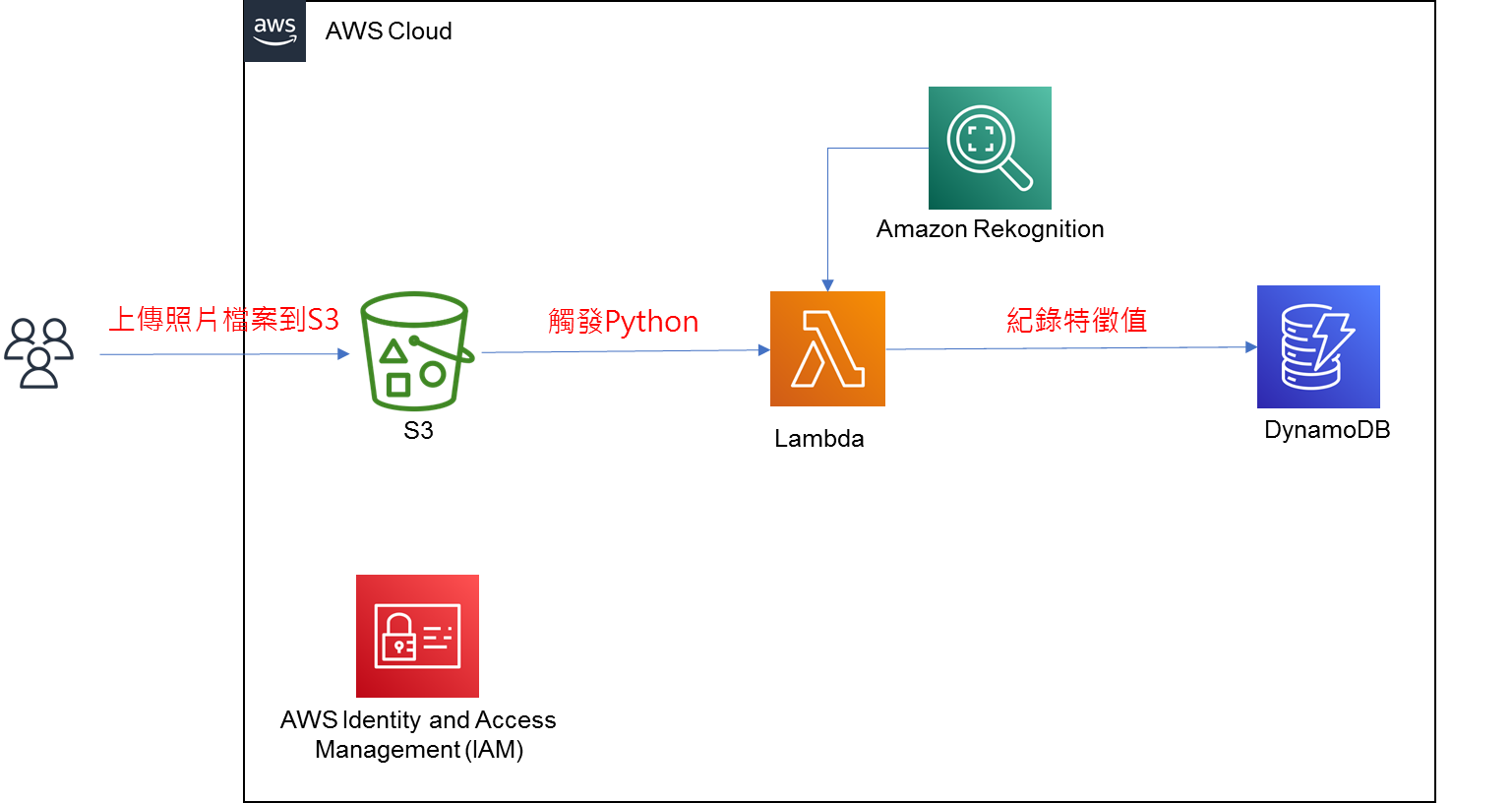
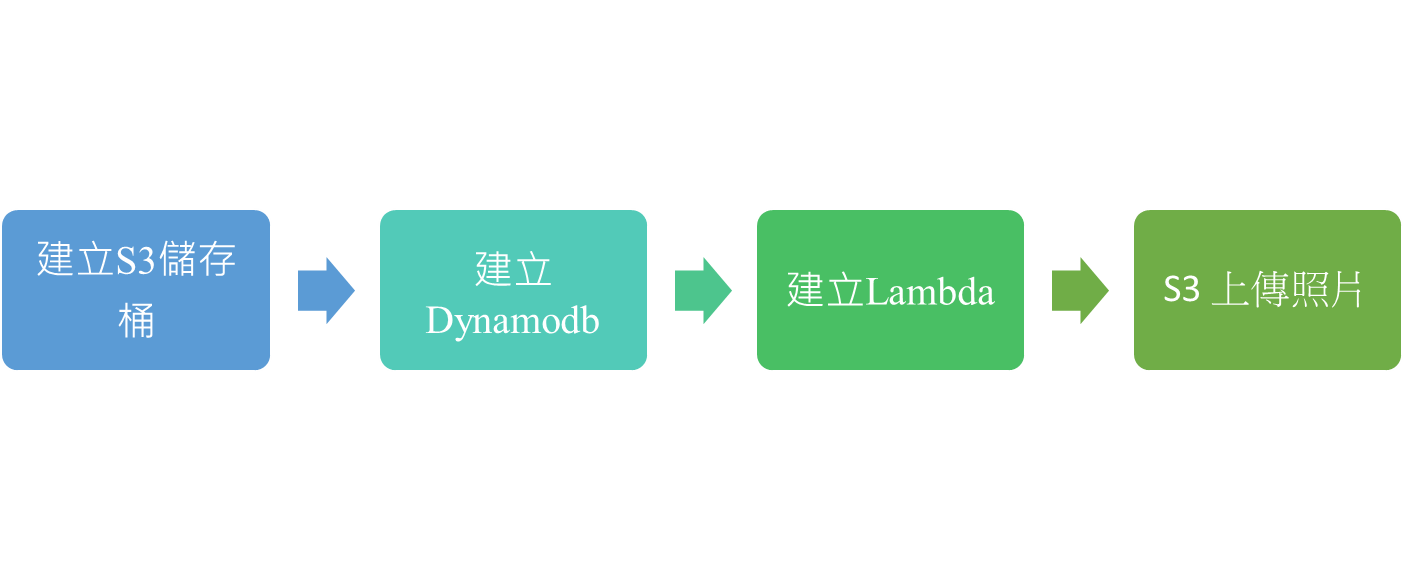
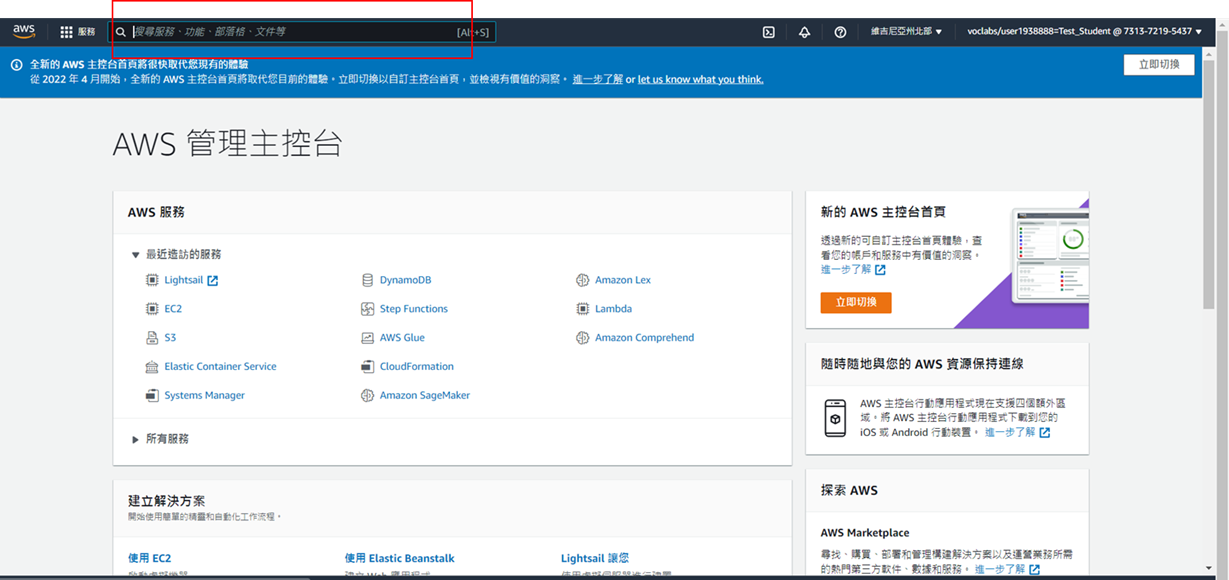
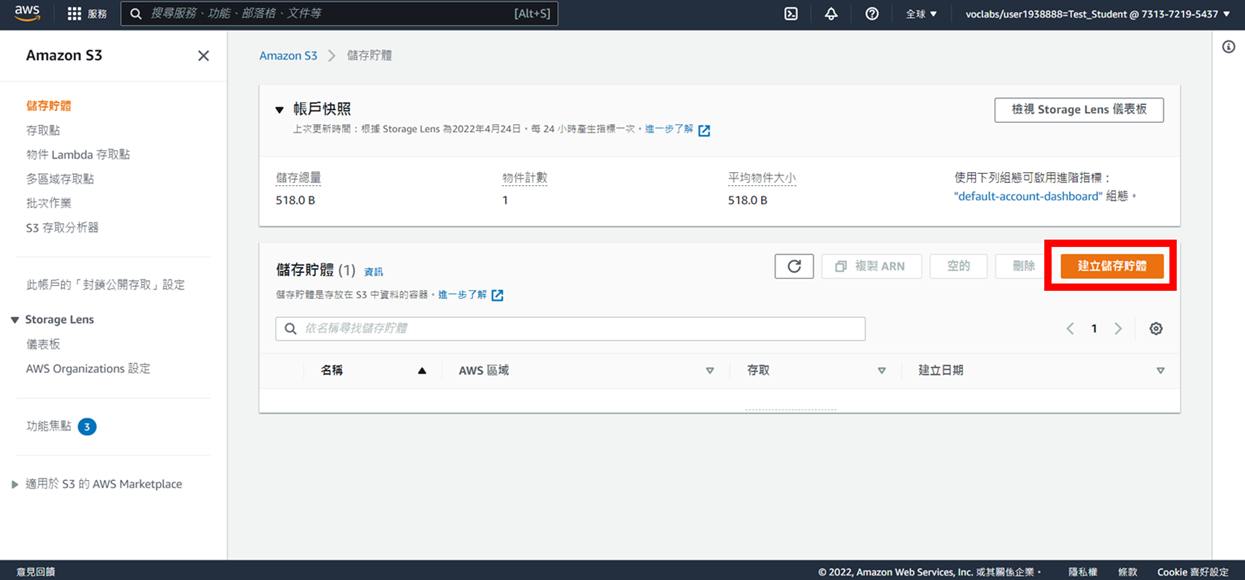
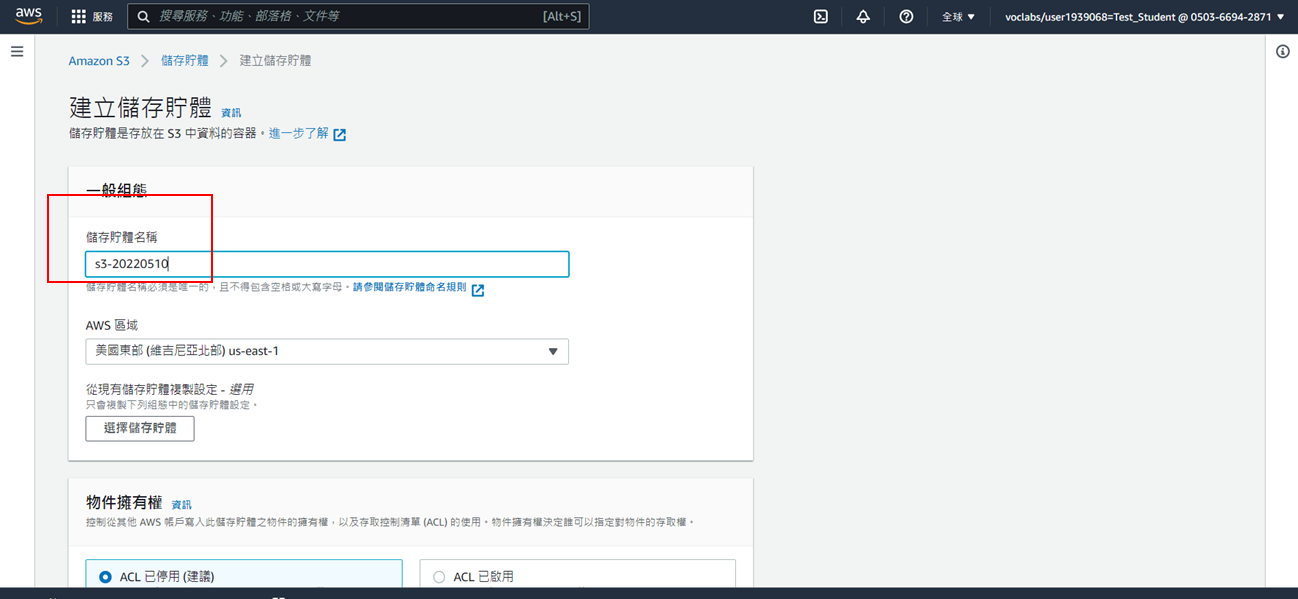
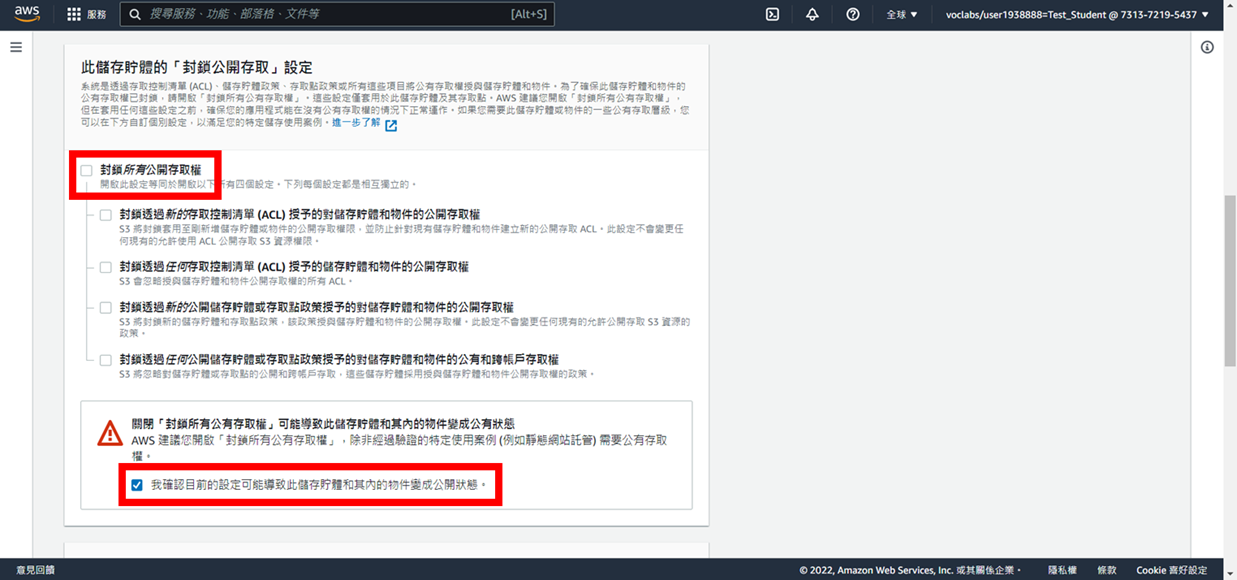
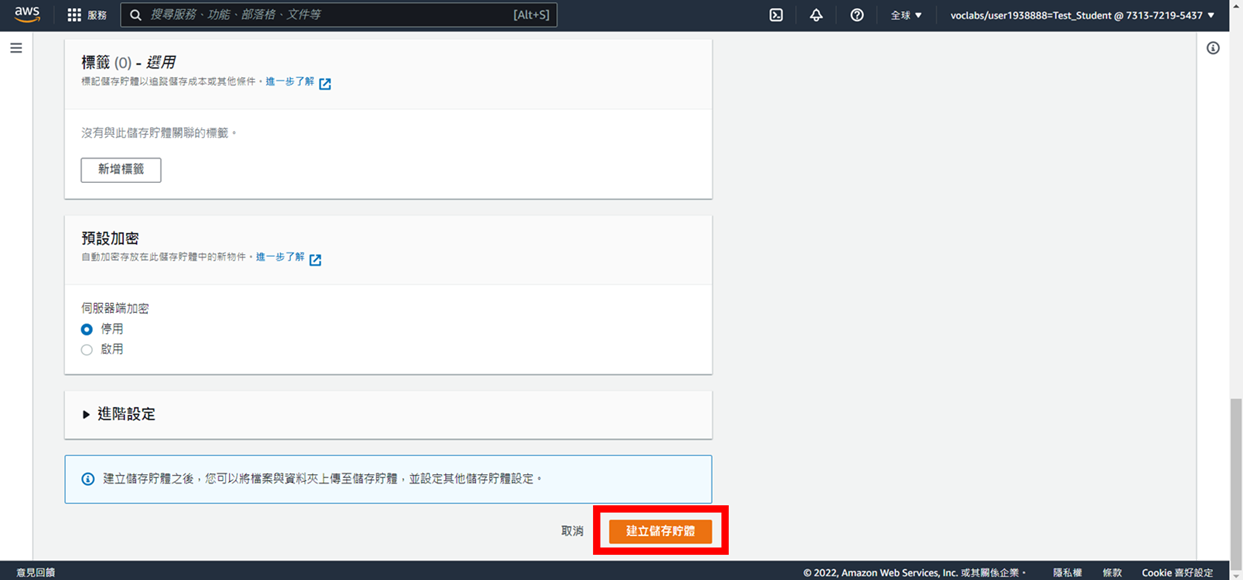
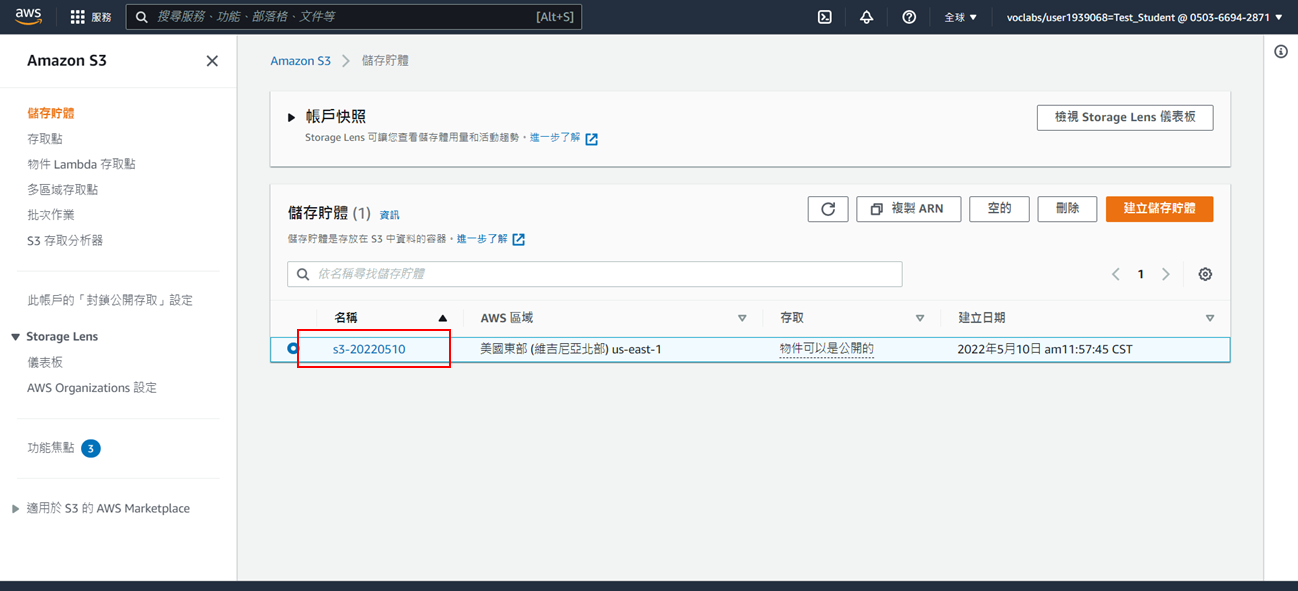
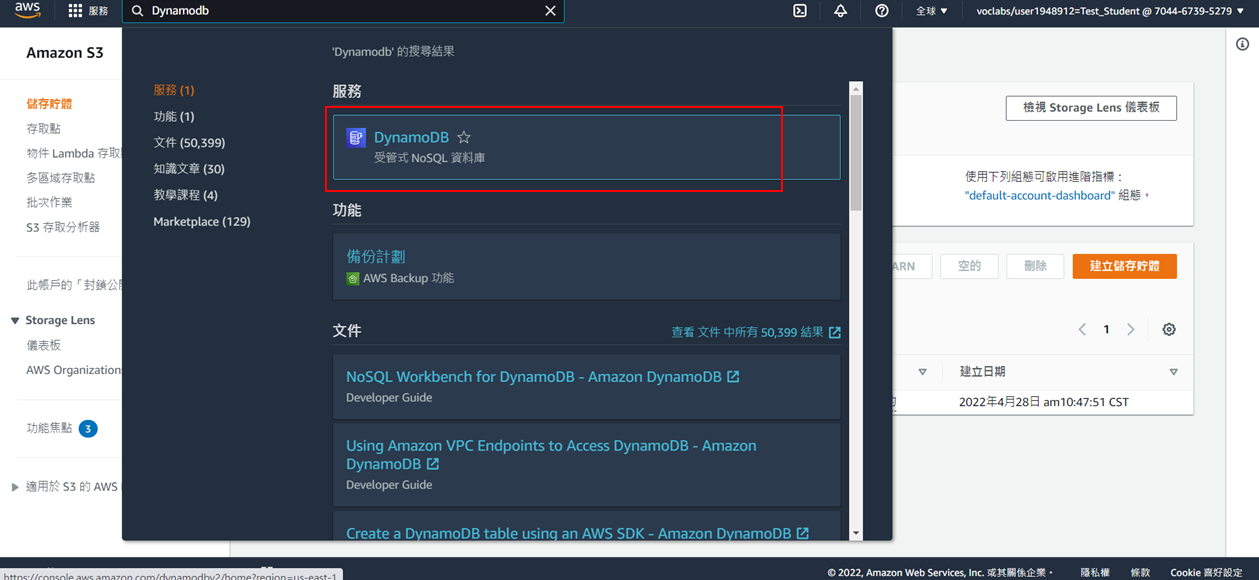
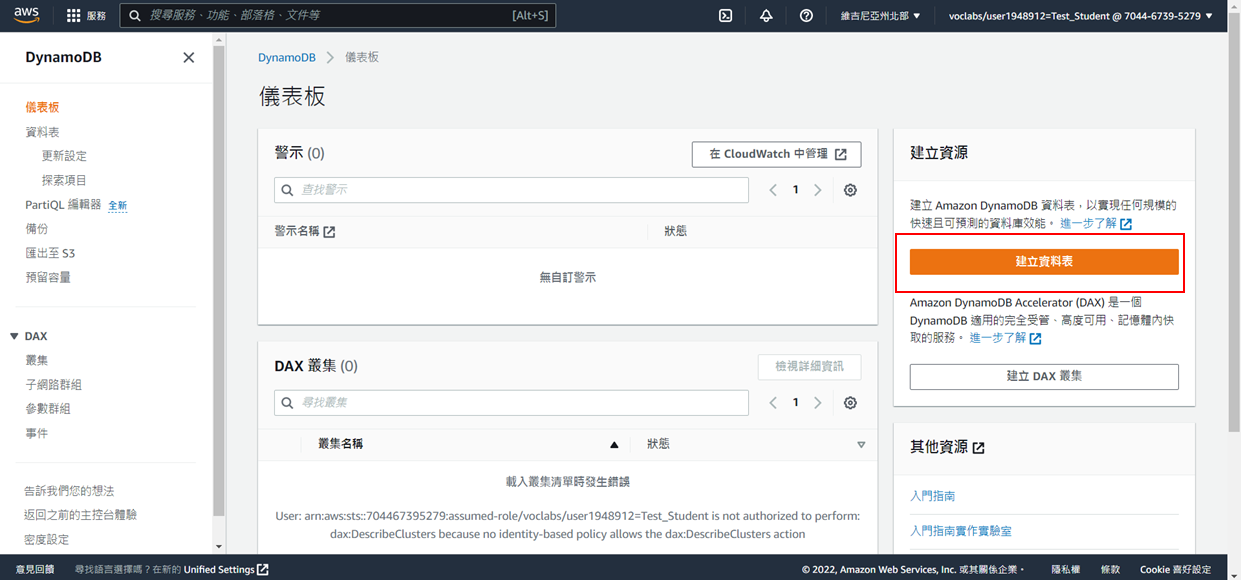
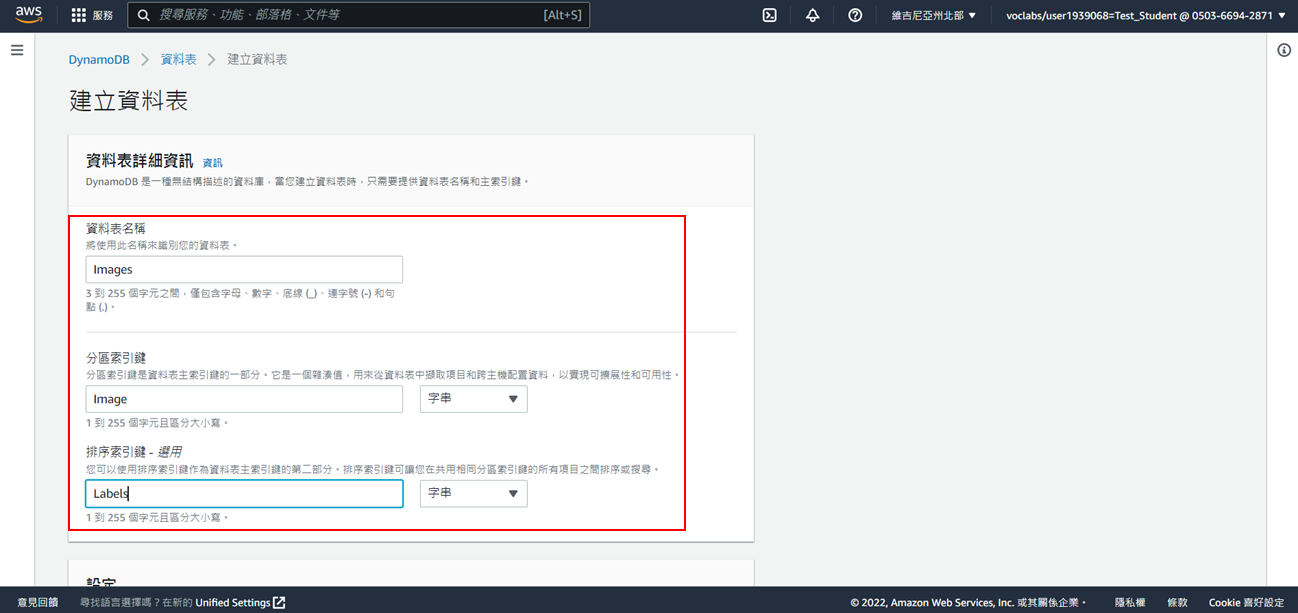
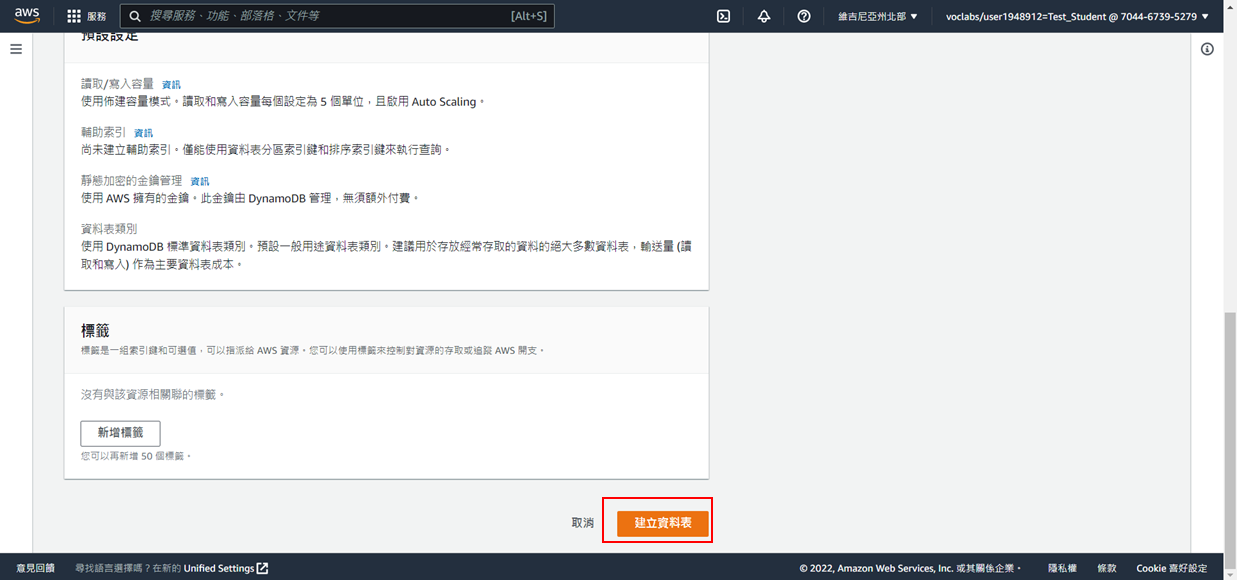
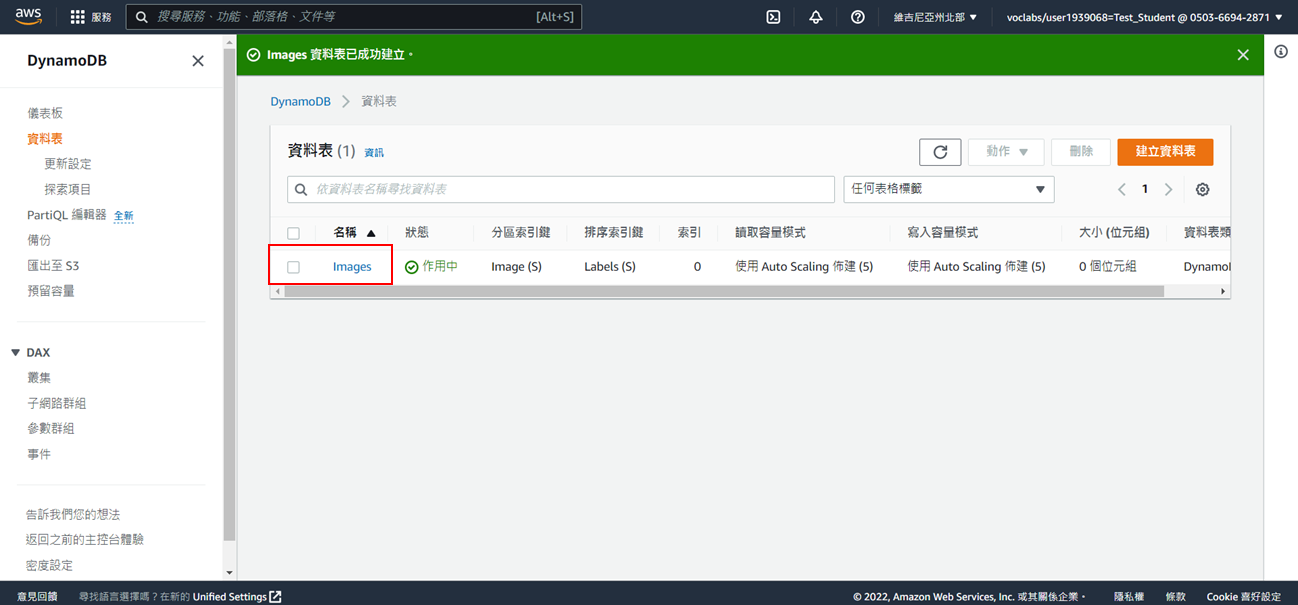
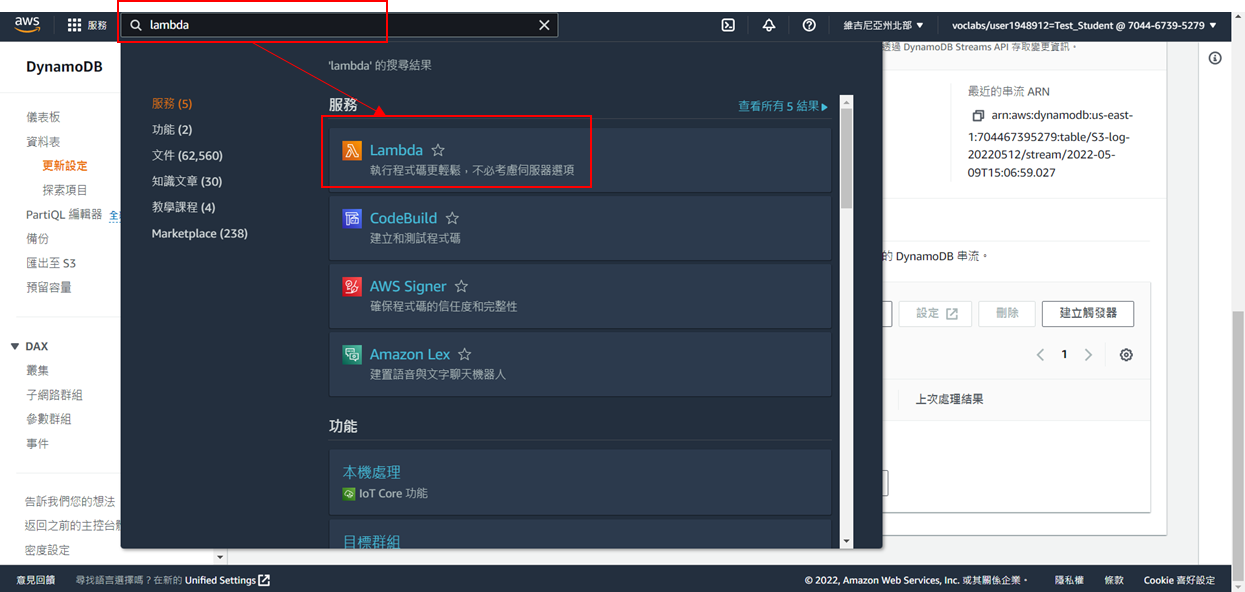
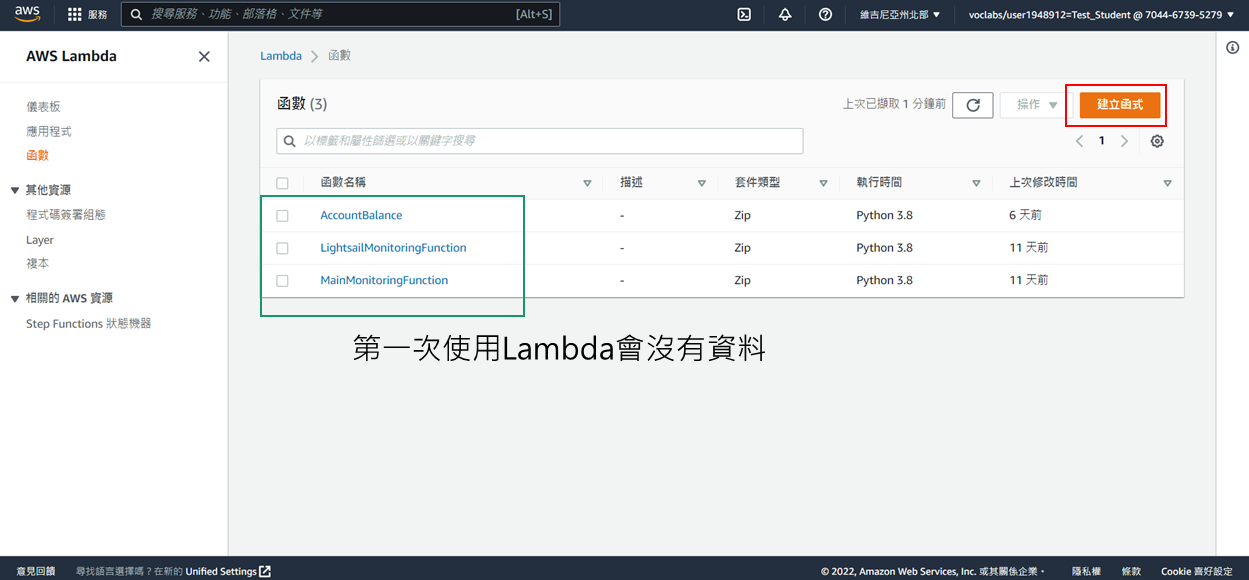
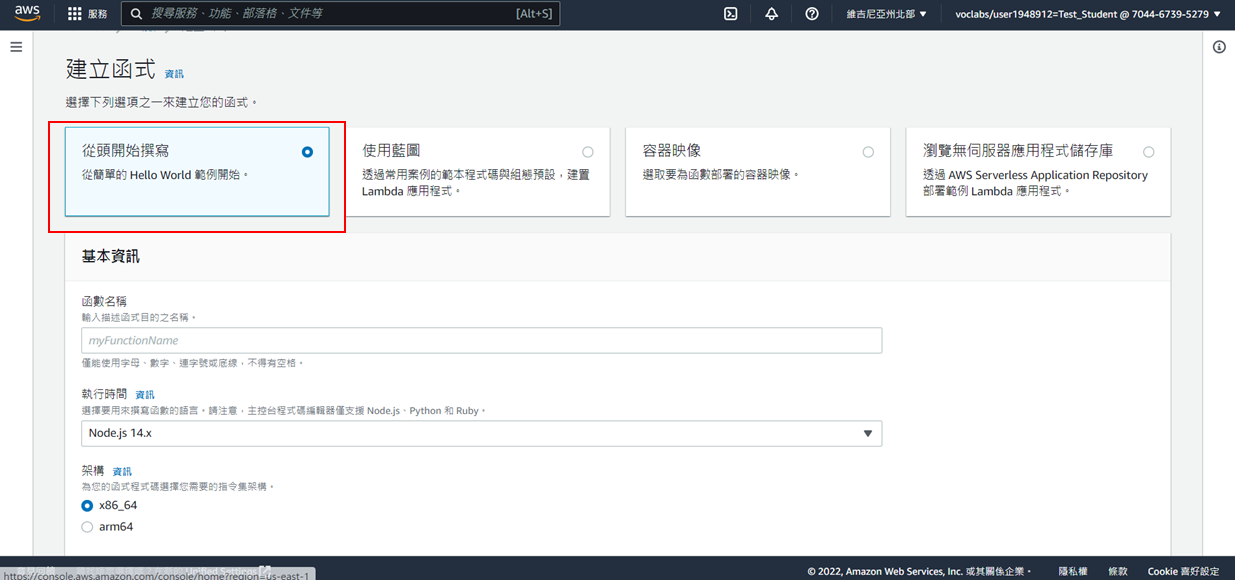
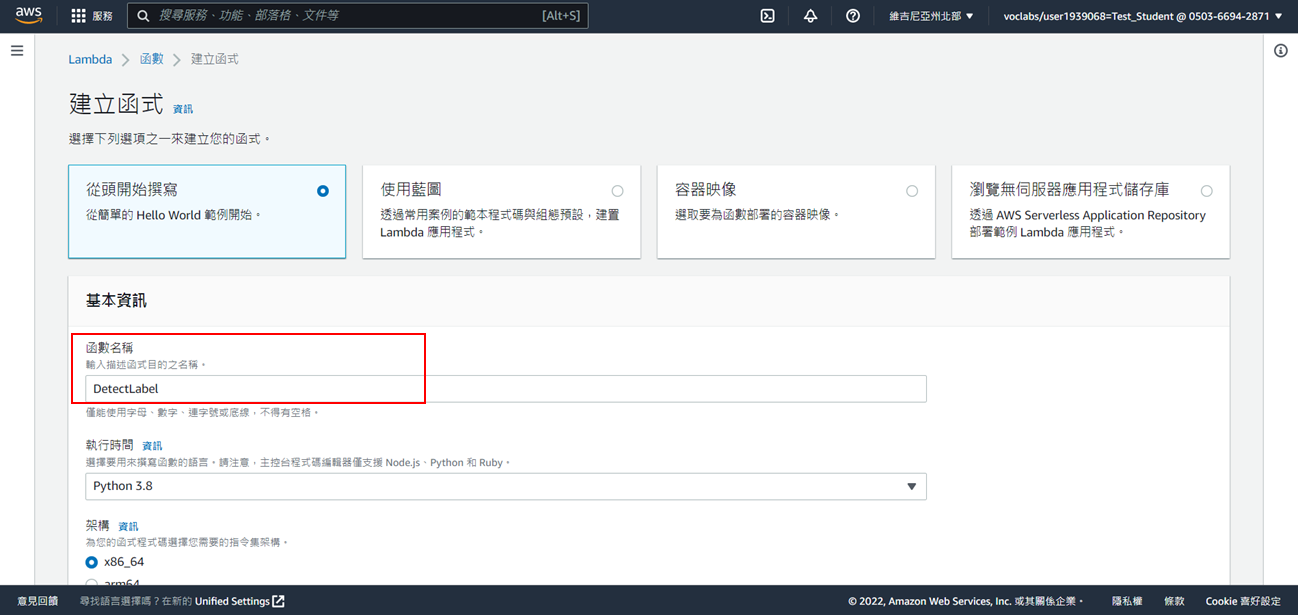
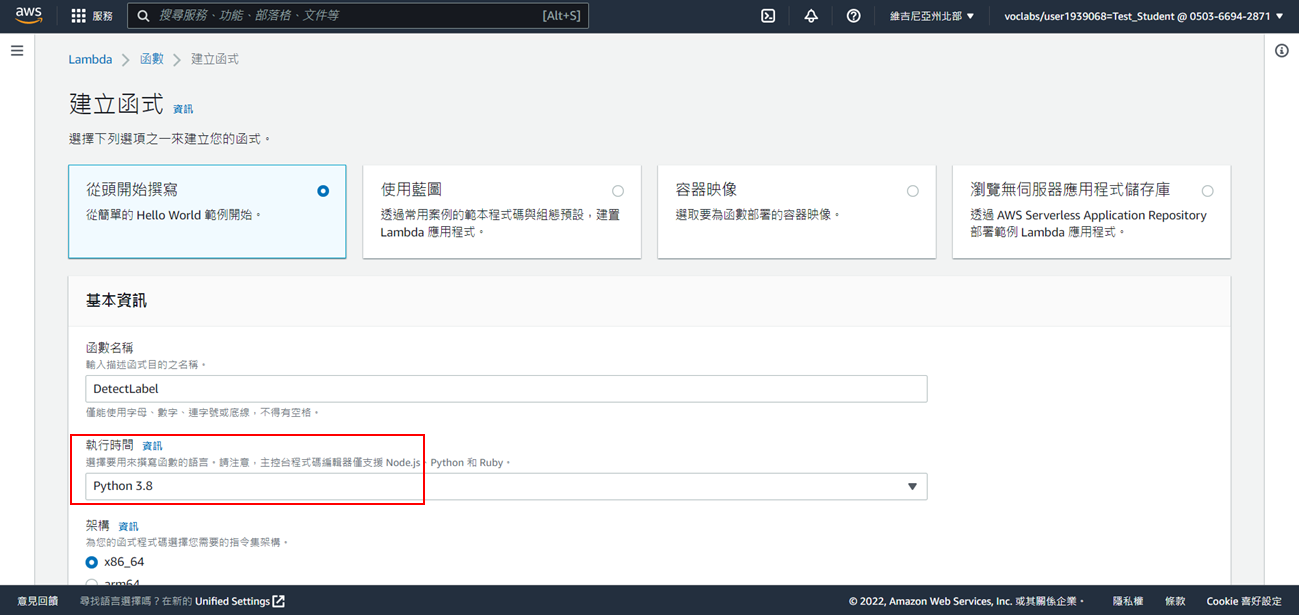
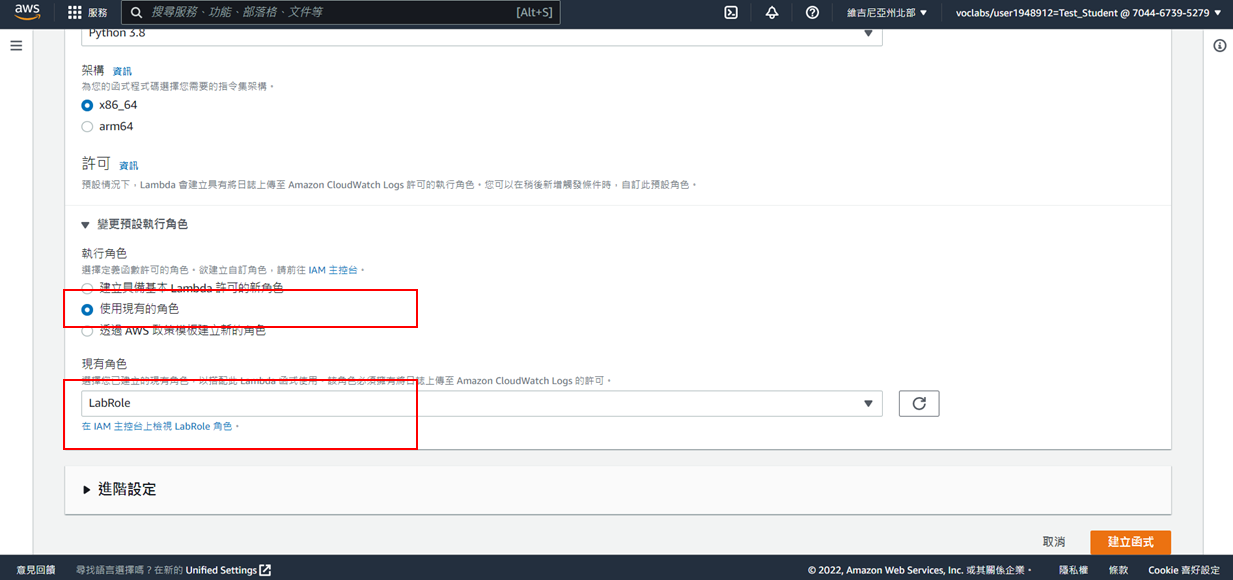
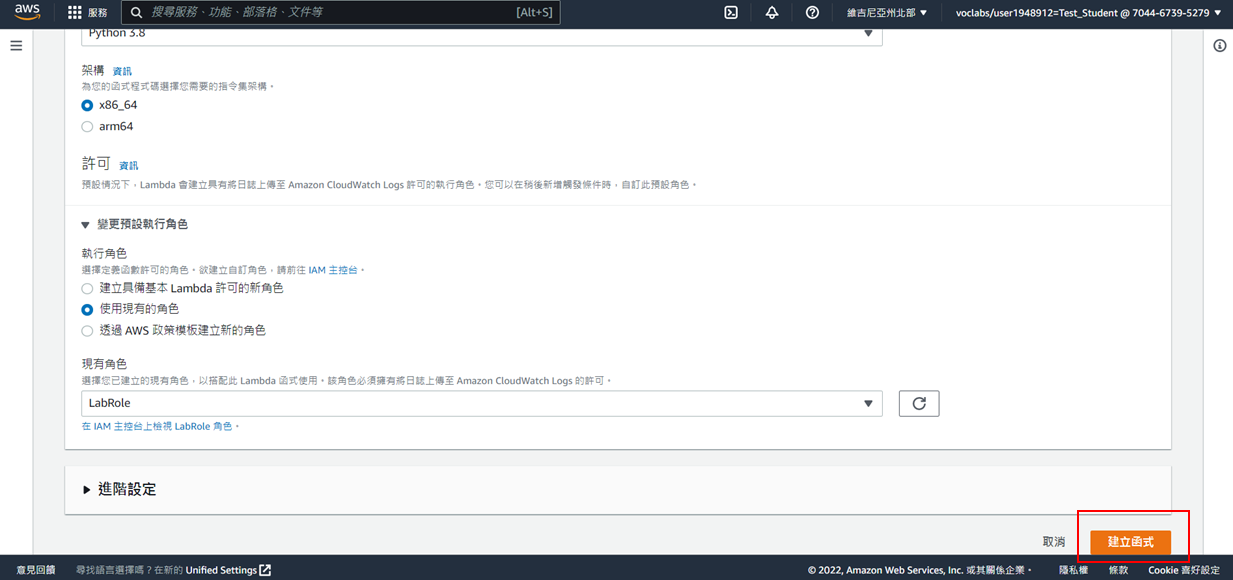
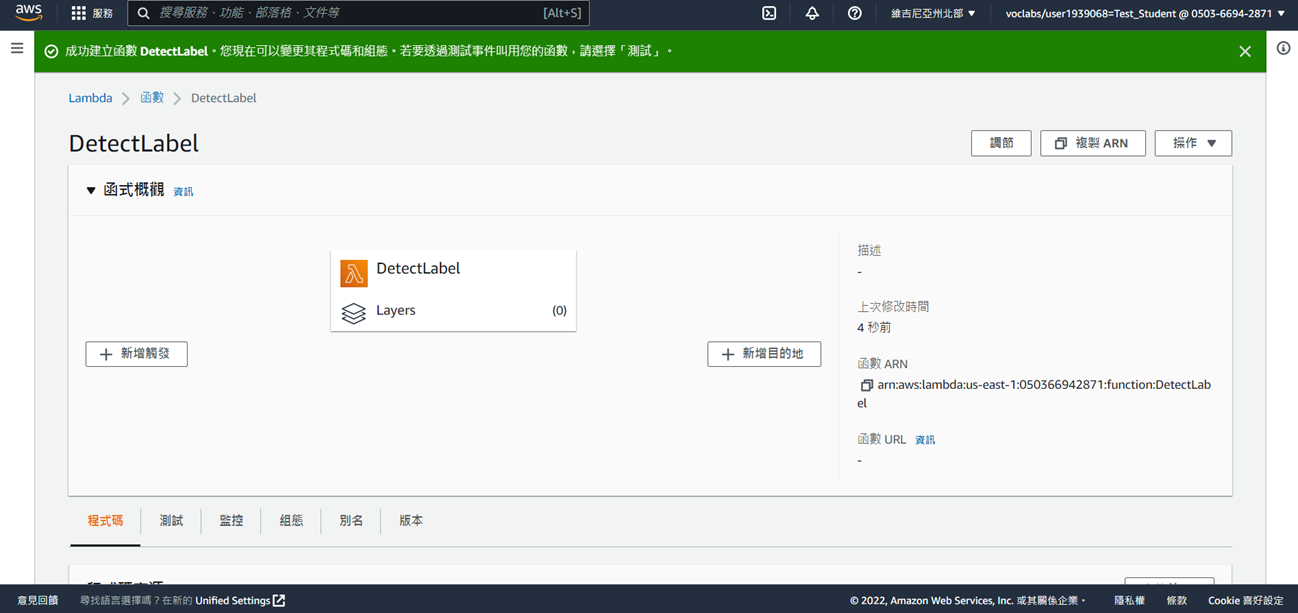
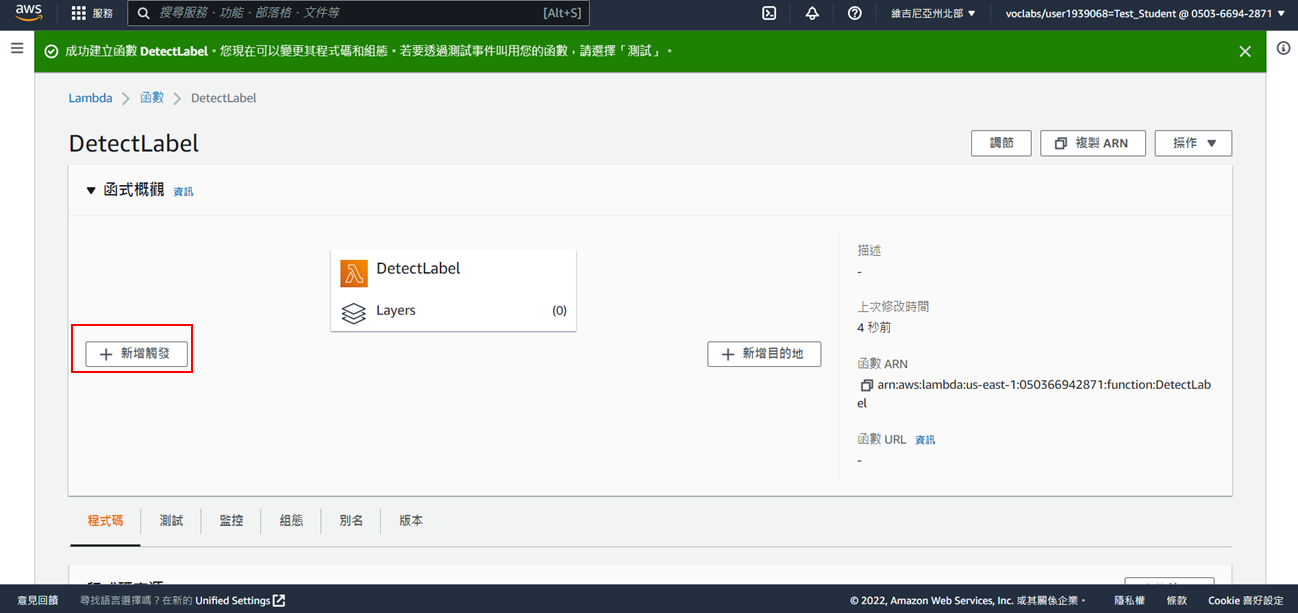
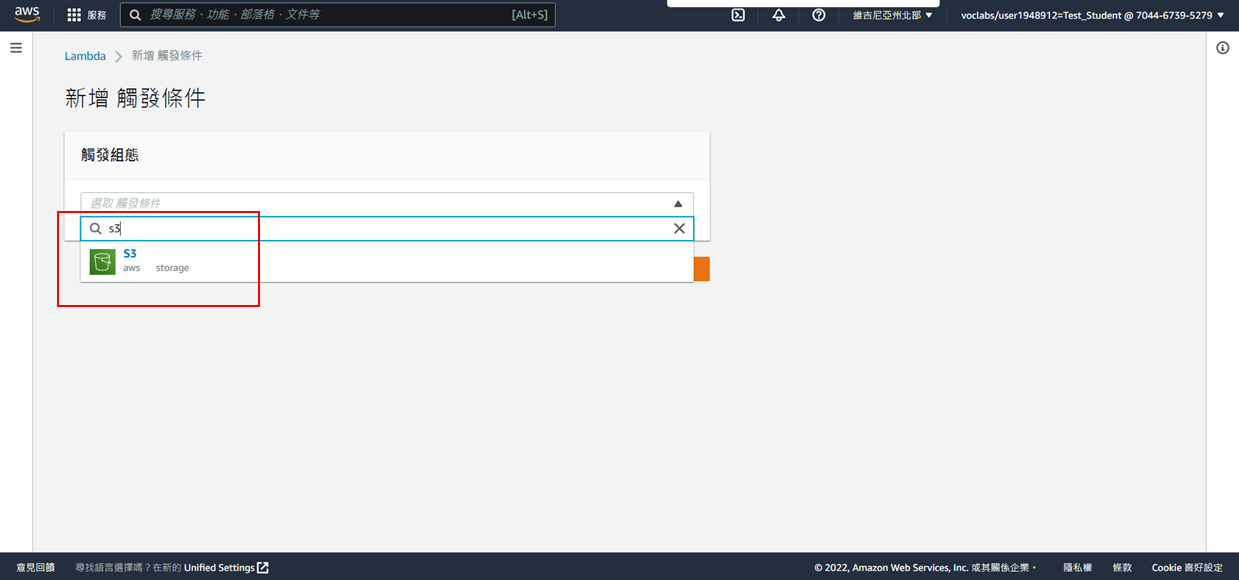
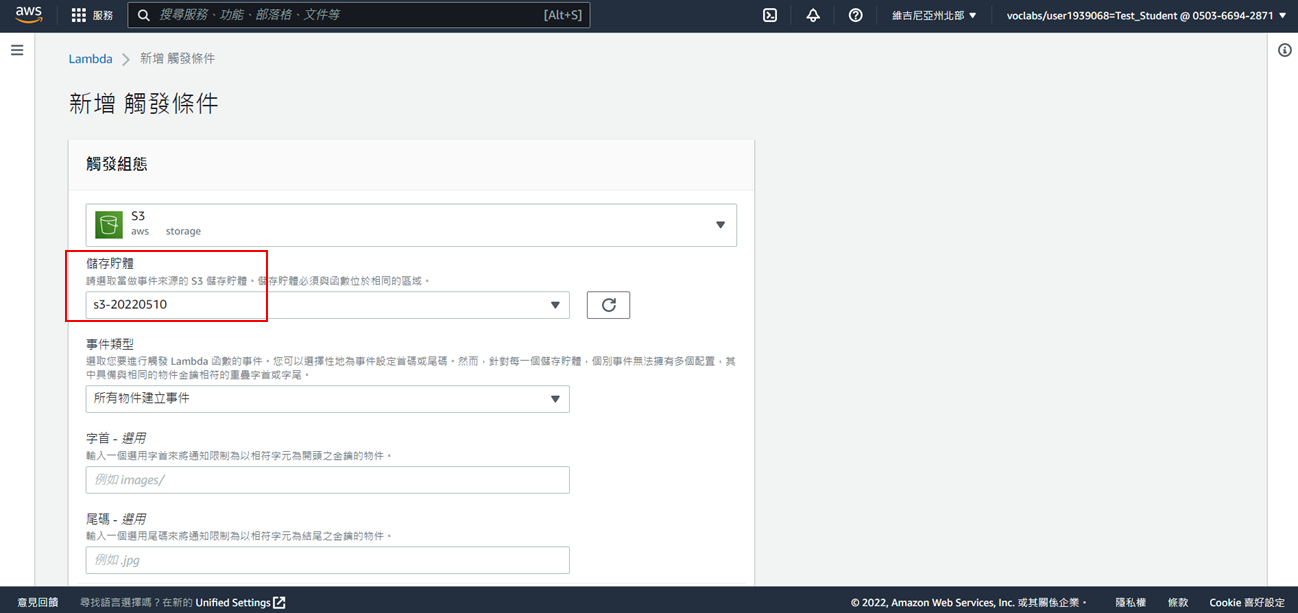
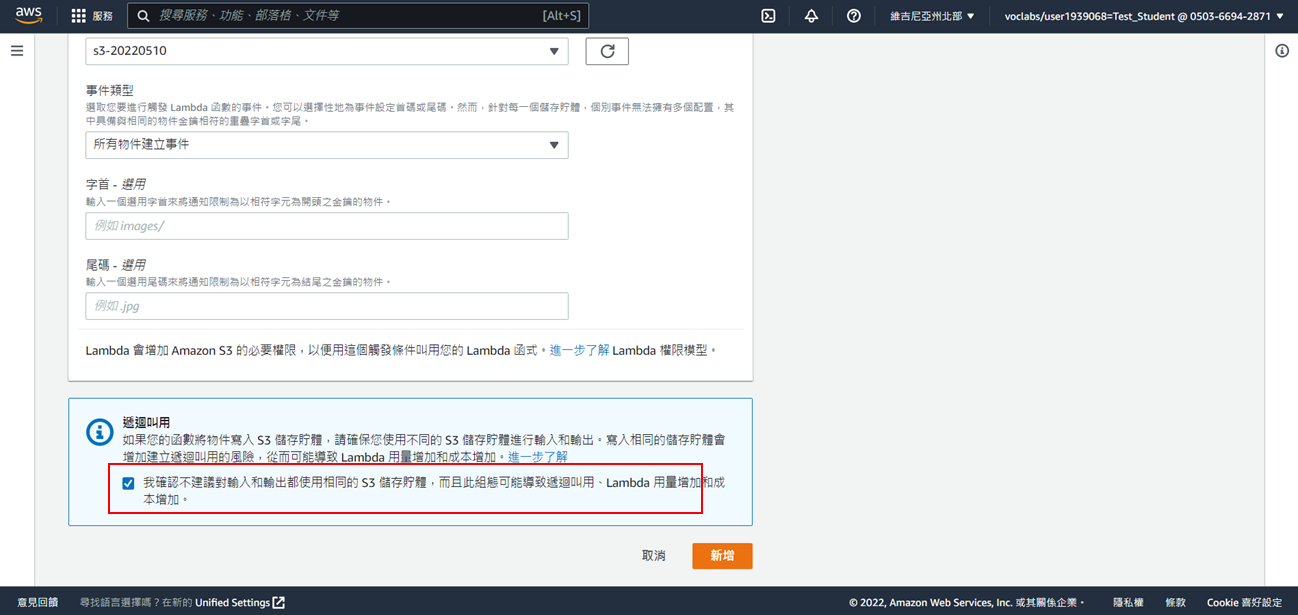
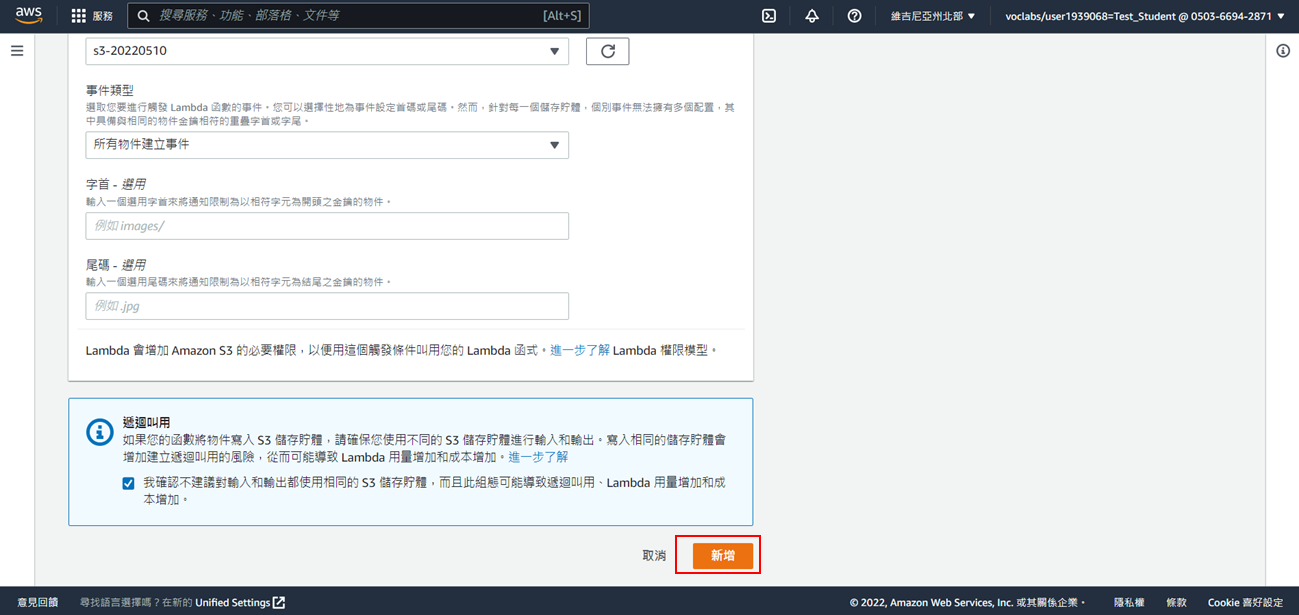
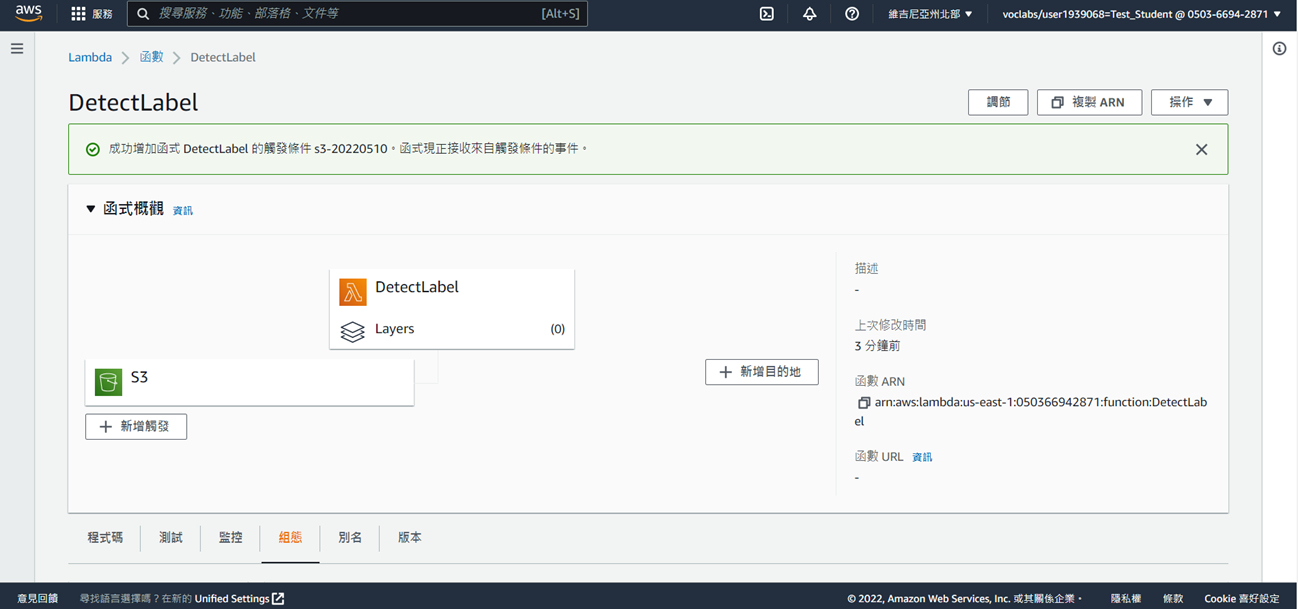
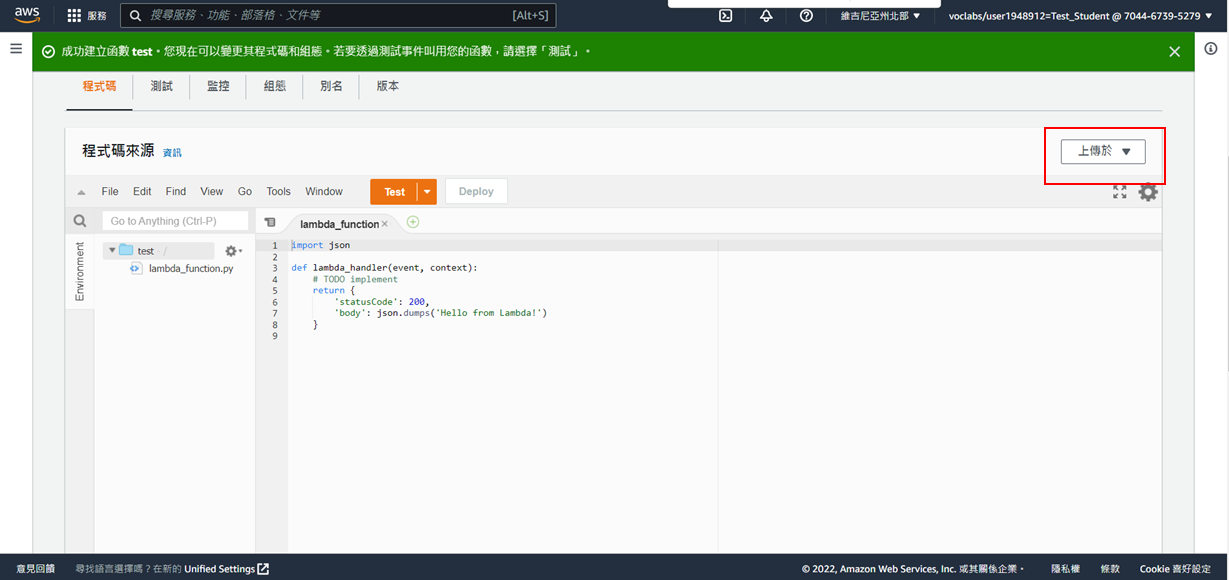
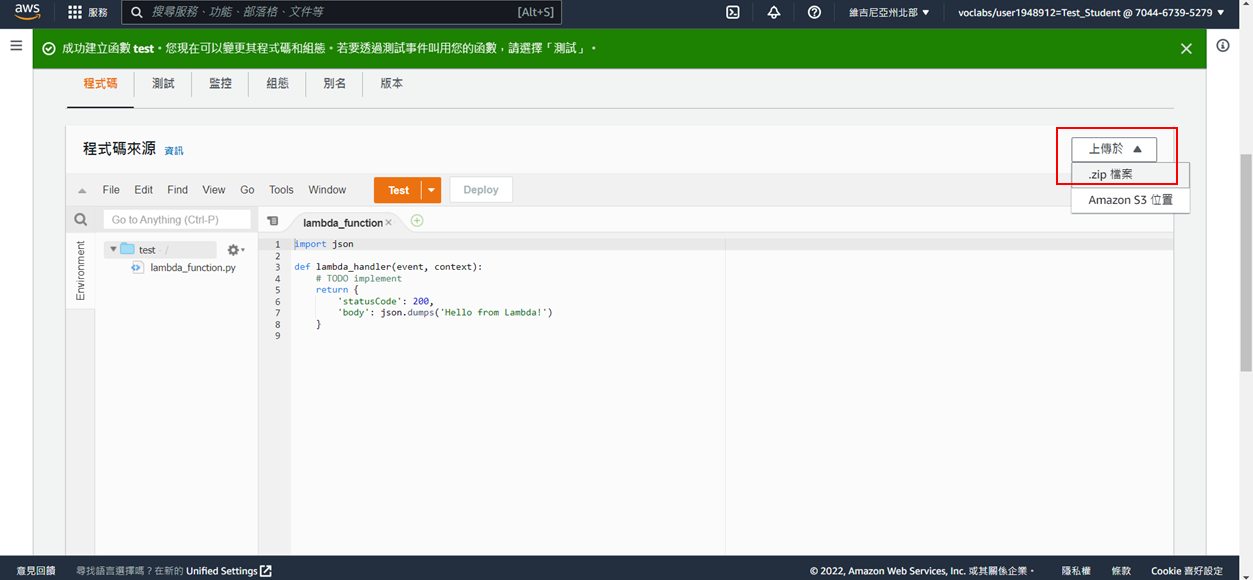
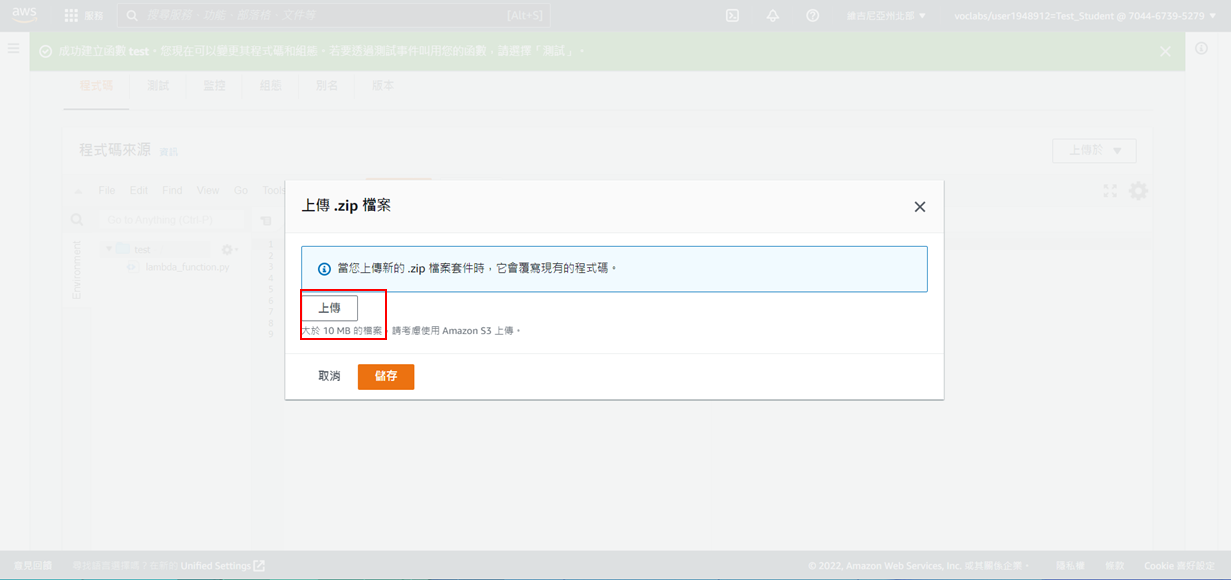
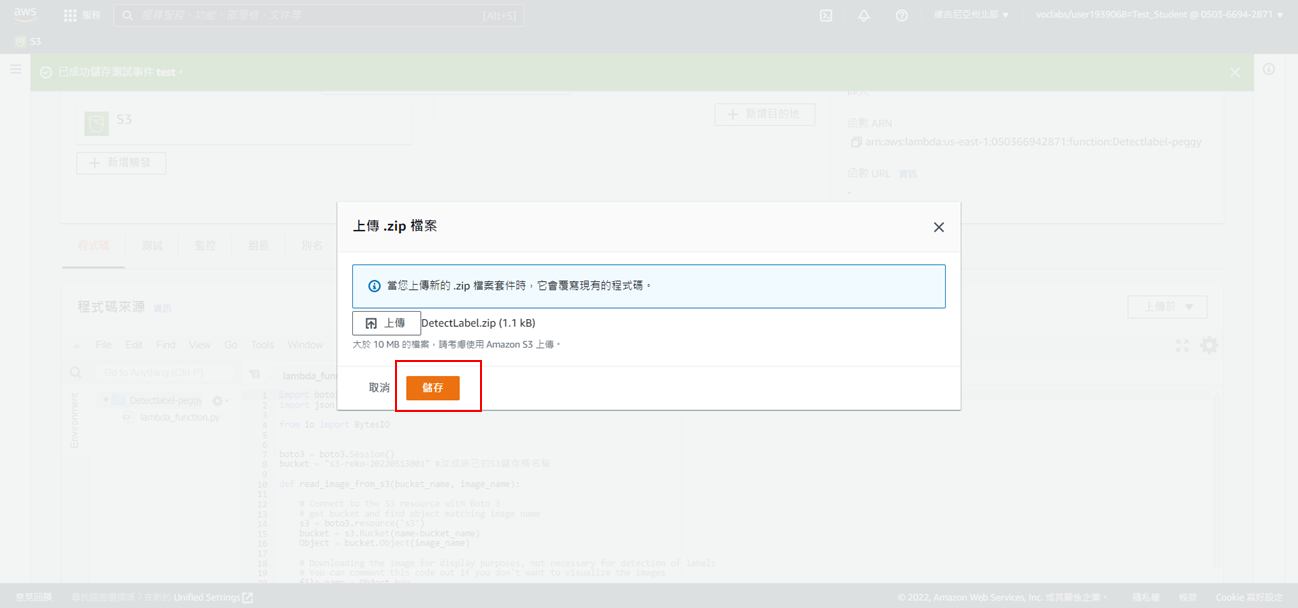
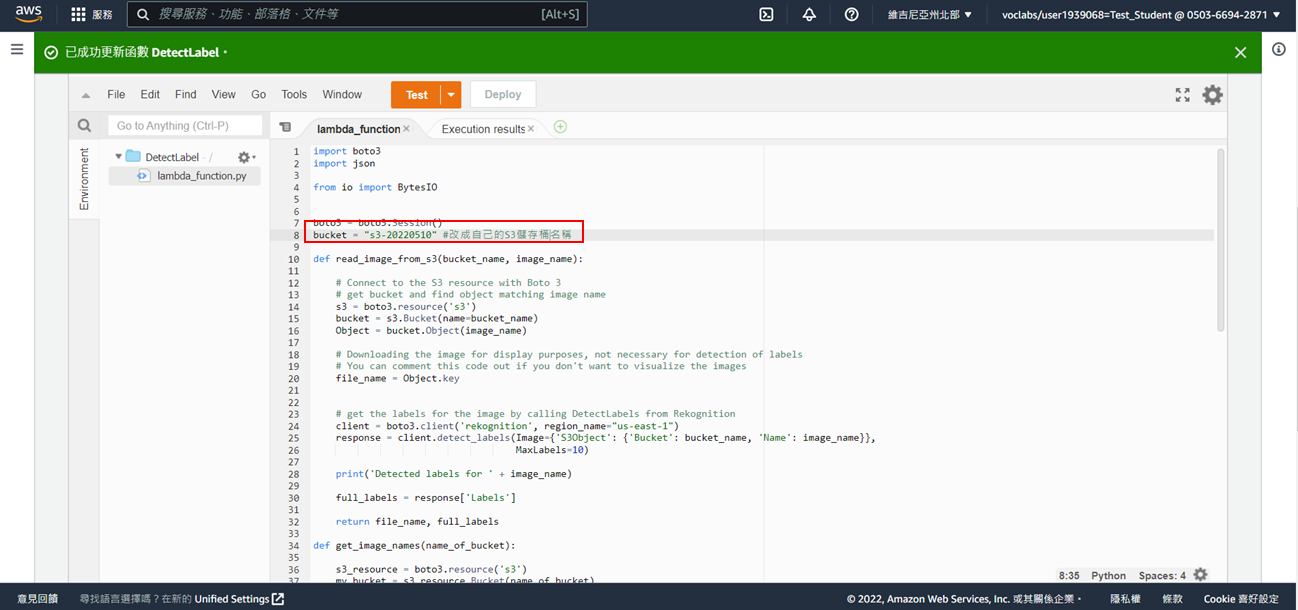
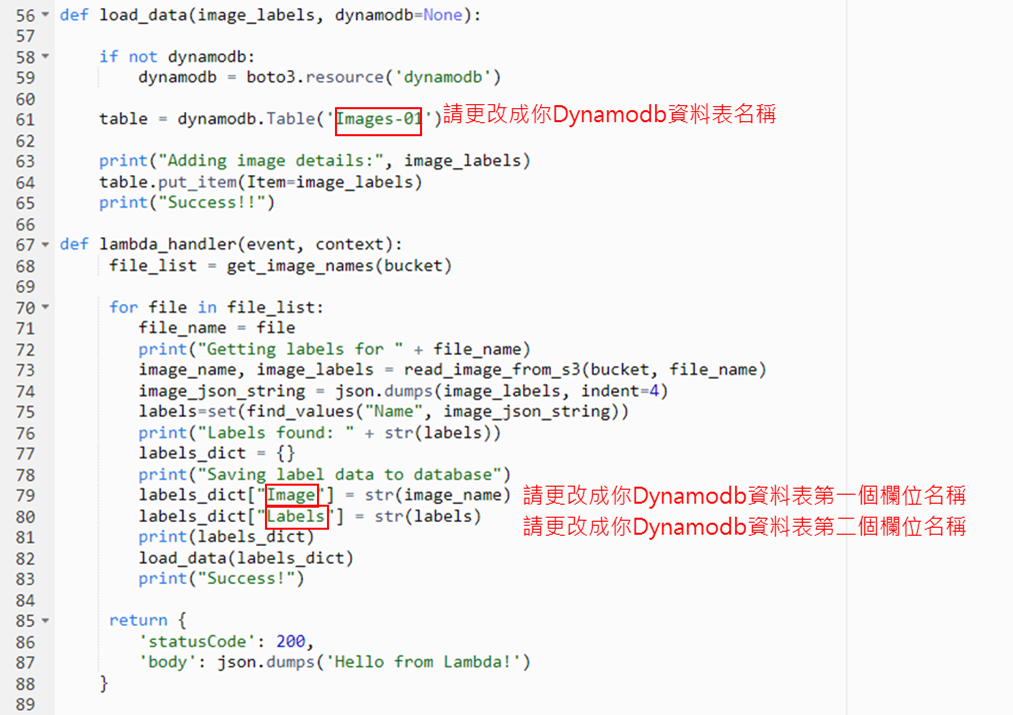
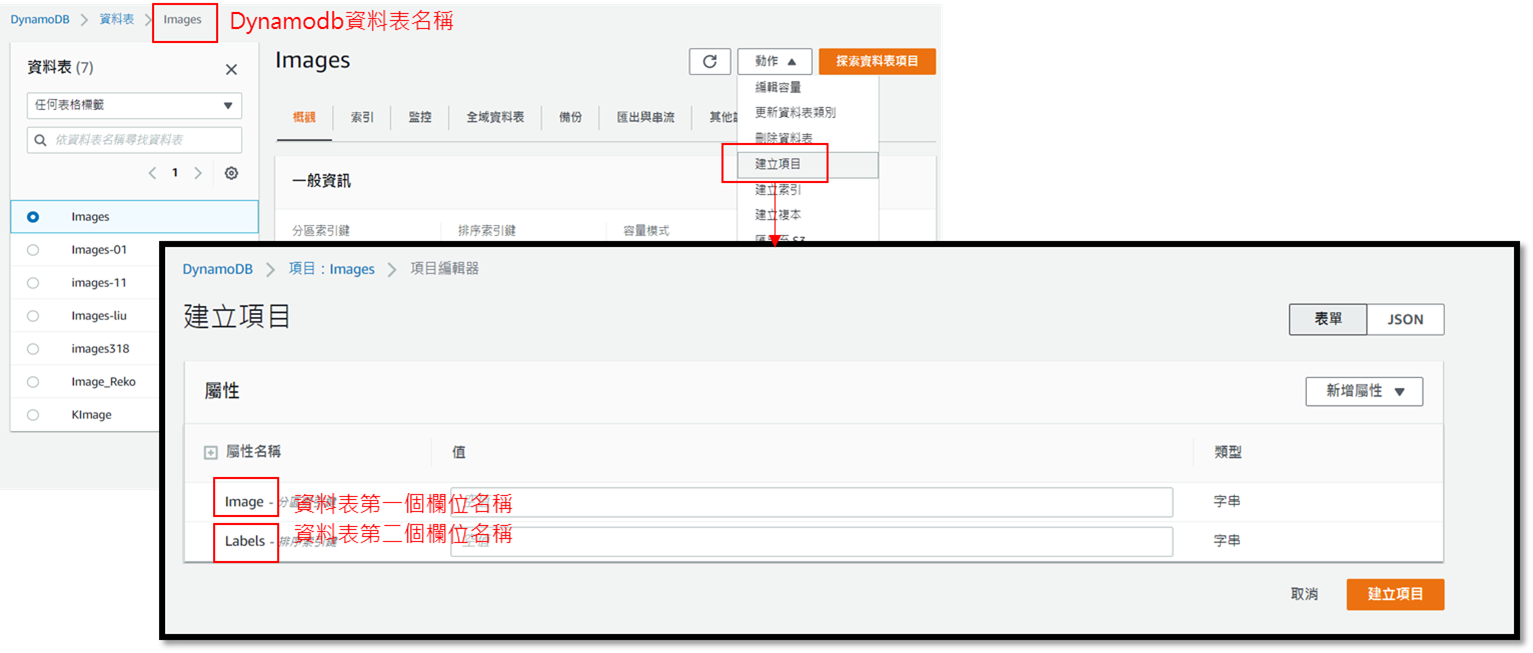
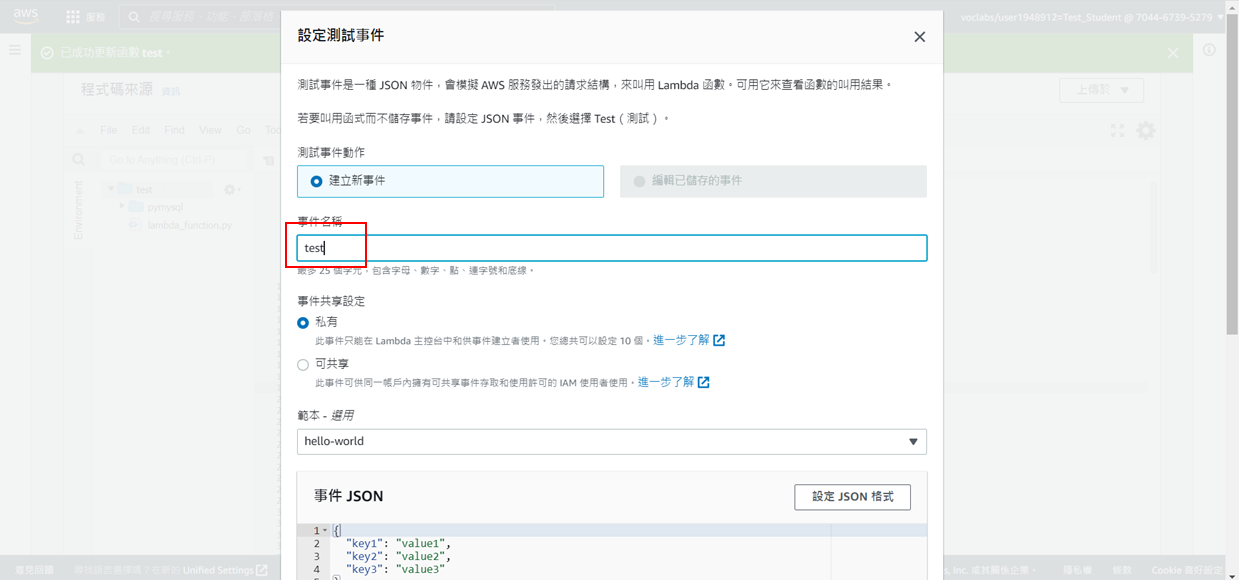
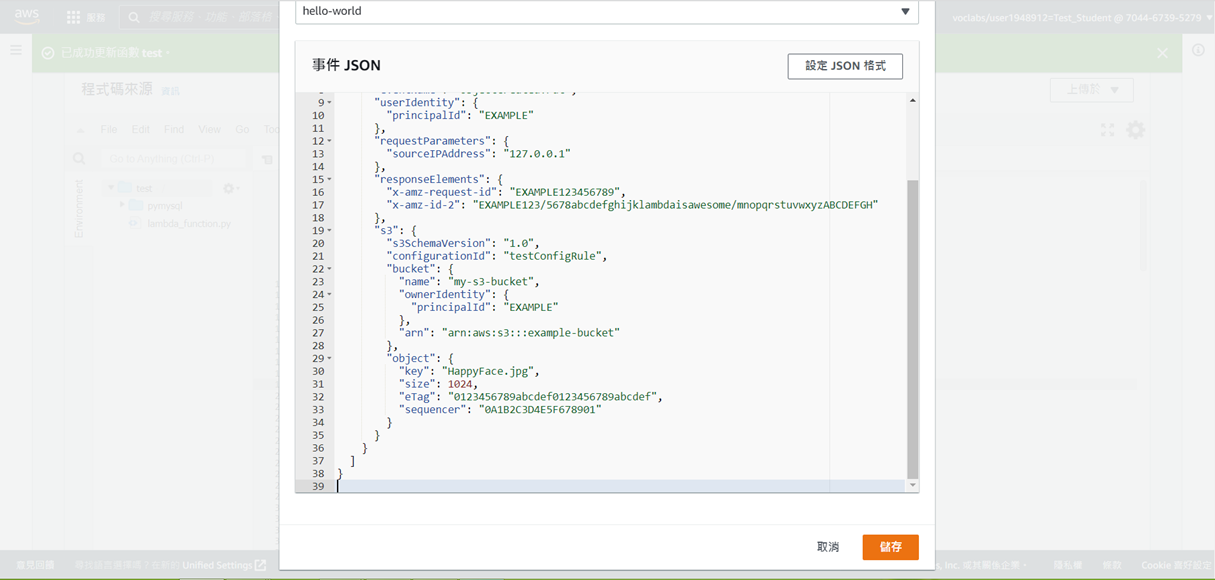
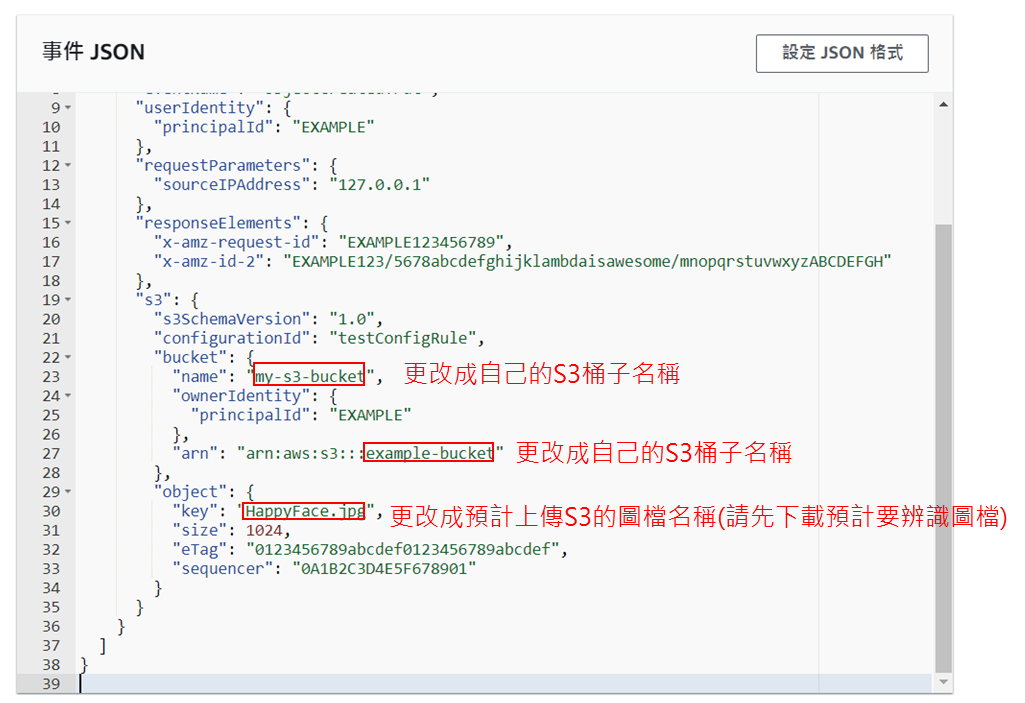
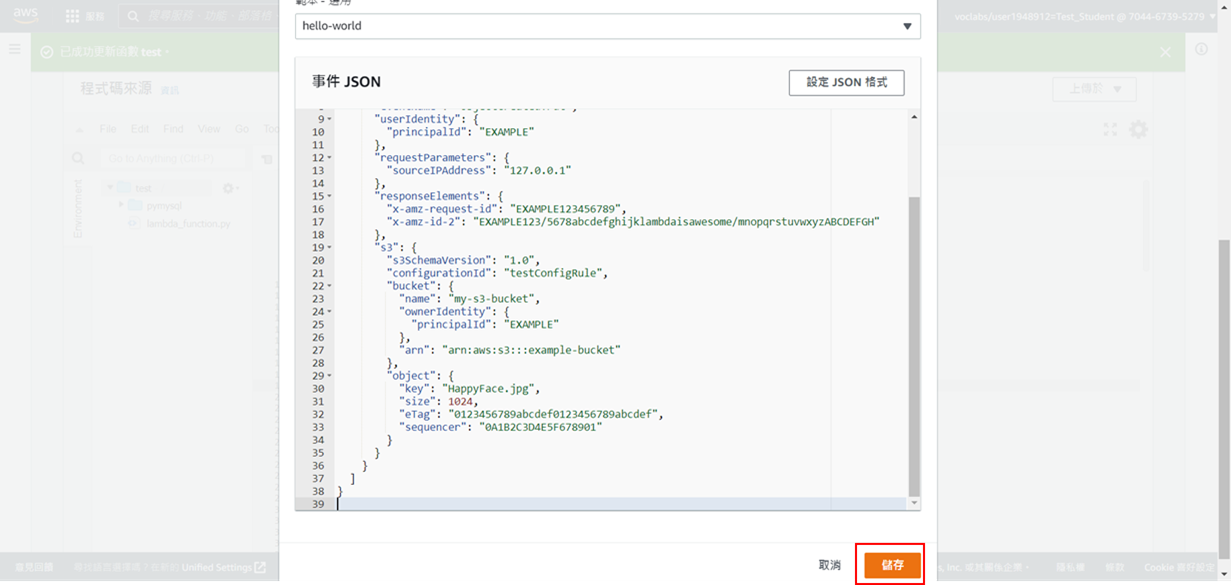
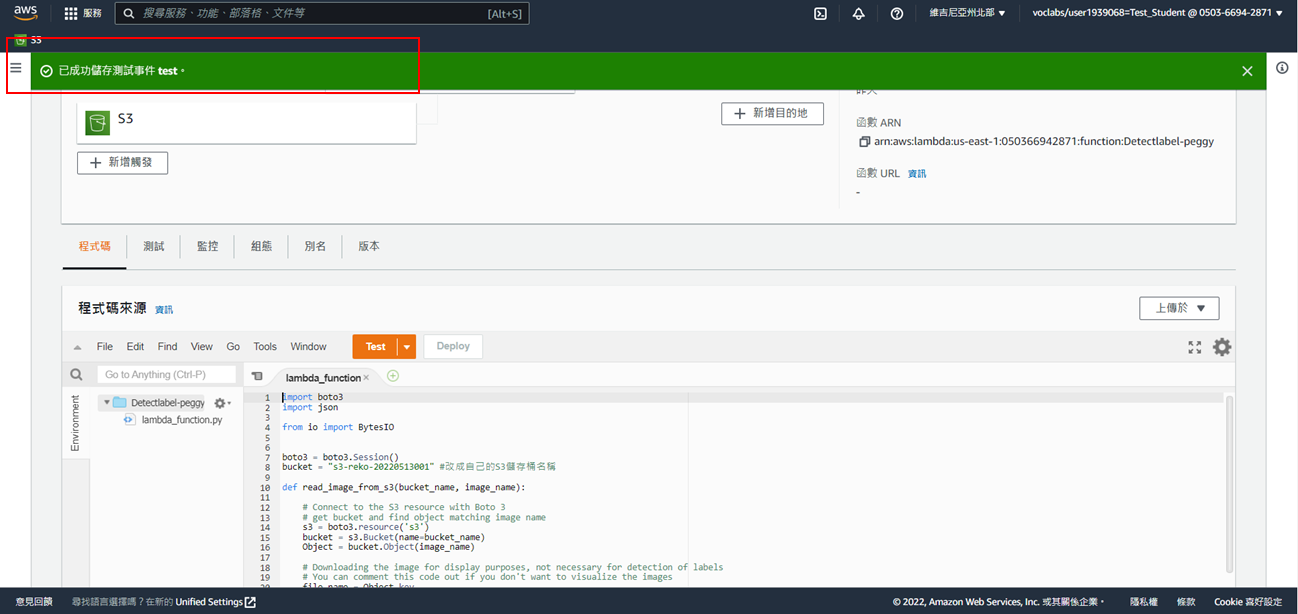
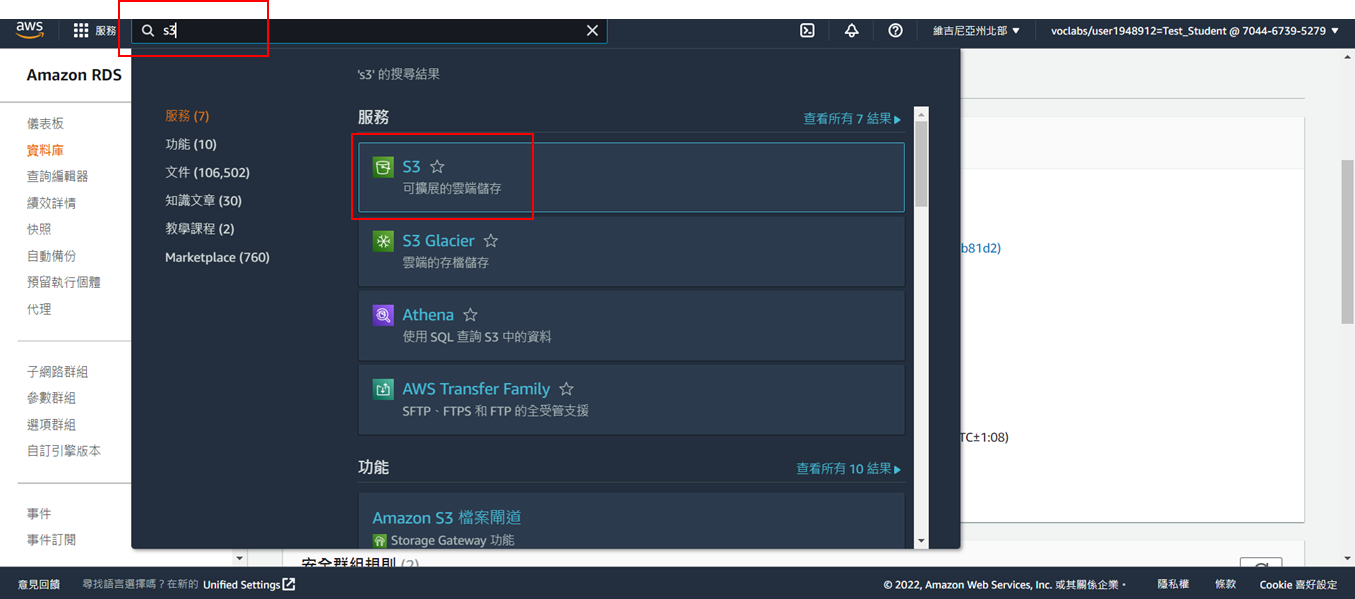
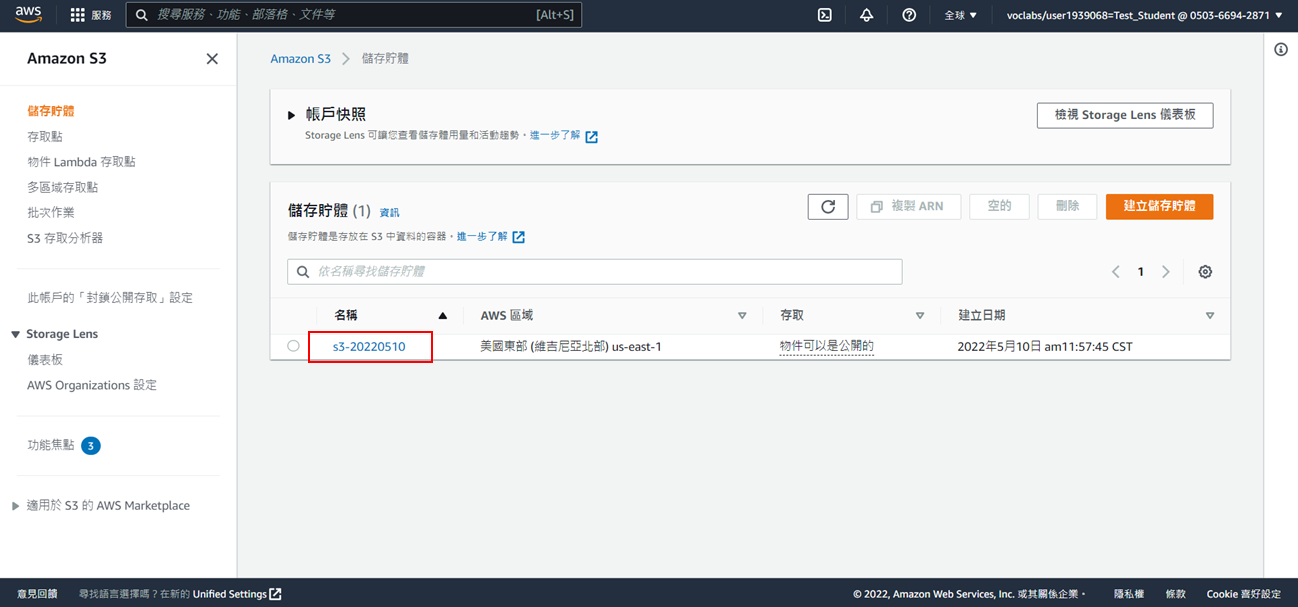
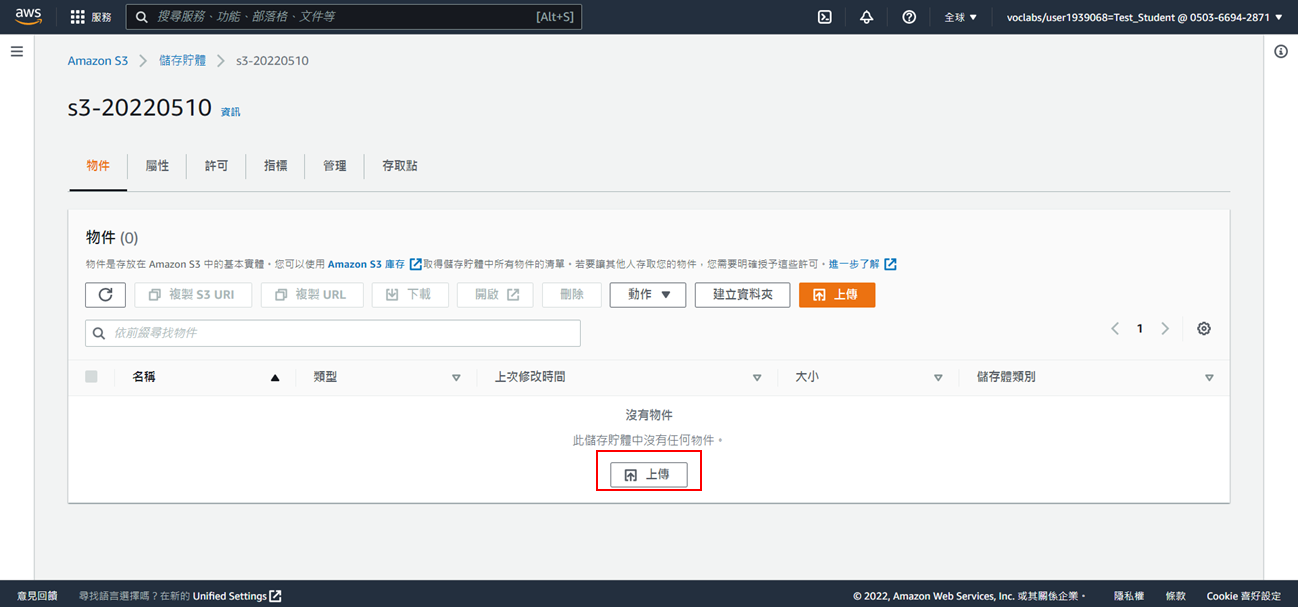
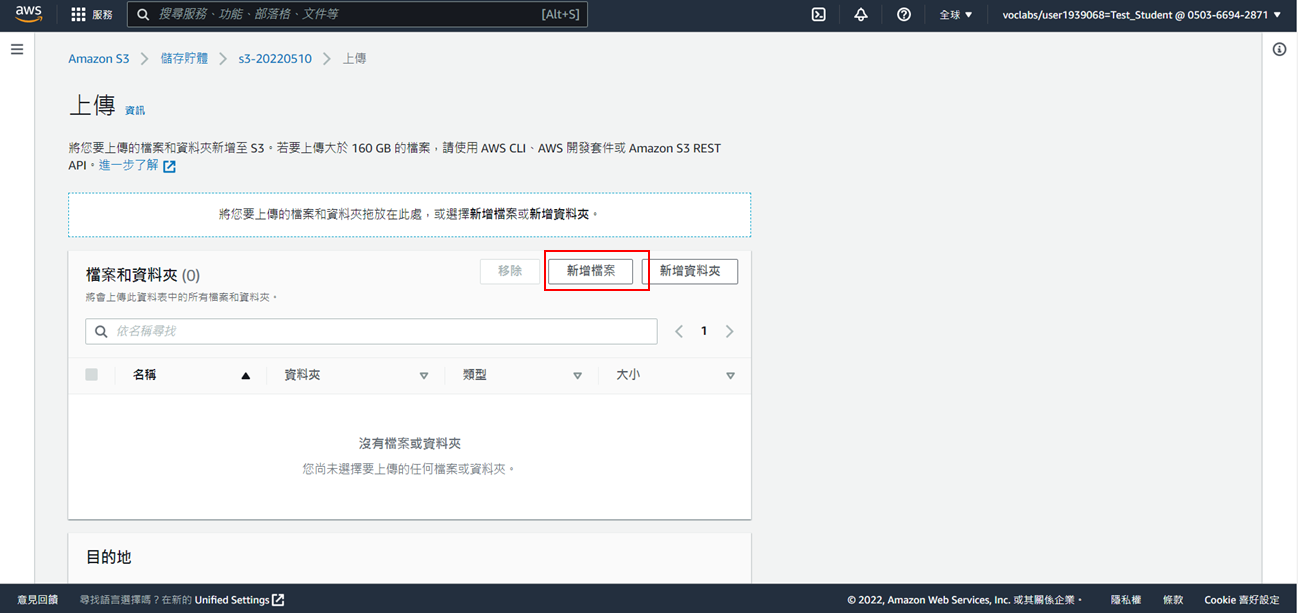
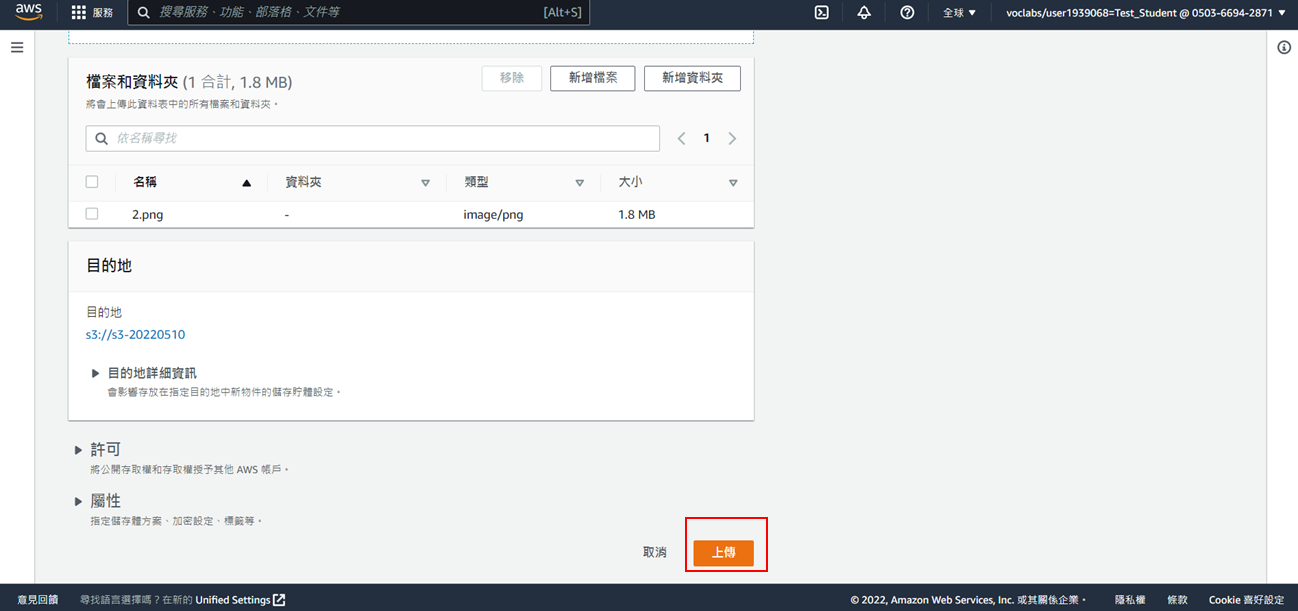
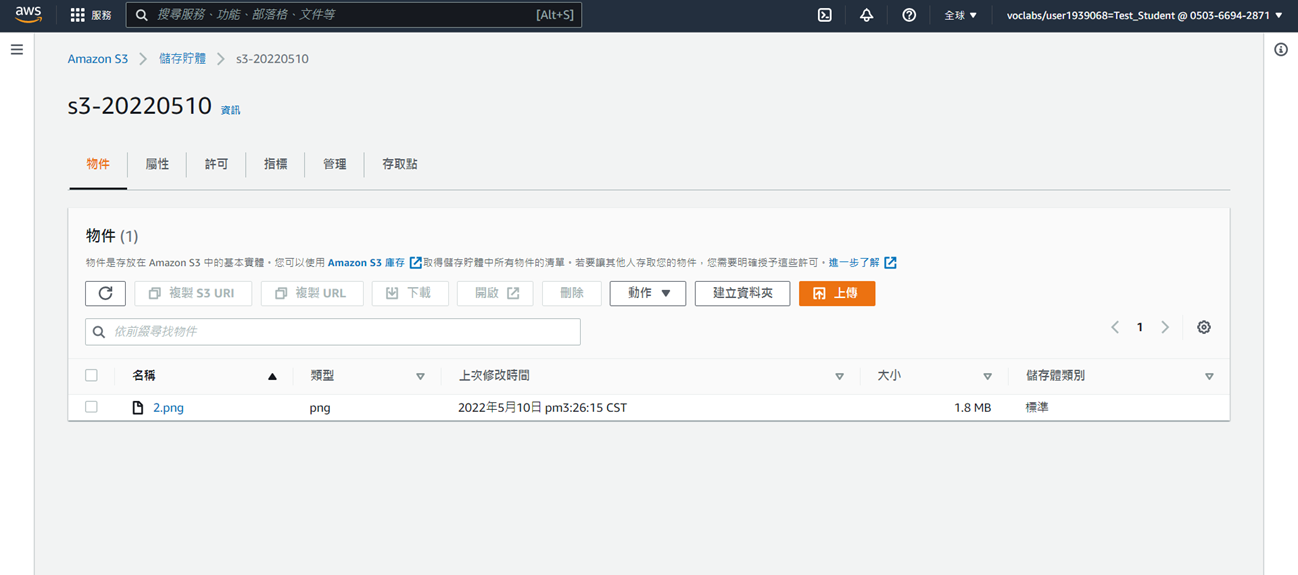
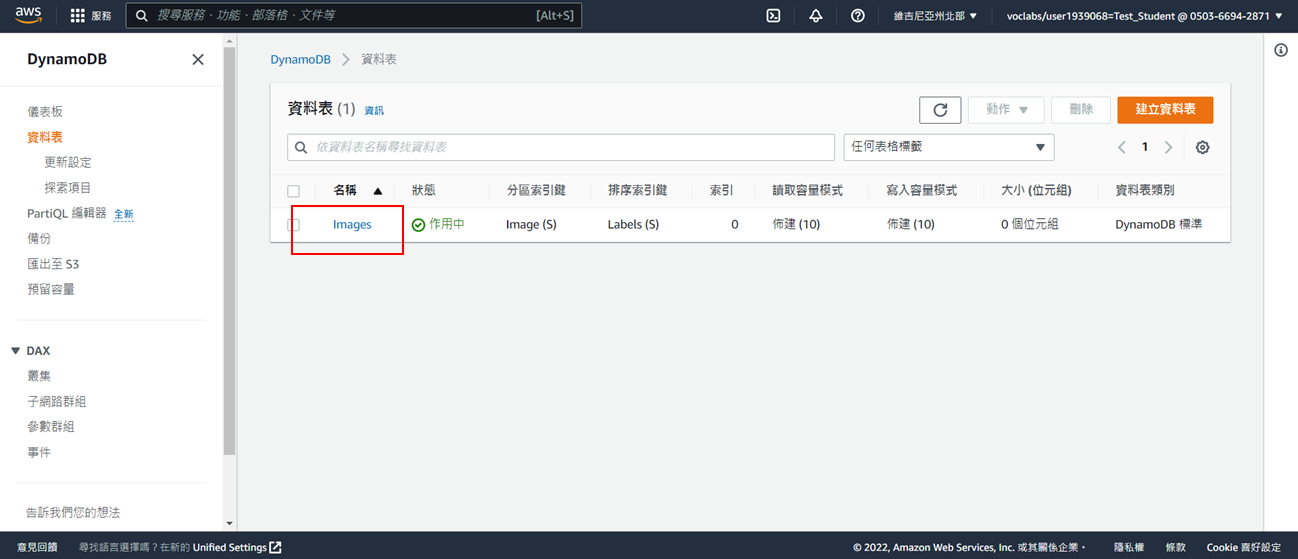
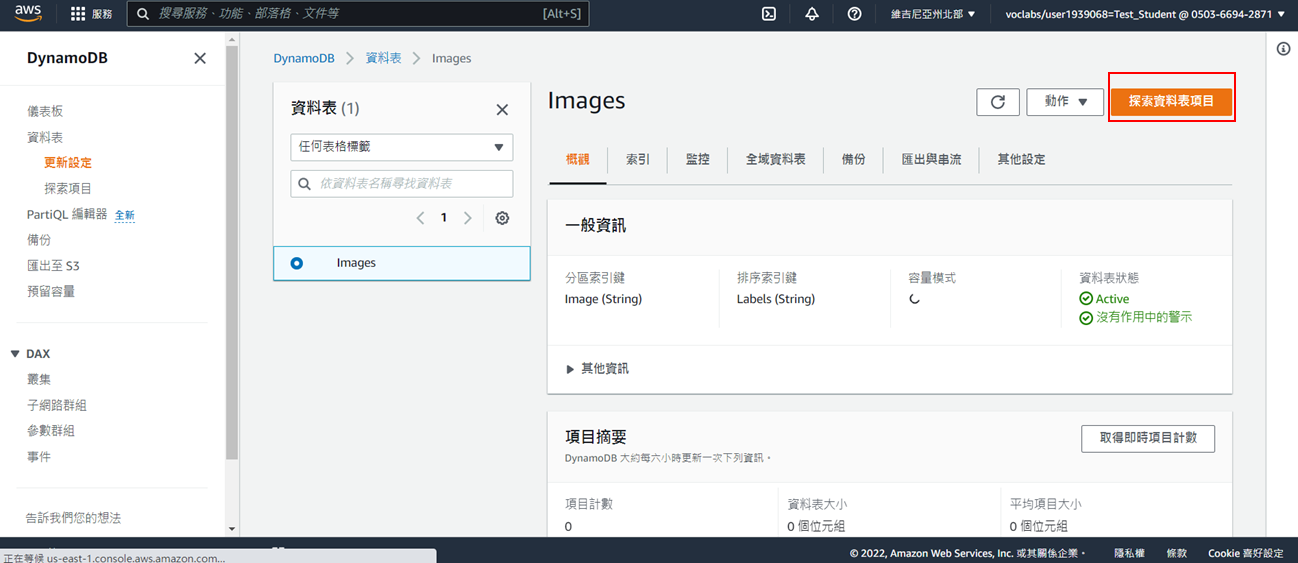
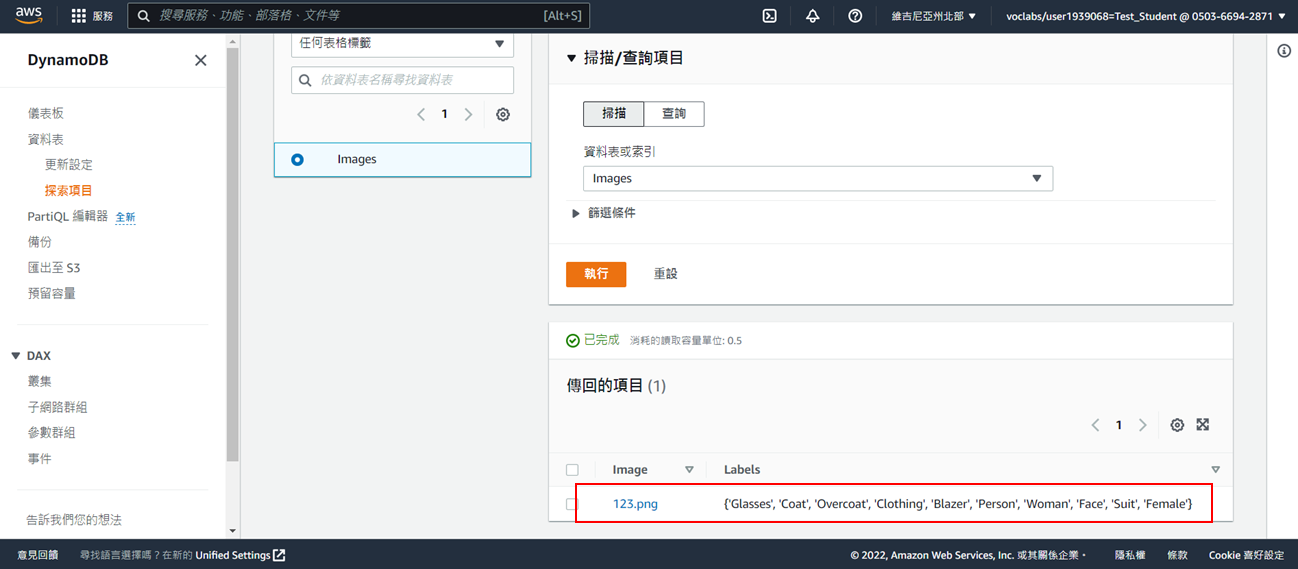
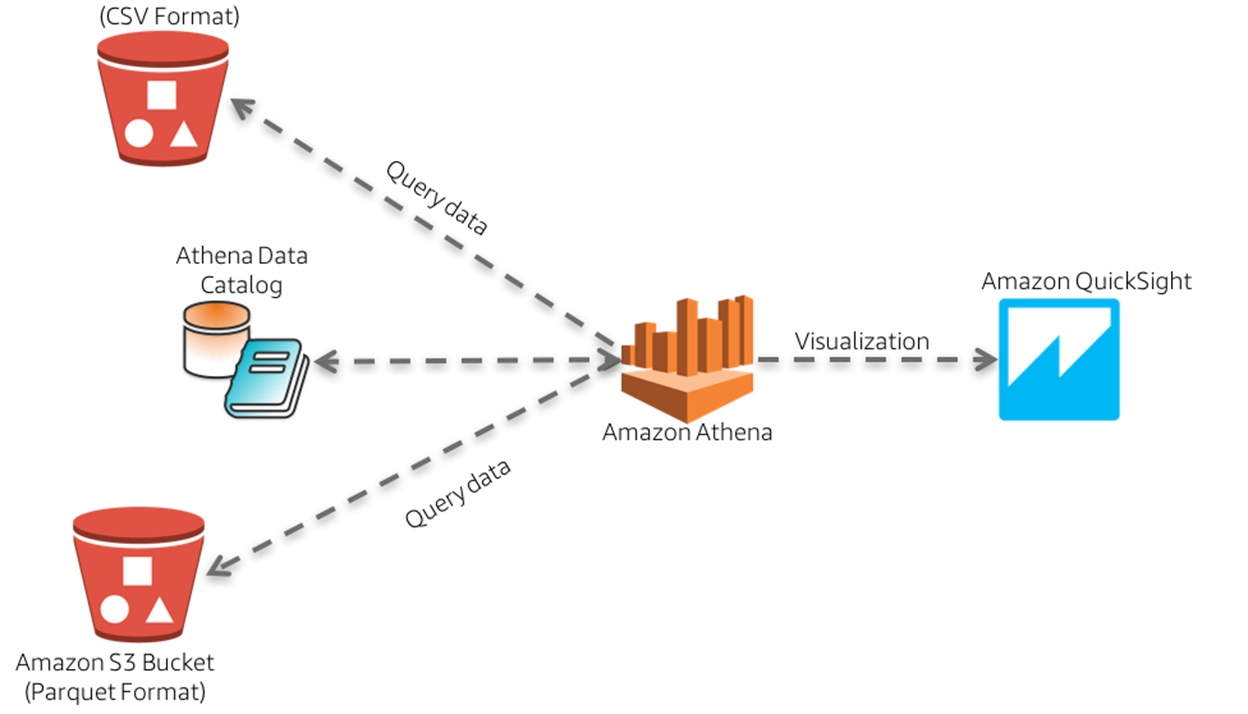
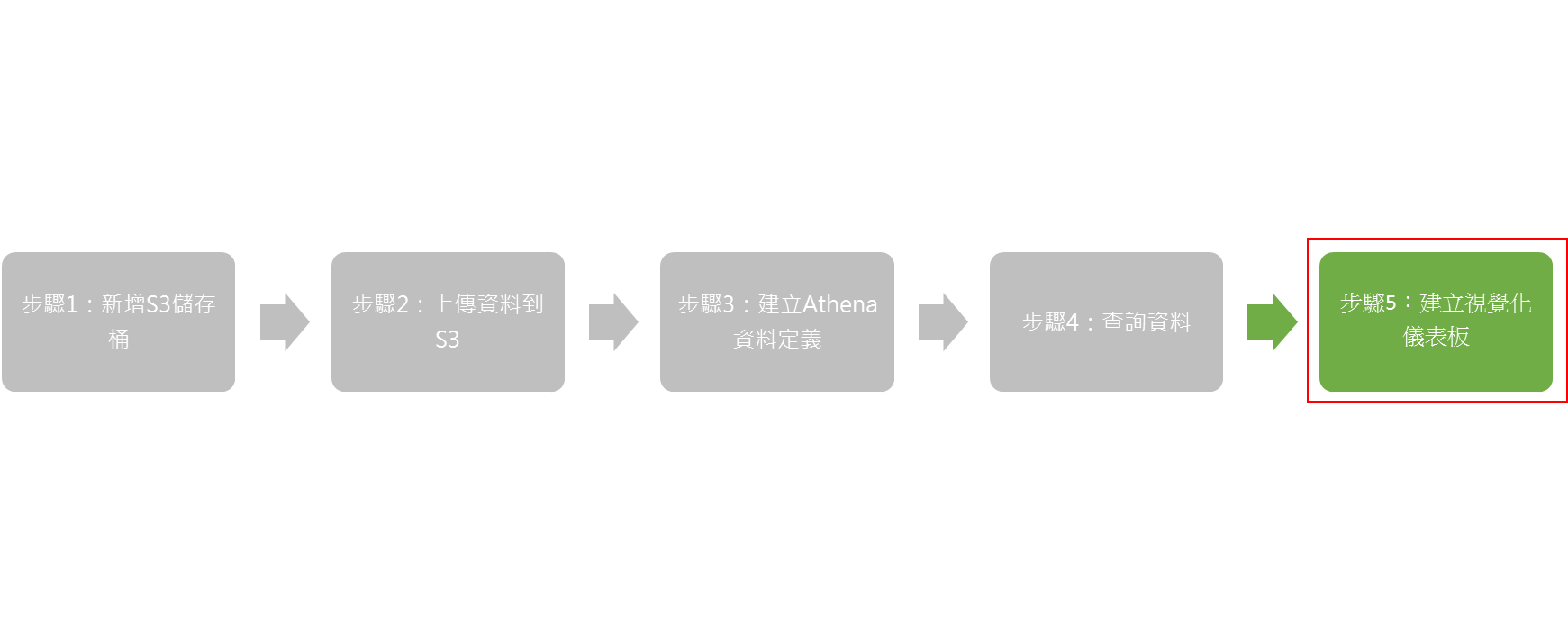
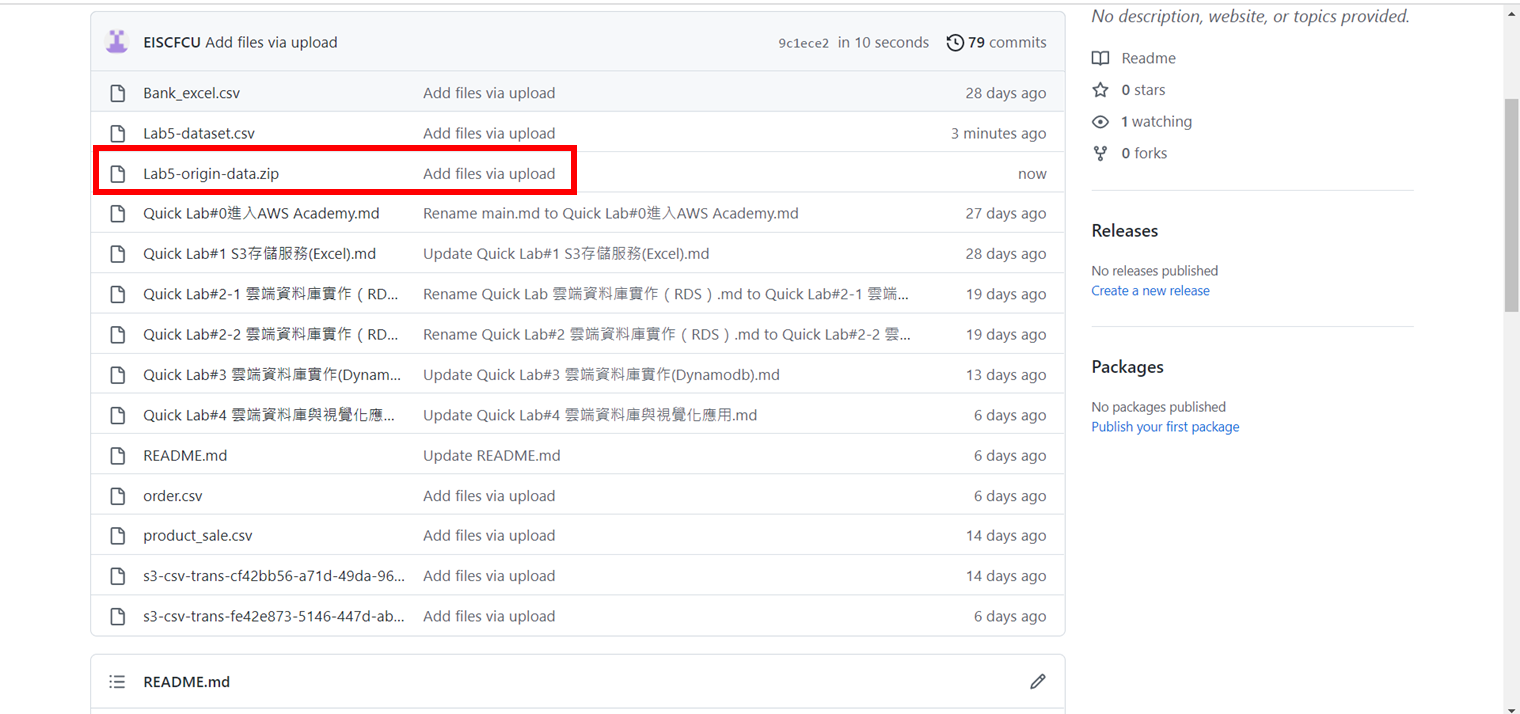
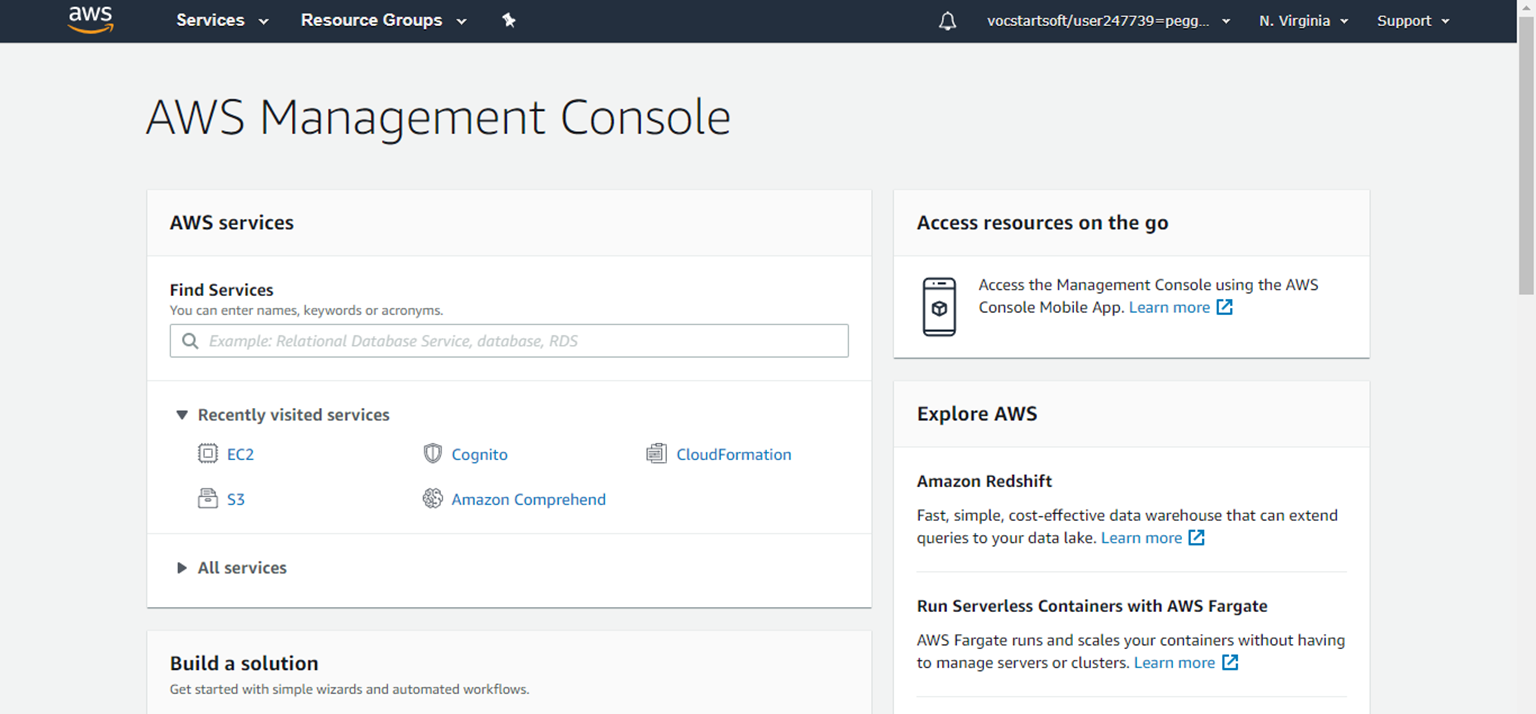
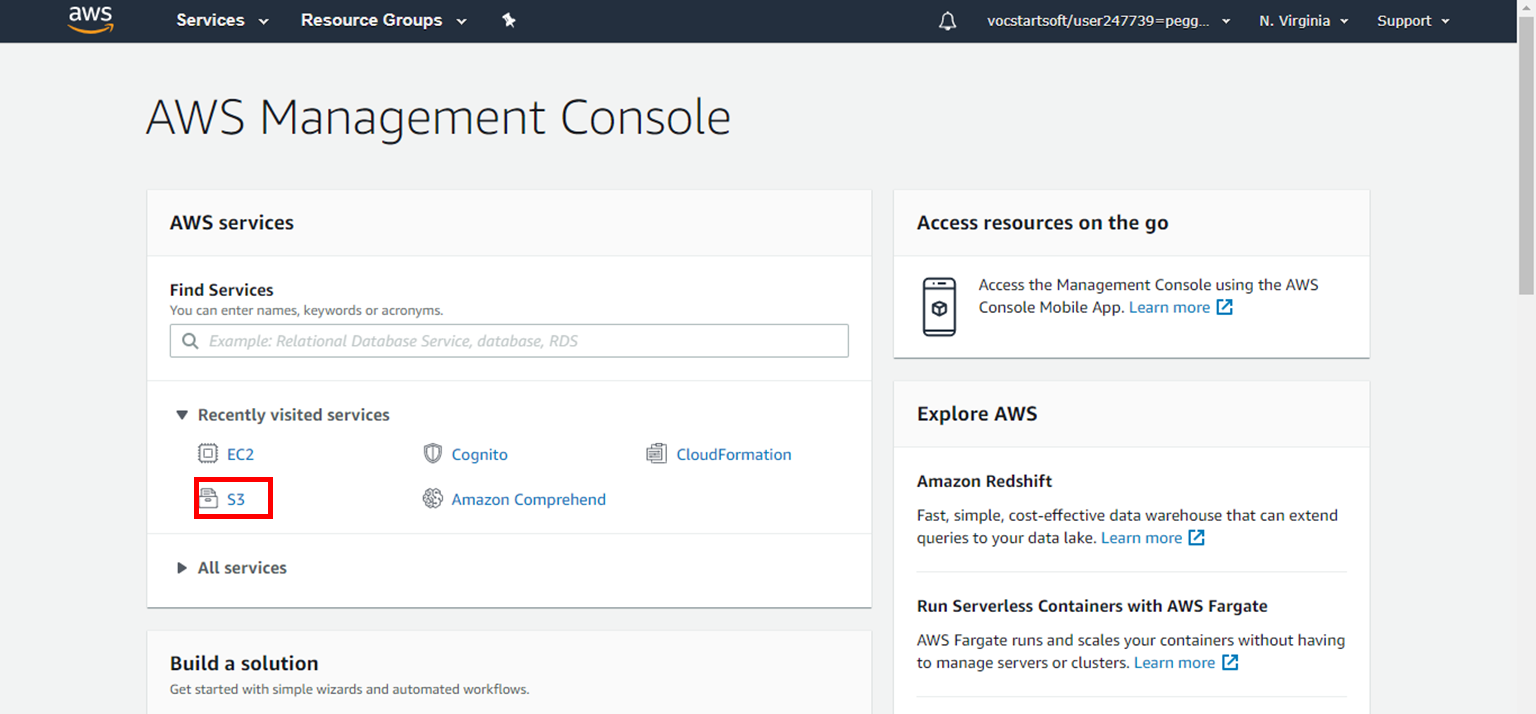
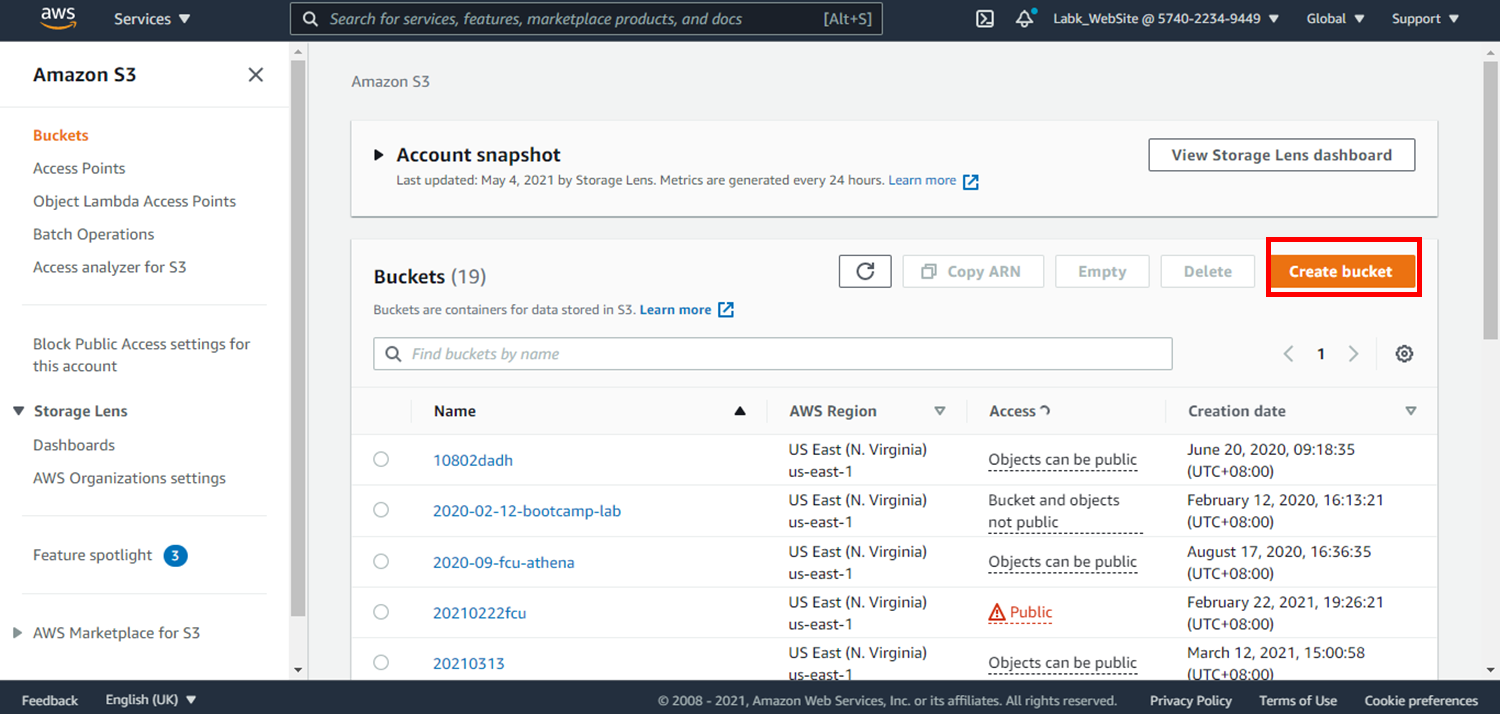
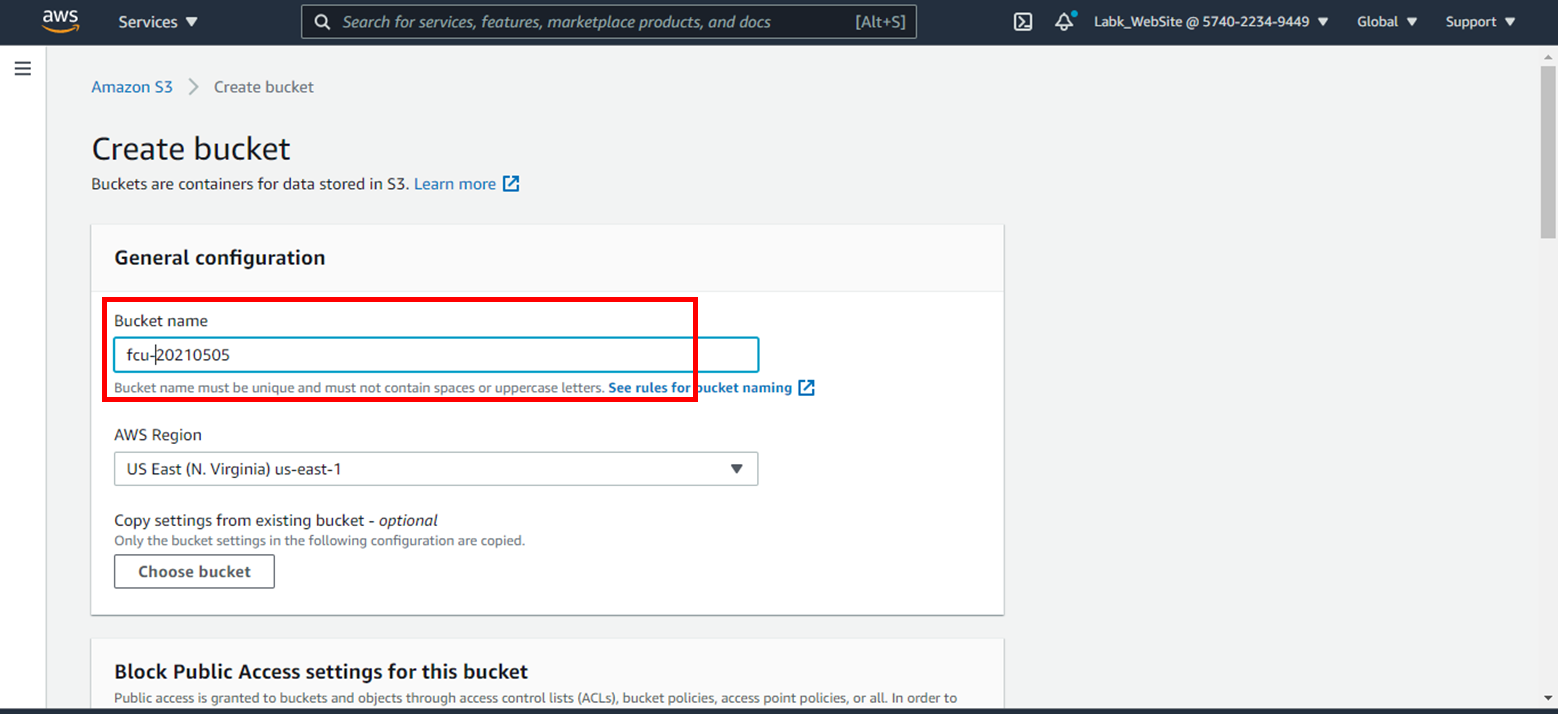
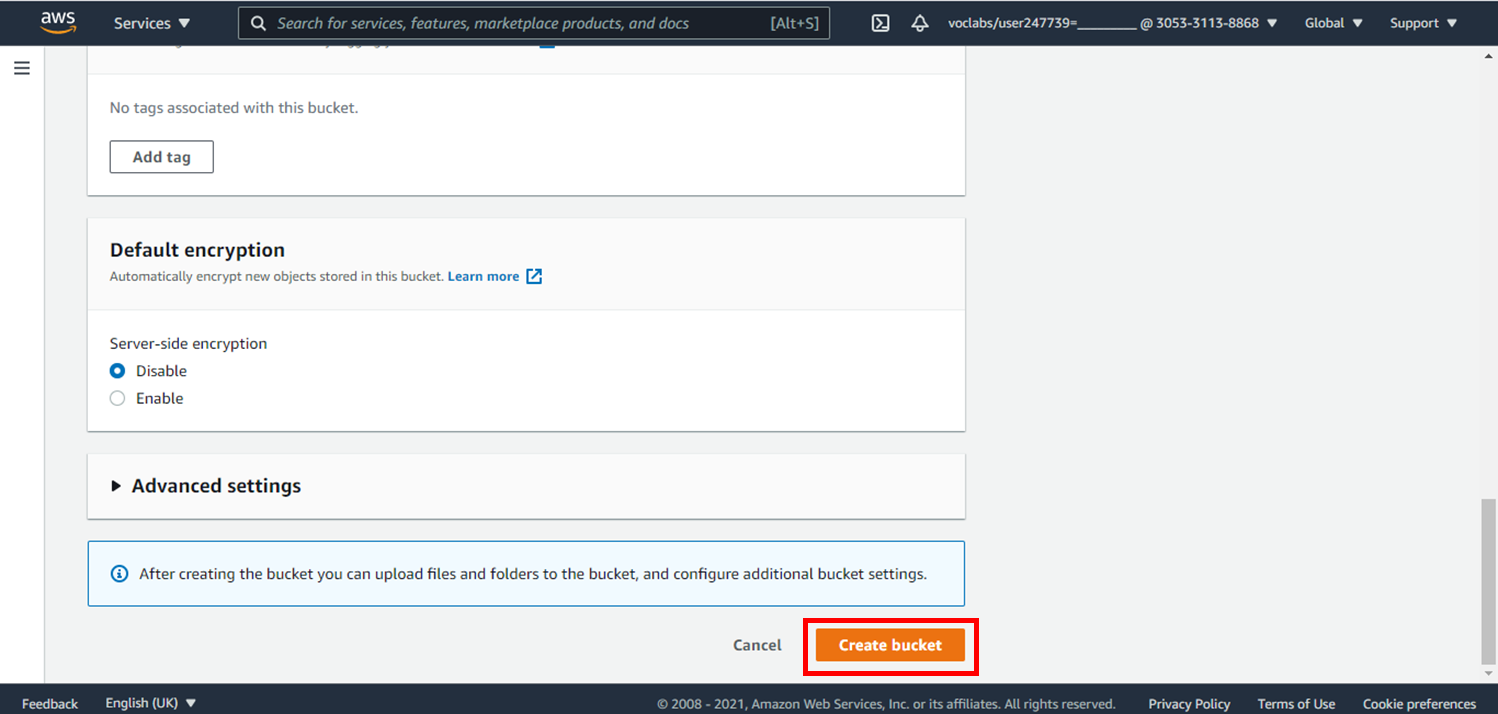
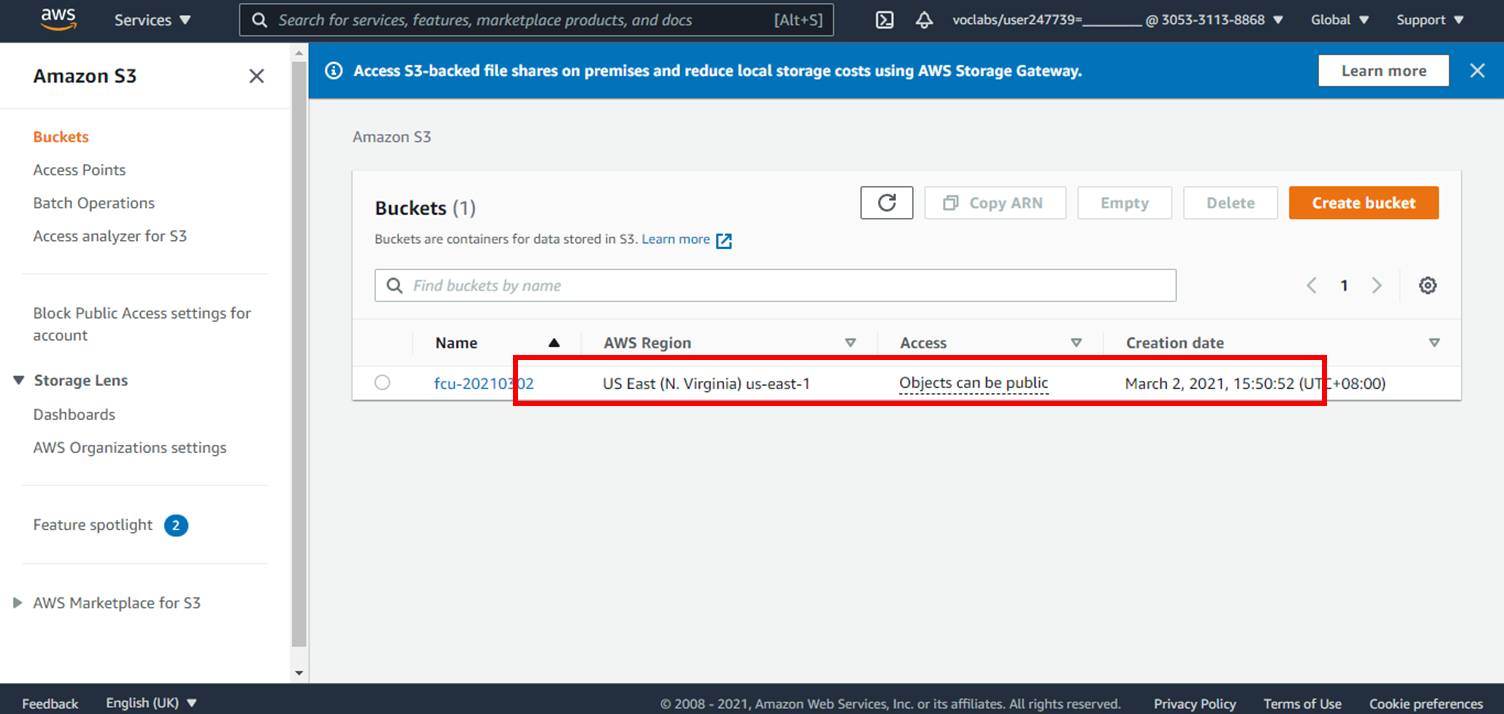
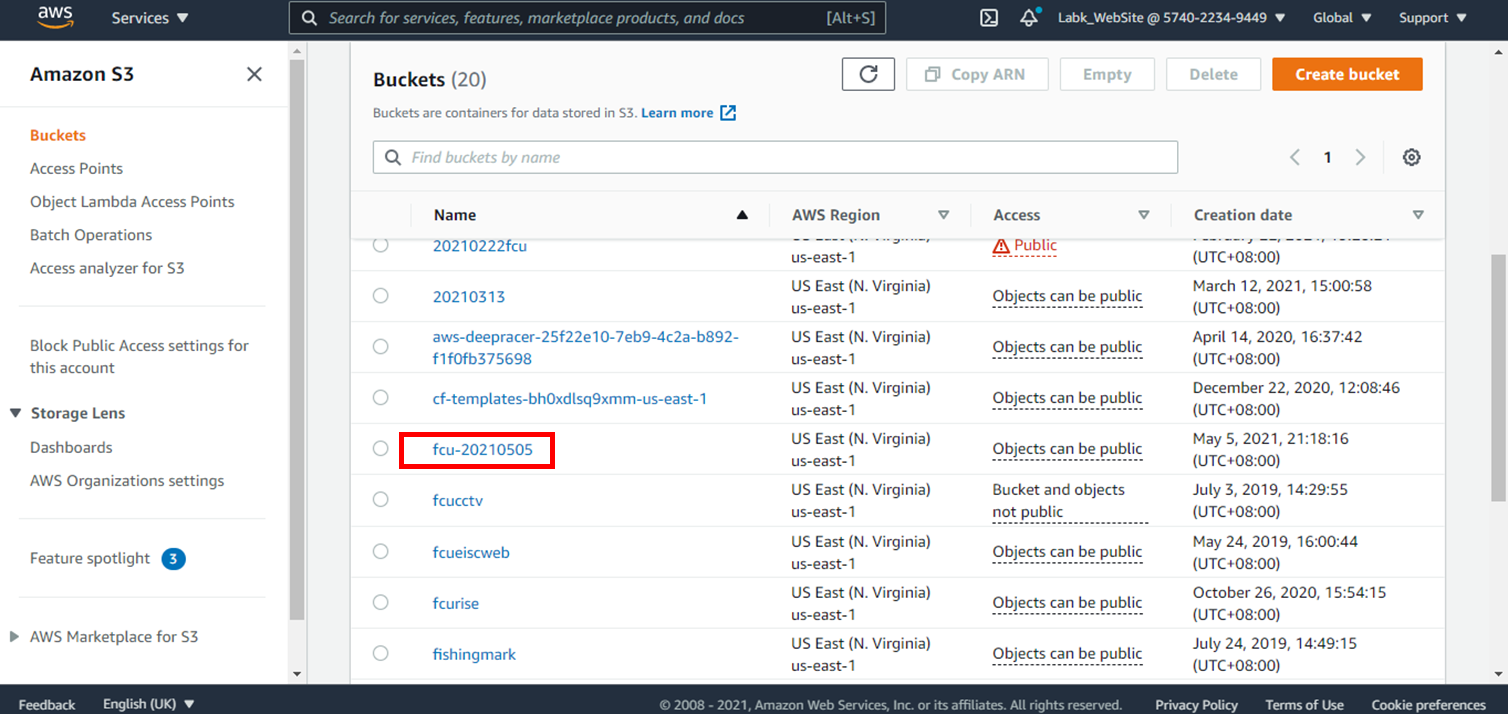
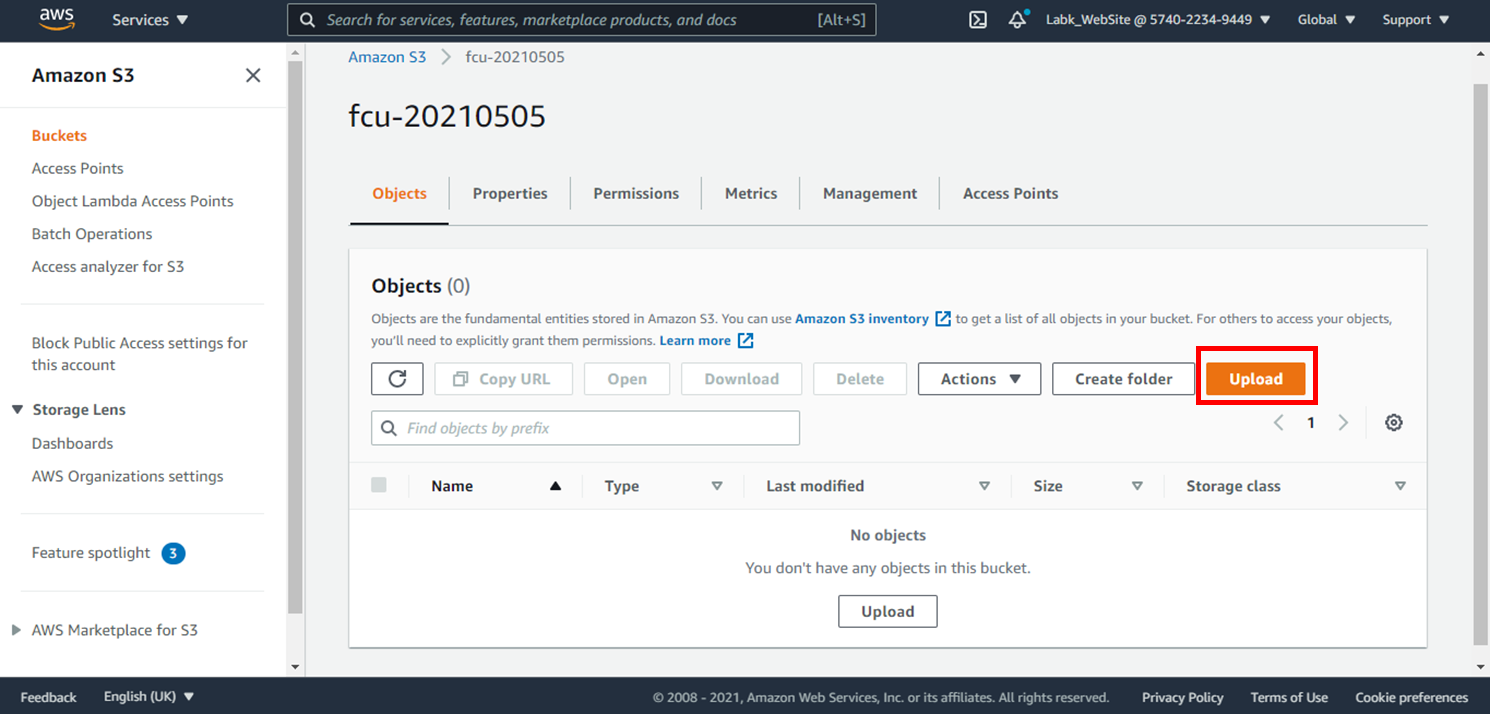
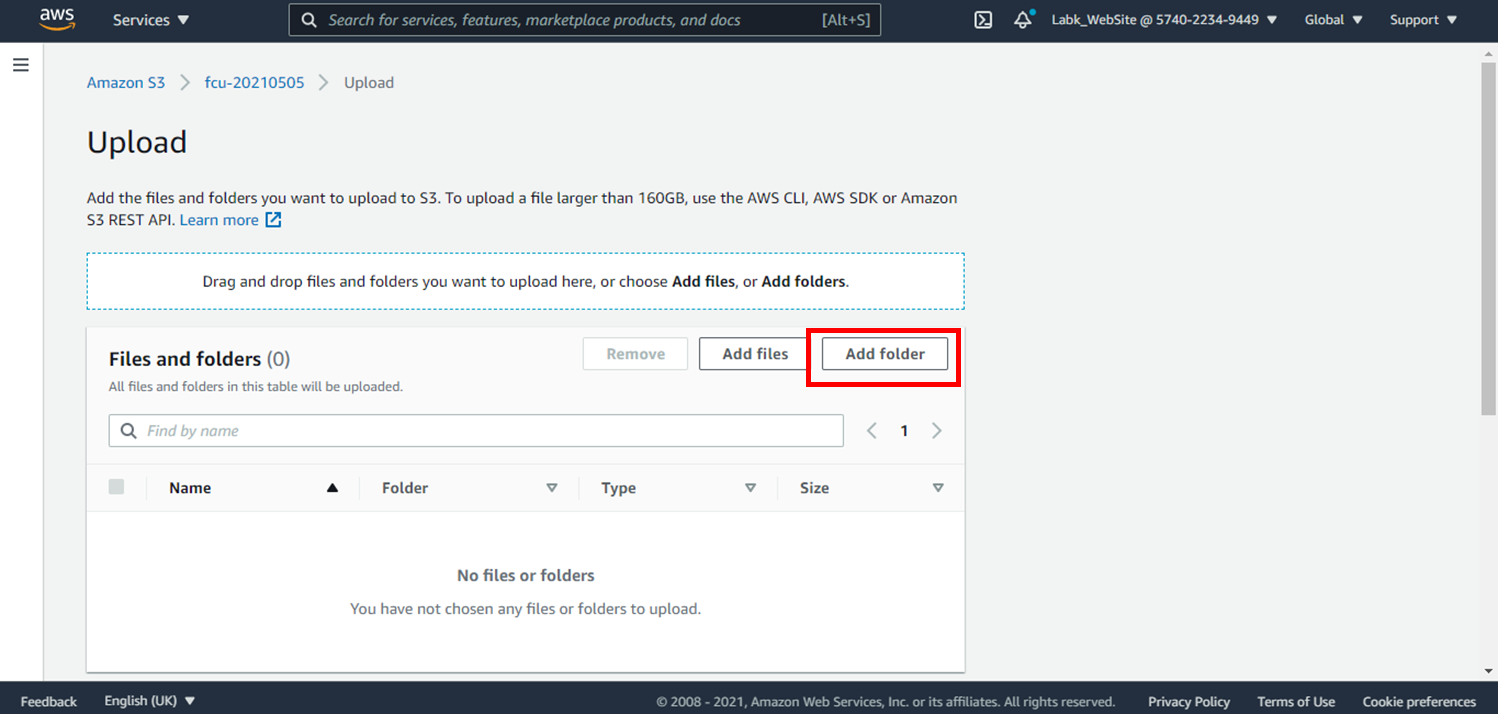
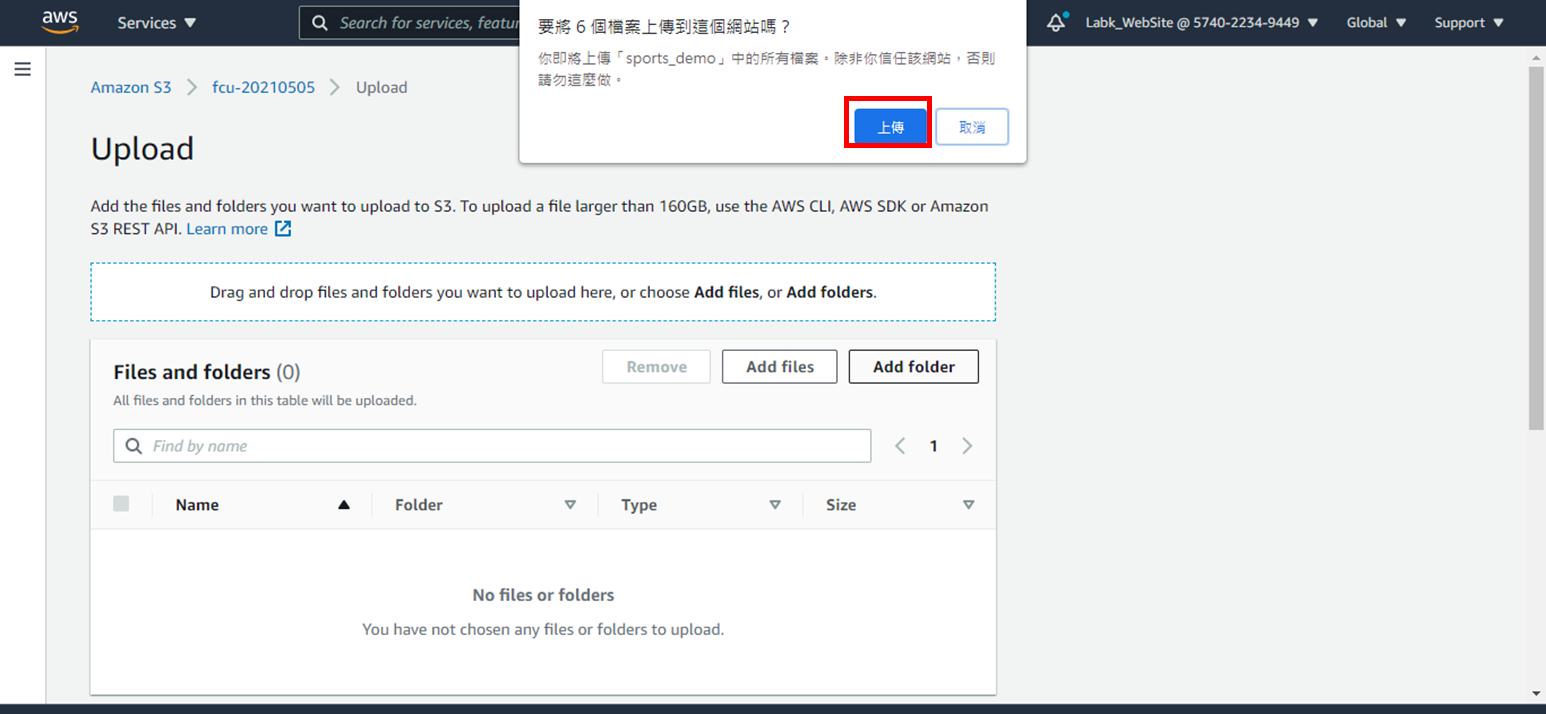
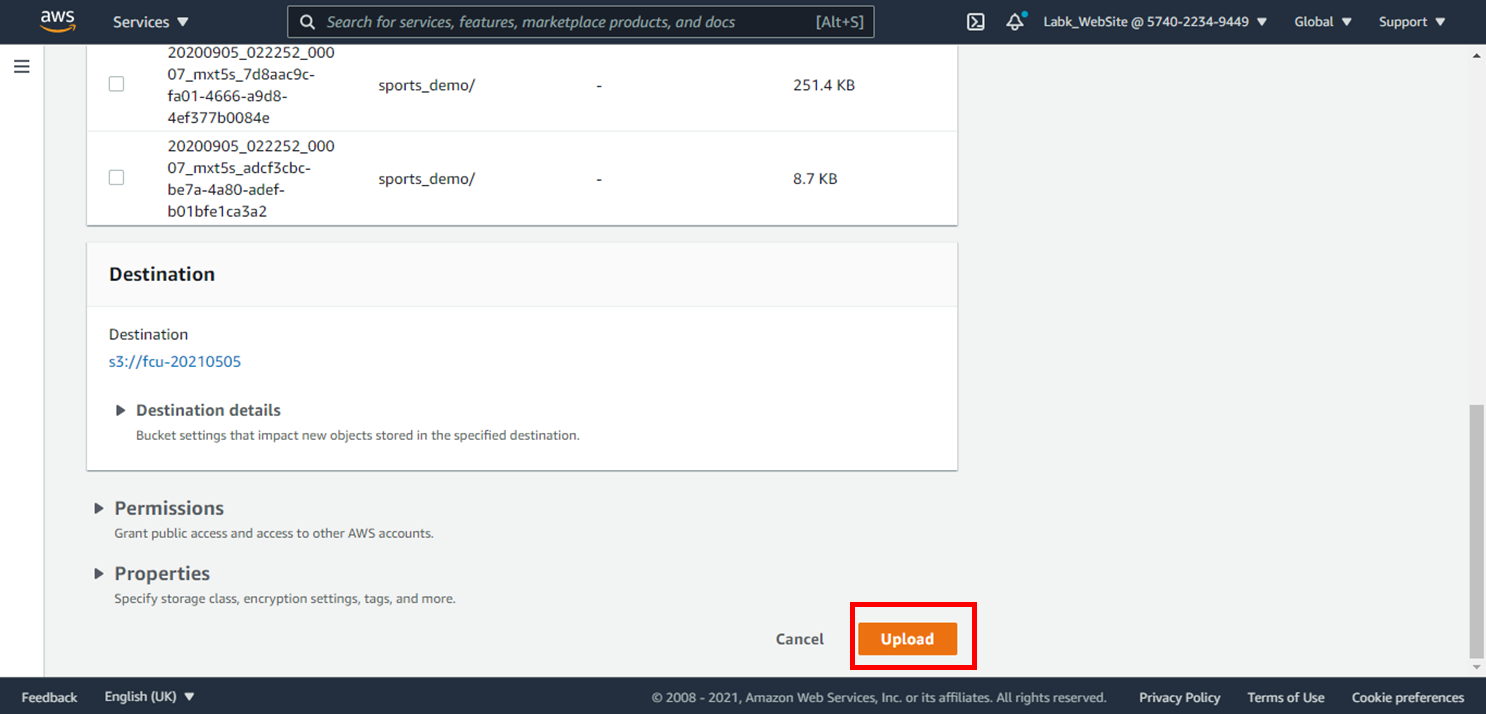
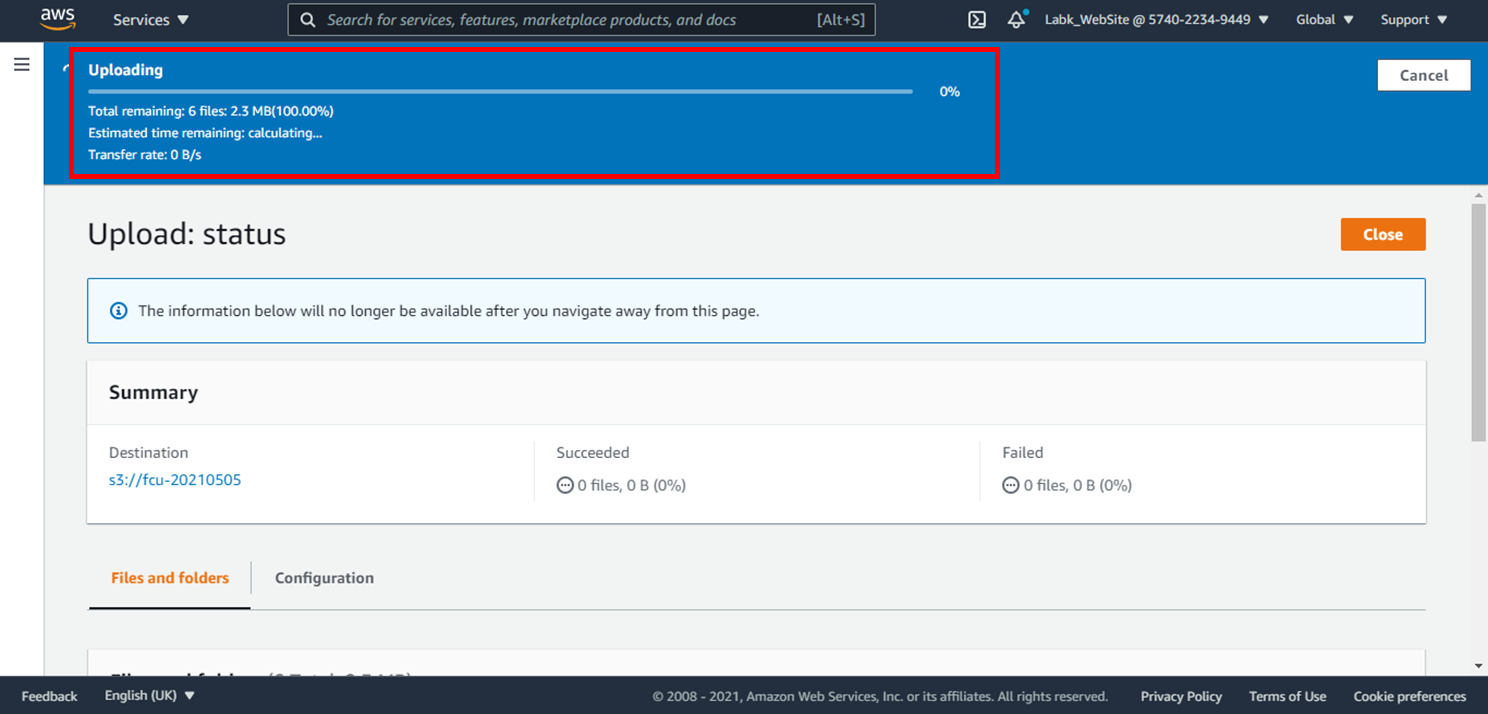
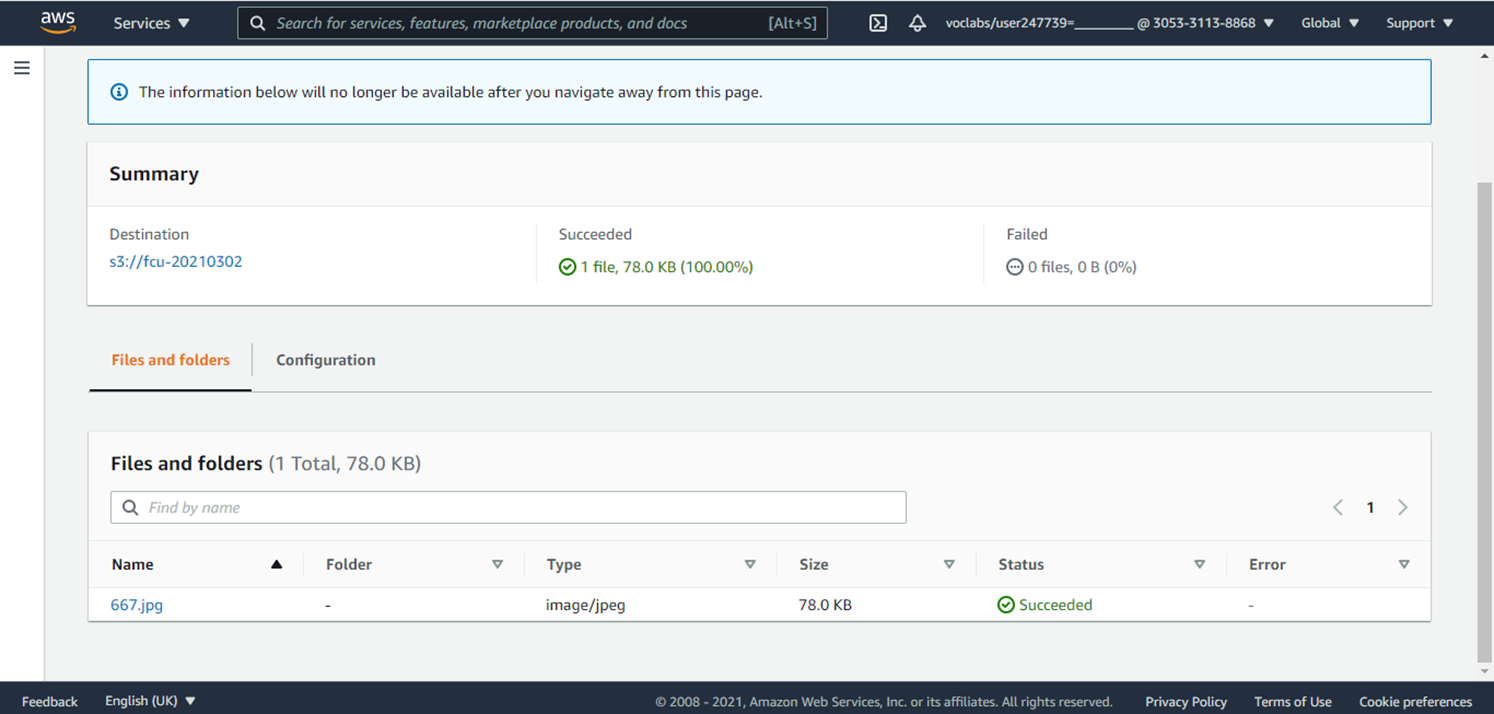
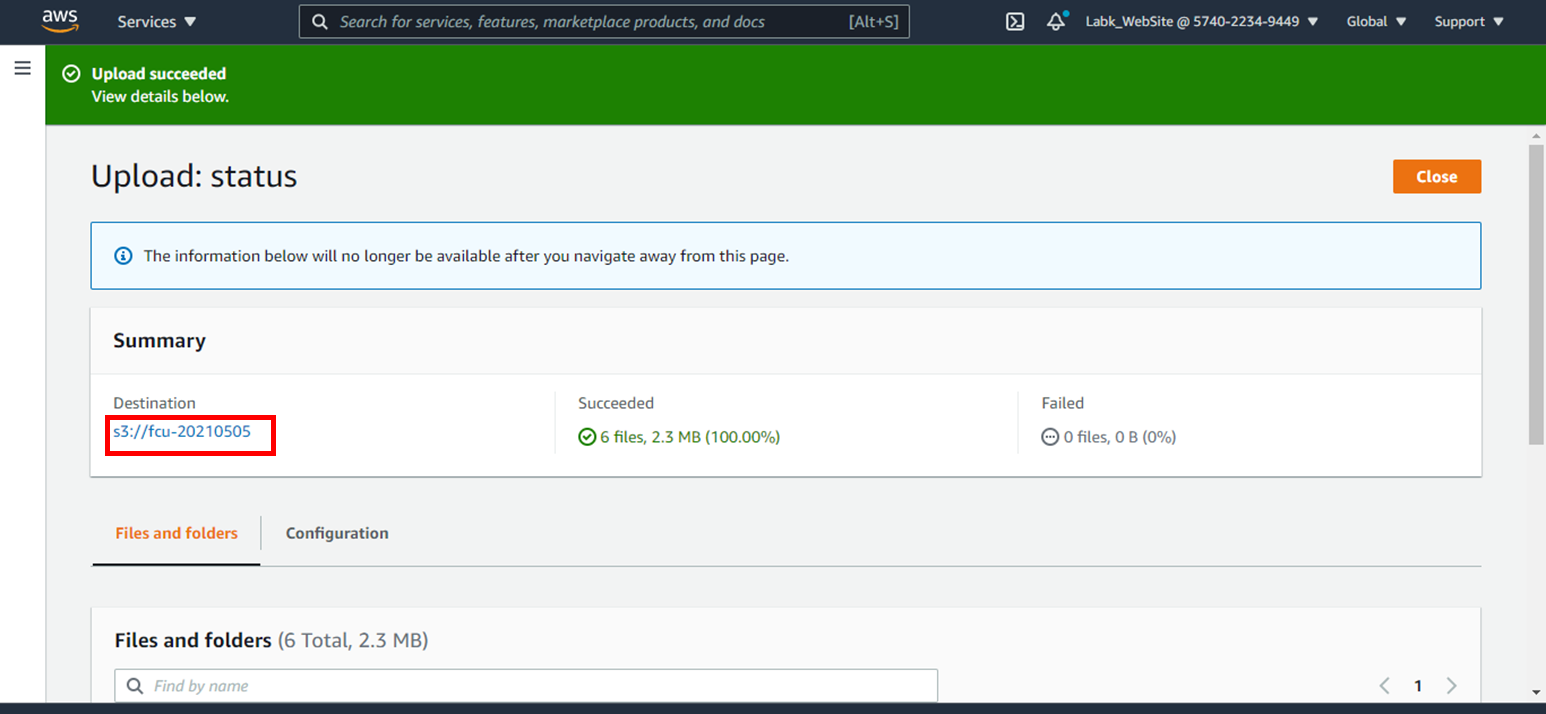
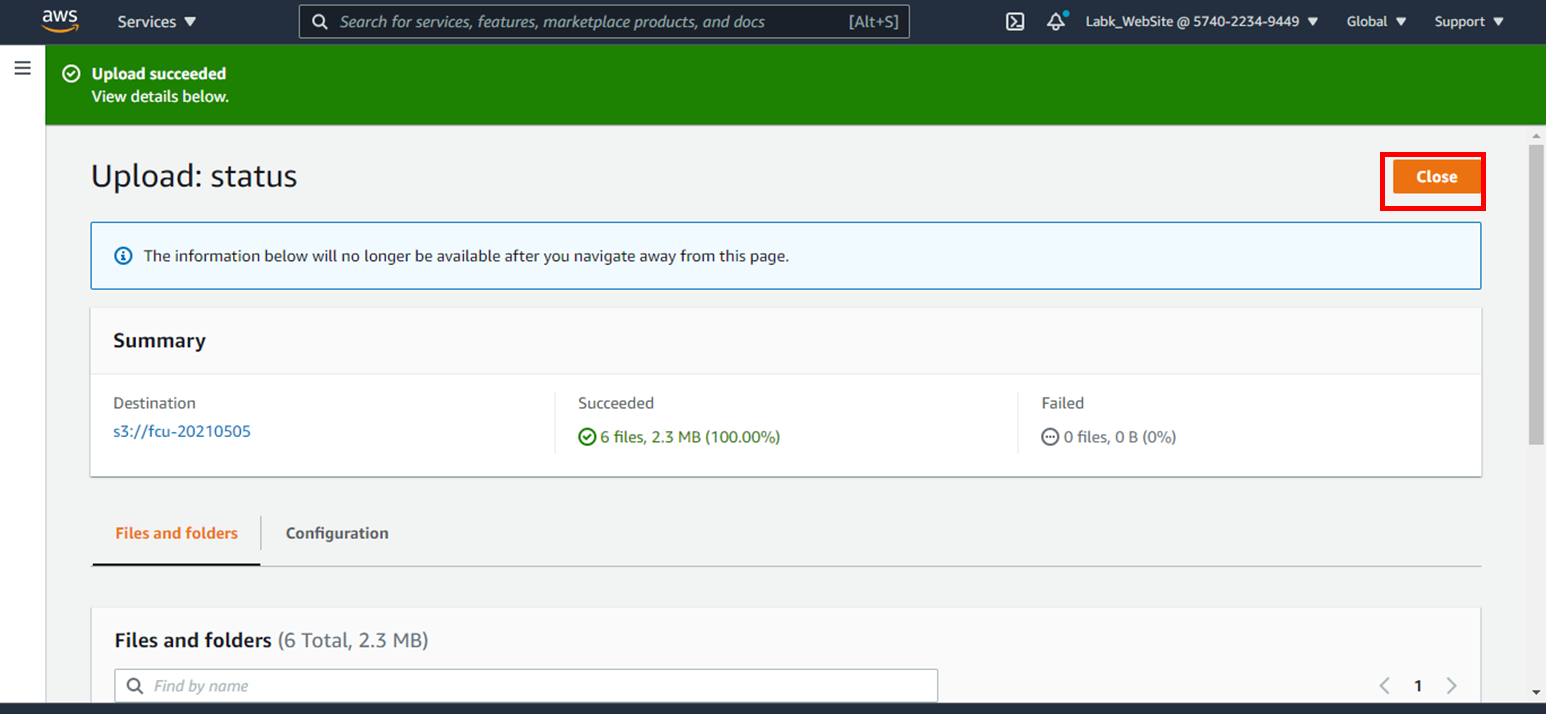
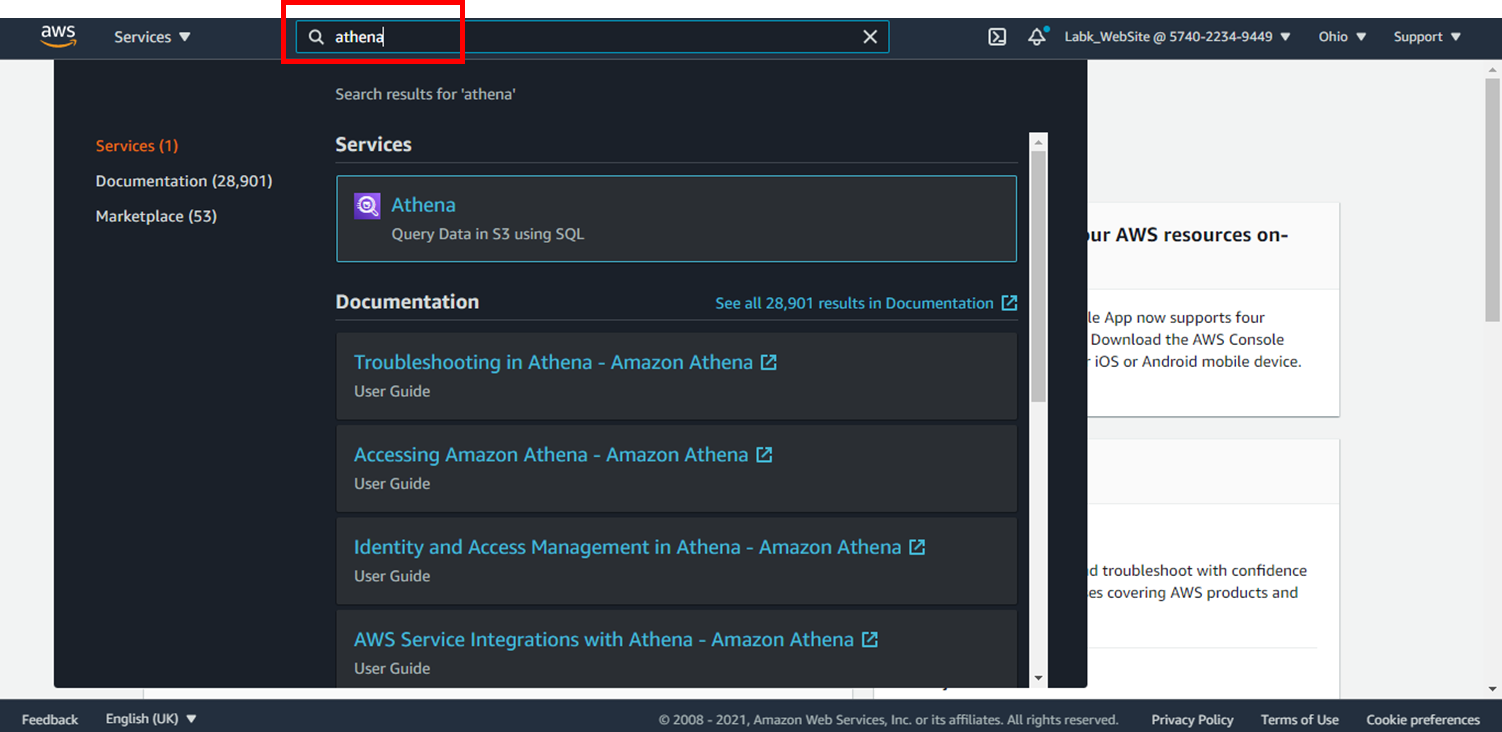
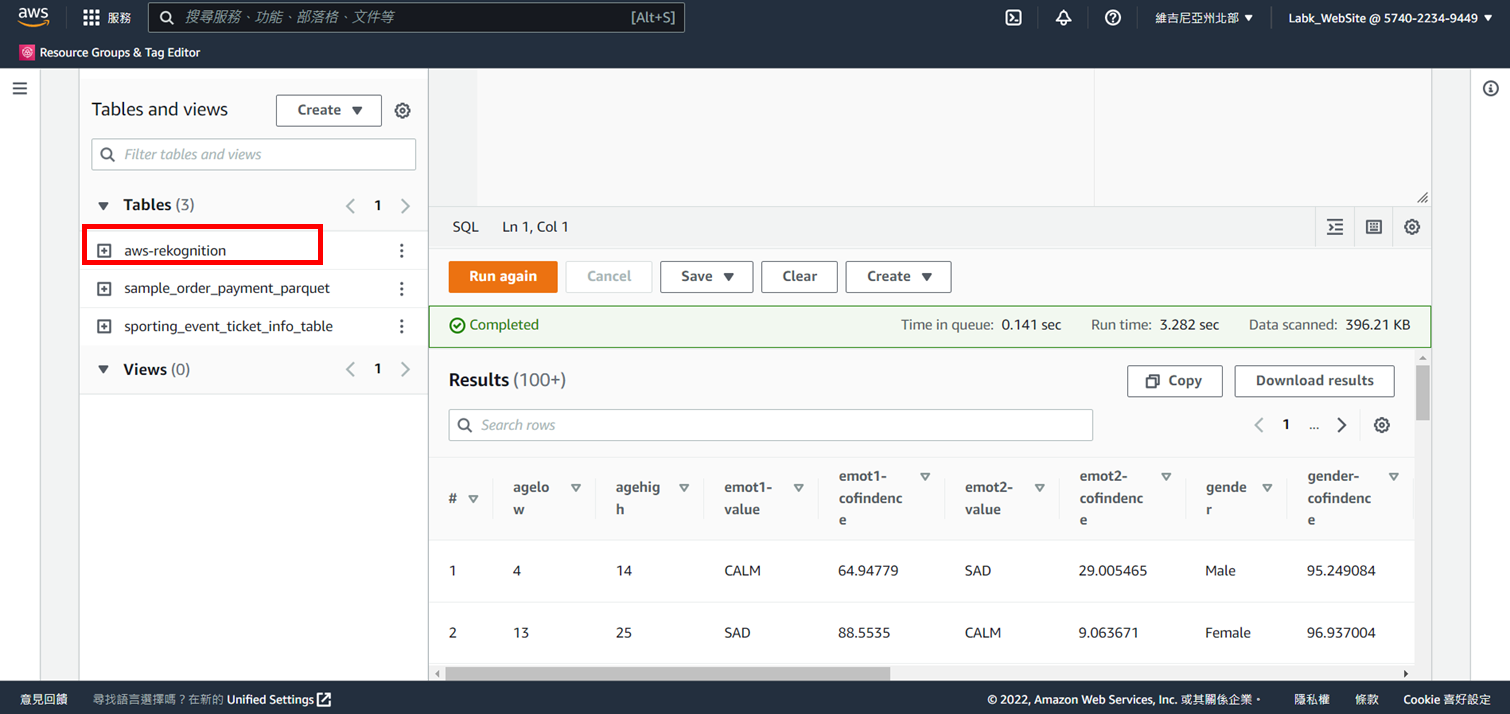
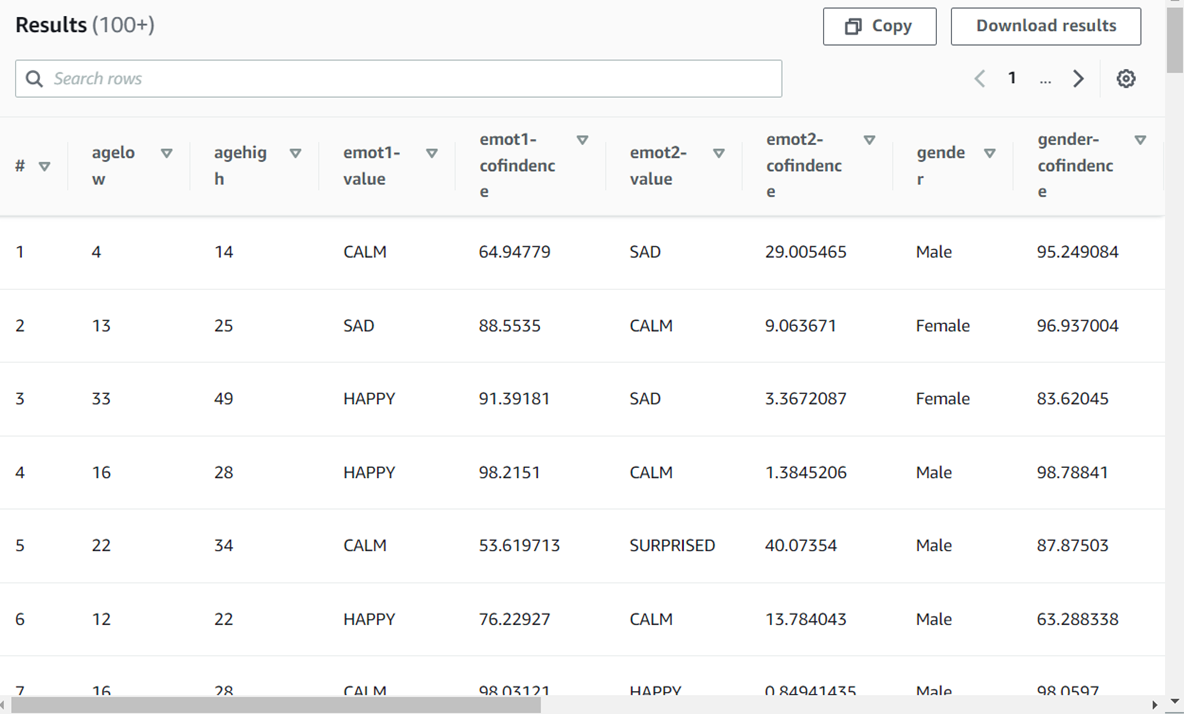
# 資料應用 # 一、雲端簡易辨識應用 ## 使用資源 lambda.zip: https://github.com/EISCFCU/ntue_cloud-database/blob/main/DetectLabel-96c34899-e979-4c92-b71c-be97f0a9983d.zip ### 使用平台:AWS Academy Learner Lab-Foundation Services # 實施架構 ![image](https://user-images.githubusercontent.com/103306835/167802083-16e42066-486a-40b6-8fbd-87115e7cb47e.png) # 操作步驟 ![image](https://user-images.githubusercontent.com/103306835/167802159-13a718ca-94a6-43ae-88c8-8f8caeef84b4.png) # 步驟1:建立儲存桶(S3) 1. 搜尋S3 ![image](https://user-images.githubusercontent.com/103306835/167802291-27f11a38-0ca5-4b04-9e30-1038a0ebe83a.png) 2. 點選**建立儲存貯體** ![image](https://user-images.githubusercontent.com/103306835/167802346-08189325-386e-495d-b9b0-7a70c3f966ab.png) 3. 輸入儲存貯體名稱(自訂) ![image](https://user-images.githubusercontent.com/103306835/167802395-9c2fecaa-0b2f-44e7-8454-5dcb86dd7add.png) 4. 取消勾選封鎖,並勾選我確認… ![image](https://user-images.githubusercontent.com/103306835/167802651-cba4b7b4-1298-4860-9159-b0f0a078d272.png) 5. 點選**建立儲存貯體** ![image](https://user-images.githubusercontent.com/103306835/167802695-e1dc5448-479b-45f5-8fa7-26ca279020ca.png) 6. 成功建立儲存貯體 ![image](https://user-images.githubusercontent.com/103306835/167802737-3fb3a9e6-41d2-4321-9133-4e87d311a1c6.png) # Step2:建立No sql 資料庫(Dynamodb) 1. 搜尋Dynamodb ![image](https://user-images.githubusercontent.com/103306835/167803171-751386ba-392c-473c-ba55-ef7a9c1fea46.png) 2. 點選**建立資料表** ![image](https://user-images.githubusercontent.com/103306835/167803217-ee8f3d50-fd11-4e89-a865-a47bf5a88ab4.png) 3. 輸入 * 資料表名稱: `Images` * 分區索引: `Image`(字串) * 排序索引:`Labels`(字串) ![image](https://user-images.githubusercontent.com/103306835/167803595-8e6dea0e-2d6c-4d4f-b4b6-7ee4ae62a7d4.png) 4. 點選**建立資料表** ![image](https://user-images.githubusercontent.com/103306835/167803640-3f687cf5-919f-42f0-98b4-04742f51d826.png) 5. 成功建立Images資料表(狀態:作用中) ![image](https://user-images.githubusercontent.com/103306835/167804044-5412a1d0-f4c4-4c65-8d3d-ae310c37be6a.png) # Step3:建立 Lambda 1. 搜尋Lambda 並點選 ![image](https://user-images.githubusercontent.com/103306835/167804391-b92645fd-ba51-4af7-b7be-0fbf0ce18175.png) 2. 點選**建立函式** ![image](https://user-images.githubusercontent.com/103306835/167804456-a4382f14-a3c5-44d8-a8dd-8a00bd4e8515.png) 3. 點選從頭開始撰寫 ![image](https://user-images.githubusercontent.com/103306835/167804503-2d93b1b0-a2f4-428c-b4ec-78eb5135b001.png) 4. 函數名稱自訂 ![image](https://user-images.githubusercontent.com/103306835/167804556-69ed1199-612b-45b8-a22d-dc67b993fb6e.png) 5. 執行時間:Python3.12 ![image](https://user-images.githubusercontent.com/103306835/167804599-3a7ab825-8105-4201-92c3-5d0a55e2a3a4.png) 6. 選擇使用現有的角色:**LabRole** ![image](https://user-images.githubusercontent.com/103306835/167804655-dfe9ac3c-e496-4db8-aed3-ebc2c9f5e77b.png) 7. 點選**建立函式** ![image](https://user-images.githubusercontent.com/103306835/167804696-3ca76b2c-3161-4d08-8788-53d1bde160b9.png) 8. 成功建立函式 ![image](https://user-images.githubusercontent.com/103306835/167804740-b5265392-533b-4c77-bedd-020f849b77d5.png) 9. 點選**新增觸發** ![image](https://user-images.githubusercontent.com/103306835/167804777-f3528c9e-a62e-4595-923d-ec615d5117bb.png) 10. 選擇S3 ![image](https://user-images.githubusercontent.com/103306835/167804816-bf1add2d-9986-4eda-b899-42d60c5e683c.png) 11. 選擇步驟1建立的S3 ![image](https://user-images.githubusercontent.com/103306835/167804862-4f83b741-2ea2-4f01-bb7f-d335090bf17f.png) 12. 勾選我確認 ![image](https://user-images.githubusercontent.com/103306835/167804929-3f72f9a7-2a1e-4de4-a4c2-3e1553f039fd.png) 13. 點選**新增** ![image](https://user-images.githubusercontent.com/103306835/167804973-f620ba9f-ce95-4aa4-8c9d-ba853ede4fbe.png) 14. 完成觸發設定 ![image](https://user-images.githubusercontent.com/103306835/167805028-618e6994-f99e-4f69-93e0-680457400a99.png) 15. 往下滑動視窗,點選**程式碼** ![image](https://hackmd.io/_uploads/S1WiLWvUR.png) 16. 點開**上傳於**,並下載檔案: 檔案連結: https://github.com/EISCFCU/ntue_cloud-database/blob/main/DetectLabel-96c34899-e979-4c92-b71c-be97f0a9983d.zip ![image](https://user-images.githubusercontent.com/103306835/167805143-d43fdc58-32d4-446b-8c92-6cea7ec1e2b7.png) 17. 選擇剛剛下載的.zip 檔案 ![image](https://user-images.githubusercontent.com/103306835/167805204-42595a7b-cf67-4c54-9293-1b1a526e6d3d.png) 18. 選擇**上傳** ![image](https://user-images.githubusercontent.com/103306835/167805244-29e64ba3-eb67-4476-9e50-bf80b0234e70.png) 19. 選擇**儲存** ![image](https://user-images.githubusercontent.com/103306835/168414908-129f2b75-1037-46ec-9899-114562f3a7d5.png) 20. 更改第8行資料(S3名稱) ![image](https://user-images.githubusercontent.com/103306835/167805344-b4e644ff-e3d0-4202-b107-eae12470f691.png) **註:對照一下步驟2所建的Dynamodb資料表名稱是否為Image, 分區索引:Image(字串) ,排序索引:Labels(字串)** 如果不是,請更正以下資訊 ![image](https://user-images.githubusercontent.com/103306835/168414429-61651c94-0f2c-4172-be98-209cd84d85dd.png) **如何查詢Dynamdb資料表欄位:** ![image](https://user-images.githubusercontent.com/103306835/168414559-2691e509-2953-4ba6-b471-2806b5b768f4.png) 21. 點選**Deploy** ![image](https://hackmd.io/_uploads/rJBzK-wLA.png) 22. 點選**Test** ![image](https://hackmd.io/_uploads/rkmJY-PI0.png) 23. 輸入事件名稱:**test** ![image](https://user-images.githubusercontent.com/103306835/167805466-43cbbed4-9711-4b5b-b1a1-b52da22442ff.png) 24.貼上測試語法(請先將原始資料刪除後再貼上) ![image](https://user-images.githubusercontent.com/103306835/167805513-dcf647c2-50aa-48c2-bb02-b1ca2af0e718.png) 25. 修改23、27行的s3 bucket name及30行的object name ``` { "Records": [ { "eventVersion": "2.0", "eventSource": "aws:s3", "awsRegion": "us-east-1", "eventTime": "1970-01-01T00:00:00.000Z", "eventName": "ObjectCreated:Put", "userIdentity": { "principalId": "EXAMPLE" }, "requestParameters": { "sourceIPAddress": "127.0.0.1" }, "responseElements": { "x-amz-request-id": "EXAMPLE123456789", "x-amz-id-2": "EXAMPLE123/5678abcdefghijklambdaisawesome/mnopqrstuvwxyzABCDEFGH" }, "s3": { "s3SchemaVersion": "1.0", "configurationId": "testConfigRule", "bucket": { "name": "my-s3-bucket", "ownerIdentity": { "principalId": "EXAMPLE" }, "arn": "arn:aws:s3:::example-bucket" }, "object": { "key": "HappyFace.jpg", "size": 1024, "eTag": "0123456789abcdef0123456789abcdef", "sequencer": "0A1B2C3D4E5F678901" } } } ] } ``` ![image](https://user-images.githubusercontent.com/103306835/168414092-8ffdb991-a2ce-495e-bf65-2bd8b5d9f296.png) 26. 點選**儲存** ![image](https://user-images.githubusercontent.com/103306835/168414704-f9be168f-48c9-4376-be47-15627f8ae98b.png) 27. 成功儲存測試事件 ![image](https://user-images.githubusercontent.com/103306835/168414796-0ab0d8fa-95c2-4be2-a6ae-3f9009f82f58.png) 28. 點選**組態**,選取**一般組態** ![image](https://hackmd.io/_uploads/HJadA-vI0.png) 29. 點選**編輯** ![image](https://hackmd.io/_uploads/ByzTA-P80.png) 30. 把3秒改成10秒,按下儲存 ![image](https://hackmd.io/_uploads/rJQt1GvUA.png) # Step4: S3 上傳圖檔 1. 搜尋S3 並點選 ![image](https://user-images.githubusercontent.com/103306835/167805866-ebc2c30d-4c02-44ae-8dd2-27c1486ce542.png) 2. 點選步驟1新增的S3 ![image](https://user-images.githubusercontent.com/103306835/167805929-645a7ab2-b152-4924-bfa1-5f29352c74c6.png) 3. 點選**上傳** ![image](https://user-images.githubusercontent.com/103306835/167805972-5db54adf-b2f6-4868-9a98-3bc67ccc3df1.png) 4. 點選**新增檔案** ![image](https://user-images.githubusercontent.com/103306835/167806007-16904cdf-26a9-4fa8-8395-111e7dac4543.png) 5. 點選**上傳** ![image](https://user-images.githubusercontent.com/103306835/167806182-fe9639c8-7fef-4fb6-a767-2e3bf79d3194.png) 6. 成功上傳 ![image](https://user-images.githubusercontent.com/103306835/167806213-4b7df01a-64d2-4989-89c7-6842655de8d5.png) # 查看Dynamodb 1. 點選步驟2建立的Dynamodb資料表 ![image](https://user-images.githubusercontent.com/103306835/167806296-6a4f7b71-185e-44ae-ab79-f22d9f9e32f4.png) 2. 點選**探索資料表項目** ![image](https://user-images.githubusercontent.com/103306835/168201959-35f2d89c-9416-4f58-a472-cf01a4d1c478.png) 3. 查看結果 ![image](https://user-images.githubusercontent.com/103306835/168201947-5c534f17-8305-4485-9ac3-a574ac3cb515.png) ---- # 資料視覺化 ## 實施架構 ![image](https://user-images.githubusercontent.com/103306835/170396281-af850cc4-ced2-4ced-858d-349ed16fbead.png) ## 操作步驟 ![image](https://user-images.githubusercontent.com/103306835/170396339-14d4fb8a-87c3-44db-b18e-7adcbc5db57f.png) # 步驟1:新增S3儲存桶 1. 下載Github資料並解壓縮 https://github.com/EISCFCU/ntue_cloud-database/blob/main/Lab5-origin-data.zip ![image](https://user-images.githubusercontent.com/103306835/170396687-242b52e8-fe09-439c-a28c-0cf59273ac60.png) 2.登入AWS Management Console ![image](https://user-images.githubusercontent.com/103306835/170396717-d0bd5438-29fc-4434-ad2b-a78324922817.png) 3.點選**S3** ![image](https://user-images.githubusercontent.com/103306835/170396744-85e97460-19ac-4ffe-bbb0-99a28a6d5f04.png) 4.點選**Create bucket** ![image](https://user-images.githubusercontent.com/103306835/170396776-77348739-1586-4c76-a0d4-8e2e74114d6e.png) 5.輸入Bucket Name(唯一;名稱自訂) ![image](https://user-images.githubusercontent.com/103306835/170396802-24d1058d-37e1-4181-8764-fd55af324368.png) 6.點選**Create Bucket** ![image](https://user-images.githubusercontent.com/103306835/170396863-f75e5030-f5af-4ceb-83eb-827d6d6cd163.png) 7.完成名為fcu-20210302(名稱自訂)的Bucket新增 ![image](https://user-images.githubusercontent.com/103306835/170396892-298a0855-2521-4070-9d08-4239a5390082.png) # 步驟2:上傳資料到S3 1.點選fcu-20210505(名稱自訂)的Bucket name ![image](https://user-images.githubusercontent.com/103306835/170396946-3ce1f81a-6b95-4bc9-8842-aa5e6b11bcfe.png) 2.點選**Upload** ![image](https://user-images.githubusercontent.com/103306835/170396972-4748f130-273c-489d-9ef5-b951d40f0c2d.png) 3.點選**Add folder** ![image](https://user-images.githubusercontent.com/103306835/170397010-ea03044d-e4a4-4960-8c5d-bca98e9f0290.png) 4.點選**上傳** ![image](https://hackmd.io/_uploads/HJ8X1qvUA.png) 5.點選上傳 ![image](https://user-images.githubusercontent.com/103306835/170397091-0575d53d-a51c-4e17-a138-7395e0d7b1cb.png) 6.點選**Upload**上傳 ![image](https://user-images.githubusercontent.com/103306835/170397119-8a9970d6-5ca4-4524-96d6-03fee9f849b8.png) 7.等待資料上傳 ![image](https://user-images.githubusercontent.com/103306835/170397173-46099ab9-9e17-43be-9dd7-72b2e4d4d85f.png) 8.資料上傳成功 ![image](https://user-images.githubusercontent.com/103306835/170397197-c2f126d5-a698-4407-a796-edc0a1d89e85.png) 9.記錄S3 Destination(步驟3會用到) ![image](https://user-images.githubusercontent.com/103306835/170397228-932a65e2-2bb6-45a8-a626-8c9c2acc7895.png) 10.點選**Exit** ![image](https://user-images.githubusercontent.com/103306835/170397265-2be79836-807b-4f6b-a93c-a90d120fadbd.png) # 步驟3:建立Athena資料定義 1.搜尋Athena 並點選 ![image](https://user-images.githubusercontent.com/103306835/170397362-ad0fd05d-fec2-47b9-9bbd-35c4765466c1.png) 2.點選**編輯設定** ![image](https://hackmd.io/_uploads/r1rHecPIR.png) 3.選擇S3路徑 ![image](https://hackmd.io/_uploads/r1sOlcwI0.png) ![image](https://hackmd.io/_uploads/HyQ2lcPIC.png) ![image](https://hackmd.io/_uploads/r1Z0g5D8R.png) 4.複製 SQL語法 貼在New query 1 此動作在做新增資料表與欄位 ``` CREATE EXTERNAL TABLE `aws-rekognition`( `agelow` int, `agehigh` int, `emot1-value` string, `emot1-cofindence` float, `emot2-value` string, `emot2-cofindence` float, `gender` string, `gender-cofindence` float, `smile` boolean, `smile-cofindence` float, `eyeglasses` boolean, `eyeglasses-cofindence` float, `beard` boolean, `beard-cofindence` string, `mustache` boolean, `mustache-cofindence` float, `uploadtime` timestamp) ROW FORMAT DELIMITED FIELDS TERMINATED BY '\;' STORED AS INPUTFORMAT 'org.apache.hadoop.mapred.TextInputFormat' OUTPUTFORMAT 'org.apache.hadoop.hive.ql.io.HiveIgnoreKeyTextOutputFormat' LOCATION 's3://fcu-rekognition/txt' TBLPROPERTIES ( 'has_encrypted_data'='false', 'transient_lastDdlTime'='1637836051') ``` 6.第26行改為自己的s3 URL 紅框指令表示為將S3資料匯入切割 ![image](https://hackmd.io/_uploads/H1FgV5PI0.png) 7.忘記S3 URL可以回到S3 Copy S3 URL ![image](https://hackmd.io/_uploads/BJUhXcvL0.png) ![image](https://hackmd.io/_uploads/ByXAQ5PLR.png) 8.點選**執行** ![image](https://hackmd.io/_uploads/HJCV45wL0.png) 9.即新增一個資料表 名為aws-rekognition ![image](https://user-images.githubusercontent.com/103306835/170397882-76ebbe61-9087-40bc-90e1-7aa6b6e5c103.png) # 步驟4:查詢資料 1.點選**預覽資料表** ![image](https://hackmd.io/_uploads/rkR-HcvIC.png) 2.查詢資料顯示 ![image](https://user-images.githubusercontent.com/103306835/170397958-e74627ac-8f4f-458f-8df9-2c4b6e0f76dc.png)