# NWO-I Software Carpentry, 15 October 2024, Day 1
:::info
:information_source: On this page you will find notes for the first day of the NWO-I Software Carpentry workshop at CWI organized on October 15.
:::
## Code of Conduct
Everyone who participates in Carpentries activities is required to conform to the [Code of Conduct](https://docs.carpentries.org/topic_folders/policies/code-of-conduct.html). This document also outlines how to report an incident if needed.
## :timer_clock: Schedule 15 October 2024
| | **Unix Shell**|
|------|------|
| 09:30 | Navigating and working with files and directories |
| 10:30 | Morning break |
| 10:45 | Automation (pipes, filters, loops & scripts) |
| 12:30 | Lunch break |
| 13:15 | Finding things |
| 14:00 | *END* |
| | **Git** |
| 14:15 | Setting up and working with Git |
| 15:45 | Afternoon break |
| 16:00 | Collaborating via Git |
| 17:30 | *END* |
## Unix shell
### :link: Links
* Setup page: https://swcarpentry.github.io/shell-novice/setup.html
* Lesson material: https://swcarpentry.github.io/shell-novice/
* Reference page: https://swcarpentry.github.io/shell-novice/reference.html


### 1. Introducing the Shell
### 2. Navigating Files and Directories

:::success
:pencil: **U2.1 Exploring More `ls` Flags**
You can also use two options at the same time. What does the command `ls` do when used with the `-l` option? What about if you use both the `-l` and the `-h` option?
Some of its output is about properties that we do not cover in this lesson (such as file permissions and ownership), but the rest should be useful nevertheless.
:::spoiler :eyes: ***Solution***
The `-l` option makes ls use a long listing format, showing not only the file/directory names but also additional information, such as the file size and the time of its last modification. If you use both the `-h` option and the `-l` option, this makes the file size ‘human readable’, i.e. displaying something like `5.3K` instead of `5369`.
:::
:::success
:pencil: **U2.2 Listing in Reverse Chronological Order**
By default, `ls` lists the contents of a directory in alphabetical order by name. The command `ls -t` lists items by time of last change instead of alphabetically. The command ls `-r` lists the contents of a directory in reverse order. Which file is displayed last when you combine the `-t` and `-r` options? Hint: You may need to use the `-l` option to see the last changed dates.
:::spoiler :eyes: ***Solution***
The most recently changed file is listed last when using `-rt`. This can be very useful for finding your most recent edits or checking to see if a new output file was written.
:::
:::success
:pencil: **U2.3 Absolute vs Relative Paths**
Starting from `/Users/amanda/data`, which of the following commands could Amanda use to navigate to her home directory, which is `/Users/amanda`?
1. `cd .`
1. `cd /`
1. `cd /home/amanda`
1. `cd ../..`
1. `cd ~`
1. `cd home`
1. `cd ~/data/..`
1. `cd`
1. `cd ..`
:::spoiler :eyes: ***Solution***
1. No: `.` stands for the current directory.
1. No: `/` stands for the root directory.
1. No: Amanda’s home directory is `/Users/amanda`.
1. No: this command goes up two levels, i.e. ends in `/Users`.
1. Yes: `~` stands for the user’s home directory, in this case `/Users/amanda`.
1. No: this command would navigate into a directory home in the current directory if it exists.
1. Yes: unnecessarily complicated, but correct.
1. Yes: shortcut to go back to the user’s home directory.
1. Yes: goes up one level.
:::

### 3. Working With Files and Directories
:::success
:pencil: **U3.1 Moving Files to a new folder**
After running the following commands, Jamie realizes that she put the files `sucrose.dat` and `maltose.dat` into the wrong folder. The files should have been placed in the `raw` folder.
```
$ ls -F
analyzed/ raw/
$ ls -F analyzed
fructose.dat glucose.dat maltose.dat sucrose.dat
$ cd analyzed
```
Fill in the blanks to move these files to the `raw/` folder (i.e. the one she forgot to put them in)
```
$ mv sucrose.dat maltose.dat ____/____
```
:::spoiler :eyes: ***Solution***
```
$ mv sucrose.dat maltose.dat ../raw
```
Recall that `..` refers to the parent directory (i.e. one above the current directory) and that `.` refers to the current directory.
:::
:::success
:pencil: **U3.2 Renaming Files**
Suppose that you created a plain-text file in your current directory to contain a list of the statistical tests you will need to do to analyze your data, and named it: `statstics.txt`
After creating and saving this file you realize you misspelled the filename! You want to correct the mistake, which of the following commands could you use to do so?
1. `cp statstics.txt statistics.txt`
1. `mv statstics.txt statistics.txt`
1. `mv statstics.txt .`
1. `cp statstics.txt .`
:::spoiler :eyes: ***Solution***
1. No. While this would create a file with the correct name, the incorrectly named file still exists in the directory and would need to be deleted.
1. Yes, this would work to rename the file.
1. No, the period(.) indicates where to move the file, but does not provide a new file name; identical file names cannot be created.
1. No, the period(.) indicates where to copy the file, but does not provide a new file name; identical file names cannot be created.
:::
:::success
:pencil: **U3.3 Copy with Multiple Filenames**
For this exercise, you can test the commands in the `shell-lesson-data/exercise-data` directory.
In the example below, what does `cp` do when given several filenames and a directory name?
```
$ mkdir backup
$ cp creatures/minotaur.dat creatures/unicorn.dat backup/
```
In the example below, what does `cp` do when given three or more file names?
```
$ cd creatures
$ ls -F
basilisk.dat minotaur.dat unicorn.dat
$ cp minotaur.dat unicorn.dat basilisk.dat
```
:::spoiler :eyes: ***Solution***
If given more than one file name followed by a directory name (i.e. the destination directory must be the last argument), `cp` copies the files to the named directory.
If given three file names, `cp` throws an error such as the one below, because it is expecting a directory name as the last argument.
```
cp: target 'basilisk.dat' is not a directory
```
:::
### 4. Pipes and Filters
:::success
:pencil: **U4.1 What Does `sort -n` Do?**
The file `shell-lesson-data/exercise-data/numbers.txt` contains the following lines:
```
10
2
19
22
6
```
If we run sort on this file, the output is:
```
10
19
2
22
6
```
If we run `sort -n` on the same file, we get this instead:
```
2
6
10
19
22
```
Explain why `-n` has this effect.
:::spoiler :eyes: ***Solution***
The `-n` option specifies a numerical rather than an alphanumerical sort.
:::
:::success
:pencil: **U4.2 What Does `>>` Mean?**
We have seen the use of `>`, but there is a similar operator `>>` which works slightly differently. We’ll learn about the differences between these two operators by printing some strings. We can use the echo command to print strings e.g.
```
$ echo The echo command prints text
The echo command prints text
```
Now test the commands below to reveal the difference between the two operators:
```
$ echo hello > testfile01.txt
```
and:
```
$ echo hello >> testfile02.txt
```
Hint: Try executing each command twice in a row and then examining the output files.
:::spoiler :eyes: ***Solution***
In the first example with `>`, the string ‘hello’ is written to `testfile01.txt`, but the file gets overwritten each time we run the command.
We see from the second example that the `>>` operator also writes ‘hello’ to a file (in this case `testfile02.txt`), but appends the string to the file if it already exists (i.e. when we run it for the second time).
:::

:::success
:pencil: **U4.3 Pipe Reading Comprehension**
A file called `animals.csv` (in the `shell-lesson-data/exercise-data/animal-counts` folder) contains the following data:
```
2012-11-05,deer,5
2012-11-05,rabbit,22
2012-11-05,raccoon,7
2012-11-06,rabbit,19
2012-11-06,deer,2
2012-11-06,fox,4
2012-11-07,rabbit,16
2012-11-07,bear,1
```
What text passes through each of the pipes and the final redirect in the pipeline below? Note, the `sort -r` command sorts in reverse order.
```
$ cat animals.csv | head -n 5 | tail -n 3 | sort -r > final.txt
```
Hint: build the pipeline up one command at a time to test your understanding
:::spoiler :eyes: ***Solution***
The head command extracts the first 5 lines from `animals.csv`. Then, the last 3 lines are extracted from the previous 5 by using the `tail` command. With the `sort -r` command those 3 lines are sorted in reverse order and finally, the output is redirected to a file `final.txt`. The content of this file can be checked by executing `cat final.txt`. The file should contain the following lines:
```
2012-11-06,rabbit,19
2012-11-06,deer,2
2012-11-05,raccoon,7
```
:::
:::success
:pencil: **U4.4 Pipe Construction**
For the file `animals.csv` from the previous exercise, consider the following command:
```
$ cut -d , -f 2 animals.csv
```
The `cut` command is used to remove or ‘cut out’ certain sections of each line in the file, and cut expects the lines to be separated into columns by a `Tab` character. A character used in this way is a called a **delimiter**. In the example above we use the `-d` option to specify the comma as our delimiter character. We have also used the `-f` option to specify that we want to extract the second field (column). This gives the following output:
```
deer
rabbit
raccoon
rabbit
deer
fox
rabbit
bear
```
The uniq command filters out adjacent matching lines in a file. How could you extend this pipeline (using uniq and another command) to find out what animals the file contains (without any duplicates in their names)?
:::spoiler :eyes: ***Solution***
```
$ cut -d , -f 2 animals.csv | sort | uniq
```
:::
### 5. Loops
:::success
:pencil: **U5.1 Write your own loop**
How would you write a loop that echoes all 10 numbers from 0 to 9?
:::spoiler :eyes: ***Solution***
```
$ for loop_variable in 0 1 2 3 4 5 6 7 8 9
> do
> echo $loop_variable
> done
```
```
0
1
2
3
4
5
6
7
8
9
```
:::
:::success
:pencil: **U5.2 Variables in Loops**
This exercise refers to the `shell-lesson-data/exercise-data/alkanes` directory. `ls *.pdb` gives the following output:
```
cubane.pdb ethane.pdb methane.pdb octane.pdb pentane.pdb propane.pdb
```
What is the output of the following code?
```
$ for datafile in *.pdb
> do
> ls *.pdb
> done
```
Now, what is the output of the following code?
```
$ for datafile in *.pdb
> do
> ls $datafile
> done
```
Why do these two loops give different outputs?
:::spoiler :eyes: ***Solution***
The first code block gives the same output on each iteration through the loop. Bash expands the wildcard `*.pdb` within the loop body (as well as before the loop starts) to match all files ending in `.pdb` and then lists them using ls. The expanded loop would look like this:
```
$ for datafile in cubane.pdb ethane.pdb methane.pdb octane.pdb pentane.pdb propane.pdb
> do
> ls cubane.pdb ethane.pdb methane.pdb octane.pdb pentane.pdb propane.pdb
> done
```
```
cubane.pdb ethane.pdb methane.pdb octane.pdb pentane.pdb propane.pdb
cubane.pdb ethane.pdb methane.pdb octane.pdb pentane.pdb propane.pdb
cubane.pdb ethane.pdb methane.pdb octane.pdb pentane.pdb propane.pdb
cubane.pdb ethane.pdb methane.pdb octane.pdb pentane.pdb propane.pdb
cubane.pdb ethane.pdb methane.pdb octane.pdb pentane.pdb propane.pdb
cubane.pdb ethane.pdb methane.pdb octane.pdb pentane.pdb propane.pdb
```
The second code block lists a different file on each loop iteration. The value of the datafile variable is evaluated using `$datafile`, and then listed using `ls`.
```
cubane.pdb
ethane.pdb
methane.pdb
octane.pdb
pentane.pdb
propane.pdb
```
:::
:::success
:pencil: **U5.3 Saving to a File in a Loop - Part One**
In the `shell-lesson-data/exercise-data/alkanes` directory, what is the effect of this loop?
```
for alkanes in *.pdb
do
echo $alkanes
cat $alkanes > alkanes.pdb
done
```
1. Prints `cubane.pdb`, `ethane.pdb`, `methane.pdb`, `octane.pdb`, `pentane.pdb` and `propane.pdb`, and the text from `propane.pdb` will be saved to a file called `alkanes.pdb`.
1. Prints `cubane.pdb`, `ethane.pdb`, and `methane.pdb`, and the text from all three files would be concatenated and saved to a file called `alkanes.pdb`.
1. Prints `cubane.pdb`, `ethane.pdb`, `methane.pdb`, `octane.pdb`, and `pentane.pdb`, and the text from `propane.pdb` will be saved to a file called `alkanes.pdb`.
1. None of the above.
:::spoiler :eyes: ***Solution***
1. The text from each file in turn gets written to the `alkanes.pdb` file. However, the file gets overwritten on each loop iteration, so the final content of `alkanes.pdb` is the text from the `propane.pdb` file.
:::
:::success
:pencil: **U5.4 Saving to a File in a Loop - Part Two**
Also in the `shell-lesson-data/exercise-data/alkanes` directory, what would be the output of the following loop?
```
for datafile in *.pdb
do
cat $datafile >> all.pdb
done
```
1. All of the text from `cubane.pdb`, `ethane.pdb`, `methane.pdb`, `octane.pdb`, and `pentane.pdb` would be concatenated and saved to a file called `all.pdb`.
1. The text from `ethane.pdb` will be saved to a file called `all.pdb`.
1. All of the text from `cubane.pdb`, `ethane.pdb`, `methane.pdb`, `octane.pdb`, `pentane.pdb` and `propane.pdb` would be concatenated and saved to a file called `all.pdb`.
1. All of the text from `cubane.pdb`, `ethane.pdb`, `methane.pdb`, `octane.pdb`, `pentane.pdb` and `propane.pdb` would be printed to the screen and saved to a file called `all.pdb`.
:::spoiler :eyes: ***Solution***
3 is the correct answer. ``>>`` appends to a file, rather than overwriting it with the redirected output from a command. Given the output from the `cat` command has been redirected, nothing is printed to the screen.
:::

### 6. Shell Scripts
:::success
:pencil: **U6.1 List Unique Species**
Leah has several hundred data files, each of which is formatted like this:
```
2013-11-05,deer,5
2013-11-05,rabbit,22
2013-11-05,raccoon,7
2013-11-06,rabbit,19
2013-11-06,deer,2
2013-11-06,fox,1
2013-11-07,rabbit,18
2013-11-07,bear,1
```
An example of this type of file is given in `shell-lesson-data/exercise-data/animal-counts/animals.csv`.
We can use the command `cut -d , -f 2 animals.csv | sort | uniq` to produce the unique species in `animals.csv`. In order to avoid having to type out this series of commands every time, a scientist may choose to write a shell script instead.
Write a shell script called species.sh that takes any number of filenames as command-line arguments, and uses a variation of the above command to print a list of the unique species appearing in each of those files separately.
:::spoiler :eyes: ***Solution***
```
# Script to find unique species in csv files where species is the second data field
# This script accepts any number of file names as command line arguments
# Loop over all files
for file in $@
do
echo "Unique species in $file:"
# Extract species names
cut -d , -f 2 $file | sort | uniq
done
```
:::
:::success
:pencil: **U6.2 Variables in Shell Scripts**
In the `alkanes` directory, imagine you have a shell script called `script.sh` containing the following commands:
```
head -n $2 $1
tail -n $3 $1
```
While you are in the `alkanes` directory, you type the following command:
```
bash script.sh '*.pdb' 1 1
```
Which of the following outputs would you expect to see?
1. All of the lines between the first and the last lines of each file ending in `.pdb` in the `alkanes` directory
1. The first and the last line of each file ending in `.pdb` in the `alkanes` directory
1. The first and the last line of each file in the `alkanes` directory
1. An error because of the quotes around `*.pdb`
:::spoiler :eyes: ***Solution***
The correct answer is 2.
The special variables $1, $2 and $3 represent the command line arguments given to the script, such that the commands run are:
```
$ head -n 1 cubane.pdb ethane.pdb octane.pdb pentane.pdb propane.pdb
$ tail -n 1 cubane.pdb ethane.pdb octane.pdb pentane.pdb propane.pdb
```
The shell does not expand ``'*.pdb'`` because it is enclosed by quote marks. As such, the first argument to the script is ``'*.pdb'`` which gets expanded within the script by `head` and `tail`.
:::
:::success
:pencil: **U6.3 Find the Longest File With a Given Extension**
Write a shell script called `longest.sh` that takes the name of a directory and a filename extension as its arguments, and prints out the name of the file with the most lines in that directory with that extension. For example:
```
$ bash longest.sh shell-lesson-data/exercise-data/alkanes pdb
```
would print the name of the `.pdb` file in `shell-lesson-data/exercise-data/alkanes` that has the most lines.
Feel free to test your script on another directory e.g.
```
$ bash longest.sh shell-lesson-data/exercise-data/writing txt
```
:::spoiler :eyes: ***Solution***
```
# Shell script which takes two arguments:
# 1. a directory name
# 2. a file extension
# and prints the name of the file in that directory
# with the most lines which matches the file extension.
wc -l $1/*.$2 | sort -n | tail -n 2 | head -n 1
```
The first part of the pipeline, `wc -l $1/*.$2 | sort -n`, counts the lines in each file and sorts them numerically (largest last). When there’s more than one file, `wc` also outputs a final summary line, giving the total number of lines across all files.
We use `tail -n 2 | head -n 1` to throw away this last line.
With `wc -l $1/*.$2 | sort -n | tail -n 1` we’ll see the final summary line: we can build our pipeline up in pieces to be sure we understand the output.
:::
### 7. Finding Things
:::success
:pencil: **U7.1 Using grep**
Which command would result in the following output:
```
and the presence of absence:
```
1. `grep "of" haiku.txt`
1. `grep -E "of" haiku.txt`
1. `grep -w "of" haiku.txt`
1. `grep -i "of" haiku.txt`
:::spoiler :eyes: ***Solution***
The correct answer is 3, because the `-w` option looks only for whole-word matches. The other options will also match ‘of’ when part of another word.
:::
:::success
:pencil: **U7.2 Tracking a Species**
Leah has several hundred data files saved in one directory, each of which is formatted like this:
```
2012-11-05,deer,5
2012-11-05,rabbit,22
2012-11-05,raccoon,7
2012-11-06,rabbit,19
2012-11-06,deer,2
2012-11-06,fox,4
2012-11-07,rabbit,16
2012-11-07,bear,1
```
She wants to write a shell script that takes a species as the first command-line argument and a directory as the second argument. The script should return one file called `<species>.txt` containing a list of dates and the number of that species seen on each date. For example using the data shown above, `rabbit.txt` would contain:
```
2012-11-05,22
2012-11-06,19
2012-11-07,16
```
Below, each line contains an individual command, or pipe. Arrange their sequence in one command in order to achieve Leah’s goal:
```
cut -d : -f 2
>
|
grep -w $1 -r $2
|
$1.txt
cut -d , -f 1,3
```
Hint: use `man grep` to look for how to grep text recursively in a directory and `man cut` to select more than one field in a line.
An example of such a file is provided in `shell-lesson-data/exercise-data/animal-counts/animals.csv`
:::spoiler :eyes: ***Solution***
```
grep -w $1 -r $2 | cut -d : -f 2 | cut -d , -f 1,3 > $1.txt
```
Actually, you can swap the order of the two cut commands and it still works. At the command line, try changing the order of the cut commands, and have a look at the output from each step to see why this is the case.
You would call the script above like this:
```
$ bash count-species.sh bear .
```
:::
:::success
:pencil: **U7.3 Little Women**
You and your friend, having just finished reading Little Women by Louisa May Alcott, are in an argument. Of the four sisters in the book, Jo, Meg, Beth, and Amy, your friend thinks that Jo was the most mentioned. You, however, are certain it was Amy. Luckily, you have a file `LittleWomen.txt` containing the full text of the novel (`shell-lesson-data/exercise-data/writing/LittleWomen.txt`). Using a `for` loop, how would you tabulate the number of times each of the four sisters is mentioned?
Hint: one solution might employ the commands `grep` and `wc` and a `|`, while another might utilize `grep` options. There is often more than one way to solve a programming task, so a particular solution is usually chosen based on a combination of yielding the correct result, elegance, readability, and speed.
:::spoiler :eyes: ***Solution***
```
for sis in Jo Meg Beth Amy
do
echo $sis:
grep -ow $sis LittleWomen.txt | wc -l
done
```
Alternative, slightly inferior solution:
```
for sis in Jo Meg Beth Amy
do
echo $sis:
grep -ocw $sis LittleWomen.txt
done
```
This solution is inferior because `grep -c` only reports the number of lines matched. The total number of matches reported by this method will be lower if there is more than one match per line.
Perceptive observers may have noticed that character names sometimes appear in all-uppercase in chapter titles (e.g. ‘MEG GOES TO VANITY FAIR’). If you wanted to count these as well, you could add the `-i` option for case-insensitivity (though in this case, it doesn’t affect the answer to which sister is mentioned most frequently).
:::
## Version Control with Git
### :link: Links
* Setup page: https://swcarpentry.github.io/git-novice/setup.html
* Lesson material: https://swcarpentry.github.io/git-novice/
* Reference page: https://swcarpentry.github.io/git-novice/reference.html
* The Turing Way chapter: https://the-turing-way.netlify.app/reproducible-research/vcs.html
* List of Git GUIs: https://en.wikipedia.org/wiki/Comparison_of_Git_GUIs
*
### 1. Automated Version Control
:::success
:pencil: **G1.1 Paper Writing**
* Imagine you drafted an excellent paragraph for a paper you are writing, but later ruin it. How would you retrieve the excellent version of your conclusion? Is it even possible?
* Imagine you have 5 co-authors. How would you manage the changes and comments they make to your paper? If you use LibreOffice Writer or Microsoft Word, what happens if you accept changes made using the Track Changes option? Do you have a history of those changes?
:::spoiler :eyes: ***Solution***
* Recovering the excellent version is only possible if you created a copy of the old version of the paper. The danger of losing good versions often leads to the problematic workflow illustrated in the PhD Comics cartoon at the top of this page.
* Collaborative writing with traditional word processors is cumbersome. Either every collaborator has to work on a document sequentially (slowing down the process of writing), or you have to send out a version to all collaborators and manually merge their comments into your document. The ‘track changes’ or ‘record changes’ option can highlight changes for you and simplifies merging, but as soon as you accept changes you will lose their history. You will then no longer know who suggested that change, why it was suggested, or when it was merged into the rest of the document. Even online word processors like Google Docs or Microsoft Office Online do not fully resolve these problems.
:::info
:::
### 2. Setting Up Git
### 3. Creating a Repository
:::success
:pencil: **G3.1 Places to create git repositories**
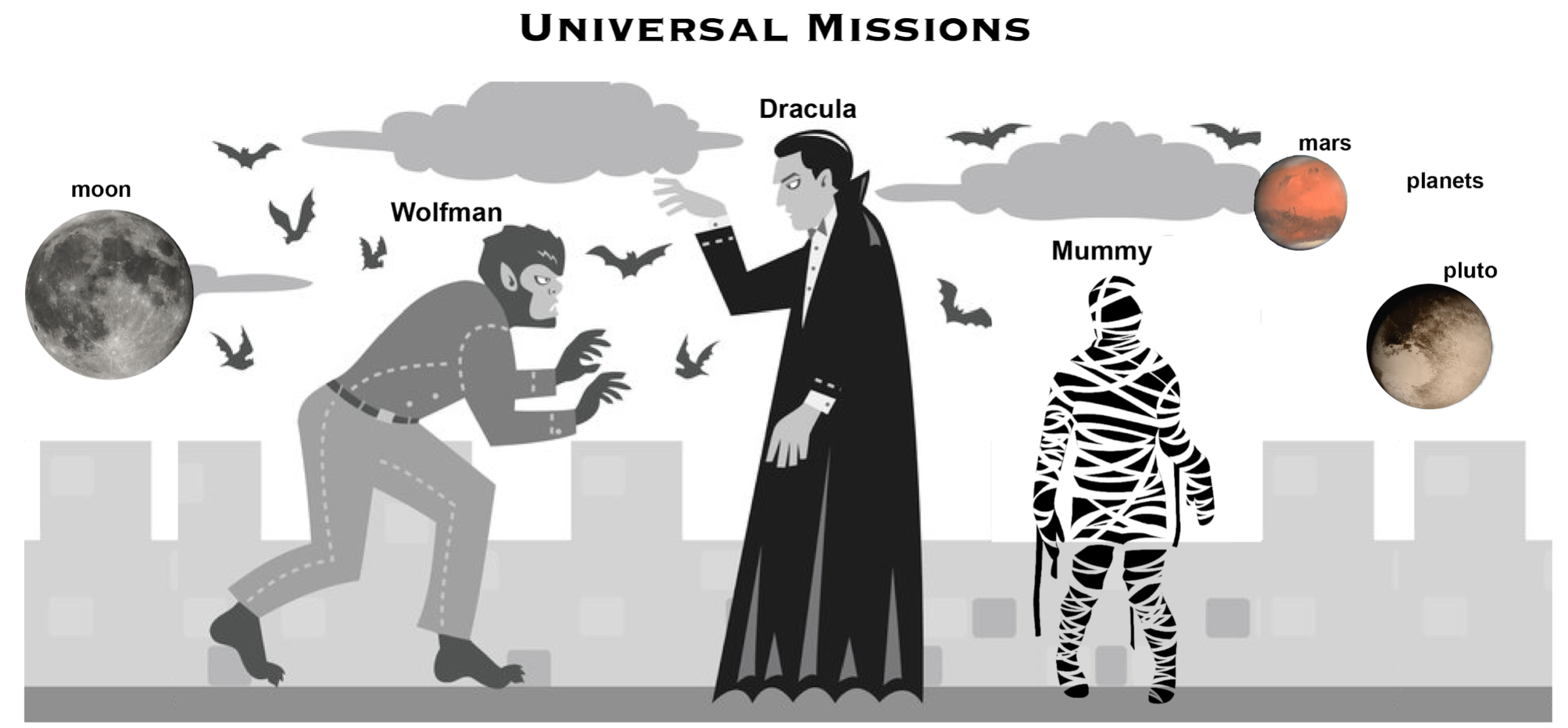
Along with tracking information about planets (the project we have already created), Dracula would also like to track information about moons. Despite Wolfman’s concerns, Dracula creates a moons project inside his planets project with the following sequence of commands:
```
$ cd ~/Desktop # return to Desktop directory
$ cd planets # go into planets directory, which is already a Git repository
$ ls -a # ensure the .git subdirectory is still present in the planets directory
$ mkdir moons # make a subdirectory planets/moons
$ cd moons # go into moons subdirectory
$ git init # make the moons subdirectory a Git repository
$ ls -a # ensure the .git subdirectory is present indicating we have created a new Git repository
```
Is the git init command, run inside the moons subdirectory, required for tracking files stored in the moons subdirectory?
:::spoiler :eyes: ***Solution***
No. Dracula does not need to make the moons subdirectory a Git repository because the planets repository can track any files, sub-directories, and subdirectory files under the planets directory. Thus, in order to track all information about moons, Dracula only needed to add the moons subdirectory to the planets directory.
Additionally, Git repositories can interfere with each other if they are “nested”: the outer repository will try to version-control the inner repository. Therefore, it’s best to create each new Git repository in a separate directory. To be sure that there is no conflicting repository in the directory, check the output of git status. If it looks like the following, you are good to go to create a new repository as shown above:
```
$ git status
```
```
fatal: Not a git repository (or any of the parent directories): .git
```
:::
:::success
:pencil: **G3.2 Correcting git init mistakes**
Wolfman explains to Dracula how a nested repository is redundant and may cause confusion down the road. Dracula would like to remove the nested repository. How can Dracula undo his last git init in the moons subdirectory?
:::spoiler :eyes: Solution - USE WITH CAUTION
### Background
Removing files from a Git repository needs to be done with caution. But we have not learned yet how to tell Git to track a particular file; we will learn this in the next episode. Files that are not tracked by Git can easily be removed like any other “ordinary” files with:
```
$rm filename
```
Similarly a directory can be removed using rm -r dirname or rm -rf dirname. If the files or folder being removed in this fashion are tracked by Git, then their removal becomes another change that we will need to track, as we will see in the next episode.
###Solution
Git keeps all of its files in the .git directory. To recover from this little mistake, Dracula can just remove the .git folder in the moons subdirectory by running the following command from inside the planets directory:
```
$ rm -rf moons/.git
```
But be careful! Running this command in the wrong directory will remove the entire Git history of a project you might want to keep. Therefore, always check your current directory using the command pwd.
:::
### 4. Tracking Changes
:::success
:pencil: **G4.1 Choosing a Commit Message**
Which of the following commit messages would be most appropriate for the last commit made to mars.txt?
1. “Changes”
2. “Added line ‘But the Mummy will appreciate the lack of humidity’ to mars.txt”
3. “Discuss effects of Mars’ climate on the Mummy”
:::spoiler :eyes: ***Solution***
Answer 1 is not descriptive enough, and the purpose of the commit is unclear; and answer 2 is redundant to using “git diff” to see what changed in this commit; but answer 3 is good: short, descriptive, and imperative.
:::
:::success
:pencil: **G4.2 Committing Changes to Git**
Which command(s) below would save the changes of `myfile.txt` to my local Git repository?
1. `$ git commit -m "my recent changes"`
2. `$ git init myfile.txt`
`$ git commit -m "my recent changes"`
3. `$ git add myfile.txt`
`$ git commit -m "my recent changes"`
4. `$ git commit -m myfile.txt "my recent changes"`
:::spoiler :eyes: ***Solution***
1. Would only create a commit if files have already been staged.
2. Would try to create a new repository.
3. Is correct: first add the file to the staging area, then commit.
4. Would try to commit a file “my recent changes” with the message myfile.txt.
:::
:::success
:pencil: **G4.3 Committing Multiple Files**
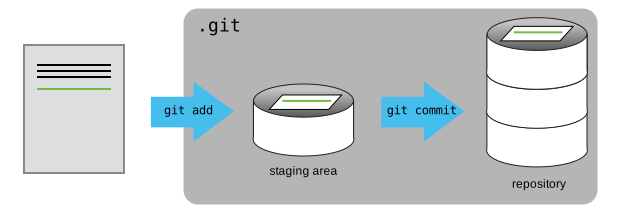
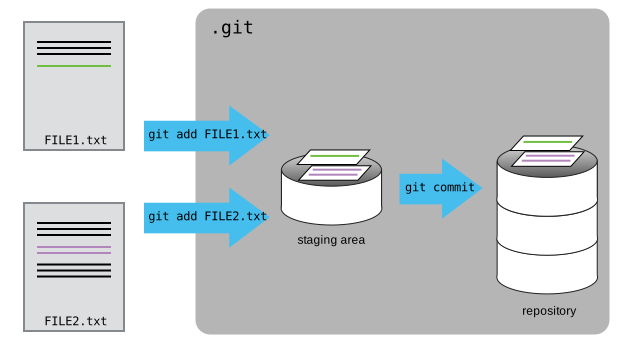
The staging area can hold changes from any number of files that you want to commit as a single snapshot.
1. Add some text to `mars.txt` noting your decision to consider Venus as a base
2. Create a new file `venus.txt` with your initial thoughts about Venus as a base for you and your friends
3. Add changes from both files to the staging area, and commit those changes.
:::
:::success
:pencil: **G4.4 `bio` Repository**
1. Create a new Git repository on your computer called bio.
2. Write a three-line biography for yourself in a file called `me.txt`, commit your changes
3. Modify one line, add a fourth line
4. Display the differences between its updated state and its original state.
:::
### 5. Exploring History
:::success
:pencil: **G5.1 Recovering Older Versions of a File**
Jennifer has made changes to the Python script that she has been working on for weeks, and the modifications she made this morning "broke" the script and it no longer runs. She has spent ~1hr trying to fix it, with no luck...
Luckily, she has been keeping track of her project’s versions using Git! Which commands below will let her recover the last committed version of her Python script called `data_cruncher.py`?
1. `$ git checkout HEAD`
2. `$ git checkout HEAD data_cruncher.py`
3. `$ git checkout HEAD~1 data_cruncher.py`
4. `$ git checkout <unique ID of last commit> data_cruncher.py`
5. Both 2 and 4
:::spoiler :eyes: ***Solution***
The answer is (5)-Both 2 and 4.
The checkout command restores files from the repository, overwriting the files in your working directory. Answers 2 and 4 both restore the latest version in the repository of the file data_cruncher.py. Answer 2 uses HEAD to indicate the latest, whereas answer 4 uses the unique ID of the last commit, which is what HEAD means.
Answer 3 gets the version of data_cruncher.py from the commit before HEAD, which is NOT what we wanted.
Answer 1 does nothing.
:::
:::success
:pencil: **G5.2 Understanding Workflow and History**
What is the output of the last command in
```
$ cd planets
$ echo "Venus is beautiful and full of love" > venus.txt
$ git add venus.txt
$ echo "Venus is too hot to be suitable as a base" >> venus.txt
$ git commit -m "Comment on Venus as an unsuitable base"
$ git checkout HEAD venus.txt
$ cat venus.txt #this will print the contents of venus.txt to the screen
```
1. `Venus is too hot to be suitable as a base`
2. `Venus is beautiful and full of love`
3. `Venus is beautiful and full of love`
`Venus is too hot to be suitable as a base`
4. Error because you have changed venus.txt without committing the changes
:::spoiler :eyes: ***Solution***
The answer is 2.
The command `git add venus.txt` places the current version of `venus.txt` into the staging area. The changes to the file from the second echo command are only applied to the working copy, not the version in the staging area.
So, when `git commit -m "Comment on Venus as an unsuitable base"` is executed, the version of `venus.txt` committed to the repository is the one from the staging area and has only one line.
At this time, the working copy still has the second line (and `git status` will show that the file is modified). However, `git checkout HEAD venus.txt` replaces the working copy with the most recently committed version of `venus.txt`.
So, `cat venus.txt` will output
`Venus is beautiful and full of love.`
:::
:::success
:pencil: **G5.3 Checking Understanding of `git diff`**
Consider this command: `git diff HEAD~9 mars.txt`. What do you predict this command will do if you execute it? What happens when you do execute it? Why?
Try another command, `git diff [ID] mars.txt`, where [ID] is replaced with the unique identifier for your most recent commit. What do you think will happen, and what does happen?
:::
:::success
:pencil: **G5.4 Getting Rid of Staged Changes**
`git checkout` can be used to restore a previous commit when unstaged changes have been made, but will it also work for changes that have been staged but not committed? Make a change to `mars.txt`, add that change, and use `git checkout` to see if you can remove your change.
:::
:::success
:pencil: **G5.5 Explore and Summarize Histories**
Exploring history is an important part of Git, and often it is a challenge to find the right commit ID, especially if the commit is from several months ago.
Imagine the `planets` project has more than 50 files. You would like to find a commit that modifies some specific text in `mars.txt`. When you type `git log`, a very long list appeared. How can you narrow down the search?
Recall that the `git diff` command allows us to explore one specific file, e.g., `git diff mars.txt`. We can apply a similar idea here.
```
$ git log mars.txt
```
Unfortunately some of these commit messages are very ambiguous, e.g., `update files`. How can you search through these files?
Both `git diff` and `git log` are very useful and they summarize a different part of the history for you. Is it possible to combine both? Let’s try the following:
```
$ git log --patch mars.txt
```
You should get a long list of output, and you should be able to see both commit messages and the difference between each commit.
Question: What does the following command do?
```
$ git log --patch HEAD~9 *.txt
```
:::
### 6. Ignoring Things
:::success
:pencil: **G6.1 Ignoring Nested Files**
Given a directory structure that looks like:
```
results/data
results/plots
```
How would you ignore only `results/plots` and not `results/data`?
:::spoiler :eyes: ***Solution***
If you only want to ignore the contents of `results/plots`, you can change your `.gitignore` to ignore only the `/plots/` subfolder by adding the following line to your `.gitignore`:
`results/plots/`
This line will ensure only the contents of `results/plots` is ignored, and not the contents of `results/data`.
As with most programming issues, there are a few alternative ways that one may ensure this ignore rule is followed. The “Ignoring Nested Files: Variation” exercise has a slightly different directory structure that presents an alternative solution. Further, the discussion page has more detail on ignore rules.
:::
:::success
:pencil: **G6.2 Including Specific Files**
How would you ignore all `.dat` files in your root directory except for `final.dat`? Hint: Find out what `!` (the exclamation point operator) does.
:::spoiler :eyes: ***Solution***
You would add the following two lines to your .gitignore:
```
*.dat # ignore all data files
!final.dat # except final.data
```
The exclamation point operator will include a previously excluded entry.
Note also that because you’ve previously committed `.dat` files in this lesson they will not be ignored with this new rule. Only future additions of `.dat` files added to the root directory will be ignored.
:::
:::success
:pencil: **G6.3 Ignoring Nested Files: Variation**
Given a directory structure that looks similar to the earlier Nested Files exercise, but with a slightly different directory structure:
```
results/data
results/images
results/plots
results/analysis
```
How would you ignore all of the contents in the `results` folder, but not `results/data`?
Hint: think a bit about how you created an exception with the `!` operator before.
:::spoiler :eyes: ***Solution***
If you want to ignore the contents of `results/` but not those of `results/data/`, you can change your `.gitignore` to ignore the contents of `results` folder, but create an exception for the contents of the `results/data` subfolder. Your `.gitignore` would look like this:
```
results/* # ignore everything in results folder
!results/data/ # do not ignore results/data/ contents
```
:::
:::success
:pencil: **G6.4 Ignoring all data Files in a Directory**
Assuming you have an empty `.gitignore` file, and given a directory structure that looks like:
```
results/data/position/gps/a.dat
results/data/position/gps/b.dat
results/data/position/gps/c.dat
results/data/position/gps/info.txt
results/plots
```
What’s the shortest `.gitignore` rule you could write to ignore all `.dat` files in `results/data/position/gps`? Do not ignore the `info.txt`.
:::spoiler :eyes: ***Solution***
Appending `results/data/position/gps/*.dat` will match every file in `results/data/position/gps` that ends with `.dat`. The file `results/data/position/gps/info.txt` will not be ignored.
:::
:::success
:pencil: **G6.5 Ignore all data Files in the repository**
Let us assume you have many .dat files in different subdirectories of your repository. For example, you might have:
```
results/a.dat
data/experiment_1/b.dat
data/experiment_2/c.dat
data/experiment_2/variation_1/d.dat
```
How do you ignore all the `.dat` files, without explicitly listing the names of the corresponding folders?
:::spoiler :eyes: ***Solution***
In the .gitignore file, write:
`**/*.dat`
(Or, just `*.dat`)
This will ignore all the `.dat` files, regardless of their position in the directory tree. You can still include some specific exception with the exclamation point operator.
:::
:::success
:pencil: **G6.6 Files to Ignore**
Discuss with your neighbor what types of files could reside in your directory that you do not want to track and thus would exclude via `.gitignore`.
:::
### 7. Remotes in GitHub


:::success
:pencil: **G7.1 Push vs. Commit**
In this episode, we introduced the `git push` command. How is `git push` different from `git commit`?
:::spoiler :eyes: ***Solution***
When we push changes, we’re interacting with a remote repository to update it with the changes we’ve made locally (often this corresponds to sharing the changes we’ve made with others). Commit only updates your local repository.
:::
:::success
:pencil: **G7.2 GitHub License and README files**
In this episode we learned about creating a remote repository on GitHub, but when you initialized your GitHub repo, you didn’t add a `README.md` or a license file. If you had, what do you think would have happened when you tried to link your local and remote repositories?
:::spoiler :eyes: ***Solution***
In this case, we’d see a merge conflict due to unrelated histories. When GitHub creates a `README.md` file, it performs a commit in the remote repository. When you try to pull the remote repository to your local repository, Git detects that they have histories that do not share a common origin and refuses to merge.
```
$ git pull origin main
```
Output:
```
warning: no common commits
remote: Enumerating objects: 3, done.
remote: Counting objects: 100% (3/3), done.
remote: Total 3 (delta 0), reused 0 (delta 0), pack-reused 0
Unpacking objects: 100% (3/3), done.
From https://github.com/vlad/planets
* branch main -> FETCH_HEAD
* [new branch] main -> origin/main
fatal: refusing to merge unrelated histories
```
You can force git to merge the two repositories with the option `--allow-unrelated-histories`. Be careful when you use this option and carefully examine the contents of local and remote repositories before merging.
```
git pull --allow-unrelated-histories origin main
```
Output:
```
From https://github.com/vlad/planets
* branch main -> FETCH_HEAD
Merge made by the 'recursive' strategy.
README.md | 1 +
1 file changed, 1 insertion(+)
create mode 100644 README.md
```
:::
### 8. Collaborating


### 9. Conflicts

### 10. Open Science

### 11. Licensing
### 12. Citation
### 13. Hosting


 Sign in with Wallet
Connect another wallet
Sign in with Wallet
Connect another wallet