---
tags: BMMB554-23
---
[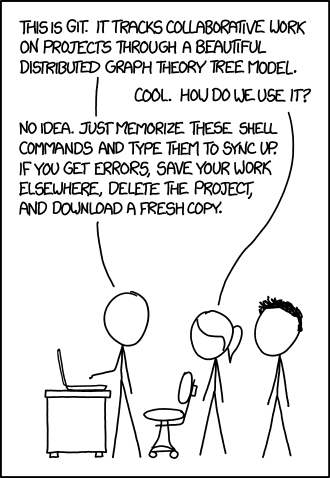](https://xkcd.com/1597/)
# Lecture 13: Git and GitHub
:::warning
Today we will talk about *local* use of `git` because GitHub requires authentication that you will need to set up before Thursday
:::
## Lecture setup
1. Start [JupyterLab](https://mybinder.org/v2/gh/jupyterlab/jupyterlab-demo/try.jupyter.org?urlpath=lab)
2. Start terminal within JupyterLab instance
## Git resources
- [The Git Book](https://git-scm.com/book/en/v2)
- Troubleshooting [PG13](https://dangitgit.com/en) [R](https://ohshitgit.com/)
## Version control
- Manages changes over time
- Enables collaboration
- Provides complete history
## Git versus GitHub
- Git - version control system
- GitHub - hosting service
### Logic:

> From tutorials by [Kyle Bradbury](https://www.kylebradbury.org/index.html)
### Main commands:

> From tutorials by [Kyle Bradbury](https://www.kylebradbury.org/index.html)
### Branch flow

> From [GitBetter](https://gitbetter.substack.com/p/how-to-work-in-multiple-git-branches)
## Clone a [sample repo](https://github.com/nekrut/bmmb554_foo_bar) from GitHub
```bash=
git clone https://github.com/nekrut/bmmb554_foo_bar.git
```
## Check history of this repo using `git log`
```bash=
$git log
commit de89f51d8e124665713f6fd94cd46447d172033b (HEAD -> main, origin/main, origin/HEAD)
Author: Anton Nekrutenko <anekrut@gmail.com>
Date: Tue Feb 21 08:02:50 2023 -0500
Create file2.txt
commit bc3e5c4a9d54203739bb90f29d92e20082b9e5d4
Author: Anton Nekrutenko <anekrut@gmail.com>
Date: Tue Feb 21 08:02:25 2023 -0500
Create file1.txt
commit 99dd43783be37b08c1ca80cdc881eae537526396
Author: Anton Nekrutenko <anekrut@gmail.com>
Date: Tue Feb 21 08:00:34 2023 -0500
Updated readme
commit 18ebdabfe6f92f33ea626994ce6c9998cbe63522
Author: Anton Nekrutenko <anekrut@gmail.com>
Date: Tue Feb 21 07:59:46 2023 -0500
Initial commit
```
## Check status of the repo
```bash=
$git status
On branch main
Your branch is up to date with 'origin/main'.
nothing to commit, working tree clean
```
## Let's change and stage a file
Use editor to modify `file1.txt`. Once it is saved, we can see what is happening by using `git status` again:
```bash=
$git status
On branch main
Your branch is up to date with 'origin/main'.
Changes not staged for commit:
(use "git add <file>..." to update what will be committed)
(use "git checkout -- <file>..." to discard changes in working directory)
modified: file1.txt
Untracked files:
(use "git add <file>..." to include in what will be committed)
.ipynb_checkpoints/
no changes added to commit (use "git add" and/or "git commit -a")
```
You can see, that the file is modified, but it is *not staged*. Tio stage it for commit you need to explicitly add it to staging:
```bash=
git add file1.txt
```
If you run `git status` now you will get:
```bash=
$git status
On branch main
Your branch is up to date with 'origin/main'.
Changes to be committed:
(use "git reset HEAD <file>..." to unstage)
modified: file1.txt
Untracked files:
(use "git add <file>..." to include in what will be committed)
.ipynb_checkpoints/
```
## Oh :shit:: `get reset`
Running `git reset` will restore the *status quo* as it was prior to `git add`:
```bash=
$git reset
Unstaged changes after reset:
M file1.txt
```
and `git status` will look as it did prior to `git add`:
```bash=
git status
On branch main
Your branch is up to date with 'origin/main'.
Changes not staged for commit:
(use "git add <file>..." to update what will be committed)
(use "git checkout -- <file>..." to discard changes in working directory)
modified: file1.txt
Untracked files:
(use "git add <file>..." to include in what will be committed)
.ipynb_checkpoints/
no changes added to commit (use "git add" and/or "git commit -a")
```
## Let's stage and commit
If you are indeed ready to go ahead let's `add`:
```bash=
git add file1.txt
```
and `commit`
```bash=
$git commit -m 'modified file1'
[main 476adb7] modified file1
1 file changed, 1 insertion(+), 1 deletion(-)
```
If run `git log` you will this addition commit:
```bash=
$git log
commit 476adb7b64a9330199fea13ca2e7523f7fe90189 (HEAD -> main)
Author: nekrut <anekrut@gmail.com>
Date: Tue Feb 21 13:23:24 2023 +0000
modified file1
```
or alternatively you can use `--oneline` flag:
```bash=
$git log --oneline
476adb7 (HEAD -> main) modified file1
de89f51 (origin/main, origin/HEAD) Create file2.txt
bc3e5c4 Create file1.txt
99dd437 Updated readme
18ebdab Initial commit
```
## Oh :shit:: `get revert`
To roll everything back you can do this:
```$git revert 476adb7
[main 1f13d5f] Revert "modified file1"
1 file changed, 1 insertion(+), 1 deletion(-)
```
This will bring `vim` editor with a pre-filled rollback message:

To save this and get out:
- press <kbd>ESC</kbd>
- type `:wq`
- hit <kbd>Enter</kbd>
Now, let's look at the log (showing just two lat commits):
```bash=
git log
commit 1f13d5fcf38057db9a90066b99aa475a6eeb1bae (HEAD -> main)
Author: nekrut <anekrut@gmail.com>
Date: Tue Feb 21 13:31:24 2023 +0000
Revert "modified file1"
This reverts commit 476adb7b64a9330199fea13ca2e7523f7fe90189.
commit 476adb7b64a9330199fea13ca2e7523f7fe90189
Author: nekrut <anekrut@gmail.com>
Date: Tue Feb 21 13:23:24 2023 +0000
modified file1
```
## Let's actually do make changes and highlight them with diff
First, let's modify, say, `file2.txt` by adding a line. In this example I modified it from:
```
This
is
another
file
I've
made
```
to
```
This
is
file2
I've
made
```
Now `add` and `commit`:
```bash=
$ git status
On branch main
Your branch is ahead of 'origin/main' by 2 commits.
(use "git push" to publish your local commits)
Changes not staged for commit:
(use "git add <file>..." to update what will be committed)
(use "git checkout -- <file>..." to discard changes in working directory)
modified: file2.txt
Untracked files:
(use "git add <file>..." to include in what will be committed)
.ipynb_checkpoints/
no changes added to commit (use "git add" and/or "git commit -a")
$ git add file2.txt
$ git commit -m 'changed file2'
[main a947686] changed file2
1 file changed, 1 insertion(+), 2 deletions(-)
```
Let's now compare the changes between two commits:
```bash=
$ git diff a947686 1f13d5f
diff --git a/file2.txt b/file2.txt
index 1f383ac..e13e461 100644
--- a/file2.txt
+++ b/file2.txt
@@ -1,5 +1,6 @@
This
is
-file2
+another
+file
I've
made
```
here:
- `a` and `b` = tags of files being compared
- `---` and `+++` marked to indiciate differences between `a` and `b`
- `@@ -1,5 +1,6 @@` file chunk header which has the following format:
- `@@ [file a range][file b range] @@`
- File ranges are: `<start line><number of lines>`
## Branches

> From [GitBetter](https://gitbetter.substack.com/p/how-to-work-in-multiple-git-branches)
To enable collaborations and to give the ability to develop major features without disrupting production (`master` or `main`) branch Git allows creation of multiple branches.
### Create a new branch and switch to it
Let's create branch dev:
```bash=
git branch dev
```
to see existing branches:
```bash=
$ git branch
dev
* main
```
The `main` branch is active (tagged with `*`). To actually switch branches:
```bash=
$ git checkout dev
Switched to branch 'dev'
```
### Make changes
Let's make some changes, say, to `file1.txt` from this:
```
This
is
a
file
```
to this:
```
This
is
a
file1
```
and then get `status`, `add`, and `commit`:
```bash=
$ git status
On branch dev
Changes not staged for commit:
(use "git add <file>..." to update what will be committed)
(use "git checkout -- <file>..." to discard changes in working directory)
modified: file1.txt
Untracked files:
(use "git add <file>..." to include in what will be committed)
.ipynb_checkpoints/
no changes added to commit (use "git add" and/or "git commit -a")
$ git add file1.txt
$ git commit -m 'changes to file1.txt'
[dev 05ce64d] changes to file1.txt
1 file changed, 1 insertion(+), 1 deletion(-)
```
### Switch to another branch and look at the modified file
If we switch back to `main` and look at the content of `file1.txt` we will see the "old" content:
```
This
is
a
file
```
### Merge branches
To incorporate changes from `dev` to `master` we need to do a merge:
```bash=
$ git merge dev main
Updating a947686..05ce64d
Fast-forward
file1.txt | 2 +-
1 file changed, 1 insertion(+), 1 deletion(-)
```
and if we look at `file1.txt` again we will see the change:
$ more file1.txt
This
is
a
file1
We can now delete the branch:
```bash=
$ git branch -d dev
Deleted branch dev (was 05ce64d).
```
### Merging with conflicts
To simulate a merging conflict we need to make different changes to the same line of a file in different branches.
#### Modify `file1.txt` in `main`
First, let's checkout `main` and make the following change to `file1.txt`, say, from
```
This
is
a
file1
```
to
```
This
is
a
file1 - the first file we created
```
now we add and commit:
```bash=
$ git add file1.txt
$ git commit -m 'main changes to file1'
[main dfd0598] main changes to file1
1 file changed, 1 insertion(+), 1 deletion(-)
```
:::info
You can use `git diff` to see the differences between branches such as, for example:
```bash=
$ git diff main dev
diff --git a/file1.txt b/file1.txt
index f8e8191..e82ee85 100644
--- a/file1.txt
+++ b/file1.txt
@@ -1,4 +1,4 @@
This
is
a
-file1 - the first file we created
+file1
```
:::
#### Modify `file1.txt` in `dev`
Checkout `dev`:
```bash=
$ git checkout dev
Switched to branch 'dev'
```
Change `file1.txt`, say, from:
```
This
is
a
file1
```
to
```
This
is
a
file1 - the first file
```
now we add and commit:
```bash=
$ git add file1.txt
$ git commit -m 'dev changes to file1'
[dev b2b8b9e] dev changes to file1
1 file changed, 1 insertion(+), 1 deletion(-)
```
#### Checkout `main` and try to `merge`
```bash=
$ git merge main dev
Auto-merging file1.txt
CONFLICT (content): Merge conflict in file1.txt
Automatic merge failed; fix conflicts and then commit the result.
```
If then actually look at the content of the file, you will see this:

so here you need to decide which version you will keep and edit the file correspondingly. For example, I edited it to this form and saved:

Now I need to `add` and `commit`:
```bash=
$ git add file1.txt
jovyan@jupyter-jupyterlab-2djupyterlab-2ddemo-2dryet2dsd:~/bmmb554_foo_bar$ git commit -m 'merged dev into main'
```
 Sign in with Wallet
Connect another wallet
Sign in with Wallet
Connect another wallet