###### tags: `target_capture_workshop`
# SESSION 1: CyVerse INITIATIVE
---
Welcome to the BOTANY 2022 HybSeq Bioinformatics Workshop, held by the West Texas Association for Botany (WTAB), which is also the TTU student chapter of the Botanical Society of America. This workshop is also supported by a grant from the National Science Foundation (NSF-DEB 1753800) to Matt Johnson.
The first session of the series will guide you through the very first steps of using CyVerse's Discovery Environment and navigating your personal cloud computing space. We will finish off by downloading sequence data from the KEW database that will be used in the next session.
---
[TOC]
## 0.1 How to use this tutorial
In each section, there will be example lines of code that can be entered in the Discovery Environment.
`Code we write will look like this`
At the end of each section, there will be space to input your own codes that you used to complete the tutorial. This is to encourage you to learn the structure of command writing, as opposed to copy and pasting the code given in the session.
```
When you see large grey boxes, this is where we would like you to write your own lines, so we can assist you if you have issues.
```
How To Read:
Words in [brackets] is where we encourage you to be creative, or use your own username.
## 1.1: Exploring the Discovery Environment
All computers allow you access to a terminal, which is a window that allows you to communicate with your computer, and command it to perform functions. All computers have a built in terminal. While we can all perform this tutorial on our own computers, we chose to have this be a standardized way of completeing this tutorial. Systems and institution clusters can be different, and it is easier for us to assist if we are all familiar with the computing environment.
After you are given access to the discovery environment, a pop-up will appear, asking if you would like a walk-through of the discovery environment. Read and click through to become familliar with the webpage.
We will be using JupyterLab to launch a terminal. Follow this [link](https://de.cyverse.org/apps/de/cc77b788-bc45-11eb-9934-008cfa5ae621/launch), or type in 'JupyterLab' into the DiscoveryEnvironment search bar.
Click 'Next' on all of the pages, and then click 'Go to Analysis'.

From there, you will click on 'Terminal' to open the terminal.

The terminal automaticaly assigns you a username and logs you in.
## 1.2 Navigating The File System
Lets try a few commands that allow you to visualize and organize your personal directory in command line.
`pwd`: Print the working directory. Think of this command as "Where am I?"
`ls` : lists all directories in the directory you are currently in. Use `ls` to identify folders in your current directory. Think of this command as "what's here?"
> example: `ls [dirname]`
`mkdir` : Makes a new directory in the current directory you are in.
> example: `mkdir [newname]`
`cd` : Change Directory. You can use this command to move between directories in your terminal. Think of this command as "go here."
example: `cd [newname]`
There are several shortcuts to common places within the file system:
* `.` : the current directory
* `..`: the directory "above" (closer to the root) the current directory
* `~` : your home directory
Use `pwd` to see where you are in the system, and `ls` to view all the files in the current directory. By default, you will end up in your home directory when you login for the first time.
Create a new directory to keep your data in for this tutorial. You can call it whatever you'd like, but for tutorial purposes, we will call our directory `TC_Workshop`. After youve created it, use the `ls` command to see it in your files. Navigate to your new directory by using the `cd` command.
### Action 1.2.1
*If you get lost, try using the `ls` and `pwd` commands to get a hint about where you can move.*
*Make a new directory called `TC_Workshop` and enter that directory*
```
```
## 1.3 Creating and Copying Files
To demonstrate how to copy data between two folders, we will create a text file and copy it into an adjacent directory.
### Action 1.3.1
Return to your directory that you just created (`TC_Workshop`). Within that directory, make two new directories, called `Test1` and `Test2`.
```
```
**Expected Results**
Within your `TC_Workshop` directory, running the `ls` command should look something like this:
```
[cpu-24-60 TC_workshop]$ ls
Test1 Test2
```
To create a new text file, you can use the `nano` command. First, navigate to the `Test1` directory using `cd`. Then enter the command:
`nano`
### Action 1.3.2
This command opens the basic `nano` text editor. [You can read more about `nano` here.
](https://www.nano-editor.org/docs.php)
1. Type any sort of message into the screen.
2. To exit `nano`, use Control+X. It will prompt you to save. Type `Y` for yes.
3. It will now prompt you for a file name. Name the file `file1.txt` and hit enter.
When you have exited `nano` you can use the `ls` command, you can now see a text file in your Test1 directory.
Navigate to your `Test2` directory using `cd` commands. Once you are in `Test2`, you can use the `cp` command to copy your text file into the current directory.
`
cp ../Test1/file1.txt .
`
Note that the command above uses the shortcuts `..` (one directory up) and `.` (current directory).
### Action 1.3.3
*Create a new text file called `file2.txt` in `Test2` using `nano` and copy it to `Test1`.*
```
```
**Expected Results**
From the `TC_Workshop` directory, you should have the following results:
```
[cpu-24-60 TC_Workshop]$ ls
Test1 Test2
[cpu-24-60 TC_Workshop]$ ls Test1
file1.txt file2.txt
[cpu-24-60 TC_Workshop]$ ls Test2
file1.txt file2.txt
```
The cp command can be used across directories in your space, and other user's space on HPCC, as long as you have the pathname to retrieve the file.
## 1.4 Opening and Modifying Your `~/.bashrc` File
BASH stands for Bourne Again Shell. A shell in command line interprets for the user, and is able to accept commands and run them. You will already find a file called .bashrc in your personal repository, although you cannot see it. Specifically, a .bashrc file is a shell script that will run immediately as you open a new shell. You can open a new shell by opening a new terminal, or commanding the bashrc file to run again. If you want specific commands to run everytime you open your terminal, placing them in .bashrc would be efficient. More advanced command line users will use the bashrc file to display system information when they open their terminal, or store 'aliases' which are personal shortcuts to long commands.
To open and edit the .bashrc file, we can use the nano command we used in Secion 1.5. You will likely find your bashrc file in your first parent repository.
`
nano ~/.bashrc
`
To demonstrate the function of .bashrc, lets type a command that will print a greeting when you open up your terminal. Make sure to put your message inside quotes.
`
echo "##Hello [Your message]##"
`
### Action 1.4.1
*Use `echo` to create a greeting message.*
```
```
Restart your terminal (quit the Terminal and restart it) to see your greeting repeated, proving the function of your edited .bashrc file!
## 1.5 Transferring DNA Sequence Data
KEW Royal Botanic Gardens has an online repository of plant sequence data available to the public that you can download and upload to your HPCC space at no cost to you. The Kew Tree of Life Explorer is important to genomicists globally, as their data is stored and available for use by other scientists after publication.
> The Kew Tree of Life Explorer is an output of the Plant and Fungal Trees of Life Project (PAFTOL) at the Royal Botanic Gardens, Kew. PAFTOL aims to discover and disseminate the evolutionary history of all plant and fungal genera. The evolutionary tree of life is fundamental to our understanding of the natural world. Comparative studies of DNA sequence data have revolutionised our knowledge of the tree of life, however many gaps remain. In collaboration with partners from around the world, PAFTOL is addressing this challenge by generating, compiling and analysing genomic data for all ca. 13,900 flowering plant and 8,200 fungal genera to build novel trees of life at unprecedented scale.
SOURCE: [Kew Royal Botanic Gardens](https://treeoflife.kew.org/about)
Before we begin, open [this link](https://treeoflife.kew.org/) in your browser to explore the Kew Tree of Life page. Choose any species from the tree that interests you. Here are a few fun ideas:
* *[Ephedra sinica](https://treeoflife.kew.org/tree-of-life/18215)*: Native to China, *Ephedra sinica* has been used as a traditional plant medicine for thousands of years. Native americans used other *Ephedra* species to treat colds and flus. *Ephedra* species create the bioactive compounds ephedrine and pseudoephedrine, which are the main active ingredient in the drug Sudafed.

* [*Vanilla planifolia*](https://treeoflife.kew.org/tree-of-life/18115): The vanilla orchid, as hinted to by its Genus, creates the long black vanilla 'beans' that are used in cooking. The vanilla orchid scales trees or other structures in their native habitat, and must be hand pollinated by horticulturists in order to produce a pod, which contributes to their high price.

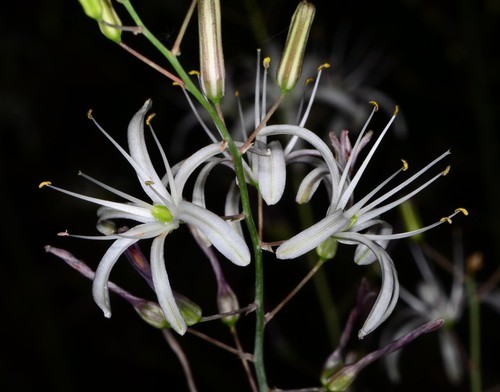
* [*Chlorogalum pomeridianum*](https://treeoflife.kew.org/tree-of-life/17891): The Wavyleaf Soap Plant is a species ethnobotanists consider a 'swiss army knife plant'. The bulb was roasted and eaten as a food by California's indigenous tribes. The fibrous raw bulbs could be crushed, with the fibers being used to make brushes and tools, while the juice was used as medicine. The bulb juice was also used to stupefy fish- allowing for tribal fisherman to simply pluck the fish out of the water.
When you have selected your species, click on it. You will see a green "Download Gene Sequences" button. If you click on it, you will see a plain text file with DNA sequences. The format of this file is `FASTA` which will be covered in more detail in the next session.
For now, you can use the command `wget` to download this file to HPCC.
`wget [http://url.org]`
### Action 1.5.1: Downloading Data from Kew
First, navigate to the `TC_workshop` directory. Next, type `wget`, copy the URL from the [Tree of Life Explorer](https://treeoflife.kew.org/tree-of-life) site, and paste it into the terminal.
```
```
The following commands will be useful for working with large text files.
`ls -lath`
This modified form of the `ls` command will give you more information about the file, including when it was last modified and the file size.
**Expected Results**
Your `TC_Workshop` directory should now look something like this:
```
[cpu-24-60 TC_workshop]$ ls -lath
total 240K
drwxr-xr-x 4 joh97948 bio 4.0K Nov 29 18:33 .
drwxr-xr-x 2 joh97948 bio 4.0K Nov 29 18:10 Test1
drwxr-xr-x 2 joh97948 bio 4.0K Nov 29 18:10 Test2
drwxr-xr-x 6 joh97948 bio 4.0K Nov 29 17:38 ..
-rw-r--r-- 1 joh97948 bio 221K Feb 16 2021 INSDC.ERR5034798.Afrofittonia_silvestris.a353.fasta
```
`wc` : Word Count
The `wc` command will print the number of words, characters, and lines in a file. You can also just get one of these, which can be useful for when you want to see the number of lines in each file of a group. For example, `wc -l [filename].txt` will return the number of lines in `[filename].txt`
### Action 1.5.2: Word Count
*Use `wc` to print the number of lines in the `.fasta` file you downloaded from Kew*
```
```
`less`: text file viewer
By using `less filename.txt` you can see the contents of a file without editing it. You can exit the `less` window by typing the letter `q`.
You can search for text within a text file by typing `/` (forward slash) and then a search string.
### Action 1.5.3: less is more
*Use `less` it with the `.fasta` file you downloaded from Kew. Use the search command to see if the DNA sequence `ATG` appears in the file.*
 Sign in with Wallet
Connect another wallet
Sign in with Wallet
Connect another wallet