---
tags: jessi
---
# micro-project: TDM90DR interview editing
**Wednesday, September 21 (3-5PM)**
Last semester, Jessi filmed a series of "before and after" interviews with the students in TDM90DR: Harvard Dance Project. Now, we are working to edit each students' set of interviews into a [Vanity Fair style edit](https://www.youtube.com/watch?v=Cm0MGnuRnH0) that shows a back and forth between the first and second interviews.
We need LLUF support to help with the tedious task of making initial edits of each students' interview.
The final product of this work will look something like this:
<center><iframe width="730" height="415" src="https://player.vimeo.com/video/738455606?h=b812b0f04c&badge=0&autopause=0&player_id=0&app_id=58479" title="YouTube video player" frameborder="0" allow="accelerometer; autoplay; clipboard-write; encrypted-media; gyroscope; picture-in-picture" allowfullscreen></iframe></center>
### Prep: what has already been done
* proxy footage & fcpx project put on each computer
* individual projects created
* multicam clips created
* clips put in project timeline
### Step 1: Finding the project
finder -> color_storage -> date of workshop
* Open finder, open `color_storage`
* Open `insert date here`
* Open `TDM90DR-student-interviews`
* Open `projects`
* Open `TDM90DR` fcpx file
* In `edits`, find the project with the student's name you've been assigned
### Step 2: Inserting Time Markers
Throughout each interview, you can hear Jessi ask a series of questions to the students. The questions are essentially the same across each interview. Your first task will be to **make time markers in the clip where Jessi's questions are asked**.
Rather than having to listen to the entire clip, a quicker way to do this is to look at the audio timeline and find places where the audio "dips" in volume.

The questions you are looking for are:
* [First round questions (brick background)](https://hackmd.io/@mdf-22-23/rJ938TEbs)
* [Second round questions (LL background)](https://hackmd.io/@mdf-22-23/HJN7PpNbj)
### Step 3: Creating compound clips for each question
Once you've finished making time markers for both clips, you can cut the clips into smaller fragments (`command+b`) for each question/answer and use `option+G` to create compound clips for each set of questions. For example, if both clips have introductions from the students "Hi, my name is..." those two clips and be cut together into a single compound clip.
Each question that is present in both interviews will need 2 compound clips named:
* name_Q#_split
* name_Q#_pip
For easy duplication, you can select the first compound clip and `command+d` to make a copy, then rename.
### Step 4: split screen + picture in picture
#### split screen
In the compound clip `name_Q#_split`, you're going to create a split screen beteween the two interviews that will look like this:

In order to do this, you'll want to:
* select `veiw` in the top right corner of the frame, and select `show horizon`
* make sure interview 1 is on top
* transform top clip to the left by clicking and dragging the "X" plane to the left until the student is centered in the left half of the frame
* crop the rest away by dragging the `right` setting over until it hits the vertical horizon line
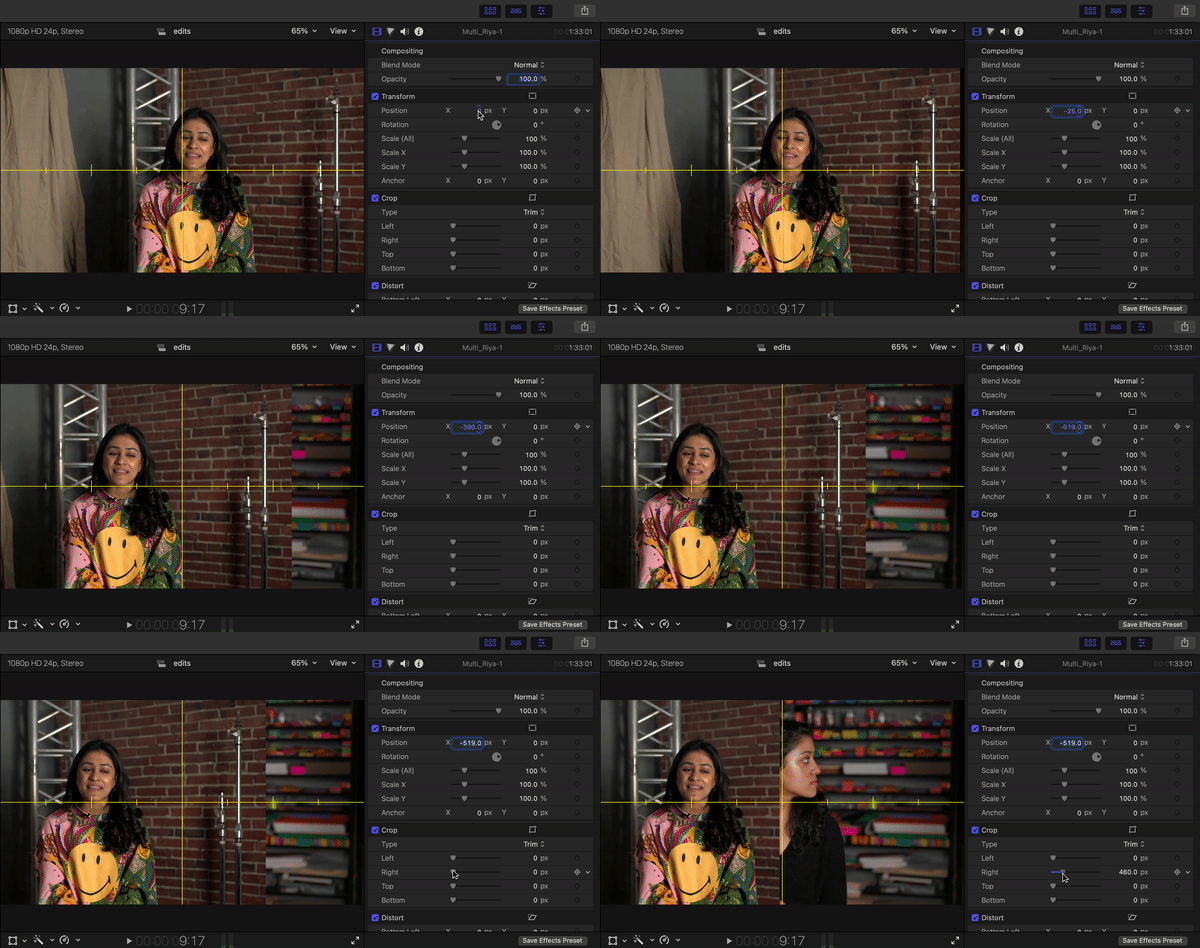
* do the same transformation for the interview 2 clip, dragging the "X" plane to the right
* finally, adjust the scales of interview 1 clip to match the scale of interview 2
#### picture-in-picture
In the compound clip `name_Q#_pip`, you're going to create a split screen beteween the two interviews that will look like this:

In order to do this, you'll want to:
* make sure interiew 1 is on top
* switch interview 1 to the close-up angle by right clicking on the clip, selecting `active video angle`, and selecting `0`
* transform interview 1 clip to the following settings:
```
Position X: 498 px
Position Y: -282 px
Scale (All): 38.47%
```
* transform interview 2 clip to the following settings:
```
Position X: -377 px
Position Y: -205 px
Scale (All:) 142%
```
**Adjust these settings as necessary to achieve similar look to example above.
 Sign in with Wallet
Connect another wallet
Sign in with Wallet
Connect another wallet