###### tags: `Music`, `Siriana`
# Music 160r Workshop: Film Editing for Composers
## What Makes a Good Score Following Video?
<iframe width="560" height="315" src="https://www.youtube.com/embed/t8SCUUMzUDA" title="YouTube video player" frameborder="0" allow="accelerometer; autoplay; clipboard-write; encrypted-media; gyroscope; picture-in-picture" allowfullscreen></iframe>
<iframe width="560" height="315" src="https://www.youtube.com/embed/DuD9_yX3dAI" title="YouTube video player" frameborder="0" allow="accelerometer; autoplay; clipboard-write; encrypted-media; gyroscope; picture-in-picture" allowfullscreen></iframe>
### Discussion Questions
* What are the elements of the Cage video vs. the elements Vinetz video? Which do you prefer? What do they accomplish?
* What in these videos is effective in relation to the piece? What does it highlight about form, construction, etc.?
* What is the purpose of making a score following video? What do you hope to highlight in your own work?
* Who is the audience for this type of video for you? Where will you put this video? Does that platform have conventions you need to follow?
## Scorefol.io Software
Scorefol.io is an automatic score-following software that outputs a shareable video (to YouTube, Vimeo, or your personal website) of a page by page score tracking video.
### Step 1. Create an Account
Visit [scorefolio.io](https://beta.scorefol.io/) and create a free account. There are two possible accounts- if you pay for premium, you have the chance to have your video uploaded on the Score Follower YouTube Channel.
### Step 2. Prep Your Media
Scorefolio.io accepts .mp3, .wav, or .aif as audio and PDF as image files. Audio files can not be altered in length after upload so make sure your recording is the length you like. This includes having a bit of blank time at the beginning for a title slide and silence at the end for YouTube's channel markers.
Additionally, make sure your PDF includes any additional information (instrumentation, performance notes, program notes, etc.) that you want displayed.
If you would like to use practice media, access a public domain score and recording here.
[MEDIA ASSETS](https://drive.google.com/drive/folders/1Up8RWpS0oh896wN0LI8NKT_pdT3S3QR7?usp=share_link)
### Step 3. Upload your select media and PDF of your score.
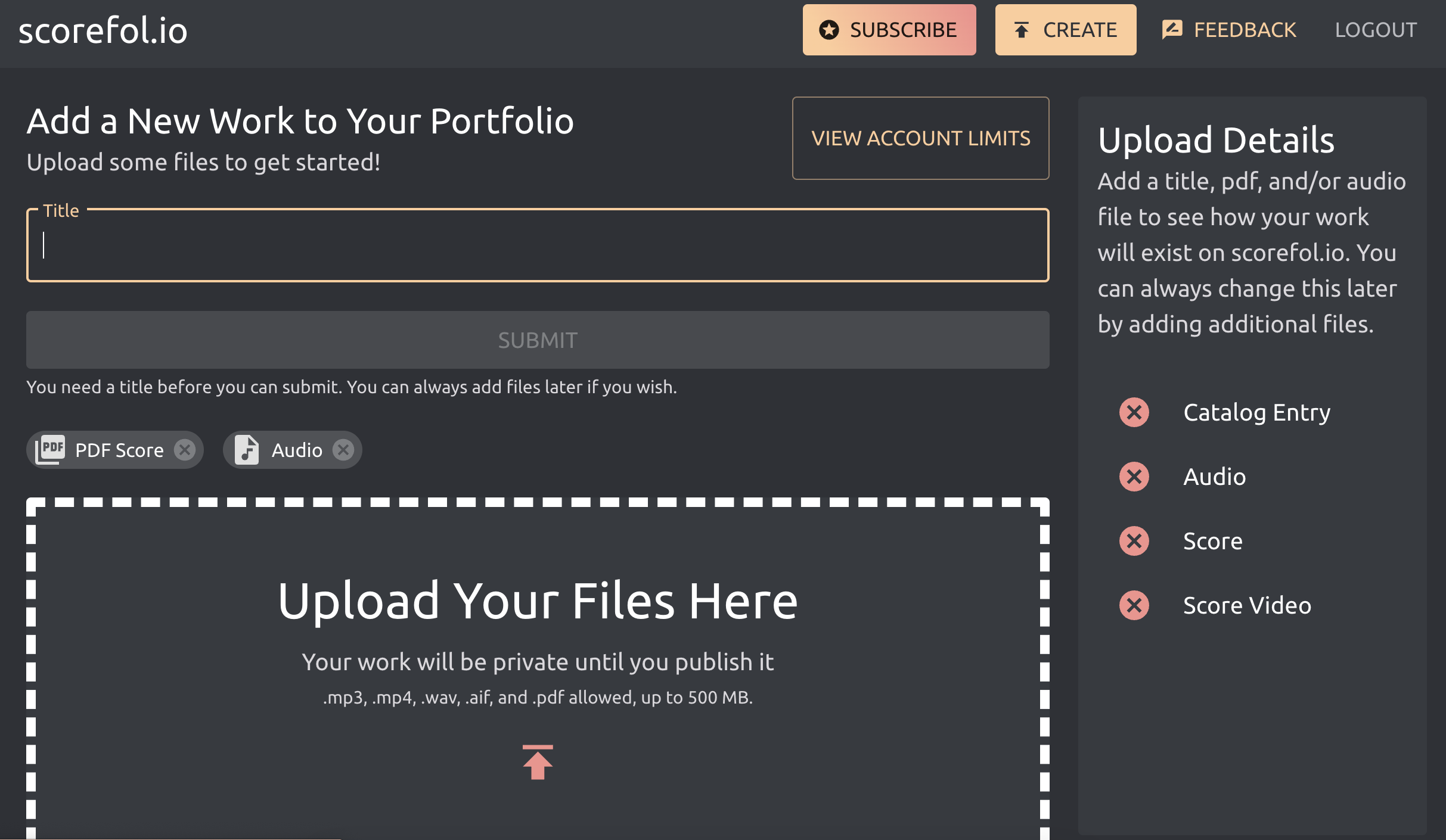
### Step 4. Enter information about your work.
The composer is assumed to be you. You can also add program notes that will be placed in the "description" of your video.
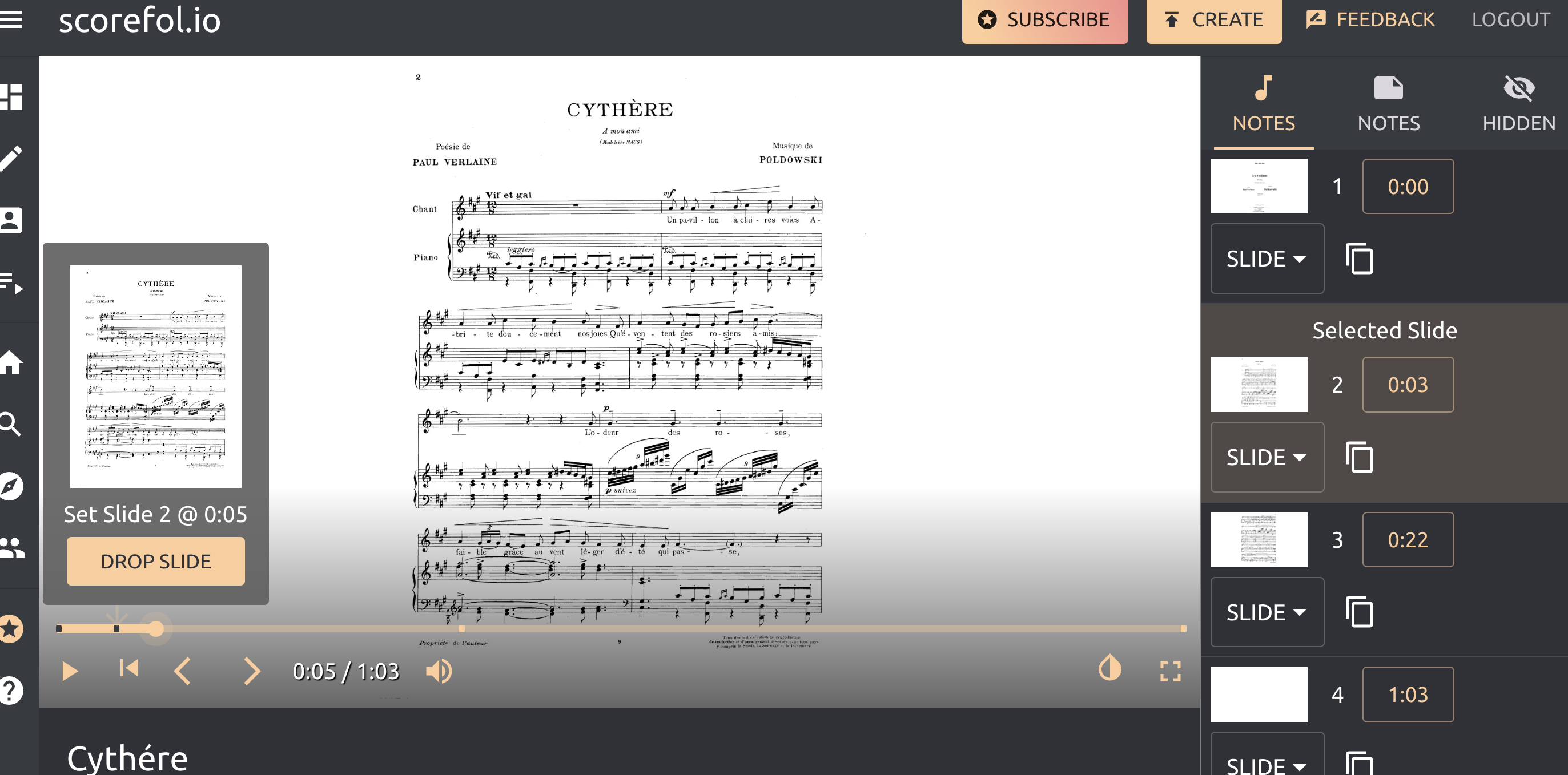
### Step 5. Place your "Slides."
Scorefol.io uploads the pages of your score PDF as "slides" a la PowerPoint. As you press "play" on your video, you can pause at any moment and click the end of the playhead to drop in a slide at that exact timestamp. As scorefol.io is still in Beta, the timestamp function in the right hand column does not currently function. The slide you are dropping will be highlighted in the right hand panel and visible in the pop-up.
### Step 6. Edit and Download Your Content.
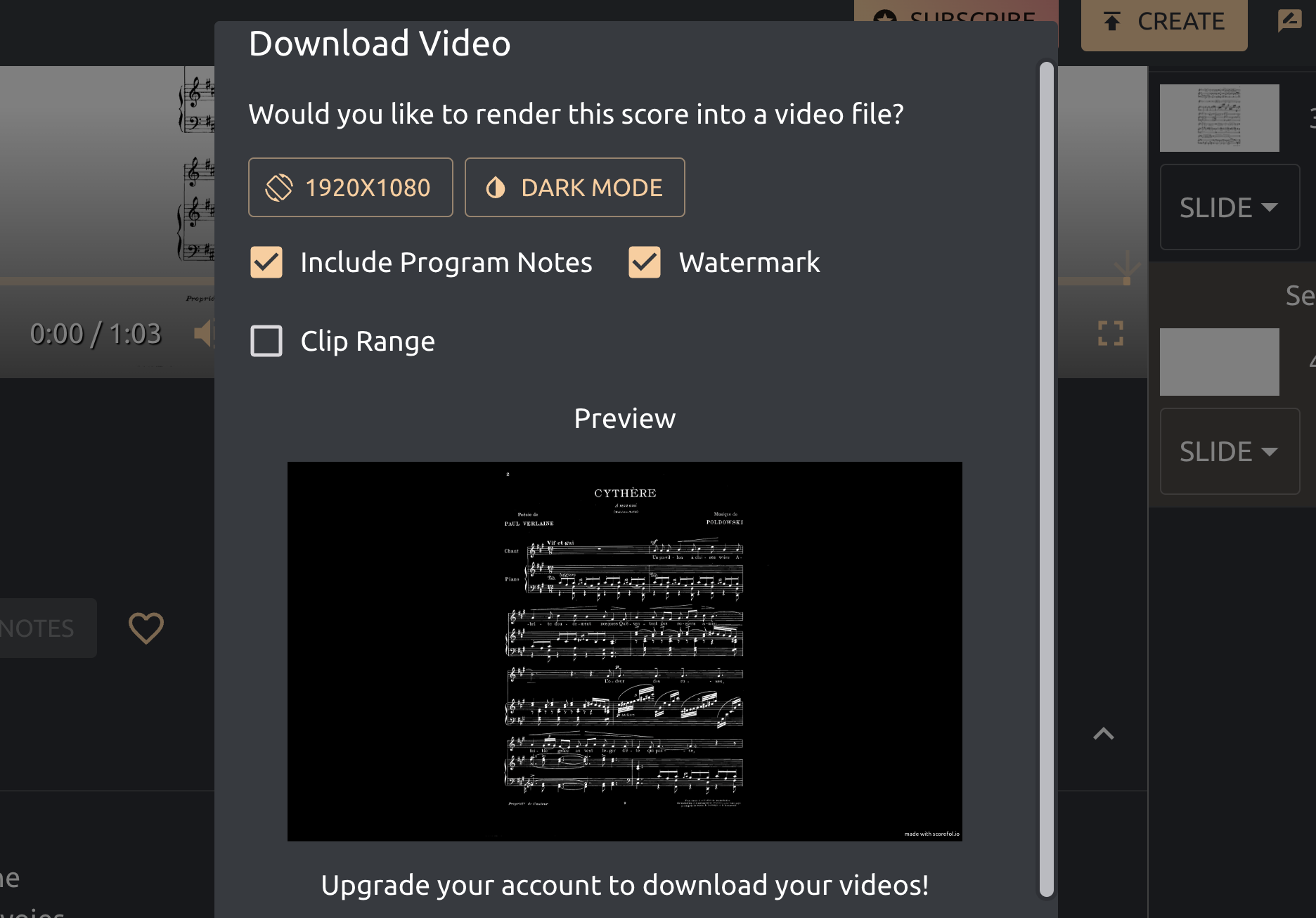
You can edit the program notes and biographical information about the piece by clickling the red "edit details" button at the bottom right hand corner of the video.
Then, download the video (with a pro-account) or share the video to the scorefol.io platform. When downloading, you can also convert your score into "Dark-Mode" so score background is black and the notes are white.
## Intro to Film Editing
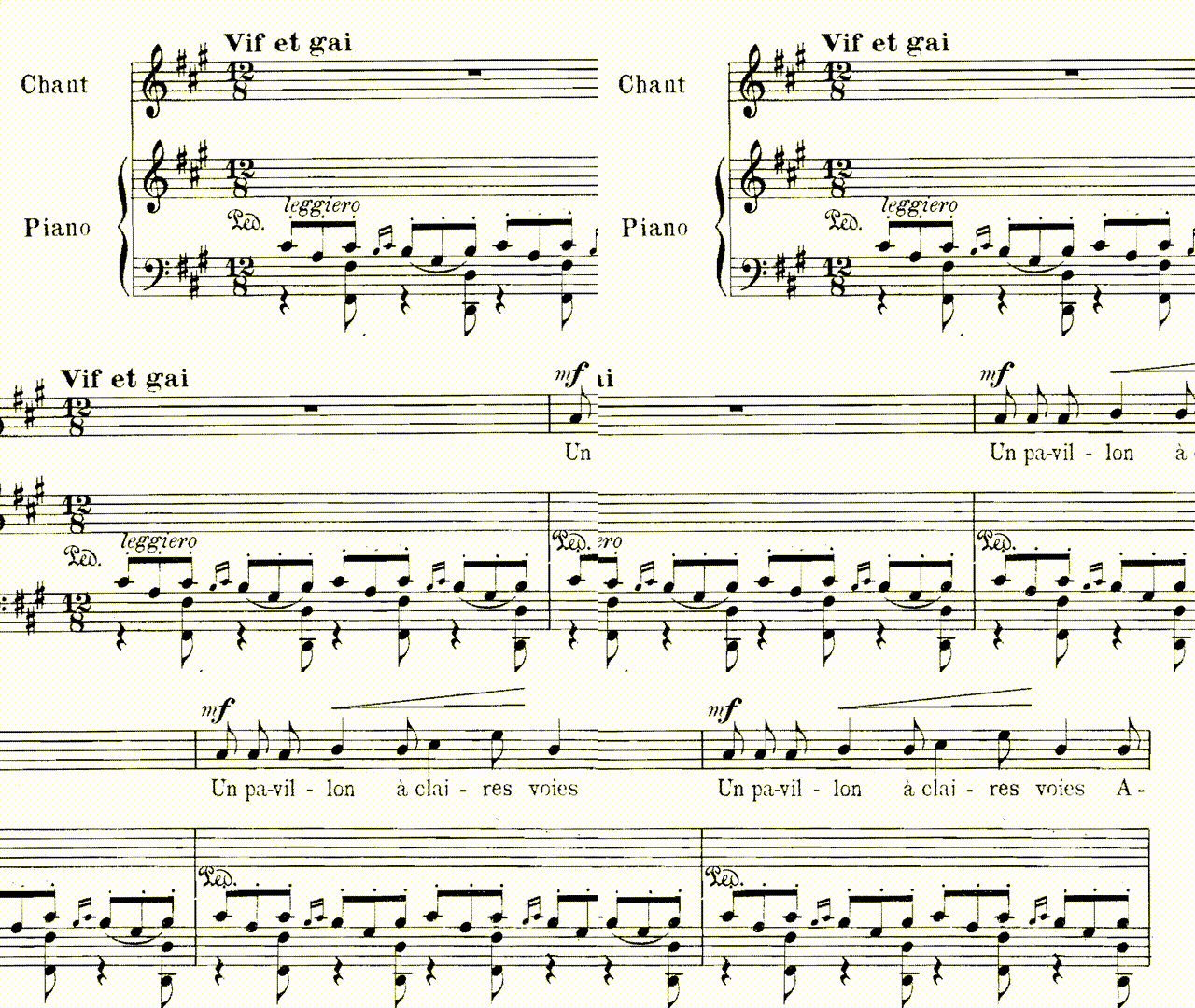
Film scholar Patrick Keating, writing about classical Hollywood films, has described films as a series of "sequential disclosures" (Keating 8). A film is essentially an arrangement of images, or clips, that ultimately come together to tell a story. In this sense, a film editor has a lot of control over what audiences take away from the film!
Whether you're making a score following video or a promotional video for your work as an artist, working with video, and especially knowing how to edit it intentionally and with care, is a crucial skill!
### the steps
* Bring footage into Premiere Pro using a drive or pulling it from a folder with your assets
* Double-click on a clip to preview it in your source window (top-left window)
* Make a select sequence by adding clips to your timeline
* Set an "in"
* letter "i"
* Set an "out"
* letter "o"
* Add the clip to the timeline
* the comma key and the period key add clips to the timeline (which Premiere calls a "Sequence")
* Add titles to your clips
* pull up the Captions and Graphics menu by clicking the Workspace button in the top-right corner
* Click and drag the titles you want and place on top of your video clip
* You can apply tons of effects to your clips! You can explore this by pulling up the Effects workspace
* to apply any effect to a clip in Premiere, you always click and drag it onto the clip itself in the timeline (the little "fx" symbol in the top-left of the clip should change color when you do so)
### scaling and panning in Premiere
This is one workflow for mimicking the experience of reading a score from left to right, panning across the text as the musical score plays.
Note: if your score is in the form of a PDF, open it in another program (like Acrobat) and convert it into a PNG or JPEG. Premiere can't read PDFs. You can then import it like you would any other media.
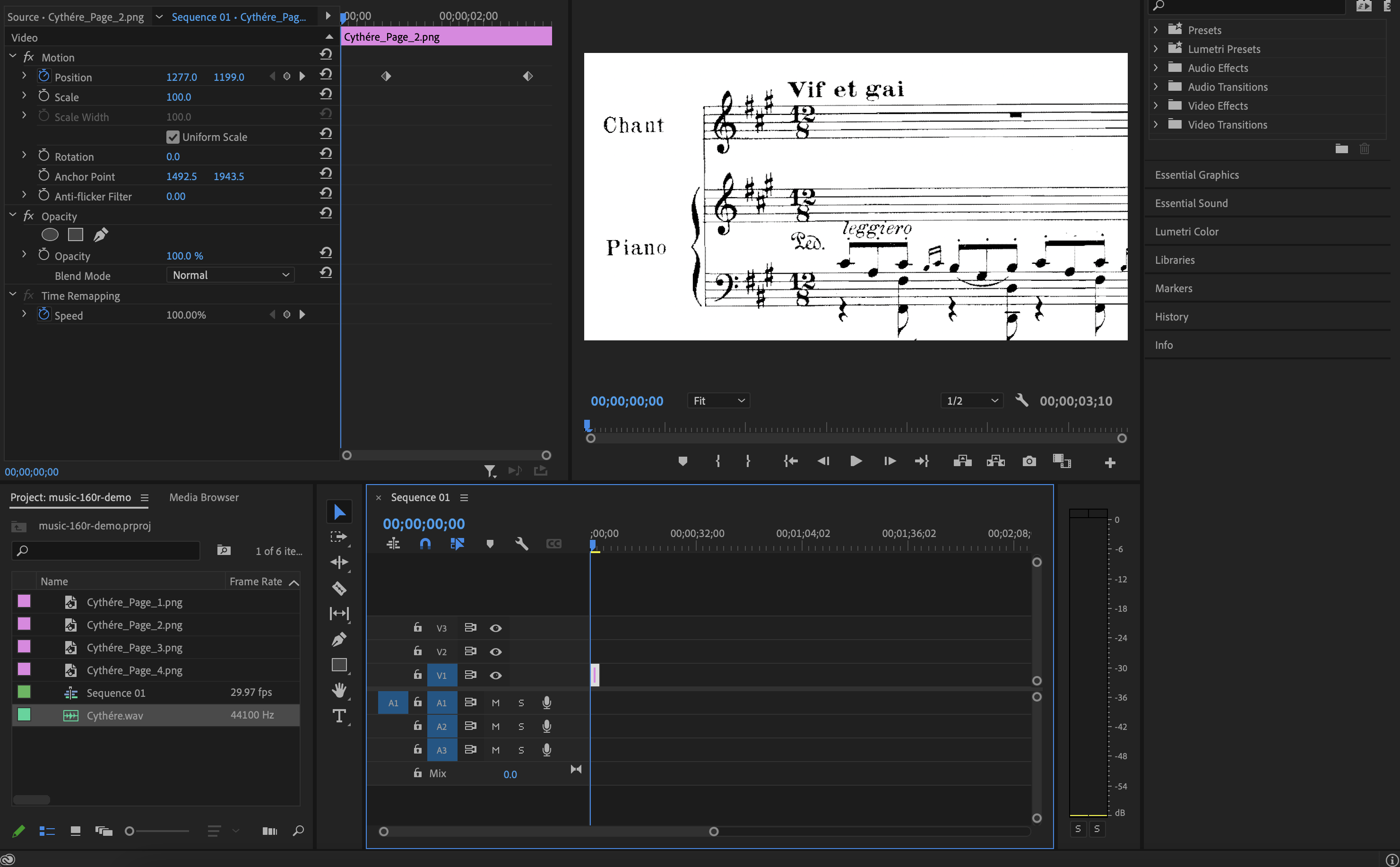
* in the "Effect Controls" panel (top left of the screen, above the source window)
* when you have a clip in the visual track selected, it should bring up the "Motion" fx menu
* open it to reveal "Position" and "Scale"
* you can use these effects to set keyframes that give the viewer the effect of panning across the screen (or zooming, etc.)
* Position moves the image up and down and left to right
* Scale can produce a zoom effect if you scale up the size of the image as time progresses in the clip
### Video Resources
[A Quick Guide to Post Production Resources](https://resources.learninglab.xyz/simple/projects/HDS-FilmFest/post-production)
### For iMovie:
* [Getting Started with iMovie](https://support.apple.com/en-us/HT212059)
### For Davinci Resolve:
* [Getting Started with Davinci Resolve](https://resources.learninglab.xyz/simple/people/casey-c/Resolve-getStarted)
### For Final Cut Pro:
* [Getting Started with Final Cut Pro](https://resources.learninglab.xyz/simple/people/casey-c/FCPX-getStarted)
### For Adobe Premiere:
* [Guide to Adobe Premiere Pro](/s2Pph8GJSZSvUv5ENuXqiQ)
* [Getting Started with Adobe Premiere](https://resources.learninglab.xyz/simple/people/casey-c/Premiere-getStarted)
### sourcing video
[Prelinger Archives](https://archive.org/details/prelinger)
 Sign in with Wallet
Connect another wallet
Sign in with Wallet
Connect another wallet