---
# System prepended metadata
title: 單純修改定位使用說明
tags: [PoGo管理器]
---
[← 返回使用說明總入口](https://hackmd.io/@lokey0905/POGOManager)
# 單純修改定位使用說明
[TOC]
---
##  GPS Joystick 搖桿改定位
可以讓你在遊戲中使用搖桿來移動你的位置,並且可以設定路徑移動與移動速度
### 啟動搖桿
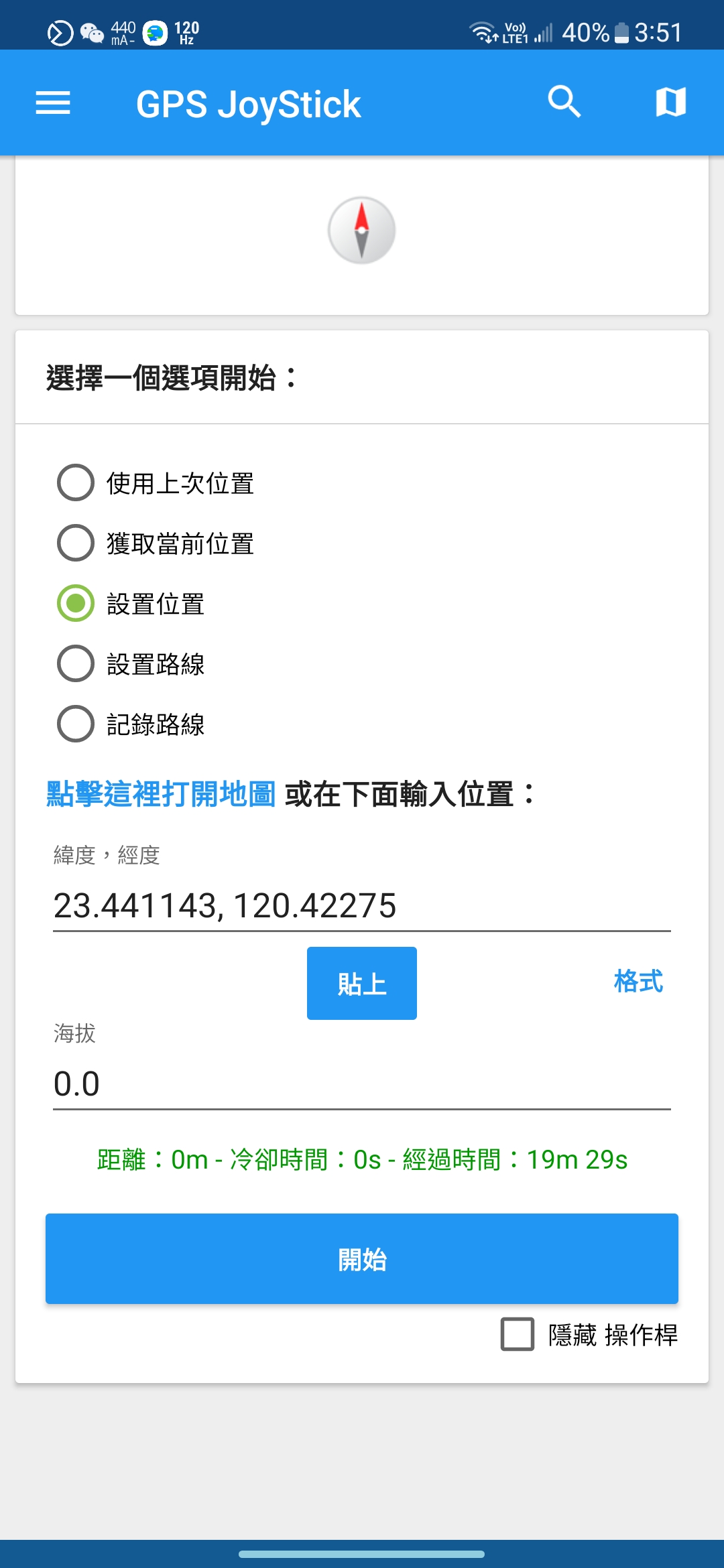
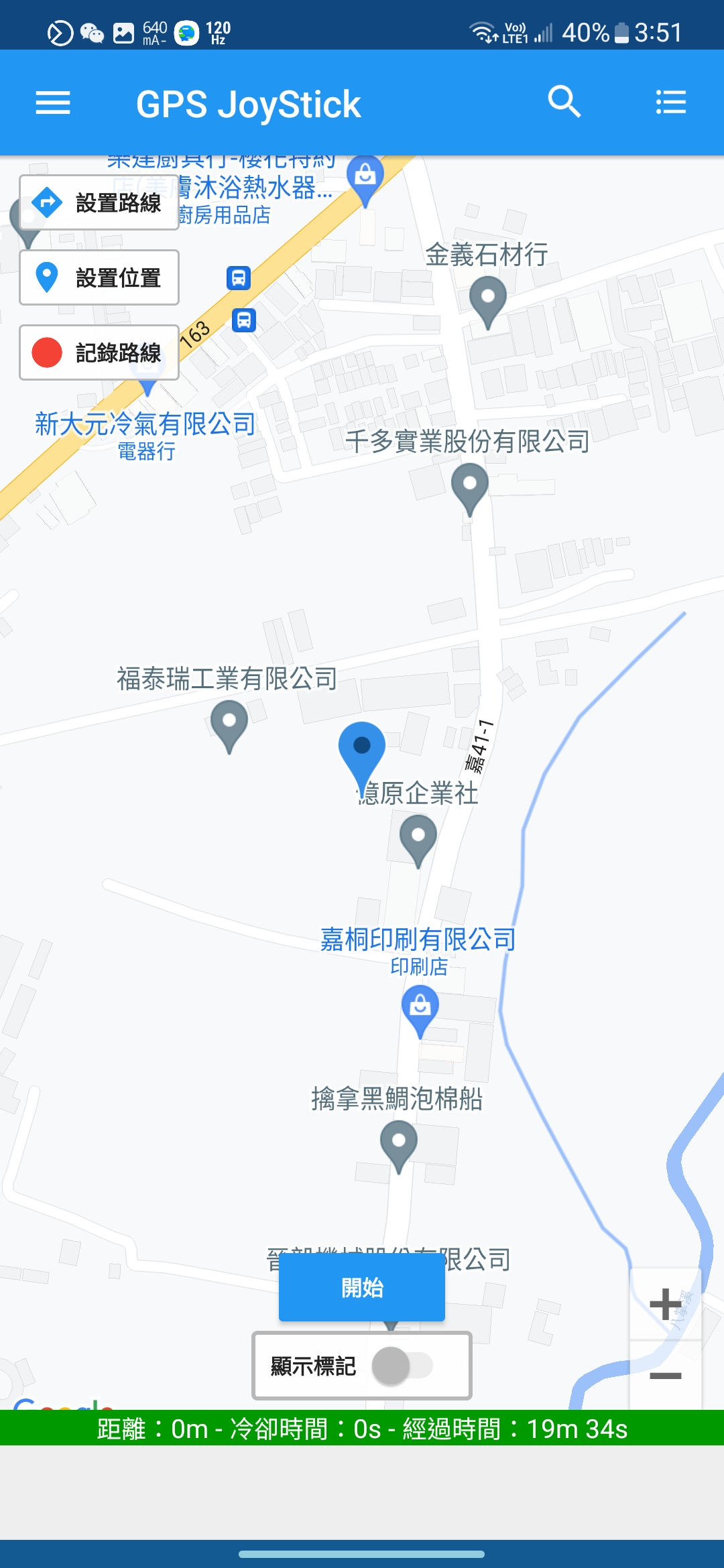
點右上角的圖示可切換模式選擇,可以選擇使用單一位置或是路徑移動
- 單一位置: 點擊地圖上的位置或是輸入經位度,按下開始後移動到該位置
GPS Joystick 搖桿改定位
可以讓你在遊戲中使用搖桿來移動你的位置,並且可以設定路徑移動與移動速度
### 啟動搖桿
點右上角的圖示可切換模式選擇,可以選擇使用單一位置或是路徑移動
- 單一位置: 點擊地圖上的位置或是輸入經位度,按下開始後移動到該位置
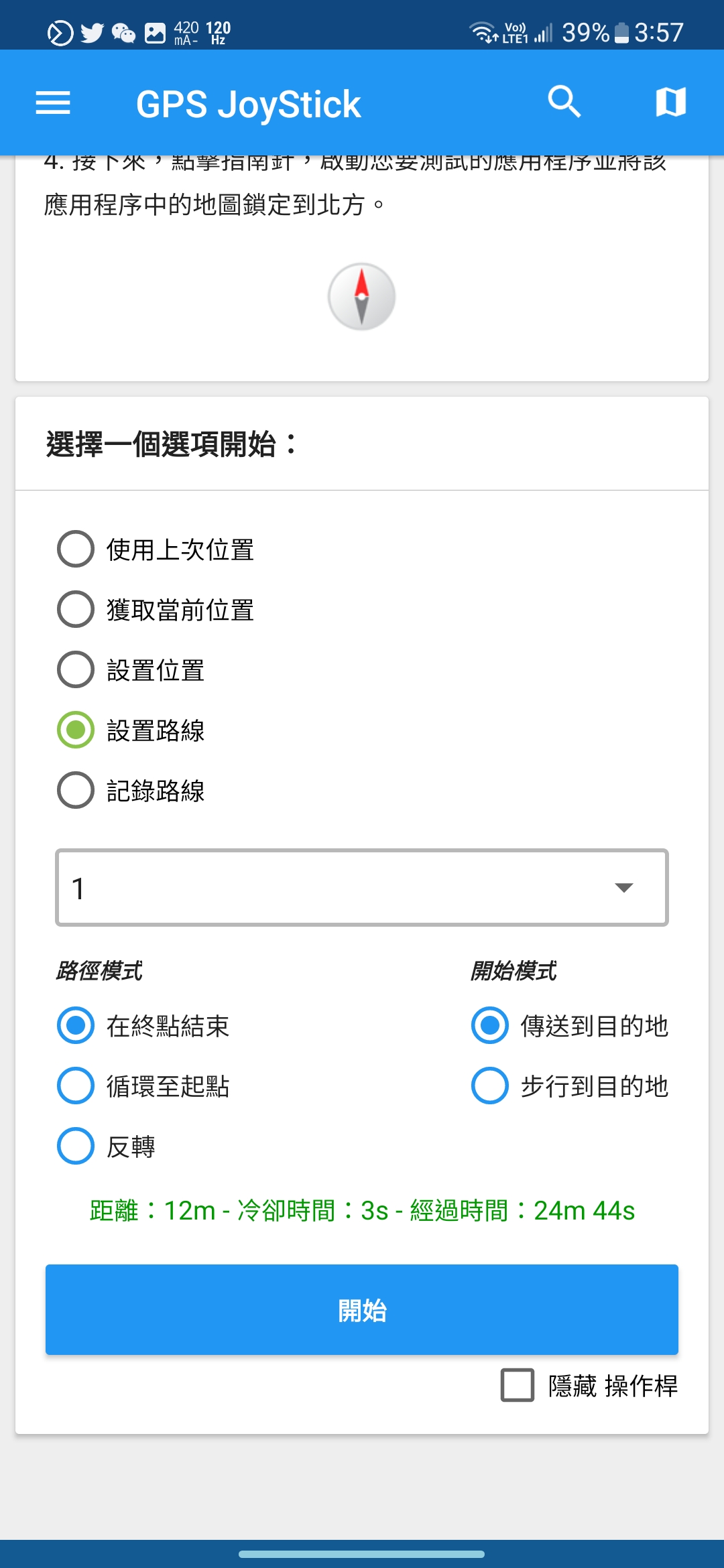
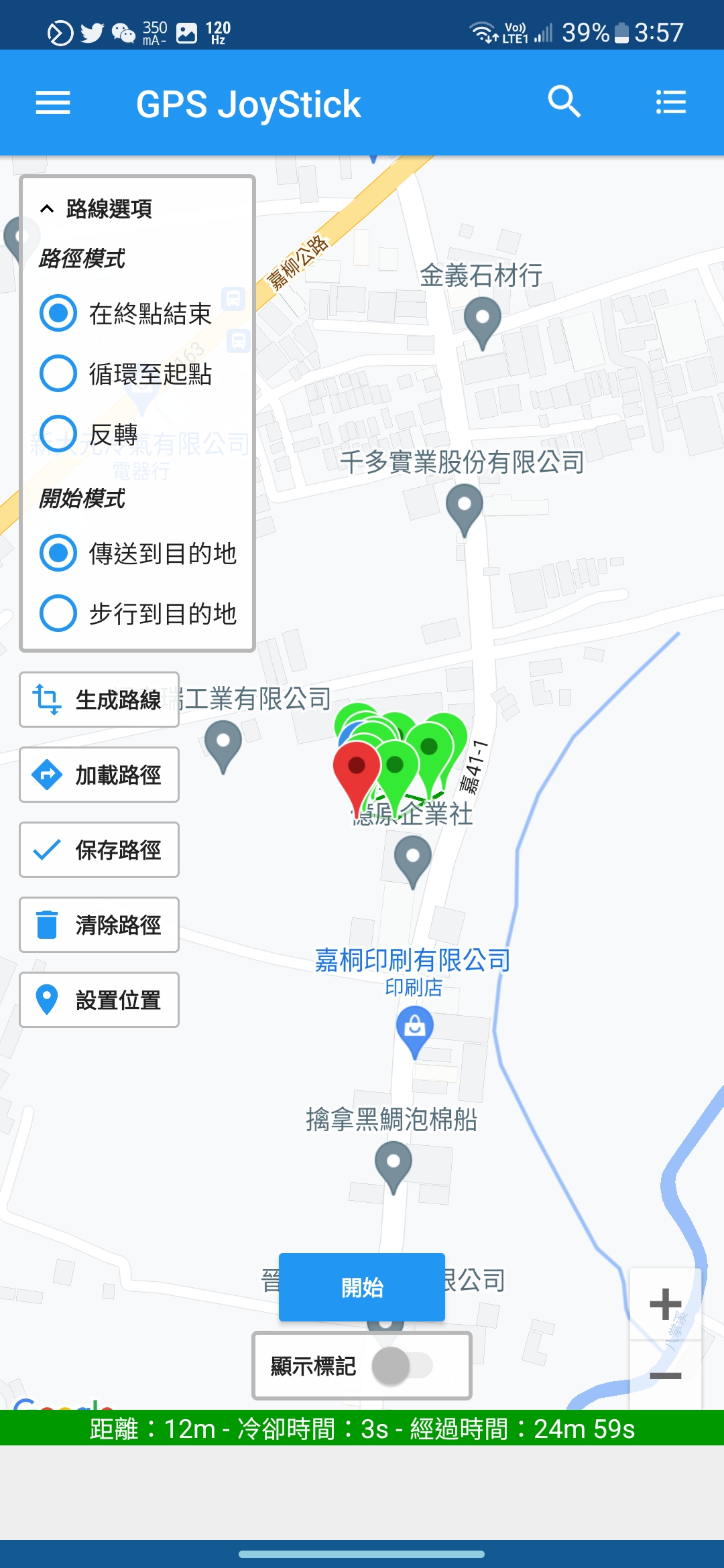
 - 路徑移動: 點擊地圖上的設置路徑,再選擇生成或是加載路徑,按下開始後就會依照路徑位置移動
>若要重複循環,路徑模式請設定循環至起點或反轉。
- 路徑移動: 點擊地圖上的設置路徑,再選擇生成或是加載路徑,按下開始後就會依照路徑位置移動
>若要重複循環,路徑模式請設定循環至起點或反轉。
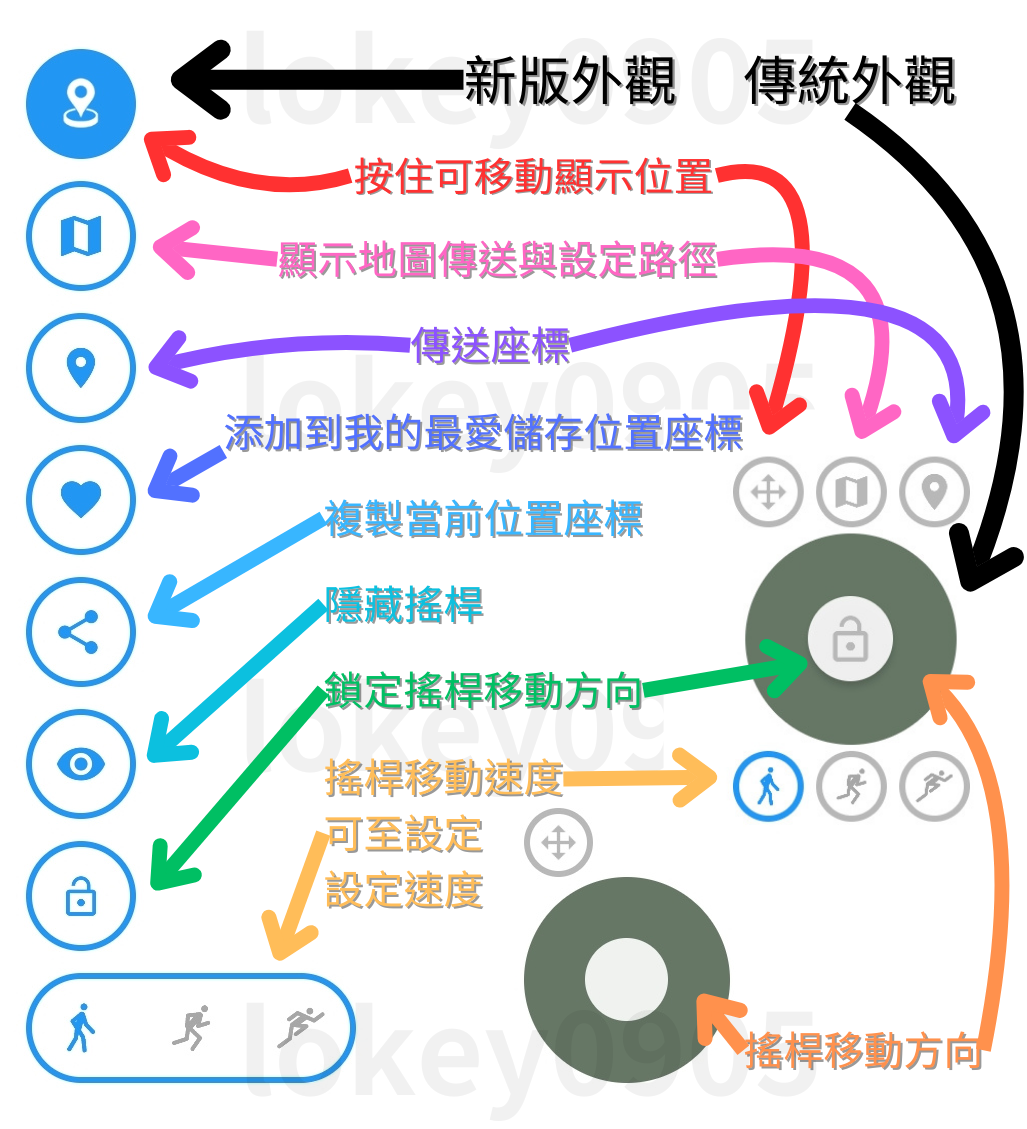
 ### 搖桿快捷鍵功能介紹
 ### 其他搖桿設定
啟動搖桿改定位APP,點選左上角☰漢堡按鈕,設定
- 切換搖桿外觀
- 搖桿顯示大小
- 搖桿顯示透明度
- 三種模式速度
- 匯入匯出資料
### 其他搖桿設定
啟動搖桿改定位APP,點選左上角☰漢堡按鈕,設定
- 切換搖桿外觀
- 搖桿顯示大小
- 搖桿顯示透明度
- 三種模式速度
- 匯入匯出資料
 ### 冷卻時間
- 搖桿內地圖傳送時可察看冷卻剩餘時間
- 或是使用[冷卻計算器](https://cool.android.ovh/)
> 請務必注意須過冷卻時間才可操作,否則可能會被系統偵測異常。
- 如有跨國移動,或是忘記上次移動位置,建議直接等待2小時的冷卻時間,確保安全。
### 匯入GPX路徑檔案
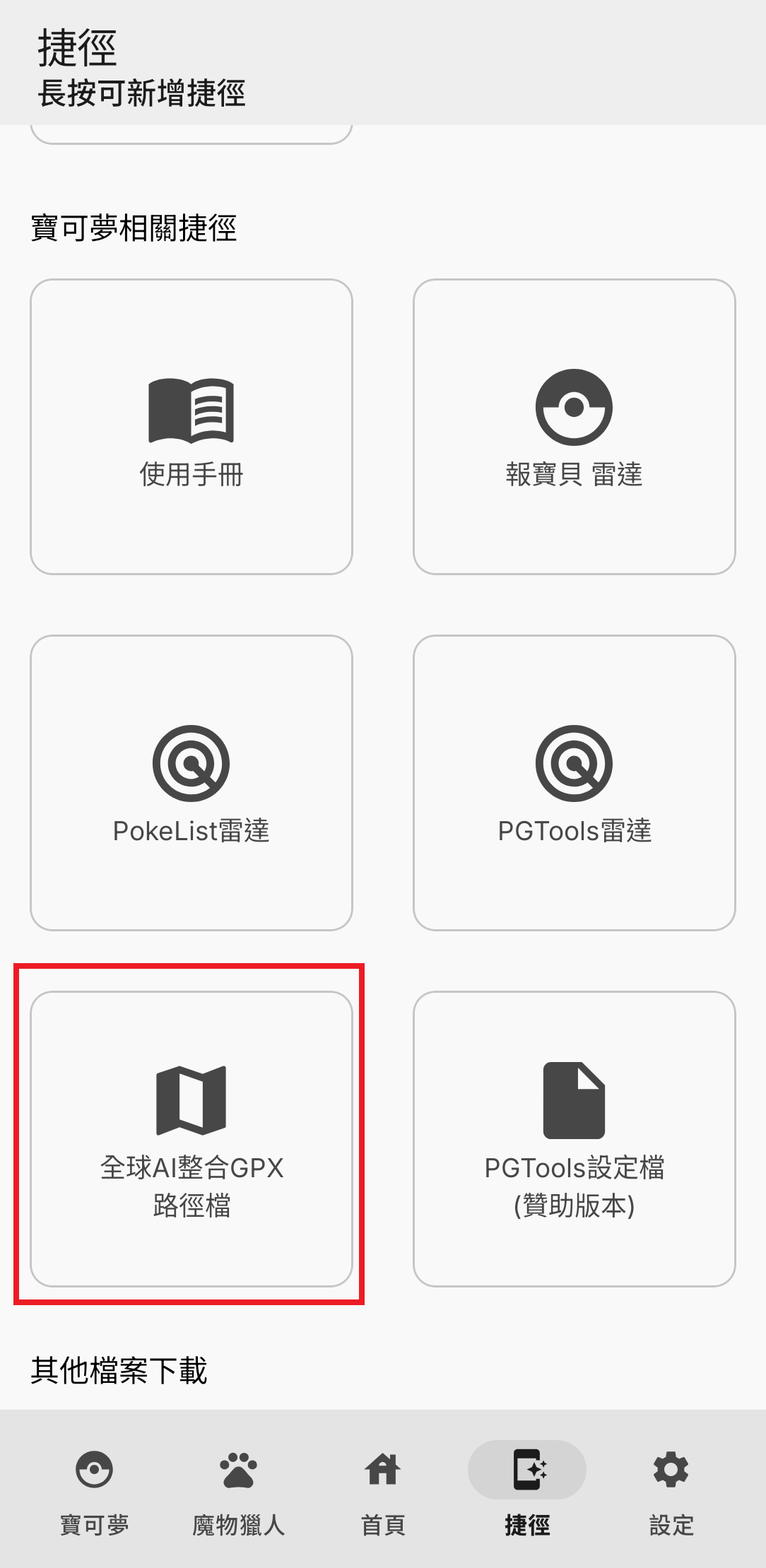
1. 至POGO管理器的捷徑頁面,點選按鈕下載路徑GPX檔案
### 冷卻時間
- 搖桿內地圖傳送時可察看冷卻剩餘時間
- 或是使用[冷卻計算器](https://cool.android.ovh/)
> 請務必注意須過冷卻時間才可操作,否則可能會被系統偵測異常。
- 如有跨國移動,或是忘記上次移動位置,建議直接等待2小時的冷卻時間,確保安全。
### 匯入GPX路徑檔案
1. 至POGO管理器的捷徑頁面,點選按鈕下載路徑GPX檔案
 2. 到搖桿改定位APP中,點選左上角☰漢堡按鈕,選擇GPX匯入/匯出選項
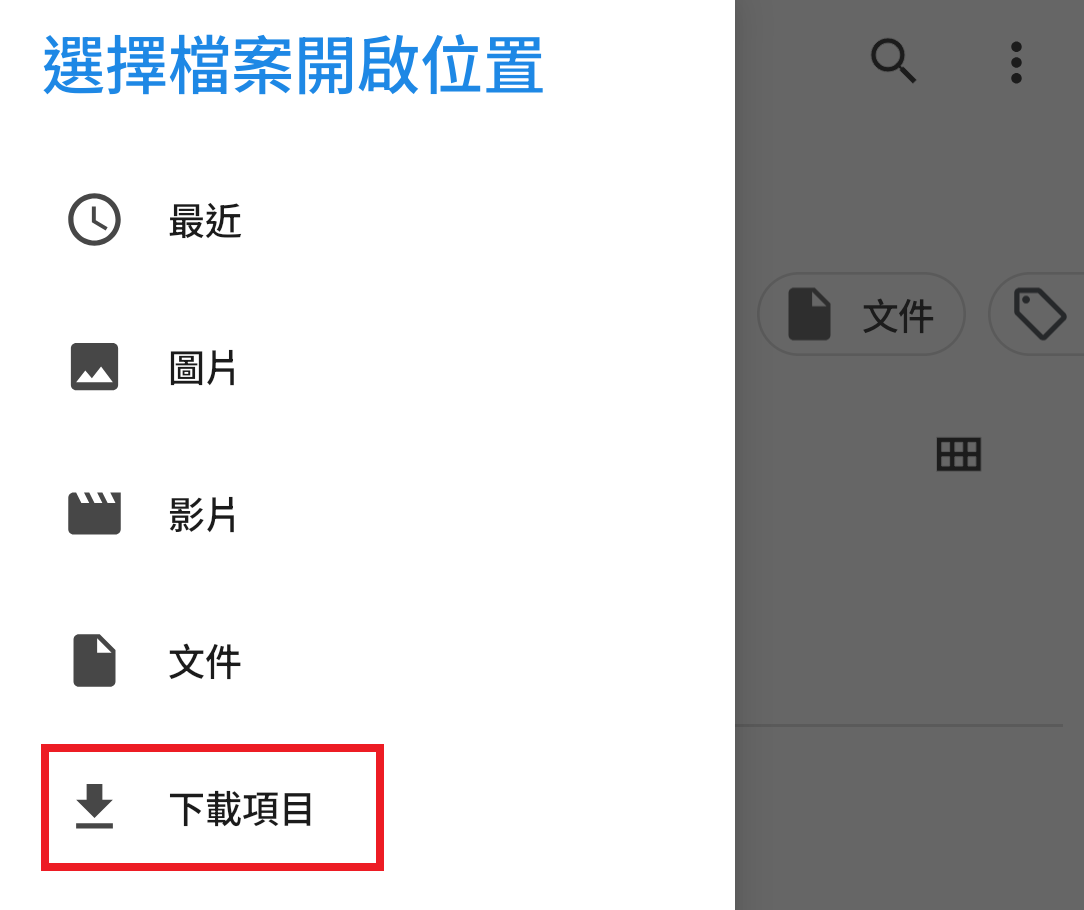
3. 點選下載資料夾,選擇剛剛下載的GPX路徑檔案
2. 到搖桿改定位APP中,點選左上角☰漢堡按鈕,選擇GPX匯入/匯出選項
3. 點選下載資料夾,選擇剛剛下載的GPX路徑檔案
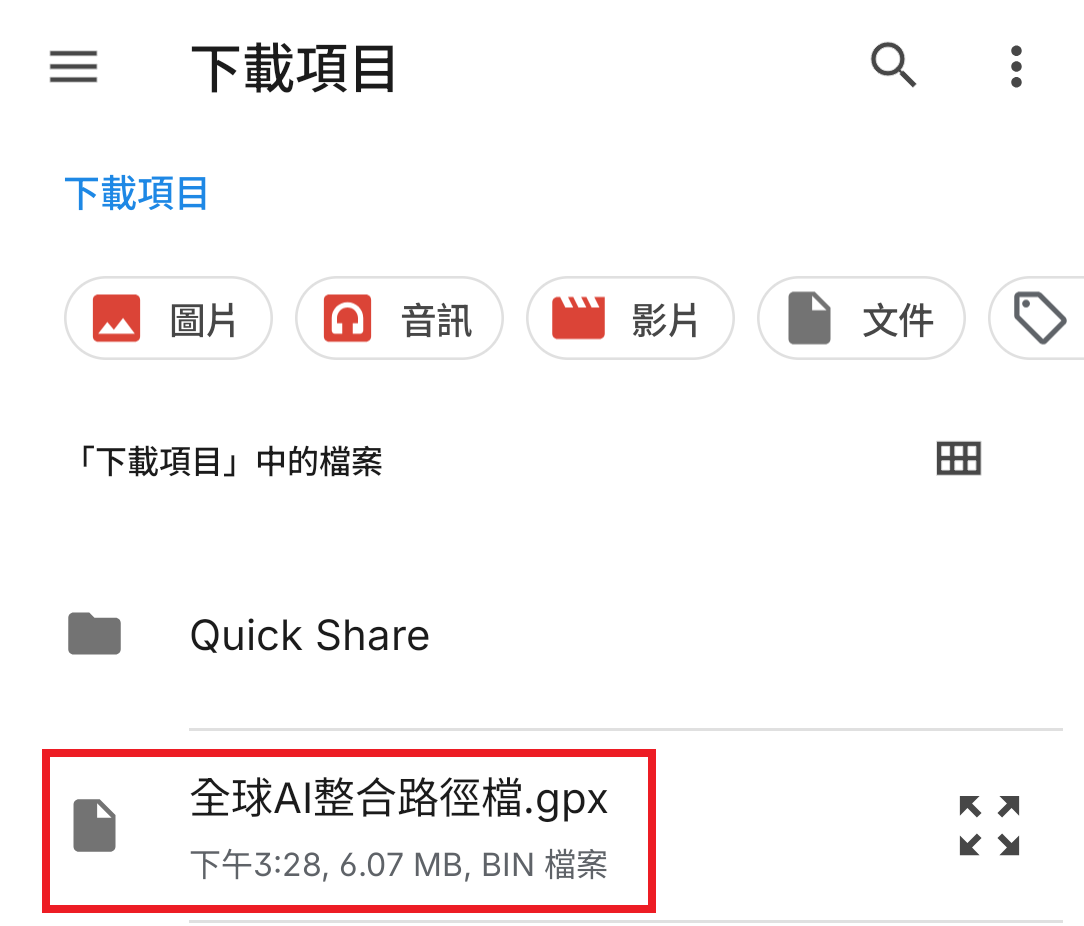 4. 選擇後會出現如下圖畫面
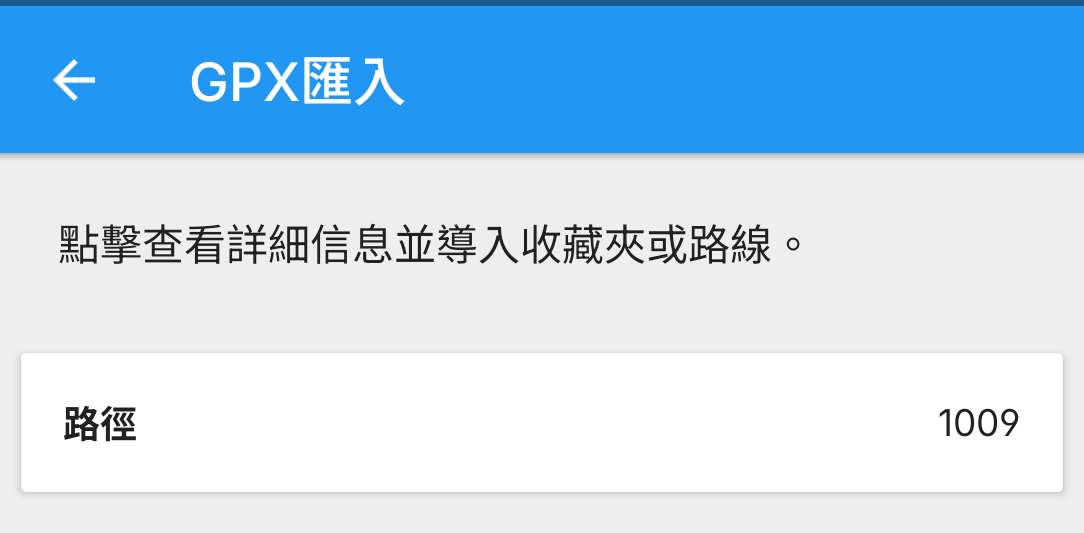 5. 點選【路徑】,點選右下角下載按鈕,再點選從【添加所有路由】
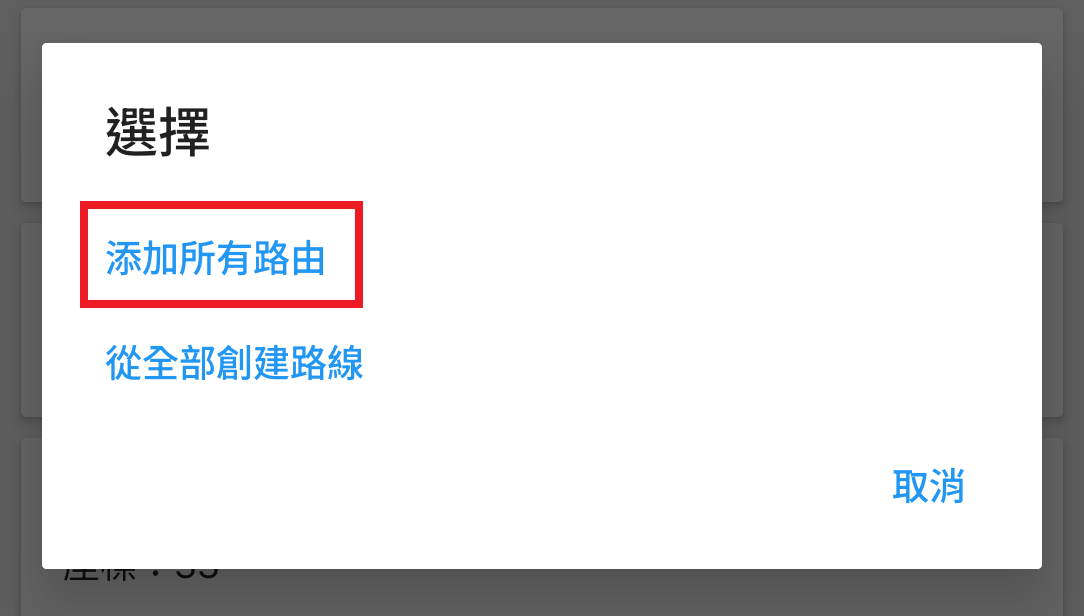 6. 已匯入完成,可到左上角☰漢堡按鈕選擇【路徑】查看剛剛匯入的路徑
7. 可依照[啟動搖桿](#啟動搖桿)的路徑移動方式選擇剛剛匯入的路徑,按下開始後就會依照路徑位置移動
6. 已匯入完成,可到左上角☰漢堡按鈕選擇【路徑】查看剛剛匯入的路徑
7. 可依照[啟動搖桿](#啟動搖桿)的路徑移動方式選擇剛剛匯入的路徑,按下開始後就會依照路徑位置移動