# Part 1: Terminology & Project Structure
###### tags: `TA Stuff RP2` `Raspberry Pi Pico`
In this tutorial, you will read about some terms used in IoT. Then, we will walk you through the project structure in MicroPython with a demo example (blink LED with **Raspberry Pi Pico W**) which will make you ready for the next tutorial.
We will:
+ define sensors and actuators
+ learn about different types of sensor communication
+ create a MicroPython project and run our first program (blink on-board LED):
+ Create a project in **VS Code with PyMakr extension** (*default option*)
+ Create a project in **Thonny IDE** (*beginner friendly option*)
**If you want to learn more about the basics of electricity and circuits** before heading onwards to connecting sensors, check out [this awesome course on Khan Academy](https://www.khanacademy.org/science/physics/circuits-topic).
As always, we'll continuously update this walkthrough. **Is there anything that needs to be clarified, or have you experienced some issues? Please add a comment.** You do this by highlighting the text and then you can write a comment on the highlighted part. You need to log in/create an account on HackMD first.
## Sensors & Actuators
### Sensors
Sensors are physical devices used for converting physical and natural quantities into electrical signals. There are different varieties of sensors like; Temperature, Pressure, Motion, Level (Water & Liquids), Image, Proximity, Water Quality, Chemical, Gas, Smoke, Infrared (IR), Acceleration, Gyroscopic, Humidity, Optical, and many more. These sensors have two broad categories; those which create continuous sine form output called **Analog Sensors** and those that produce discrete digital output **0s and 1s** are called **Digital Sensors**.
### Actuators
Actuators are physical devices converting electrical signals into physical actions. They are changing the state of a device by using different forces like; Mechanical, Pneumatic, Hydraulic, Electric, Light, Thermal, Magnetic, and more.
### Other components
Resistors, capacitors, and inductors are devices that resist or store electrical energy. Typical use cases are filtering, current limiting, voltage division, and timing.
Example: Use of a [current limiting resistor](https://imgur.com/a/calculate-resistance-4-band-resistor-9MxeVO3) when [powering a LED](https://imgur.com/a/8IRPVtQ).
## Sensors Communication Protocols
These are more advanced concepts and we do not expect you to learn them, but if you have got sensors or building a project that needs to use a sensor, it would help you to understand it better. We just give a very brief overview and you can study them further by clicking on the links provided.
### SPI
SPI (**Serial Peripheral Interface**) is a common communication protocol used by many different devices, like; SD card reader modules, RFID card reader modules, and OLED screens. It is a Master/Slave communication meaning there is a Master who selects which slave could use the data line at the moment. It uses four pins for communication, and you can read more about how it works [**here**](https://www.circuitbasics.com/basics-of-the-spi-communication-protocol) and for the MicroPython interaction, you can read [**RP2**](https://docs.micropython.org/en/latest/rp2/quickref.html#software-spi-bus).

### UART
UART stands for **Universal Asynchronous Receiver/Transmitter** and is one of the most used device-to-device communication. It’s not a communication protocol like SPI and I2C, but a physical circuit in a microcontroller, or a stand-alone IC. A UART’s main purpose is to transmit and receive serial data. You can read more about how it works [**here**](https://www.circuitbasics.com/basics-uart-communication/) and how to use it in MicroPython you can read [**RP2**](https://docs.micropython.org/en/latest/rp2/quickref.html#uart-serial-bus).

### I2C
I2C stands for **Inter-Integrated Circuit** and is a multi-controller, multi-target communication protocol. You can connect multiple targets to a single controller (like SPI) and you can have multiple controllers controlling single, or multiple targets. This is useful when you want to have more than one microcontroller logging data to a single memory card or displaying text to a single LCD. You can read more about how it works [**here**](https://www.circuitbasics.com/basics-of-the-i2c-communication-protocol) and on how to use it in MicroPython you can read [**RP2**](https://docs.micropython.org/en/latest/rp2/quickref.html#software-i2c-bus).
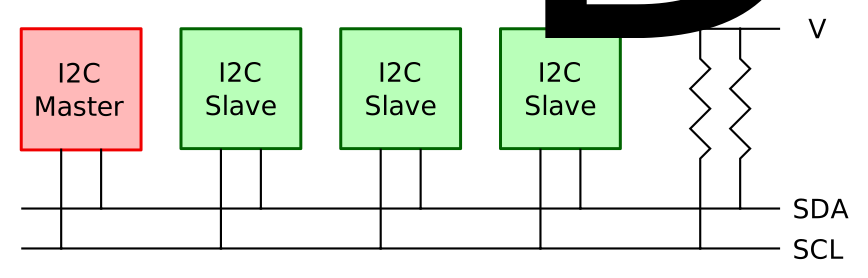
**NOTE:** The terms **master** and **slave** are historically significant and widely used. However, the terms **controller** and **target** are gaining greater adoption and may be more appropriate.
### 1-Wire
1-Wire is a device communications bus system designed by Dallas Semiconductor Corp. that provides low-speed (16.3 kbit/s) data, signaling, and power over a single conductor. 1-Wire is similar in concept to I²C, but with lower data rates and longer range. It is typically used to communicate with small inexpensive devices such as digital thermometers and weather instruments. You can read more about it [**here**](https://en.wikipedia.org/wiki/1-Wire) and for using it read MicroPython [**RP2**](https://docs.micropython.org/en/latest/rp2/quickref.html#onewire-driver).

<br><br>
## Project Structure
This section describes the file structure in MicroPython projects. We will continue by doing a practical example in your preferred IDE (VS Code + PyMakr, and Thonny IDE).
### Projects File Hierarchy
When creating a new project there is a standard structure to follow:
```
Your_project_name
|-lib
| |-library.py
|-boot.py
|-main.py
|-... // other configuration files and folders
```
Note that `boot.py` and `main.py` are **outside** of the `lib` folder while `library.py` file is **inside** the `lib` folder. All of them are, however, are inside the project folder `Your_project_name`.
In the respective IDEs, VS Code and Thonny, the same structure will look like this:
VS Code project | Thonny project
:-------------------------:|:-------------------------:
 | 
* The `lib` folder will hold libraries (`libraryA.py`, `libraryB.py`, etc), that is, portable files that contain functions that you may frequently use in your project. This could for example be sensor libraries; already written code that makes it easy for you to read from a sensor and make sense of the data. You will read more about how to import libraries and use them in the next tutorial.
* The `boot.py` file is the first script that runs in the device when it is powered on. It could be used for setting up a WiFi connection and thus declutter the main file where this code otherwise would be placed. Most often you don't have to worry about this file.
* The `main.py` file is where you tell the device what to do. It will run directly after the boot file. This is the place for your main code, and where you may import libraries from the lib folder to create a functional application.
## VS Code + PyMakr: Creating a MicroPython Project - Video Below
**Prerequisite:** [Update the firmware on the Raspberry Pi Pico W device](https://hackmd.io/@lnu-iot/rkFw7gao_)
Let's create a new project on VS Code with PyMakr:
**Step 1:** Connect you development board to the USB and open your VS Code. The USB port has a name, such as COM5 on Windows, or /dev/ttyACM0 on Linux).
**Step 2:** Click on *PyMakr* extension from the right panel. Follow the numbered steps from the following image to access your board REPL (Read-Eval-Print Loop) in the terminal.

:::warning
If you do no see the device listed under `DEVICES` on the left panel, you either did not update the [Raspberry Pi Pico firmware with MicroPython](https://hackmd.io/@lnu-iot/rkFw7gao_) or the [Node.js](https://nodejs.org/en) is not installed in your system.
:::
**Step 3:** Follow the numbered steps to create a project in the VS Code. It askes you three question and you can press enter to have default setting like the following images.


**Step 4:** You should add your development device to the newly created project. You can do that by selecting *PyMakr* plugin from left panel and following the numbered steps from image below.

**Step 5:** It is suggested to put your project on development mode in *PyMakr* so when you do some changes to your project files and save it, it will automatically upload changed file to your device and reset it. Follow the numbered steps in the image. You can start editing your `main.py` and `boot.py` files and save them to your project directory.

**Step 6:** Let's continue with a practical example. We will turn on and off the small green LED on the Raspberry Pi Pico W circuit board, creating a blinking effect.
Add the following snippet of code into `main.py`:
```python=
# Import from libraries
import time
from machine import Pin
# Set the OUTPUT pin to on-board LED
led = Pin("LED", Pin.OUT)
# Runs forever
while True:
led.on() # Turn on LED
time.sleep(0.2) # Delay for 0.2 seconds
led.off() # Turn off LED
time.sleep(1.0) # Delay for 1.0 seconds
```
:::danger
If you do not have the **Raspberry Pi Pico W**, and are using another microcontroller, feel free to change the `main.py` program to `print("Hello World")`.
:::
**Step 7:** Next, follow along with the video below (watch at 1080p resolution) and run the code on your Raspberry Pi Pico W device:
<iframe width="560" height="315" src="https://www.youtube.com/embed/CQbBBXcKjeY" frameborder="0" allowfullscreen></iframe>
:::danger
**Warning:** We recommend that you **save your project files on your LOCAL machine, preferrably with version control - git and GitHub**, so that you do not lose your work. Saving files directly on the RP2040 for the duration of the project is not a good idea.
:::
:::success
**CONGRATULATIONS!** Now you know some terminology about sensors/actuators. You also know how projects are structured in MicroPython and are ready to move to the next tutorial to learn about your development board and how to connect sensors to it for collecting some data [**here**](https://hackmd.io/@lnu-iot/r1hUdtzI3).
:::
</br></br>
## Thonny IDE: Creating a MicroPython Project - Video Below
If you are a total beginner, VS Code can be intimidating. Thonny IDE has a simpler user interface.
**Step 1:** Open Thonny IDE. Start by creating a new file (`Ctrl+N`), and save the file to your computer (`Ctrl+S`). If the device is connected, it will prompt you to choose where to save the file. Click **This Computer**, rather than the Raspberry Pi Pico / RP2040 device. You should name it `main.py`.
**Step 2:** Let's continue with a practical example. We will turn on and off the small green LED on the Raspberry Pi Pico W circuit board, creating a blinking effect.
Add the following snippet of code into `main.py`:
```python=
# Import from libraries
import time
from machine import Pin
# Set the OUTPUT pin to on-board LED
led = Pin("LED", Pin.OUT)
# Runs forever
while True:
led.on() # Turn on LED
time.sleep(0.2) # Delay for 0.2 seconds
led.off() # Turn off LED
time.sleep(1.0) # Delay for 1.0 seconds
```
:::danger
If you do not have the **Raspberry Pi Pico W**, and are using another microcontroller, feel free to change the `main.py` program to `print("Hello World")`.
:::
**Step 3:** Next, follow along with the video below (watch at 1080p resolution) and run the code on your Raspberry Pi Pico W device:
<iframe width="560" height="315" src="https://www.youtube.com/embed/ifH8ODGcaY8" frameborder="0" allowfullscreen></iframe>
:::danger
**Warning:** We recommend that you **save your project files on your LOCAL machine, preferrably with version control - git and GitHub**, so that you do not lose your work. Saving files directly on the RP2040 for the duration of the project is not a good idea.
:::
:::success
**CONGRATULATIONS!** Now you know some terminology about sensors/actuators. You also know how projects are structured in MicroPython and are ready to move to the next tutorial to learn about your development board and how to connect sensors to it for collecting some data [**here**](https://hackmd.io/@lnu-iot/r1hUdtzI3).
:::
 Sign in via Google
 Sign in via Facebook
 Sign in via X(Twitter)
 Sign in via GitHub
 Sign in via Dropbox
 Sign in with Wallet
Connect another wallet
Sign in with Wallet
Connect another wallet