# INTRODUCTION
## What is a Citation Manager?
A citation manager is a tool that helps you collect, organize, and format references for your research. Instead of manually typing out citations and bibliographies, a citation manager automates it—saving you time and reducing possible errors.
Using modern citation management systems, you can:
- Save references from library databases, websites, and PDFs.
- Organize them by tags or folders.
- Automatically generate citations and bibliographies in nearly any style (APA, Chicago, MLA, etc.).
- Sync your library across devices.
- Integrate with Word or Google Docs to insert citations directly as you write.
- Take notes, annotate PDFs, and automatically update footnotes and bibliographies as you edit.
### Popular Citation Managers
Here are some of the most widely used options:
- <img src="https://www.google.com/s2/favicons?domain=zotero.org&sz=64" alt="Zotero" width="20" height="20" /> [**Zotero**](https://www.zotero.org/) — Free, open-source, flexible, integrates with Word/Google Docs (**Recommended**).
- <img src="https://www.google.com/s2/favicons?domain=mendeley.com&sz=64" alt="Mendeley" width="20" height="20" /> [**Mendeley**](https://www.mendeley.com/) — Elsevier-owned, strong PDF annotation tools, good for collaboration.
- <img src="https://www.google.com/s2/favicons?domain=community.endnote.com&sz=64" alt="EndNote" width="20" height="20" /> [**EndNote**](https://endnote.com/) — Paid, widely used in sciences, strong journal formatting tools.
- <img src="https://www.google.com/s2/favicons?domain=refworks.proquest.com&sz=64" alt="RefWorks" width="20" height="20" /> [**RefWorks**](https://refworks.proquest.com/) — Subscription-based, common in academic institutions.
- <img src="https://www.google.com/s2/favicons?domain=paperpile.com&sz=64" alt="Paperpile" width="20" height="20" /> [**Paperpile**](https://paperpile.com/) — Web-based, works seamlessly with Google Docs.
---
## Glossary of Basic Citation Terms
**Reference:**
The source itself. Each line item in Zotero represents a reference (e.g., a book, article, chapter, or website).
**Reference / Source Metadata:**
The details describing the reference—author, title, publication date, publisher, journal name, DOI, etc. This is what you edit or correct for each Zotero item.
**Citation:**
A marker indicating exactly where you got a piece of information from—usually a specific page or section of a reference.
*(Note: People often use “citations” loosely to mean “references,” but they’re not the same thing.)*
Citations can take different forms depending on the writing style you use:
- **In-text Citation:**
Appears directly within the body of your writing—usually in parentheses or brackets. Common in APA and MLA styles, it provides brief source details (like author and year) that correspond to a full reference in the bibliography.
- **Footnote:**
Appears at the bottom of the page where the referenced material is used. Common in Chicago style and historical writing.
- **Endnote:**
Appears at the end of a chapter or the entire document, regardless of where it’s cited.
**Bibliography:**
A list of all references used or cited in a paper—or all works relevant to a specific topic. Sometimes divided into primary and secondary sources. Bibliographies have a different format from in-text citations or footnotes.
**Citation Style:**
A standardized format that dictates how citations and bibliographies are written. Examples include **APA**, **MLA**, and **Chicago**. Different academic fields and journals require specific styles. For example, the Society for American Archaeology (SAA) uses its own detailed style guide (found here: [SAA Style Guide](https://documents.saa.org/container/docs/default-source/doc-publications/style-guide/saa-style-guide_english_updated_2021_final08023c15928949dabd02faafb269fb1c.pdf?sfvrsn=c1f41c1b_2)), which governs citation and formatting standards for SAA publications such as [*American Antiquity*](https://www.cambridge.org/core/journals/american-antiquity), [*Latin American Antiquity*](https://www.cambridge.org/core/journals/latin-american-antiquity), and [*Advances in Archaeological Practice*](https://www.cambridge.org/core/journals/advances-in-archaeological-practice).
---
## Why Should You Use a Citation Manager?
Because doing it by hand is a waste of time.
A citation manager:
- Keeps all your sources in one place.
- Generates correct citations automatically.
- Saves you hours during writing and revisions.
- Lets you switch citation styles for your entire document instantly (e.g., APA to Chicago).
- Makes collaboration and reference tracking far easier.
Even if your project is small, getting used to using a citation manager early pays off once you’re dealing with dozens or hundreds of references.
---
# ZOTERO TUTORIAL (Basic Overview)
> **Prefer not to read all this?**
> If you’d rather learn by watching than reading, there are excellent tutorials online that walk through how Zotero (and other citation managers) work.
>
> Here’s one solid example: [Zotero Beginners Tutorial (YouTube)](https://www.youtube.com/watch?v=JG7Uq_JFDzE).
## Why Use Zotero Over Other Citation Managers?
Zotero is used widely in academia—especially in the humanities and social sciences.
Why? Well, it’s:
- Free and open-source.
- Supported by a huge user community.
- Compatible with Word, Google Docs, and most browsers.
- Simple to use but powerful enough for advanced research.
That said: you should **use whatever citation manager works best for you**. The real mistake is not using one at all.
---
## Getting Zotero
1. Go to **[zotero.org/download](https://www.zotero.org/download/)**.
2. Install **Zotero Desktop** for your operating system (Windows, Mac, or Linux).
3. Install the **[Zotero Connector](https://www.zotero.org/download/connectors)** for your browser (Chrome, Firefox, or Safari).
4. Create a free **[Zotero account](https://www.zotero.org/user/register/)** to enable syncing across devices.
Zotero is both a desktop app and a browser extension. The desktop library serves as your **“home base”**—it’s where you add, edit, and organize your sources, and it syncs automatically with your web and mobile libraries.
---
### Understanding Zotero’s Three Main Panes
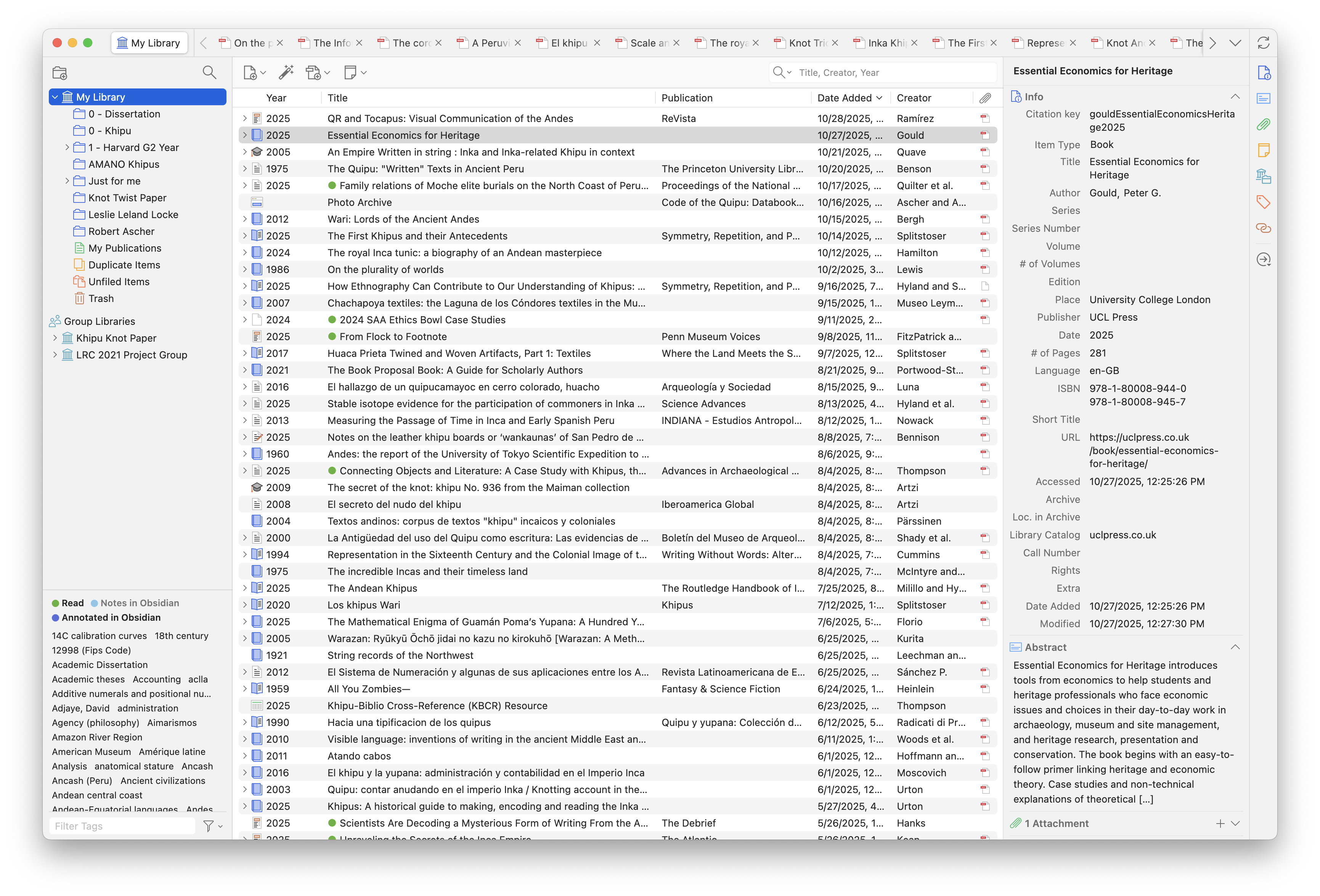
When you open Zotero Desktop, you’ll see three main sections:
1. **Collections Pane (Left):**
Displays your folders and group libraries. This is where you organize references into collections or subcollections by topic, paper, or project.
2. **Items Pane (Center):**
Lists all the references within the selected collection. You can sort by year, title, creator, or any field. Double-clicking an entry opens the PDF or webpage if attached.
3. **Info Pane (Right):**
Shows detailed metadata for the selected item—title, author, publication details, DOI, notes, tags, and attachments. This is also where you can edit information or add notes and tags.
Together, these panes give you a full view of your research library: organization on the left, items in the middle, and detailed source information on the right.
---
## Adding Sources to Zotero
### 1. Browser Connector
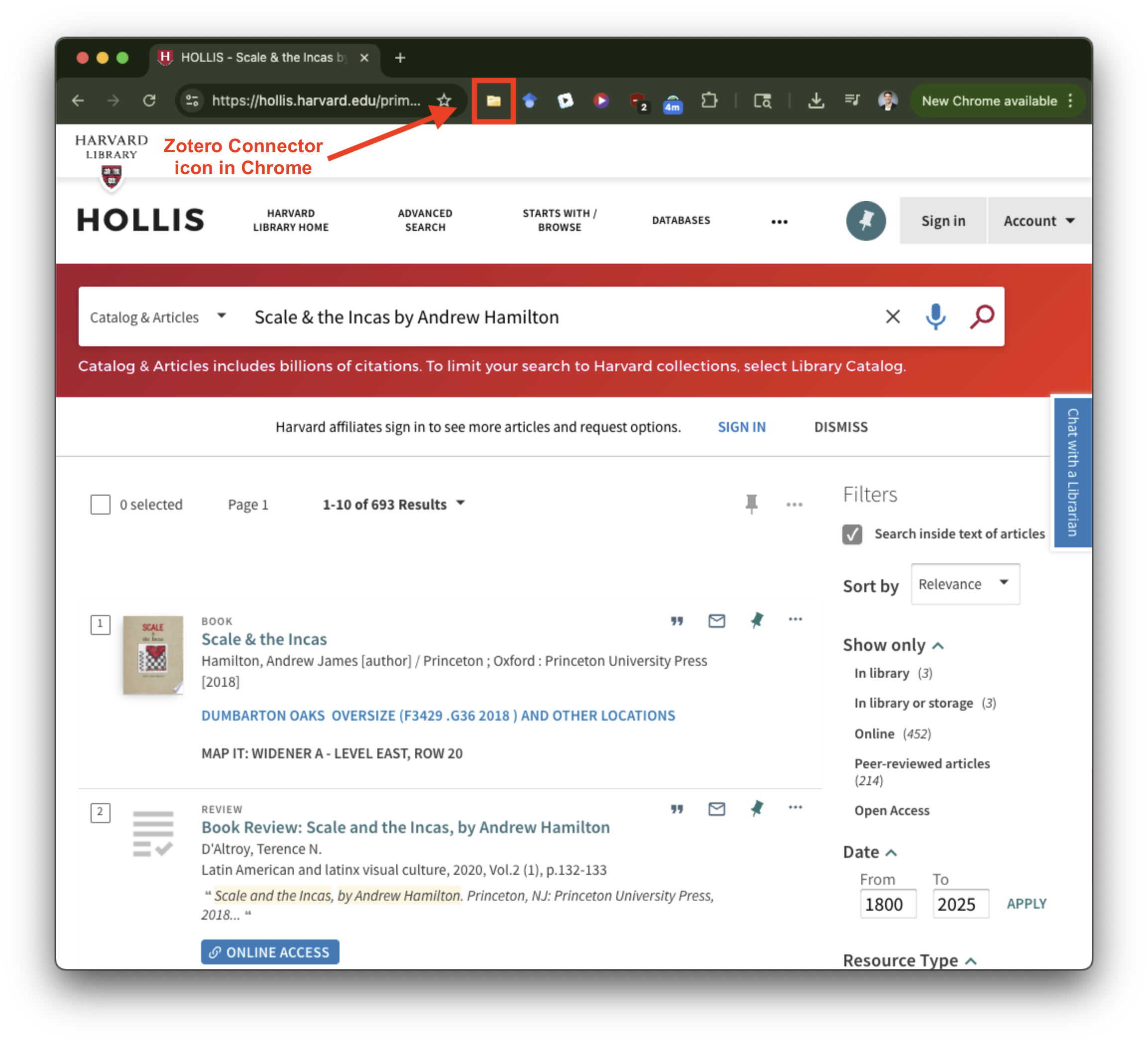
When you’re on a database page, library catalog (like [HOLLIS](https://hollis.harvard.edu/)), or article site, click the **Zotero icon** in your browser toolbar. Zotero automatically imports the citation data—often along with the full PDF of the source.
### 2. Drag and Drop PDFs
You can also drag and drop a PDF directly into Zotero. It will usually detect the citation data and fill it in automatically.
### 3. Other Ways to Add Sources
If the browser connector does not work for a certain source you have other options for capturing its metadata:
- **Copy and paste an [ISBN](https://en.wikipedia.org/wiki/ISBN), [DOI](https://en.wikipedia.org/wiki/Digital_object_identifier), or [URL](https://en.wikipedia.org/wiki/URL):**
Click the **magic wand** icon in Zotero’s toolbar and paste the identifier; Zotero will fetch the metadata automatically.
- **Scan a barcode:**
Use the Zotero mobile app or a barcode scanner to add physical books directly.
- **Manual entry:**
Click the green **“+”** icon and select the item type to enter citation data yourself.
Zotero also lets you distinguish between **authors**, **editors**, and **translators** for journal articles or edited volumes — a detail that’s often required by certain citation styles.
Add as many as needed using the **“+”** icon next to the *Author* field.
**TIP:** Always double-check the metadata Zotero pulls in — whether from a PDF, the browser connector, or an ISBN. It’s not always perfect, and bad data now means bad citations later.
---
## Organizing Your Sources
Use **Collections** and **Tags** to keep your library from becoming a chaotic mess.
### Collections (Folders)
Use collections to organize articles by project, paper, or topic. Any item you add to Zotero will be stored in the **“My Library”** collection by default. Other collections are subfolders of this main library. One item can belong to multiple collections without duplication.
### Tags
You can assign labels like *theory*, *methods*, *read*, or *to review* to your references. Tags are great for sorting across projects and tracking what you’ve read or still need to review.
### Notes
Use notes to store annotations, quotes, or commentary directly under each source. You can also create standalone notes for project-level thoughts.
### Attachments
Attach PDFs, images, or any supplementary materials to your references. Zotero keeps everything linked and organized.
---
## Using Zotero with Google Docs
> For detailed documentation, see Zotero’s official guide: [**Using Zotero with Google Docs**](https://www.zotero.org/support/google_docs).
1. **Install the Zotero Connector:**
Go to [zotero.org/download/connectors](https://www.zotero.org/download/connectors) and install it for your browser (Chrome, Firefox, or Safari).
2. **Open your Google Doc:**
Once installed, Zotero automatically adds a **Zotero** menu at the top of your Google Docs toolbar.
*(Make sure the Zotero Desktop app is open — it must be running in the background for citations to work.)*
3. **Insert Citations and Bibliographies:**
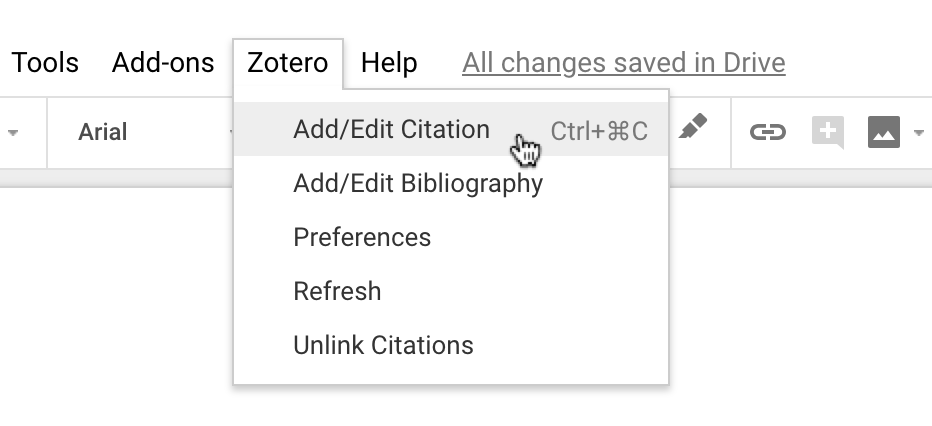
Use **Add/Edit Citation** to insert a new reference where your cursor is placed.
Use **Add/Edit Bibliography** to create or update your bibliography automatically based on the citations in your document.
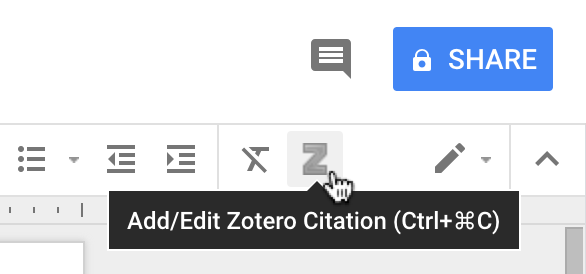
*(The Zotero Connector also adds a toolbar button for one-click citing.)*
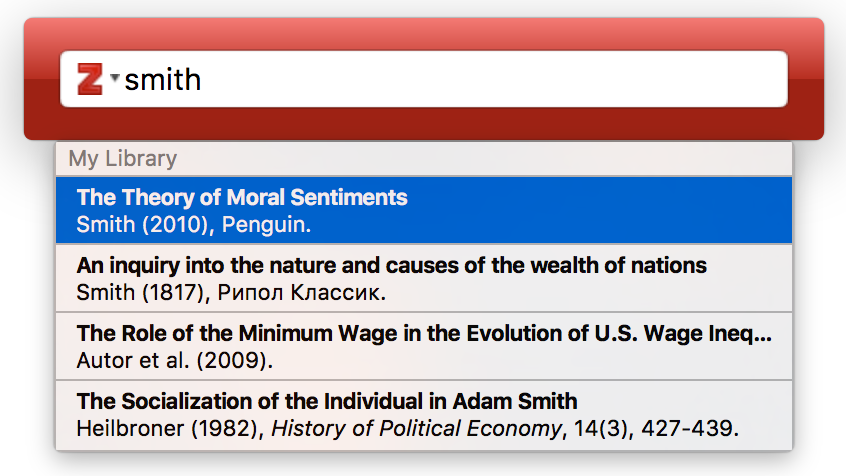
When you insert a citation, Zotero opens a **red search bar** near the top of your screen:
- Start typing part of the title, author, or year of the source you want to cite.
- Select one or more matching references from the dropdown.
- Add a page number or locator (e.g., “p. 45” or “para. 2”) if needed.
- Press **Enter** twice to insert the formatted citation.
4. **Manage Styles and Settings:**
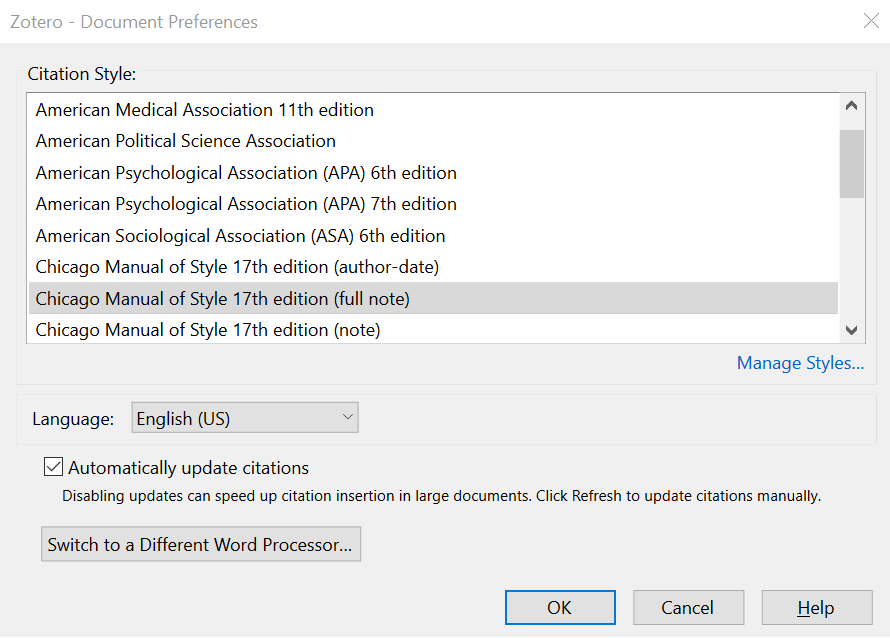
To change citation styles, go to **Zotero → Document Preferences**, and select your desired style (APA, MLA, Chicago, etc.). Zotero reformats all existing citations and the bibliography automatically when you switch styles.
> **Note:** Zotero works just as smoothly with [**Microsoft Word**](https://www.zotero.org/support/word_processor_plugin_usage).
> The same commands—**Add/Edit Citation**, **Add/Edit Bibliography**, and **Document Preferences**—function identically once you install the Word plugin.
---
# Quick FAQs
> **Tip:** If you ever get stuck, Zotero’s [**Documentation**](https://www.zotero.org/support/) and [**Forums**](https://forums.zotero.org/) are extremely active. Most common issues—connectors, syncing, missing citations—are answered there within minutes.
1. **“I’m only citing a few sources. Why would I bother with all this?”**
Because the “few sources” turn into dozens before you realize it. Even short papers benefit—Zotero saves you from formatting headaches and helps you build good habits early.
Plus, Zotero keeps track of *everything* you’ve ever read or cited, so you can reuse those references later for other assignments or projects.
2. **“Aren’t EasyBib or other websites good enough?”**
They might work for one-off citations, but not for serious research.
Web tools like EasyBib:
- Don’t store or organize your references.
- Often pull incorrect or incomplete metadata.
- Don’t integrate with Word or Google Docs.
- Require manual corrections later.
A citation manager like Zotero is a **long-term solution**—EasyBib is just a temporary fix.
3. **“Can I switch from another citation manager?”**
Yes. Zotero can import libraries from **EndNote**, **Mendeley**, or **BibTeX**.
Go to **File → Import**, choose your old library file, and Zotero will bring in your references and PDFs.
4. **“Do I need internet access to use Zotero?”**
No. Zotero’s desktop app works fully offline. You only need internet access to sync your library or save new items through the browser connector.
5. **“Does Zotero automatically create a bibliography?”**
Yes. When you insert citations into Word or Google Docs, Zotero automatically generates and updates your bibliography.
You can also right-click any item and choose **Generate Bibliography from Item → Copy to Clipboard** to copy a formatted citation instantly.
6. **“Can I use Zotero on multiple devices?”**
Yes. Create a free Zotero account and enable syncing. Your references, notes, and tags will appear on every computer and browser you use.
7. **“What if I’m using a citation style that isn’t listed?”**
Zotero supports thousands of citation styles. You can download additional ones from the [**Zotero Style Repository**](https://www.zotero.org/styles) or even create your own CSL file if needed.
8. **“Can Zotero handle PDFs automatically?”**
Yes. Zotero can automatically extract metadata, rename files, and organize PDFs. It can also perform full-text searches inside attached PDFs.
9. **“Can I share my library with classmates or collaborators?”**
Absolutely. You can create shared **Group Libraries** at [**zotero.org/groups**](https://www.zotero.org/groups) to collaborate on collections and notes in real time.
---
# ZOTERO TUTORIAL (Advanced Tips and Tricks)
## Annotating and Taking Notes in Zotero’s PDF Reader
Zotero’s built-in PDF reader lets you highlight, comment, and extract quotes directly from your attached PDFs—no need for an external viewer.
Open any PDF by double-clicking it in your library or selecting **Open PDF in New Tab.**
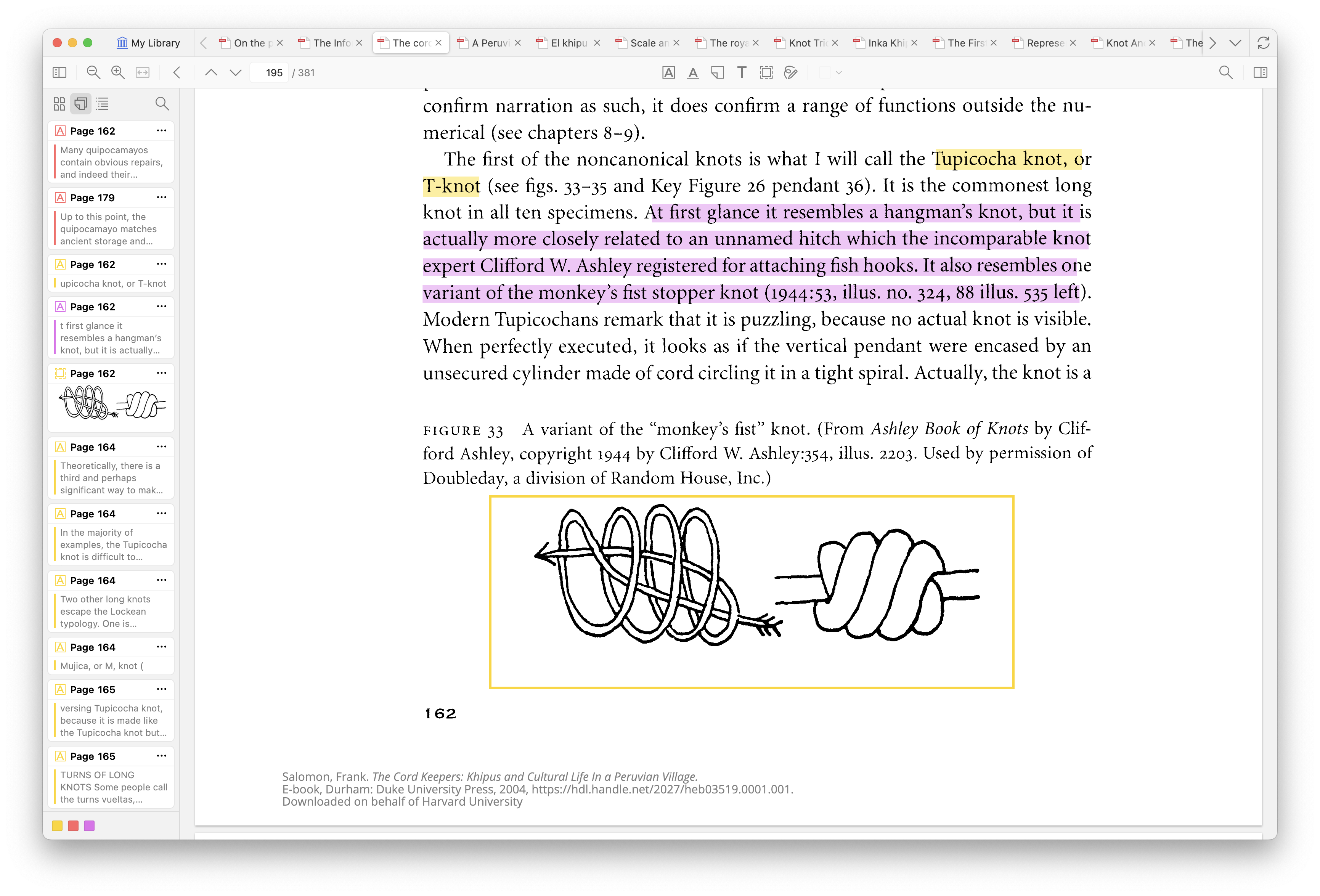
- Highlight and **color-code** key sections (e.g., yellow for evidence, blue for theory, red for critique).
- Add **sticky-note-style comments** on specific passages.
- **Extract all annotations** into a single Zotero note for quick reference or writing integration.
- **Link annotations** back to the exact page in the PDF so you can jump straight to the source.
Annotations appear as child notes under each reference. You can edit, tag, or cite them directly in Word or Google Docs using the **Add Note** function.
> **TIP:** Do your annotations *inside Zotero* whenever possible—it keeps your notes, highlights, and citations tied together, so you never lose track of what came from where.
>
> Learn more: [**Annotating PDFs in Zotero**](https://www.zotero.org/support/pdf_reader)
---
## Zotero Mobile App
The **Zotero iOS app** brings your entire library to your phone or tablet, allowing you to read, annotate, and add new sources on the go.
All changes sync automatically to your desktop library.
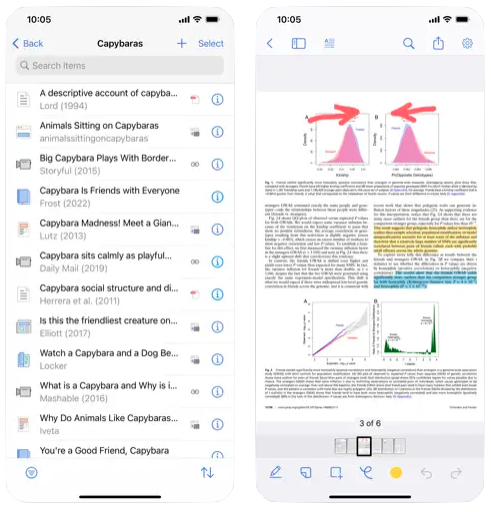
You can:
- **View and edit your library** anywhere.
- **Annotate PDFs** with highlights and comments.
- **Add new references** using the *Share to Zotero* option in Safari or other apps.
- **Take field notes** or attach photos (e.g., book covers, archival materials).
📱 **Download:**
- [**Zotero for iOS** (App Store)](https://apps.apple.com/us/app/zotero/id1513554812)
- [**Zotero Web Library** (for Android or browser use)](https://www.zotero.org/)
> ⚠️ There’s no native Android app yet, but you can use the mobile web library or third-party apps like **Zoo for Zotero** or **ZotEZ².**
>
> Learn more: [**Using Zotero on Mobile**](https://www.zotero.org/support/mobile)
---
## Other Tips
- **Copy a formatted bibliography entry:**
Right-click any item → **Generate Bibliography from Item → Copy to Clipboard.**
This instantly produces a citation in your chosen style (APA, Chicago, etc.)—handy for quick inserts into papers or emails.
- **Install new citation styles:**
Zotero supports thousands of journal-specific and discipline-specific formats.
Visit the [**Zotero Style Repository**](https://www.zotero.org/styles) to find and install additional **CSL (Citation Style Language)** files. You can even edit existing styles or create your own.
- **Attach files automatically:**
Enable automatic PDF downloading under **Preferences → General → Automatically Attach Associated PDFs** when saving new references.
- **Rename and organize PDFs:**
Under **Preferences → Advanced → Files and Folders**, Zotero can automatically rename PDFs based on metadata (*Author – Year – Title*) and organize them in a custom directory.
- **Use Tags efficiently:**
Color-coded tags help track reading progress (e.g., “to read,” “important,” “cited”).
You can assign up to six tag colors for instant visual cues.
- **Search smarter:**
Use **Advanced Search** to locate items by tag, date added, or annotation text.
Saved searches auto-update as your library grows.
> **Tip:** For more advanced features, see [**Zotero Tips and Tricks**](https://www.zotero.org/support/tips_and_tricks).
 Sign in via Facebook
 Sign in via X(Twitter)
 Sign in via GitHub
 Sign in via Dropbox
 Sign in with Wallet
Connect another wallet
Sign in with Wallet
Connect another wallet