---
tags: resource
---
# Getting Started with Editing in Adobe Premiere Pro: A Guide for Students
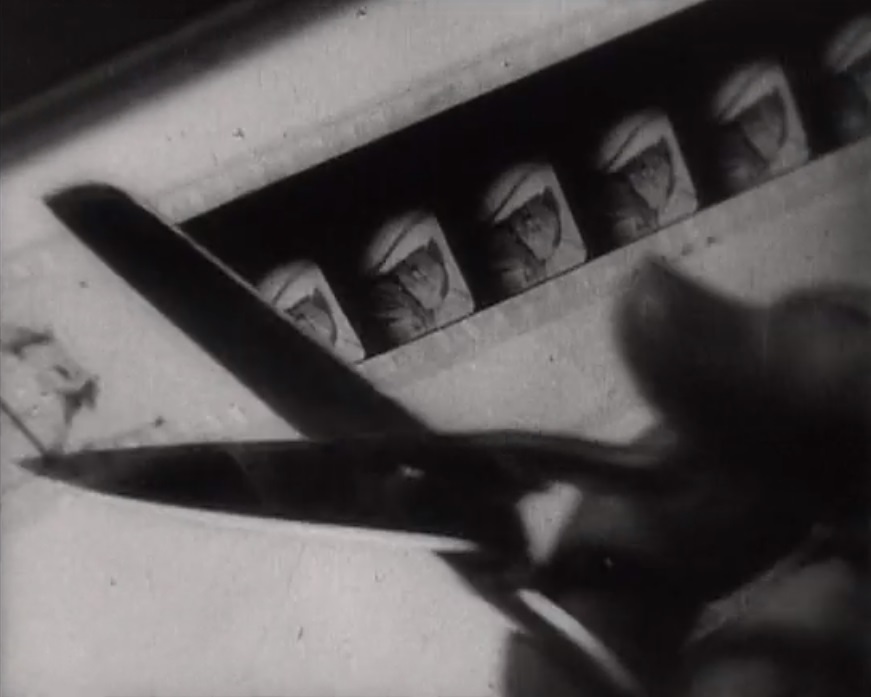
This resource introduces some **basic video and audio editing moves** in Adobe Premiere Pro, provides links to **helpful tutorials**, and highlights **considerations to keep in mind early in your project** so editing is smoother later.
If you have not already done so, [download the Adobe Creative Cloud and install Adobe Premiere.](https://hackmd.io/gwYg4xWdT6yLcSBF0eXBKg)
---
## 0. Setting Up Your Workspace & Panels
Premiere Pro is highly customizable. You don’t need to use the default layout — you can open, close, and rearrange panels depending on the task at hand. Knowing how to do this early will make editing smoother.
### Workspaces
- Go to the top menu: *Window → Workspaces*.
- Common presets:
- **Editing** (default, balanced for most tasks)
- **Color** (focuses on Lumetri Color panel for grading)
- **Audio** (shows mixing and effects tools)
- **Graphics** (highlights Essential Graphics for text and motion design)
- To reset if things look different: *Window → Workspaces → Reset to Saved Layout*.
- To keep your setup: *Window → Workspaces → Save as New Workspace*.
> **Tip:** Start in **Editing** while you’re learning, then switch as you take on specialized tasks.
### Opening Essential Panels
Sometimes, important tools aren’t visible until you open their panels. You can access any panel from the *Window* menu. A few you’ll likely need:
- **Effects** (Window → Effects)
Use this to apply transitions and video/audio effects.
- **Essential Graphics** (Window → Essential Graphics)
For creating and customizing text and titles.
- **Lumetri Color** (Window → Lumetri Color)
For adjusting brightness, contrast, and color.
- **Audio Track Mixer** (Window → Audio Track Mixer)
Useful for balancing levels across an entire track.
- **Media Browser** (Window → Media Browser)
A reliable way to import media and avoid broken links.
---
## 1. Basic Video Editing Moves
- **Importing Media**
- Use the **Media Browser** panel to import clips.
- Keep all media organized in one folder on your computer before importing. **This is very important!** Premiere will be unable to open your project file if the media you import moves locations on your computer.
- **Creating a Sequence**
- Right-click a clip → *New Sequence from Clip*.
- Or: manually set resolution (1080p, 4K) and frame rate (24, 30, 60 fps).
- **Basic Cuts**
- **Razor Tool (C)**: Split clips at the playhead.
- **Trim Tool**: Hover over the edge of a clip to shorten/extend.
- **Moving and Rearranging**
- **Selection Tool (V)**: Drag and drop clips on the timeline.
- Use snapping (toggle with **S**) to align edits quickly.
- **Titles & Text**
- Use the **Type Tool (T)** in the Program Monitor.
- Customize with the *Essential Graphics* panel.
---
## 1.5 Working with Effects
Effects let you change how your clips look or sound. You’ll mainly use the **Effects panel** and **Effect Controls panel** together.
### Adding Effects
- Open the *Effects* panel (*Window → Effects*).
- Browse **Video Effects**, **Audio Effects**, or **Video Transitions**.
- Drag the desired effect onto a clip in the Timeline.
### Adjusting Effects
- Select the clip → open the *Effect Controls* panel (*Window → Effect Controls*).
- Every applied effect will appear here with adjustable settings.
- Examples:
- **Cross Dissolve**: drag between two clips → duration can be adjusted in *Effect Controls*.
- **Gaussian Blur**: adjust blurriness level with a slider.
- **Lumetri Color**: tweak exposure, contrast, or saturation.
### Keyframing Effects
- Many effect properties have a stopwatch icon.
- Click the stopwatch to create a **keyframe** (marks a value at a specific point in time).
- Move the playhead and change the value → Premiere will animate the change.
- Example: zooming into an image by increasing *Scale* over time.
> **Tip:** Think of the *Effects* panel as your “toolbox” and *Effect Controls* as your “control room.”
---
## 1. Basic Video Editing Moves
- **Importing Media**
- Use the **Media Browser** panel to import clips (avoids path issues).
- Keep all media organized in one folder on your computer before importing.
- **Creating a Sequence**
- Right-click a clip → *New Sequence from Clip* (ensures correct settings).
- Or: manually set resolution (1080p, 4K) and frame rate (24, 30, 60 fps).
- **Basic Cuts**
- **Razor Tool (shortcut key: C)**: Split clips at the playhead.
- **Trim Tool**: Hover over the edge of a clip, then click and drag to shorten/extend.
- **Moving and Rearranging**
- **Selection Tool (shortcut key: V)**: Drag and drop clips on the timeline.
- Use snapping (toggle with **S**) to align edits quickly.
- **Transitions**
- Go to *Effects* → *Video Transitions* → drag onto the cut.
- Cross Dissolve is the most common for video.
- **Titles & Text**
- Use the **Type Tool (T)** directly in the Program Monitor.
- Customize with the *Essential Graphics* panel.
---
## 2. Basic Audio Editing Moves
- **Volume Adjustments**
- Use the **audio track keyframes** (pen tool) to fade audio in/out.
- Drag the audio line up or down to change volume quickly.
- **Audio Transitions**
- Apply *Constant Power* from the *Audio Transitions* menu for smooth fades.
- **Balancing Sound**
- Keep dialogue around **-6dB to -12dB**.
- Avoid peaking above 0dB (red levels in the meter).
---
### Syncing Audio & Video in Premiere
There are several ways to sync audio and video depending on how you recorded your footage:
1. **Manual Sync (Clap/Slate Method)**
- Place video and audio tracks on the timeline.
- Zoom in on the clap/slate spike in the waveform.
- Drag audio until the spike aligns with the visual clap.
- Once synced, **link** the video and audio (right-click → *Link*).
2. **Automatic Sync (Synchronize Command)**
- Select the video and audio clips in the timeline or Project panel.
- Right-click → *Synchronize* → choose **Audio**.
- Premiere analyzes the waveforms and aligns them automatically.
- Works best with clear, distinct dialogue or claps.
3. **Merge Clips (Good for Organized Projects)**
- In the Project panel, select the video + external audio file.
- Right-click → *Merge Clips*.
- Choose sync by **Audio** or **Timecode**.
- Creates a new “merged clip” with video + synced audio combined.
- Useful if you want a single asset to edit with (instead of keeping separate audio tracks).
4. **Timecode Sync (Professional Shoots)**
- If your camera and recorder were jam-synced to the same timecode:
- Select video + audio in the Project panel.
- Right-click → *Merge Clips* → sync by **Timecode**.
- This gives frame-accurate syncing with no manual alignment needed.
5. **Transcript + Text-Based Editing (newer AI-driven workflow)**
- If your A-roll (main video source) has dialogue, **auto-transcribe it** (`Window → Text → Transcript`).
- In the **Transcript panel**, you can align sections of speech with B-roll (smaller clips or insert shots) by **cutting sections directly**.
- Then just **drag B-roll over those cut sections** to illustrate what’s being said.
---
**Best Practice:**
- Always record a **slate or clap** at the start of each take.
- If possible, keep your camera’s onboard audio recording (even if low quality) — it helps Premiere sync waveforms automatically.
- After syncing, **link** the tracks so they stay together when you edit.
---
## 4. Adobe Premiere Tutorials
- [Adobe Premiere Pro Beginner Tutorial (Adobe)](https://helpx.adobe.com/premiere-pro/tutorials.html)
- [Premiere Pro for Beginners – Full Course (FreeCodeCamp)](https://www.youtube.com/watch?v=Hls3Tp7JS8E)
- [Premiere Pro Audio Editing Basics (Adobe)](https://www.adobe.com/learn/premiere-pro?topic=audio&learnIn=1)
- [Essential Graphics & Titles in Premiere (Adobe)](https://www.adobe.com/learn/premiere-pro?topic=titles&learnIn=1)
---
<h2>
5. Related Resources
</h2>
* **Guide for Making Film Storyboards** [Storyboarding Resource](/4263I1usRp6425Sia5fssg)
 Sign in with Wallet
Connect another wallet
Sign in with Wallet
Connect another wallet