# GENED 1038: Preparing a ChatGPT EDU Thread for Submission
When sharing ChatGPT EDU threads, direct links may not always work as expected. Some responses, especially those with images or system formatting, might not display properly when accessed through a link. **To ensure that your submission is clear and accessible for grading, you will copy and paste your entire conversation into a word processor, export it as a PDF, and upload it along with your reflection to Canvas.**
## Steps for Submission
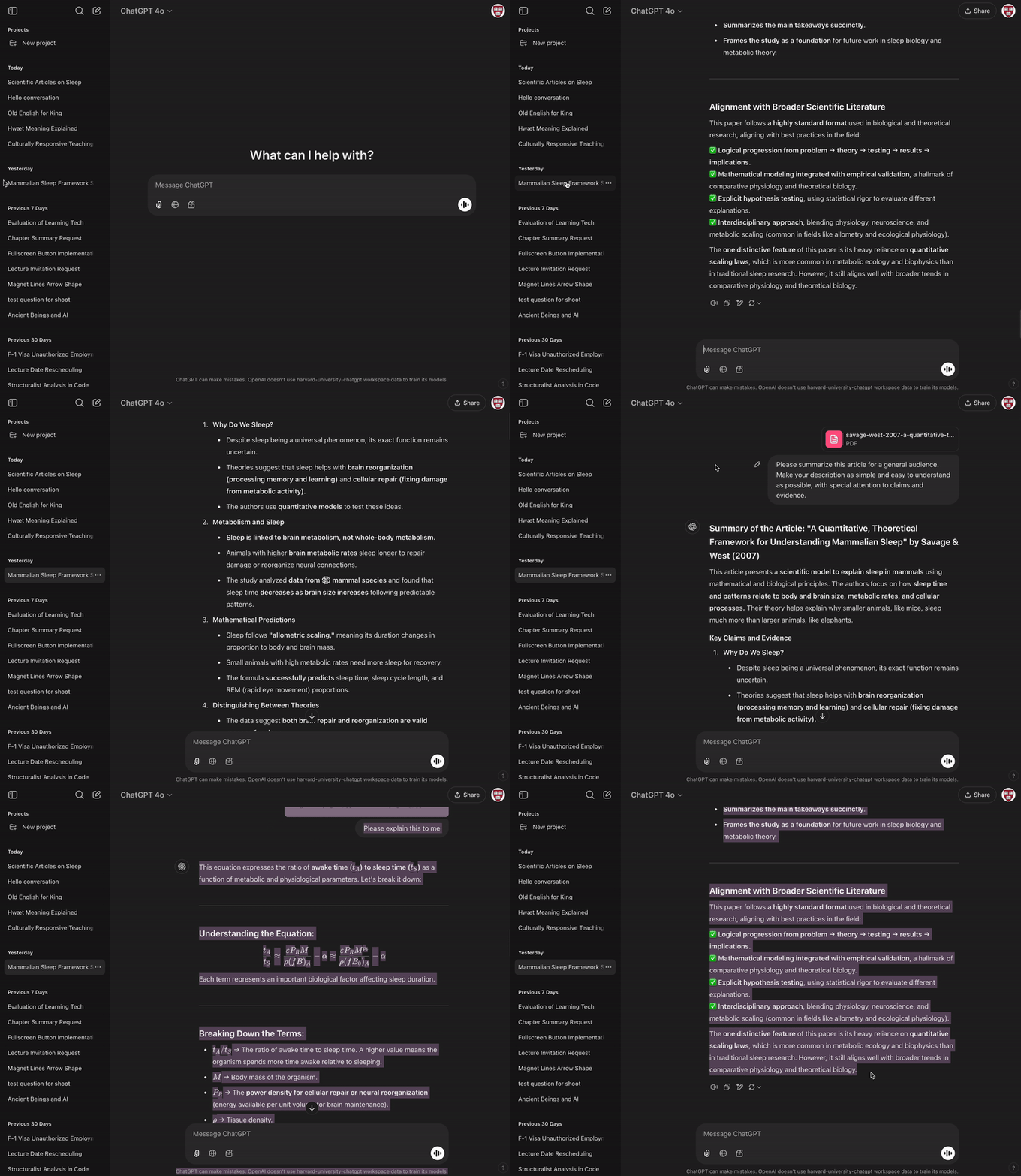
1. **Copy the Full Conversation**
- Open your ChatGPT thread.
- Select the entire conversation, including both your messages and ChatGPT’s responses.
- Copy the text (`Ctrl + C` on Windows / `Cmd + C` on Mac).
2. **Paste into a Word Processor**
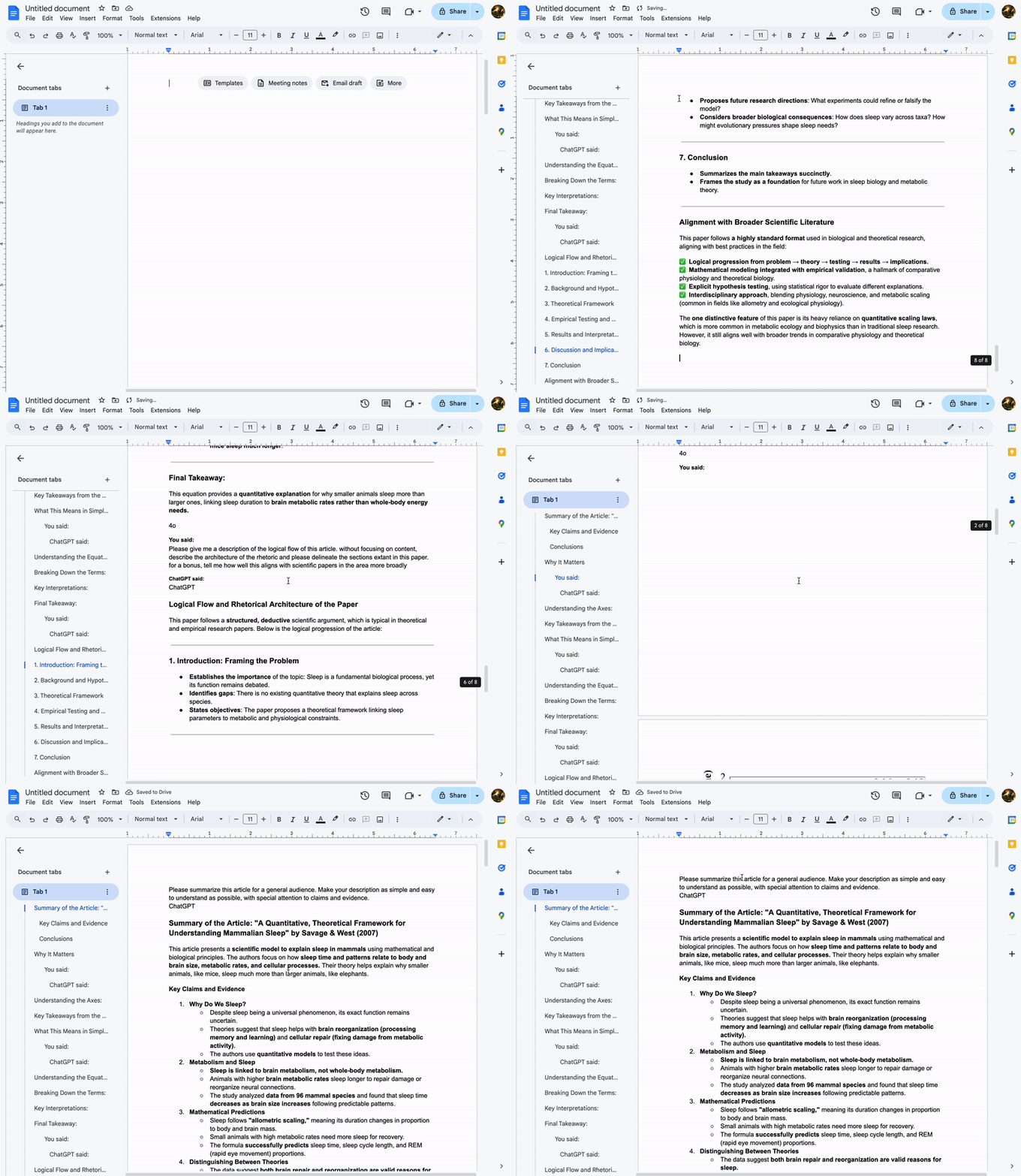
- Open a document in Microsoft Word, Google Docs, or another text editor.
- Paste the conversation into the document (`Ctrl + V` on Windows / `Cmd + V` on Mac).
3. **Check Formatting**
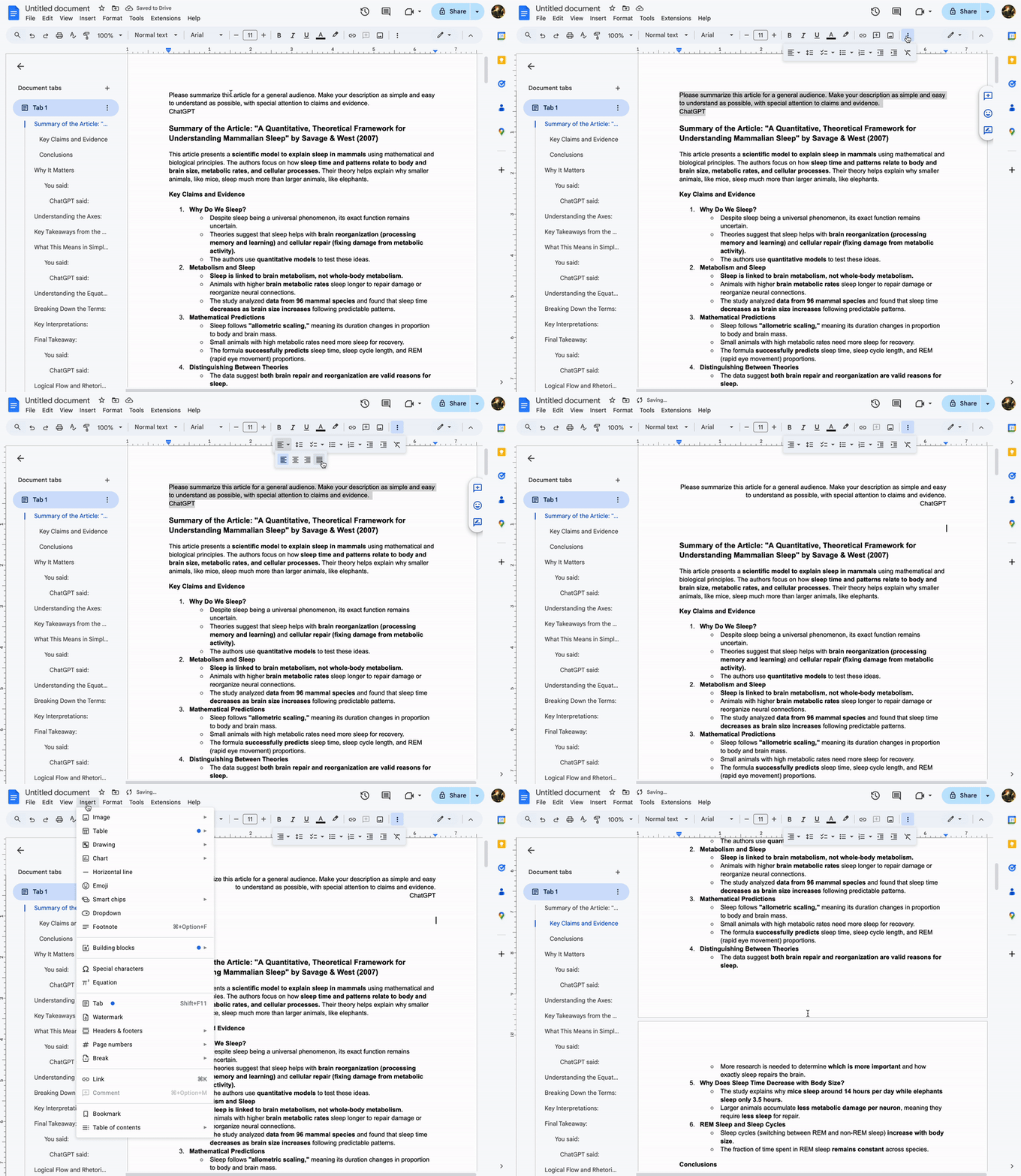
- Make sure all text is included and easy to read.
- Consider adding spacing, indentations, or simple headings to distinguish your inputs from ChatGPT’s responses.
4. **Export as a PDF**
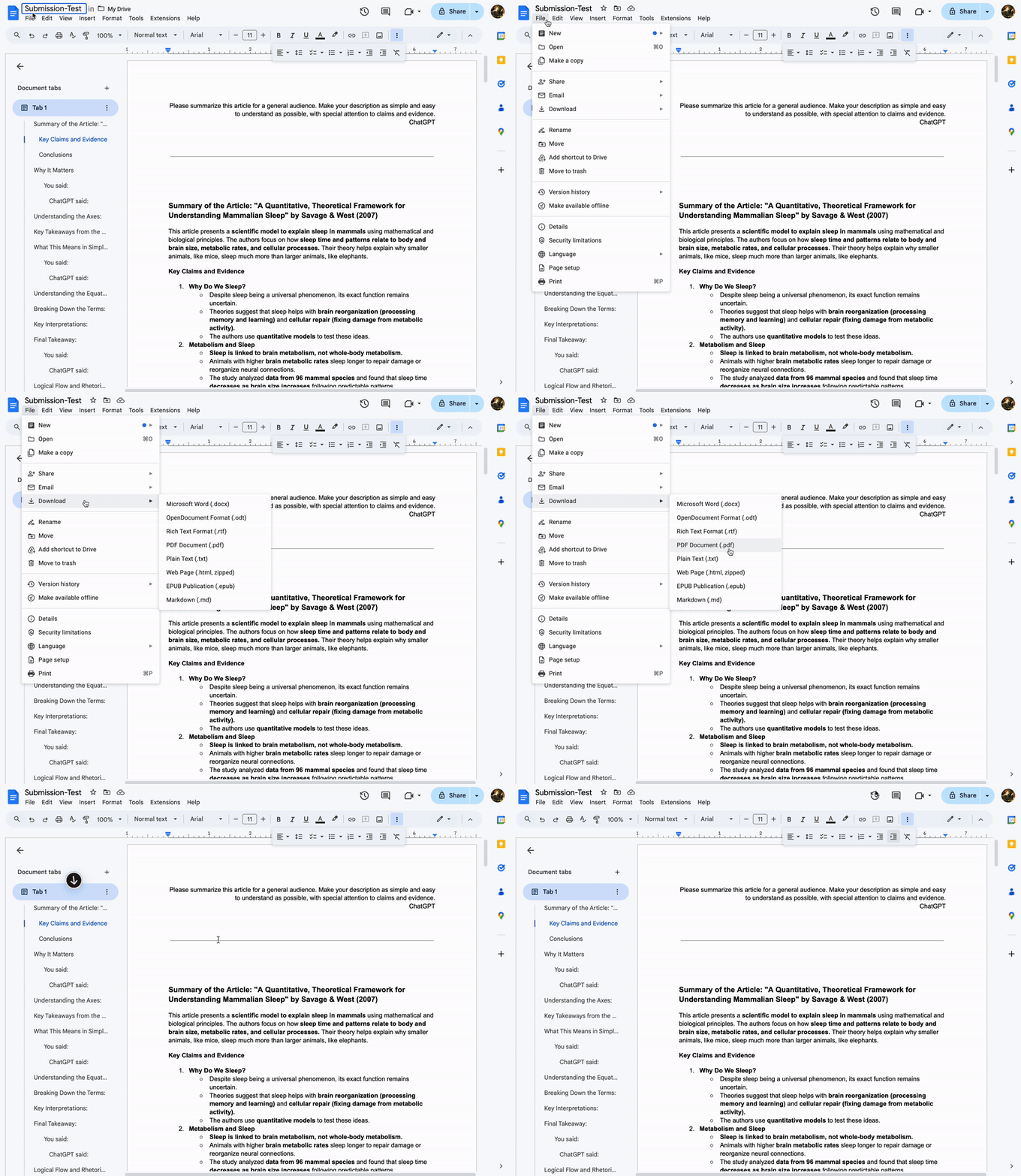
- In Microsoft Word: Go to **File > Save As > PDF**.
- In Google Docs: Go to **File > Download > PDF Document (.pdf)**.
- In Pages (Mac): Go to **File > Export To > PDF**.
5. **Upload to Canvas**
- Submit both the PDF of your ChatGPT conversation and your reflection in the assignment space on Canvas.
## Additional Notes
- Screenshots are not recommended, as they may be difficult to read and don’t always capture the full exchange.
- If formatting looks off, try using a different word processor before exporting.
- Before submitting, double-check that both files (your ChatGPT thread and your reflection) are included.
Following these steps will help ensure that your submission is complete and easy to review.
 Sign in with Wallet
Connect another wallet
Sign in with Wallet
Connect another wallet