# EXPOS20 Queer Coming of Age Stories Video Essay Resource
# Video Essays
Video essays deploy visuals, audio, and sometimes text in order to make an argument or convey key data to an audience. Like academic essays, video essays advance original claims and incorporate evidence to support those claims.
<iframe width="560" height="315" src="https://www.youtube.com/embed/_V10kWLh71U" title="YouTube video player" frameborder="0" allow="accelerometer; autoplay; clipboard-write; encrypted-media; gyroscope; picture-in-picture" allowfullscreen></iframe>
The Vox "explainer"-style video about a chair featured on multiple album covers exemplifies some of the key moves that video essays can make:
* many, many examples of visual evidence that support the video essay's central claim
* using juxtaposition to establish contrasts and relationships between visuals and the ideas they represent
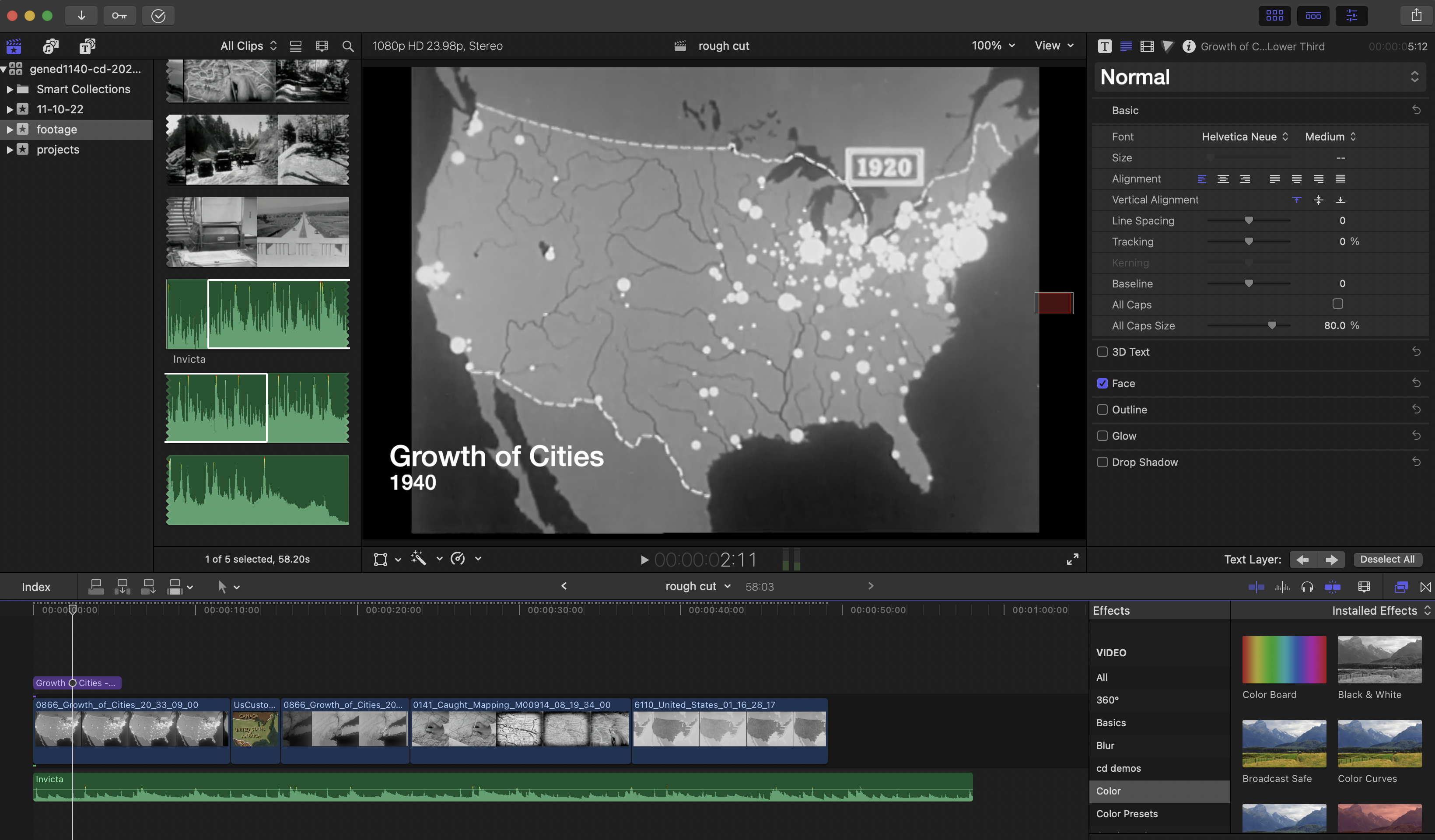
* adding visual layers, like highlighting, animations, and graphics, that draw your viewer's attention to especially salient features or that give key context to an image (like the name of a musician, in the example below)
* a huge range of visual evidence to set the object of analysis in its context and give a rich accounting of it
* interpretive claims that become arguable by way of strategic use of visuals and the narrator's voiceover
* a score that structures the viewer's emotional experience and that builds as the argument itself builds in complexity
## Considering Your Visual Assets
Think about the visual assets--images, photographs, clips, graphics, etc.--that you'll want to source or create for your video. These visuals are the core of your video essay and should be considered in terms of what they'll contribute and in what progression they'll appear. As you select these assets, consider the timing and purpose of each image—what you want the viewer to understand or notice when it appears on screen. Equally important is planning what the viewer will hear as these visuals appear: What will your narration say? What aspects of your topic will these visuals enable you to discuss?
## The Layers of the Video Essay
Video essays use multiple layers to deepen or reinforce a claim. One visual layer could be said to be a kind of "primary" visual--a video clip, a static image, or other footage that provides context or evidence. Overlaid on top of this might be a second layer, an overlay visual, which could be a graphic, text or titles, animations, or additional images that enhance or clarify the primary visual. For example, you might overlay a graphic to highlight part of the image, or add text to explain who a speaker is.
Similarly, you might layer audio in your video essay. A primary audio layer might include your narration/voiceover, dialogue and other audio from video footage you've integrated, or music. You might have additional layers of supplementary audio, like a score, ambient sounds, etc.
## Resources + Tutorials
[A Quick Guide to Post Production Resources](https://resources.learninglab.xyz/simple/projects/HDS-FilmFest/post-production)
### For iMovie:
* [Getting Started with iMovie](https://support.apple.com/en-us/HT212059)
### For Davinci Resolve:
* [Getting Started with Davinci Resolve](https://resources.learninglab.xyz/simple/people/casey-c/Resolve-getStarted)
### For Final Cut Pro:
* [Getting Started with Final Cut Pro](https://resources.learninglab.xyz/simple/people/casey-c/FCPX-getStarted)
### For Adobe Premiere:
* [Guide to Adobe Premiere Pro](/s2Pph8GJSZSvUv5ENuXqiQ)
* [Getting Started with Adobe Premiere](https://resources.learninglab.xyz/simple/people/casey-c/Premiere-getStarted)
### Sourcing Video:
* [Prelinger Archives](https://archive.org/details/prelinger)
### downloading with ClipGrab
Youtube has just about everything you can imagine in terms of content, and [ClipGrab](https://clipgrab.org/) is a program you can use to download those videos.
**some tips:**
Sometimes, the audio might not properly download when you use ClipGrab. Below are some steps you can try:
* [Download the media player VLC](https://www.videolan.org/vlc/)
* Open VLC and go to **Media > Convert/Save**.
* Click **Add** to select your video file, then click **Convert/Save**.
* Under Settings, go to the Video Codec tab and set it to **H.264**.
* Switch to the Audio Codec tab and ensure the format is **MP4** (or MPEG Audio, if listed).
* Choose a destination file name and location, then click **Start** to save.
* VLC will process the file, indicated by playback in the VLC window.
### other options
Not the most ideal in terms of quality, but you can use programs like [QuickTime](https://support.apple.com/guide/quicktime-player/record-your-screen-qtp97b08e666/mac) or even [Zoom](https://blog.smu.edu/itconnect/2017/08/23/using-zoom-create-quick-easy-screen-recordings-free/) to record your screen.
### Some Recording Tips
* [A resource about recording video with your phone](https://hackmd.io/xD2-fRD1RbigxRQPRUc8PQ?view)
---
## Contact Us!
learninglab@fas.harvard.edu
 Sign in with Wallet
Connect another wallet
Sign in with Wallet
Connect another wallet