# Keynote Guide for Scholars
Welcome to the Learning Lab! This is a guide with tips on several key moves you will make while creating presentations in Keynote.
## Slides
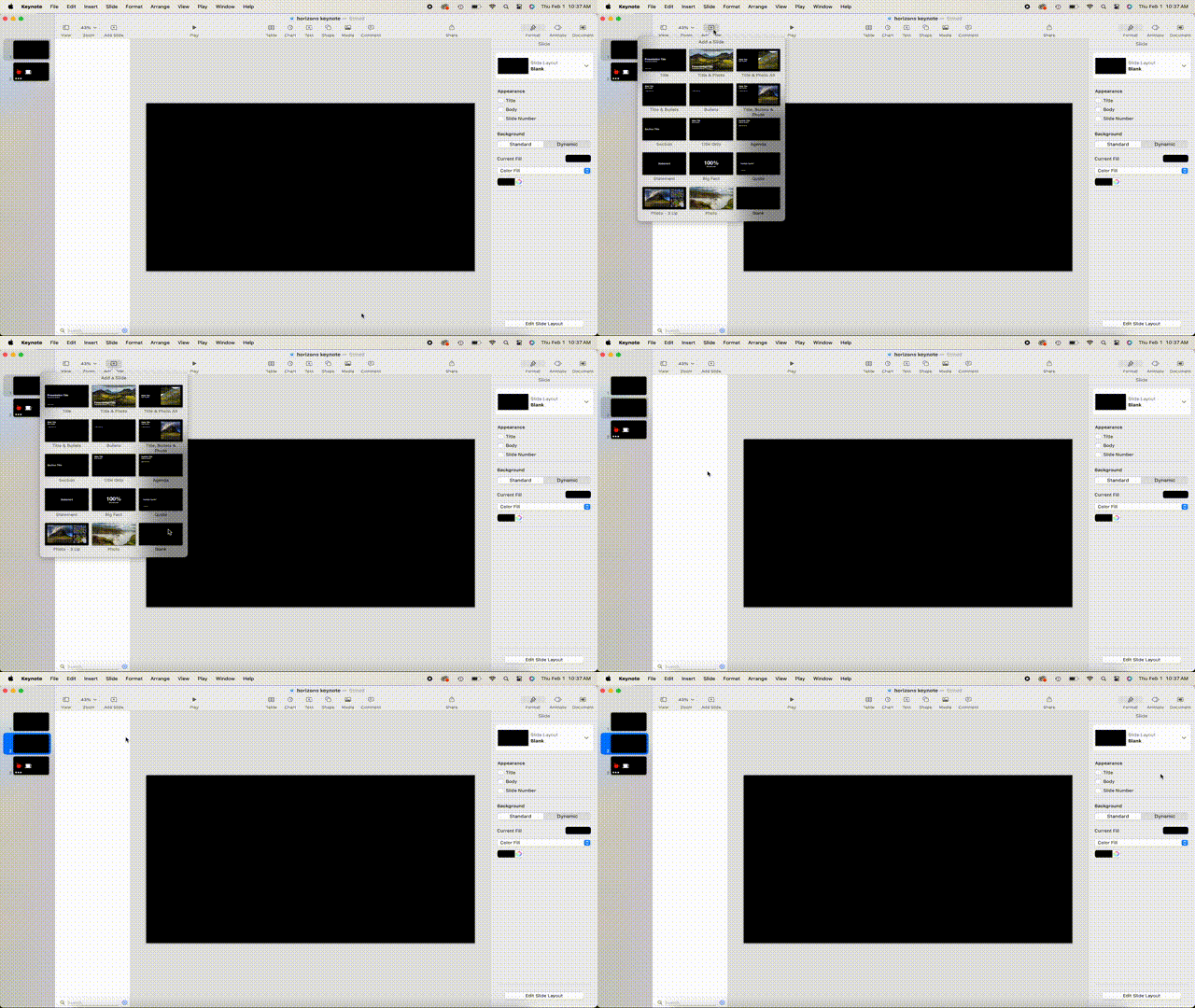
You can add a new slide to your presentation by using the "Add slide" button, duplicating existing slides, or adding slides from another presentation to the slide navigator.
## Objects
### Object list
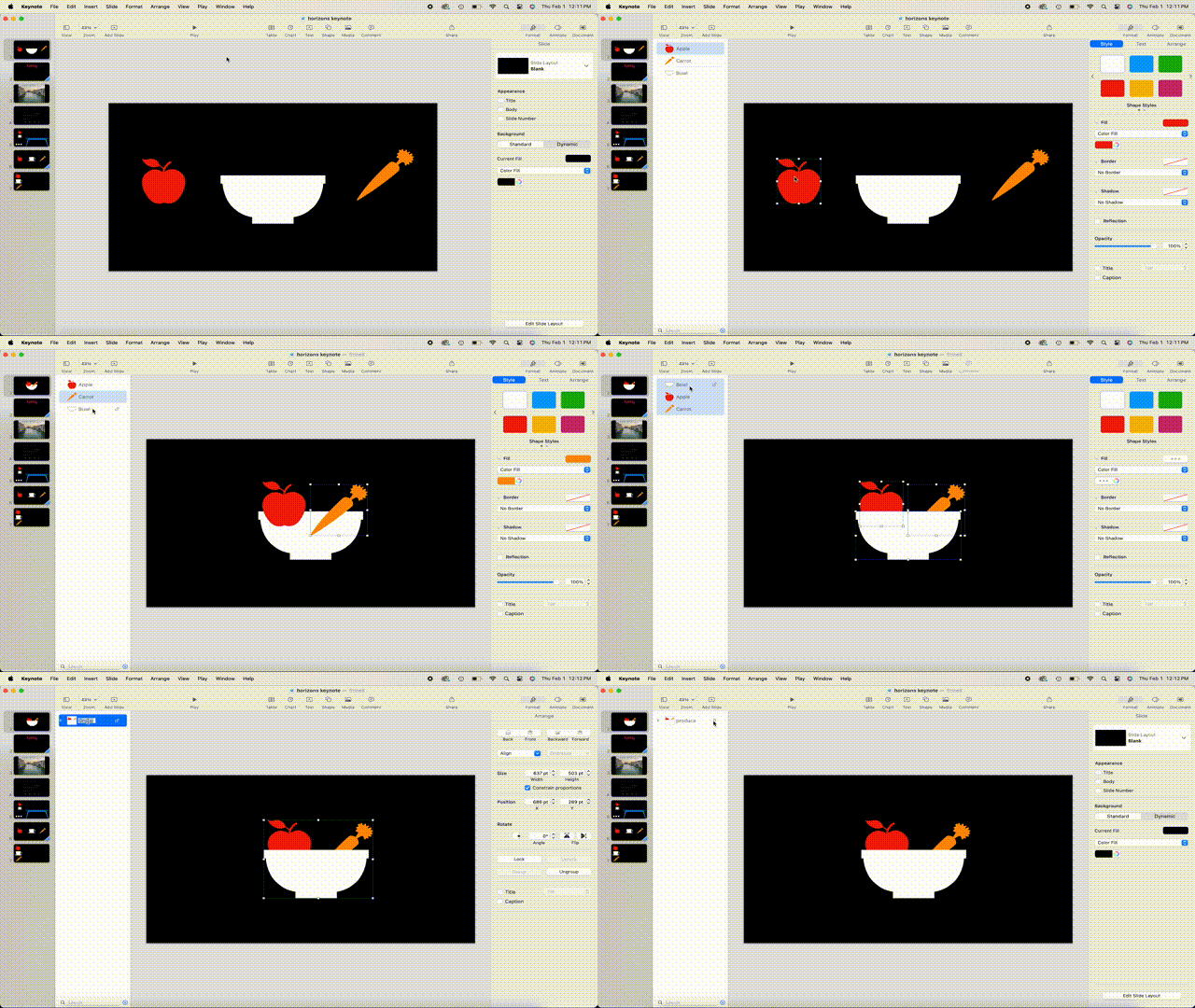
The object list helps you organize and select objects on the slide. Objects in the list are shown in their layering order on the slide and can be grouped, locked, or moved. You can also edit the names of objects in the list to make them easier to identify.
### Adding and editing text
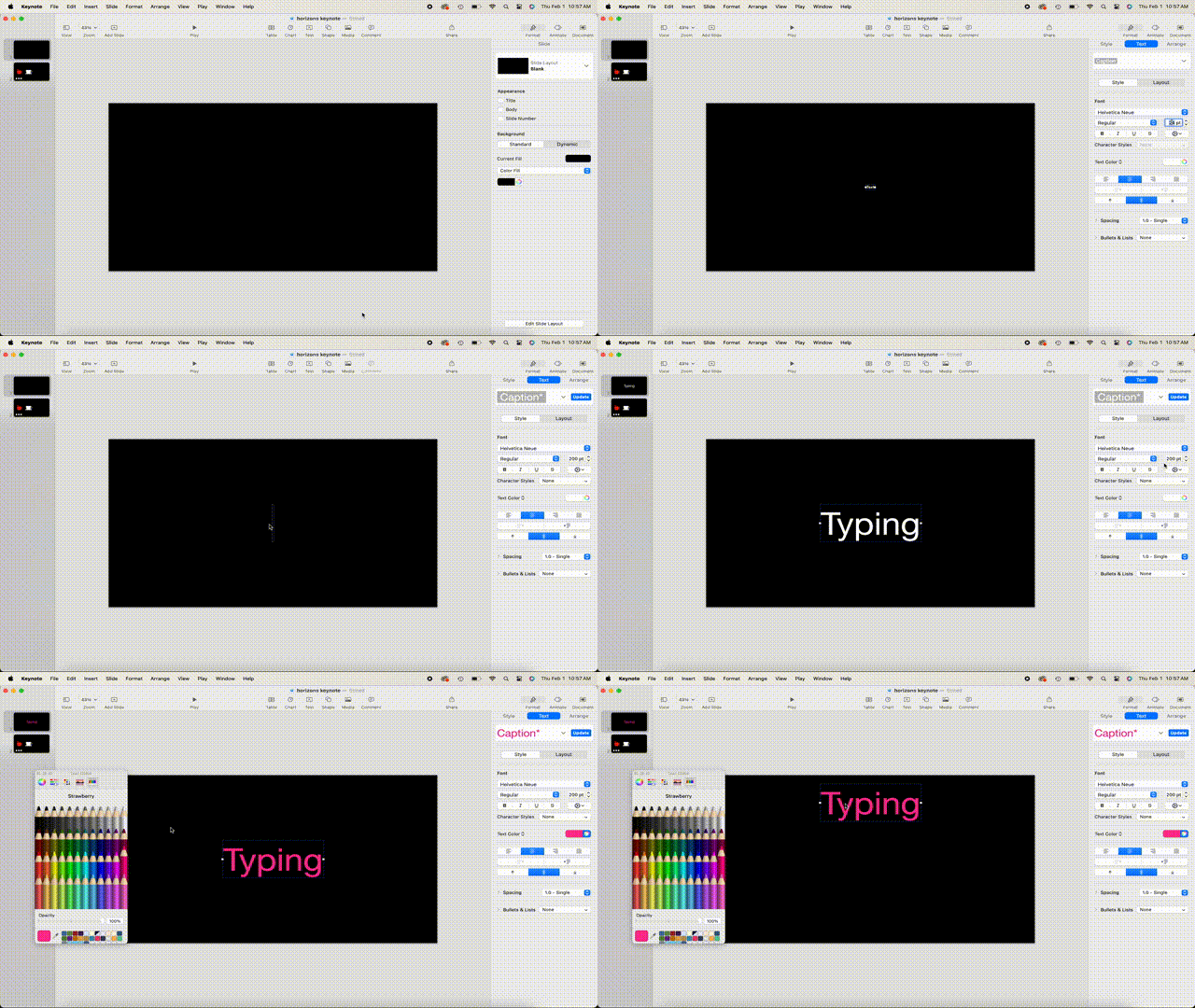
To add text to a slide, you can replace placeholder text or add a text box/shape and type text within it.
### Adding and editing images
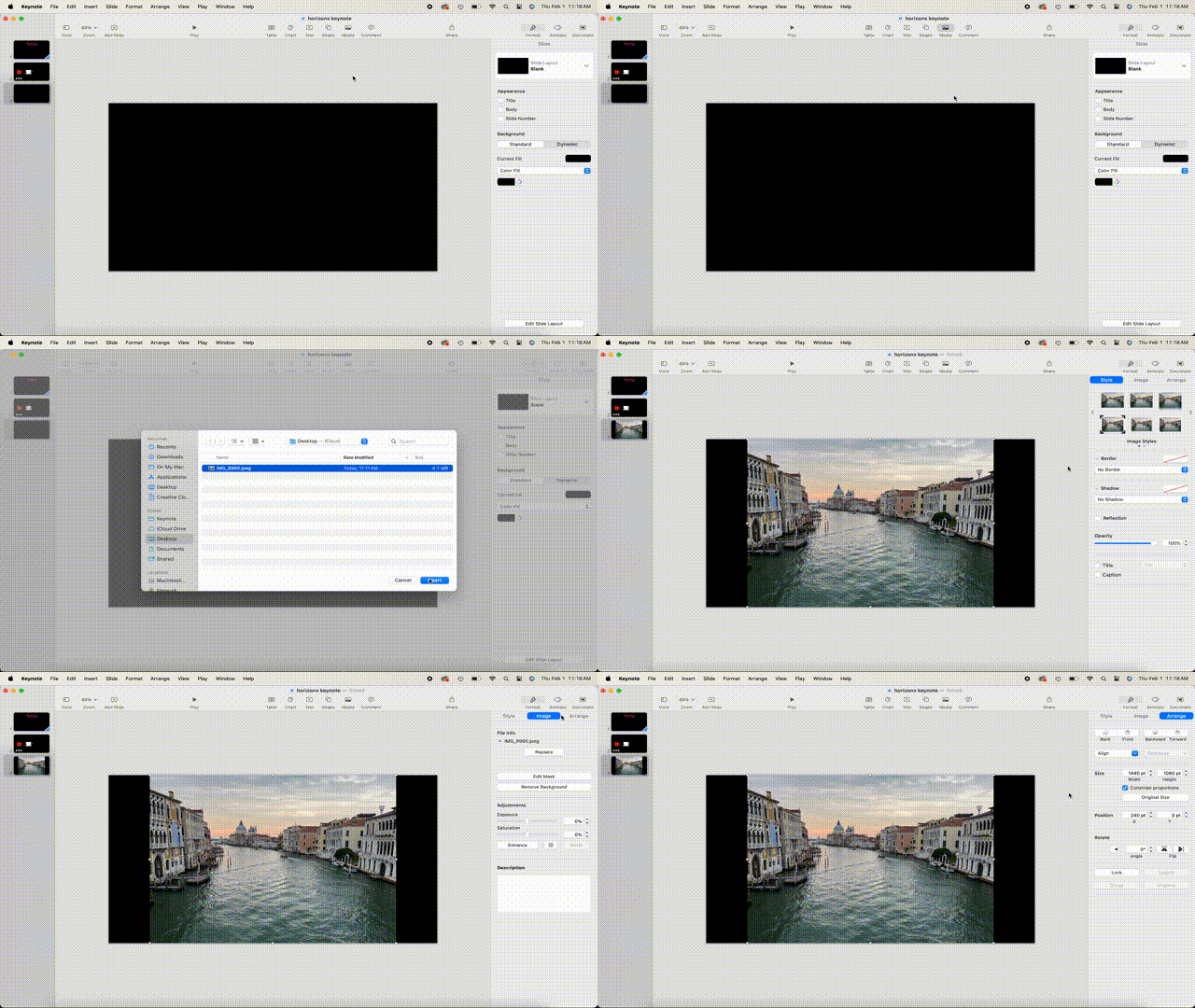
You can add photos, graphics, and SVG images to a slide and replace any media placeholders with your images. You can add images stored on your computer using the "Media button" or by dragging the image into Keynote.
### Adding and editing shapes
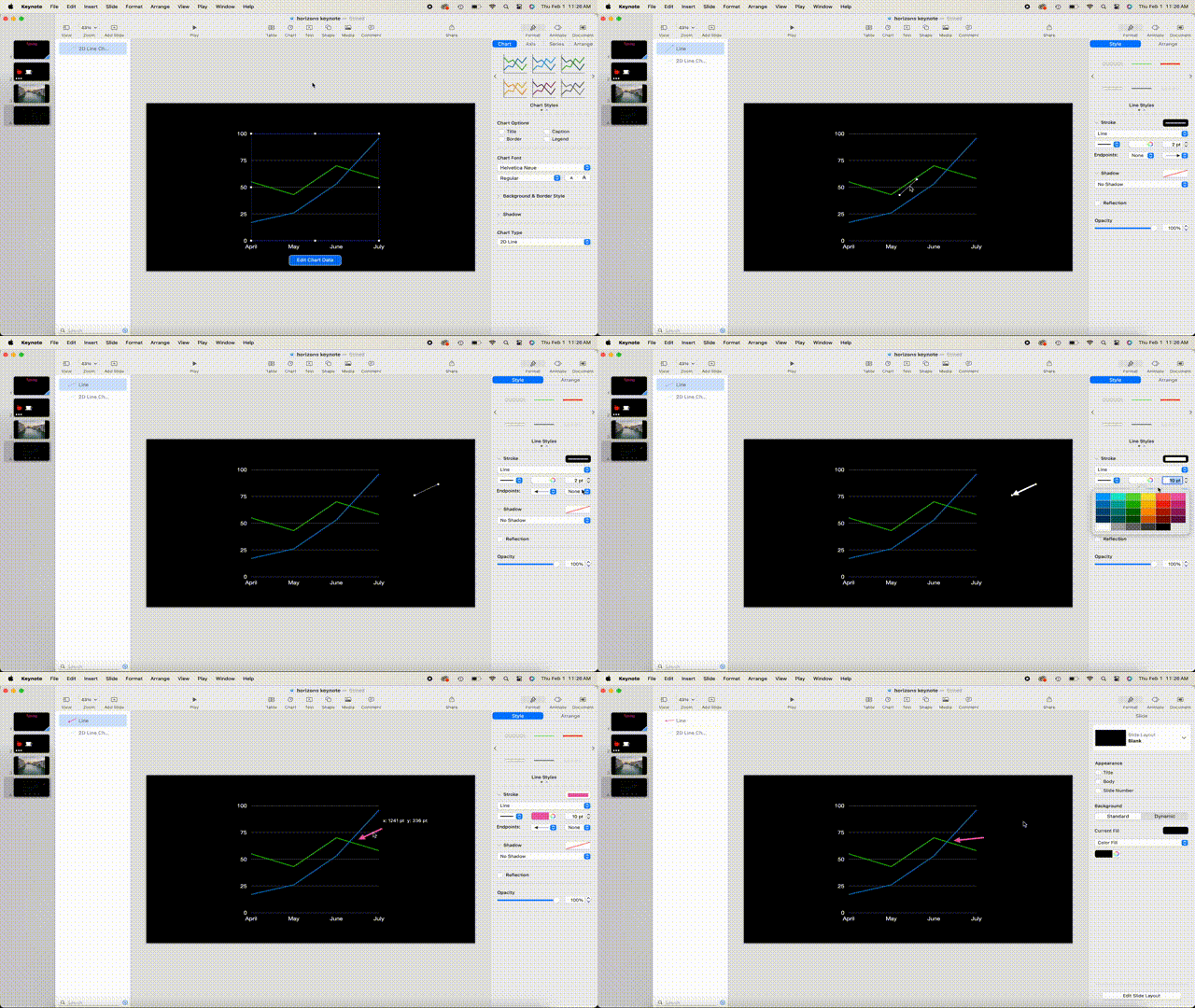
The shapes library contains many options for shapes that can be added to the slide and customized.
## Animations
### Build order
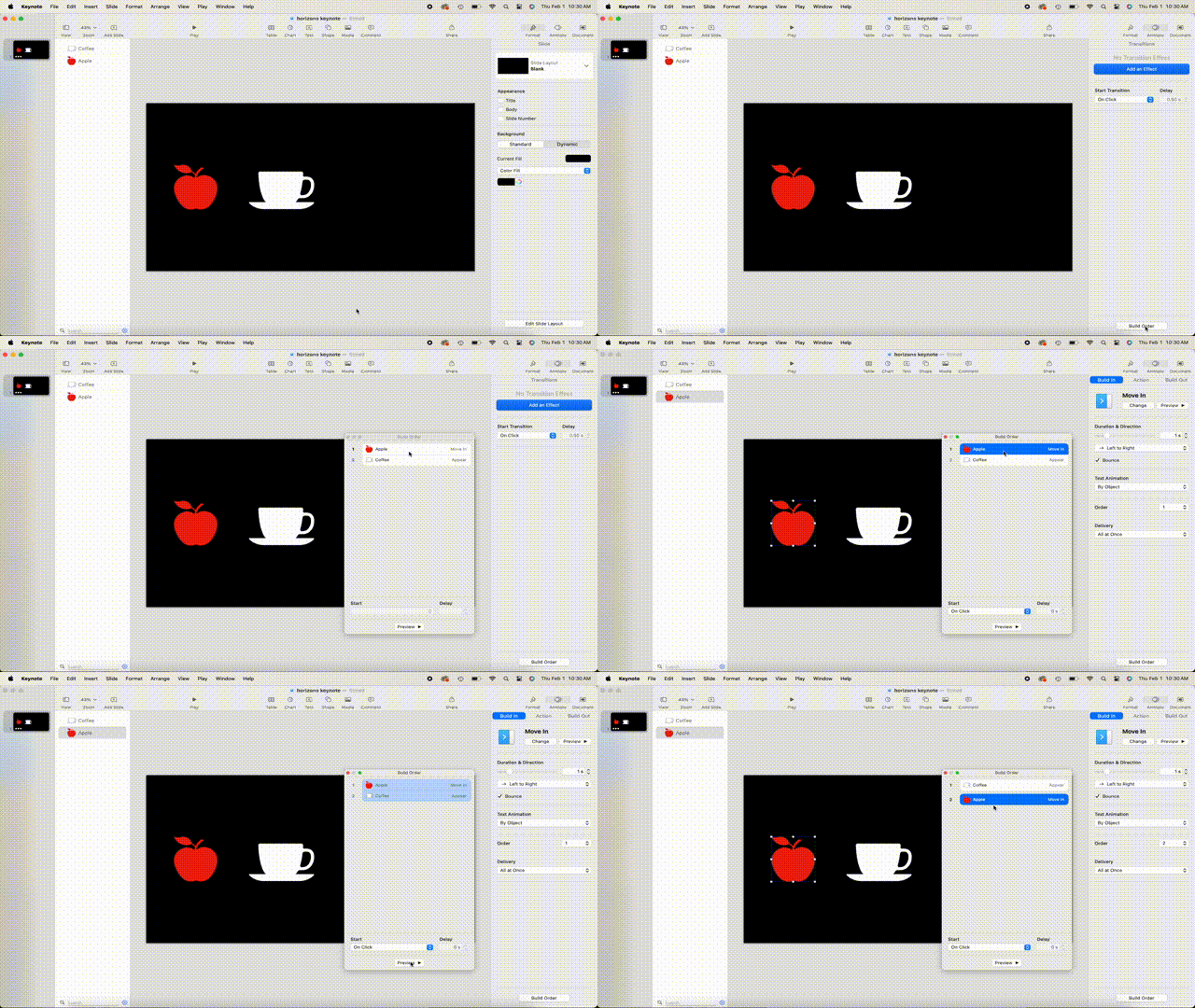
You can change the order in which builds (animations) appear for all animated objects on a slide and specify when they appear in relation to each other using the Build order window.
### Animating objects
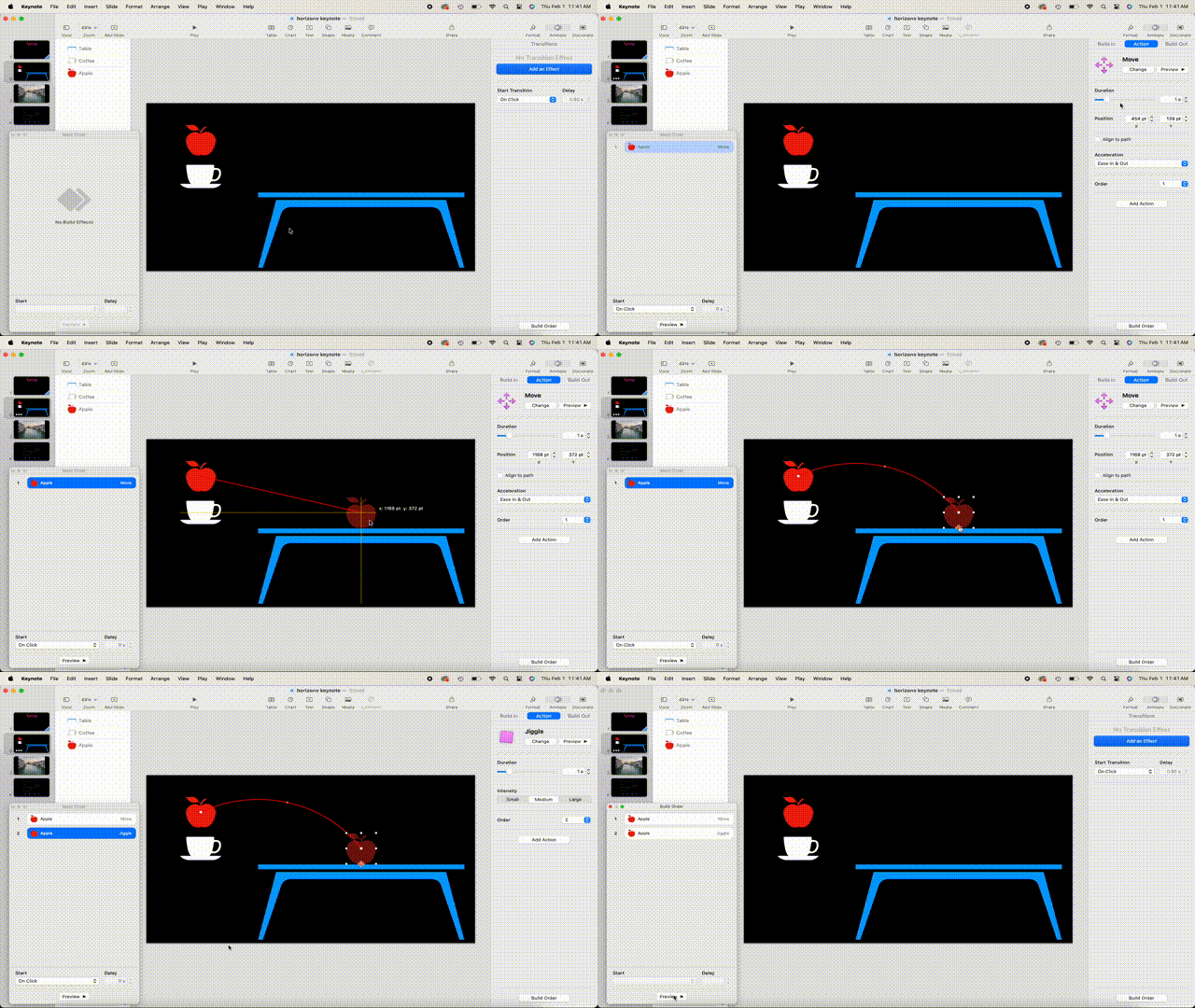
You can use actions to animate an object on a slide. For example, you can move an object along a user-defined path, make an object blink or bounce, and more. You can also apply multiple actions to an object and specify their order.
### Slide transitions
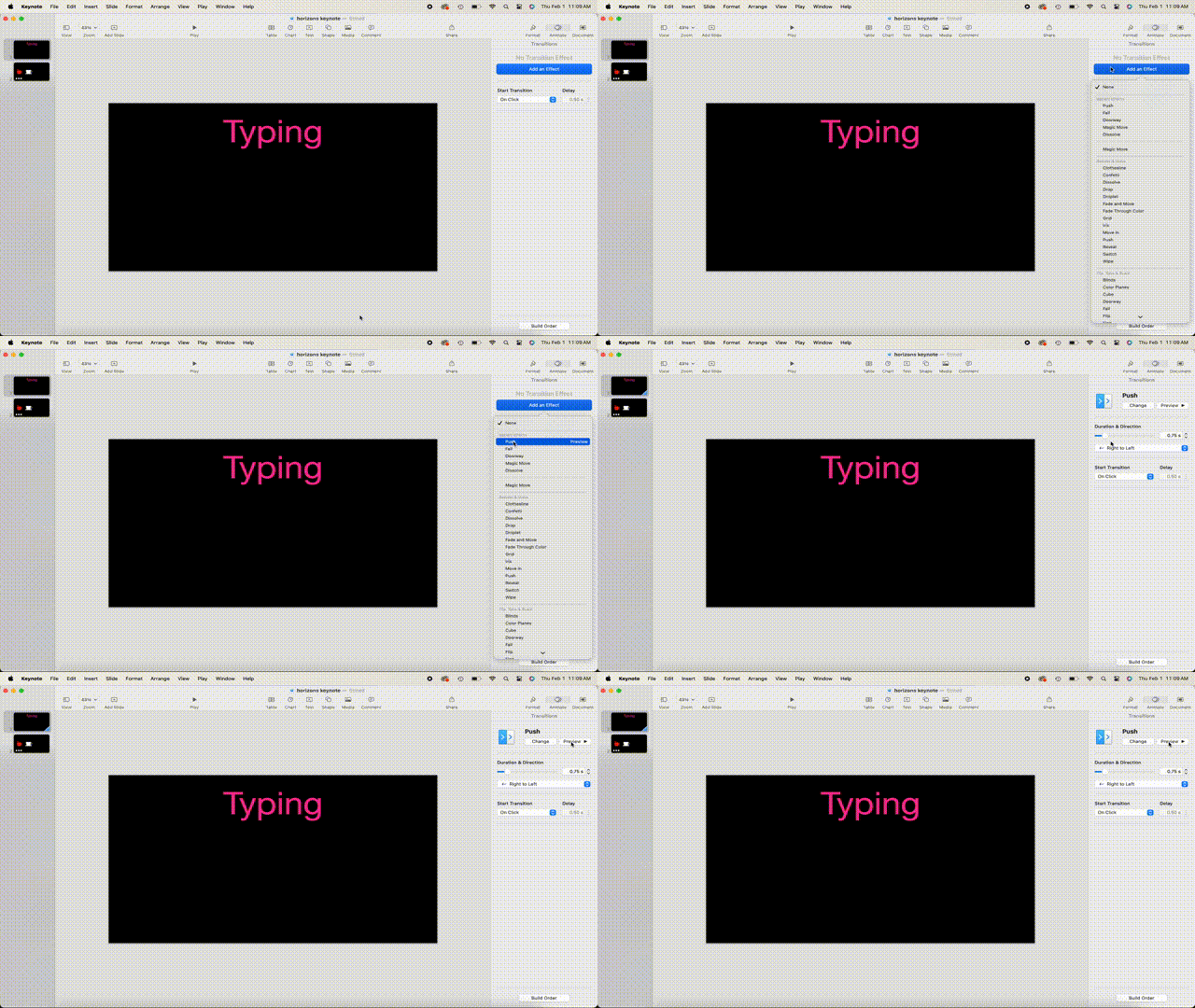
Transitions are effects that play as you move between two slides in the presentation.
### Animating objects across slides
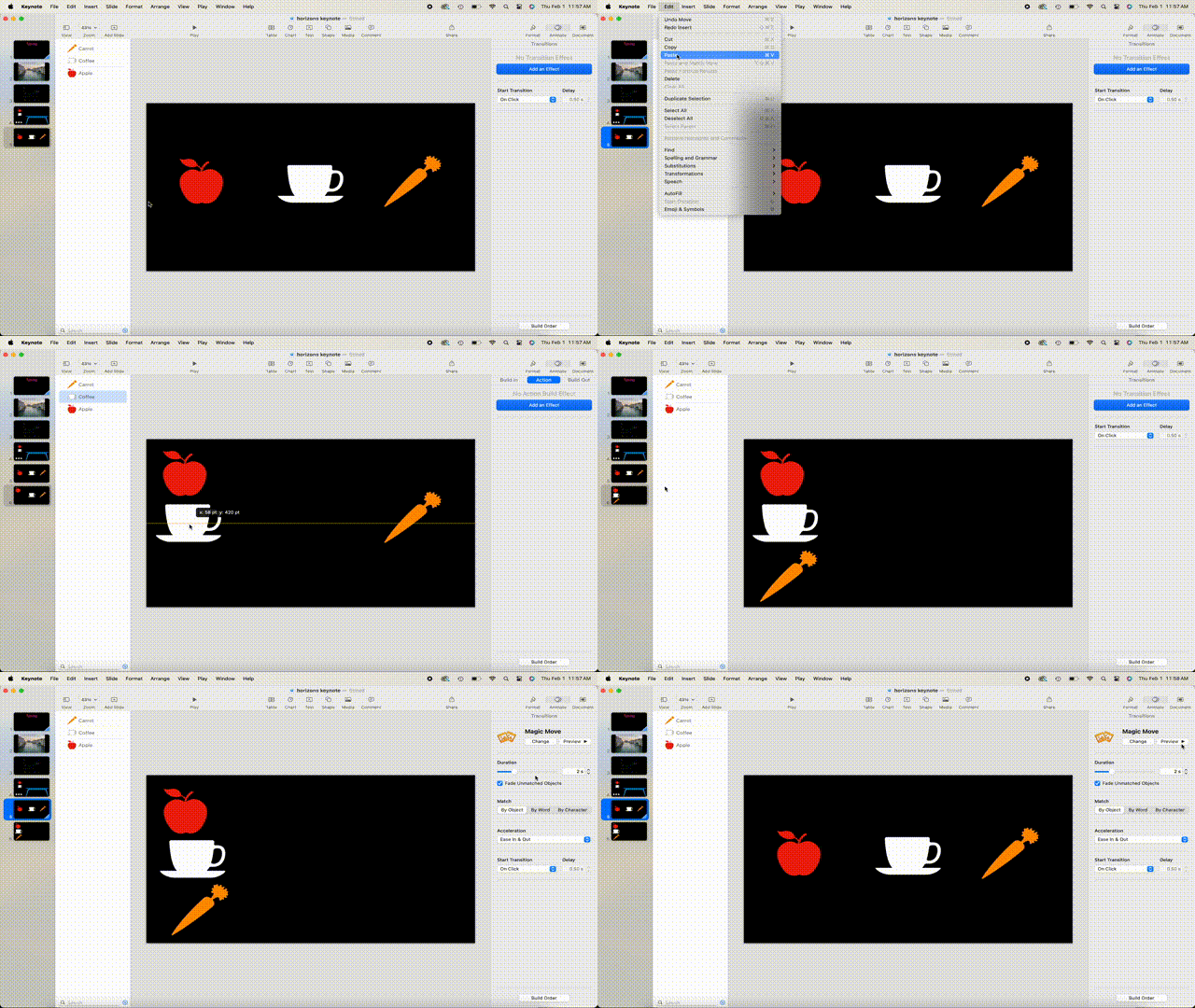
A Magic Move is a transition that makes objects move from their positions on one slide to new positions on the next slide. The easiest way to use Magic Move is to create a slide, add objects to it, then duplicate the slide and rearrange, resize, or reorient the objects on the duplicated slide. Objects appearing on both slides become part of the transition. Objects on the first slide, but not the following slide, fade out. Objects on the following slide, but not the original slide, fade in.
## Helpful resources
If you are looking for additional information, Apple offers a variety of Keynote resources.
[whats-new-in-keynote](https://support.apple.com/guide/keynote/whats-new-in-keynote-132-tan700f60676/mac)
[add-transitions](https://support.apple.com/guide/keynote/add-transitions-tanff5ae749e/13.2/mac/1.0)
[intro-to-collaboration](https://support.apple.com/guide/keynote/intro-to-collaboration-tan4e89e275c/13.2/mac/1.0)
[add-3d-objects](https://support.apple.com/guide/keynote/add-3d-objects-tane2b2f4354/13.2/mac/1.0)
[add-an-image](https://support.apple.com/guide/keynote/add-an-image-tan77aea6844/13.2/mac/1.0)
[combine-or-break-apart-shapes](https://support.apple.com/guide/keynote/combine-or-break-apart-shapes-tane80cfd59d/13.2/mac/1.0)
[send-a-presentation](https://support.apple.com/guide/keynote/send-a-presentation-tane4c936f0c/13.2/mac/1.0)
[Keynote tutorials](https://support.apple.com/guide/keynote/welcome/mac)
[Powerful Presentations with Apple Keynote](https://www.linkedin.com/learning/create-powerful-presentations-with-apple-keynote/the-power-of-visual-storytelling?u=2194065)
 Sign in with Wallet
Connect another wallet
Sign in with Wallet
Connect another wallet