---
tags: resources
---
# GENED 1140: Video Essays and Podcasts
[media assets folder!](https://drive.google.com/drive/u/0/folders/1luMLIWxfACy_LqtyfxNt2R8fReergda1)
## WORKSHOP OUTLINE
We are excited to work with you on your podcasts and video essays! The Learning Lab folks around for the workshop in case you forget:
* Christine, Assistant Director of the Learning Lab
* Sophie Wilkowske, Media & Design Fellow in History
To get us started supporting you, we have a few activities that will give you a sense of how & why we might communicate our academic ideas through the medium of podcasts and video essays.
## The Elements of a Podcast
We'd love to start by taking some time to deconstruct just the first bit of a podcast, and unpack all the elements involved. We will do a close reading (or close listening!) of the first 30 seconds of a podcast called [Serial](https://serialpodcast.org/) and map out how the different audio elements work together temporally.
<iframe width="560" height="315" src="https://www.youtube.com/embed/nMSxiHuDa00?start=28" title="YouTube video player" frameborder="0" allow="accelerometer; autoplay; clipboard-write; encrypted-media; gyroscope; picture-in-picture" allowfullscreen></iframe>
#### The Prompt:
1. Just listen to the first 30 seconds of this podcast and reflect on what you are hearing, and what that evokes.
2. Listen again...
3. And again.
4. As you begin to identify the different elements, start mapping them out. How many elements can you hear? How do they interact/intersect? What functional roles are they playing to support the content?
## Video Essays
Video essays deploy visuals, audio, and sometimes text in order to make an argument or convey key data to an audience. Let's unpack the start of a video together and think about its moves, much in the same way that we just did with the podcast episode.
Some great examples of video essays include these Now This videos [about Title 42](https://twitter.com/nowthisnews/status/1512891348218699778) and [border and climate politics](https://twitter.com/nowthisnews/status/1513246186546683905), as well as the Vox "explainer"-style video below about a chair featured on multiple album covers.
<iframe width="560" height="315" src="https://www.youtube.com/embed/_V10kWLh71U" title="YouTube video player" frameborder="0" allow="accelerometer; autoplay; clipboard-write; encrypted-media; gyroscope; picture-in-picture" allowfullscreen></iframe>
## Podcasting
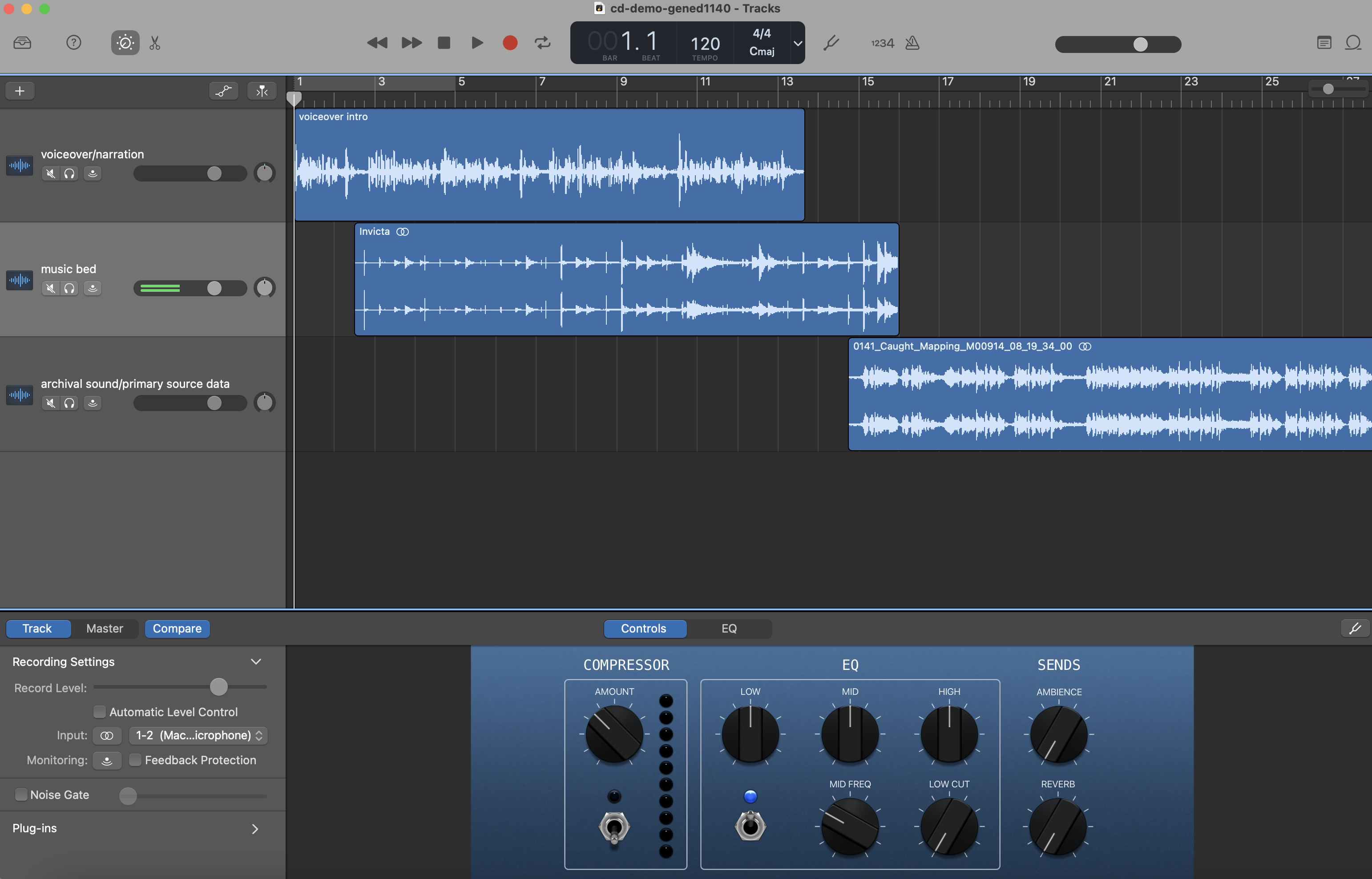
[Podcasting 101.](https://sites.google.com/g.harvard.edu/ll-podcasting)
* [garageband](https://resources.learninglab.xyz/simple/labs/audio-lab/garageband)
[LinkedIn Audacity.](https://www.linkedin.com/learning/learning-audacity-2/jump-into-the-world-of-audio-editing?u=2194065)
[Bok Podcast Tips.](https://bokcenter.harvard.edu/podcasts)
### Sourcing Audio
* [blue dot sessions](https://www.sessions.blue/)
* [bensound](https://www.bensound.com/)
* [free music archive](https://freemusicarchive.org/)
---
## Video Essays
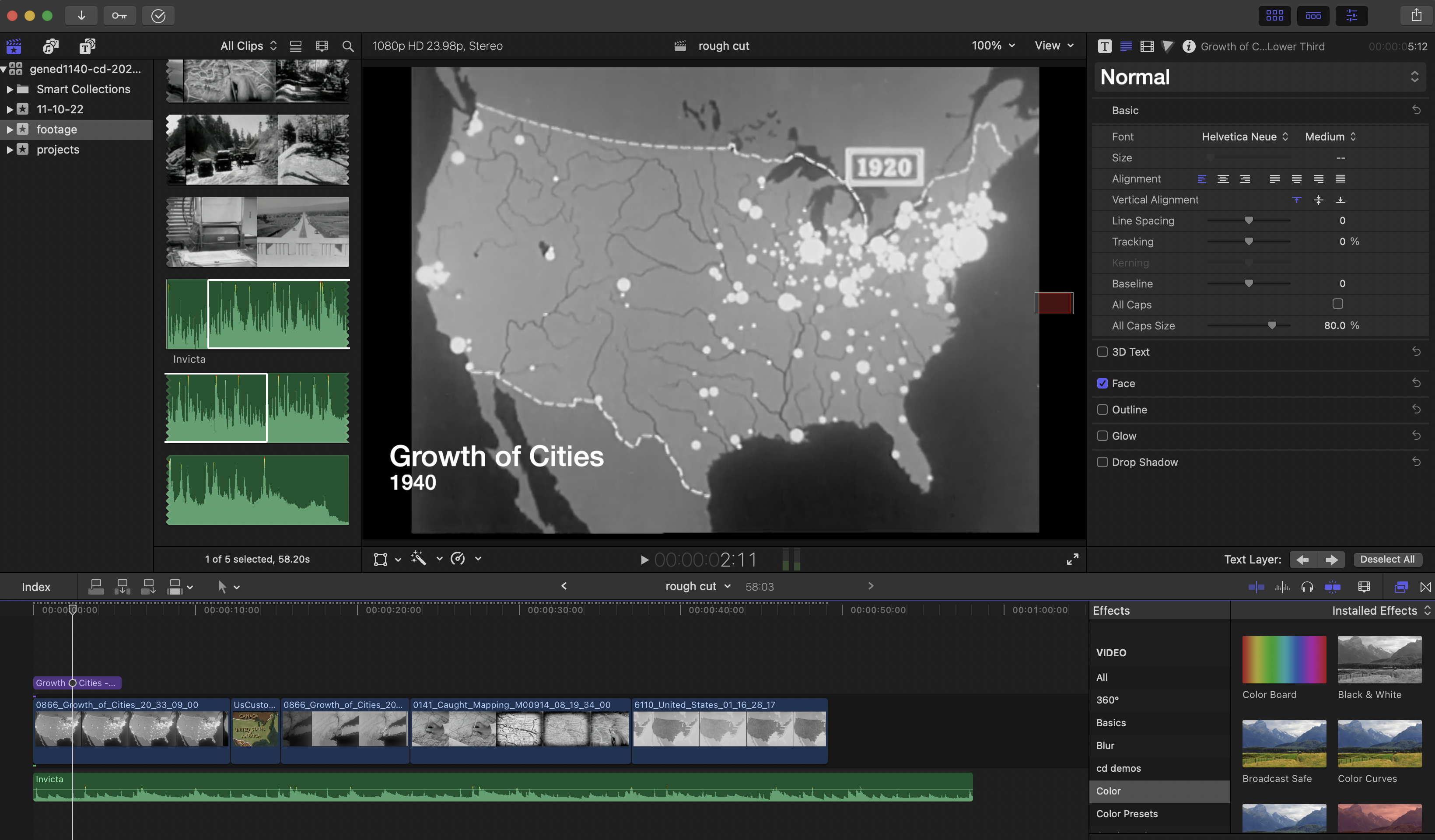
[A Quick Guide to Post Production Resources](https://resources.learninglab.xyz/simple/projects/HDS-FilmFest/post-production)
### For iMovie:
* [Getting Started with iMovie](https://support.apple.com/en-us/HT212059)
### For Davinci Resolve:
* [Getting Started with Davinci Resolve](https://resources.learninglab.xyz/simple/people/casey-c/Resolve-getStarted)
### For Final Cut Pro:
* [Getting Started with Final Cut Pro](https://resources.learninglab.xyz/simple/people/casey-c/FCPX-getStarted)
### For Adobe Premiere:
* [Guide to Adobe Premiere Pro](/s2Pph8GJSZSvUv5ENuXqiQ)
* [Getting Started with Adobe Premiere](https://resources.learninglab.xyz/simple/people/casey-c/Premiere-getStarted)
### sourcing video and other visuals
Some sites with open access footage (video and photo):
* [Prelinger Archives](https://archive.org/details/prelinger)
* [Creative Commons](https://creativecommons.org/)
* [Pexels stock footage](https://www.pexels.com/videos/)
* [Pixabay stock footage](https://pixabay.com/videos/)
### downloading with ClipGrab
Youtube has just about everything you can imagine in terms of content, and [ClipGrab](https://clipgrab.org/) is a program you can use to download those videos.
**some tips:**
Sometimes, the audio might not properly download when you use ClipGrab. Below are some steps you can try:
* [Download the media player VLC](https://www.videolan.org/vlc/)
* Open VLC and go to **Media > Convert/Save**.
* Click **Add** to select your video file, then click **Convert/Save**.
* Under Settings, go to the Video Codec tab and set it to **H.264**.
* Switch to the Audio Codec tab and ensure the format is **MP4** (or MPEG Audio, if listed).
* Choose a destination file name and location, then click **Start** to save.
* VLC will process the file, indicated by playback in the VLC window.
### other options
Not the most ideal in terms of quality, but you can use programs like [QuickTime](https://support.apple.com/guide/quicktime-player/record-your-screen-qtp97b08e666/mac) or even [Zoom](https://blog.smu.edu/itconnect/2017/08/23/using-zoom-create-quick-easy-screen-recordings-free/) to record your screen.
---
## Contact Us!
learninglab@fas.harvard.edu
 Sign in with Wallet
Connect another wallet
Sign in with Wallet
Connect another wallet