## Introduction
In this tutorial you can learn how to build web application using React.js, build and deploy a smart contract on the Near Blockchain and connect web app with the smart contract to have a working web application which will interact with the smart contract.
## Prerequisites
To prepare the development environment, make sure you have installed [nodejs](https://nodejs.org/en/download/) 12+, [yarn](https://yarnpkg.com/) and the latest [near-cli](https://github.com/near/near-cli)
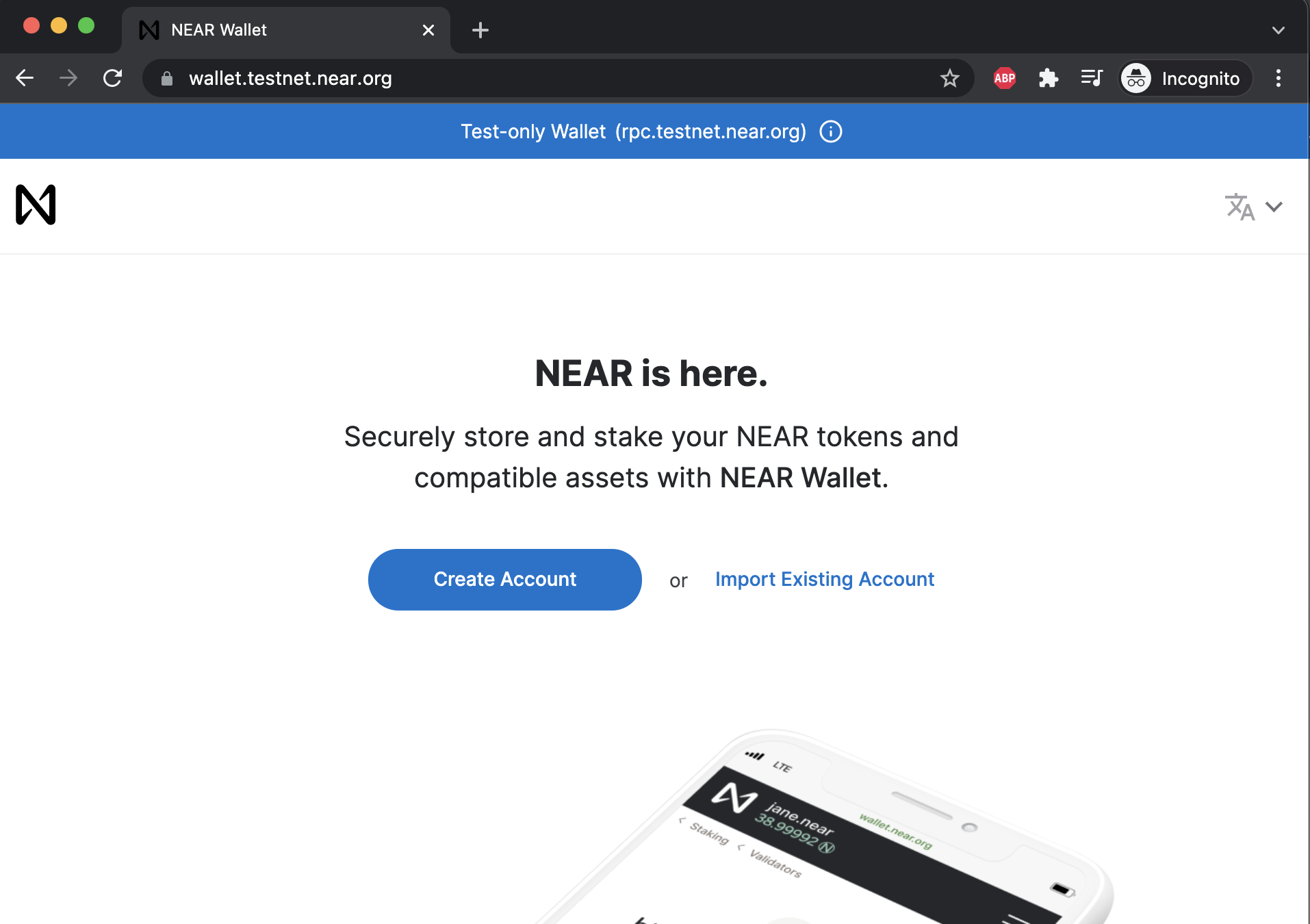
You also need to create a testnet account, go to the [testnet wallet](https://wallet.testnet.near.org/) and create one, it's easy and free:
## Getting Started with the project
The easiest way to get started is using [npx - Node Package Execute](https://www.npmjs.com/package/npx)
### Install `npx` as a global dependency
```bash
npm install -g npx
```
### Generate starter project
Let's generate the new project. Go to a directory where you want to have your project in the terminal. In our case we will be using home directory.
For near dapps there is a `npx` binary [create-near-app](https://github.com/near/create-near-app). It has some options to choose what type of frontend you are going to use and also what type of smart contract you are going to use. Here are the option you can use:
```bash
➜ ~ npx create-near-app -h
create-near-app <projectDir>
Create a new NEAR project
Options:
--version Show version number [boolean]
--frontend template to use
[choices: "vanilla", "react", "vue", "angular"] [default: "vanilla"]
--contract language for smart contract
[choices: "assemblyscript", "rust"] [default: "assemblyscript"]
--help Show help [boolean]
Examples:
create-near-app new-app Create a project called "new-app"
```
For this tutorial we are going to use `react` as a frontend and `assemblyscript` as a smart contract.
Open terminal and execute the command:
```bash
npx create-near-app near-tutorial --frontend=react --contract=assemblyscript
```
Wait a bit to download everything and when it finish you will see something like this:
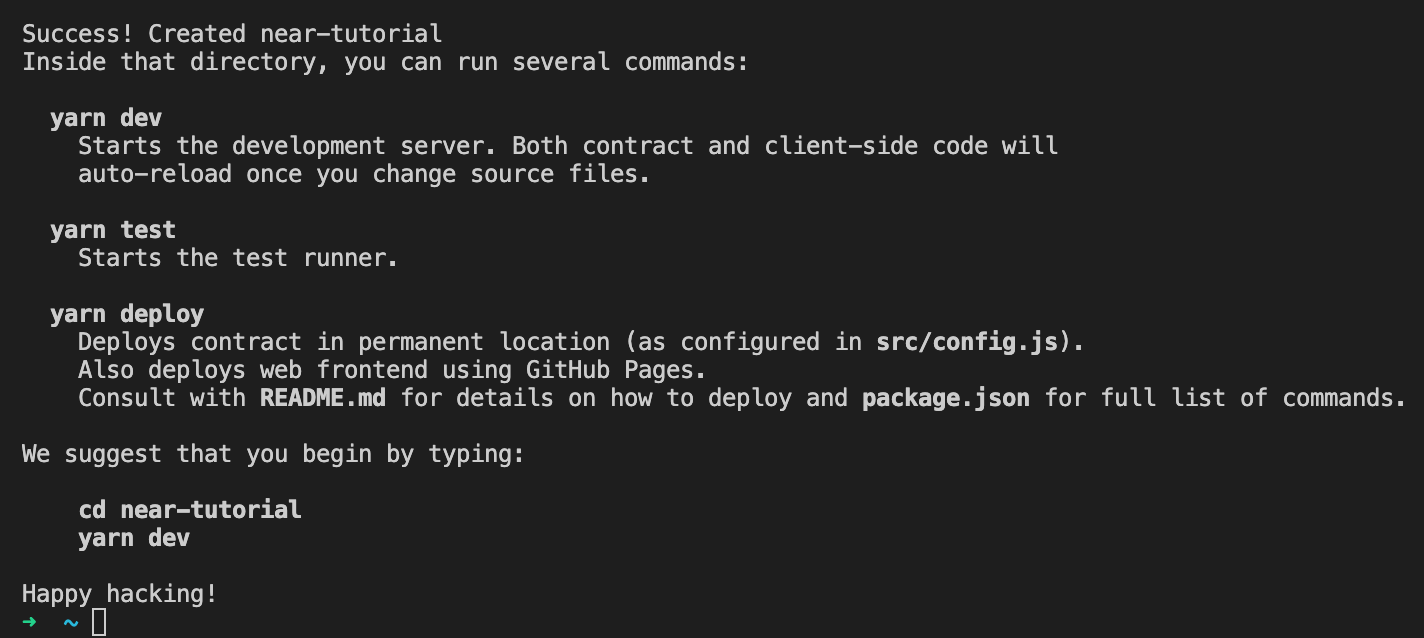
In general our new project is ready to be started, the only thing you still need is to login in your near testnet account you should have create before. To do this open the terminal and call:
```bash
near login
```
It should open the browser where you approve login, after that you are ready to interact with the near blockchain using `near cli.
That's it we have created our project, now we can get hands dirty in the code. Open the project in you favourite IDE, the recommended option is using free [VS Code](https://code.visualstudio.com/):
```bash
cd near-tutorial
code .
```
## Project structure
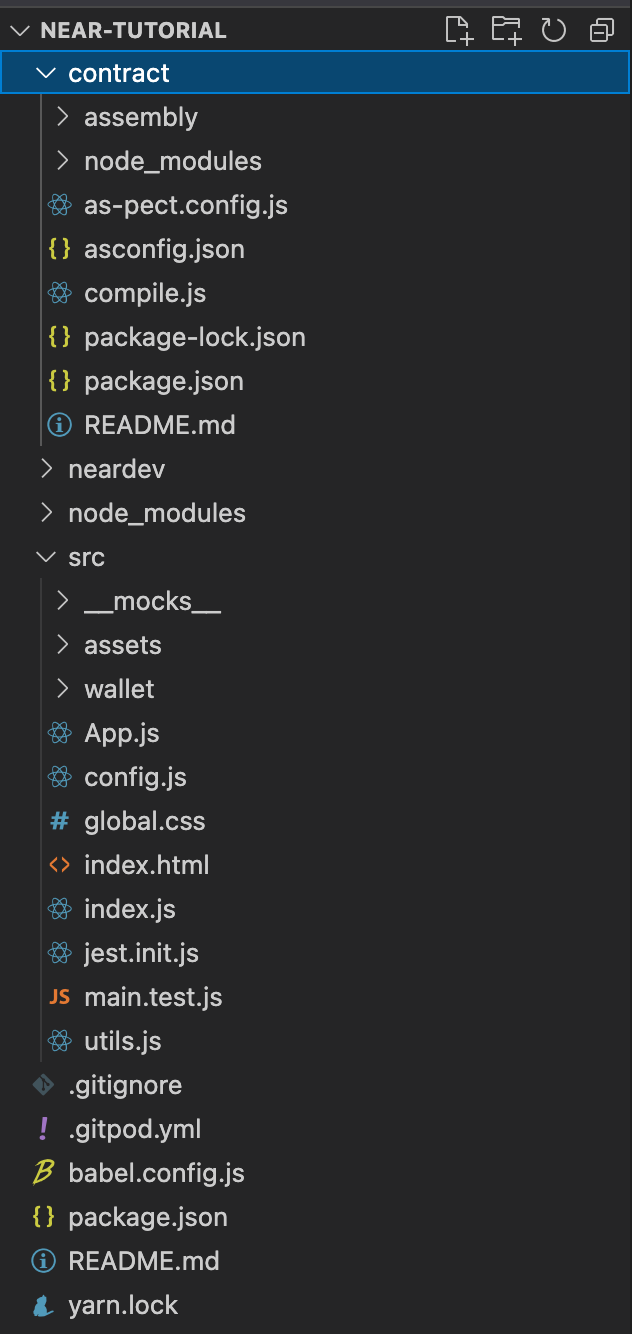
Our newly created project has several main places:
- `src` - React source code
- `contract` - Smart contract source code
- `package.json` - Project dependencies and running scripts
- `Readme.md` - Project documentation and development tips
- `neardev` - Configuration for smart contract development
## Running the project
First of all we need to install dependencies using `yarn` command:
```bash
yarn
```
It can take some minutes depending on your network, be patient :)
After that we can already run the project in the dev environment. You can use one simple command:
```bash
yarn dev
```
After a couple of seconds you should see something similar in your terminal and it should also open the app in your default browser:

The app url http://localhost:1234/ opened in browser should look like this:
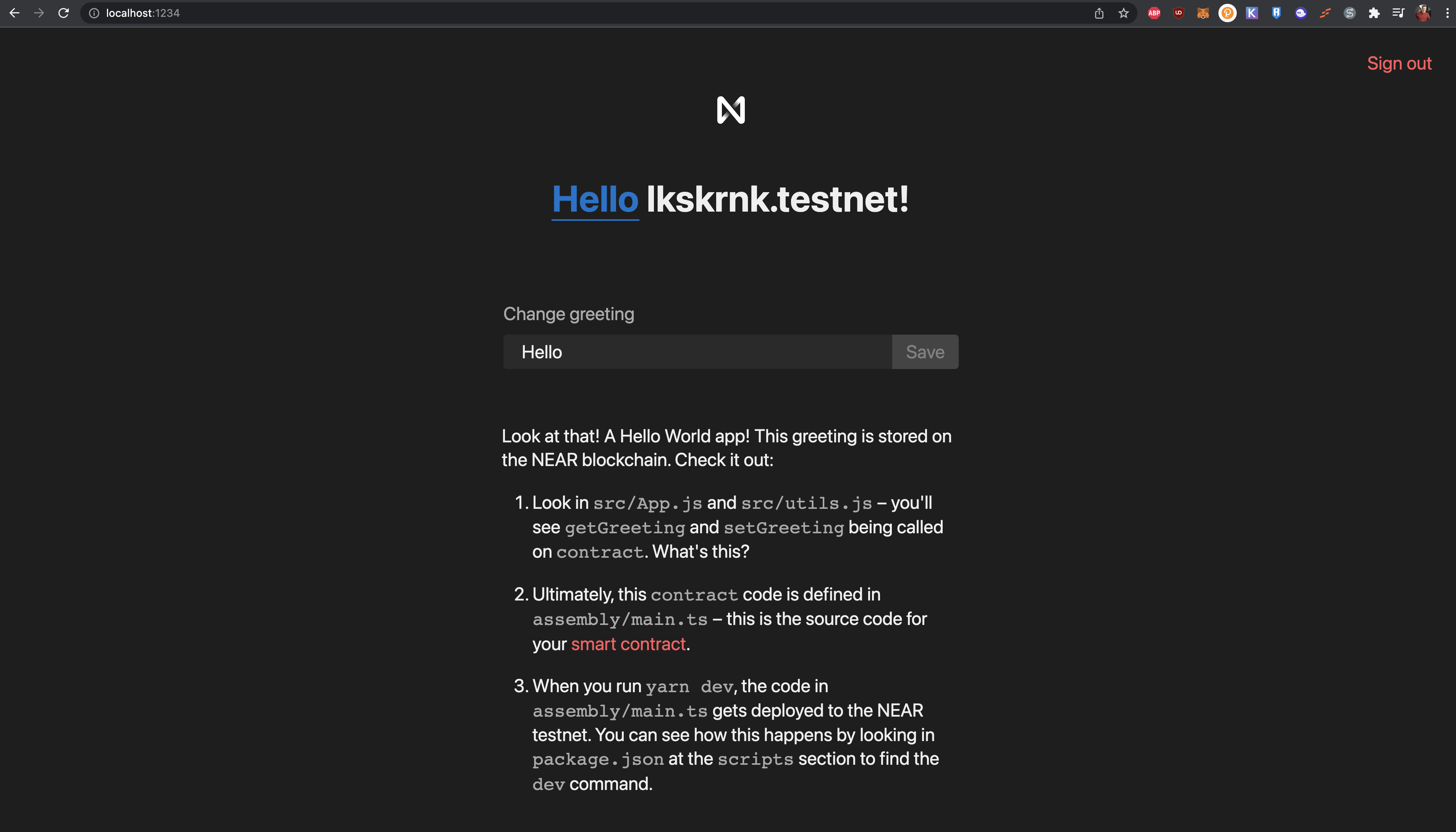
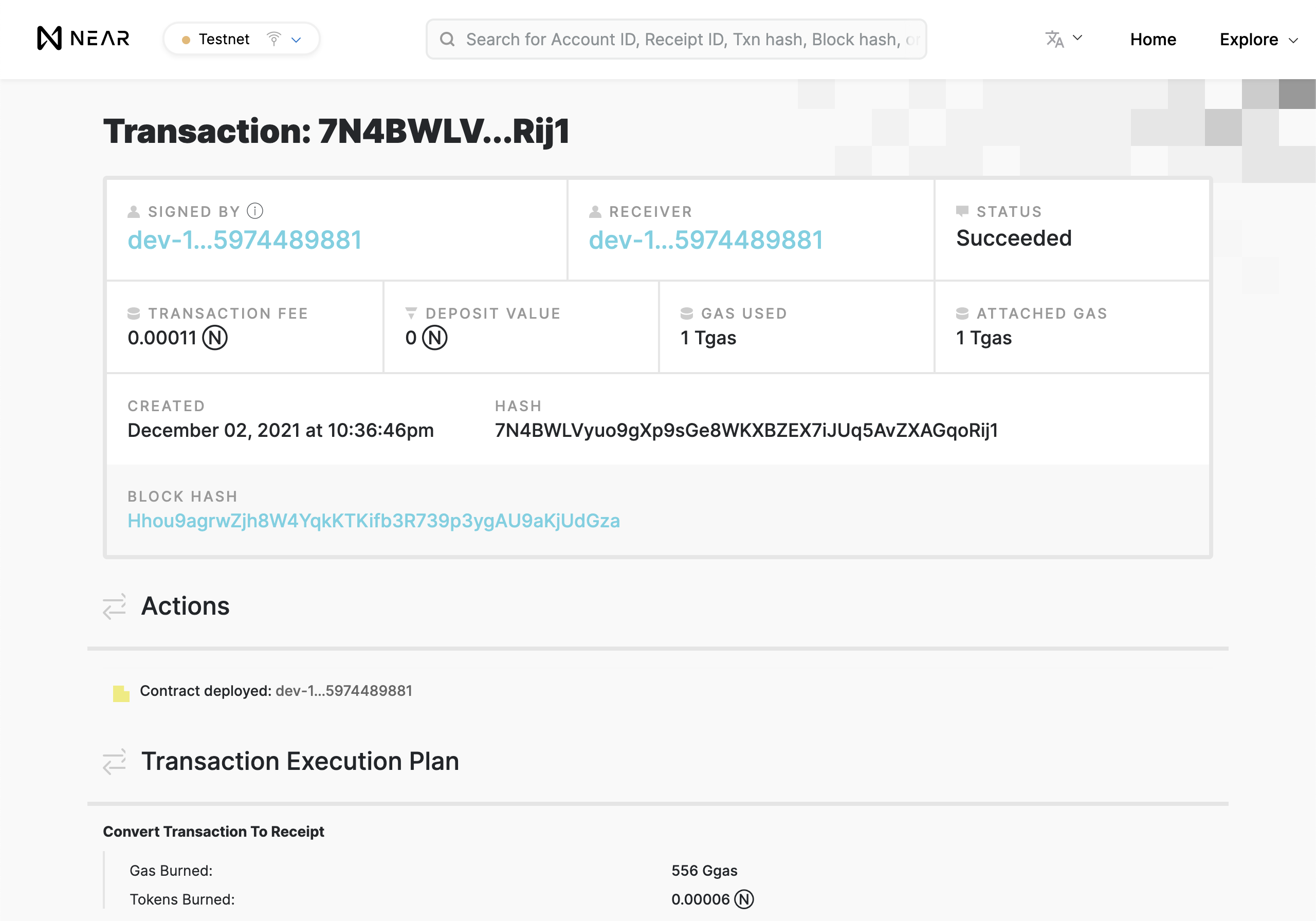
In the dev console you can also see that you dev smart contract was deployed to the blockchain, it starts with `dev-` and have some random numbers, in our case its `dev-1638480997606-36755974489881`. You can also see the link to the smart contract transaction deployment: https://explorer.testnet.near.org/transactions/7N4BWLVyuo9gXp9sGe8WKXBZEX7iJUq5AvZXAGqoRij1
Opening the link in your terminal will show you similar:
Now let's jump in the browser and test how it works.
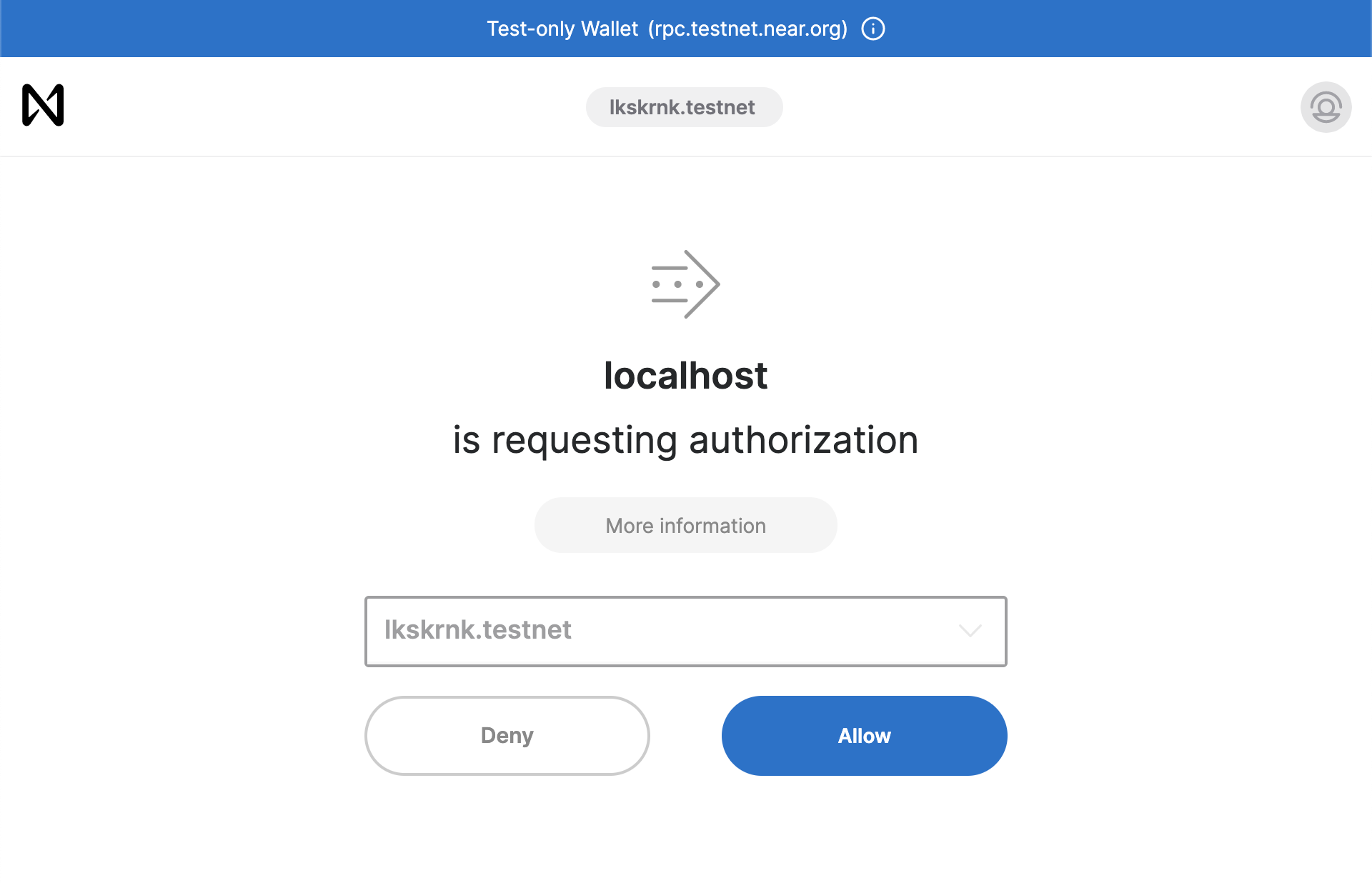
Generated project has predefined **greeting** smart contract, you can enter the custom greeting message and it will save it in the smart contract storage, change it to something custom and press save. It should redirect you to the wallet where you can sign the smart contract with your near testnet account.
Press allow to approve transaction:
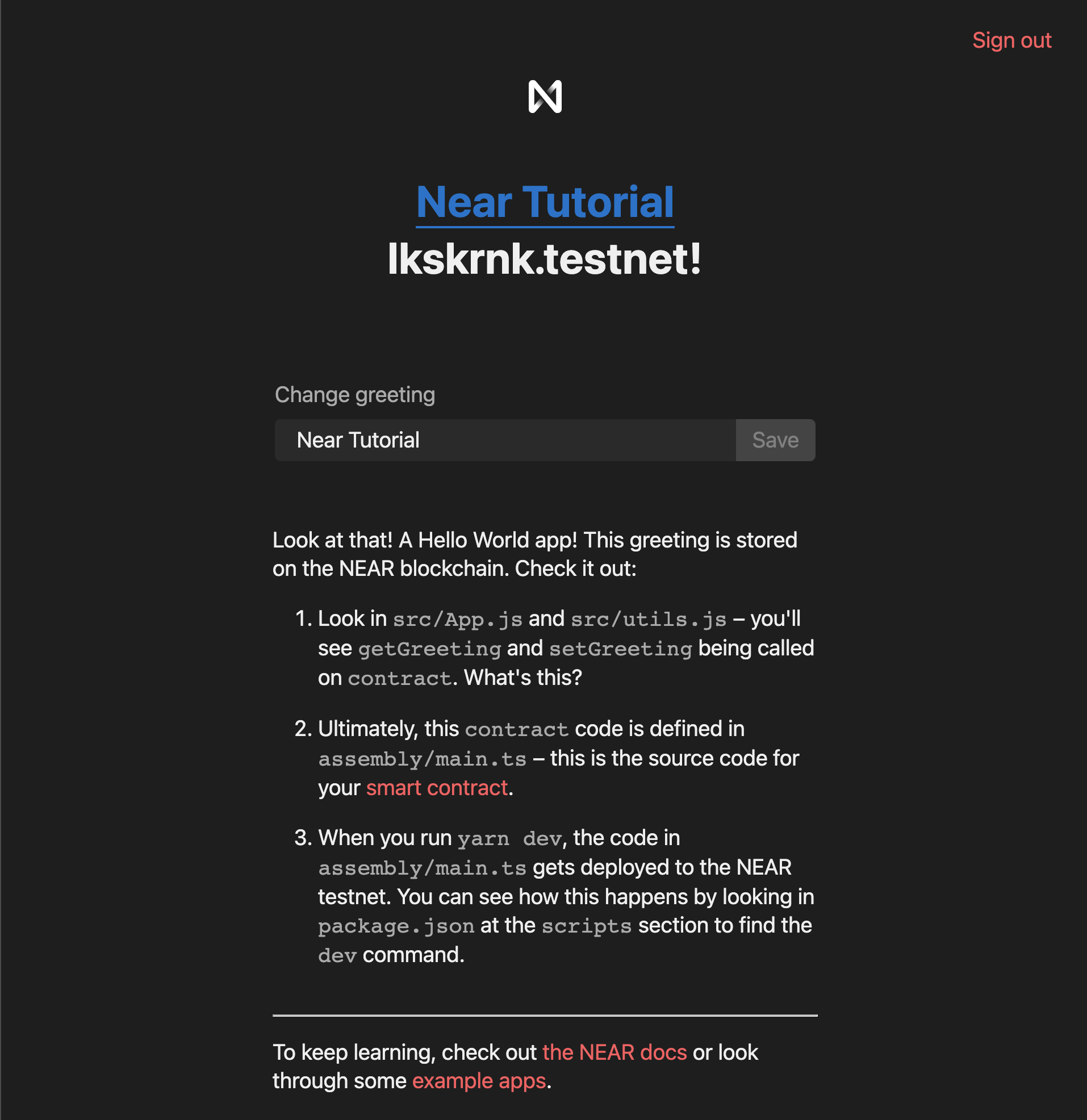
After successful approval you will be redirected back to the ui and will see the new greeting which is loaded from the smart contract:
## It works, let's see how its done
### Smart contract implementation and cli interaction:
Smart contract is located in `contract/assembly/index.ts`:
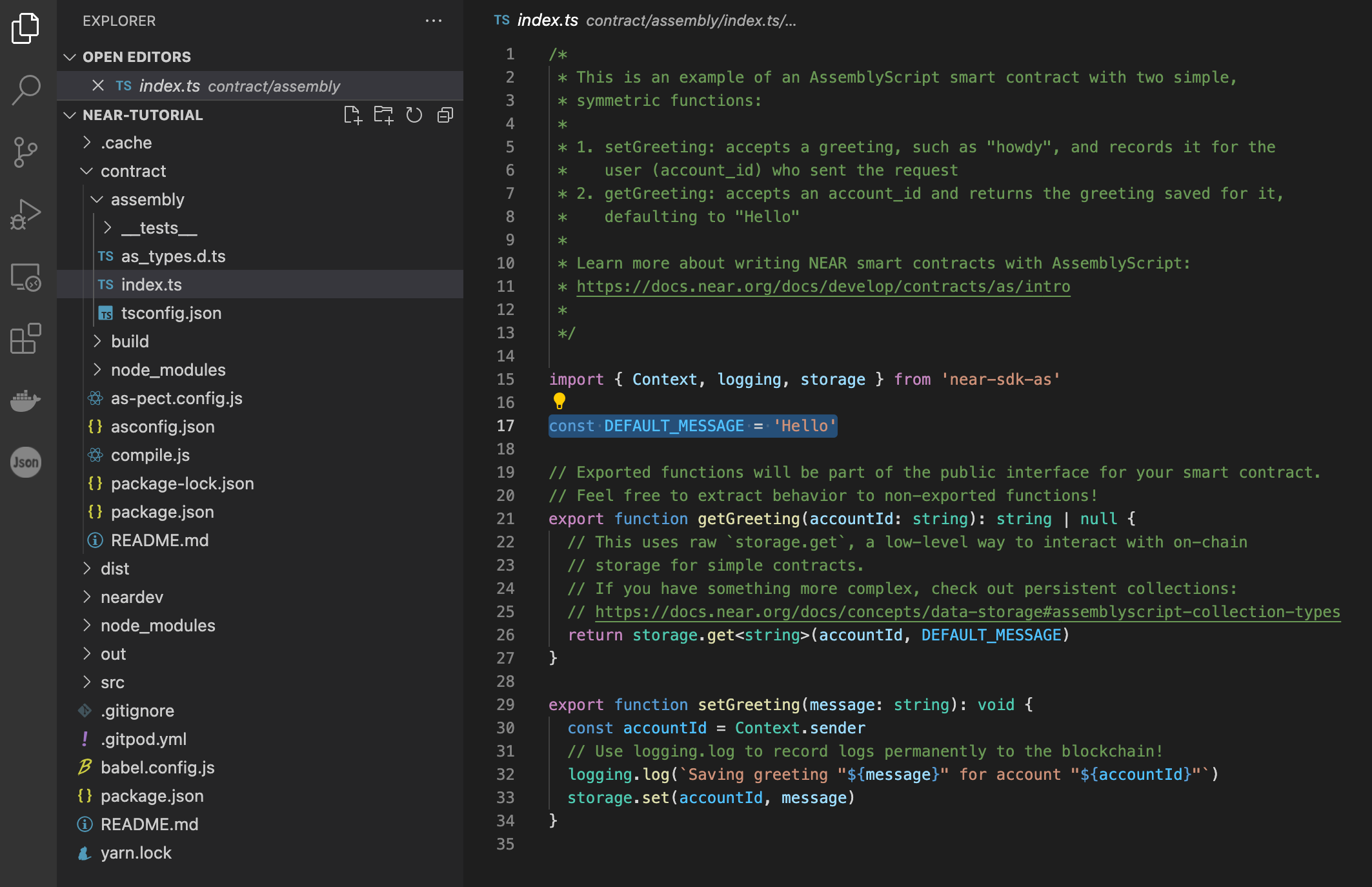
It has the default message which we saw in the browser right after the opening:
```javascript
const DEFAULT_MESSAGE = "Hello";
```
And it has two methods `getGreeting(accountId: string)` and `setGreeting(message: string)`
### Mutating method `setGreeting`
```javascript
export function setGreeting(message: string): void {
const accountId = Context.sender;
// Use logging.log to record logs permanently to the blockchain!
logging.log(`Saving greeting "${message}" for account "${accountId}"`);
storage.set(accountId, message);
}
```
As you can see this method contains one argument `message` which was send when we approved the transaction. Inside the method we are extracting a the sender accountId from the `Context` class:
```javascript
const accountId = Context.sender;
```
Context is a class provided from the `near-sdk-as` and it has some useful data you may need in your during the development:
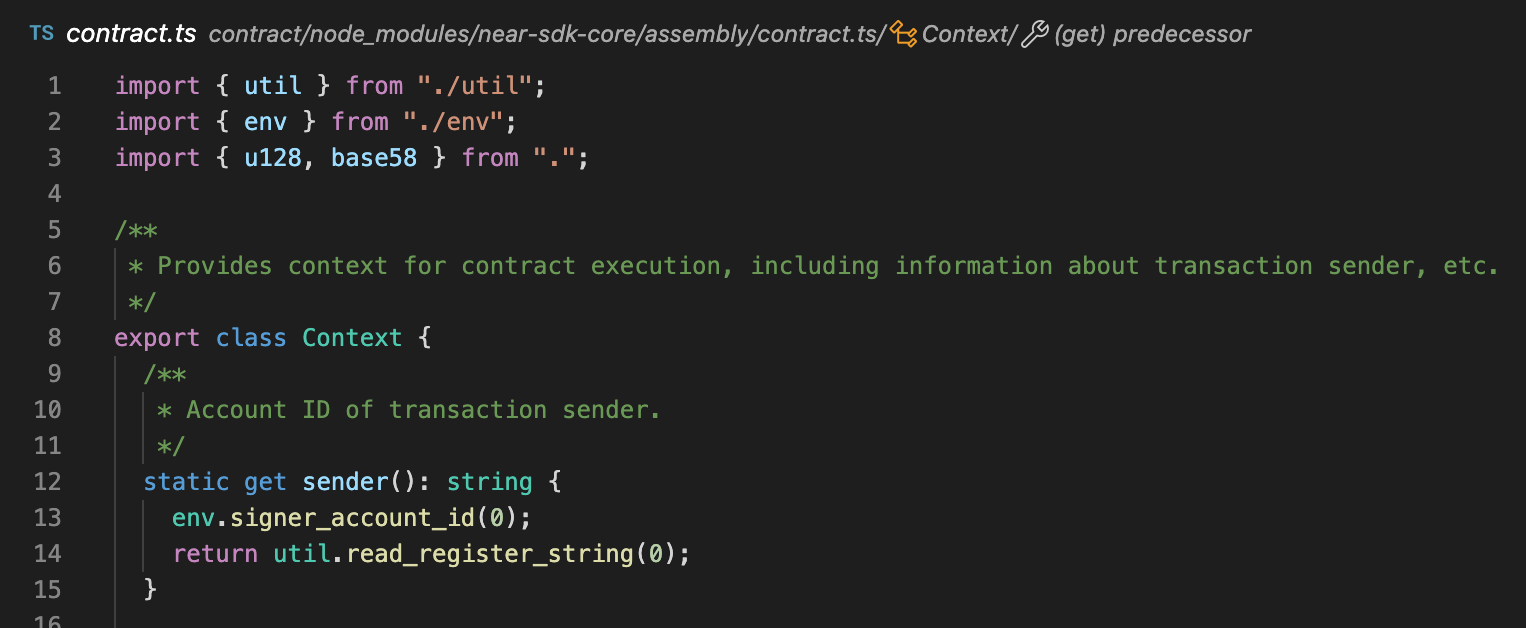
You may find the whole class clicking on it in IDE or you can also check it out on [near-sdk-as docs](https://near.github.io/near-sdk-as/classes/_sdk_core_assembly_contract_.context-1.html)
After extracting the accountId we are using another class `storage` and its method `storage.set`:
```javascript
storage.set(accountId, message);
```
Storage is a key-value store that is persisted on the NEAR blockchain. Read the [docs](https://near.github.io/near-sdk-as/classes/_sdk_core_assembly_storage_.storage-1.html) to check all the available methods.
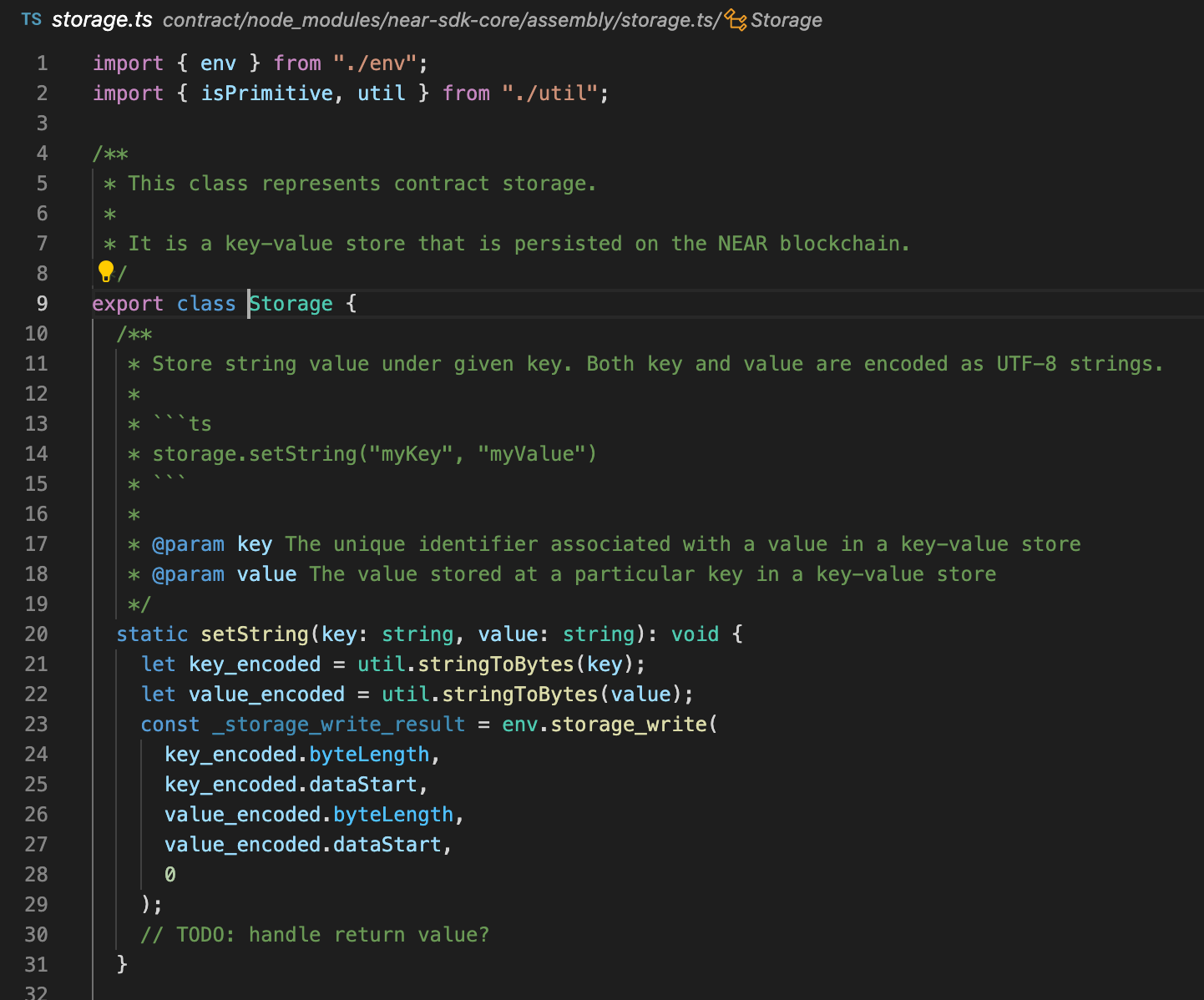
Lets test the method using the `near cli`.
To make is easy we will set the `CONTRACT_NAME` env variable, and to do so we can call `neardev/dev-account.env` which has our contract name inside:
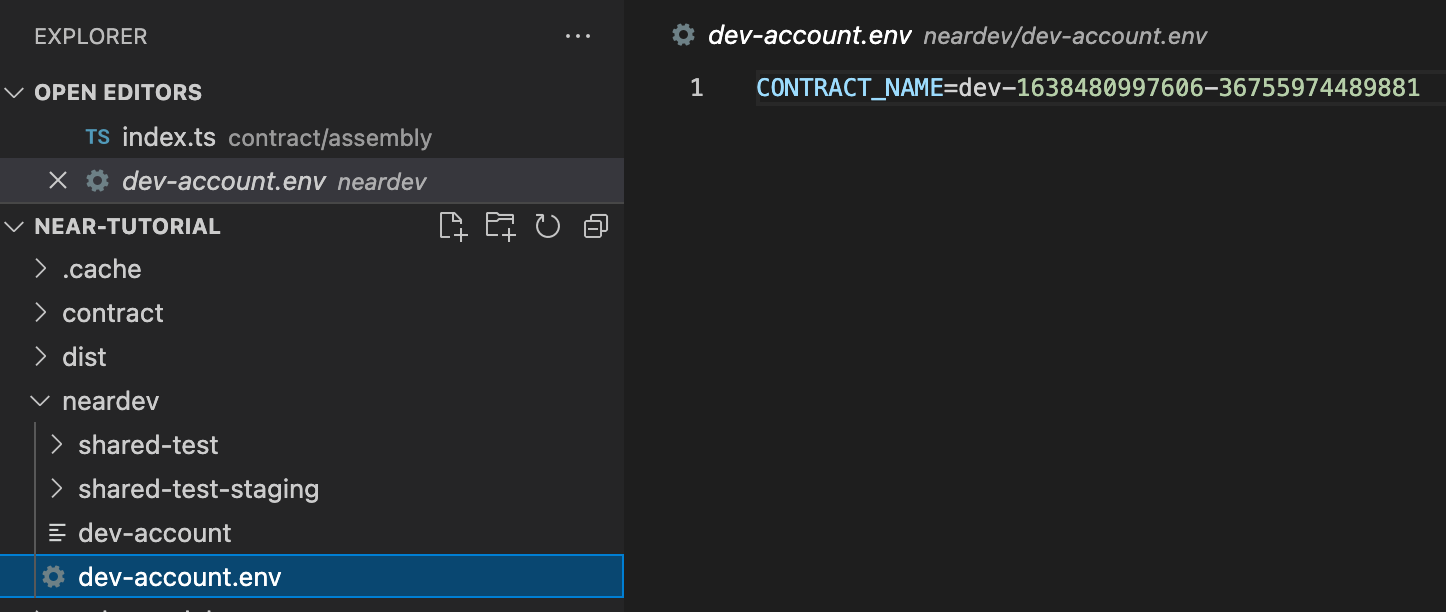
Call this in the terminal and check if you have exported the variable:
```bash
source neardev/dev-account.env
echo $CONTRACT_NAME
```
Call result:

One more thing to do is to set our testnet account as `ID` env variable:
```bash
export ID=your-account.testnet
echo $ID
```
Call result:

If you want to pass a method argument using `near-cli` you can pass a json string afther the contract name.
Now we can set the greeting using `near-cli`:
```bash
near call $CONTRACT_NAME setGreeting '{"message": "Near CLI Greeting"}' --accountId $ID
```
It will call the smart contract and print you the transaction id:

### Readonly method `getGreeting`
`getGreeting` method is a readonly method, which mean we cannot use the `context.sender` to get the account id, its only accessible in mutating state calls:
```javascript
export function getGreeting(accountId: string): string | null {
// This uses raw `storage.get`, a low-level way to interact with on-chain
// storage for simple contracts.
// If you have something more complex, check out persistent collections:
// https://docs.near.org/docs/concepts/data-storage#assemblyscript-collection-types
return storage.get < string > (accountId, DEFAULT_MESSAGE);
}
```
It is doing one call to `storage` to get the greeting from the smart contract storage or the default method, if there is no message in the storage for the account we use. Readonly methods are using `view` instead of `call` we used for `setGreeting`:
```bash
near view $CONTRACT_NAME getGreeting "{\"accountId\": \"$ID\"}"
```
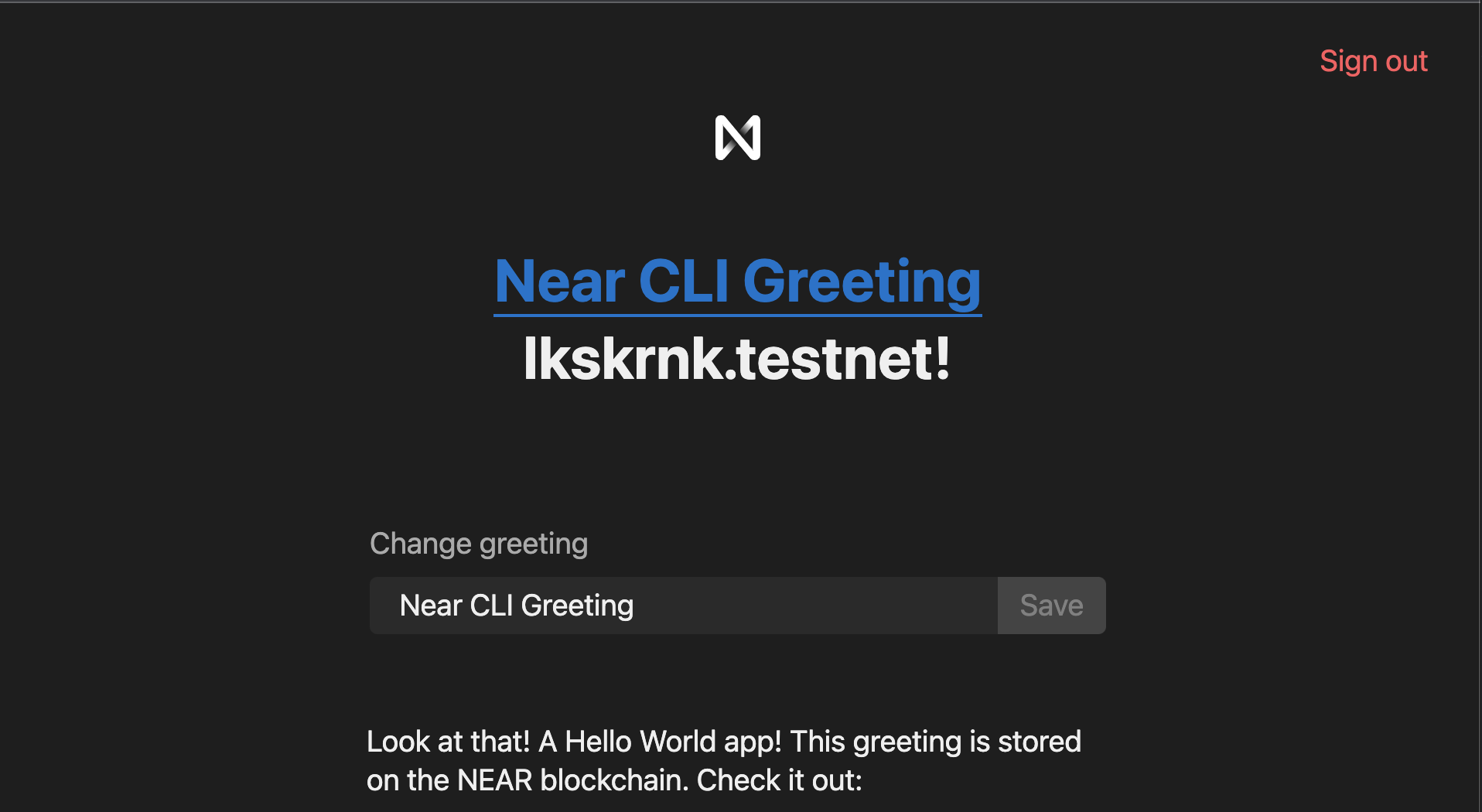
Boom, we can see the greeting we set in the previous step:

Let go to the browser and refresh the page to verify that our message is also there. If everything goes well you will see this after refresh:
## How React connects with Near
Now lets check how we interact with the Near Blockchain in frontend
In our react application we have `two` configuration files where we connect to the blockchain: `config.js` and `utils.js`:
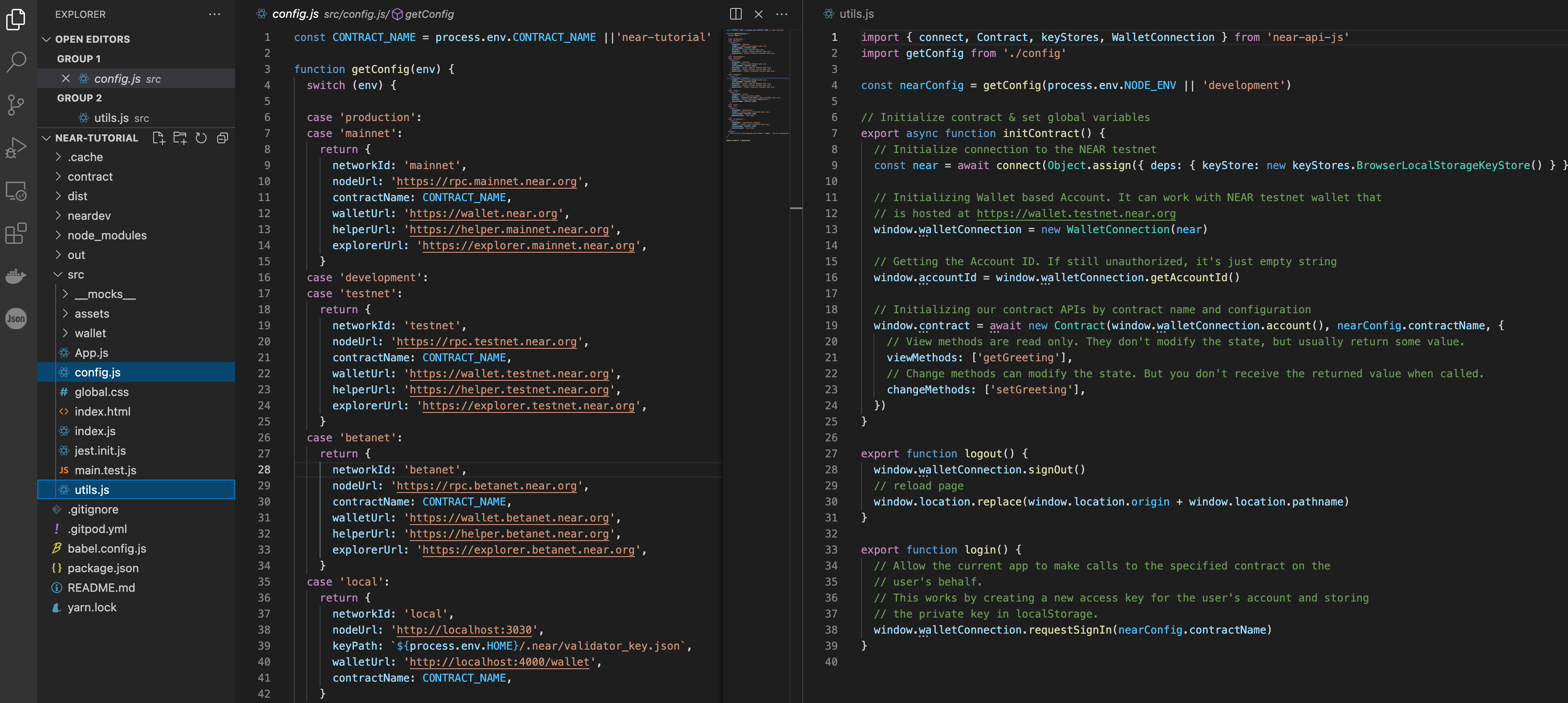
Inside `config.js` we define our contract name, which is also taken from environment variable :
```javascript
const CONTRACT_NAME = process.env.CONTRACT_NAME || "near-tutorial";
```
And we also have `getConfig` function with the blockchain configuration for `testnet`, `mainnet` and some other environments:
```javascript
function getConfig(env) {
switch (env) {
case 'production':
case 'mainnet':
return {
networkId: 'mainnet',
nodeUrl: 'https://rpc.mainnet.near.org',
contractName: CONTRACT_NAME,
walletUrl: 'https://wallet.near.org',
helperUrl: 'https://helper.mainnet.near.org',
explorerUrl: 'https://explorer.mainnet.near.org',
}
case 'development':
case 'testnet':
return {
networkId: 'testnet',
nodeUrl: 'https://rpc.testnet.near.org',
contractName: CONTRACT_NAME,
walletUrl: 'https://wallet.testnet.near.org',
helperUrl: 'https://helper.testnet.near.org',
explorerUrl: 'https://explorer.testnet.near.org',
}
...
}
```
The next file is `utils.js` where we use the config from `config.js`, wand the main is `initContract()` method, where we connect to the blockchain `rpc` and list all the available methods in our contract:
```javascript
import { connect, Contract, keyStores, WalletConnection } from "near-api-js";
import getConfig from "./config";
const nearConfig = getConfig(process.env.NODE_ENV || "development");
// Initialize contract & set global variables
export async function initContract() {
// Initialize connection to the NEAR testnet
const near = await connect(
Object.assign(
{ deps: { keyStore: new keyStores.BrowserLocalStorageKeyStore() } },
nearConfig
)
);
// Initializing Wallet based Account. It can work with NEAR testnet wallet that
// is hosted at https://wallet.testnet.near.org
window.walletConnection = new WalletConnection(near);
// Getting the Account ID. If still unauthorized, it's just empty string
window.accountId = window.walletConnection.getAccountId();
// Initializing our contract APIs by contract name and configuration
window.contract = await new Contract(
window.walletConnection.account(),
nearConfig.contractName,
{
// View methods are read only. They don't modify the state, but usually return some value.
viewMethods: ["getGreeting"],
// Change methods can modify the state. But you don't receive the returned value when called.
changeMethods: ["setGreeting"],
}
);
}
```
We expand the global `window` object with the methods we will be using to interact with the blockchain and our smart contract. And here we also list `viewMethods` which we were calling with `near view` and `changeMethods` which we were calling with `near call`. So whenever you add new methods to your contract you have to update this file and list all the methods in the appropriate section, so that you can also use them later in your React Components.
In `src/App.js` you can see how the contract is used:
```javascript
// The useEffect hook can be used to fire side-effects during render
// Learn more: https://reactjs.org/docs/hooks-intro.html
React.useEffect(
() => {
// in this case, we only care to query the contract when signed in
if (window.walletConnection.isSignedIn()) {
// window.contract is set by initContract in index.js
window.contract
.getGreeting({ accountId: window.accountId })
.then((greetingFromContract) => {
setGreeting(greetingFromContract);
});
}
},
// The second argument to useEffect tells React when to re-run the effect
// Use an empty array to specify "only run on first render"
// This works because signing into NEAR Wallet reloads the page
[]
);
```
## Making Changes
So now when we know how everything is connected to each other let's make it ours by making some changes.
### Updating Smart Contract
Let's expand our smart contract with some properties, like date when the most recent greeting has been set.
In VSCode open `contract/assemble/index.ts` and add replace `setGreeting` method with the following:
```javascript
export function setGreeting(message: string): void {
const accountId = Context.sender;
const timestamp = Context.blockTimestamp;
// Use logging.log to record logs permanently to the blockchain!
logging.log(
`Saving greeting "${message}" with timestamp: ${timestamp} for account "${accountId}"`
);
storage.set(accountId, message);
storage.set(
`${accountId}_last_updated`,
`${new Date(timestamp / 1000000).toDateString()} ${new Date(
timestamp / 1000000
).toTimeString()}`
);
}
```
We have added two lines, first one is getting the block timestamp, which is provided in nanoseconds:
```javascript
const timestamp = Context.blockTimestamp;
```
Second one - convert set the storage to contains last update date of the greeting:
```javascript
storage.set(
`${accountId}_last_updated`,
`${new Date(timestamp / 1000000).toDateString()} ${new Date(
timestamp / 1000000
).toTimeString()}`
);
```
Then let's add the method to get last update value from the smart contract using the `${accountId}_last_updated` key:
```javascript
export function getUpdateDate(accountId: string): string | null {
return (
storage.get < string > (`${accountId}_last_updated`, "No custom greeting.")
);
}
```
### Updating React
Now let's use our new method in the React Code.
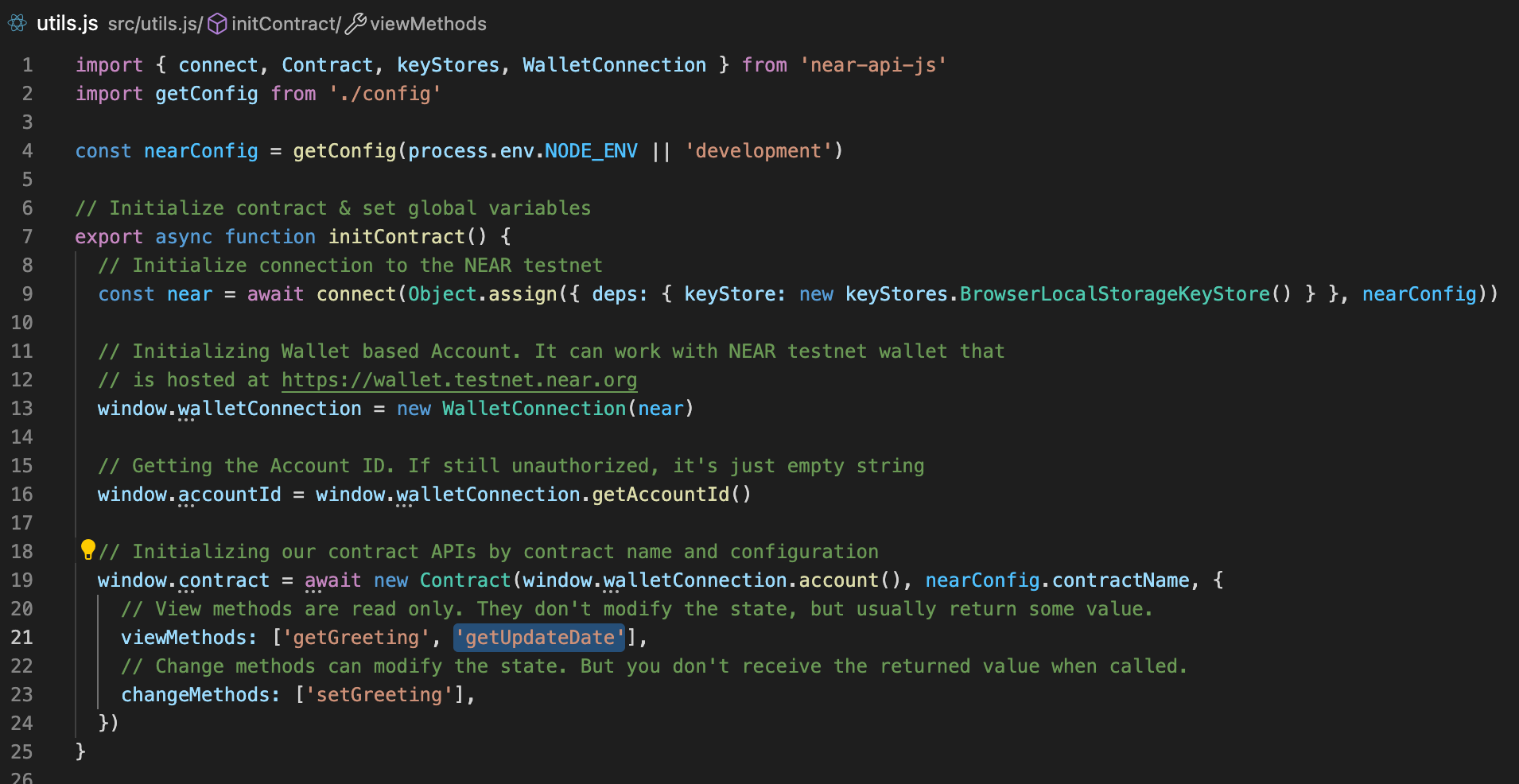
First of all we need to add them to the contract definition inside `src/utils.js`. Go and add new method `getUpdateDate` to `viewMethods` and save file so it will look like this:
Then open `src/App.js` and add a new state variable to store our update date:
```javascript
const [updateDate, setUpdateDate] = React.useState();
```
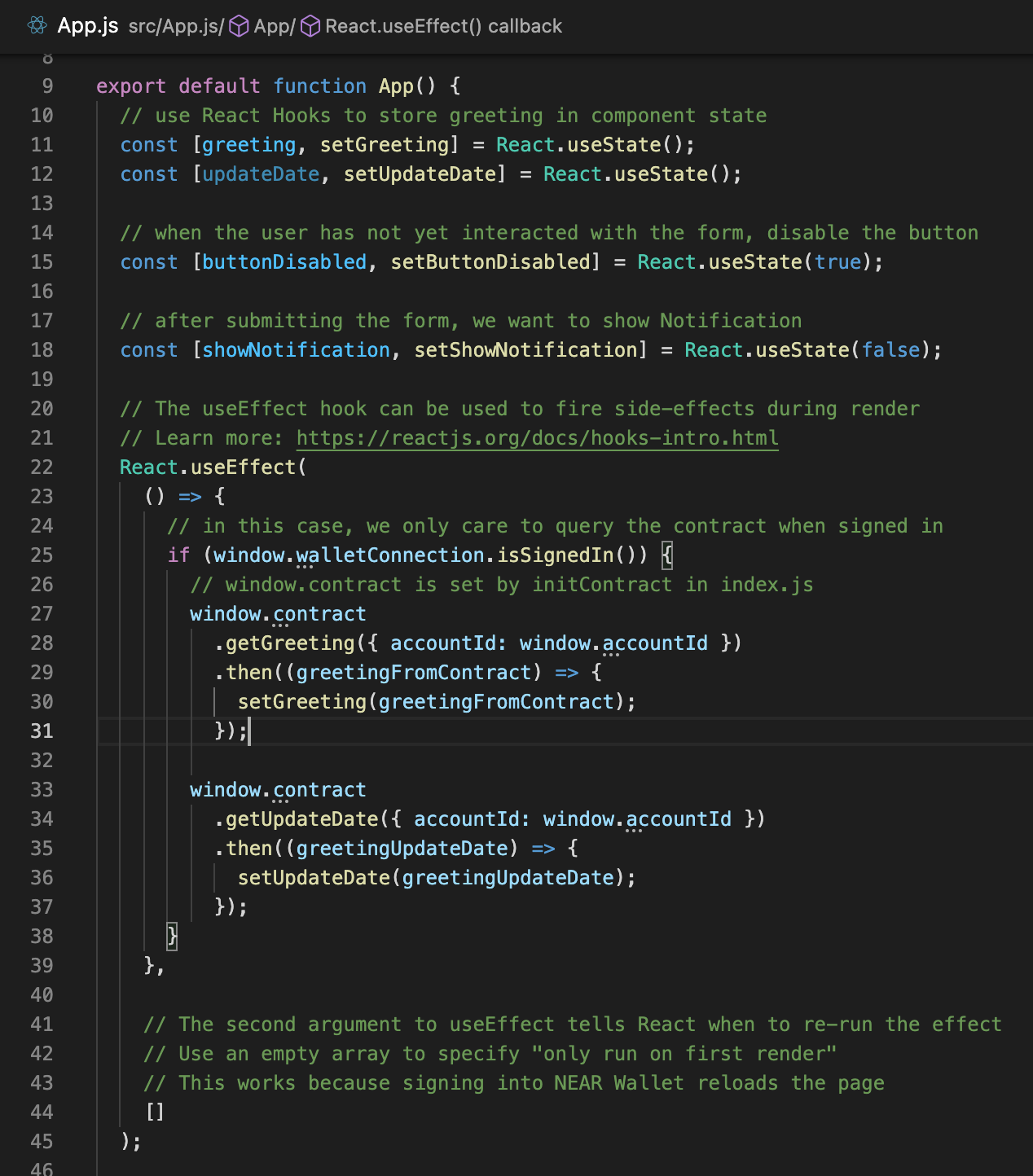
After that inside `useEffect` hook where we are getting the greeting add one more call to get the `getLastUpdate` and when we fetch the value we can update our `updateDate` state hook by calling `setUpdateDate`. The code we add should look as following:
```javascript
window.contract
.getUpdateDate({ accountId: window.accountId })
.then((greetingUpdateDate) => {
setUpdateDate(greetingUpdateDate);
});
```
And here how the file should look after we added those changes:
And the last part is to show the updateDate in the UI. Find the `h1` tag where you show current greeting and add some other tag for example `h3` after to show the last update date.
```javascript
<h3 style={{ textAlign: "center" }}>Last Update: {updateDate}</h3>
```
Then if you open the browser you will see the default response because we have to call `setGreeting` again to save the timestamp in the smart contract storage.
So let's update the greeting and press save again, approve the transaction and when getting back we will see the date (refresh the page to see the latest changes):
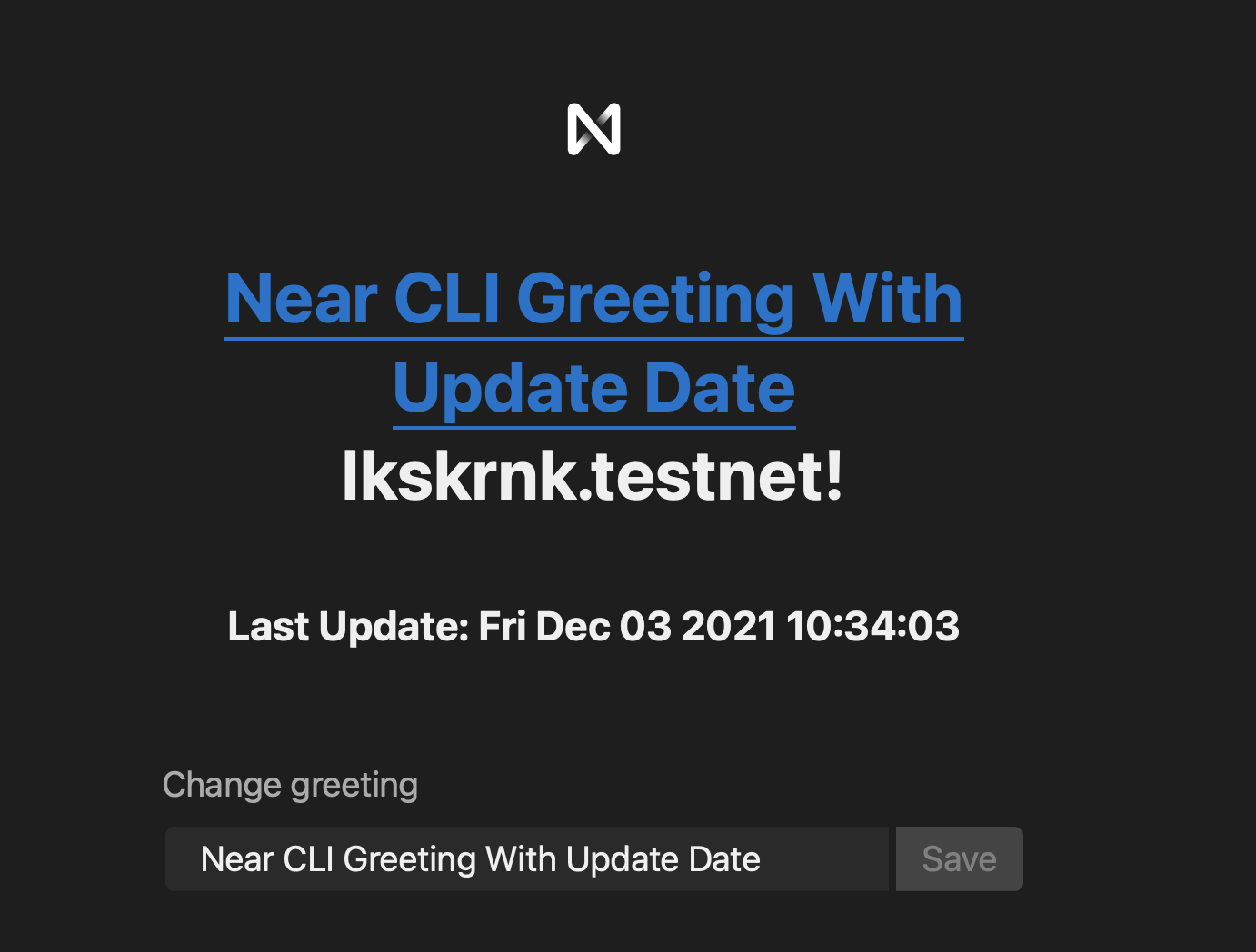
Great we did it, it looks awesome, isn't it?
When you save any file in your project it is automatically rebuild and redeployed to the dev in terminal, so you should be ready to use it. If it didn't happen or you have stopped your app, just use `yarn dev` again and it will start up.
## Deploying to the GitHub Pages
The project is already set to be deployed to the Github Pages, check `package.json` for all the commands available, but to simply deploy it as is you can use `yarn deploy:pages` or to deploy everything including your smart contract you can use command `yarn deploy` which will build and deploy both the contract, and also the ui app.
But make sure to first commit and push your app to Github and also add the `homepage` property to the `package.json`. More details can be found [here](https://github.com/gitname/react-gh-pages)
## Conclusion
That's it for now, we learned how to generate a new react app connect it with the near smart contract, how to add new methods to the smart contract, and how to use them in the UI.
You can add some more methods by your own, for example add some change methods to have some custom logic for your greeting, for example return it as a reversed string, or maybe store some custom colours or font settings for the greeting in the smart contract.
The tutorial source code is accessible [here](https://github.com/oleksanderkorn/near-tutoirial) and demo app is deployed to [GithubPages](https://oleksanderkorn.github.io/near-tutorial/).
To learn more check https://near.org/learn/ or https://near.academy/
Happy coding!
 Sign in with Wallet
Connect another wallet
Sign in with Wallet
Connect another wallet