# Inbound campaign backup old
1. This guide shows you how to create a campaign with **Slide-in** widget. For more widgets, checkout the [**Types of Inbound Widgets**](../../inbound/inboundWidgets/typesOfWidgetsAndWidgetConfigurations)
2. As you use the campaign builder, you’ll notice a **question mark icon** next to many features. Hovering above that question mark will show you more information around that feature.
3. To be able to create and test the campaign, you’ll need the following
- Create a Journey **“Homepage Help”** with text → ”Hey, how can I help you”
- Embed the widget in your website by referring [**How to Embed the Widgets on Your Website**](http://docs.yellow.ai/docs/platform_concepts/engagement/inbound/inboundWidgets/embedWidgetsOnWebsite)
To create a new Campaign, follow the steps below:
## Basic Information
1. Tapping on the **Engagement** section in the left panel takes you to the [**Campaign Overview Screen**](http://docs.yellow.ai/docs/platform_concepts/engagement/inbound/gettingStarted/campaignsOverviewScreen)
2. Select the **INBOUND** tab and then click on **+ Create Campaign**
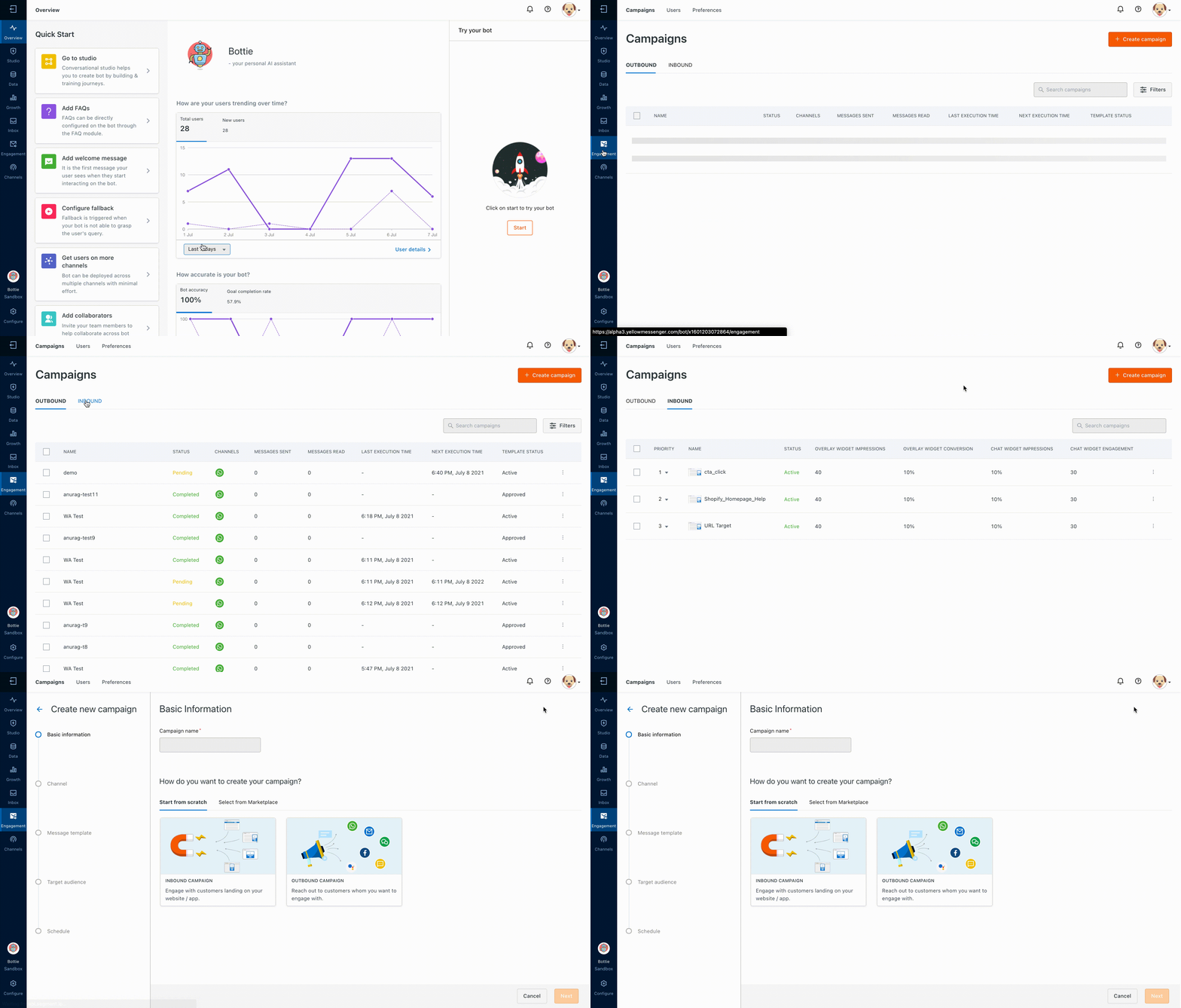
3. On the Campaign Creation page, enter the **Campaign Name** and under “Start from scratch” select **INBOUND CAMPAIGN**
4. Once you’re done, click **Next** and your campaign will be “created" and be visible on the _Campaign Overview Screen_

## Widget Type
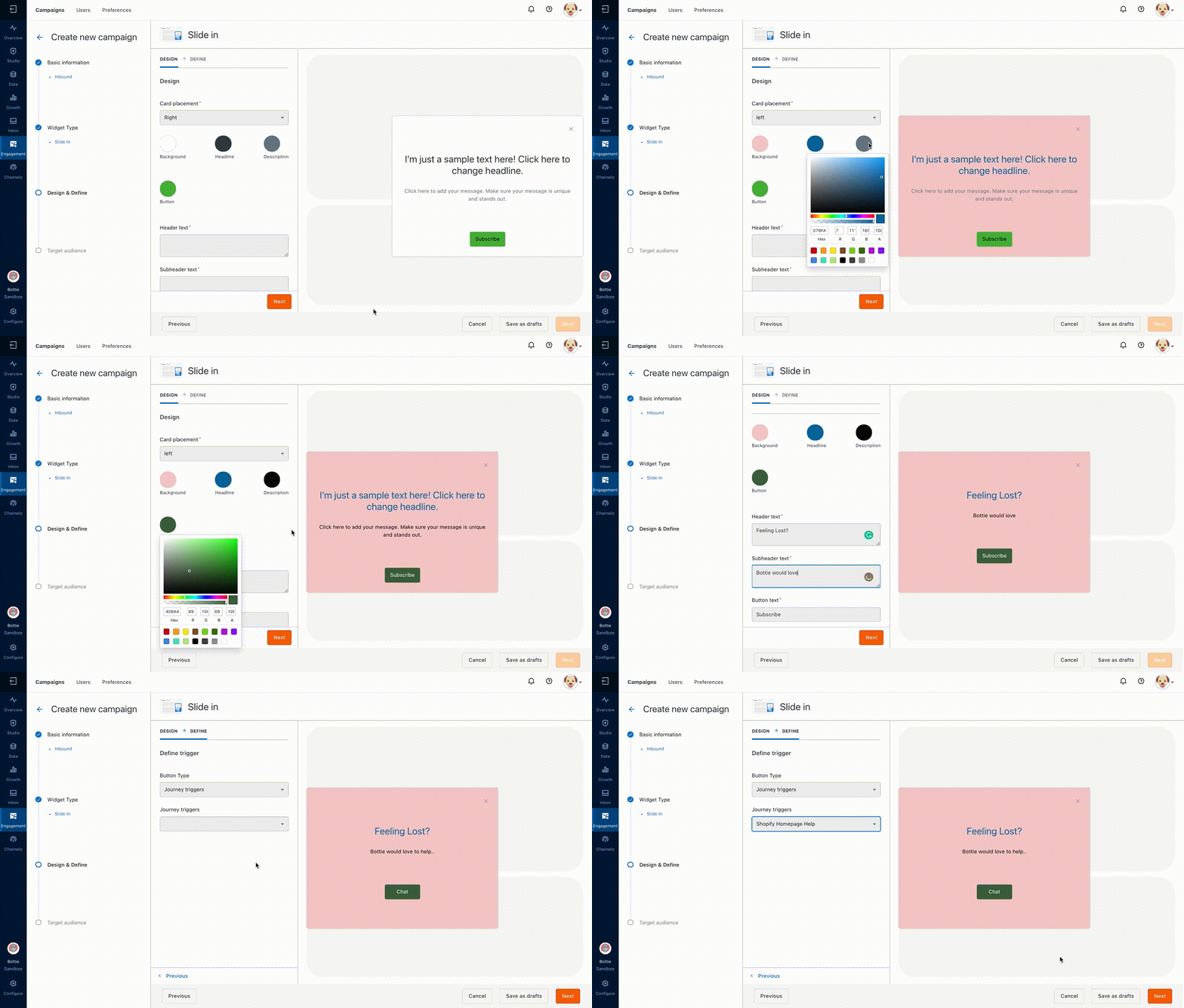
5. On the next screen, select **Slide in** widget. You can check out the [**Types of Inbound Widgets**](https://docs.yellow.ai/docs/platform_concepts/engagement/inboundWidgets/typesOfWidgetButtons)
6. At any point in the campaign builder, you can choose to click on any of the following buttons:
- **Previous** → Takes you back to the previous step in the campaign builder
- **Cancel** → Exits the campaign builder without saving the campaign
- **Save as drafts** → Exits the campaign builder and saves the campaign as **status=draft**
- **Next** → Takes you to the next step in the campaign builder
7. Click next to move to the next step

## Design & Define
7. This step in campaign creation consists of 2 sub-steps, namely **DESIGN** and **DEFINE**
8. In the Design step, use various options to design the theme of your widget
9. In the Define step, choose what the button does. Select the Button Type as **Journey Trigger.** Clicking this button will trigger a journey in the Web Bot. You can read more about other [**Types of Widget Buttons**](../../inboundWidgets/typesOfWidgetButtons)
10. Then select the **Journey to Trigger** (**NOTE:** For this, you’ll need existing Journeys to select from. You can use **Studio** to create them)
11. Click Next to move the the next step
## Target Audience
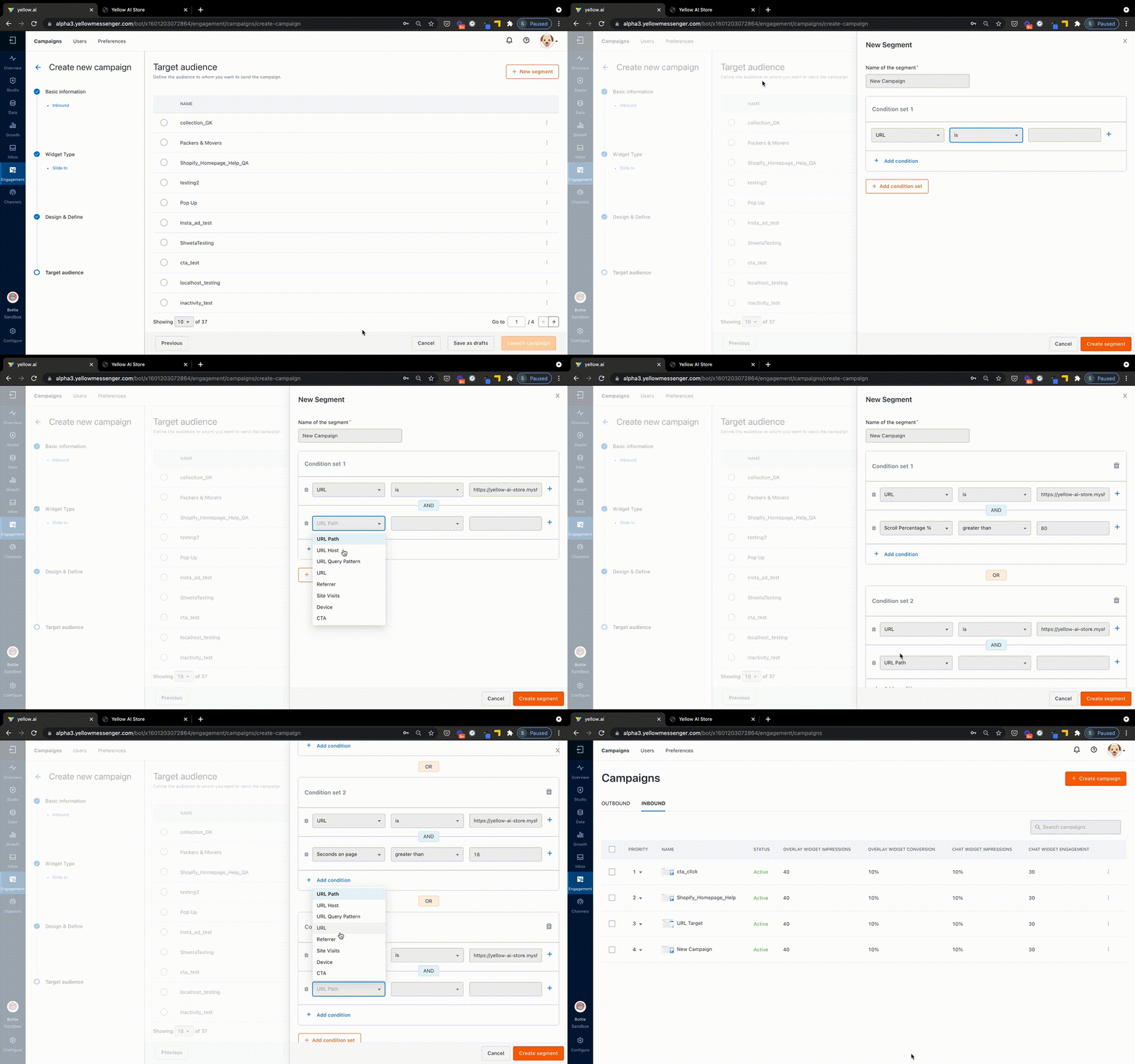
11. In this step we define the web behaviour rules that trigger the campaign. For this campaign, we’ll create multiple conditions to target visitors who seem to be lost on the homepage by identifying the following behaviour:
- They are inactive on the Homepage for more than 10 seconds
- Spend more than 20 seconds on the Homepage
- End up going through the entire Homepage by scrolling to the bottom
12. To accomplish the above, we’ll use the following triggers:
- **URL →** used to specify the URL of the page that is opened
- **Seconds on page →** used to specify the time spent on the same page, in seconds
- **Seconds of inactivity →** used to specify for how long the visitor has been inactive
You can check out all [**Types of Web Behaviour Triggers**](http://docs.yellow.ai/docs/platform_concepts/engagement/inbound/webBehaviourTriggers/webBehaviorTriggerType).
13. Refer to the image below to **Create Segment** and then create 3 **Condition Sets**. A campaign is triggered if **ALL** _Conditions_ within **ANY** of the *Condition Set*s are met.
**NOTE:** for URL, you can put the URL of any page of the website where your widget is embedded.
## Frequency
14. Here you define how frequently the same visitor will see this campaign
15. As can be seen below, the frequency of campaign display depends on the visitors **last interaction** with the campaign
16. If the visitor just sees the campaign and **doesn’t interact** then the **1st frequency** is referred to the **next time the campaign is to be displayed**. If they **click the button/engage** with the campaign then **2nd frequency** is referred to, and if they **dismiss the campaign** then the **3rd frequency** is referred to.

## Up Next
We will learn how to [**Manage your Campaigns using the Overview Screen**](http://docs.yellow.ai/docs/platform_concepts/engagement/inbound/gettingStarted/campaignsOverviewScreen)
 Sign in with Wallet
Connect another wallet
Sign in with Wallet
Connect another wallet