---
title: ''
disqus: Test
---
How to build a apparent temperature reader for mushers.
===
Jimmy Vassenden, jv222nd
Introduction to Applied Internet of Things
Linnaeus University
## Table of Contents
[TOC]
## Project overview
In this tutorial we will go through how to build a apparent temperature reader for dog training, using a Pycom LoPy4 and a DHT-22 sensor.
We will be connecting the device to the internet and presenting the data using Pybytes.
Estimated time: 1-2 hours
Estimated cost: 1077 SEK/129.24 USD
### Objective
---
The issue many dog trainers (especially mushers) have is to keep track of if it's too hot to train or not. During early or late season it's not just as simple as checking the termometer, you also have to account for the relative humidity and then calculate the apparent temperature.
You could also check the temperature and relative humidity, and then compare it to a chart.
I've chosen to make things a bit easier for my fellow mushers (and myself) and made a device that reads the temperature and humidity, calculates the apparent temperature, compares it to the [ASSA Race Rules](https://www.assa.dog/race-rules-and-related-documents/) and then gives the user the information on the screen.
The big advantage over using a regular thermometer is that you can place the device at the starting line, and check on your computer if you can train or not.
Instead of having to physically be at the starting line, read the temperature, make the calculation and then realize it's too hot and you have to go back home.
:::info
**Attention!**
The temperatures provided is only a guideline, you need to know your dog's limits and learn how to recognize a heat stroke.
Read more about overheating here: [**Can I train my dog in warm weather?**](https://www.nonstopdogwear.com/en/magazine/warm-weather/)
:::
### Material
---
| Material | Price | Where to buy |
| -------------------------------- | ------------------ | ------------------------------------------------------------------------------------------------------------------------------------ |
| LoPy4 (IoT Bundle) | 949 SEK/113.88 USD | [**Electrokit - LoPy4 Bundle**](https://www.electrokit.com/produkt/lnu-1dt305-tillampad-iot-lopy4-and-sensors-bundle/) |
| Expansion Board (IoT Bundle) | Included in the bundle. | Included in the bundle. |
| Wires (IoT Bundle) | Included in the bundle. | Included in the bundle. |
| DHT22 sensor | 99 SEK/11.88 USD | [**Electrokit - DHT22**](https://www.electrokit.com/en/product/temp-moist-sensor-rht03/) |
| Battery holder | 29 SEK/3.48 USD | [**Electrokit - Battery Holder**](https://www.electrokit.com/en/product/battery-holder-3xaaa-with-switch-and-jst-connector/) |
**LoPy4**

The heart and soul of this project.
The LoPy4 offers the ability to connect using WiFi, bluetooth, LoRa or Sigfox, making it an excellent choice for developing IoT-projects.
It's programmable using MicroPython.
**Expansion board**

The expansion board allows us to connect our LoPy4 to our computer using micro USB, it also provides easy access to the pins and a JST-connector for our battery.
**Wires**
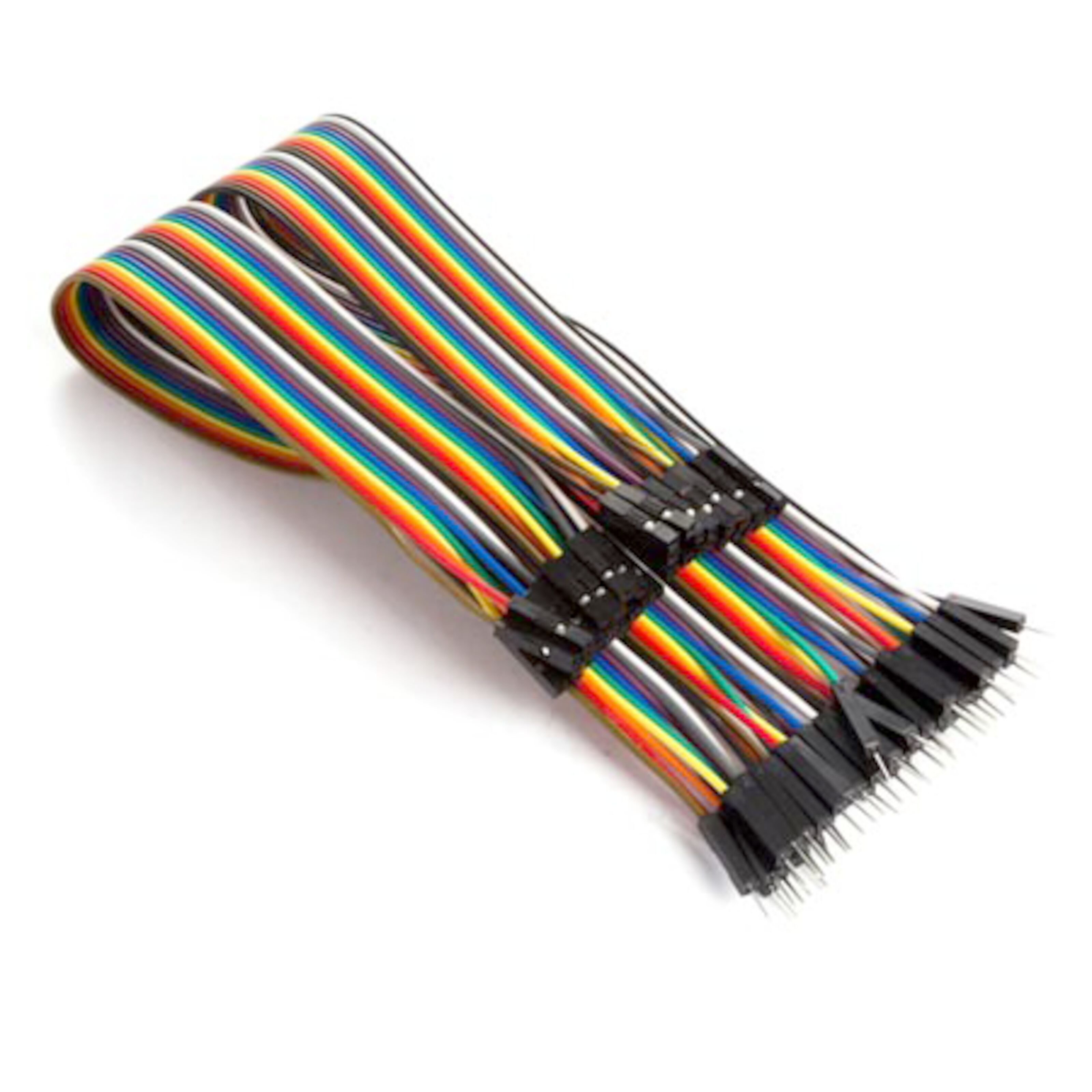
You're going to need wires to connect the sensor to the expansion board, male to female.
**Temperature/Humidity sensor**

There are two commonly used sensors for reading temperature and humidity. The DHT22 and the DHT11.
The DHT22 are a little more expensive than the DHT11, but it's a bit easier to setup since we don't need a resistor (as with the DHT11).
Also, the DHT11 can only meassure 20 – 80% RH, which make it unsuitable for this project.
**Battery holder**

To be able to use your device without having it connected to your computer, you're going to need a battery holder or a battery pack.
Just make sure that you get one with a JST-PH connector.
Computer setup
---
**Download and install Node.js**
Firstly you have to download and install Node.js, simply download it [HERE](https://nodejs.org/en/) and follow the instructions on screen.
**Install Atom**
Next, you will need a IDE. I've choosen Atom, but you could also try VS Code. I've had zero issues with Atom, so I can strongly recommend it.
You can download Atom [HERE](https://atom.io).
**Install Pymakr**
After installing Atom, you will need to install the Pymakr-plugin, follow [THIS](https://docs.pycom.io/gettingstarted/software/atom/) guide.
**Connect LoPy4 to expansion board**
To connect the LoPy4 to the expansion board, you gently press the pins down into the slots, make sure that the LED is above the micro USB port.

**Create a project folder**
When you have done all of the above and connected your device via USB you're ready to start the project.
Choose 'Add folders' in Atom, I recommend creating a new and empty folder for your project.
**Create main.py**
Inside that folder, create a file named main.py. This file will contain your code.
You can open the main.py in Atom and then copy/paste the main code from below.
Don't forget to save.
**Create lib folder**
Create a folder called lib inside your project folder. This folder will contain the files needed for your sensor(s) to work.
**Create dht.py**
Inside the lib folder, create a file named dht.py. Copy/paste the code named dht.py from below.
**Upload code to device**
To save the code on the device, connect the device to a USB port and press 'Upload project to device'.
## Putting everything together

If you're using the DHT22, connect it according to the figure above from the datasheet.
Pin 1 on the sensor connects to 3V3 on the board.
Pin 2 connects to P3 (if you change this you'll have to change it in the code too).
Pin 4 connects to GND.
It should look like below when everything is connected.

## Platform
As platform I'm using Pybytes, which is cloud-based. Meaning that you will not be needing to install any other software on your computer to make it work and you will not need to have your computer running in order for it to work.
The simplicity is also a big advantage, you simply follows the guide mentioned below under 'Transmitting the data/connectivity' and register a account at Pybytes.
The platform is free to use.
To send data to Pybytes you run the command 'pybytes.send_signal' that can be seen on row 46-51 below.
## The code
main.py
```python=
import time
import math
from machine import Pin
from dht import DHT # https://github.com/JurassicPork/DHT_PyCom
th = DHT(Pin('P3', mode=Pin.OPEN_DRAIN), 1)
time.sleep(2)
while True:
result = th.read()
while not result.is_valid():
time.sleep(.5)
result = th.read()
t = result.temperature #Dry temperature
rh = result.humidity #Relative humidity (%)
ws = 0 #Wind speed (m/s)
vp = (float(rh)/100.0)*6.105*math.exp(17.27*t/(237.7+t)) #Water vapour pressure (hPa)
at = t+(0.33*vp)-(0.70*ws)-4.00 #Apparent temperature
if at < 10:
scooter = 'Recommended: Full distance'
bikejoring = 'Recommended: Full distance'
canicross = 'Recommended: Full distance'
if at > 10 and at < 15:
scooter = 'Recommended: Shorten distance'
bikejoring = 'Recommended: Full distance'
canicross = 'Recommended: Full distance'
if at > 15 and at < 18:
scooter = 'Recommended: No scooter or rig!'
bikejoring = 'Recommended: Shorten distance'
canicross = 'Recommended: Full distance'
if at > 18 and at < 22:
scooter = 'Recommended: No scooter or rig!'
bikejoring = 'Recommended: No bikejoring!'
canicross = 'Recommended: Shorten distance'
if at > 22:
scooter = 'Recommended: No scooter or rig!'
bikejoring = 'Recommended: No bikejoring!'
canicross = 'Recommended: No canicross!'
pybytes.send_signal(1,result.temperature)
pybytes.send_signal(2,result.humidity)
pybytes.send_signal(3,scooter)
pybytes.send_signal(4,bikejoring)
pybytes.send_signal(5,canicross)
pybytes.send_signal(6,at)
time.sleep(60)
```
---
dht.py
```python=
import time
import pycom
from machine import enable_irq, disable_irq, Pin
class DHTResult:
'DHT sensor result returned by DHT.read() method'
ERR_NO_ERROR = 0
ERR_MISSING_DATA = 1
ERR_CRC = 2
error_code = ERR_NO_ERROR
temperature = -1
humidity = -1
def __init__(self, error_code, temperature, humidity):
self.error_code = error_code
self.temperature = temperature
self.humidity = humidity
def is_valid(self):
return self.error_code == DHTResult.ERR_NO_ERROR
class DHT:
'DHT sensor (dht11, dht21,dht22) reader class for Pycom'
#__pin = Pin('P3', mode=Pin.OPEN_DRAIN)
__dhttype = 0
def __init__(self, pin, sensor=0):
self.__pin = Pin(pin, mode=Pin.OPEN_DRAIN)
self.__dhttype = sensor
self.__pin(1)
time.sleep(1.0)
def read(self):
# pull down to low
self.__send_and_sleep(0, 0.019)
data = pycom.pulses_get(self.__pin,100)
self.__pin.init(Pin.OPEN_DRAIN)
self.__pin(1)
#print(data)
bits = []
for a,b in data:
if a ==1 and 18 <= b <= 28:
bits.append(0)
if a ==1 and 65 <= b <= 75:
bits.append(1)
#print("longueur bits : %d " % len(bits))
if len(bits) != 40:
return DHTResult(DHTResult.ERR_MISSING_DATA, 0, 0)
#print(bits)
# we have the bits, calculate bytes
the_bytes = self.__bits_to_bytes(bits)
# calculate checksum and check
checksum = self.__calculate_checksum(the_bytes)
if the_bytes[4] != checksum:
return DHTResult(DHTResult.ERR_CRC, 0, 0)
# ok, we have valid data, return it
[int_rh, dec_rh, int_t, dec_t, csum] = the_bytes
if self.__dhttype==0: #dht11
rh = int_rh #dht11 20% ~ 90%
t = int_t #dht11 0..50°C
else: #dht21,dht22
rh = ((int_rh * 256) + dec_rh)/10
t = (((int_t & 0x7F) * 256) + dec_t)/10
if (int_t & 0x80) > 0:
t *= -1
return DHTResult(DHTResult.ERR_NO_ERROR, t, rh)
def __send_and_sleep(self, output, mysleep):
self.__pin(output)
time.sleep(mysleep)
def __bits_to_bytes(self, bits):
the_bytes = []
byte = 0
for i in range(0, len(bits)):
byte = byte << 1
if (bits[i]):
byte = byte | 1
else:
byte = byte | 0
if ((i + 1) % 8 == 0):
the_bytes.append(byte)
byte = 0
#print(the_bytes)
return the_bytes
def __calculate_checksum(self, the_bytes):
return the_bytes[0] + the_bytes[1] + the_bytes[2] + the_bytes[3] & 255
```
**Explanation of the main code:**
```python=6
th = DHT(Pin('P3', mode=Pin.OPEN_DRAIN), 1)
```
P3 refers to the pin used on the expansion board, you need to change this if you have used another pin.
The 1 in the end is used since we use the DHT22, change this to 0 if you use DHT11.
---
```python=15
t = result.temperature #Dry temperature
rh = result.humidity #Relative humidity (%)
ws = 0 #Wind speed (m/s)
vp = (float(rh)/100.0)*6.105*math.exp(17.27*t/(237.7+t)) #Water vapour pressure (hPa)
at = t+(0.33*vp)-(0.70*ws)-4.00 #Apparent temperature
```
The formula for calculating the apparent temperature (published by Robert G. Steadman in 1994).
The wind speed is set to 0 since we shouldn't account for it when mushing (running creates wind speed and so on.) it's a lot better to just leave it at zero. However, if you'd like to use it, you need a sensor for wind speed and use that data.
---
```python=21
if at < 10:
scooter = 'Recommended: Full distance'
bikejoring = 'Recommended: Full distance'
canicross = 'Recommended: Full distance'
```
Row 21-44 sets the recommended temperature, preset are the [ASSA Race Rules](https://www.assa.dog/race-rules-and-related-documents/), but feel free to change this if for example you know that your dog runs hot at a lower temperature.
---
```python=46
pybytes.send_signal(1,result.temperature)
pybytes.send_signal(2,result.humidity)
pybytes.send_signal(3,scooter)
pybytes.send_signal(4,bikejoring)
pybytes.send_signal(5,canicross)
pybytes.send_signal(6,at)
```
The numbers represents the signal-number that we will use when we connect to Pybytes.
---
```python=53
time.sleep(60)
```
How long you want the device to sleep before sending data again.
## Transmitting the data/connectivity
Since my starting line for the beginning of the season is right outside my house, I've decided to connect my device to the internet by using WiFi and will be using MQTT as transport protocol. As mentioned earlier I've decided to use Pybytes as the platform, just because of the simplicity.
If you're further away from your network, you might want to consider using another way of connecting your device.
The drawback of using Pybytes is that you can't share your dashboard with others.
An example for when you want this is if you're hosting a competition and want the participants to be able to monitor the temperature via your website.
The data is read and sent once every minute, you can change this to your liking by editing row 53 in the code.
To connect to your wifi and Pybytes follow the instructions [HERE](https://docs.pycom.io/pybytes/gettingstarted/).
## Presenting the data
Below is a image of the dashboard, easy to read, without any bells and whistles.
The database saves the data every time it receives it and stores it for one month.
So with the code above, the database will save data once every minute.

## Finalizing the design
My prototype of this project ended up looking like the picture below.
It does what it's supposed to do, but in the near future I need to build a wheaterproofed case for it, maybe with some LEDs to show if you can run a race or not.
I will also experiment a bit with other platforms and see if I can find a simple solution for competition organizers to publish the data.
I will also try to implement a warning notification when thw battery is running low.

 Sign in with Wallet
Connect another wallet
Sign in with Wallet
Connect another wallet