# Flow debugger
The Flow Debugger allows bot developers to inspect variables and track changes in their values at each node level. By enabling step-by-step flow execution through breakpoints, it facilitates the rapid identification of logic and runtime errors, aiding in efficient debugging processes
To debug your flows:
## Set up breakpoints
Breakpoints serve as special markers that pause flow execution at designated points. Currently, we support breakpoints only at the node level.
1. Go to **Studio** and open the flow you'd like to debug.
2. Click **Preview** > **debug icon**.

3. Click the **Debugger** tab. To know about how console works, click [here](https://docs.yellow.ai/docs/platform_concepts/studio/build/bot-logs).

4. Click the **Start debugging** option to start the debug session.

After initiating the debugging session, node breakpoints become visible, allowing users to set them at specific nodes.

5. To set a breakpoint, click the breakpoint button on the node. This stops the flow execution once the control reaches that node.
<img src="https://i.imgur.com/NZK38XG.png" alt="drawing" width="40%"/>
6. To disable the breakpoint, reclick the breakpoint on the specific node. Disabling a breakpoint for a node allows the flow execution to proceed normally without any interruption.
## Start debugging the flow
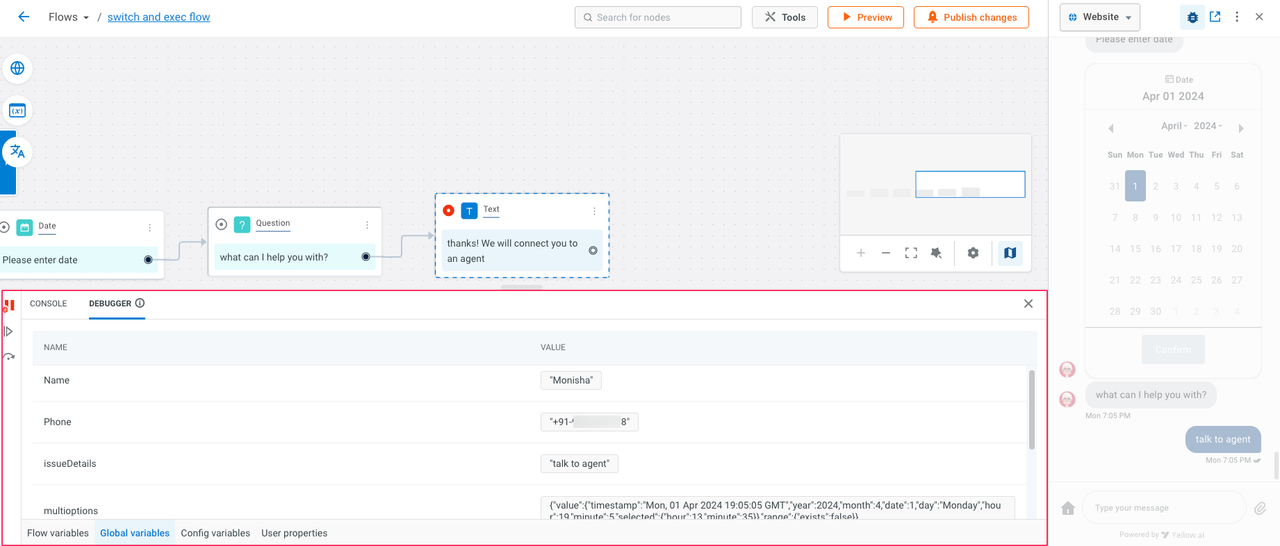
Once the breakpoints are set, [preview the flow](https://docs.yellow.ai/docs/platform_concepts/studio/build/Flows/configureflow#31-test-bot-flow-via-studio-overview-page). The flow execution will stop when it reaches a breakpoint node. An active breakpoint looks like the node highlighted in the image below.

:::info
The widget interaction will also be disabled at this point.
:::
The **Debugger** section will reflect the current state of variables or the values stored in those variables at the particular point of flow execution.
:::info
1. The debugger section can be resized, with the default height set at 30% of the builder area's height and adjustable up to a maximum of 50%.
2. Breakpoints are applicable across multiple flows, when a flow execution switches to another flow using the [Execute flow node](https://docs.yellow.ai/docs/platform_concepts/studio/build/nodes/action-nodes#15-execute-flow), the new flow containing the breakpoint will automatically load.
:::
### Resume flow execution from a breakpoint
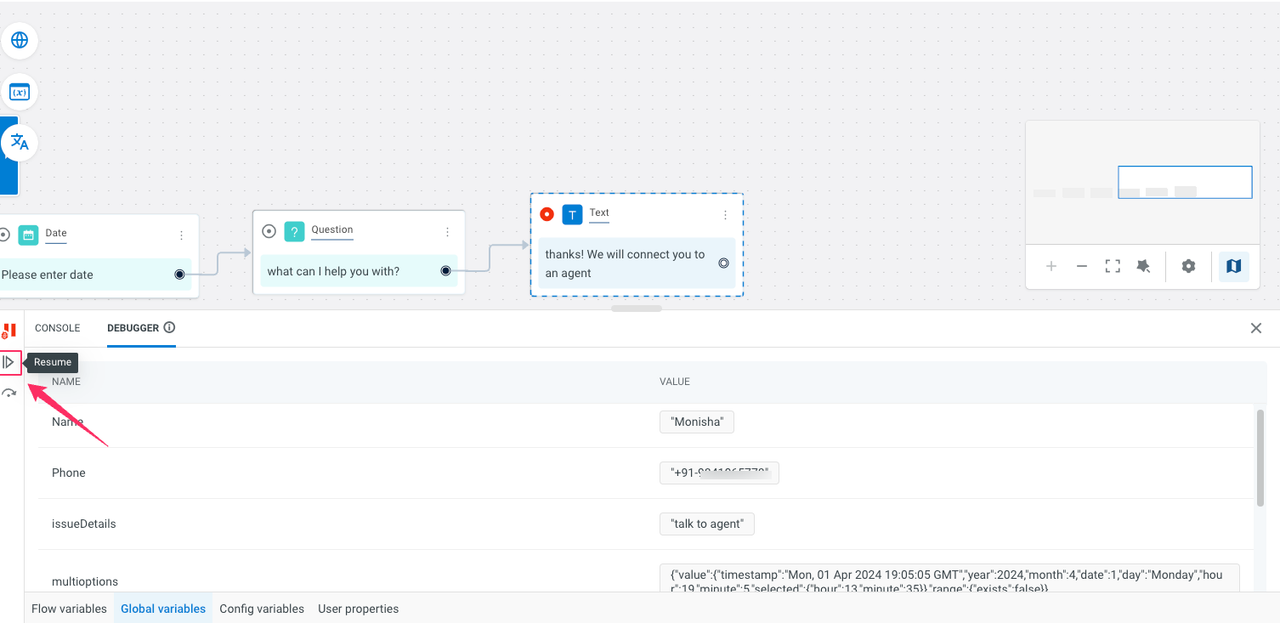
When the flow execution halts at a breakpoint, resuming will restart the execution until it reaches the next breakpoint, if any. Click the **resume** button to continue the flow.
### Step over a breakpoint
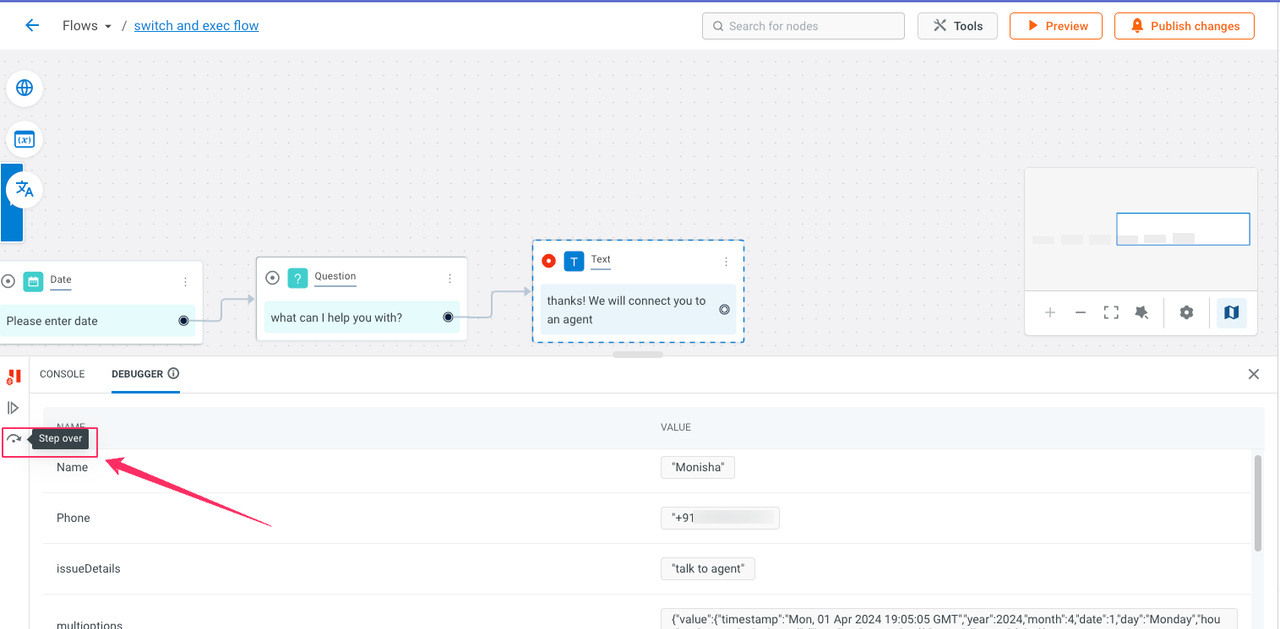
Step over lets you proceed to the next step after the breakpoint, resembling the execution of a function one node at a time and moving over to the subsequent line. Click **Step over** to proceed to the next step.
## End the debugging session
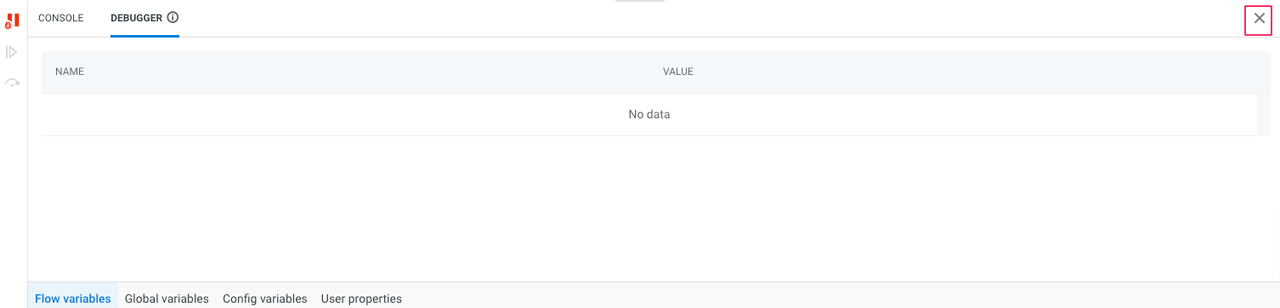
You can close a debugging session by three ways:
1. Click the red pause button on the debugging session

2. From the **Debugger** section
3. From the flow preview section
<img src="https://i.postimg.cc/htst1cnj/wert.png" alt="drawing" width="40%"/>
 Sign in with Wallet
Connect another wallet
Sign in with Wallet
Connect another wallet