# A Practical Introduction to Apptainer on Bridges-2
## About this workshop
This is the documentation for the full-day workshop hosted at the University of Puerto Rico. This workshop is designed for professionals and enthusiasts seeking to deepen their understanding of containerization in HPC systems.
The workshop will provide focused exploration of Apptainer on Bridges-2, offering participants an opportunity to gain practical insights and knowledge in this area.
Apptainer streamlines container creation and execution processes. This session will focus on practical applications, including:
- Deployment of legacy and developmental code
- Deployment of useful utilities using Anaconda
- Initiation of services
- Multi-layered builds
- Containerization and adherence to FAIR principles (Findable, Accessible, Interoperable, Reusable)
Why should I attend? Faculty and research staff members stand to gain valuable insights by learning how containers enhance reproducibility within the framework of open science and the FAIR principles. Understanding containerization techniques empowers researchers to increase the credibility and impact of their work, facilitate collaboration, streamline research workflows, ensure research longevity, strengthen funding opportunities, and foster ongoing professional development. These skills not only contribute to individual research endeavors but also promote transparency, rigor, and efficiency within the broader scientific community.
## Setup
### Connect to OnDemand on [Bridges-2](https://ondemand.bridges2.psc.edu) and use your Bridges-2 login to connect to the system (not your ACCESS ID)

and it should look like

click `JupyterLab`

and complete the form to look like this

and click `Launch` and wait

and wait to click `Connect to Jupyter`

Once it starts it should look similar to

and click `Terminal`

In Terminal type
```bash=
cd /ocean/projects/see240002p/$(whoami)
git clone https://github.com/pscedu/practical-intro-to-apptainer.git
cd practical-intro-to-apptainer
```
And we are done.
### Enabling the remote builder on Sylabs.io.
To enable the remote builder on Sylabs.io we need to follow these steps
* Create an account on SyLabs.io. Click login

and `Sign up`
<img src="https://hackmd.io/_uploads/ry_SFTKgT.png" width="50%"/>
* Click `Access Tokens` on the left menu

* Click Create a `New Access Token`
<img src="https://hackmd.io/_uploads/Hk70tpFla.png" width="100%" />
* Add a label and click `Create Access Token`

* Click `Copy token to Clipboard`

In the Terminal type
```bash=
module load SingularityCE/4.1.2
singularity remote login
```
* Paste the token and click `Enter`.
Now you are ready to build containers remotely.
### Exercise - Exploration
:::success
**Goal** Learn some of the most basic Apptainer commands
:::
Start by
```
cd /ocean/projects/see240002p/$(whoami)/practical-intro-to-apptainer/adventure1/exercise1a
```
#### Get the image
```
# https://hub.docker.com/_/alpine
apptainer pull -F alpine.sif docker://alpine:latest
```
and
```
apptainer pull -F alpine.sif docker://ubuntu:latest
```
How would you download the latest Debian distro?
#### Inspect the image
```
apptainer inspect alpine.sif
```
how would you inspect the Ubuntu image?
#### Verify the image
This is important if the containers are signed.
```
apptainer verify alpine.sif
```
### Exercise - FastQC
:::success
**Goal** Learn to navigate DockerHub and select an image of interest.
:::
Start by
```
cd /ocean/projects/see240002p/$(whoami)/practical-intro-to-apptainer/adventure1/exercise1b
```
Visit DockerHub by clicking [here](https://hub.docker.com/) and find an image for FastQC (biocontainers is trustworthy).
Are there other images for FastQC. Which one you think you should download?
Run the command from the previous exercise to pull, inspect and verify the image file you just downloaded.
### Exercise - `lowcharts`
:::success
**Goal** Learn how to download an image from SyLabs, a public registry and generate a plot that looks like

:::
[lowcharts](github.com/juan-leon/lowcharts) is meant to be used in those scenarios where we have numerical data in text files that we want to display in the terminal to do a basic analysis.
1. Change directory to the exercise. Run the command below
```bash=
cd /ocean/projects/see240002p/$(whoami)/practical-intro-to-apptainer/adventure1/exercise7-lowcharts
```
In this folder you should find a single script
````
> ls -t
script.sh
````
2. Inspect the script
```
> cat script.sh
#!/bin/bash
#generate a list of random numbers
python3 -c 'import random; [print(random.normalvariate(5, 5)) for _ in range(500)]' > data.txt
#run the application inside the container
apptainer exec lowcharts_0.5.9.sif lowcharts hist data.txt
#remove temp file
if [ -f data.txt ]; then
rm -f data.txt
fi
```
the script above will generate a list of random numbers in Python and `lowcharts` will build a Terminal based histogram.
3. Upon inspection of the [GitHub repository](https://github.com/juan-leon/lowcharts), you can find that for each release of the package a `.deb` installer is made available for download.
And this package can be installed using [`dpkg`](https://www.debian.org/doc/manuals/debian-faq/pkgtools.en.html#dpkg).
So consider this recipe
```
Bootstrap: docker
From: debian:latest
%labels
AUTHOR icaoberg
EMAIL icaoberg@psc.edu
SUPPORT help@psc.edu
REPOSITORY http://gitub.com/pscedu/apptainer-lowcharts
COPYRIGHT Copyright © 2024 Pittsburgh Supercomputing Center. All Rights Reserved.
VERSION 0.5.9
%post
apt update
apt install -y wget
cd /opt
wget -nc https://github.com/juan-leon/lowcharts/releases/download/v0.5.9/lowcharts_0.5.9-1_amd64.deb
dpkg -i lowcharts_0.5.9-1_amd64.deb
rm -f lowcharts_0.5.9-1_amd64.deb
apt clean
%runscript
lowcharts "$@"
```
This recipe works, as I have tested it and deployed it. This image has been published in SyLabs.
4. Clik this [link](https://cloud.sylabs.io/library/icaoberg/pscedu/lowcharts:0.5.9) to visit the registry.

Upon inspection you see version `0.5.9` is available for download.
5. Click the `Pull Command` button

it will display the commands you can run.
Run the command below to download the image
```bash=
apptainer pull --arch amd64 library://icaoberg/pscedu/lowcharts:0.5.9
```
after downloading the file you can see it on disk
```bash
> ls -t
lowcharts_0.5.9.sif script.sh
6. Run the script.sh
```
Click [here](https://cloud.sylabs.io/library/icaoberg/pscedu/lowcharts:0.5.9) to visit SyLabs registry.
---
### Exercise - `lazygit`
In the previous exercises, an image was acquired from a registry. Additionally, users have the capability to obtain images from SyLabs. To initiate the download of an image from SyLabs, execute the following command
```
singularity pull lazygit.sif docker://docker.io/icaoberg/lazygit:0.34
```
[LazyGit](https://github.com/jesseduffield/lazygit) is a simple terminal UI for git commands.
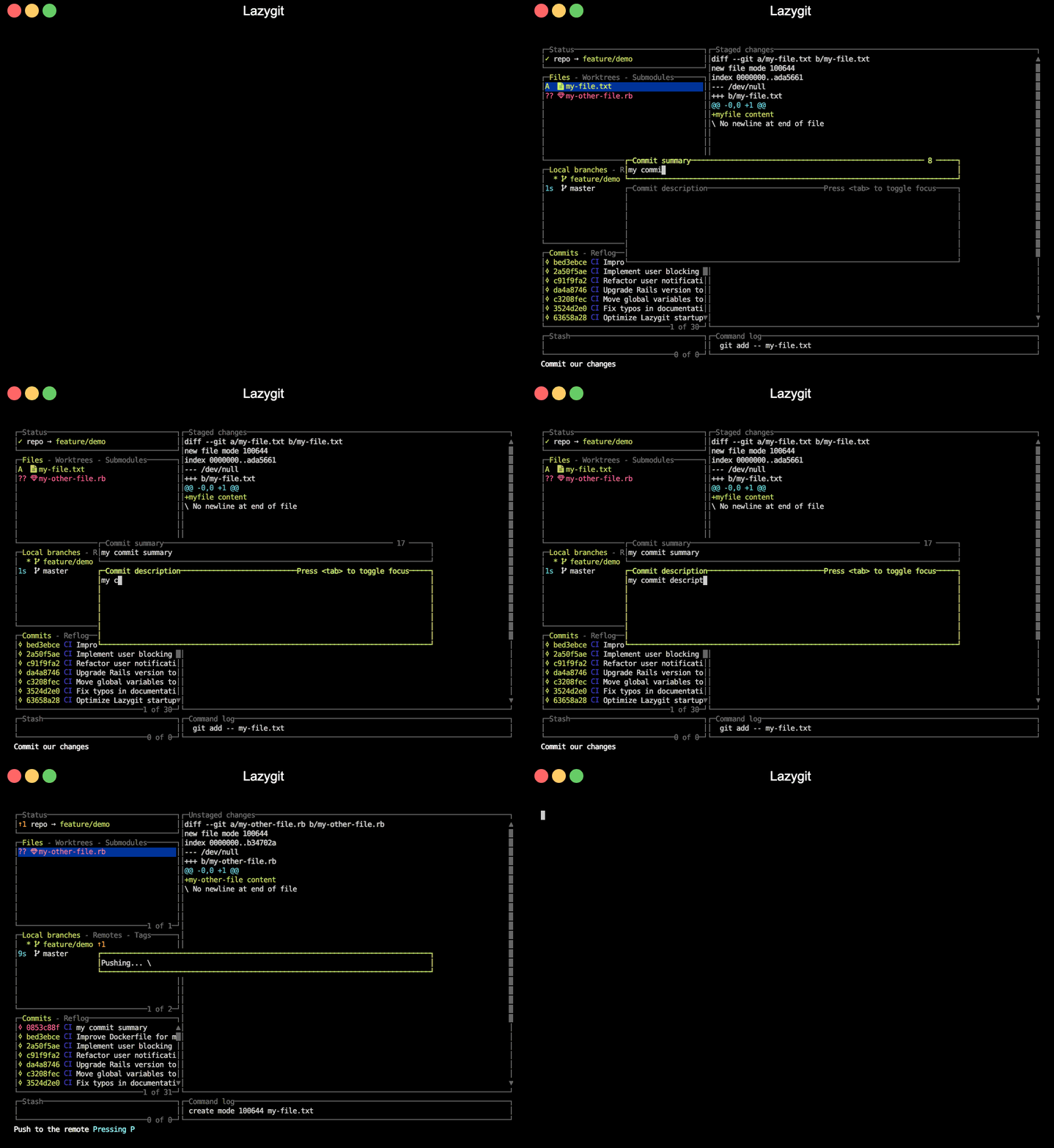
#### `singularity run`
Again, we can shell into the container
```
singularity shell lazygit.sif
Singularity> which lazygit
/usr/local/bin/lazygit
```
However if the tool is on `$PATH`, then we can access it using the command
```
singularity exec lazygit.sif lazygit
```
alternatively
```
singularity exec lazygit.sif /usr/local/bin/lazygit
```
<img src="https://hackmd.io/_uploads/ByMMu1qxT.png" width="75%" />
Singularity containers are very useful for containerization useful tools for software development. To see a list of vetted containers built by PSC, click [here](https://github.com/pscedu/singularity).
### Exercise. `Figlet`
:::success
**Goal** Practice pulling from a registry.
:::
You can use Figlet to pretty print strings. For example
```
echo "foobar" | ./figlet_latest.sif
__ _
/ _| ___ ___ | |__ __ _ _ __
| |_ / _ \ / _ \| '_ \ / _` | '__|
| _| (_) | (_) | |_) | (_| | |
|_| \___/ \___/|_.__/ \__,_|_|
```
Build or pull a container from this [repository](https://hub.docker.com/r/hairyhenderson/figlet) and attempt to recreate the command above.
### Exercise - Singularity recipes
:::success
**Goal** Learn how to use the remote builder from Terminal.
:::
Consider the following Singularity recipe
```
Bootstrap: docker
From: hello-world:latest
%labels
MAINTAINER icaoberg
EMAIL icaoberg@psc.edu
SUPPORT help@psc.edu
%post
```
this recipe is pulling a `Hello, world!` example from DockerHub. To build the container, run the command
```
IMAGE=singularity-hello-world.sif
DEFINITION=Singularity
singularity build --remote $IMAGE $DEFINITION
```
which builds the container remotely and downloads it locally
```
INFO: Starting build...
INFO: Setting maximum build duration to 1h0m0s
INFO: Remote "cloud.sylabs.io" added.
INFO: Access Token Verified!
INFO: Token stored in /root/.singularity/remote.yaml
INFO: Remote "cloud.sylabs.io" now in use.
INFO: Starting build...
Getting image source signatures
Copying blob sha256:719385e32844401d57ecfd3eacab360bf551a1491c05b85806ed8f1b08d792f6
Copying config sha256:0dcea989af054c9b5ab290a0c3ecc3f97947894f575fd08a93d3e048a157022a
Writing manifest to image destination
Storing signatures
2023/10/03 19:31:12 info unpack layer: sha256:719385e32844401d57ecfd3eacab360bf551a1491c05b85806ed8f1b08d792f6
INFO: Adding labels
INFO: Creating SIF file...
INFO: Build complete: /tmp/image-1800109761
INFO: Performing post-build operations
INFO: Format for SBOM is not set or file exceeds maximum size for SBOM generation.
INFO: Calculating SIF image checksum
INFO: Uploading image to library...
WARNING: Skipping container verification
INFO: Uploading 45056 bytes
INFO: Image uploaded successfully.
INFO: Build complete: singularity-hello-world.sif
```
Now that the file `singularity-hello-world.sif`
Since the container has an entry-point, we can simply run
```
./singularity-hello-world.sif
Hello from Docker!
This message shows that your installation appears to be working correctly.
To generate this message, Docker took the following steps:
1. The Docker client contacted the Docker daemon.
2. The Docker daemon pulled the "hello-world" image from the Docker Hub.
(amd64)
3. The Docker daemon created a new container from that image which runs the
executable that produces the output you are currently reading.
4. The Docker daemon streamed that output to the Docker client, which sent it
to your terminal.
To try something more ambitious, you can run an Ubuntu container with:
$ docker run -it ubuntu bash
Share images, automate workflows, and more with a free Docker ID:
https://hub.docker.com/
For more examples and ideas, visit:
https://docs.docker.com/get-started/
```
#### More...
Feel free to play around the other directories in the `adventure1` folder
### Adventure 2
#### Exercise - Use mongo
:::success
**Goal** Learn how to run services not just programs
:::
Start by
```
cd /ocean/projects/see240002p/$(whoami)/practical-intro-to-apptainer/adventure2/mongodb
```
Follow the instructor to understand how to run a service.
#### Exercise - ImageMagick
:::success
**Goal** Increase setting=s i
Start by
```
cd /ocean/projects/see240002p/$(whoami)/practical-intro-to-apptainer/adventure2/mongodb
```
Consider the following `Dockerfile`
```
# Dockerfile for ImageMagick
FROM debian:latest
LABEL MAINTAINER="icaoberg" \
EMAIL="icaoberg@psc.edu" \
SUPPORT="help@psc.edu" \
REPOSITORY="http://github.com/pscedu/singularity-imagemagick" \
COPYRIGHT="Copyright © 2023 Pittsburgh Supercomputing Center. All Rights Reserved." \
VERSION="7.1.1-15"
RUN apt-get update && \
apt-get -y upgrade && \
apt-get install -y imagemagick libtiff-tools && \
sed -i 's|<policy domain="resource" name="width" value="16KP"/>|<policy domain="resource" name="width" value="128KP"/>|g' /etc/ImageMagick-6/policy.xml && \
sed -i 's|<policy domain="resource" name="height" value="16KP"/>|<policy domain="resource" name="height" value="128KP"/>|g' /etc/ImageMagick-6/policy.xml && \
sed -i 's|<policy domain="resource" name="memory" value="256MiB"/>|<policy domain="resource" name="memory" value="32GiB"/>|g' /etc/ImageMagick-6/policy.xml && \
sed -i 's|<policy domain="resource" name="map" value="512MiB"/>|<policy domain="resource" name="map" value="12GiB"/>|g' /etc/ImageMagick-6/policy.xml && \
sed -i 's|<!-- <policy domain="resource" name="temporary-path" value="/tmp"/> -->|<policy domain="resource" name="temporary-path" value="/tmp"/>|g' /etc/ImageMagick-6/policy.xml && \
sed -i 's|<policy domain="resource" name="map" value="512MiB"/>|<policy domain="resource" name="map" value="12GiB"/>|g' /etc/ImageMagick-6/policy.xml && \
sed -i 's|<policy domain="resource" name="disk" value="1GiB"/>|<policy domain="resource" name="disk" value="12GiB"/>|g' /etc/ImageMagick-6/policy.xml
CMD ["/bin/bash"]
```
convert the file above into a Singularity recipe and attempt to build it remotely and name the file `singularity-imagemagick-7.1.1-15.sif`.
Bonus: push singularity container to your SyLabs account.
 Sign in with Wallet
Connect another wallet
Sign in with Wallet
Connect another wallet