###### tags: `大學部專題` `106級專題`
# Git 教學
教材內容大部分整理自 [ Scott Chacon and Ben Straub, Pro Git, APress, 2nd Ed.](https://git-scm.com/book/zh-tw/v2)
## Chapter 1 Getting Start
### What is the “version control” system?
Version control is a system that records changes to a file or set of files over time so that you can recall specific versions later.
版本控制是一個系統,它記錄一個文件或一組文件隨時間的變化,以便以後可以選用特定版本。
Local Version Control:

Centralized Version Control Systems:

Distributed Version Control Systems
- Such as Git, Mercurial, Bazaar or Darcs
- Clients don’t just check out the latest snapshot of the files: **they fully mirror the repository**.
- Every clone is really a full backup of all the data.

### Git Basics
**Property 1: Snapshots, Not Differences**
Centralized VC Systems (like CVS, Subversion, Perforce, Bazaar, and so on) think of the information they keep as a set of files and the changes made to each file over time. See Figure 4:

Figure 4
Git (Distributed VC System) thinks about its data more like a stream of snapshots (Figure 5).

Figure 5
**Property 2: Nearly Every Operation Is Local**
**Property 3: Git Has Integrity**
Everything in Git is check-summed before it is stored and is then referred to by that checksum .
The mechanism that Git uses for this checksumming is called a SHA-1 hash.
**Property 4: Git Generally Only Adds Data**
When you do actions in Git, nearly all of them only add data to the Git database.
**Property 5: The Three States for a file**
Git has three main states that your files can reside in: **committed**, **modified**, and **staged**.
- **Committed** means that the data is safely stored in your local database.
- **Modified** means that you have changed the file but have not committed it to your database yet.
- **Staged** means that you have marked a modified file in its current version to go into your next commit snapshot.
### Three main sections of a Git Project
Three main sections of a Git project: the Git directory (Repository), the working directory, and the staging area.

- .git directory: stores the metadata and object database for your project.
- The working directory is a single checkout of one version of the project.
- The staging area is a file, generally contained in your Git directory, that stores information about what will go into your next commit.
### The basic Git workflow
The basic Git workflow goes something like this:
1. You **modify** files in your working directory.
2. You **stage** the files, adding snapshots of them to your staging area.
3. You do a **commit**, which takes the files as they are in the staging area and stores that snapshot permanently to your Git directory.
### Install Git
### Configure your Git
Set you identity
- Set your user name and e-mail address.
- Every Git commit uses this information, and it’s immutably baked into the commits you start creating.
```
$git config --global user.name your_user_name
$git config --global user.email your_email
```
The above commands set your user.name and user.email to global configuration file. Use `--system` and `--local` options to store to system and local configuration files.

Show your configurations:
```
$ git config --list
$ git config –l
```
Get help

## Chapter 2 Git Basic
### Initialize or Clone a repository
Initialize new repository in the current directory:
```
$git init
```
Clone an existing from the remote repository:
```
$ git clone <repository_url> [<directory>]
```
Practice: Create a repository in the BitBucket
Change to a directory.
Clone the repository from the remote:
```
$ git clone https://hychen39@bitbucket.org/hychen39/gittraining.git git_train
```
Show remote repository:
```
$ cd git_train
$ git remote -v
```

### Lifecycle of the file status (檔案狀態循環週期變化)

Show the file status:
```
$ git status
```
#### 加入新檔案到 Staging Area

建立檔案 `file1.txt` 並此查看檔案狀態:
```
$ echo "my project" > file1.txt
$ git status
```
此時檔案狀態為 untracked:

將新檔案加入 Staging Area:
```
$ git add file1.txt
$ git status
```
此時, 檔案狀態為 Staged:

將檔案由 Staged 狀態退回成 Untracked:
```
$ git restore --staged file1.txt
```
加入另一個檔案:
```
$ echo "Logan Wolverine" > contributors.txt
$ git add contributors.txt
$ git status
```

修改 `contributors.txt`:
```
$ echo "Cindy Lee" >> contributors.txt
$ git status
```

`contributors.txt` 檔案由兩個狀態: modified but not staged 及 modified and staged.
Why? Git stages a file exactly as it is when you run the git add command.
#### 查看檔案的差異
指令: `git diff`, `git diff --staged`
查看 Working directory 和 Staging Area 間的差異:
```
$ git diff [filename]
```

```
$ git diff --staged [filename]
```

#### 提交異動到 Repository
從 Staging Area 到 Repository
```
git commit -a
```
-a, --all
Tell the command to automatically stage files that have been modified and deleted, but new files you have not added to Git Repository about are not affected.


#### Push to remote repository
```
$ git push
```

### 復原
Ref:
- https://git-scm.com/book/en/v2/Git-Basics-Undoing-Things
- https://git-scm.com/book/zh-tw/v2/Git-%E5%9F%BA%E7%A4%8E-%E5%BE%A9%E5%8E%9F
#### 重新提交
想要重新提交,在提交命令上使用 --amend 選項:
```
$ git commit --amend
```
- 會把在 Staging area (預存區)的內容再提交一次。
- 可以再重新撰寫提交訊息
#### 由 Staged 退回到 Modified
從 v2.23.0 開始,使用 `git restore` 執行復原動作
使用 `git restore --staged <file>...` 移出預存區的內容。
例如,`CONTRIBUTING.md` 要從 staging area 移出:
```
git restore --staged CONTRIBUTING.md
```
`CONTRIBUTING.md` 的狀態會由 staged 變成 modified.
v2.23.0 以前
使用 `git reset HEAD <file>...` 修改預存區的內容
```
git reset HEAD CONTRIBUTING.md
```
#### 由 Modified 退回到 Unmodified (復原被修改的檔案)
從 v2.23.0 開始,同樣使用 `git restore` 執行復原動作。
要捨棄目前修改的內容,使用
`git restore <file>...`
例如,要復原 `CONTRIBUTING.md` :
```
git restore CONTRIBUTING.md
```
v2.23.0 以前使用 `git checkout -- <file>...`
```
git checkout -- CONTRIBUTING.md
```
## Chapter 3 分支的建立
### 分支的原理
每次 commit 到 repository 時, Git 會建立一個 commit 物件用來記錄提交時的儲存庫快照。
Commit 物件的內容其中一項, 就是指向前一個版本。若從 init repository 後共提交了 3 次, commit 物件建立的相依關係如下:

從某個 commit 物件, 往前追溯, 便可以知道版本發展的歷史, 區分出不同的版本.
要區分去不同的版本, Git 為各版本的發展歷史的最新的 commit 物件, 分別建立指標:

此外, 因為有多個發展歷史分支, 我們還需要另一個指標, 知道目前是在哪個分支上。
Git 使用 Head 指標指向目前的分支. 若要切換到不同的分支, 只要將 Head 指向該分支的最新的 Commit 物件, 便可以追溯出該分支的所有歷史快照了。
### 版本的合併
版本分支(branching)是從一個 commit 物件上, 發展出不同的快照歷史。所以, 不同的快照歷史, 往回追溯 ,一定會有共同的 commit 物件。

版本的合併(merging)則是將不同的分支合併, 合併後的 commit 物件, 會有多個父親 commit 物件。

合併時, 若同一個檔案的相同地方有不一致時, 表示內容產生衝突(conflict), 開發者必須介入決定採用那個內容。內容衝入解決後, 才能提交到儲存庫。
### 建立分支(本地端)
```
$ git branch <branch_name>
```
```
$ git branch test1
# list all branch
$ git branch
```

```
$ git branch <branch_name>
```
### 切換分支
```
$ git checkout <branch_name>
```
```
$ git checkout test1
```

### Practice: 建立與切換分支
修改 `contributor.txt` 的內容:
```
$ echo "Tom Cruise" >> contributors.txt
$ git commit -a -m 'Add new contributor: Tom'
```

切換到 Master 分支並修檔案:
```
# Checkout the master branch
$ git checkout master
$ echo "Kelly McGillis" >> contributors.txt
$ git commit -a -m 'Add new contributor: Kelly'
```
完成後的快照歷史:

### 切換分支同時建立分支
```
$ git checkout -b <branch_name>
```
### 合併版本
程序:
1. 切換到某一個分支。 指令 `git checkout <branch_name>`
1. 使用指令 `git merge <branch_name>`
1. 如果有內容衝突, 需要手動解決。
### Practice: 合併版本
合併 Master 及 test1 分支:
```
$ git checkout master
$ git merge test1
```

手動解決內容衝突:
- Current Change: 目前版本的異動, 使用 `<<<<<<< HEAD` 表示
- Incoming Change: 要合併版本的異動, 使用 `>>>>>>> test1` 表示
VIM 編輯器:

VSCode 編輯器:

內容衝突解決後:

查看目前的 Git status:

提交至儲存庫:
```
$ git commit -a
```
版本合併後的快照歷史:

### 將異動推至 Remote Repository
Local Repositoy 目前領先 Remote Repository 3 個 commits.
Push to remote:
```
$ git push
```

Remote Repository 上的快照歷史:

### 本地分支推到 Remote Repository
情境: 在本地端建立分支 test2. 之後, 提交 test2 分支的異動到 Remote Repository.
假設目前在 Master 分支:
```
$ git checkout -b test2
$ echo "Val Kilmer" >> contributors.txt
$ git commit -a -m 'Add the contributor: Val'
$ git push --set-upstream origin test2
```

`-u, --set-upstream` 選項設定遠端分支的名稱

push 後 remote repository 的快照歷史:

### 取得 remote repository 上的快照
情境: 其他人已經異動推送到 Remote Repository, 我們要將遠端的異動拉到本地端。
#### Fetch 與 Pull
`git fetch` 抓取從複製儲存庫以來被提交的快照任何的新快照。這些快照直接進到本地端儲存庫中。 Git 不會自動將其和 Working Directory 內容進行合併, Working Directory 內的內容不會受的影響。
`git pull` 除了抓取遠端儲存庫新的快照並拉到本地端儲存庫外, 還會自動合併到目前 Working Directory 的內容。所以 Pull = fetch + merge.
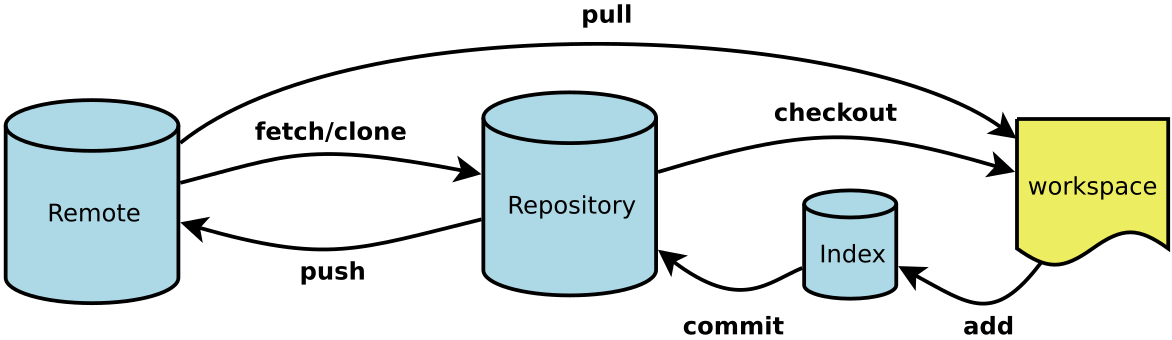
Figure Source: https://dotblogs.com.tw/davidtalk/2019/04/30/180046
#### 練習: 使用 Fetch 取得遠端儲存庫新的快照, 在使用 merge 合併 origin/test2 分支到 test2
在 Bitbucket 切換到 test2 branch 並修改 contributors.txt 的內容:


在本地端輸入指令:
```
$ git fetch
```

列出所有的分支, 本地端及遠端:

切換到 test2 並合併 origin/test2 的內容:


### 取得遠端的分支至本地端
Ref: https://git-scm.com/book/zh-tw/v2/%E4%BD%BF%E7%94%A8-Git-%E5%88%86%E6%94%AF-%E9%81%A0%E7%AB%AF%E5%88%86%E6%94%AF
追踪遠端的本地端分支稱為 Tracking Branch.
程序:
1. 先 Fetch 到本地端的 Repository
2. 從 local repository checkout 到 workspace
Method 1: 若 local 沒有重覆的 branch 名稱,欲使用和 remote 一樣的 branch 名稱
`$ git checkout serverfix`
- Branch serverfix set up to track remote branch serverfix from origin.
- Switched to a new branch 'serverfix'
Method 2: 明確的使用 --track 選項
上述的指令相當於
`$ git checkout --track origin/serverfix`
Method 3: 若 local 的 branch 和 remote 要不相同,使用
`git checkout -b sf origin/serverfix`
- Branch sf set up to track remote branch serverfix from origin.
- Switched to a new branch 'sf'
若已有 local branch, 相要 track remote 的分支:
`git branch -u origin/serverfix`
- Branch serverfix set up to track remote branch serverfix from origin.
- 假設目前在 serverfix local branch 上
 Sign in via Google
 Sign in via Facebook
 Sign in via X(Twitter)
 Sign in via GitHub
 Sign in via Dropbox
 Sign in with Wallet
Connect another wallet
Sign in with Wallet
Connect another wallet