# Week 5
## Main Lecturer: Diana Lin
## Java GUIs
**Graphical user interfaces** or GUIs are very important in our current age; we see them all around us, from our Chrome tab to our phone apps. GUIs let users interact with our programs with more ease than input from the command line — before this summer, many of you likely have never heard of or used the command line, and that's because GUIs have become so powerful!
Luckily for us, Java provides us with some nice packages to make GUI apps. We will be using Java Swing.
To start off with making a GUI, we need to make the actual window. For that, we can instantiate a new `JFrame` and show it. Generally, whenever we have a GUI, we use the same couple of lines to instantiate the JFrame and show it.
```java=
import javax.swing.*;
public class Main {
public static void main(String[] args) {
JFrame frame = new JFrame("Window Title");
// Stop the program when the "X" button is pressed
frame.setDefaultCloseOperation(JFrame.EXIT_ON_CLOSE);
// Set the size of the window
frame.setSize(800, 600);
// Show the window
frame.setVisible(true);
}
}
```

That created our first window! That is a bit boring, however, so we can add things to it. We can set our `frame`'s content pane to a new `JPanel`, which can be used as a container to store other **components**.
```java=
import javax.swing.*;
public class Main {
public static void main(String[] args) {
JFrame frame = new JFrame("Window Title");
// Stop the program when the "X" button is pressed
frame.setDefaultCloseOperation(JFrame.EXIT_ON_CLOSE);
// Set the size of the window
frame.setSize(800, 600);
JPanel panel = new JPanel();
frame.setContentPane(panel);
// Insert more components here
frame.setVisible(true);
}
}
```
After we do so, we can just add our components to the panel by calling `panel.add(component)`.
### Components
#### JLabels
`JLabel`s are some of the most simple components there are. They just display some text, like so:
```java=16
panel.add(new JLabel("Hello, World!"));
```
Note that `JLabel`s also have their own methods and attributes, like `getText()`, `setText()`, and `setFont()`. Feel free to look at the [Java API](https://docs.oracle.com/javase/8/docs/api/javax/swing/JLabel.html) for more details!
#### JTextFields
`JTextField`s allow the user to input a single line of text into a text box, which is extremely useful for user input.
It has multiple useful [constructors](https://docs.oracle.com/javase/8/docs/api/javax/swing/JTextField.html#:~:text=Constructor%20Summary-,Constructors,-Constructor%20and%20Description) that let us specify the starting text and/or columns (size).
```java=16
JTextField tf = new JTextField("this is my starting text", 15);
panel.add(tf);
```
Like `JLabel`s, `JTextField`s also have attributes and methods which can be found in the API.
#### JButtons
`JButton`s allow users to click a button! Like a `JLabel`, it is usually instantiated with text in it.
```java=16
JTextField button = new JButton("button text");
panel.add(button);
```
However, it isn't very interesting unless we can do something when the button is clicked. For this, we can use an `ActionListener`.
##### ActionListeners
`ActionListener` is an **interface** that is responsible for doing *something* when *something else* happens. In our case with `JButton`s, we want to do *something* when the button is clicked.
An **interface** is simply a collection of **abstract** methods. Abstract methods are methods that don't have a body, e.g. they have a definition but they don't have have an implementation.
This is the `ActionListener` interface:
```java=
public interface ActionListener {
void actionPerformed(ActionEvent e);
}
```
Notice the semicolon after the method header; in interfaces, this signifies that the method is abstract.
So, if the `actionPerformed(ActionEvent e)` method is abstract, how do we use `ActionListener`s? Well, we can **implement** the interface.
To do so, we can use the `implements` keyword when we *declare* a new class. This tells Java that this class will implement all the methods inside the specified interface. If it doesn't implement `actionPerformed(ActionEvent e)`, then Java will give an error when we try to compile/run our code.
```java=
import java.awt.event.*;
public class MyListener implements ActionListener {
public void actionPerformed(ActionEvent e) {
System.out.println("hi");
}
}
```
To actually use our newly-declared class that implements `ActionListener`, we need to add a new instance (or object) of `MyListener` to a button using `addActionListener(listener)`.
```java=16
JTextField button = new JButton("button text");
button.addActionListener(new MyListener());
panel.add(button);
```
### Layouts
Each `JPanel` has a single layout. This layout defines how components are placed inside of the `JPanel`. There are many different built-in layouts, but we will focus on only a couple.
To set the layout of a panel, before you add any components, use `panel.setLayout(layout)`. For example:
```java
panel.setLayout(new FlowLayout());
```
#### FlowLayout
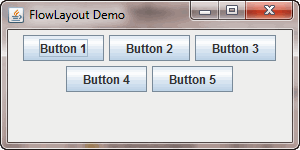
`FlowLayout` is the default layout in any `JPanel`. It puts components in a row with their preferred size.
#### GridLayout
`GridLayout` lays out all components in a rectangular grid.
All components are resized to take up the entirety of the grid cell.

```java
int rows = 2;
int columns = 2;
panel.setLayout(new GridLayout(rows, columns)); // The constructor uses the number of rows and columns in the GridLayout
panel.add(new JButton("1"));
panel.add(new JButton("2"));
panel.add(new JButton("3"));
panel.add(new JButton("4"));
```
#### BorderLayout
`BorderLayout` lays out all the components in five different regions, where each region cannot have more than one component.

To add a component to a `JPanel` with a `BorderLayout`, you need to specify two arguments instead of one. The first is still the component, but the second is the region that you want to put the component in. This is specified by `BorderLayout.REGION`. For example, to put something in the center region, use `BorderLayout.CENTER`.
```java
panel.add(new BorderLayout());
// ...
panel.add(new JLabel("Title"), BorderLayout.NORTH);
```
If each region only has one component, how do you put more than one component in a region? Hint: you use a container for more components.
It's possible to put a `JPanel` inside of a `JPanel`, also by using `panel.add(otherPanel)`! With this, you can make more complicated GUIs with many different panels and many different labels.
## Extending Classes
Remember that everything we just did was inside of the `main(String[] args)` method. While this is fine for now, we probably want to make the code a little easier to read. We can do that by **extending** our component classes. This makes the code more **modular**. When we create our panel, we don't care how we create it in the `main(String[] args)` method; we only care about the end result.
Extending a class gives members of the new **subclass** more functionality. For example, if we extend a `JPanel`, we are giving this newly-created class more functionality (e.g. more buttons) than the parent class, `JPanel`.
To extend a class, use the `extends` keyword.
```java=
public class MyNewPanel extends JPanel {
// ... implementation
}
```
Luckily, this means that `MyNewPanel` isa `JPanel`. Now, every method that can use a `JPanel` object can also use a `MyNewPanel` object. Anything that we do with a `JPanel`, we can also do with a `MyNewPanel`.
Now that we have our subclass defined, we can actually do the fun part: adding more functionality.
We can add new methods and attributes to `MyNewPanel`, just like we did by implementing any other classes:
```java=
public class MyNewPanel extends JPanel {
public JButton addButton(String buttonText) {
JButton b = new JButton(buttonText);
this.add(b); // equivalent to: add(b);
return b;
}
}
```
Notice the `this` keyword. `this` refers to the current object that is being operated on in a method. While adding the `this` keyword is optional, it makes the code a bit clearer.
### Constructors
We can also create constructors, which lets us tell the program how we want to initially set our state of a newly-created `MyNewPanel` object.
Unfortunately, we don't inherit constructors from our **superclass**, in this case `JPanel`. In constructors, we can to use the **super** keyword, which calls a constructor of our superclass on the current object. It's a lot like saying, "to do everything we need to do to be a `MyNewPanel`, we also need to do everything we need to do to be a `JPanel`."
```java=
public class MyNewPanel extends JPanel {
private JButton[] buttons = new JButton[10];
public MyNewPanel(String buttonText) {
for (int i = 0; i < buttons.length; i++) {
buttons[i] = addButton(buttonText);
buttons[i].addActionListener(new MyActionListener());
}
}
public JButton addButton(String buttonText) {
JButton b = new JButton(buttonText);
this.add(b); // equivalent to: add(b);
return b;
}
}
```
### Nesting Classes
We can actually put classes inside of other classes! This lets the nested classes have access to any attribute or method inside of the `MyNewPanel` class.
Proceed with caution when you use the `this` keyword, however. Each object has its own `this`, so saying `this` inside of a nested class would actually reference the object of the nested class, not the object of the class it's in.
```java=
import javax.swing.*;
import java.awt.event.*;
import java.awt.*;
public class MyNewPanel extends JPanel {
private JButton[] buttons = new JButton[10];
public MyNewPanel(String buttonText) {
for (int i = 0; i < buttons.length; i++) {
buttons[i] = addButton(buttonText);
buttons[i].addActionListener(new MyActionListener());
}
}
public JButton addButton(String buttonText) {
JButton b = new JButton(buttonText);
this.add(b); // equivalent to: add(b);
return b;
}
public class MyActionListener implements ActionListener {
public void actionPerformed(ActionEvent e) {
int r = (int) (Math.random() * 256);
int g = (int) (Math.random() * 256);
int b = (int) (Math.random() * 256);
setBackground(new Color(r, g, b));
// this.setBackground(...) would not work
}
}
}
```
To finish off, we can add our extended `JPanel` to our `JFrame` and we're done!
```java=
public class Main {
public static void main(String[] args) {
JFrame frame = new JFrame("My Frame");
frame.setDefaultCloseOperation(JFrame.EXIT_ON_CLOSE);
frame.setSize(400, 600);
frame.setContentPane(new MyNewPanel("text"));
frame.setVisible(true);
}
}
```

## Assignment
Make a GUI that increments a counter whenever a user clicks a button. The counter is then displayed on the screen, like so:

 Sign in with Wallet
Connect another wallet
Sign in with Wallet
Connect another wallet