<center>
<h4> EEE 158 1st Sem AY 2021-2022 </h4>
<h1> Combined Module: PIC32 Timers and CCP</h1>
</center>
*Notes before proceeding:*
* The videos mentioned in this document are just supplementary and optional.
* The length of the videos are indicated inside the parentheses for your reference.
* The sample codes given are for reference only, these are not meant to be ran as they are.
* The function of SFRs here are summarized and only the control bits necessary for the exercises are mentioned; check the datasheet for the complete list and more information.
* The video walkthrough for this module is available here: [Part 1 (1:09:10)](https://youtu.be/7XMy6pfAfu0) and [Part 2 (1:07:48)](https://youtu.be/yeKytQ71LVk).
# Objectives
* To properly configure PIC32 timer modules to have a specified period.
* To use the timer module to generate delays with polling and interrupts.
* To call periodic subroutines using the timer module with interrupts.
* To explore the funtionality of the CCP module of the PIC32.
* To use the integrated OC module and configure it for PWM and use it to modulate the brightness of an LED.
# Introduction
Timers, as the name suggests, allow the microcontroller to measure periods of time. It does this by counting the number of clock cycles that have elapsed since the timer was activated. Alternatively, timers are also used to generate interrupts after a programmed time period has elapsed. To know how it exactly does this things, Kevin Lynch provides us with [a very informative video found in this link (5:59)](https://youtu.be/wOeRTo55BCE).
A Capture/Compare/PWM module is a timer module with extended the functionality of an input capture and output compare module. *Input Capture* (IC) provides a way for the microcontroller to *capture* the specific moment an input changes. *Output Compare* (OC), on the other hand, compares the timer register to a specified value and toggles its output based on the result. *Pulse Width Modulation* (PWM) was already previewed in the previous week and is a specific mode of operation of the OC module. Figure 30-1 shows how these functions are realized inside the microcontroller.

<center> source: PIC32MM Family Reference Manual </center>
# Timer SFRs
The PIC32 MM contains a total of 7 16-bit timers: one standalone 16-bit timer and 2 16-bit timers integrated in each of the 3 Capture/Compare/PWM (CCP) modules. For the standalone timer (`Timer1`), there are 3 main registers to remember:
1. Timer Control (`T1CON`): Contains various bits that configure the operation of the timer. Most notable of these are the on/off bit, prescaler select bits, and clock source select bits. Note that the CCP modules contain a bit more functionality so they have 3 control registers each.
2. Timer Value Register (`TMR1`): The current counter value of the timer can be read from this register.
3. Timer Period Register (`PR1`): The desired timer period is set in this register. When the timer value reaches the value set on the period register, the timer *rolls over* and the timer value is reset to `0` and an interrupt is generated, if enabled.
Our friend Kevin also has [a video on these registers (5:54)](https://youtu.be/5bNf9GZUdk8). However, it is based on the PIC32 MX which has a few differences so make sure to double check the details with the PIC32 MM datasheet.
# Configuring the Timer Period
Especially when we use the timer to generate a periodic or delayed interrupt, it is important to know how long the timer period is, given the prescaler and period register value. Generally, the timer period ($T$) can be calculated with:
$$
T = \frac{PR + 1}{F_{CLK}/PS} = \frac{(PR+1)\times PS}{F_{CLK}}
$$
where:
* $PR$ is the period register value (e.g. `PR1`) which is limited by the number of bits ($n$) of the timer (i.e. $2^{n} - 1$);
* $+ 1$ is the clock cycles needed for a *rollover* to occur which is usually just one but you should check the datasheet to be sure;
* $F_{CLK}$ is the input clock frequency to the timer; and
* $PS$ is the prescaler value which effectively divides the frequency of the input clock and is usually limited to a few values (i.e. 1, 8, 64, and 256 for the PIC32 MM).
As an example, we have the code below:
```c
void Timer1Config() {
T1CONbits.ON = 0; // Turn off before configuring as good practice
T1CONbits.TCKPS = 1; // Use presacaler of 8
PR1 = 24999; // PR value is set to 24999
TMR1 = 0; // Make sure the timer starts at 0
// T1CONbits.ON = 1; // Turn on the timer if you need to already
}
```
Assuming we have a $8 MHz$ clock, then:
$$
T = \frac{(24999 + 1)\times 8}{8 \times 10^{6}} = 25 ms
$$
So, in this configuration, the timer value resets to zero $25 ms$ after the timer is turned on. This could also be used as an interrupt that occurs every $25 ms$ or at a rate of $40 Hz$.
Note that in the above example, we can also use a prescaler of $64$ and a period register of $3124$ and get the same timer period. What could be the advantage if we use this configuration instead? On the other hand, when would we prefer to use the original configuration?
# Using the Timer as a Delay
To use the timer as a simple delay, it is as simple as turning the timer on when we need it and then waiting for it to reach the value we need. Do remember that we should make sure the timer is configured before we turn it on. An example of this can be found below:
```c
void main() {
Timer1Config(); // Set prescaler and PR values
// Do something else
T1CONbits.ON = 1; // Turn the timer on
while(TMR1 < PR1); // Wait for TMR1 to reach PR1
// Do some other thing after delay
// Do the rest of the things
}
```
To get a little more concrete, let's turn on the LED1 before we turn on the timer. Then, we turn off LED2 after the loop waiting for the delay:
```c
void main() {
Timer1Config(); // Set prescaler and PR values
TRISAbits.TRISA0 = 0; // RA0 as output
LATAbits.LATA0 = 1; // Turn on LED1
T1CONbits.ON = 1; // Turn the timer on
while(TMR1 < PR1); // Wait for TMR1 to reach PR1
LATAbits.LATA0 = 0; // Turn off LED1
while(1); // Endless loop
}
```
This would be a usual case for when you want to show that the microcontrtoller has finished preparing or configuring and is about to start with the main program. Without the board, we can trace the output of `RA0` with the logic analyzer and the output should look like the one below:

Note that `PR1` is set to `249` because of the memory limit of the logic analyzer view. With that, notice that the difference between the state transitions is $2014$ which is roughly the `PR + 1` value times the prescaler of $8$ plus a few extra cycles for the instructions needed to check the condition and to set the SFR values.
If we were to use the timer to generate variable delays, it would be good practice to turn the timer off after use and resetting it before using again as shown in this example:
```c
void main() {
Timer1Config(); // Set prescaler and PR values
// Do something else
T1CONbits.ON = 1; // Turn the timer on
while(TMR1 < 10000); // Wait for TMR1 to reach certain delay
// Do some other thing after delay
T1CONbits.ON = 0; // Turn the timer off
// Do some other thing
TMR1 = 0; // Reset timer value
T1CONbits.ON = 1; // Turn the timer on again
while(TMR1 < 20000); // Wait for TMR1 to reach certain delay
// Do some other thing after delay
T1CONbits.ON = 0; // Turn the timer off
// Do some other thing
TMR1 = 0; // Reset timer value
T1CONbits.ON = 1; // Turn the timer on again
while(TMR1 < 30000); // Wait for TMR1 to reach certain delay
// Do some other thing after delay
T1CONbits.ON = 0; // Turn the timer off
// Do the rest of the things
}
```
To create a recurring delay or a periodic execution of some sub-routine, we can take advantage of the timer rollover which means that after each timer period, `TMR1` returns to 0. We just ahave to poll the value of `TMR1` and execute the commands we need whenever its value becomes 0 like how it is done below:
```c
void main() {
Timer1Config(); // Set prescaler and PR values
// Do something else
T1CONbits.ON = 1; // Turn the timer on
while(1) { // Infinite loop
if (TMR1 == 0){ // Check timer rollover
// Do the thing you need to do over and over
}
}
}
```
We can also extend this template to program LED1 to blink at a certain rate:
```c
void main() {
Timer1Config(); // Set prescaler and PR values
TRISAbits.TRISA0 = 0; // RA0 as output
LATAbits.LATA0 = 0; // LED1 initially off
T1CONbits.ON = 1; // Turn the timer on
while(1) { // Infinite loop
if (TMR1 == 0){ // Check timer rollover
LATAbits.LATA0 ^= 1; // Toggle LED state
}
}
}
```
Running this with the simulator and `PR2 = 249`, you should expect the following waveform:

Notice how the timer continuously counts as long as it is `ON` even after a rollover. This is beneficial in most scenarios but it is easy to overlook in applications where it isn't needed. With the timer period at approximately 2000 we can almost see 5 transitions every time we would pause our simulation due to the 10,000 cycle limit.
# Exercise 1: How long does it take? (20 points)
Determine the lowest possible prescaler value usable and the corresponding period register value for the `Timer1` module of the PIC32MM given the following clock sources and needed delay:
<center>
<table>
<tr>
<th>Clock Frequency</th>
<td colspan=3> 8 MHz </td>
<td colspan=3> 32 KHz </td>
</tr><tr>
<th>Delay</th>
<td> 100 us </td>
<td> 4.10 ms </td>
<td> 1.00 s </td>
<td> 1.00 s </td>
<td> 60.0 s </td>
<td> 300 s </td>
</tr><tr>
<th>Prescaler</th>
<td></td>
<td></td>
<td></td>
<td></td>
<td></td>
<td></td>
</tr><tr>
<th>Period Register</th>
<td></td>
<td></td>
<td></td>
<td></td>
<td></td>
<td></td>
</tr>
</table>
</center>
*Clarification:* Your answer for the prescaler should be the actual value (e.g. 8 in the example above).
# Playing with the Prescaler
For the last example given, let's try and reduce our prescaler value to $1$ or configure `T1CONbits.TCKPS = 0` and `PR2 = 249`. This would mean that we should expect a transition of `RA0` after a little over 250 instructions which means approximately 40 transitions in a 10,000-cycle period. However, running it in the simulator may result in something like this:

*That doesn't look right*. There are only around 13 transitions or around $750$ cycles between transtions. You may try and restart the simulator but it would probably give you the same results. This is because our timer is ticking after ever instruction cycle that occurs. **Timer rollover might occur at a moment where we are not checking for it**. This scenario is similar to a polled input where the input occurs at a moment faster than the rate we are polling. Unfortunately, in the current way we are using the timer, there are no ways around this.
On the other hand, we can increase our prescaler to $64$ or configure `T1CONbits.TCKPS = 2` and set `PR2 = 24` and this would mean around $1600$ cycles or for each timer rollover or output transition, which is around 6 transitions in a 10,000-cycle period. We can fortunately confirm this with our simulation results as seen here:

But wait, *there's something different*. Zooming into one of the transition periods we could see something that we may not have expected:

It appears that our output is *bouncing* or erratically changing state in between transitions. If we can recall our code, the output is toggled everytime `TMR1 == 0`. With the prescaler set to 64, **64 cycles must elapse before the timer increments**. Thus, the command inside the `if`-block is executed multiple times before `TMR1` increments and becomes not equal to zero.
An easy, albeit not alwys useful, workaround is to prevent the program from checking the timer value again once it knows it is already zero. A way to do this is by adding an additional loop inside the `if`-block which *traps* the program execution until the timer increments:
```c
while(1) { // Infinite loop
if (TMR1 == 0){ // Check timer rollover
LATAbits.LATA0 ^= 1; // Toggle LED state
while (TMR1 == 0); // Stay here until incremented
}
}
```
It is definitely not elegant but this is sort-of what you get when we just *poll* the `TMR1` register. Things get a little more interresting if we introduce *interrupts*.
# Using the Timer Interrupt
Interrupts, in general, can be configured in [7 easy steps (3:47)](https://youtu.be/6Ap3H39iCVI) and timers are no exception to this. Knowing *when to turn on the timer* would probably be the most notable thing for timer interrupts and it would really depend on the target application.
If we consider an application where a periodic interrupt is needed (e.g. making an LED blink). In this case, you would want to enable the timer as soon as the interrupt is properly configured. Note that as long as the timer is *on*, the timer will still continue running even while the ISR is not yet done. It is then expected that the ISR is kept short to make sure the timer does not rollover again before the ISR finishes. Here is an example of how it can be done:
```c
// Step 1
void __ISR (_TIMER_1_VECTOR, IPL5SOFT) blinky (void) {
ToggleLED(); // Defined elsewhere
IFS0bits.T1IF = 0; // Clear T1 interrupt flag
}
void Interrupt_Config(){
INTCONbits.MVEC = 1; // MVM Mode, Step 0
asm volatile ("di"); // Disable interrupts in general, Step 2
Timer1Config(); // Configure T1 period defined elsewhere
IPC2bits.T1IP = 5; // Set T1 interrupt Priority to 5, Step 4
IFS0bits.T1IF = 0; // Clear T1 interrupt flag, Step 5
IEC0bits.T1IE = 1; // Enable T1 interrupt, Step 6
asm volatile ("ei"); // Re-enable interrupts in general, Step 7
}
void main(){
IOConfig(); // Configure input and output ports
Interrupt_Config(); // Configure the interrupt
T1CONbits.ON = 1; // Turn on the timer
while(1) {
// Do something
}
}
```
If we use `PR = 249` and a prescaler of $1$ we should get the following output:

Then, a `PR = 24` an a prescaler of $64$

Noticeably, our main routine looks very lightweight. By itself, it doesn't look like it does anything and that is one of the advantages of using interrupts. We have also gotten around our problem when using interrupts with prescalers that are too fast or too slow relative to the rate at which we poll the `TMR1` value.
If we consider, on the other hand, just using the interrupt as a variable delay source, we just need to modify when we turn on and turn off the timer. Below is how you can modify the main code and ISR to accomplish this:
```c
void __ISR (_TIMER_1_VECTOR, IPL5SOFT) blinky (void) {
T1CONbits.ON = 0; // Turn off the timer
TurnOffLED(); // Defined elsewhere
IFS0bits.T1IF = 0; // Clear T1 interrupt flag
}
void main(){
IOConfig(); // Configure input and output ports
Interrupt_Config(); // Configure the interrupt
while (1) {
if (S1Push()) { // Wait for S1 to be pushed
TMR1 = 0; // Reset timer first as good practice
PR1 = 24999; // Use this much delay
T1CONbits.ON = 1; // Turn on the timer
TurnOnLED();
} else if (S2Push()) { // Wait for S2 to be pushed
TMR1 = 0; // Reset timer first as good practice
PR1 = 49999; // Use this much delay
T1CONbits.ON = 1; // Turn on the timer
TurnOnLED();
}
}
}
```
In the main routine, when `S1` is pushed, the timer is configured to have a delay worth `25000` clock cycles (assuming `+1` from rollover) and double that delay if `S2` is pushed. These delays would correspond to how long the LED will be turned on once the buttons are pressed. Looking at the ISR, on the other hand, we can see that when the interrupt is triggered, both the LED and the timer are turned off and would now wait for the next button press to turn on.
Running this on the simulator with the prescaler set to 1 and `PR1` values `249` and `499` are used, we should be able to generate the following waveform using simulator stimulus:

# Exercise 2: 2-Bit Timer (20 points)
Implement a program for the DevBoard that would toggle the state of `LED1` every second and toggle the state of `LED2` every time `LED1` is turned on, essentially making a 2-bit countdown timer. If you didn't get that, this GIF might help:

The following are the specifications for your submissions:
* Include your name, section, and student number as a comment in your code.
* Both LEDs are initially off.
* You must use the Timer1 module to generate the delays.
* Use of loops to generate software delays will merit a score of zero.
* You may use an infinite loop in the main code to keep the program from ending.
* You are not required to use interrupts but it is recommended.
* For those with only the simulator, you may scale down the time required for each toggle by 1000 (i.e. $1s_{real} = 1 ms_{simulator}$)
<!--
# Exercise 3: 2-Bit Timer v2 (20 points)
Implement exercise 2 but this time use interrupts :)
The following are the specifications for your submissions:
* Include your name, section, and student number as a comment in your code.
* You must use the Timer1 module to generate the interrupt.
* Use of loops to generate software delays will merit a score of zero.
* You may use global variables.
# Challenge: Pulse Width Modulation (30 points)
Pulse width modulation (PWM) is a digital technique used to encode information. The pulse width refers to the period of time the signal is high. The duty cycle is the percentage of the pulse width to the total period of a signal. In Figure 9 we see a digital signal with a period $T$, a pulse width of $0.25T$ which means it has a duty cycle of $25\%$. Modulation means that the a certain value changes as the input changes. In PWM, the pulse width of the signal changes depending on the input or data to be encoded.

Your challenge is to implement a simple PWM system using LED1 and the two switches, S1 and S2. The signal period you will use is $1$ second. Initially, the duty of the signal should be at $50\%$. Pressing S1 should *decrease* the duty in increments of $10\%$ down to a minimum of $10\%$. On the other hand, pressing S2 should *increase* the duty in increments of $10\%$ up to a maximum of $90\%$. Here is a quick demonstration of how it would look like:

The following are the specifications for your submissions:
* Include your name, section, and student number as a comment in your code.
* You can only use Timer1 as a timer. The use of any of the CCP modules will invalidate your submission and you will be given a grade of zero for this challenge.
* The change in duty cycle must show after at most one complete cycle (i.e. if a switch is pressed during cycle 3, the correct duty must reflect on or before cycle 5).
* Assume that the switches have at least $10 ms$ bounce time.
* You may use software delays if you find them necessary.
# Summary
In this module, configuration and use of the PIC32 timer is explored. Timers, in general, can be used by themselves or with interrupts to generate delays or execute subroutines periodically.
For this module, there are a total of 4 activities:
| Activity | Points |
| -------- | -----: |
| [Exercise 1](#-Exercise-1-How-long-does-it-take-30-points) | 30 |
| [Exercise 2](#-Exercise-2-2-Bit-Timer-20-points) | 20 |
| [Exercise 3](#-Exercise-3-2-Bit-Timer-v2-20-points) | 20 |
| [Challenge](#-Challenge-Pulse-Width-Modulation-30-points) | 30 |
| *Total* | *100* |
-->
# CCP Timer SFRs
As mentioned previously, each CCP module has 2 timers: a *primary* 16-bit timer and a *secondary* 16-bit timer which can be combined to form a 32-bit timer. In 16-bit mode, both timers are connected to the same time base (a.k.a. prescaled input clock) and can only be turned on and off at the same time. Only the primary timer can be used with the additional CCP features like an external synchronization source and OC mode while the secondary timer is mainly used to generate CPU interrupts in 16-bit operation.
The following are the specific control bits that would concern us if we wanted to use the CCP module as an ordinary timer:
1. ***ON Bit*** (`CCPxCON1bits.ON`): When 1, turns on the CCP module and consequently the timers.
2. ***Mode Select Bits*** (`CCPxCON1bits.MOD`): Comprised of 4 total bits, these determine the operating mode of the CCP module. Set this to `0b0000` to use the module as an ordinary timer.
3. ***32-Bit Mode Select Bit*** (`CCPxCON1bits.T32`): Setting this bit to `1` would make the CCP module use its 2 16-bit timers as a single 32-bit timer.
4. ***Timer Prescale Select Bits*** (`CCPxCON1bits.TMRPS`): These 2 bits select the prescaler value for the timer. For CCP timers, a 1:64 prescaler is the largest available.
5. ***Timer Clock Select Bits*** (`CCPxCON1bits.CLKSEL`): These 3 bits select the clock source for the module.
6. ***Primary Timer Value*** (`CCPxTMRbits.TMRL`): In 16-bit mode, these represent the timer register value for the primary timer.
7. ***Secondary Timer Value*** (`CCPxTMRbits.TMRH`): In 16-bit mode, these represent the timer register value for the primary timer.
8. ***Primary Timer Period*** (`CCPxPRbits.PRL`): In 16-bit mode, these act as the period register for the primary timer.
9. ***Secondary Timer Period*** (`CCPxPRbits.PRH`): In 16-bit mode, these act as the period register for the primary timer.
In 32-bit mode, the `CCPxTMR` and `CCPxPR` registers are acccessed as a whole for the timer value and period registers, respectively.
## 32-bit Operation
To configure the use of a single 32-bit timer for the CCP module, we just make sure that the `T32` bit is set. What is then left to do is to use the timer asyou would use the Timer1 module but you are now allowed to use `PR` values up to $2^{32} - 1$. The following function shows how this could be done:
```c
void CCP1Config_T32() {
CCP1CON1bits.ON = 0; // Turn off the module before configuration
CCP1CON1bits.T32 = 1; // Enable 32-bit mode
CCP1CON1bits.TMRPS = 1; // Use prescaler of 4
CCP1PR = 1999999; // PR value set to anything less than 2^32 - 1
CCP1TMR = 0; // TMR value reset to 0
// CCP1CON1bits.ON = 1; // Turn on the timers if you need them already
}
```
CCPx Timer interrupt (`CCTx`) is the associated interrupt for the timer module of the CCP module. Its XC32 vector name is `_CCTx_Vector` and the associated bits are prepended by `CCTx` as well. Configuration of the `CCTx` interrupt with the 32-bit CCP timer is left as an exercise to the reader.
## 16-bit Operation
To configure the CCP module to work with 16-bit timers, we instead make sure that the `T32` bit is set to `0`. Other than that, we just need to configure the other bits that we usually configure for a timer. Below is a sample configuration of the module with arbitrary timer periods:
```c
void CCP1Config_T16() {
CCP1CON1bits.ON = 0; // Turn off the module before configuration
CCP1CON1bits.T32 = 0; // Ensure 16-bit mode
CCP1CON1bits.TMRPS = 3; // Use prescaler of 64
CCP1PRbits.PRL = 62499; // Primary PR value is set to 62499
CCP1PRbits.PRH = 6249; // Secondary PR value is set to 6249
CCP1TMRbits.TMRL = 0; // Primary TMR value reset to 0
CCP1TMRbits.TMRH = 0; // Secondary TMR value reset to 0
// CCP1CON1bits.ON = 1; // Turn on the timers if you need them already
}
```
We can then turn the timers on in our main code and use them as how you would use normal timers:
```c
void main(){
CCP1Config_T16(); // Call configuration subroutine
CCP1CON1bits.ON = 1; // Turn on the module
while(1) {
// Do something
if (CCP1TMRbits.TMRL == 0) {
// Do something at primary timer rollover
}
if (CCP1TMRbits.TMRH == 0) {
// Do something at secondary timer rollover
}
}
}
```
## CCP Timer Interrupts
In 32-bit operation, the CCPx Timer interrupt (`CCTx`) is the associated interrupt for the timer module inside the CCP module. Its XC32 vector name is `_CCTx_Vector` and the associated bits are prepended by `CCTx` as well. A `CCTx` interrupt is similar to a regular timer interrupt which is issued at every timer roll over.
In 16-bit operation, each timer is a unique interrupt source. The secondary timer is the one associated with the aforementioned `CCTx` interrupt. The primary timer, on the other hand, is associated with the CCP Interrupt`CCPx`. The interrupt vector, flag, enable, and priority bits are prepended with `CCPx` instead.
<!--
# Exercise 3: Double Timer (20 points)
The configuration of the CCP timer interrupts are left as a *required* exercise to the reader. Configure two periodic interrupts to toggle LED1 and LED2 on the DevBoard at a rate of $2 Hz$ and $5 Hz$, respectively, with one CCP module.

The following are the specifications for your submissions:
* Both LEDs should be initially on.
* Include your name, section, and student number as a comment in your code.
* You may only use one CCP module to generate the interrupts needed.
* Use of the Timer1 module or loops to generate delays will merit a score of zero.
-->
# CCP Output Compare
An output compare (OC) module, in simple terms, compares the timer value to a stored value in the module. The output of the compare module is usually low when the timer value is below the stored value then usually high otherwise. Depending on the configuration the output could be inverted or even just toggled when the timer is equal to the stored value.
The CCP OC module uses the primary timer for its operation. Thus, the timer needs to be properly set before actually using the OC module. For the actual configuration of the CCP module, the following are some of notable control bits you would probably consider:
1. ***Capture/Compare Select Bit*** (`CCPxCON1bits.CCSEL`): This bit is set to `0` to enable OC operation and `1` to enable IC operation.
2. ***Mode Select Bits*** (`CCPxCON1bits.MOD`): When `CCSEL` is `0`, these bits determine the OC operating mode. More on these modes later.
3. ***OC Output Enable Bit*** (`CCPxCON2bits.OCyEN`): When set to `1`, the corresponding `OCy` pin on the microcontroller will be controlled by the OC module. You still have to make sure that the corresponding pin is configured to be an output to ensure proper operation.
4. ***OC Output Mode Control Bits*** (`CCPxCON3bits.OUTM`): Determines how multiple outputs behave in MCCPs.
5. ***OC Output Polarity Bit*** (`CCPxCON3bits.POLACE` and `CCPxCON3bits.POLBDF`): When set to `0`, the associated output pins (`OCA`, `OCB`, `OCC` for `POLACE` and `OCB`, `OCD`, `OCF` for `POLBDF`) are active-high (i.e. generates $V_{OH}$ or $V_{DD}$ when OC output is high). When set to `1`, the associated output pins are active-low (i.e. generates $V_{OL}$ or $0 V$ when OC output is high).
6. ***CCP Output Compare Registers*** (`CCPxRA` and `CCPxRB`): The value stored in these registers is what is compared to the timer values when in OC/PWM mode.
These are just a shortlist of all the bits associated with the OC operating mode of the CCP. For the complete list and more details on each bit, you may consult the reference manual or datasheet.
## PIC32 OC Operating Modes
#### Output High, Single Edge Mode (`MOD = 0b0001`)
As the name suggests, the output of the OC module becomes high once the timer value reaches the set `CCPxRA` value and becomes low on timer rollover.

#### Output Low, Single Edge Mode (`MOD = 0b0010`)
Output low mode means the output of the OC module becomes low once the timer value reaches the set `CCPxRA` value then comes back to high at rollover.

Both single edge modes can operate with a 32-bit timer when `T32` is asserted. In this case, both registers are used to form a 32-bit OC register. `CCPxRA` functions as the upper 16 bits while `CCPxRB` functions as the lower 16-bits.
#### Double Edge Mode (`MOD = 0b0100`)
In dual edge mode uses both OC registers (`RA` and `RB`) to generate transitions at the output. When the timer period matches `RA`, a positive transition occurs (low to high) . Conversely, when the timer period matches `RB`, a negative transition occurs (high to low).
Note that `RB` can be less than `RA`. In this case, the OC output is high during timer rollover and gets low when `RB` matches the timer. The output becomes high again when `RA` matches the timer.

#### Buffered Double Edge / PWM Mode (`MOD = 0b0101`)
Functionally the same as the previously mentioned double edge mode. The only difference is that changes to the OC registers are buffered. This means that modifications to `RA` and `RB` only take effect on timer rollovers. Doing so ensures that no unexpected behavior occurs especially if you modify the register values often like in PWM.
In the animation below, the lighter dashed line represents the OC register value being buffered first. Then, the darker line eventually meets it at timer rollover.

There are still a few other modes the CCP module which we can explore in our own time. However, these ones presented would be the ones most used and relevant to our class.
## OC Interrupts
Since the OC module is inside the CCP module, the interrupt it could issue is the CCP Interrupt (`CCPx`). This supersedes the assignement of the primary timer to the same interrupt which means only the secondary timer can generate interrupts when `MOD != 0`.
In single edge modes, an interrupt is issued whenever the timer value matches the OC register value. In double edge modes, an interrupt is issued when the timer value matches `CCPxRB` register regardless if it is larger or smaller than `CCPxRA`. Similar to timers, the CCP module will continue to operate even if its ISR is being serviced.
# Pulse Width Modulation
Arguably the most common use of the OC module is for pulse width modulation (PWM). PWM allows the microcontrollers in general to generate a variable *analog* output. Digital to analog converters are fairly large and consume quite a bit of power so most microcontrollers opt not to include one. If you missed our friend Kevin, here is his [short video on how PWM can be used as an analog output (3:08)](https://youtu.be/xhdiiYYF-zY).

In simplest terms, varying the pulse width allows us to vary the average of the output signal which is what matters in most of the things we would like to control with PWM like LEDs and motors. Sometimes, a low pass filter might not even be required or built-in in our target devices.
For our purposes, we can approximate the analog output voltage by getting the product of the duty cycle (D) and the voltage when the output pin is high ($V_{OH}$):
$$
V_{out} \approx D \times V_{OH}
$$
For example, if $V_{OH} = 3.3V$ then a $50 \%$ duty cycle results to an approximately $1.15V$ output.
# Example: Short Light, Long Light
With your newfound knowledge on CCP and PWM, let us implement a simple PWM system with the onboard switches and LED2 where pressing S1 *decreases* the duty by $10\%$ down to a minimum of $10\%$ and pressing S2 *increases* the duty in increments of $10\%$ up to a maximum of $90\%$ like so:

When just limited to an ordinary timer, it might have been a tedious task but we can expect a relatively simple implementation with the OC/PWM mode of the CCP module. The following should be our general steps to follow in configuration:
1. Configure the CCP primary timer to have the period desired.
2. Set the CCP module to operate in PWM mode with `CCSEL` and `MOD` bits.
3. Set `CCPxRA` and `CCPxRB` to the timer values when you want them to trigger.
4. Configure the output pins to be used with `OCyEN`, `OUTM`, `POLACE`, `POLBDF.`
While PWM can be achieved in one of the single edge modes, the buffering that comes with the PWM mode is essential in ensuring that the output is always valid.
If, for example, we want a $2 Hz$ signal with a $10\%$ duty cycle, then we would want to start with calculating the timer prescaler and period register to use (assuming a $8MHz$ clock):
$$
PR = \frac{(8 \times 10^{6})(0.5)}{(64)} - 1 = 62499
$$
Then, if we set `CCPxRA` to `0`, then we can ensure that our pulse starts high on each timer rollover. Since `CCPxRB` would represent the the time we would want our pulse to transition, we can compute for its value similarly (assuming 1 cycle delay for the output to transition):
$$
RB = \frac{(8 \times 10^{6})(0.5\times 10\%)}{(64)} - 1 = 6249
$$
Similarly, we can comput that adding or subtractingg $6250$ to the $RB$ would increase or decrease, respectively, the duty of the output by $10\%$ which should be something to take note of.
Next, we need to know which pin we need to use. If we want to observe the PWM signal on LED2, `RC9` needs to be configured to be a OC output. By reading the datasheet, we should find that `RC9` is not directly connected to an output compare module (~~uh-oh~~). However, `RC9` is a *remappable pin* (`RP19`). Remappable pins can be configured to be the output or input pin for several internal modules. Luckily, one of these internal modules we can connect to is the output compare modules (`OC2` and `OC3` for `CCP2` and `CCP3`, respectively). More information about remappable pins [here](https://ww1.microchip.com/downloads/en/DeviceDoc/60001120F.pdf) or the datasheet section on I/O ports.
With all of these things noted, we can set up our subroutine to configure our CCP module:
```c
void CCP2_OC_Configure() {
CCP2CON1bits.ON = 0; // Turn of module while configuring
// Step 1: Configure Primary Timer
CCP2CON1bits.TMRPS = 3; // Prescaler = 64
CCP2PRbits.PRL = 62499; // Set primary timer period
CCP2TMRbits.TMRL = 0; // Good practice to reset timer value before use
// Step 2: CCP Mode of Operation
CCP2CON1bits.CCSEL = 0; // Output/Timer Mode
CCP2CON1bits.MOD = 0b0101; // Double Edge / PWM Mode
// Step 3: Set RA and RB registers
CCP2RA = 0; // Transition to high at timer rollover
CCP2RB = 6249; // Calculated RB value for required duty
// Step 4: Configure Output Pin
TRISCbits.TRISC9 = 0; // RC9 as output
RPOR4bits.RP19R = 6; // Map RP19 to OCM2A
CCP2CON2bits.OCAEN = 1; // Enable OC output on OCM2A Pin
CCP2CON1bits.ON = 1; // Turn on module if needed already
}
```
Note that in the subroutine, the initial duty we set is $10\%$. Also note that the subroutine can already be called to already generate a $10\%$ duty pulse at $2Hz$ with a simple main function:
```c
void main() {
CCP2_OC_Configure();
while(1);
return;
}
```
Who would have thought *that* it could be that easy to generate a toggling LED? We are not done yet, of course, we still need to modify the duty of the output whenever `S1` or `S2` are pressed which we can monitor by polling:
```c
void main() {
TRISBbits.TRISB7 = 1; // RB7 is an input
TRISBbits.TRISB13 = 1; // RB13 is an input
ANSELB = 0; // PORTB is all digital
CCP2_OC_Configure();
while(1) {
if (PORTBbits.RB7 == 0){
// S1 Pressed
debounce(); // Generate fixed delay
if (PORTBbits.RB7 == 0) decreaseDuty();
while (PORTBbits.RB7 == 0);
// Stay in loop until released
} else if (PORTBbits.RB13 == 0) {
debounce(); // Generate fixed delay
if (PORTBbits.RB13 == 0) increaseDuty();
while (PORTBbits.RB13 == 0);
// Stay in loop until released
}
}
return;
return;
}
```
What is left now is to define functions to modify the duty of the signal. This can be done by directly modifying the `CCP2RA` and `CCP2RB` values. Because it is configured in buffered mode, we do not need to turn off the CCP module when writting onto these values like here below:
```c
static const unsigned int duty_10 = 6250;
static const unsigned int duty_90 = 56250;
void decreaseDuty(){
if (CCP2RB > duty_10) CCP2RB -= duty_10;
}
void increaseDuty(){
if (CCP2RB + duty_10 < duty_90) CCP2RB += duty_10;
}
```
Note how we used the result of our earlier calculation on the amount `CCP2RB` needs to change in order to change its duty by $10\%$. Also, to keep things simple, `CCP2RA` is left unchanged. With the limitations of polling, you may notice that pressing another switch as the other is still pressed would not do anything, you can implement interrupts for the switches to go around this.
Of course, with these values, it would be difficult to observe these with the logic analyzer due to the 10,000-cycle limit. For this purpose, we can just scale down our timing by 1000 such that each real second is 1 millisecond in the simulator:

Notice how the pulse width changes only after the current cycle has finished because we used buffered mode.
# Challenge: Color by Number (60 points)
An RGB LED is a multi-terminal LED, which, as the name suggests, are three differently colored LEDs combined in a single package. Each individual LED can be turned on to generate a red, green, or blue light. But of course, RGB LEDs are exciting because we can turn on two or even all of them at once to mix colors. We can even vary the voltage we set at individual pins do vary the intensity of each color to generate even more colors:
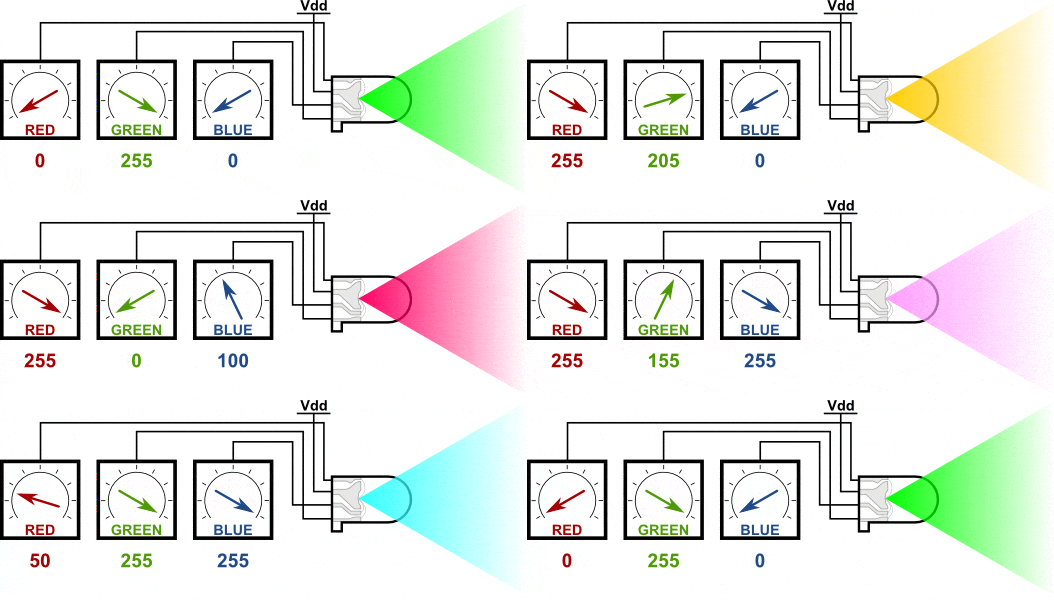
As you may have expected, we can use PWM to vary the voltage applied to each individual pin to carefully tune the RGB LED to shine a specific color for us. The PIC32MM Curiosity DevBoard features one onboard RGB LED that is connected as follows:

The most important thing to note here is to determined which pin controls which color in the RGB LED. The next most important thing to note is to know which state of the output pins actually turn the LEDs on. Given these, you should know which pins to configure and how to configure the output of the CCP modules that would control these.
#### Actual Challenge Description
Your challenge for this week is to display a cycle of 5 preset colors on the RGB LED, one color at a time. Pressing `S1` changes the color of the LED to the next one in the cycle. Upon reaching the fifth color, pressing `S1` again makes the RGB LED revert back to its starting color.
The colors you need to display will be based on the last 5 digits of your student number. Each digit is assigned a color based on the table below. If a digit repeats, the next color on the list would be chosen.
<center>
<table>
<tr>
<th> Digit </th>
<th> Color Name </th>
<th> Hex Code </th>
</tr>
<tr>
<td> 0 </td>
<td> White </td>
<td> <span style="background-color:#FFFFFF; color:black;"> #FFFFFF </span> </td>
</tr>
<tr>
<td> 1 </td>
<td> Rose </td>
<td> <span style="background-color:#CC6677; color:black;"> #CC6677 </span> </td>
</tr>
<tr>
<td> 2 </td>
<td> Indigo </td>
<td> <span style="background-color:#332288; color:white;"> #332288 </span> </td>
</tr>
<tr>
<td> 3 </td>
<td> Red </td>
<td> <span style="background-color:#CC3311; color:white;"> #CC3311 </span> </td>
</tr>
<tr>
<td> 4 </td>
<td> Green </td>
<td> <span style="background-color:#117733; color:black;"> #117733 </span> </td>
</tr>
<tr>
<td> 5 </td>
<td> Cyan </td>
<td> <span style="background-color:#88CCEE; color:black;"> #88CCEE </span> </td>
</tr>
<tr>
<td> 6 </td>
<td> Blue </td>
<td> <span style="background-color:#0077BB; color:white;"> #0077BB </span> </td>
</tr>
<tr>
<td> 7 </td>
<td> Orange </td>
<td> <span style="background-color:#EE7733; color:black;"> #EE7733 </span> </td>
</tr>
<tr>
<td> 8 </td>
<td> Yellow </td>
<td> <span style="background-color:#DDAA33; color:black;"> #DDAA33 </span> </td>
</tr>
<tr>
<td> 9 </td>
<td> Purple </td>
<td> <span style="background-color:#AA4499; color:white;"> #AA4499 </span> </td>
</tr>
<tr>
<td colspan='3'> <i>//color scheme adapted from <a href="https://personal.sron.nl/~pault/data/colourschemes.pdf"> Tol, 2021</a>.</i> </td>
</tr>
</table>
</center>
Here are some possible sets of colors based on theoretical student numbers:
* `XXXX-06329`: White > Blue > Red > Indigo > Purple > White
* `XXXX-15341`: Rose > Cyan > Red > Green > Indigo > Rose
* `XXXX-00123`: White > Rose > Indigo > Red > Green > White
The starting color upon board reset must correspond to the first of the 5 digits. For instance, in the "XXXX-00123" example shown previously the starting color must be White, not Rose.
A Hex Code represents the relative *amount* of each color to be mixed. A Hex Code would contain 6 hexadecimal characters, two digits per color, preceded by a pound or hash sign (`#`) like `#RRGGBB`. An `RR` value of `FF` is means that the maximum amount of red should be added; a `BB` value of `00` means that no amount of blue is added; a `GG` of `80` equals $128$ in decimal, which is about half the maximum which is `FF` or $255$, so about half the maximum amount of green should be added.
#### Technical Specifications
* The length of each pulse determines the length of time an LED would be on and the amount of time an LED is is approximately proportional to the *amount* of color to be added:
* To mix in the maximum amount of a color, it needs to be on for the maximum amount of time or the whole signal period.
* To mix in half the maximum amount of a color, it needs to be on for approximately half the maximum amount of time.
* To make sure the pulses wouldn't be visible to the human eye, the frequency of the pulses should be *at least* $100Hz$ or 100 pulses per second.
* The color of the RGB LED should change within $100ms$ of the button press.
* Assume that the switches have at least $10 ms$ bounce time.
* The output pulse widths do not have to be exact but must be reasonably close.
* With a short pulse frequency, you can view the output through the logic analyzer:

Note that here seems to be a problem with the logic analyzer with regards to the output of CCP1 Channel. You can also verify if your code works by having a variable or watch on the `CCPxRA` and `CCPxRB` registers.

#### Submission and Grading
* Include your name, section, and student number as a comment in your code.
* The following milestones will be considered for partial points:
1. Successfully configuring the RGB LED to show one color, except white, through the CCP modules (20 points).
2. Configuring the RGB LED to switch between two colors when `S1` is pressed (40 points).
3. Implementing the complete 5 color cycle (60 points).
* Add as a comment in the beggining of your code the last milestone you were able to accomplish.
#### Tips and Hints
* You could cover the RGB LED with a white piece of paper or cloth to diffuse the output light and have a better mix of the colors.
* The equivalent intensity of each color channel is only *approximately* the input pulse width so some colors might not appear exactly as they are shown in the table above and that's okay.
* You can use your code in previous module as a starting point, especially for input handling.
* Focus on getting on configuring one CCP module to work on one of the RGB channels first. Configuration of the other modules should be relatively the same.
# Input Capture
*Without any onbaord inputs we can use input capture with, the following is just a theoretical summary on how it could be used.*
An input capture (IC) module records or *captures* the occurence of a specific event (usually input transitions). An IC module is often used to measure pulse widths or the frequencies of a certain input signal. The IC module accomplishes this by recording the timer value read when the event occurs. With the knowledge of the timer value between two events, these quantities can be easily calculated if you know the frequency of the timer base.
The following are important control bits to note when you want to use the PIC32 CCP module as an IC:
1. ***Capture/Compare Select Bit*** (`CCPxCON1bits.CCSEL`): This bit is set to `1` to enable IC operation.
2. ***Mode Select Bits*** (`CCPxCON1bits.MOD`): When `CCSEL` is `1`, these bits determine which events to capture. There are modes to capture only rising, only falling, or both edges and modes to capture every 4th or 16th rising edge.
3. ***Interrupt Postcale Bits*** (`CCPxCON1bits.OPS`): These bits determine how often the IC interrupt is issued. A value of `0b0000` means an interrupt occurs at every capture event while a value of `0b1111` means the interrupt only occurs after 16 captured events.
4. ***IC Source Select Bits*** (`CCPxCON2bits.ICS`): These 3 bits determine which pin in the microcontroller will be the input to the module. Internal modules like the comparators can be used as sources in addition to the external `ICMx` pins.
The recorded timer values can be read from the `CCPxBUF` registers which are first in first out (FIFO) buffers. A FIFO buffer stores several values at once and when they are read, they provide oldest value stored in the register and remove that value from the buffer. `CCPxBUF`, in particular, can store up to 4 capture events in 16-bit mode or 2 capture events in 32-bit mode.
# Summary
In this module, the different operating modes of the PIC32MM timer and timer-based modules are presented. Sample configurations and applications for each major functionality applicable to the development board are given to provide a starting point for exercises emulating real-world applications of the discussed modules.
For this module, there are a total of 3 activities:
| Activity | Points |
| -------- | -----: |
| [Exercise 1](#Exercise-1-How-long-does-it-take-20-points) | 20 |
| [Exercise 2](#Exercise-2-2-Bit-Timer-20-points) | 20 |
| [Challenge](#Challenge-Color-by-Number-60-points) | 60 |
| *Total* | *100* |
 Sign in with Wallet
Connect another wallet
Sign in with Wallet
Connect another wallet