---
title: curve-editor.md
tags: mewa-user-guide
description: Mewa - Video Creator & Compositor
---
## Animating parameters with Curve Editor
### What is the Curve Editor ###
The curve editor is the heart of a video animation, its a very intuitive graphical tool where you can model the behaviour of one or more parameters over time as a curve, e.g. to animate an object in a video we change the position of the object.
The  button shows and hides the curve editor.
*Curve editor window*
In the [node graph](node-graph.md) each node has its own parameters shown at [parameters window]() where they can be modified. To see the node's parameters just click the node ''parameters button'' to make parameters window pop up.
Every parameter has an input text box where the parameter value is shown. The shown value is always the parameter value at the current play frame. The play frame number is shown in the timeline and pointed by the play-head. If a curve is associated to the parameter, the parameter value will show the curve value at the current play frame.
 *Node parameter*
Pressing down on the input box and draging makes the parameter value change proportionally to the dragging movement. This is how parameter values are adjusted.
Some parameters show a progress line just above the input box (see node parameter image on the right). That's because that parameter limits its value within a range. As the parameter value changes the progress line above the input box indicates it's value relative to it's min and max values.
To animate a parameter value throught time we use a curve. A curve can be modelled point by point and can be reused in any parameter.
Parameters have a curve button (). Clicking the curve button shows a menu with a list of available curves and the option to create a new curve.
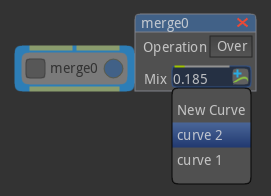*Curve button menu*
You can associate a parameter to an existing curve by clicking a curve from the curve button menu.
To create a new curve click the *new curve...* option, the first option in the curve button menu. The created curve will be shown in the curve editor as a flat line, which means constant value. The name of the created curve contains the node name followed by the parameter name.
### The Curve Editor window ###
Curves are modelled in the curve editor. To open or close the curve editor toggle the button *Curve Editor*  located at the bottom left of the application window.
To see the list all the available curves toggle the ''curve list view'' button  located on the top left of the curve editor window. The curve list view is shown on the left of the curve editor window.
*Curve Editor window*
A curve can have as many points as needed and an interpolation option can be set for each point.
As a curve is modified it's changes are propagated through all the parameters associated to the curve. In pratical this means we can visualize the result at the [output window](https://hackmd.io/VIsuWHCySFWk6j2shR36zw#Output-window) while changing a curve.
### Navigating the Curve Editor ###
Changing the view scale, or zooming, is a common action when adusting curves. Higher levels of zoom are needed when adjusting curves to finer detail.
#### Fit-in view ####
The *Fit in view* button  zooms the view to fit the selected points on the current view. If there are no points selected the *Fit in view* button will fit all points of the current selected curves.
#### Scale axis view ####
Moving the mouse while holding the shift key changes the curve editor view scale. Horizontal mouse movement, with shift key down, changes the X axis scale. Vertical mouse movement, with shift key down, changes the Y axis scale.
#### Zoom and Pan ####
You may navigate the Curve Editor space by using the Middle Mouse button to pan and the mouse wheel to zoom.
### Editing curves ###
#### Creating an new curve ####
The *new curve* button  creates a new curve with 1 point. The point is created at the frame number indicated by the play head.
#### Working with curve points ####
Manipulating the curve to obtain the desired curve is easilly achieved by moving and creating new points. To move a point use the left mouse button to drag the point to a new position position. It's also possible to move a selection of points.
There are several ways to select points in a curve, the most usual way is by is clicking on the point you wish to select. To select multiple points you can
* use the rubber band : press an empty area and drag to resize the rubberband rectangle. All points under the rubberband recatangle will be selected.
* hold shift key while clicking on the points to select
Left mouse clicking in a empty area clears any selection of points.
To add points,
* click over a curve line, both curve line or extrapolation line. Note that the mouse cursor changes it's icon to a point finger icon to indicate that the mouse is over a line and if you click a point will be created.
* or use the context menu, right-mouse click and choose *New Point*.
#### Deleting points ####
To delete points select one or more points and:
* click .
* or, press *delete* key,
* or, right-click over one of the selected points to open the context menu and choose *delete*.
#### Curve interpolation ####
Interpolation defines the shape of a curve between points.
At the top of the curve editor is the interpolation buttons group which offers a list of pre-determined interpolation options.

The 4 interpolation options are:
* Linear interpolation
* Ease in interpolation
* Ease out interpolation
* Ease in&out interpolation
To change the interpolation between points, select one or more points,
* Click one of the interpolation buttons
* right click on a point to open the context menu and select an interpolation mode
 *Point context menu*
#### Custom interpolation ####
Custom interpolation can also be referenced as cubic interpolation as it provides cubic handlers to adjust a cubic interpolation curve.
At the top of the curve editor window is the *show cubic handlers* switch:

To use it select one or more points and choose to show the cubic handlers.
When custom interpolation is chosen 2 tangent controls appear, also called handlers. Use these handlers to adjust the cubic interpolation to a desired form.
#### Curve Extrapolation ####
Extrapolation is the region of the curve outide the movable points. Extrapolation defines the shape of an animation curve before the first point and after the last point. The default extrapolation method is ''Constant extrapolation'', which simply holds the value steady. It looks as an horizontal line.
#### Copy and paste points ####
* Select the points to copy and press *Ctrl+C*,
* move the play head to the frame which the copied points will be inserted,
* press Ctrl+V to paste.
Note that the curve's section after the play head is shifted to the right to give space for the new pasted points.
### Bar view ###
At the top of the curve editor window is the *bar or curves* switch button .
The bar view displays curves as horizontal bars, which is very usefull when we only want to adust curve points horizontally (time scale) and not change its value.

*Curves in time scale*
### Audio ###
Mewa currently only supports *.wav* sound files.
After importing the sound waves of the imported file are shown and kept visible at the center of the curve editor.
*Audio wave in curve editor*
 Sign in with Wallet
Connect another wallet
Sign in with Wallet
Connect another wallet