---
tags: Git
---
# Git with github on ubuntu installing and using method
###### tags: `git`
## git usage
### 1. installing and initializing method
```bash=
sudo add-apt-repository ppa:git-core/ppa -y
sudo apt-get update
sudo apt-get install git
git config --global user.name "YHWu" # I think it's not necessary
git config --global user.email "mail@mail.com" # I think it's not necessary
```
### 2. initializing a new repository
```bash=
cd /<the path you want to startup a repository managed by git>
git init
```
After that, git service started at that repository at the chosen folder, and there's a folder called .git
### 3. added file to management of git
```bash=
git add "filename" # add that file to be managed of git
git add . # or git add -A . # add all files in that folder to be managed of git
```
### 4. watch status of git
```bash=
git status
```
### commit file to git
```bash=
git commit -m <message you want to write>
```
#### --amend
```bash=
git commit --amend -m <message you want to write> # rewrite last commit message
```
### watch log of git
```bash=
git log
```
### watch full log
```bash=
git show [log-id]
```
### check what's new now (not committed)
```bash=
git diff -name--status
```
### check difference between two versions
```bash=
git diff 'old_project_commit_id' 'new_project_commit_id'
```
### clean ??? (instead of make clean)
```bash=
git clean -fxd
<<-f_description
-f, --force
If the Git configuration variable clean.requireForce is not set to false, git clean will
refuse to delete files or directories unless given -f or -i. Git will refuse to modify
untracked nested git repositories (directories with a .git subdirectory) unless a second
-f is given.
-f_description
<<-x_description
-x
Don’t use the standard ignore rules (see gitignore(5)), but still use the ignore rules
given with -e options from the command line. This allows removing all untracked files,
including build products. This can be used (possibly in conjunction with git restore or
git reset) to create a pristine working directory to test a clean build.
-x_description
<<-d_description
-d
Normally, when no <path> is specified, git clean will not recurse into untracked
directories to avoid removing too much. Specify -d to have it recurse into such
directories as well. If any paths are specified, -d is irrelevant; all untracked files
matching the specified paths (with exceptions for nested git directories mentioned under
--force) will be removed.
-d_description
```
### stash (temporary stored working area)
```bash=
git stash # store current working status to stash
git stash list # see stash list
git pull # just git pull ...
git stash pop # Ctrl + X & Ctrl + V # it will clear stash list
# or
git stash apply # Ctrl + C & Ctrl + V
git stash drop # clean stash list # LIFO of stash table
```
### checkout
```bash=
git checkout . # turn back iamge
```
### diff
```bash=
git diff --name-status
```
### rebase
```bash=
git rebase -i <commitID> # can modify former commit log before <commitID>
# reference: https://gitbook.tw/chapters/rewrite-history/change-commit-message
```
## push file to github/pull file from github
### push
```bash=
sudo apt-get install ssh
sudo ssh-keygen -t rsa # and it will create ./.ssh/ at /root directory and there're two file called "id_rsa" and "id_rsa.pub"
```
and then, enter into your project of github webpage, and
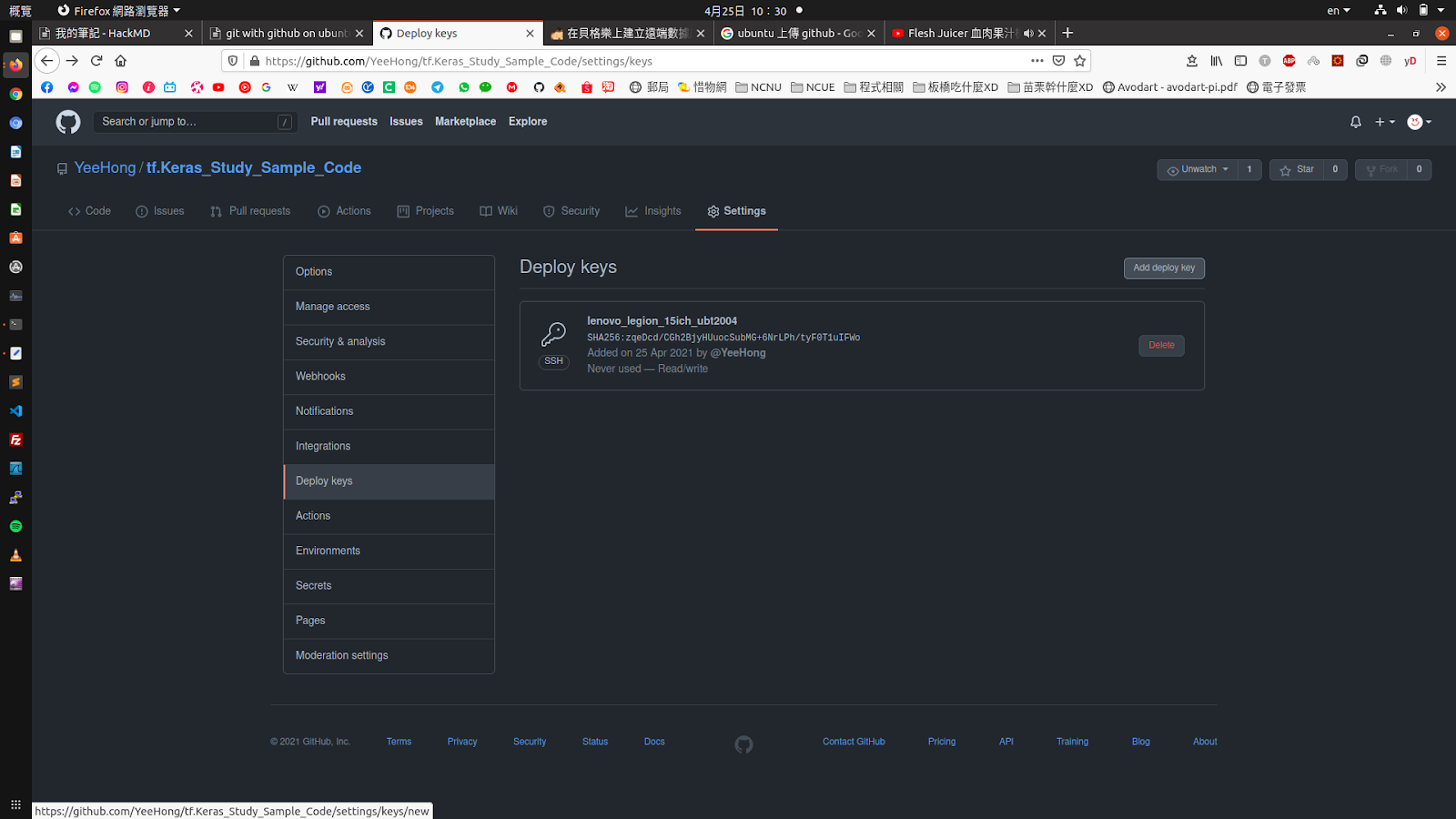
1. click "Setting" button at the menubar of top
2. click "Deploy keys" item at the item list of left
3. click "add Deploy key" button at upper right
and then...
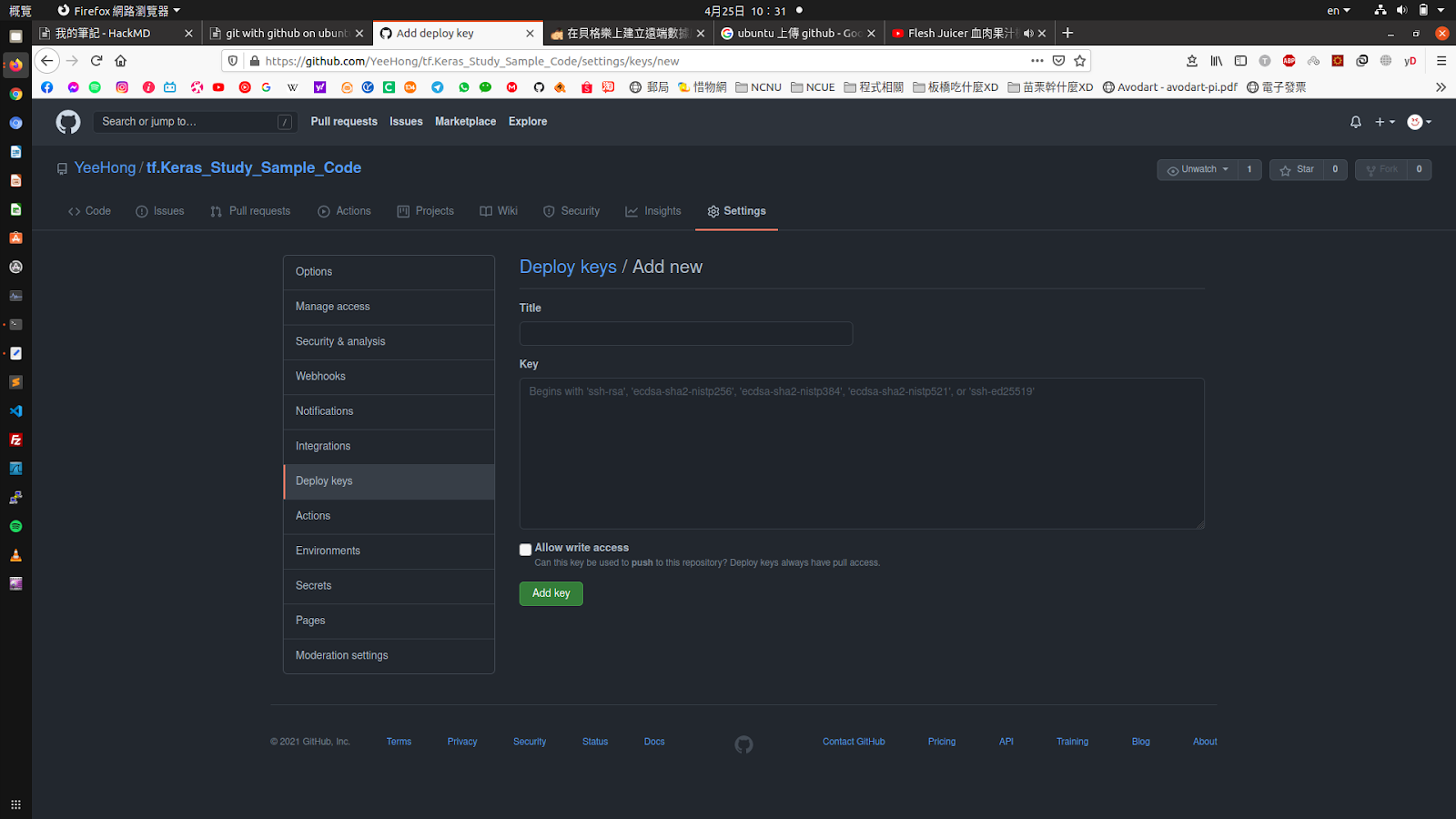
1. key in Title (not necessary)
2. copy content in id_rsa.pub at /root/.ssh on Key column
3. click "Allow write access" item
4. click "Add key"
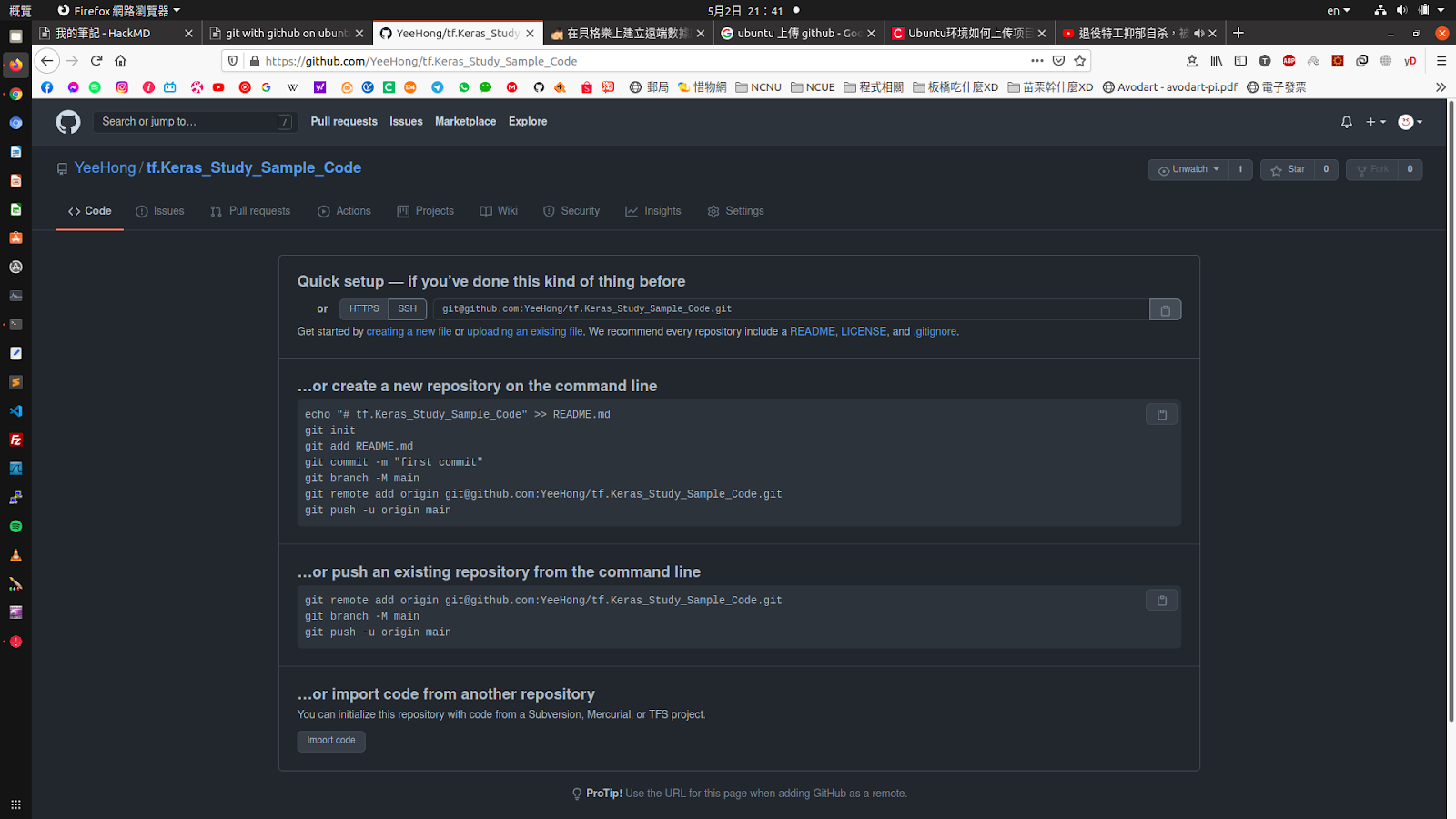
1. copy ssh URL
and then...
```bash=
git remote add "name_of_project" "github_project_ssh_path" # git remote add testing git@github.com:YeeHong/testing.git # git remote add tf git@github.com:YeeHong/tf.Keras_Study_Sample_Code.git
git remote set-url "name_of_project" "github_project_ssh_path" # git remote set-url testing git@github.com:YeeHong/testing.git # git remote set-url tf git@github.com:YeeHong/tf.Keras_Study_Sample_Code.git
git branch -M main # I think that main is just a name of branch of project, it could not
git push -u "name_of_project" main # git push -u testing main # git push -u tf main
```
#### about pushing two or more project to github
every github project should have its own rsa key,
so I store the rsa key file from /root/.ssh to other place.
※ do not store rsa key in the git directory, you may uploaded your rsa key to github, and it is dangerous
```bash=
# step.1
sudo cp [rsa_files] /root/.ssh
# step.2
git remote add "name_of_project" "github_project_ssh_path"
# step.3
git remote set-url "name_of_project" "github_project_ssh_path"
# step.4
git branch -M main
```
after that, check your project web on github to confirm that all files are uploaded to github
### download source from github
```bash=
git clone "github_project_https_path" "folder_name" # git clone https://github.com/YeeHong/testing.git test2 # it created a folder called test2 and download source_code from github
```
## about branch
### add branch
```bash=
git branch "branchname" # git branch branch1
```
### check all branches
```bash=
git branch
git branch -a
```
### change to another
```bash=
git checkout "branchname" # git checkout branch1
```
## source
1. https://backlog.com/git-tutorial/tw/
2. https://blog.csdn.net/ajianyingxiaoqinghan/article/details/70544159
 Sign in with Wallet
Connect another wallet
Sign in with Wallet
Connect another wallet